# Activity stream
> Post updates, photos and polls to the event's feed in the event app, like and comment on other attendees' posts, and report anything that shouldn't be there.
Source: https://help.highbar.ai/docs/attendees/activity-stream
Audience: attendees using the event app
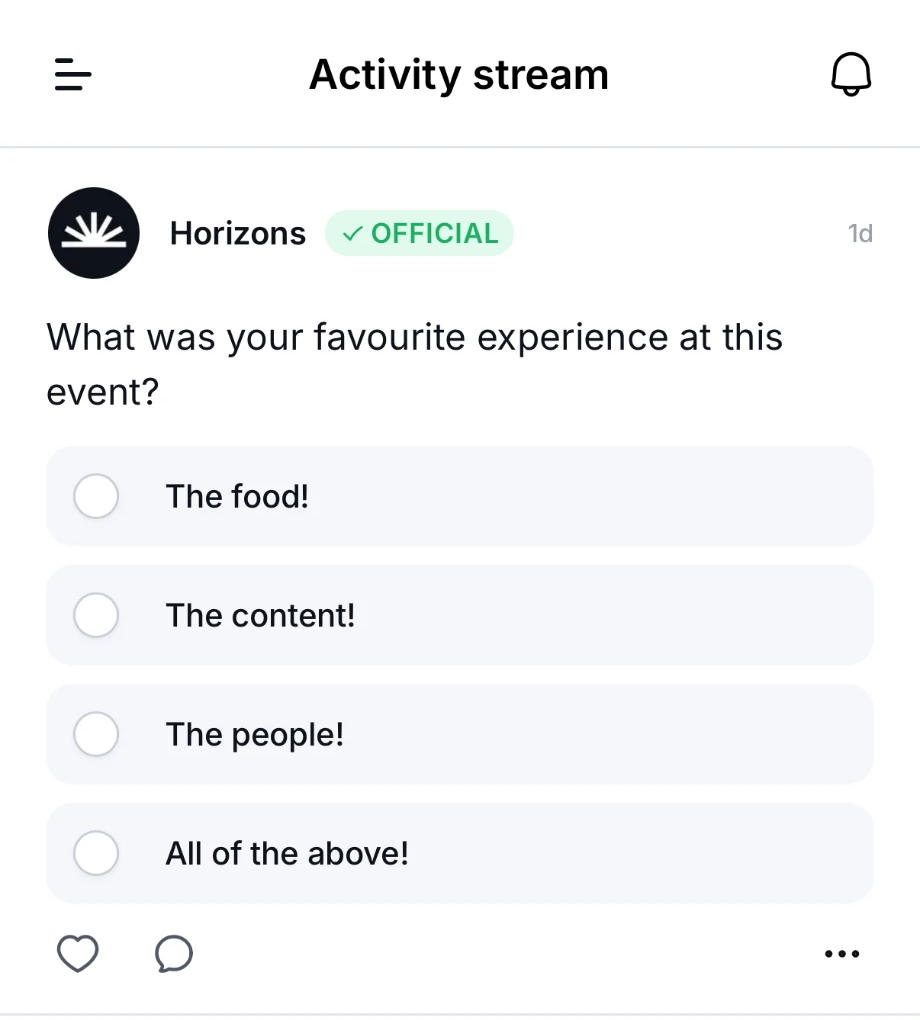
The activity stream is the event's shared feed. Attendees and the organizer post updates, photos and polls, and everyone can like and comment. Posts from the organizer are marked **OFFICIAL**.
The organizer chooses whether the event has an activity stream and what attendees can post, and may have renamed it. Open it from the menu, usually under **Activity stream**.
## Post something
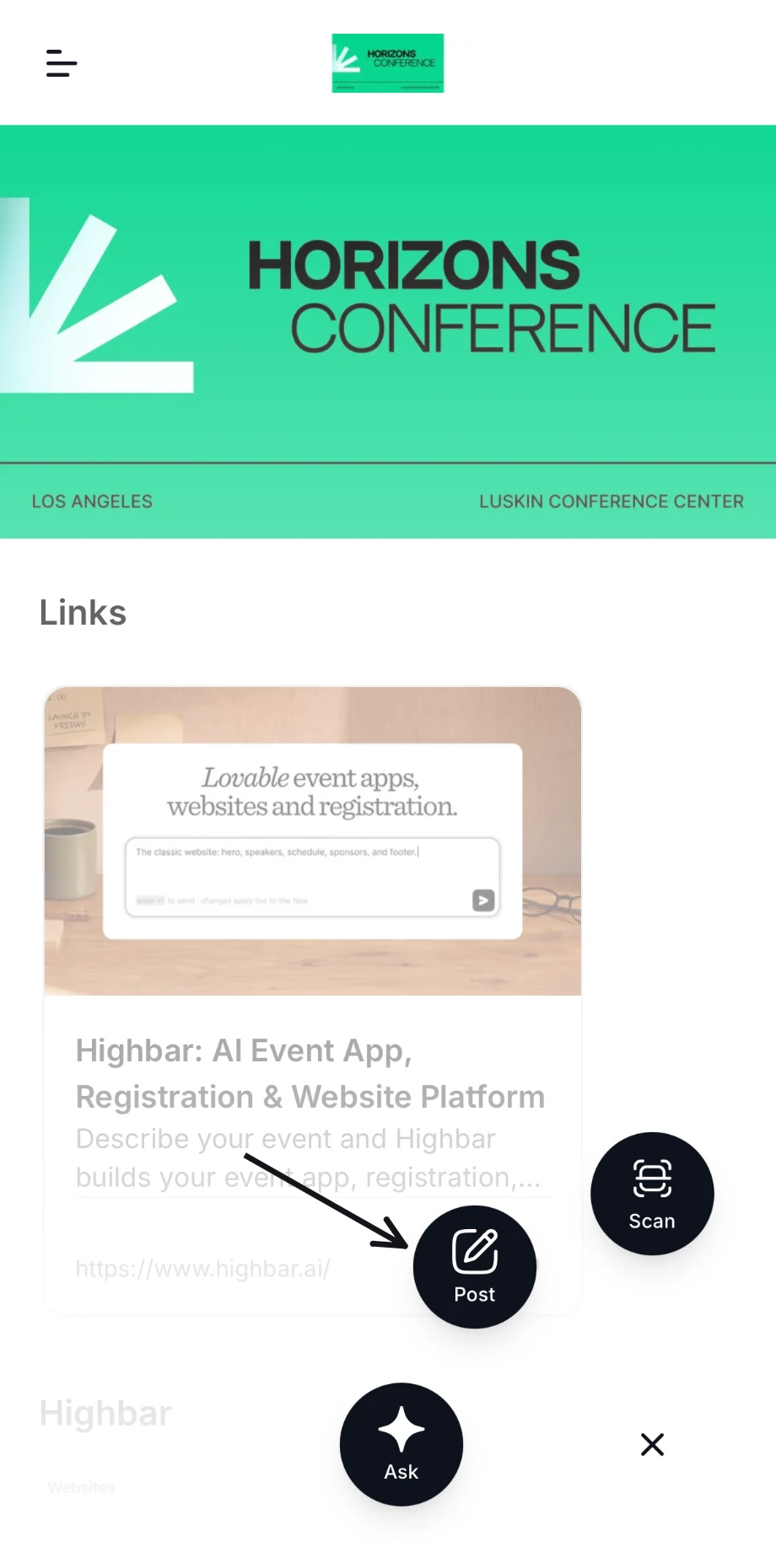
Tap the round button in the bottom-right corner of any page, then tap **Post**.
 In **New post**, write your message under **What's new?**. Type @ to mention someone, or # to add a hashtag.
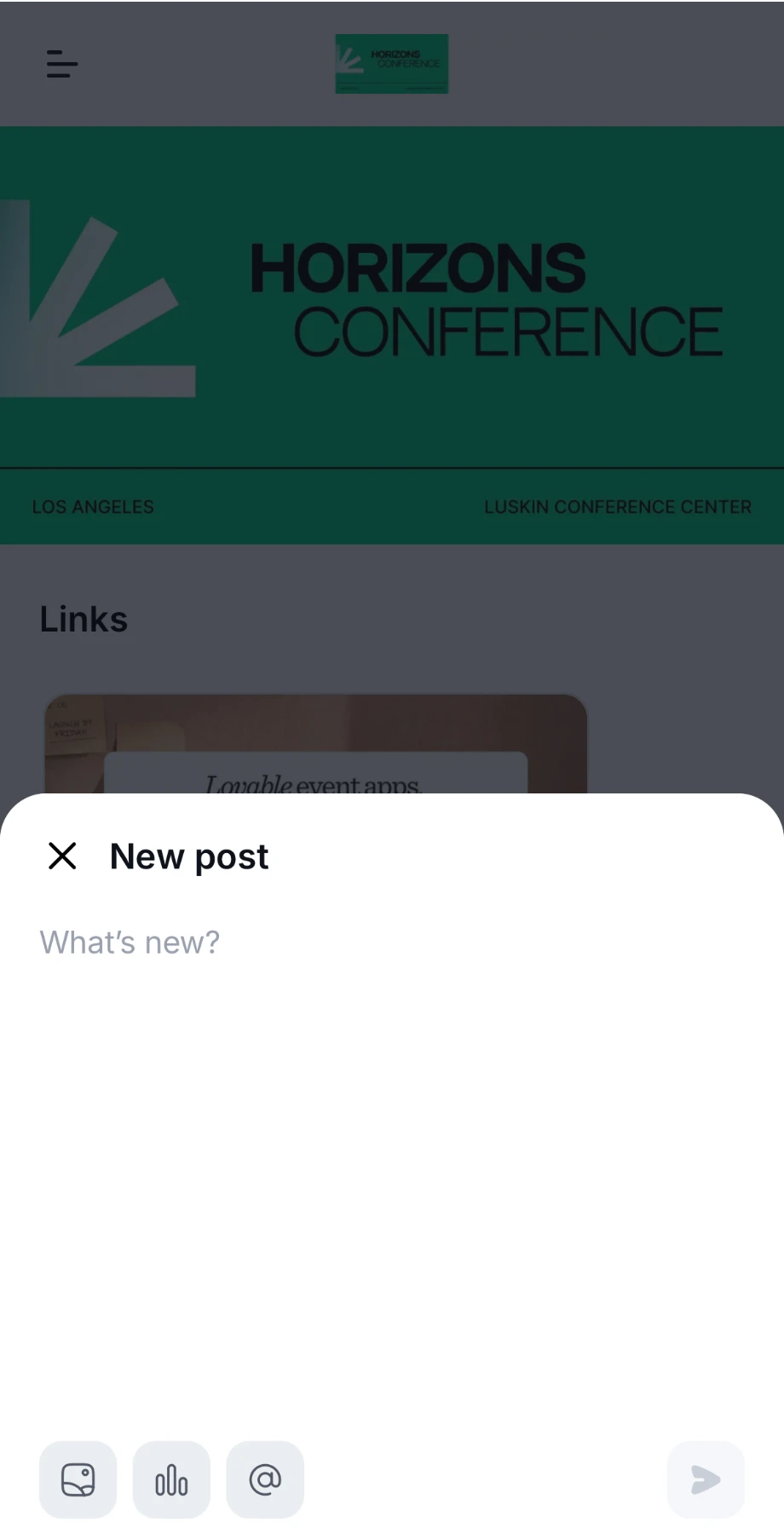 To add more, use the buttons at the bottom:
- The photo button adds a photo.
- The chart button adds a poll. Write the answers people can choose from.
- **@** mentions someone.
Tap the send button.
The buttons you see depend on what the organizer allows. People you mention get a notification.
## Like, comment and vote
Under each post:
- Tap the heart to like it. The number shows how many people liked it.
- Tap the speech bubble to read the comments and add your own.
- On a poll, tap an answer to vote and see the results.
 You get a notification when someone likes or comments on your post, or mentions you.
## Edit, delete or report a post
Tap the **...** button on a post:
- On your own posts, choose **Edit** or **Delete**.
- On someone else's, choose **Report**, then confirm under **Report post?**. The organizer reviews reported posts and can hide or remove them.
## Channels
If the organizer has set up **Channels**, each one is a feed of its own on a topic, such as networking. Open **Channels** from the menu and tap one to read and post, like in the activity stream. See [Channels](https://help.highbar.ai/docs/attendees/community-and-networking#channels).