# AI Concierge
> Ask the event app's AI assistant about sessions, speakers, sponsors and your own schedule, and find out what it can and can't do for you.
Source: https://help.highbar.ai/docs/attendees/ai-concierge
Audience: attendees using the event app
The AI Concierge (the organizer may have given it another name) is a chat assistant built into the event app. Ask it questions in your own words, like "What's on about AI this afternoon?", "What's the Wi-Fi password?" or "What's my next session?", and it answers from the event's information.
The organizer decides whether the event uses the AI Concierge. If you can't find it, it isn't turned on for your event.
## Open the AI Concierge
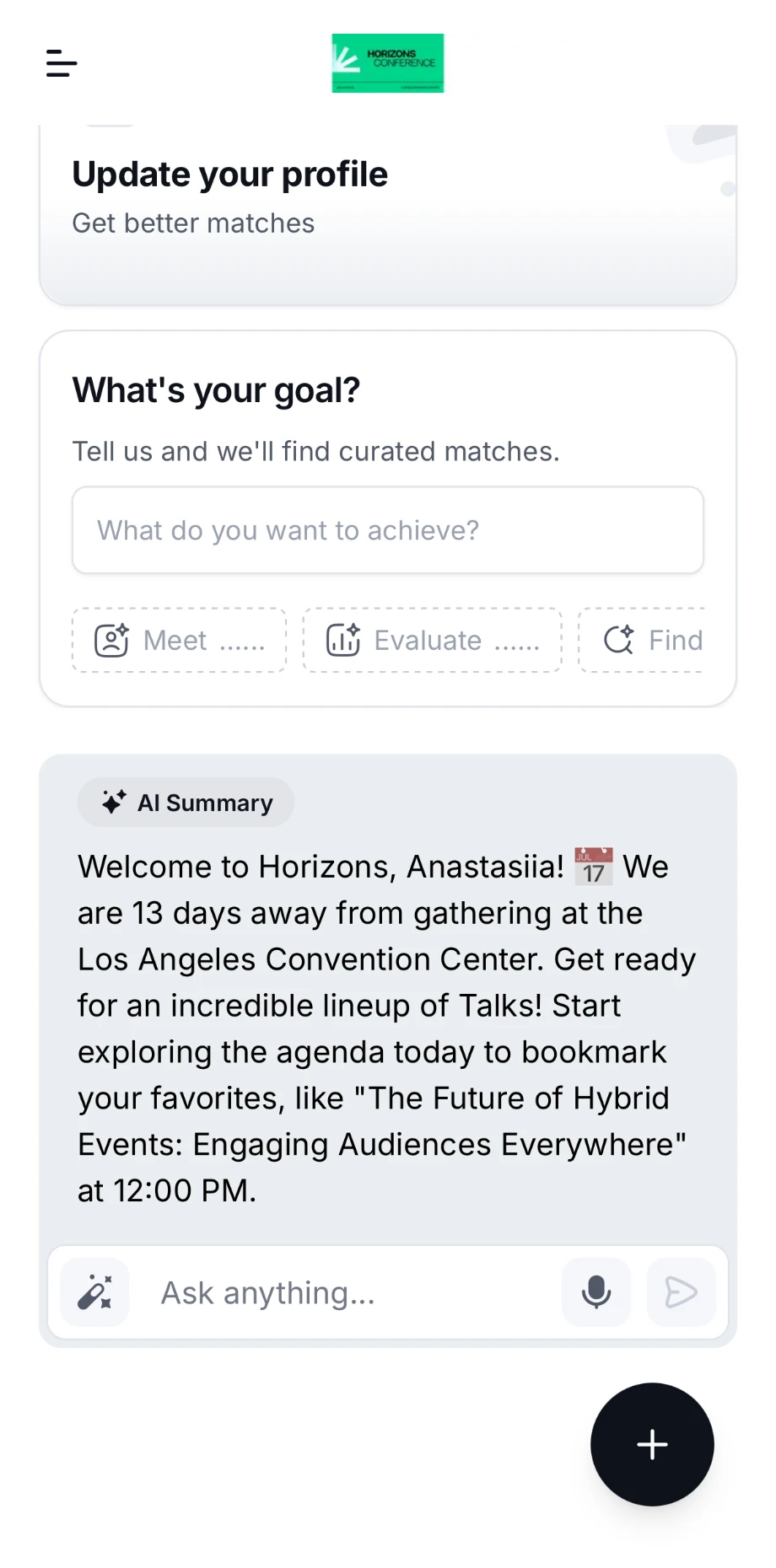
- **From the home page.** Tap **Ask anything...** and type your question. If the home page shows topics, tapping one asks about it for you.
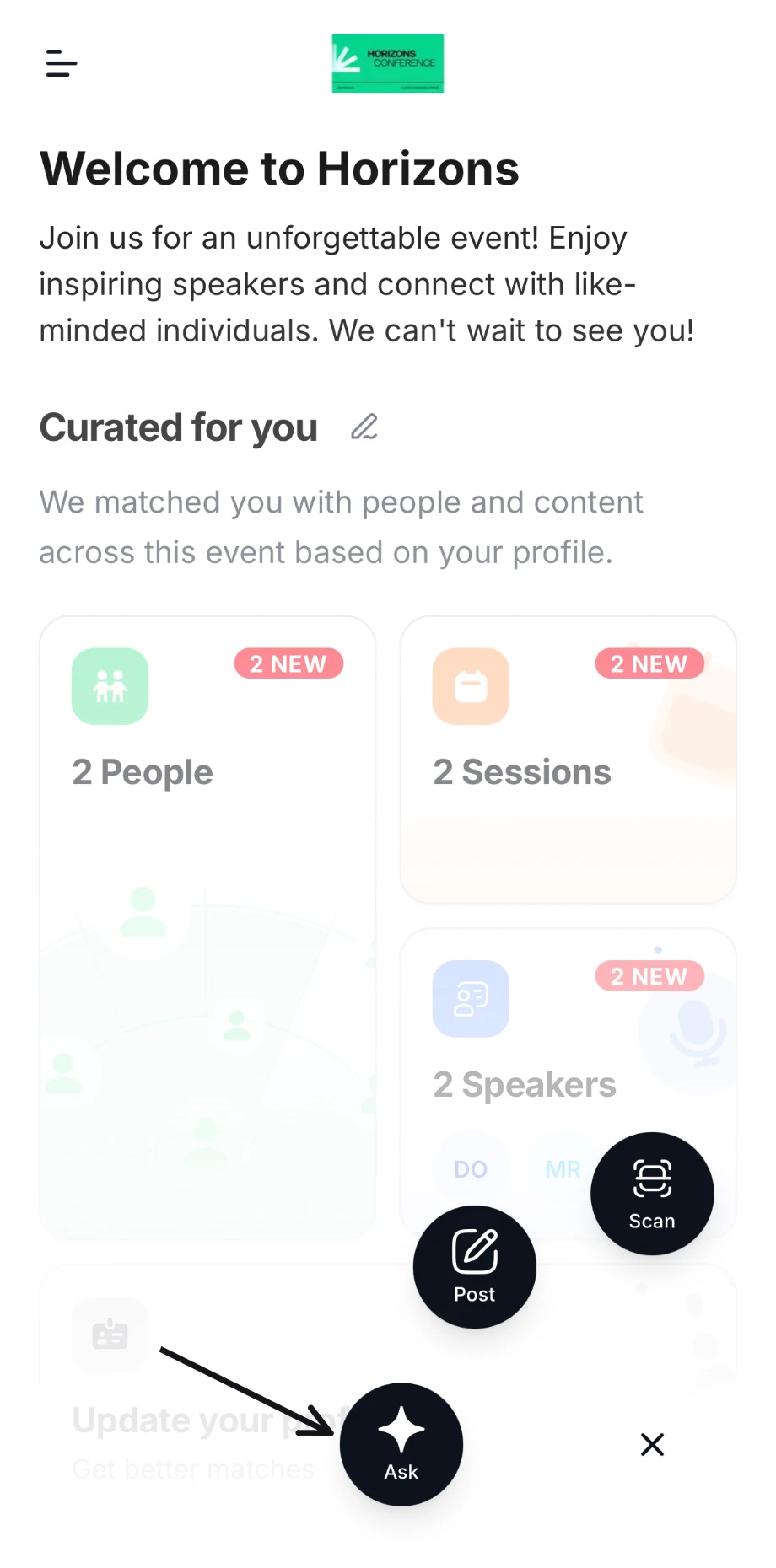
 - **From any screen.** Tap the round button in the bottom-right corner. If it shows a plus sign, tap it, then tap **Ask**.
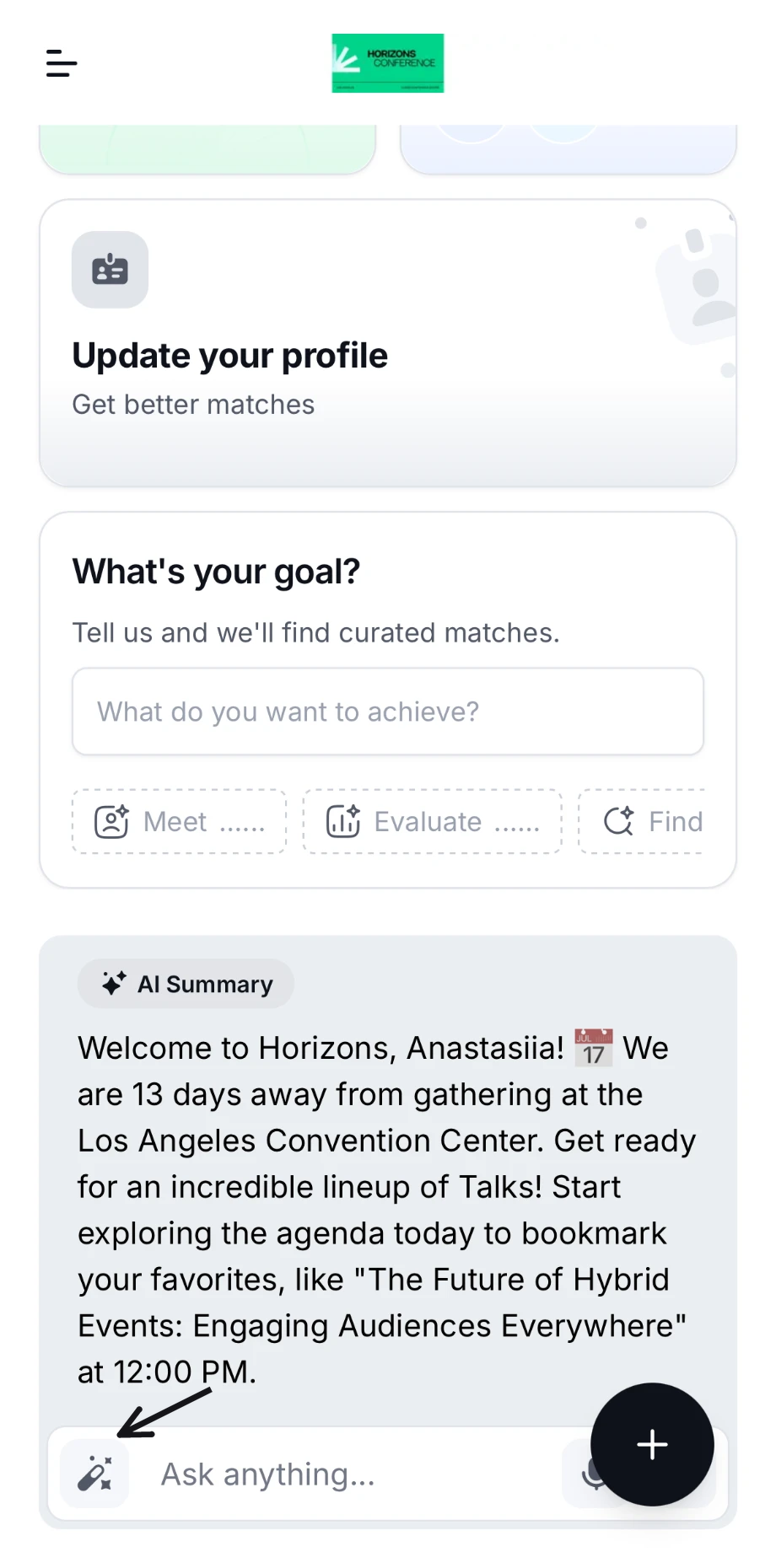
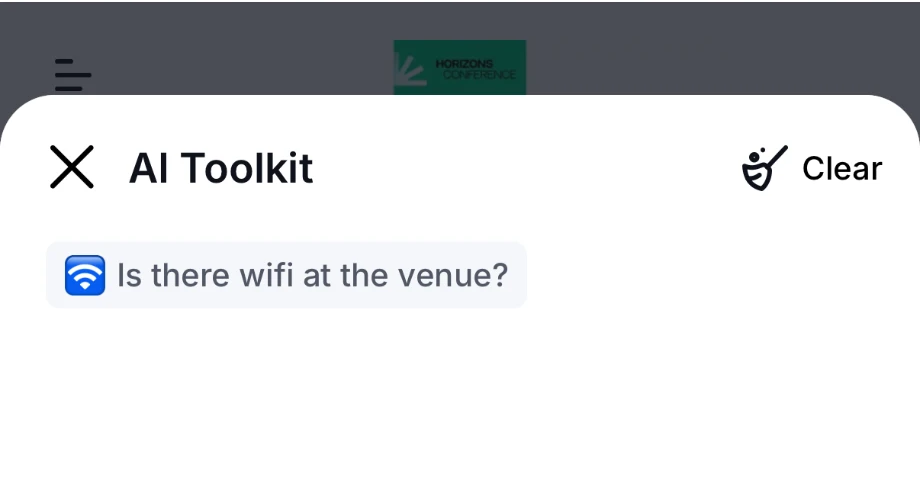
 - **From the AI Toolkit.** Tap the wand button next to the question box to open the **AI Toolkit**: ready-made questions from the organizer, grouped by topic. Tap one to ask it. The button only appears if the organizer has added questions.
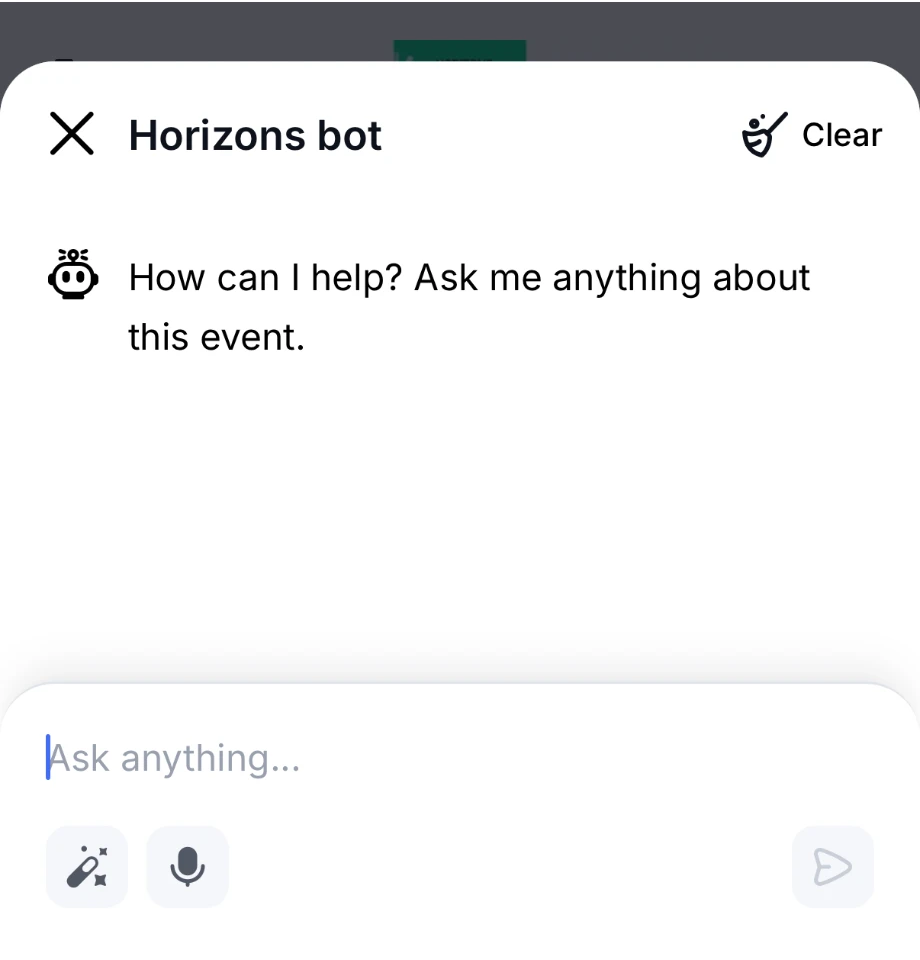
 The chat opens with a welcome message. Type your question under **Ask anything...** and tap send.
 ## What it knows
- Sessions, speakers, sponsors and exhibitors
- Event details, such as dates, venue and the organizer's contact details
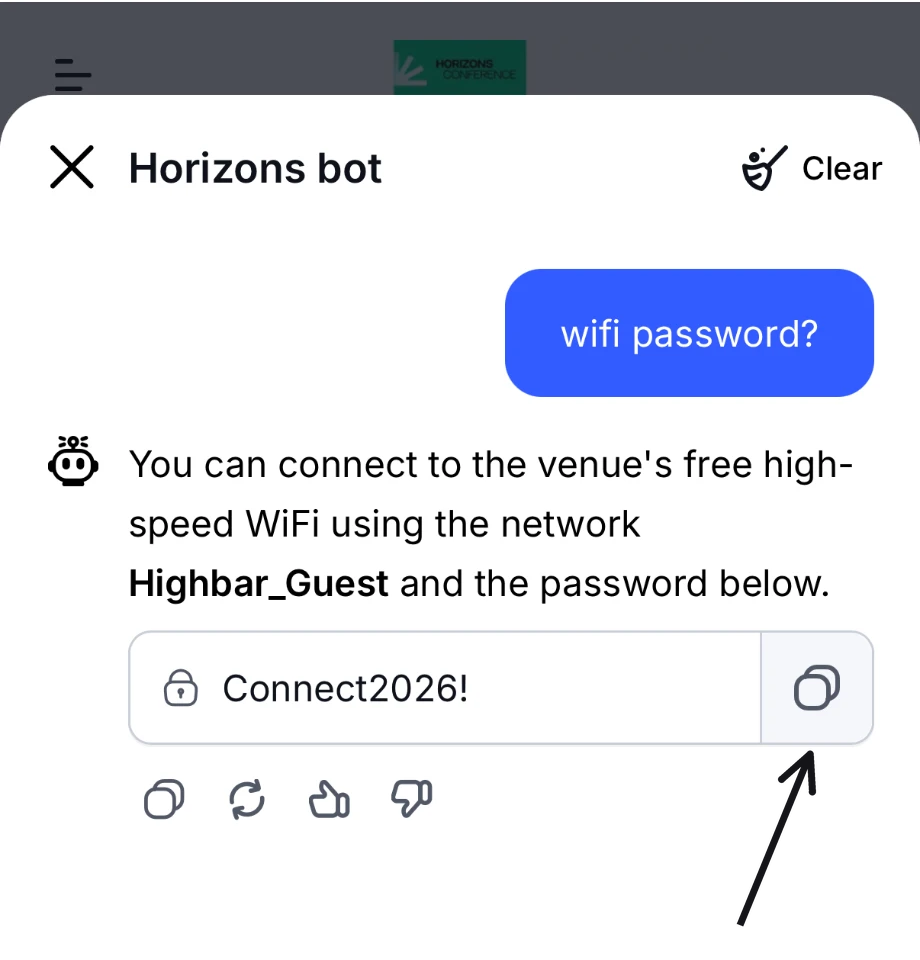
- Answers the organizer has prepared, including things to copy, like a Wi-Fi password, which come with a copy button
 - Resources the organizer has shared, such as guides, maps and menus. It knows their titles and can point you to them, but it can't read what's inside.
- Your saved sessions and other bookmarks, so it can answer "What's on my schedule?"
- Your session registrations and waitlist positions, when sessions need registration. It describes availability as open, filling up, full or waitlist, never as numbers.
- Your one-to-one meetings and meeting requests, when the event has meetings
- People to meet, when the organizer has turned on matchmaking: recommendations, and searches like "Is anyone from Acme here?"
Names in its answers are links, and it often adds cards for sessions, speakers or people. Tap them to open the page. Suggested follow-up questions appear under its latest answer.
## What it can't do
The AI Concierge only reads information. It never acts for you, so do these yourself:
| To do this | Go here |
| --- | --- |
| Register for a session, cancel, or join a waitlist | Open the session and tap **Register** or **Join waitlist** (or **Cancel** or **Leave waitlist**). |
| Request a meeting | Open the person's profile and tap **Request meeting**. |
| Accept, decline or change a meeting | Open the meeting, or answer the request on the **Notifications** screen. |
| See contacts you've exchanged or leads you've scanned | Open **Community** from the menu (it may have another name) and choose **Saved**. |
| Get live updates, such as a last-minute room change | Ask the organizer or the event's help desk. |
## Use an answer
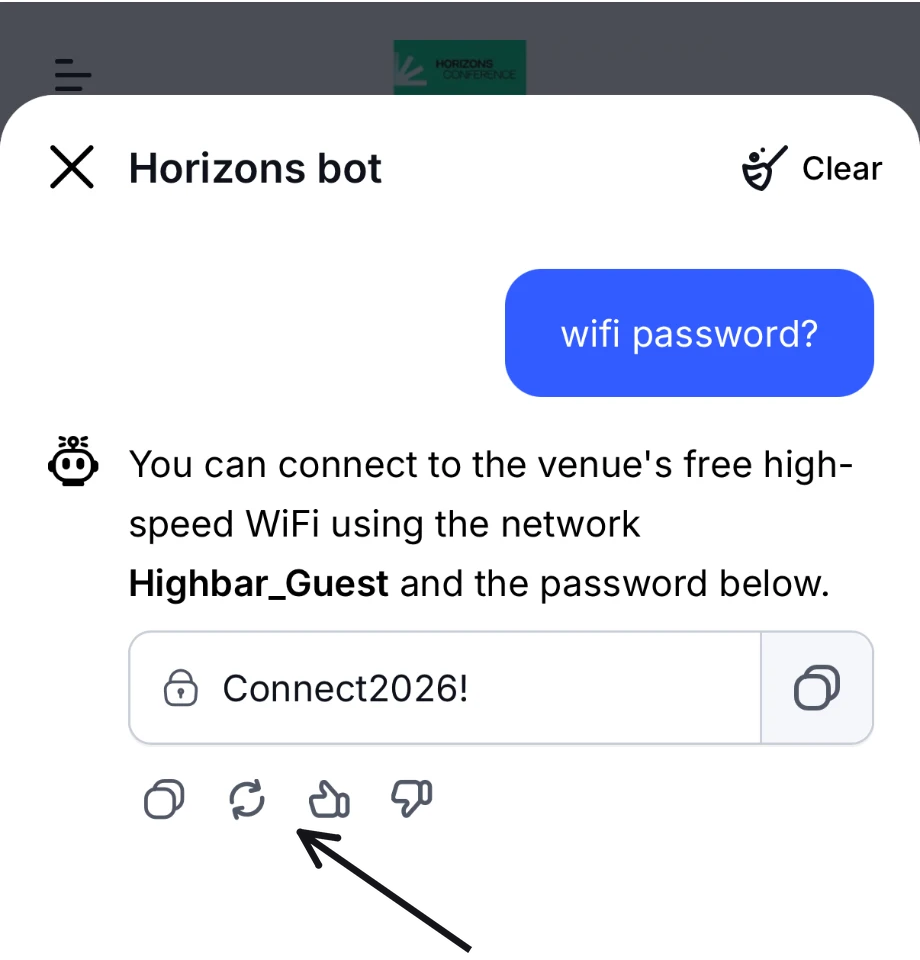
Under each answer, you can copy it, rate it with a thumbs up or thumbs down, or (for the latest answer) ask for a new version with the regenerate button.
 Like any AI, the AI Concierge can get things wrong. Check anything important, such as a session's time or room, on the session's own page.
## Ask with your voice
Tap the microphone in the question box.
The first time, the app asks for **Microphone Access**. Tap **Allow access**, then allow the microphone when your phone or browser asks.
Speak your question, then tap the stop button. Your words appear in the question box as text, so you can correct them before sending.
## Start a fresh conversation
The AI Concierge remembers the conversation so far. If its answers seem stuck on something you asked earlier, tap **Clear** at the top of the chat, then **Clear history**. This deletes the conversation and starts a new one.
## If it won't answer
- **It says it can't help.** If you asked something harmless and see "That request isn't something I can help with.", rephrase your question, describing what you're looking for at the event in different words.
- **It doesn't know.** For questions outside the event's information, it may suggest contacting the organizer, or reply with a message the organizer has set. Try asking more specifically, or contact the organizer.
- **You're offline.** The AI Concierge needs an internet connection. With a conversation already open, you can read it but not send anything ("Reconnect to send messages or clear history."). If it hasn't loaded, the app tells you it's unavailable offline. The rest of the app's saved information still works. See [Troubleshooting](https://help.highbar.ai/docs/attendees/troubleshooting).