# Installing the app
> Add the event app to your phone's home screen so it opens like any other app and can send you notifications.
Source: https://help.highbar.ai/docs/attendees/installing-the-app
Audience: attendees using the event app
The event app is a web app: it runs in your phone's browser, so there's nothing to download from the App Store or Google Play. Installing it adds an icon to your home screen. The app then opens full screen, without the browser's address bar, and on iPhone it can send you notifications, which it can't do from a Safari tab.
Installing is optional. Everything else works in a browser too.
## Find the install steps
The app shows steps for your device in a sheet called **Install the app**. You can open it from three places:
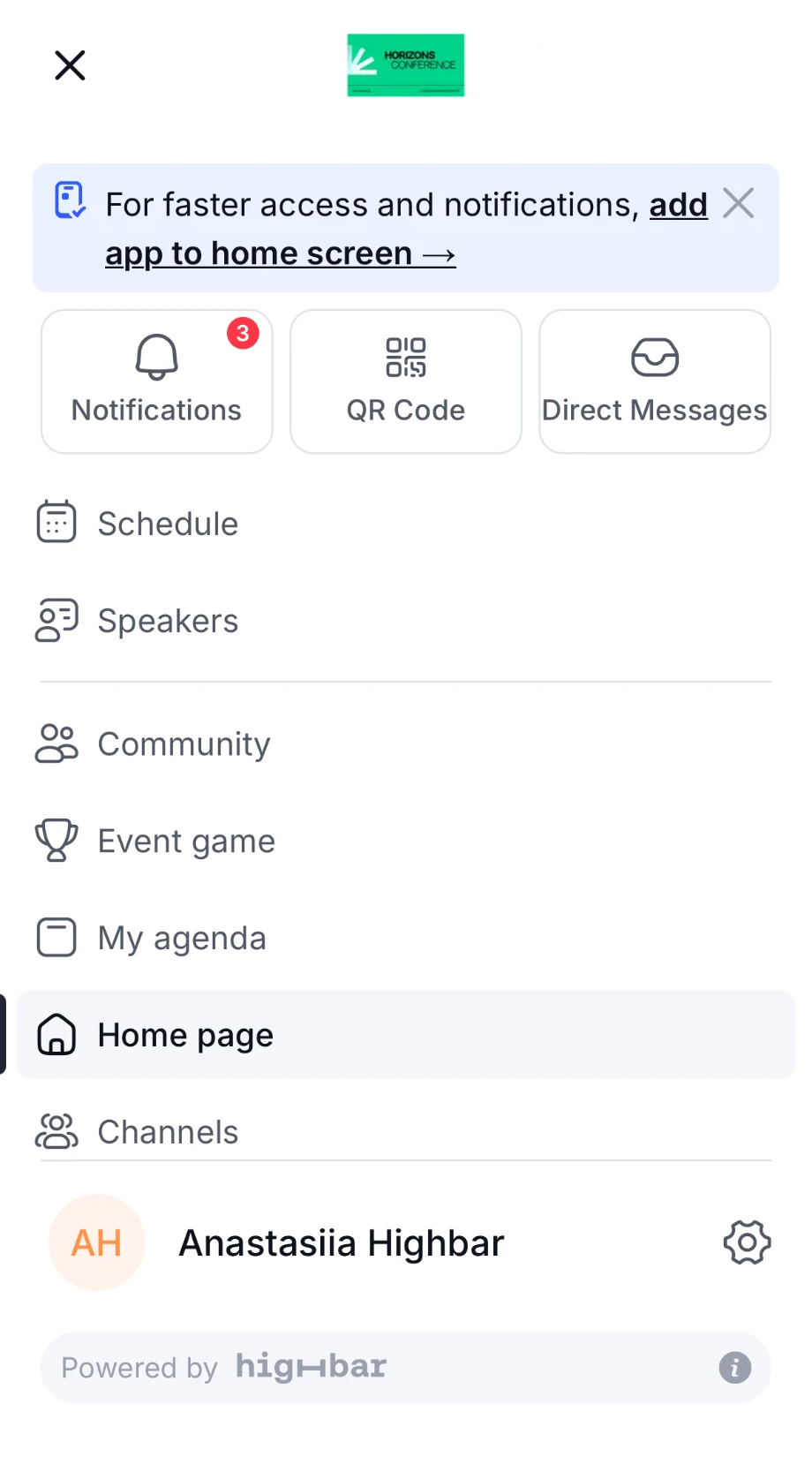
- **The menu.** On a phone, the menu shows "For faster access and notifications, add app to home screen →" until you install the app or close the reminder. Tap it.
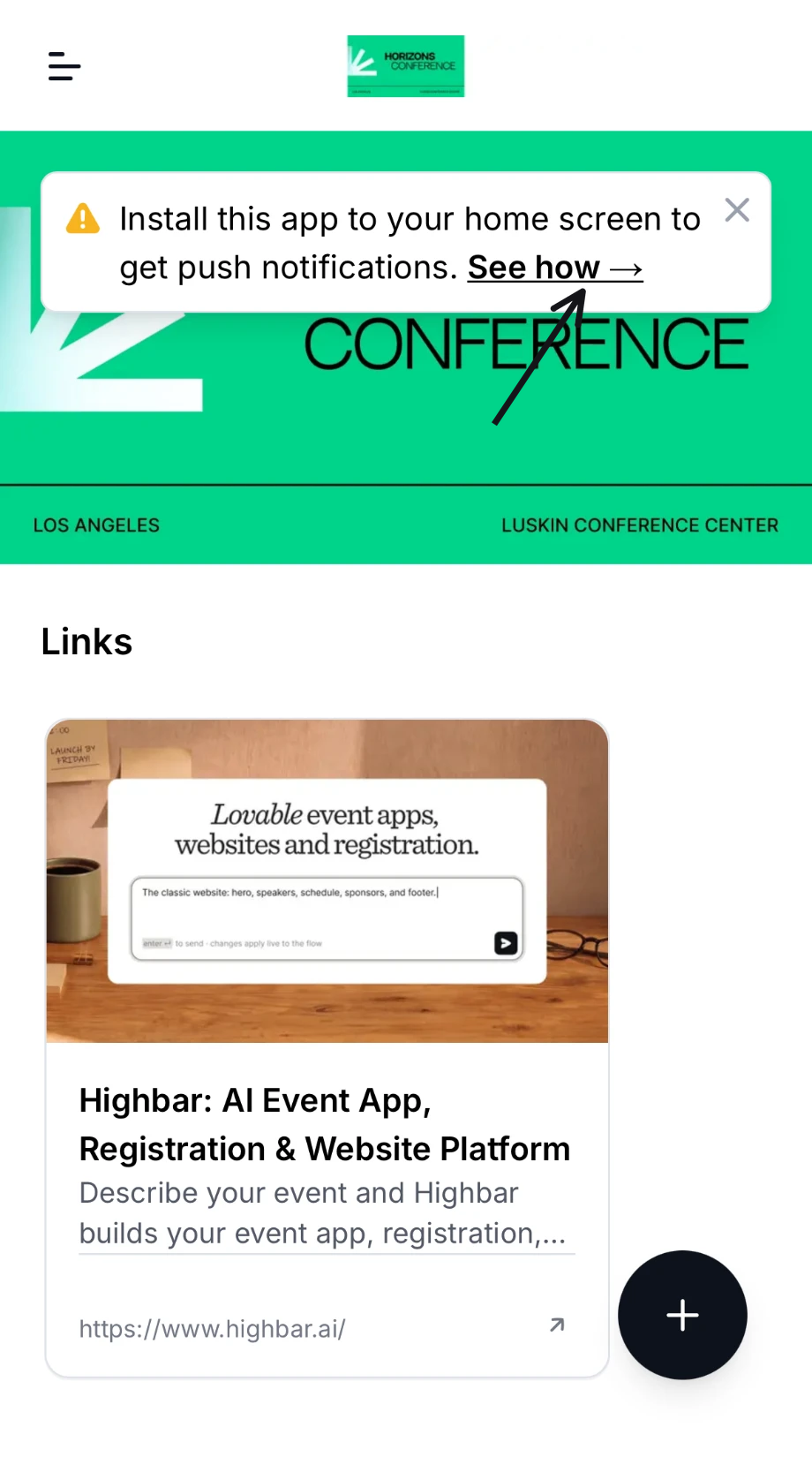
 - **The notifications banner.** On iPhone, pages such as the start page and **Settings** show "Install this app to your home screen to get push notifications." Tap **See how →**.
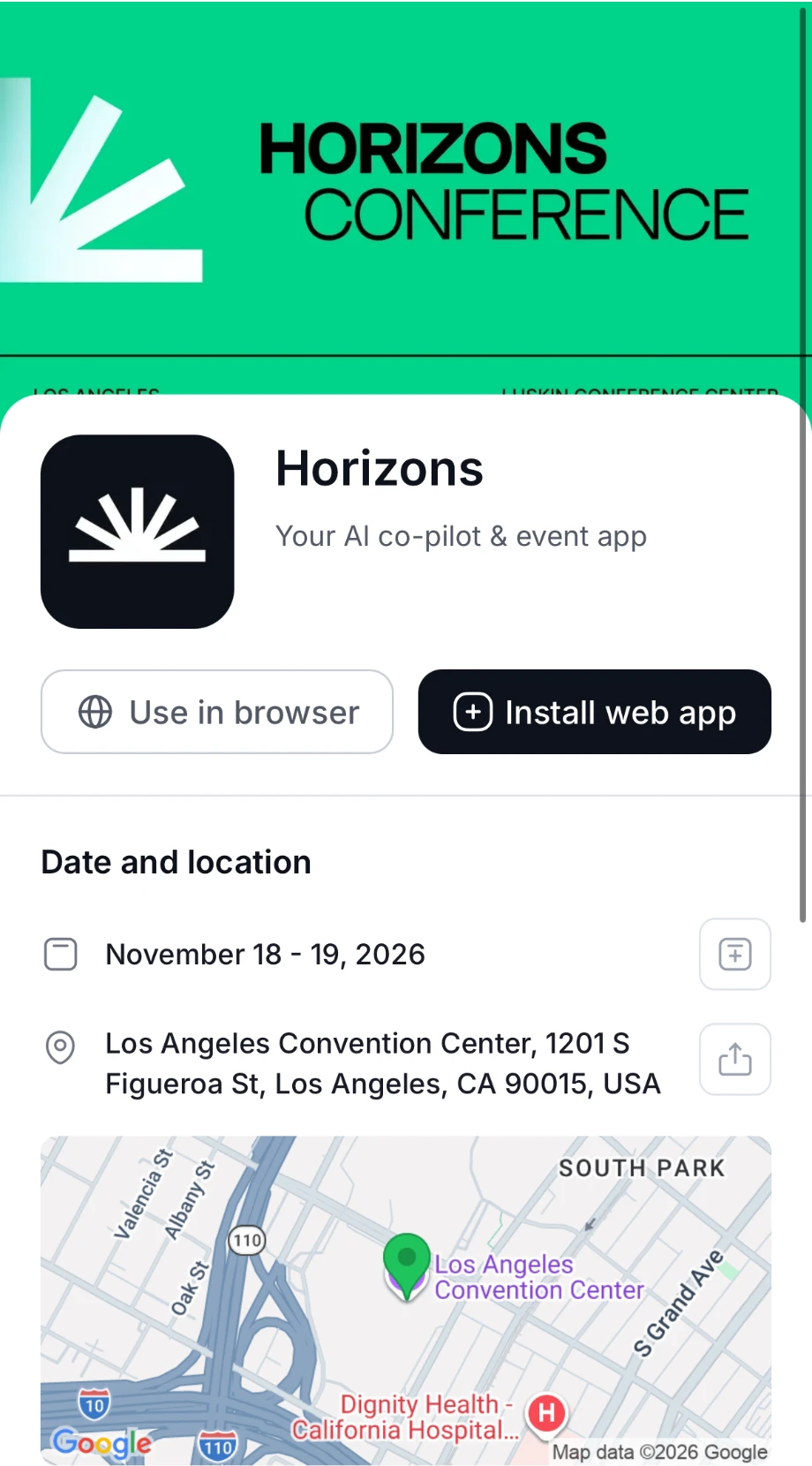
 - **The event's install page.** If the organizer shared a link to it, tap **Install web app**. **Use in browser** skips installing and takes you straight to [log in](https://help.highbar.ai/docs/attendees/logging-in).
 If you closed the reminders, follow the steps below in your browser directly.
## Install on your device
**Install the app** shows the event's name and address, and the same steps as below.
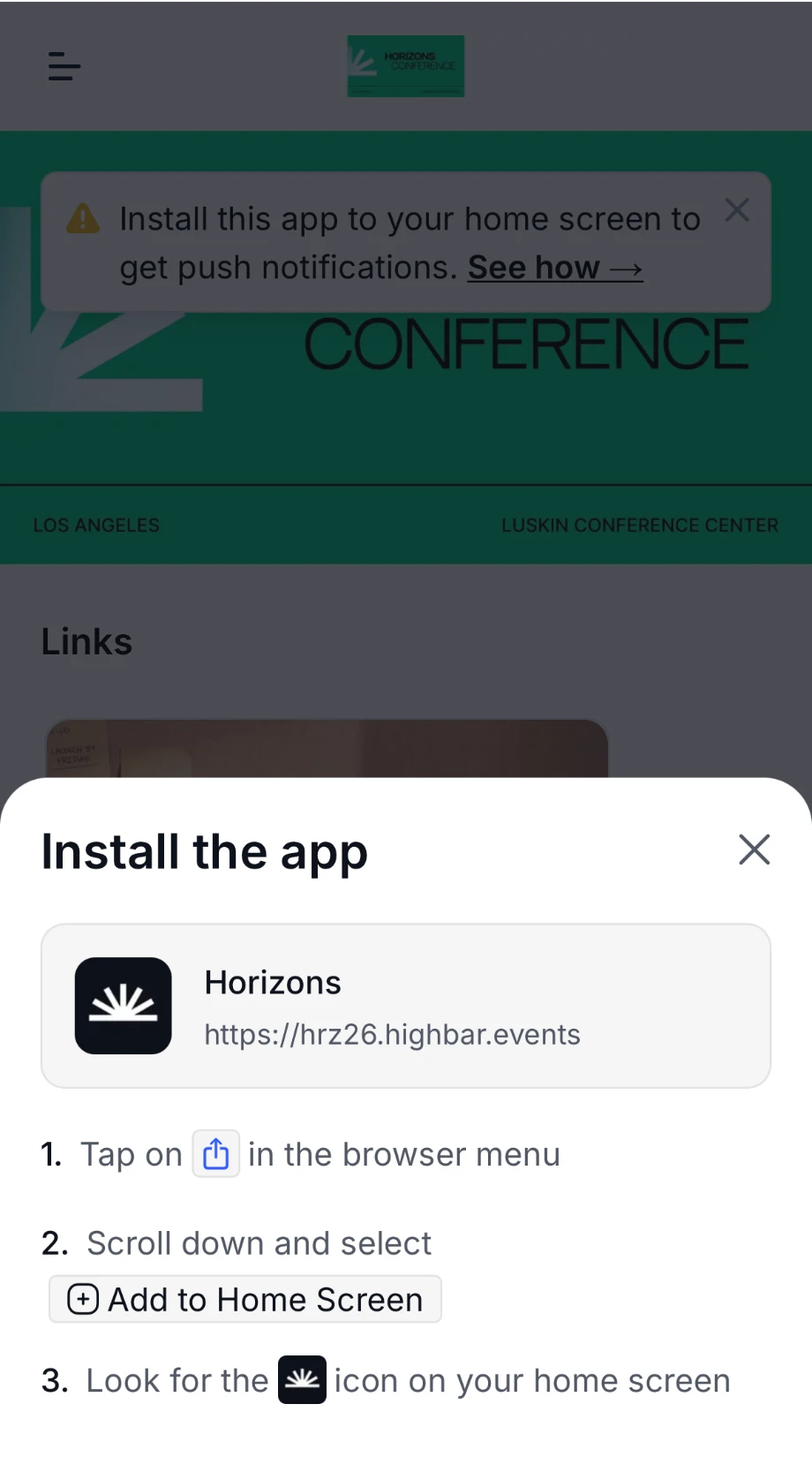 Open the event app's link in Safari.
Tap the Share button (a square with an arrow pointing up). If you don't see it, tap the **...** button first, then **Share**.
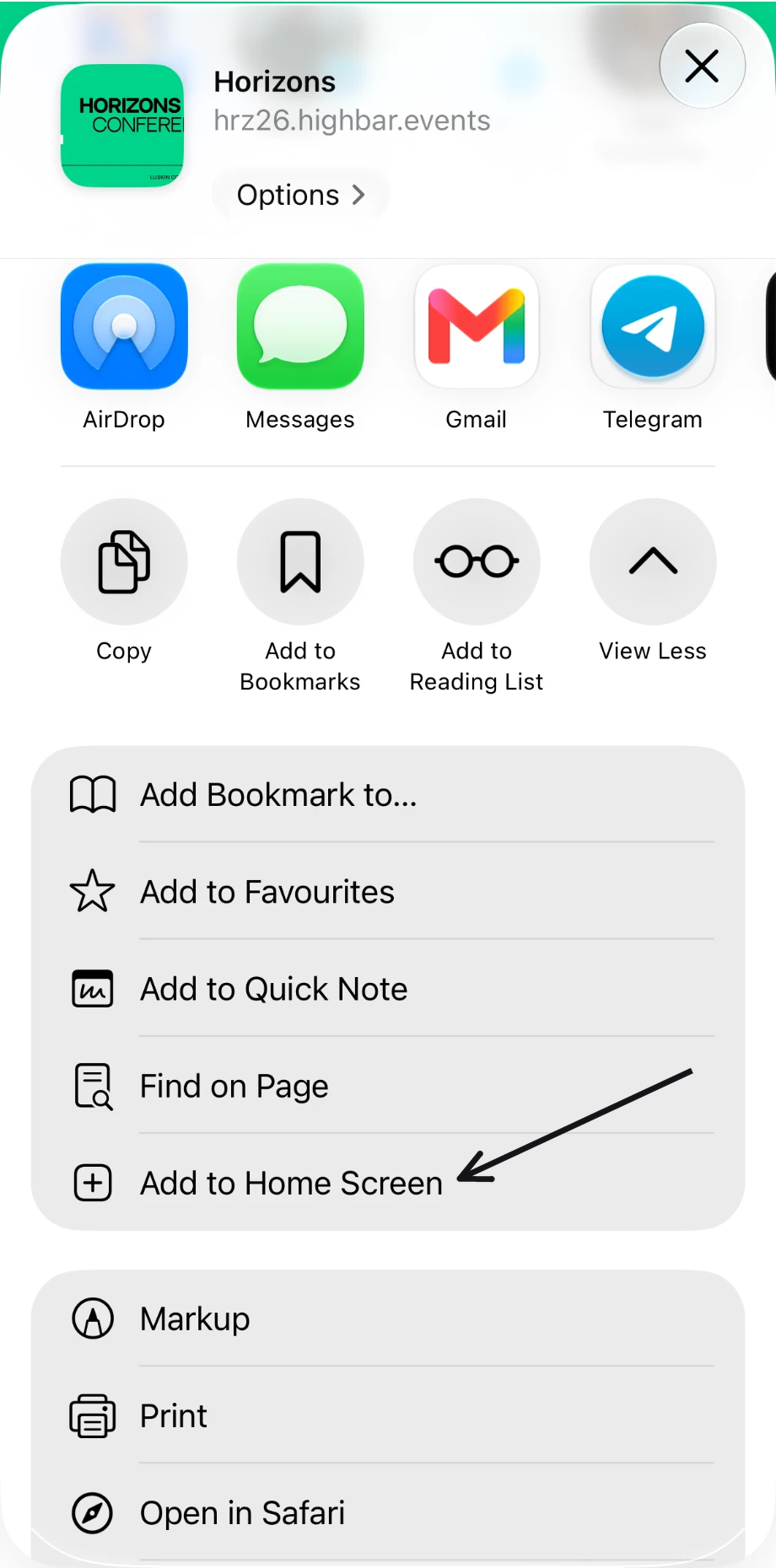
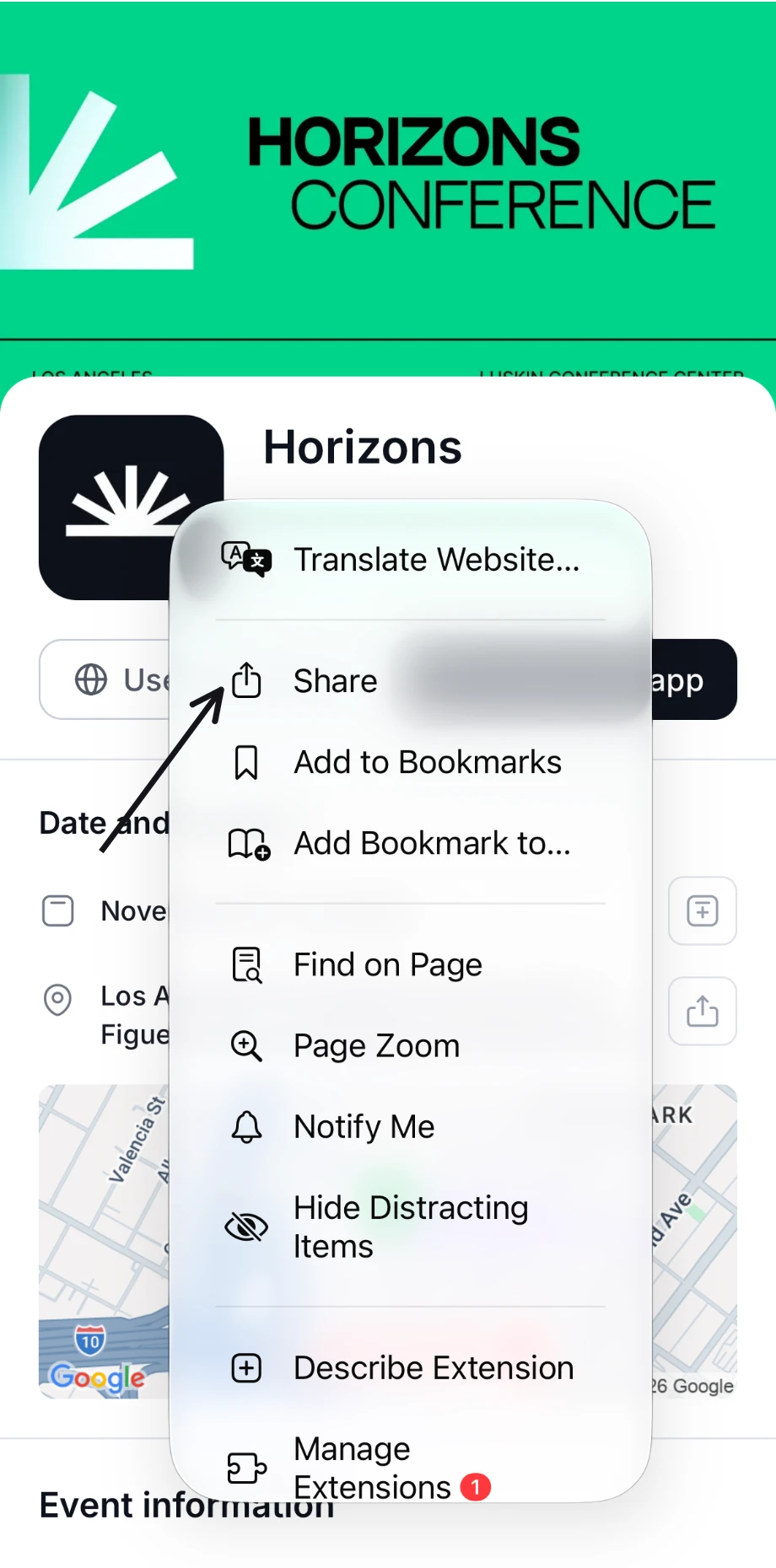 Scroll down and tap **Add to Home Screen**. If you don't see it, tap **View More** first.
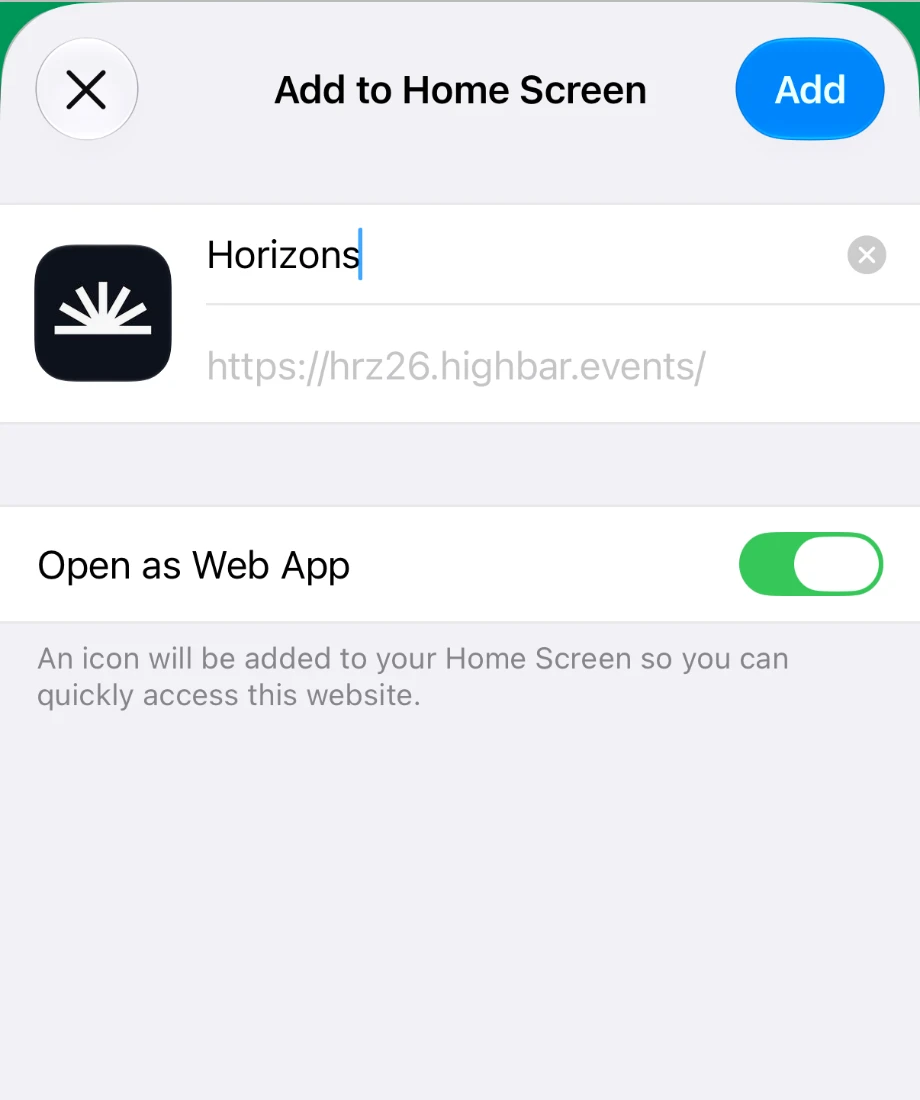
 Keep **Open as Web App** on if you see it, so the app opens full screen, and tap **Add**. You can change the name under the icon first.
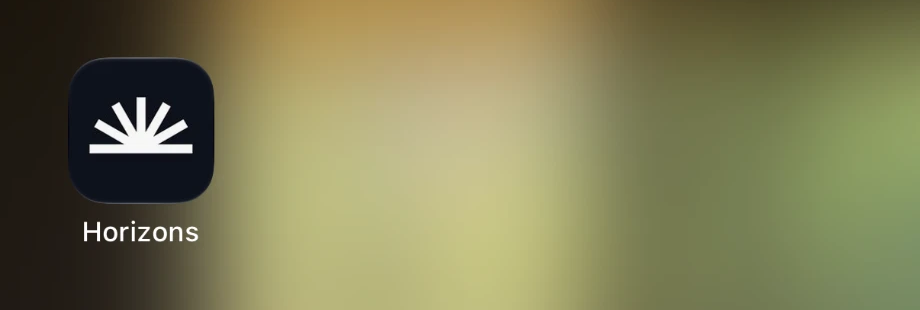
 Open the app from its new icon on your home screen.
 The same steps work on an iPad. Other browsers on iPhone, such as Chrome, have the same Share option on recent versions of iOS. If you can't find it, use Safari.
If your browser offers to install the app, **Install the app** shows a **Tap to Install** button. Tap it, then tap **Install** when your browser asks you to confirm.
Otherwise, install it from your browser's menu:
Tap the menu button (three dots) in your browser.
Tap **Install** or **Add to Home screen**. In Chrome, it's called **Install and create shortcut**.
If you're asked to choose, pick **Install**. **Create shortcut** only adds a link that opens the site in your browser.
Find the app on your home screen, or in your apps list (swipe up on the home screen).
Installing isn't offered in an Incognito tab. If the option is missing, open the link in a normal tab and refresh the page.
Some phones put new apps in the apps list only. To add it to your home screen, touch and hold the icon and tap **Add to Home**.
On a computer, the app works well in a normal browser tab, so installing is up to you.
On the event's install page, click **Install web app**. If your browser offers to install the app, click **Click to Install** and confirm. The app then opens in its own window.
If the sheet says "Your browser hasn't offered to install this app yet.", look for an install icon at the right end of the address bar, or an install option in the browser's menu. In Safari on a Mac, choose **File** then **Add to Dock**.
## After you install
- **Open it from the icon.** The name under the icon is the short name the organizer chose for the event. The first time you open it, you may need to log in again.
- **Turn on notifications.** On iPhone, do this from the installed app. See [Notifications](https://help.highbar.ai/docs/attendees/notifications).
- **Already installed?** On Android and computers, **Install the app** says the app "is already installed on this device" and tells you where to find it. On iPhone it shows the steps again, so check your home screen for the icon instead.
## Use it in a browser instead
If you'd rather not install anything, open the event app's link in your browser and log in. Add a bookmark so you can find it again. The only thing you miss on iPhone is push notifications. Updates still appear inside the app, on the **Notifications** screen.
Having trouble? See [Troubleshooting](https://help.highbar.ai/docs/attendees/troubleshooting).