# Maps, resources and photos
> Find your way around the venue with the event app's interactive map, open the guides and documents the organizer has shared, and browse the event's photos.
Source: https://help.highbar.ai/docs/attendees/maps-resources-and-photos
Audience: attendees using the event app
Besides the schedule and people, the event app can hold the venue map, useful documents and links, and photos from the event. The organizer chooses which of these your event has and what they're called, so look for them in the menu.
## Interactive map
Open **Interactive map** from the menu to see the venue's floor plan. If the event has several maps, such as one per floor or hall, you can switch between them.
- **Zoom** with two fingers, or with the **+** and **−** buttons at the bottom.
- **Tap a pin** to see the place's name and booth number, and the sessions or sponsors there. Tap one to open it.
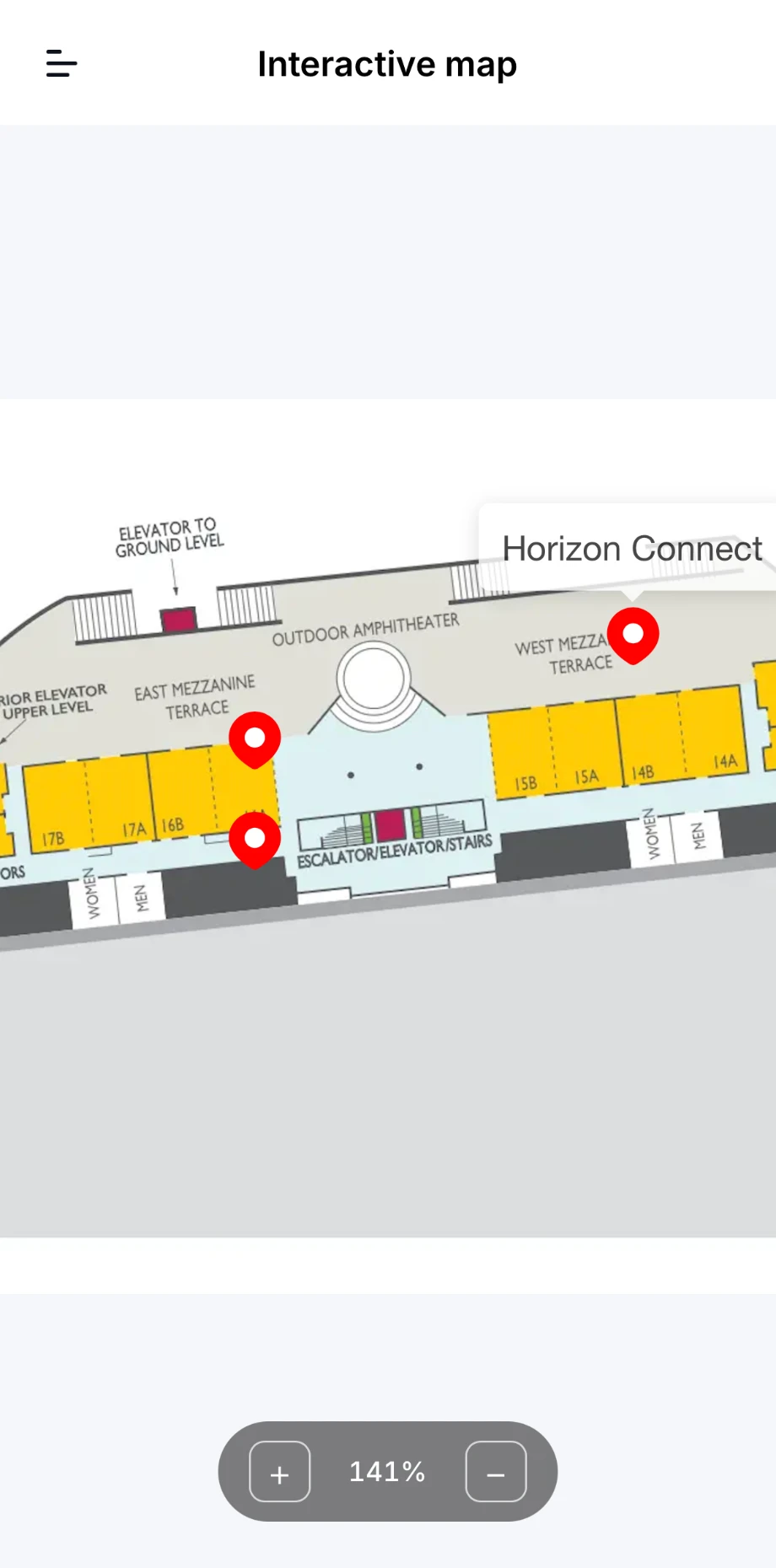 You can also get to the map from other pages. On a session, a sponsor or a meeting, tap **Location** to see that place on the map.
## Resource library
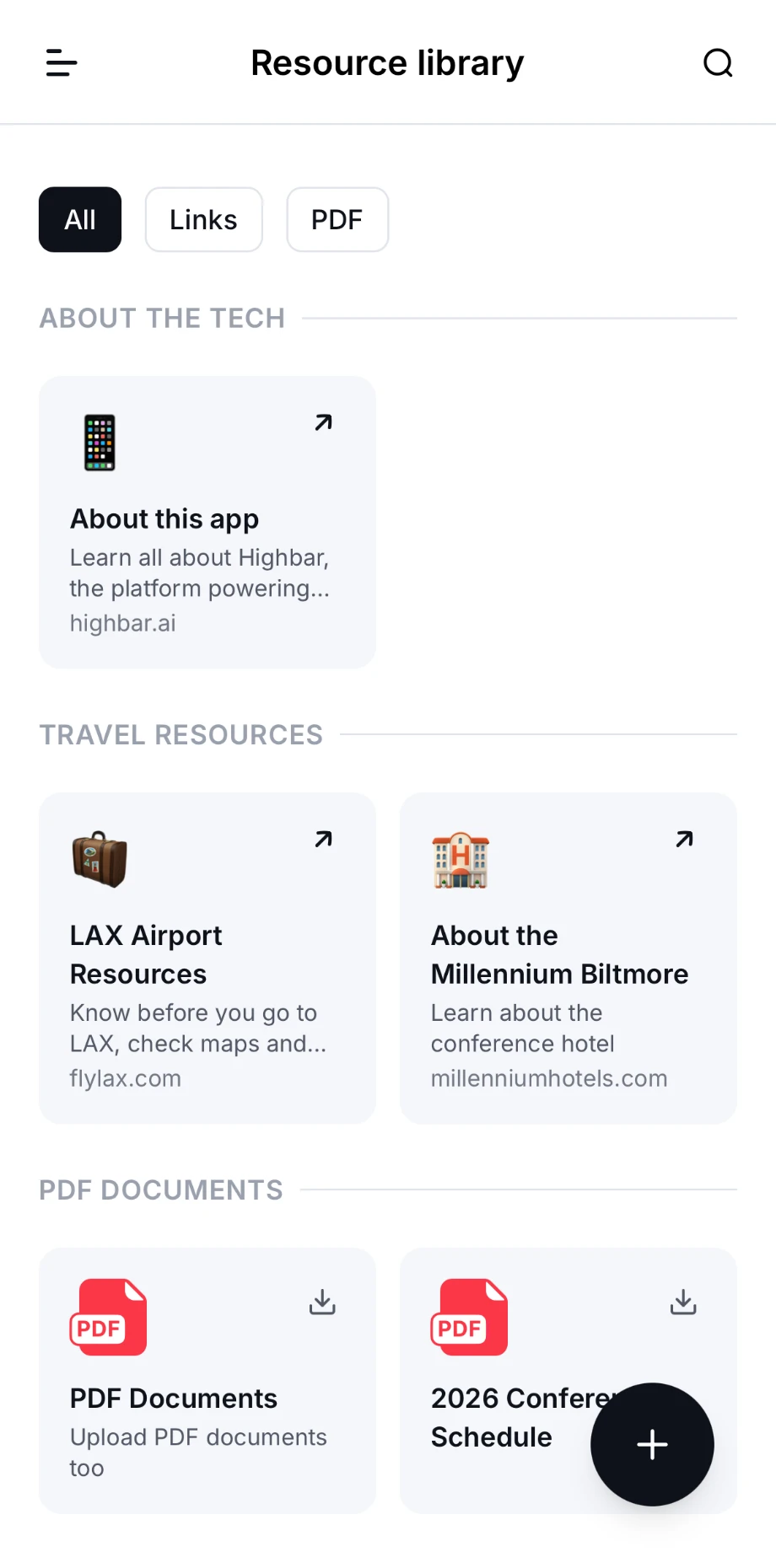
The resource library holds what the organizer has shared, such as travel guides, the hotel's details or a printable schedule. Open it from the menu (it may be called something else, such as **Resources**).
- Resources are grouped by topic. Use the buttons at the top, such as **Links** or **PDF**, to show one kind only, or **All**.
- Tap the magnifier to search.
- Tap a link to open it, or the download icon on a document to save it.
 The [AI Concierge](https://help.highbar.ai/docs/attendees/ai-concierge) knows the titles of these resources and can point you to the right one.
## Photo gallery
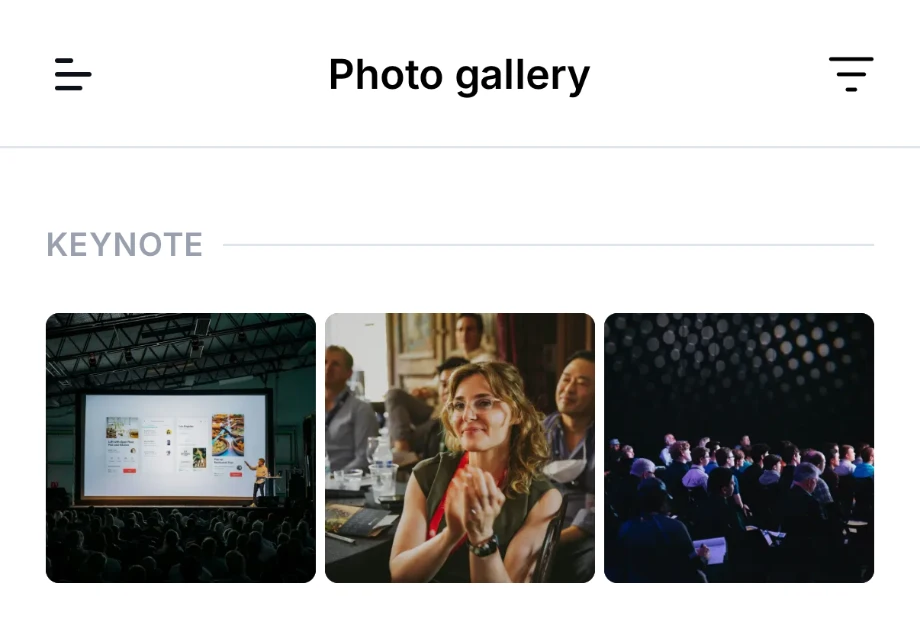
The photo gallery shows photos from the event, grouped into albums such as a keynote.
- Tap a photo to see it full size. Use the arrows to see the next or previous one.
- Tap the download icon to save a photo.
- Tap the filter icon to choose albums or search by title or caption.
 If it says "No photos yet", the organizer hasn't added any. Check back during or after the event.