# Meetings
> Book one-to-one meetings with other attendees in the event app, answer the requests you receive, and leave feedback afterwards.
Source: https://help.highbar.ai/docs/attendees/meetings
Audience: attendees using the event app
If the organizer has turned on meetings, you can ask other attendees to meet at a set time and place during the event. The other person accepts, declines or suggests another time, and confirmed meetings appear in **My agenda**.
The organizer chooses the days, times and places for meetings, and may limit how many meetings each person can have or who can request them. If you don't see **Request meeting** on anyone's profile, meetings aren't turned on for your event.
## Request a meeting
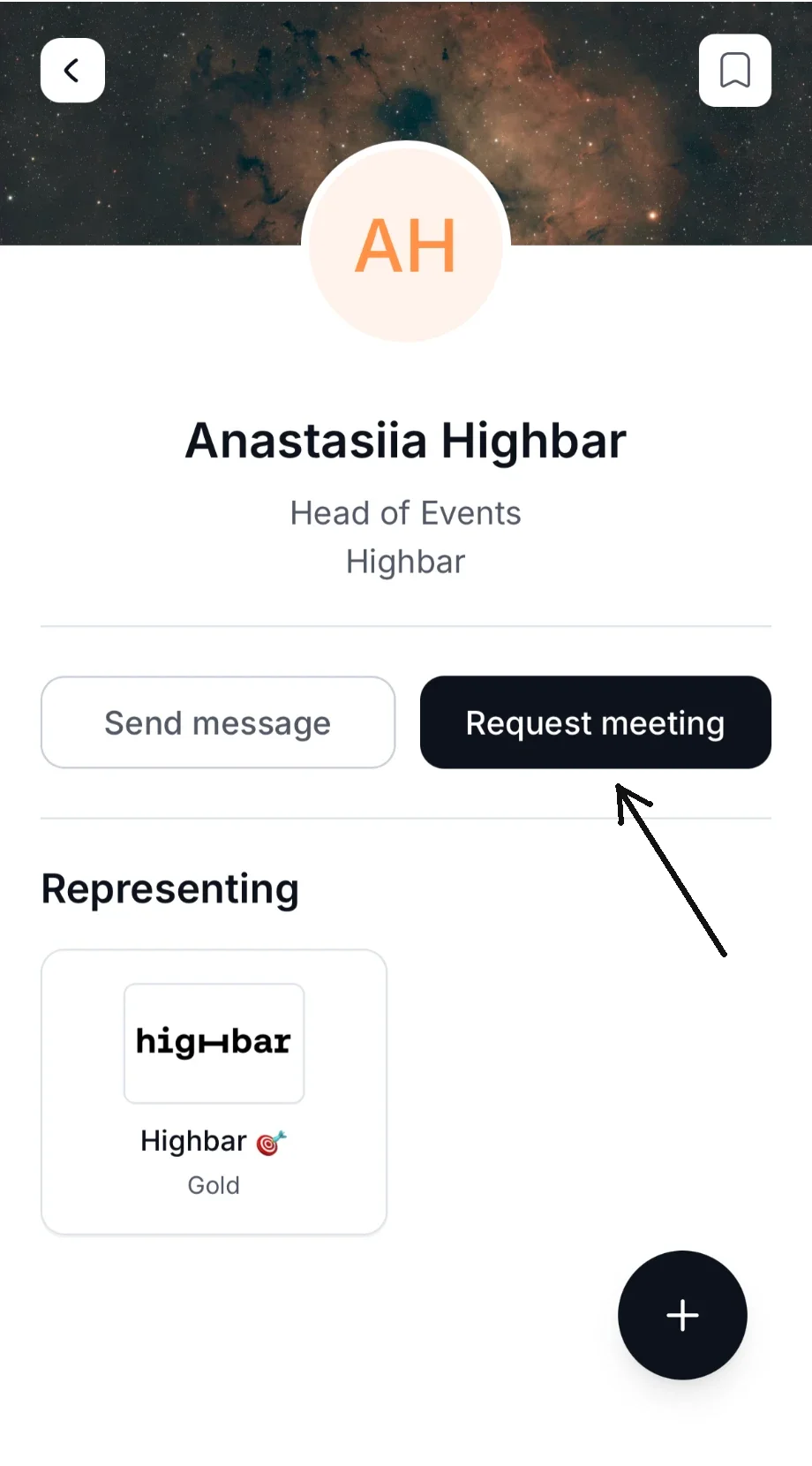
Open the person's profile and tap **Request meeting**, next to **Send message**. If the organizer has turned it on, you can also tap **Request meeting** on one of your AI matches.
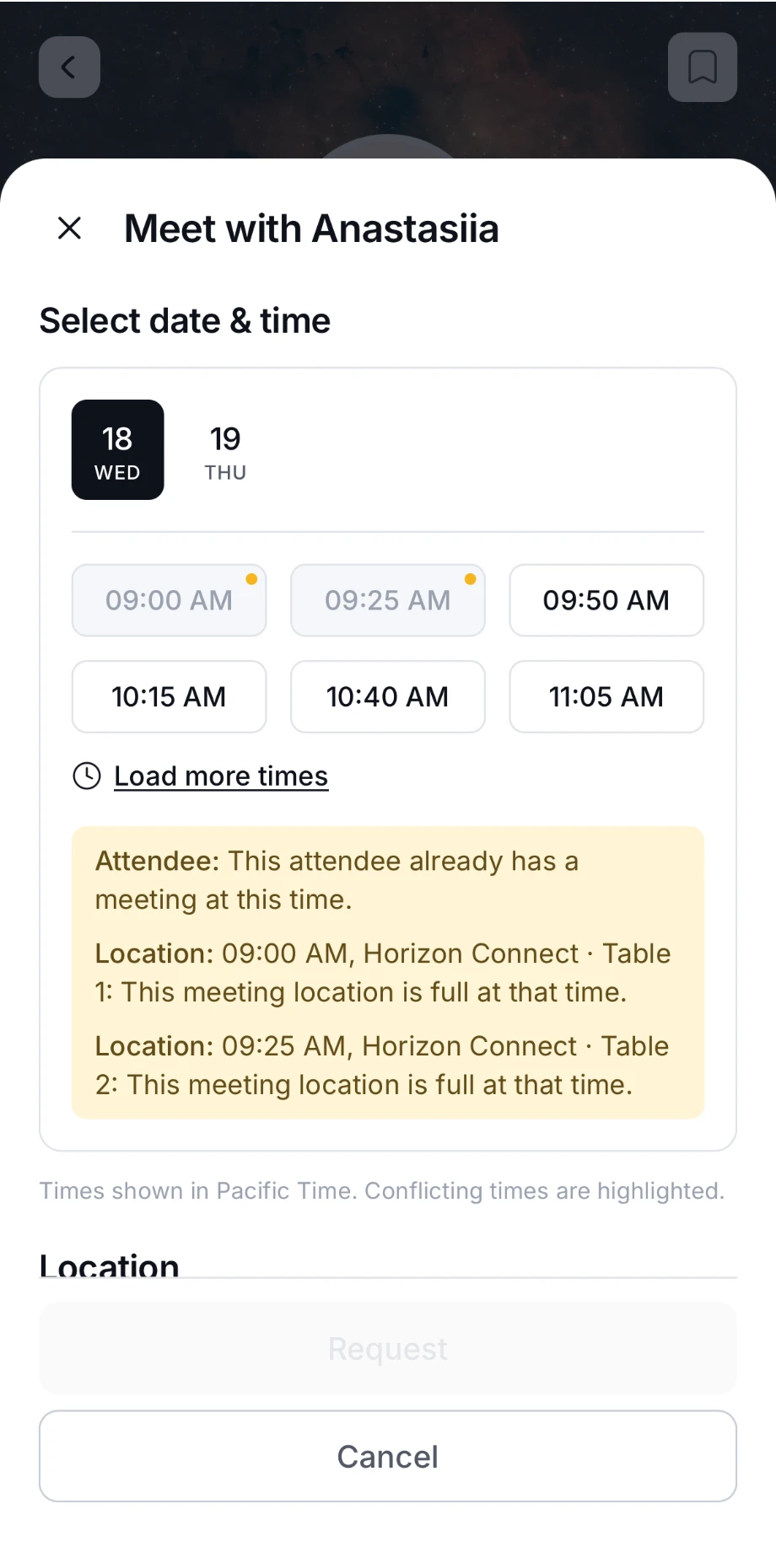
 In **Meet with**, pick a day, then a time under **Select date & time**. Tap **Load more times** to see later ones. Times are in the event's time zone.
- Times marked with a yellow dot clash with something, such as the other person's meeting or a full meeting place. A yellow box under the times explains each clash.
- Times you can't pick are greyed out.
 Choose a **Location**, such as a meeting area or table. Places marked **(full)** are already busy at that time, and places marked **(unavailable)** can't be picked.
Add an optional **Message** (up to 1,000 characters) to say why you'd like to meet. If you opened the request from an AI match, **Generate** can write a first draft for you.
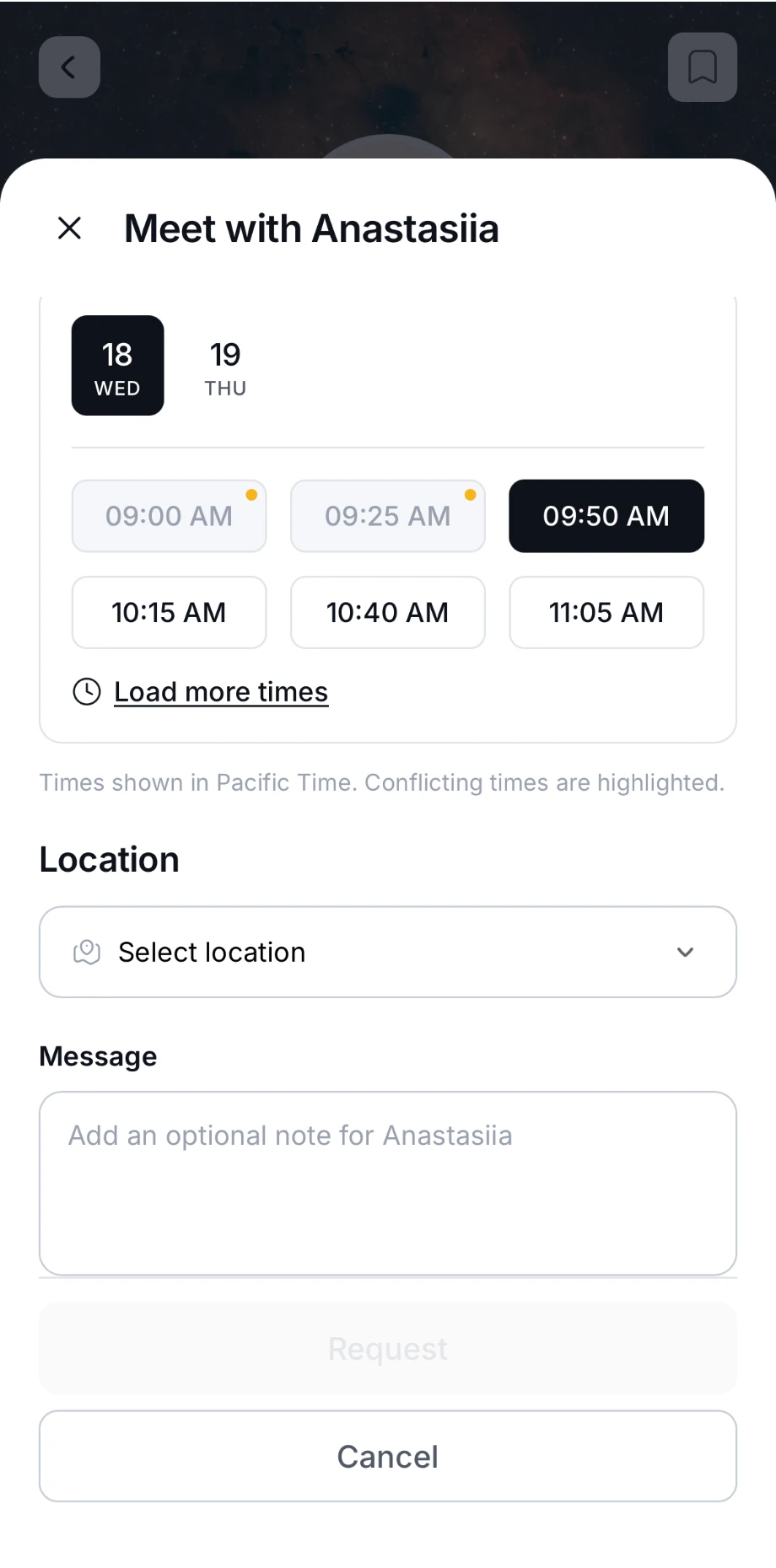 Tap **Request**. It stays greyed out until you've picked a day, a time and a location. **Request sent!** confirms it. Tap **Done**.
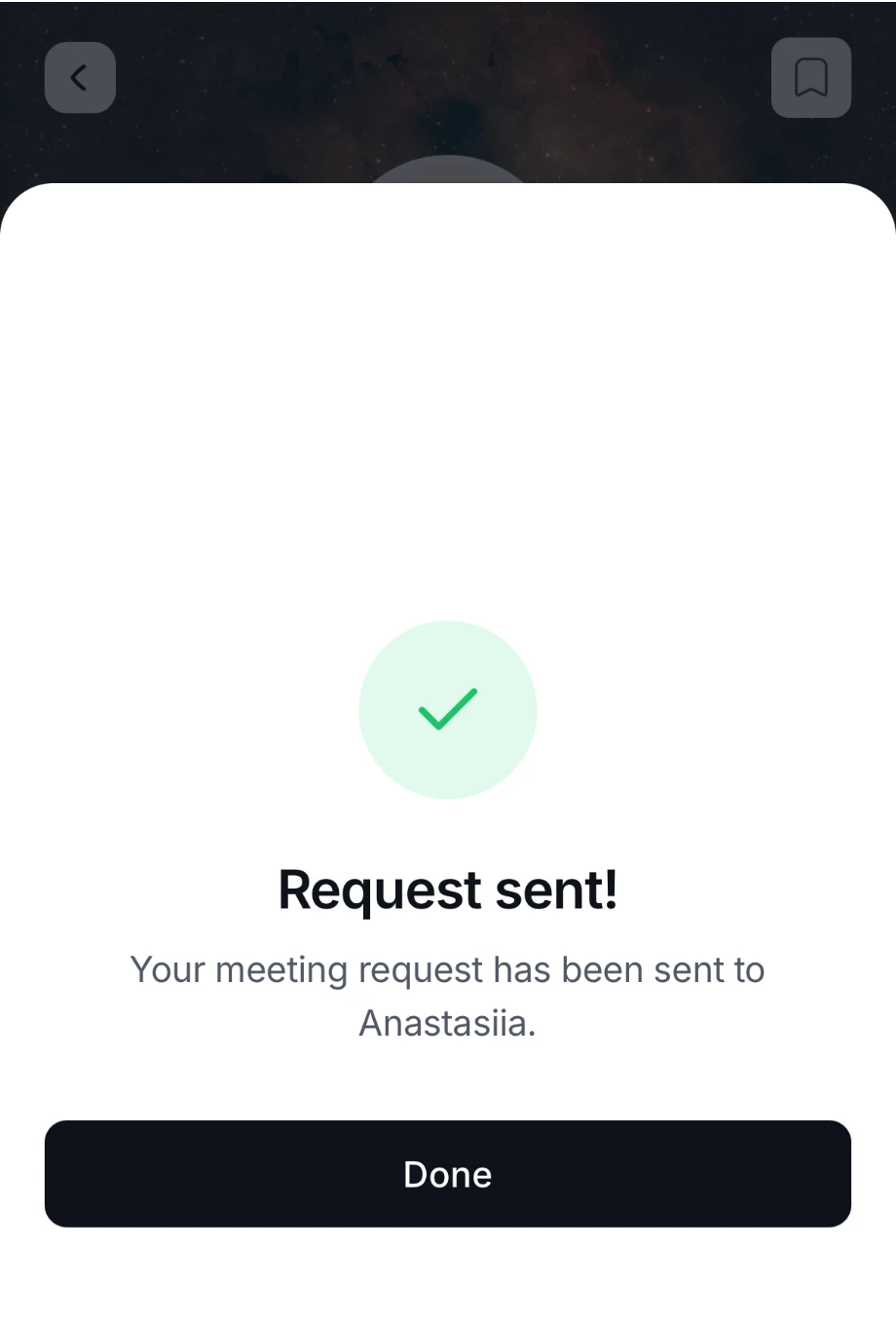 The meeting shows as **Pending** in **My agenda** until the other person answers. You need an internet connection to request a meeting.
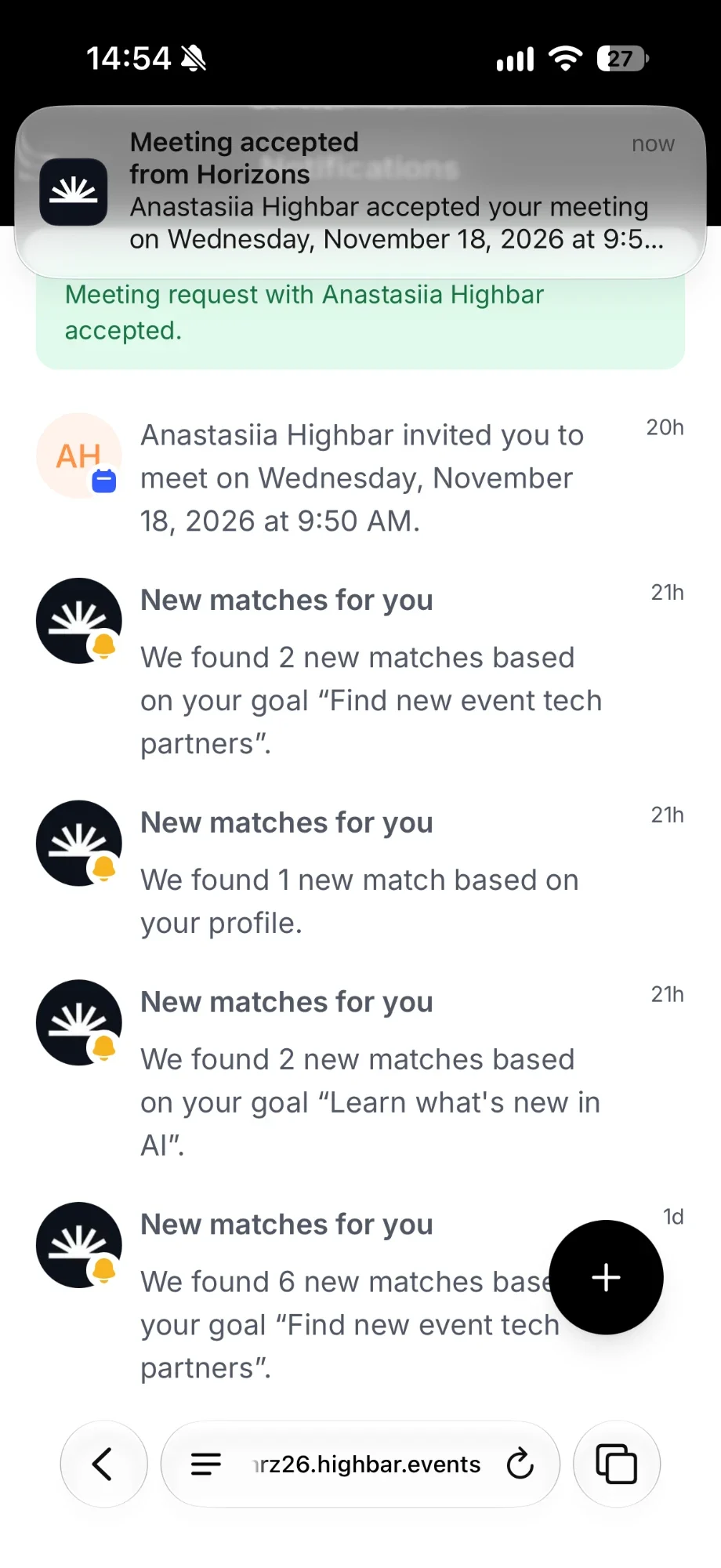
When they accept, you get a notification, and the meeting changes to **Accepted** in **My agenda**.
 ### If you can't request a meeting
The app tells you why instead of showing times. For example:
- "You've reached your meeting limit." or "[Name] has reached their meeting limit.": the organizer caps how many meetings each person can have. Requests waiting for an answer count too.
- "You are not eligible to request this meeting.": the organizer has limited who you can send requests to. You can still answer requests that others send you.
- "[Name] is not available for meetings." or "No meeting times are currently available.": there are no free times left to book.
If a time or place stops being available while you're choosing, pick another one and try again.
## Answer a request
When someone asks to meet you, you get a notification. Requests waiting for your answer appear under **Meeting requests** at the top of the **Notifications** screen, and in **Community** under **Saved**. **My agenda** also shows "You have 1 meeting request" with **Review**.
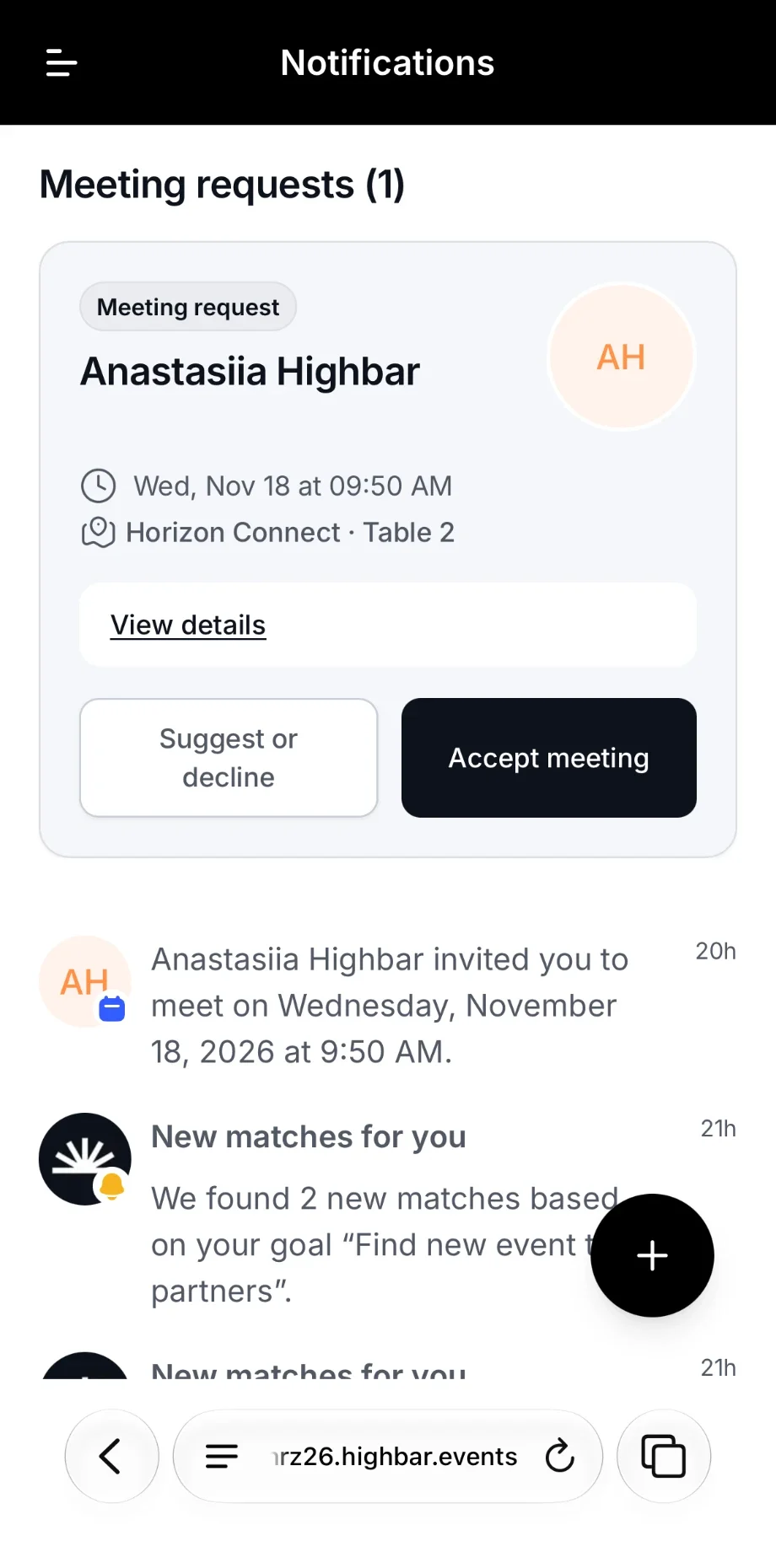 Each request shows who it's from, the time, the place and their message. Tap **View details** to read it in full, then:
- **Accept meeting** to confirm it.
- **Suggest or decline**, then **Suggest a different time or place** to propose another time or place, or **Decline** to turn it down.
When you suggest a change, the meeting goes back to **Pending** until the other person accepts or declines your suggestion. Each request can only be changed once, so after that it's accept or decline.
## Your meetings
Your meetings appear in:
- **My agenda**, alongside your saved sessions, on the day they happen.
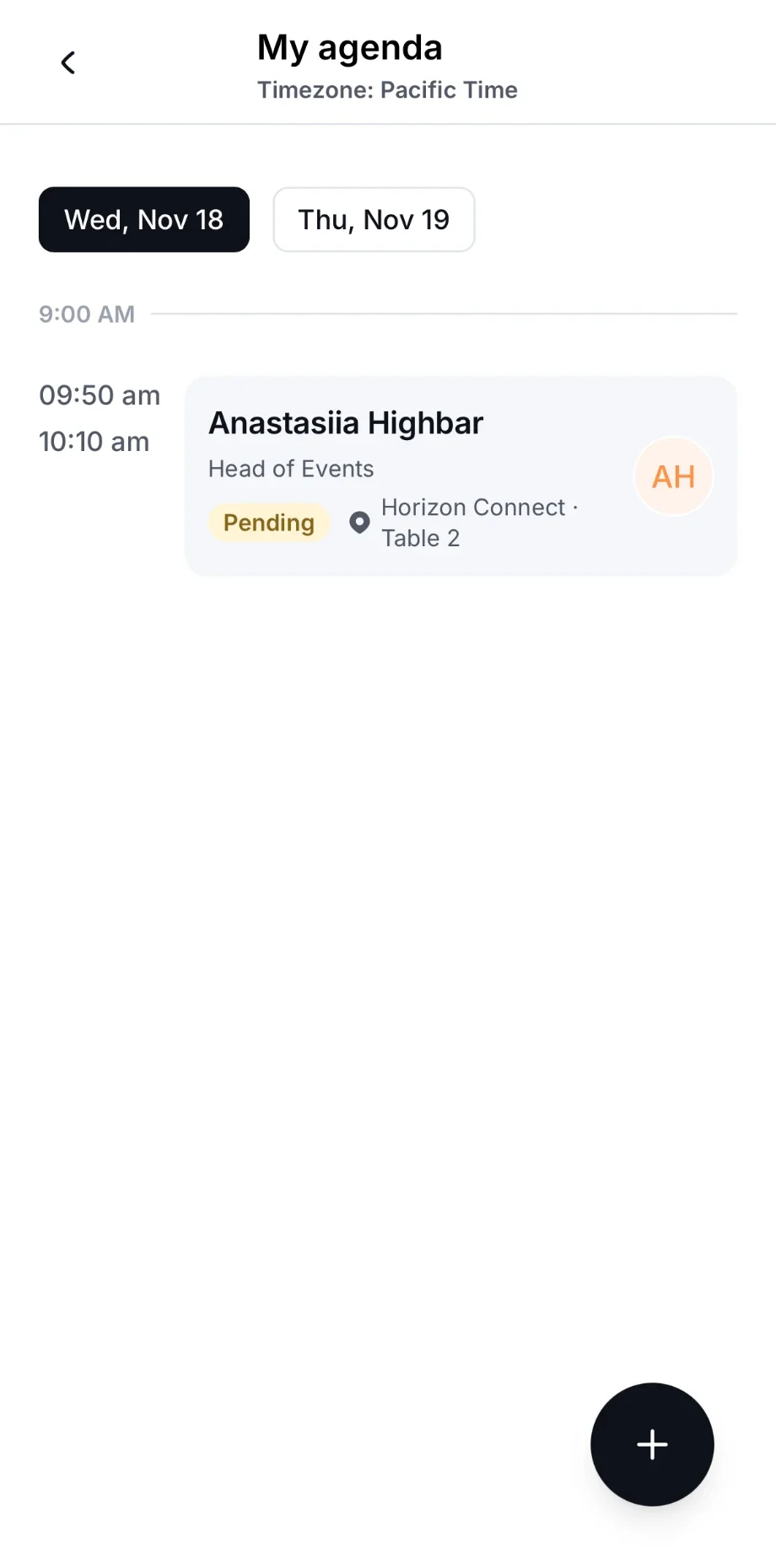 - **Community**, under **Saved** > **Meetings**: confirmed meetings and requests you've sent that are still waiting, upcoming first.
Tap a meeting to see who you're meeting, when and where, their message and the meeting's status:
| Status | Meaning |
| --- | --- |
| **Pending** | Waiting for an answer, from you or from the other person. |
| **Accepted** | Confirmed. |
| **Declined** | Turned down. |
| **Cancelled** | Cancelled by the organizer. |
| **Completed** | The meeting has happened. |
| **No show** | Someone reported that the other person didn't come. |
If the place is on one of the event's maps, tap **Location** to find it. Tap **Attendee** to open the other person's profile.
You can't cancel or move a confirmed meeting yourself. If you can't make it, message the other person, and ask the organizer to cancel it.
## After the meeting
Once the meeting's end time has passed, open it and rate it under **How was the meeting?**:
Choose 1 to 5 stars, from **Poor** to **Excellent**.
If the other person didn't come, tick **No show**.
Add an optional note, then tap **Save feedback**.
Your feedback goes to the organizer, not the other attendee.