# Notifications
> Turn on push notifications for event updates, turn them back on if you blocked them, and find past updates on the Notifications screen.
Source: https://help.highbar.ai/docs/attendees/notifications
Audience: attendees using the event app
Push notifications tell you about event updates, messages and meeting requests even when the event app is closed. You turn them on separately on each device you use.
## Turn on notifications
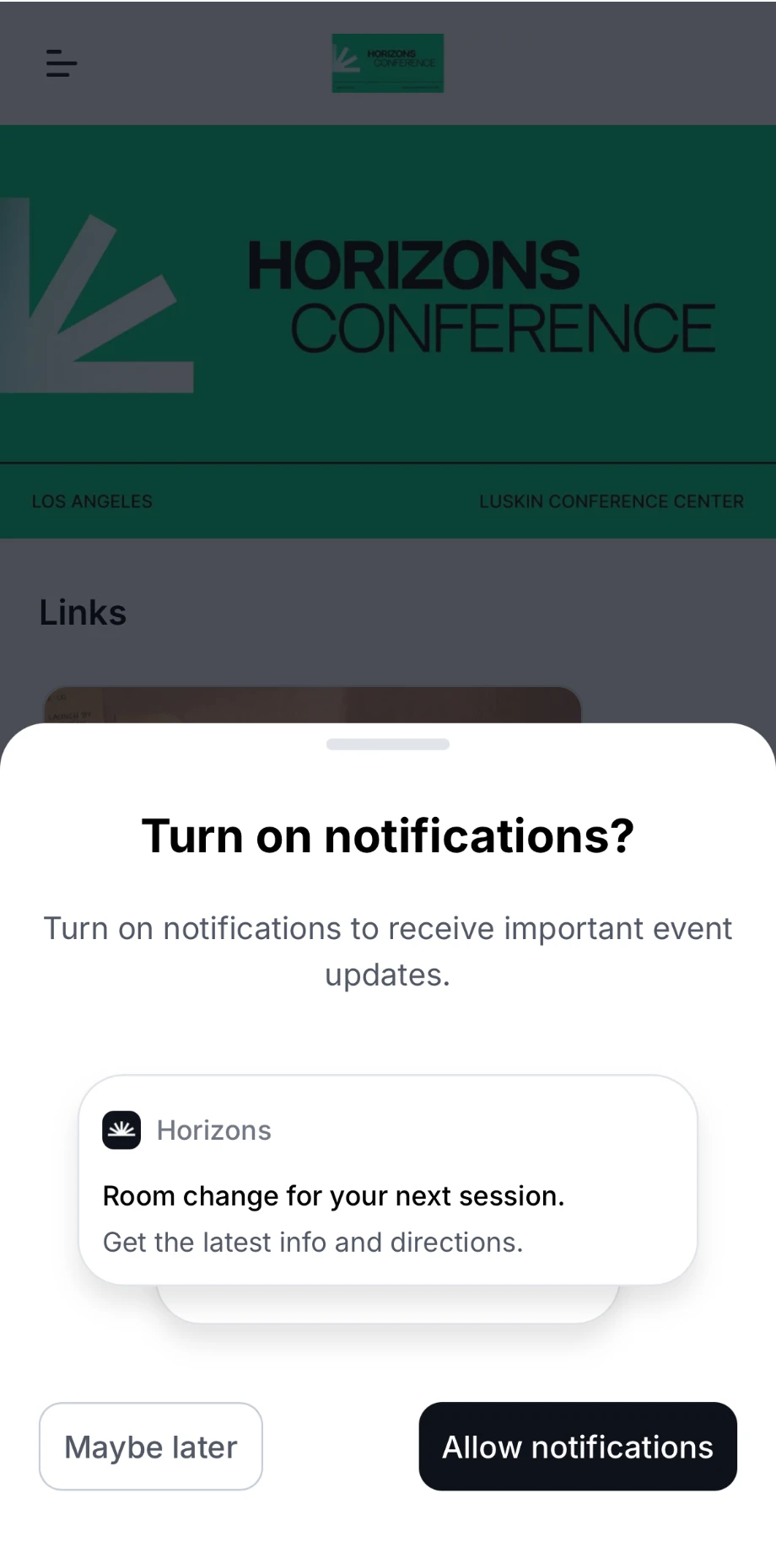
After you log in, the home page asks **Turn on notifications?**
Tap **Allow notifications**. The example shows the kind of update you'll get, such as a room change for your next session.
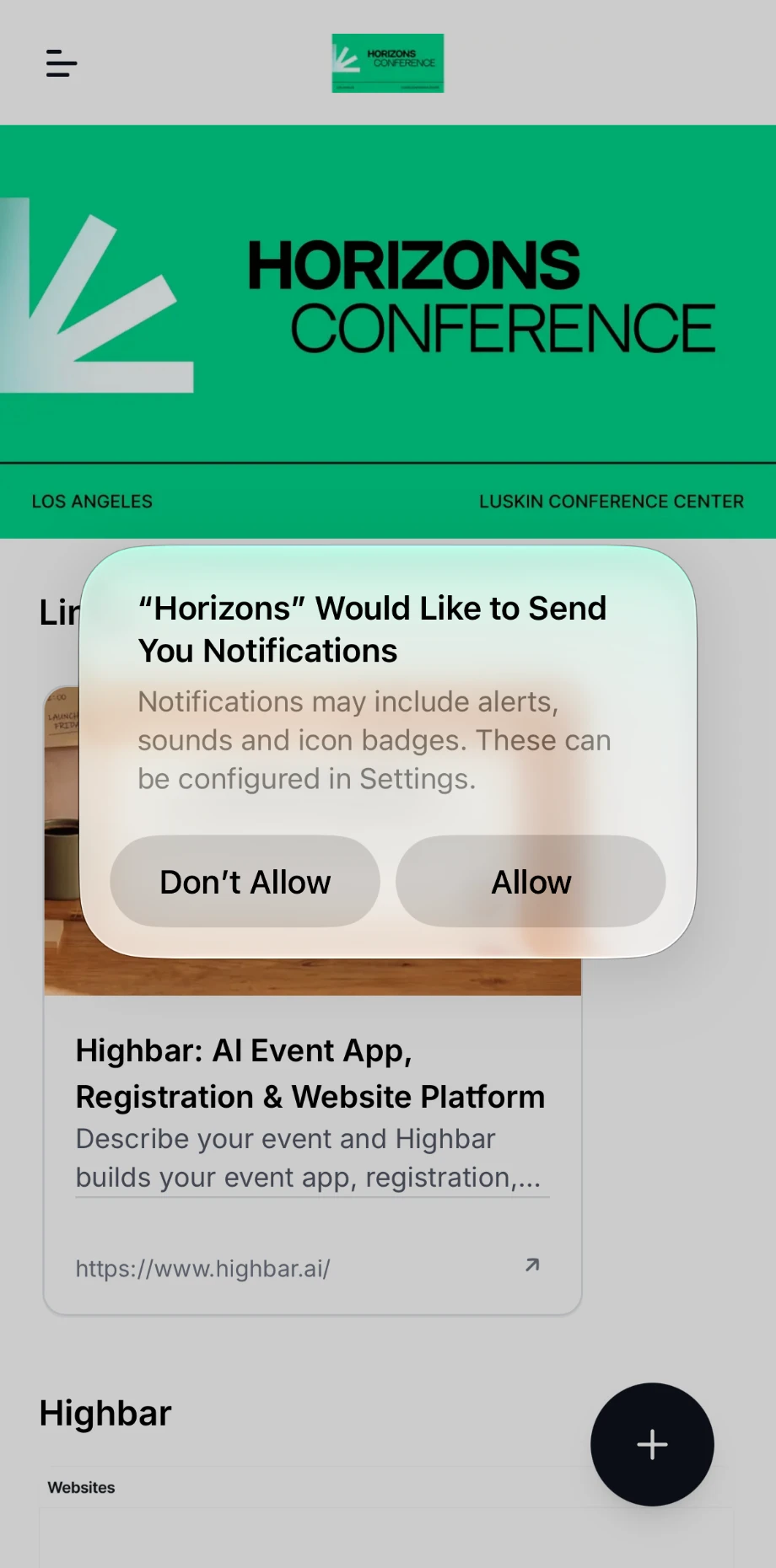
 When your phone or browser asks for permission, tap **Allow**. On iPhone, the message says the app "Would Like to Send You Notifications", using the app's name.
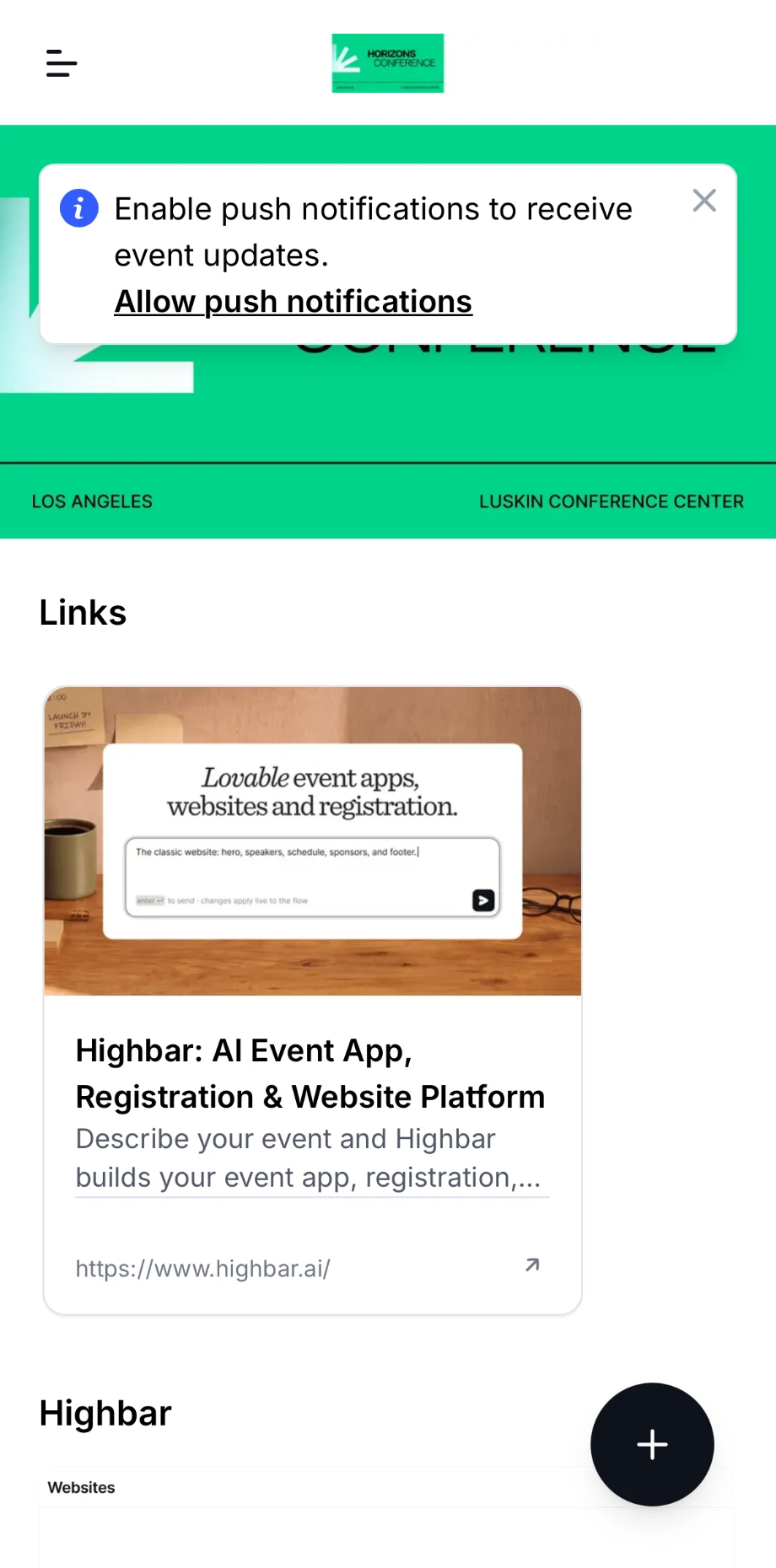
 If you tapped **Maybe later**, the home page shows a reminder, "Enable push notifications to receive event updates." Tap **Allow push notifications** whenever you're ready.
 You can also turn them on or off at any time: open the menu, tap your name at the bottom to open **Settings**, and use the **Push notifications** switch. Turning it off stops notifications on this device only.
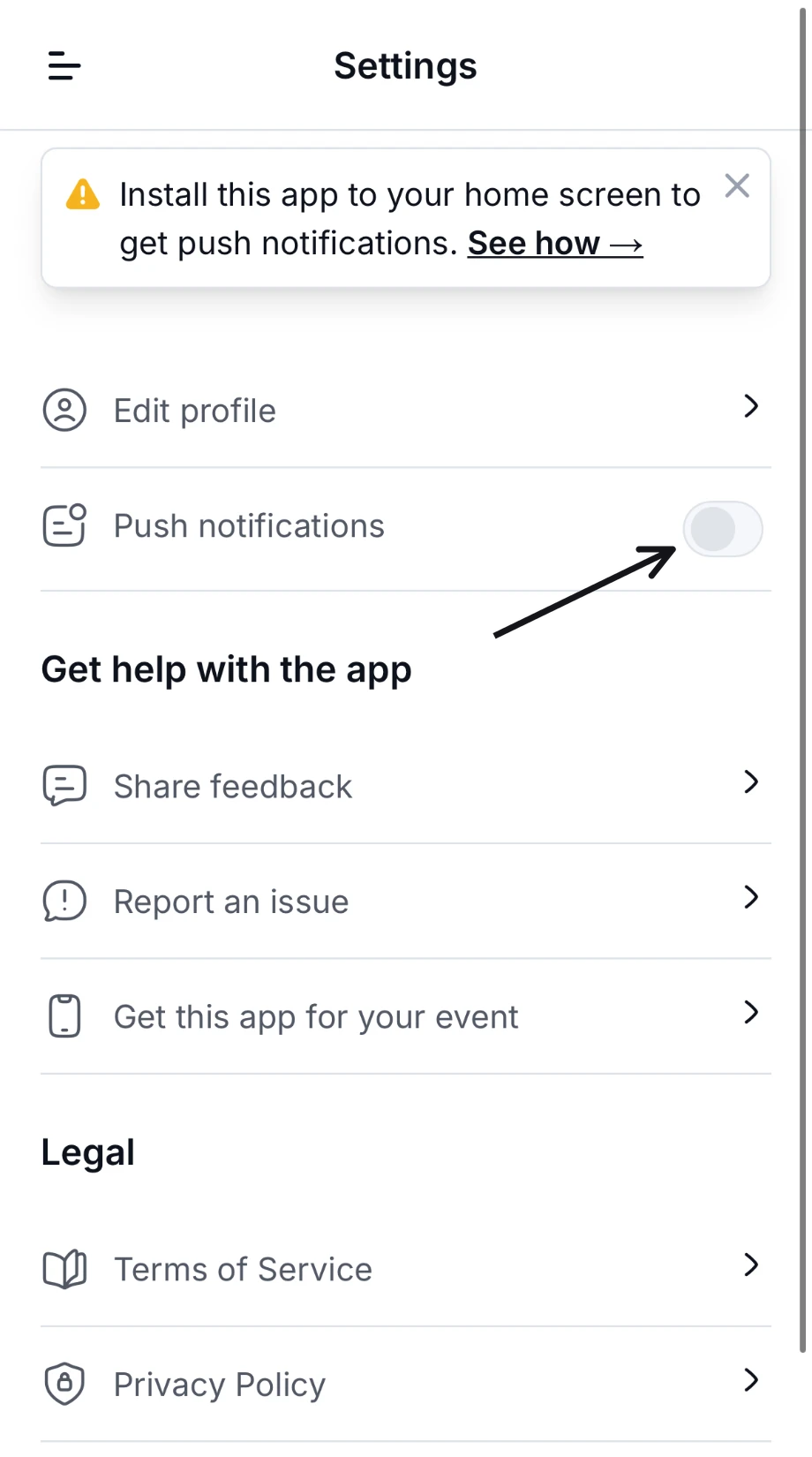 On iPhone and iPad, install the app first. Apple only allows web apps to send notifications once they're on your home screen (iOS 16.4 or later). Until then, the home page shows "Install this app to your home screen to get push notifications." Tap **See how →**, follow the steps in [Installing the app](https://help.highbar.ai/docs/attendees/installing-the-app), then turn notifications on from the installed app.
## What you're notified about
What you receive depends on the features the organizer has turned on for the event:
- Announcements and updates from the organizer
- Posts the organizer shares in the activity stream
- Someone mentioning you, or liking or commenting on your posts
- Direct messages from other attendees
- Meeting requests and changes: a new request, a new time suggested, or a meeting accepted, declined, scheduled or cancelled
- Session registration updates, such as a place opening up for you on a waitlist
## Turn notifications back on after blocking them
If you chose **Don't Allow** or **Block** when asked, the app can't ask again. In **Settings**, the **Push notifications** switch is greyed out, and the home page may show "Missing event updates?". Allow notifications in your device or browser settings:
Open the **Settings** app on your iPhone and tap **Notifications**.
Find the event app in the list. It has the same name as its home screen icon.
Turn on **Allow Notifications**.
Open Chrome, tap the menu button (three dots), then tap **Settings**.
Tap **Site settings**, then **Notifications**.
Find the event app's web address, tap it, and choose **Allow**.
This covers the installed app too. If notifications still don't appear, touch and hold the event app's icon, tap **App info**, then **Notifications**, and make sure they're on. Using another browser? Look for its site settings in the browser's menu.
Click the icon to the left of the web address in your browser's address bar.
Find **Notifications** and change it to **Allow**.
Reload the page.
Also check that your computer lets your browser show notifications, in System Settings on a Mac or Settings on Windows.
Then go back to the event app, open **Settings** and turn on **Push notifications**. Allowing notifications in your device settings alone doesn't switch them on in the app.
## The Notifications screen
The app keeps a list of your updates, so you can catch up even with push notifications off. To see it, open the menu and tap **Notifications** (the organizer may have renamed it). On a phone it's one of the buttons at the top of the menu, with a count when you have something unread.
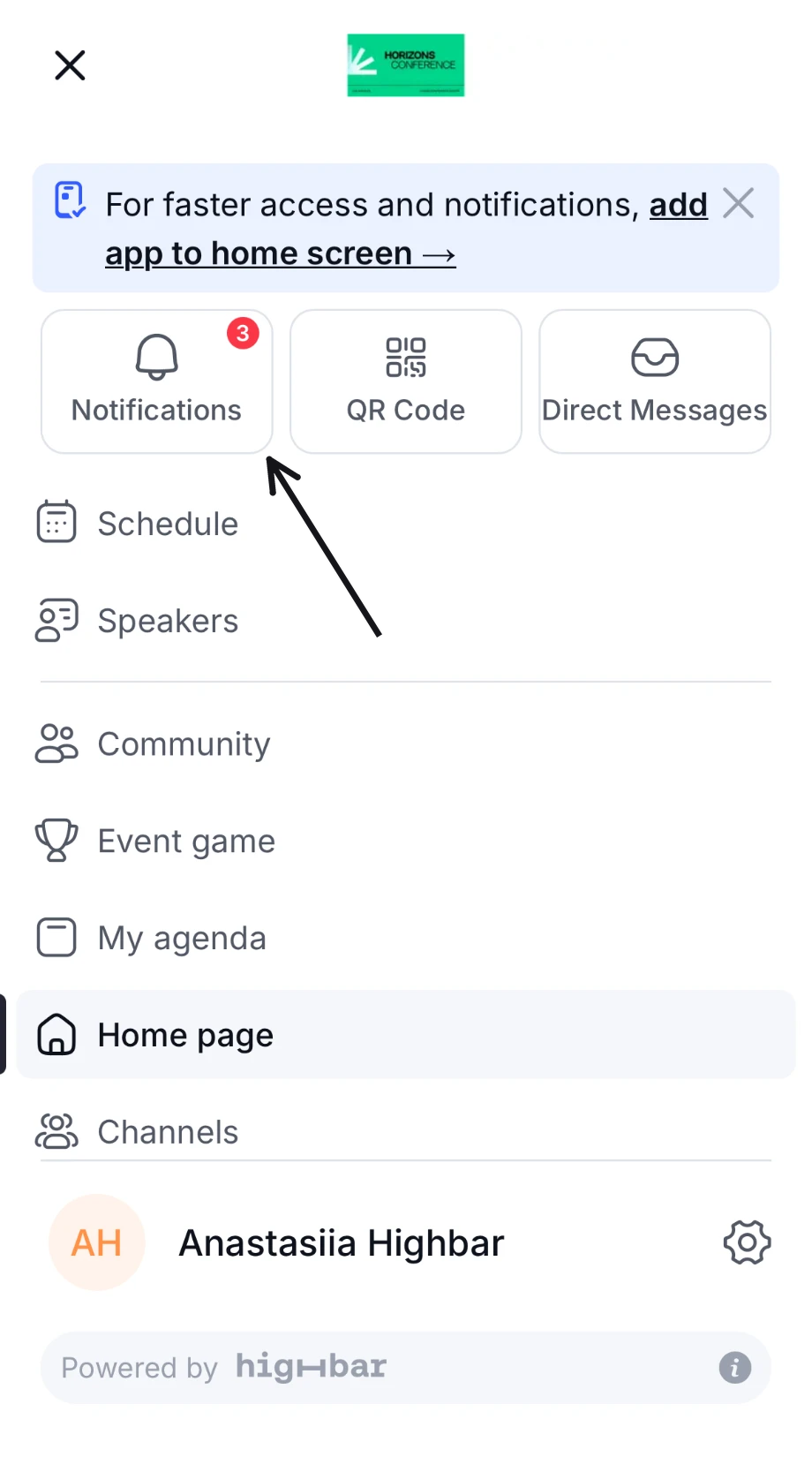 In the activity stream, the bell at the top opens it too.
- **Meeting requests** waiting for your answer appear first. Tap **Accept meeting**, or **Suggest or decline** to propose another time or place, or turn the request down.
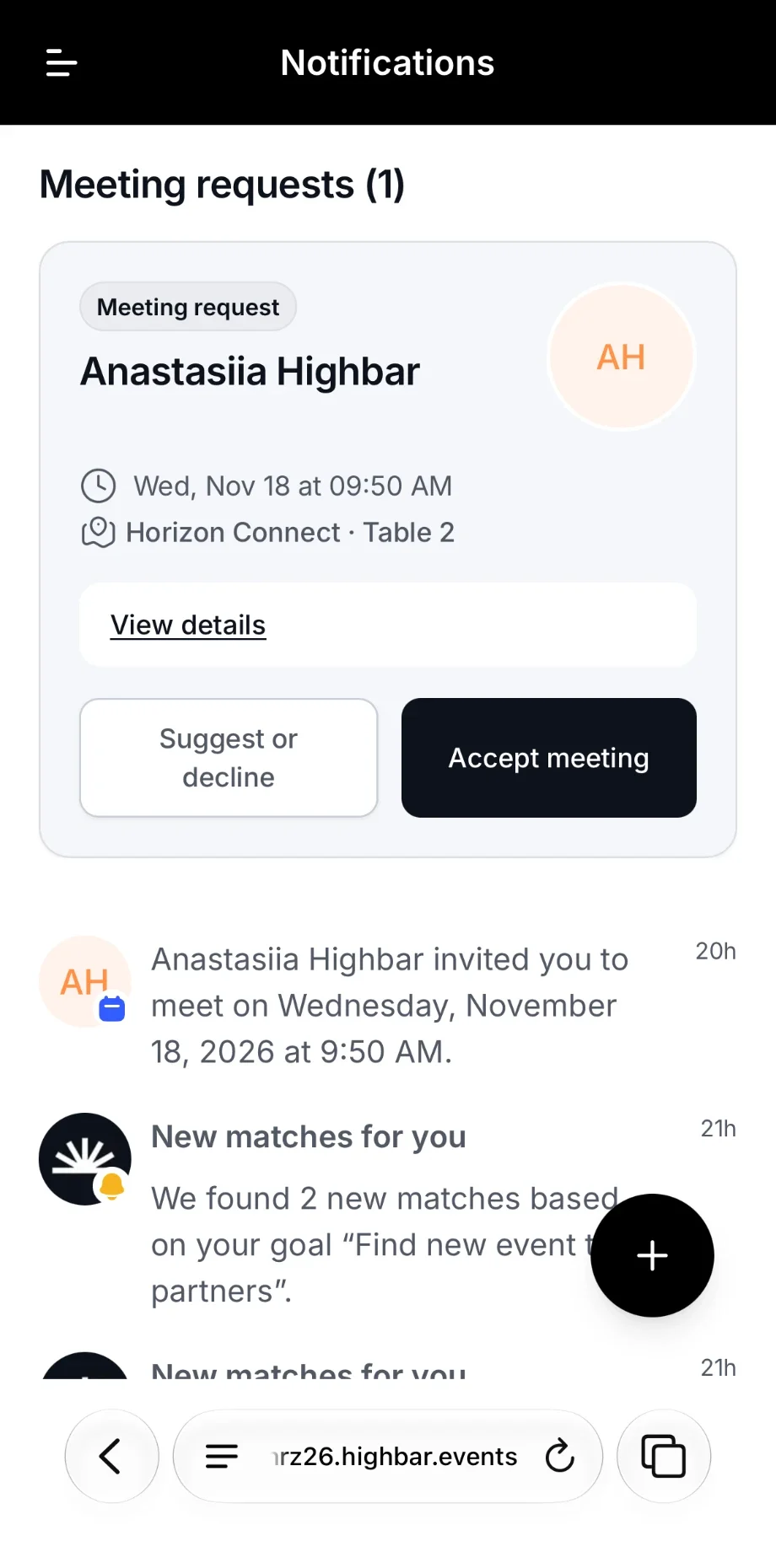 - **Updates** follow, newest first. Unread ones are in bold with a dot. Tap one to open the session, post or page it's about.
If nothing has arrived yet, you'll see "No notifications". Direct messages aren't listed here: you'll find them under **Messages**.
The Notifications screen is saved on your device, so you can read it while you're offline.
Still not getting notifications? See [Troubleshooting](https://help.highbar.ai/docs/attendees/troubleshooting).