# Speakers and sponsors
> Browse the event's speakers and sponsors in the event app, see their sessions, products and representatives, and save the ones you want to remember.
Source: https://help.highbar.ai/docs/attendees/speakers-and-sponsors
Audience: attendees using the event app
The event app has a page for each speaker and sponsor, with their details and where to find them at the event. The organizer may have renamed these menu items, for example to **Exhibitors** or **Partners**.
## Speakers
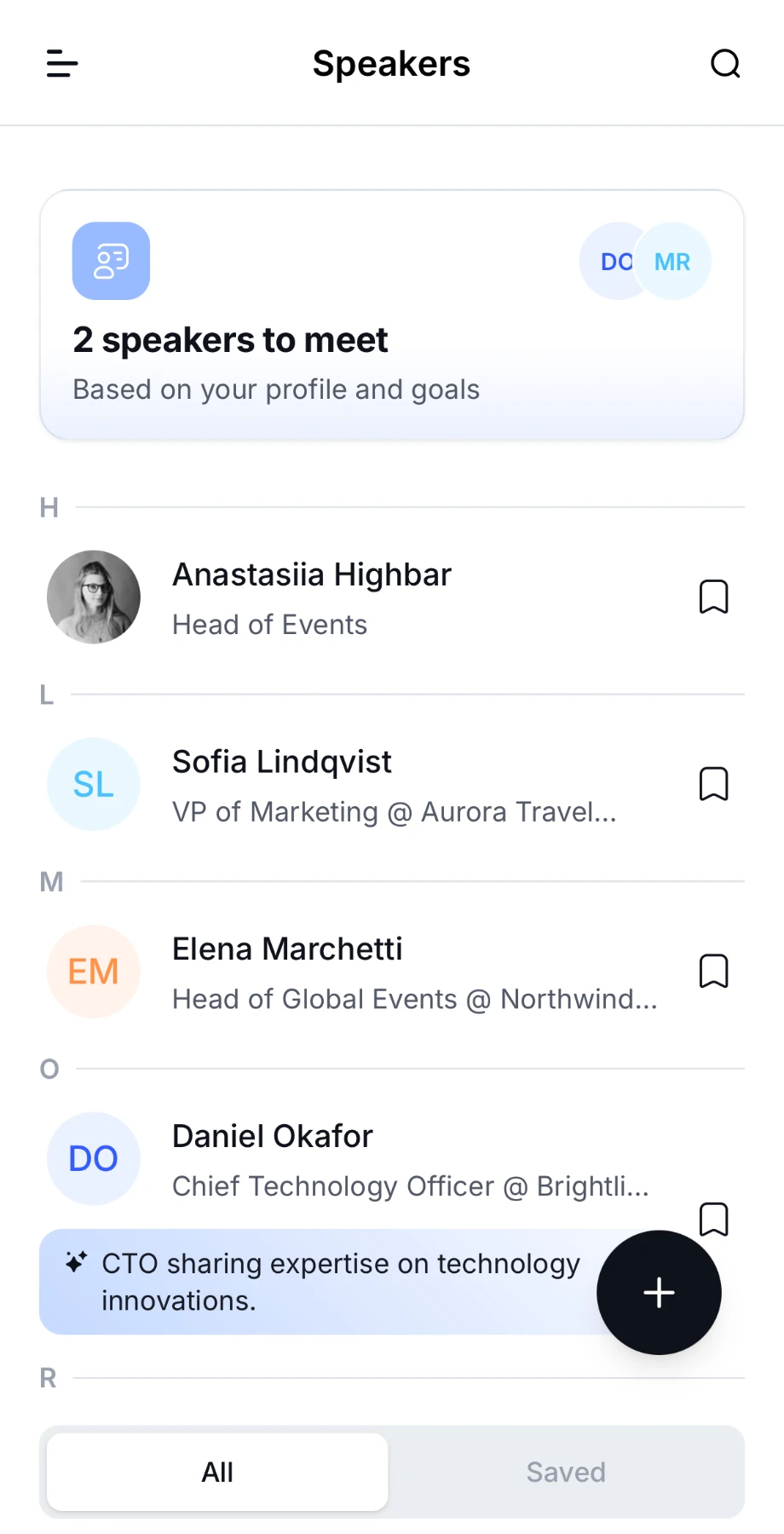
Open **Speakers** from the menu. Speakers are listed A to Z, or in the order the organizer chose.
- **Search.** Tap the magnifier and type a name.
- **Save.** Tap the bookmark icon next to a speaker. The **Saved** tab at the bottom lists the ones you've saved.
- **Suggestions.** If the organizer has turned on matchmaking, a banner such as "2 speakers to meet" shows the speakers picked for you, and some speakers show why they were suggested.
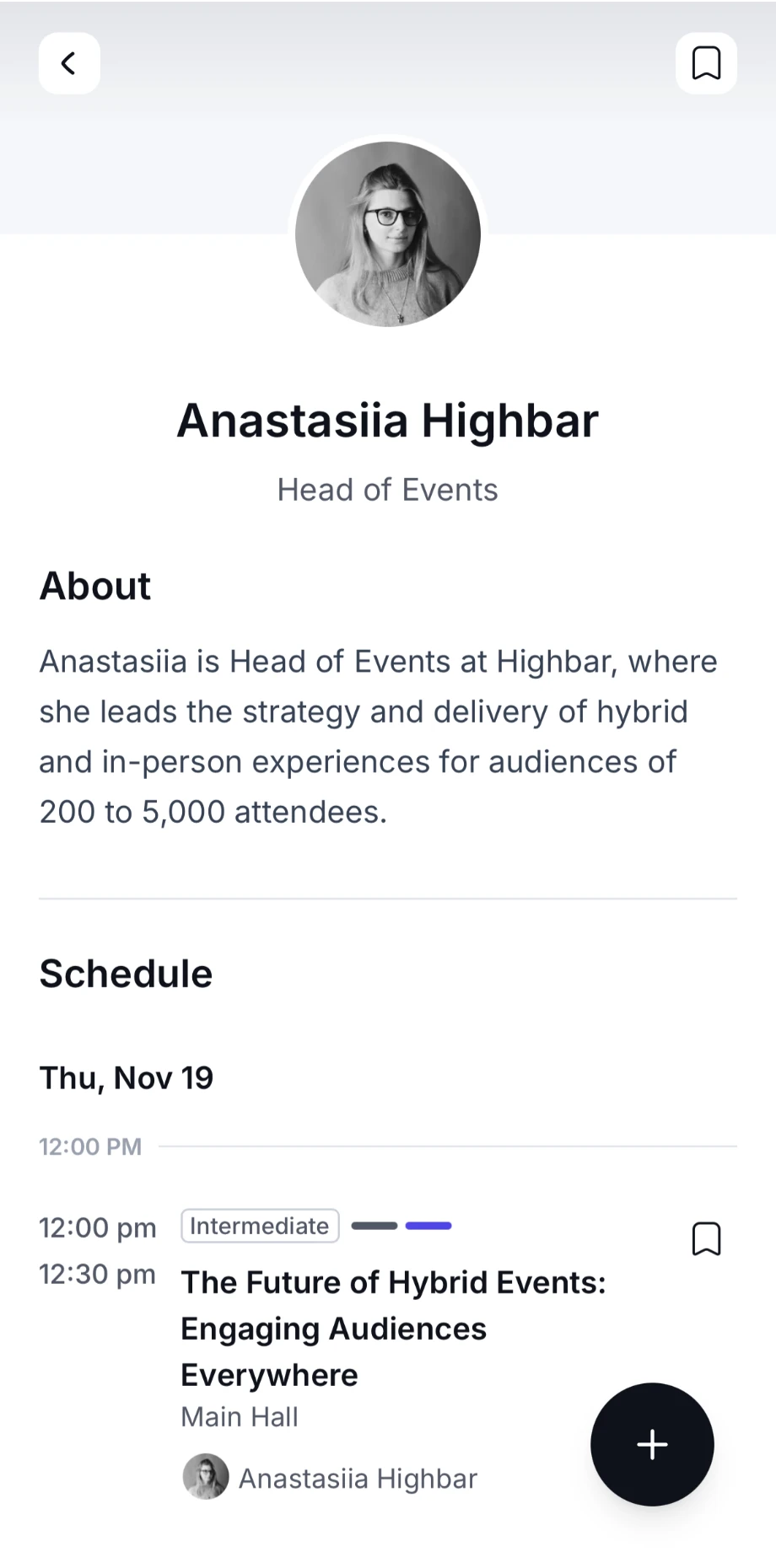
 Tap a speaker to open their profile: their photo, job title and company, their bio under **About**, and their sessions under **Schedule**. Tap the bookmark icon next to a session to add it to [My agenda](https://help.highbar.ai/docs/attendees/schedule-and-agenda). Depending on what the organizer has added, the profile can also show their social links, **Attachments** and **Products & services**.
 ## Sponsors
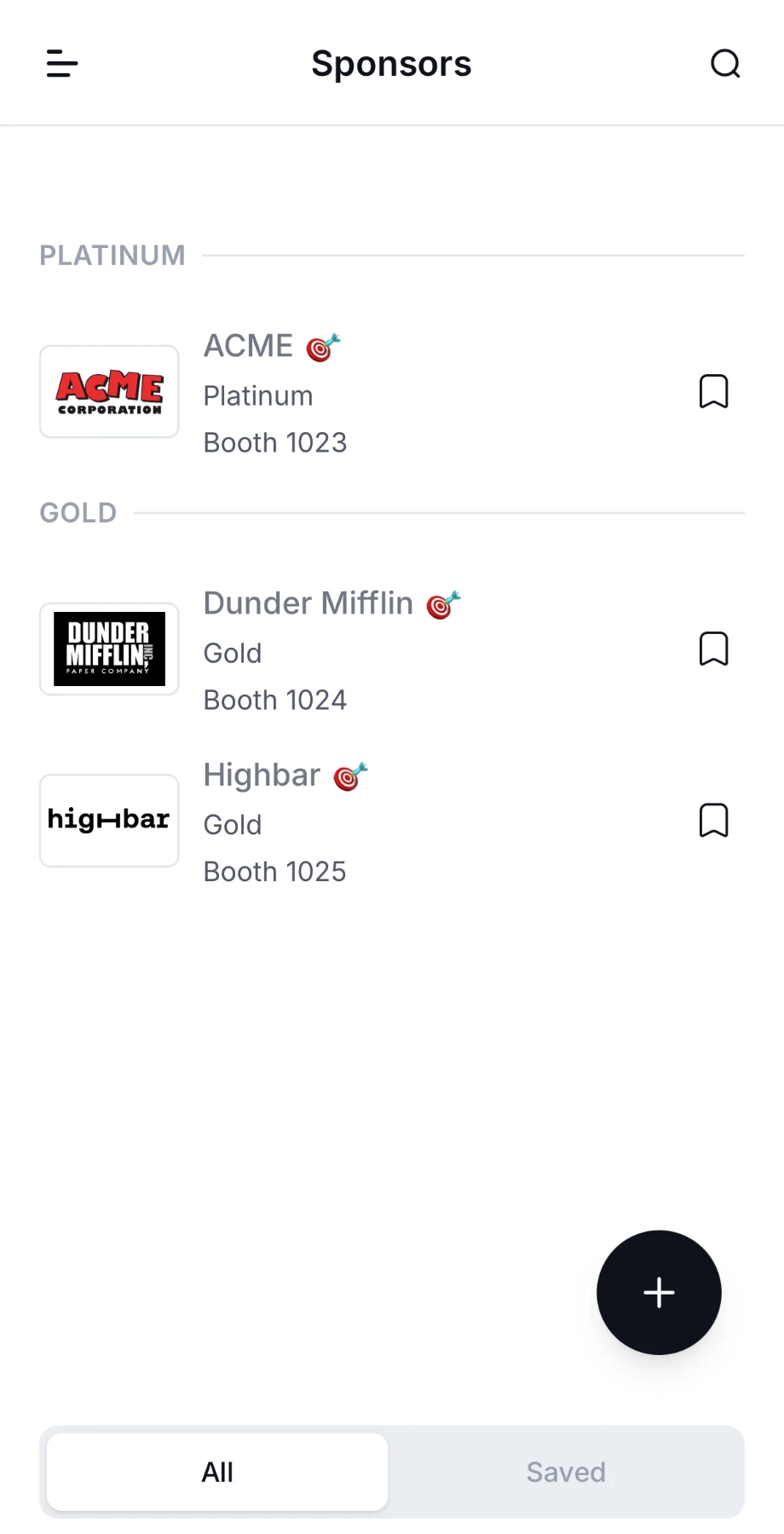
Open **Sponsors** from the menu. Sponsors are grouped by sponsorship level, such as Gold or Silver.
- **Search** by name. If the organizer has sorted sponsors into categories, tap the filter icon to filter by category or keyword.
- **Save** a sponsor with the bookmark icon. The **Saved** tab lists the ones you've saved.
 Tap a sponsor to open their page. Depending on what they've added, it shows their booth number, a short description under **About**, their location on the event's map, **Posts**, **Media**, **Products & services**, **Attachments**, the staff at their booth under **Representatives**, their **Speakers** and their sessions under **Schedule**. Some sponsors add a button, for example to book a demo or visit their website.
If the event has a [game](https://help.highbar.ai/docs/attendees/event-game), sponsors that take part may show a badge next to their name. Scan the QR code at their booth to earn points.