# Scan leads at your booth
> Scan attendees' badges with your phone in the event app, rate and note each lead, and email yourself your leads.
Source: https://help.highbar.ai/docs/sponsors-and-speakers/scan-leads-at-your-booth
Audience: event organizers, working in the Highbar dashboard
If the organizer has turned on lead retrieval, booth staff can scan attendees' badges with their phone in the event app. Each scan saves the attendee as a lead, with their contact details, your rating and your notes.
## Get access
The organizer gives you scanning access. When they do, you get an email, "You're ready to scan leads at" the event, with a link to the app.
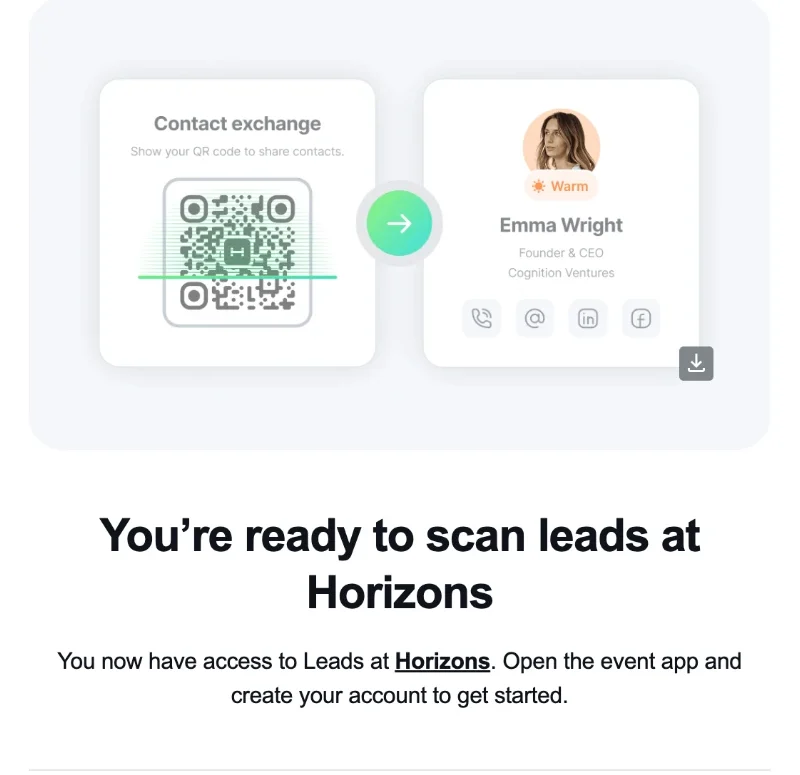 Log in to the event app with the email address the organizer used. See [Logging in](https://help.highbar.ai/docs/attendees/logging-in). If you can't scan after logging in, ask the organizer to check you have lead retrieval access.
## Scan a lead
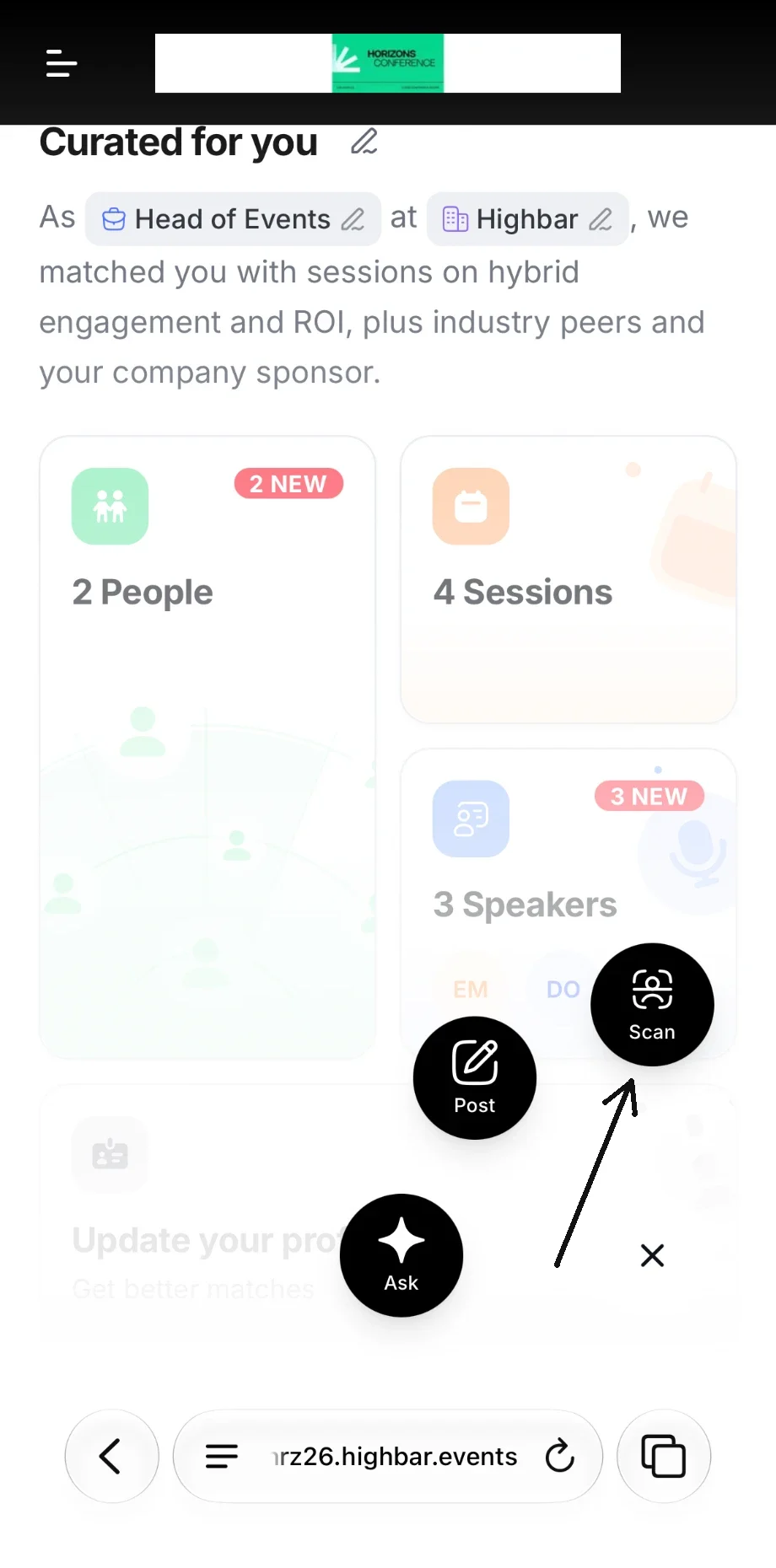
Tap the round button in the bottom-right corner of the app, then **Scan**.
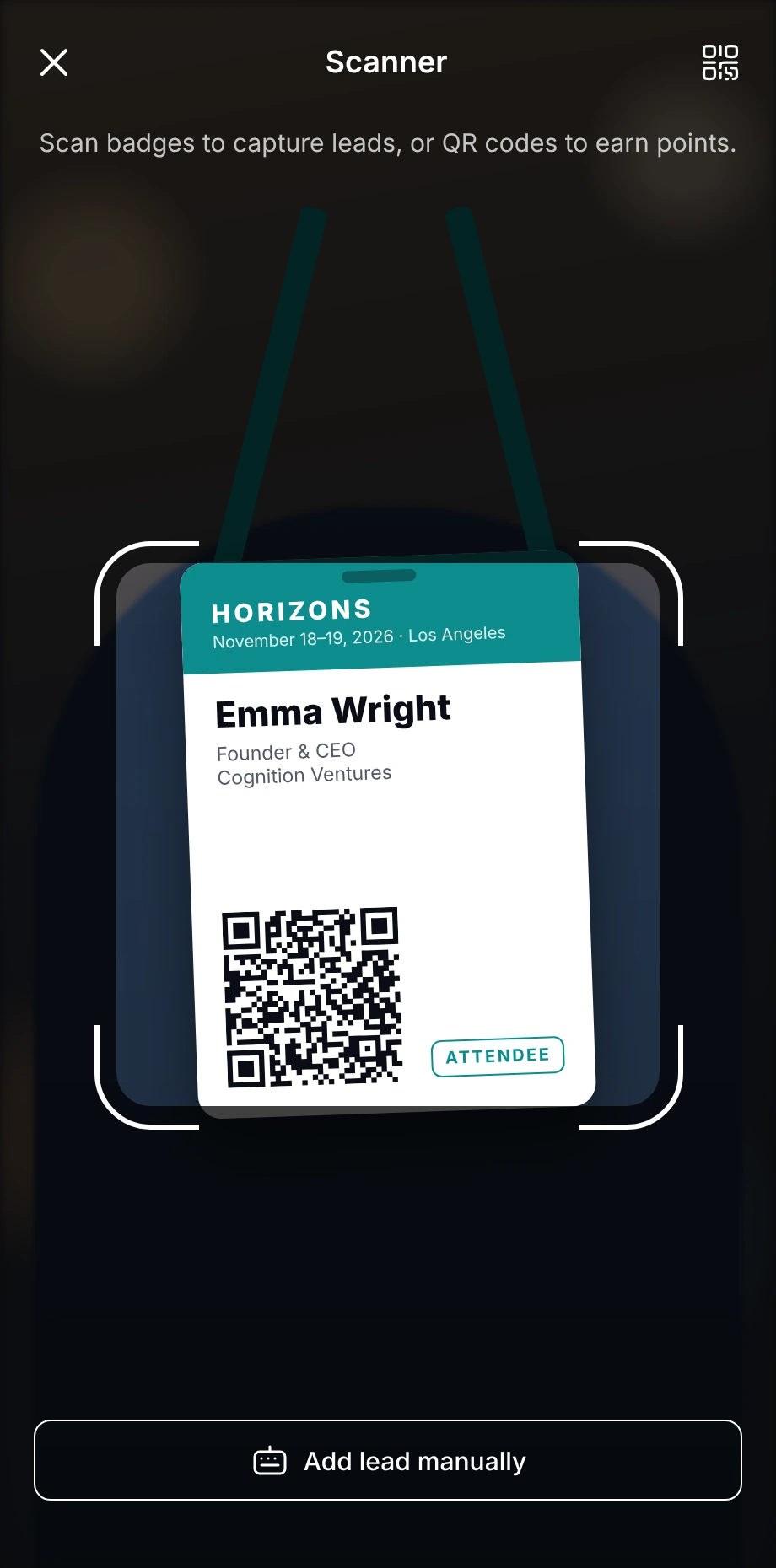
 Point your camera at the attendee's badge, or at the QR code in their event app.
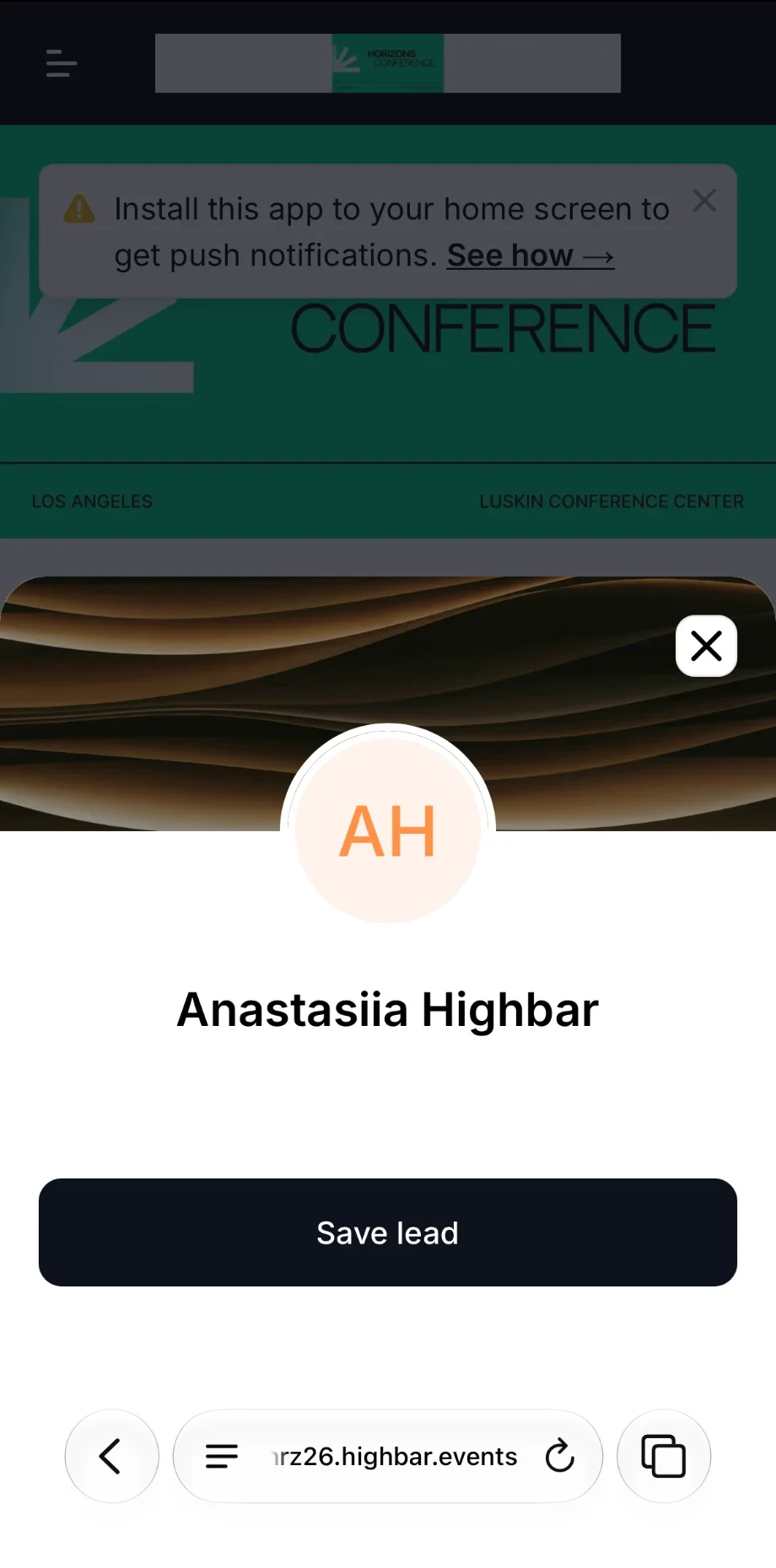
 The attendee's name appears. Tap **Save lead**.
 Under **Lead captured**, rate the lead **Cold**, **Warm** or **Hot**, add notes about your conversation if you like, and tap **Save note**. You can change both later.
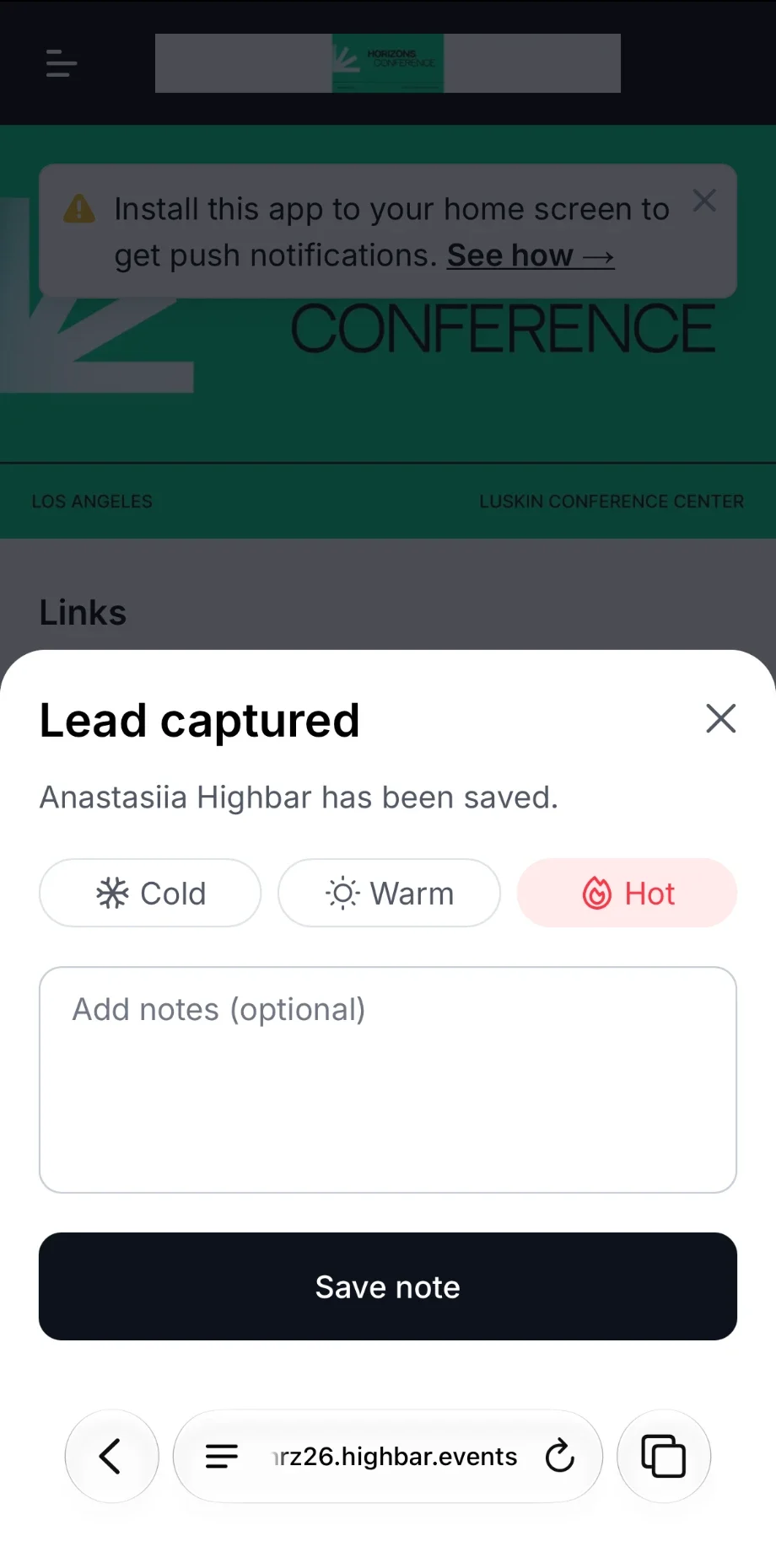 "Already scanned" means this person is already one of your leads. If a badge won't scan, tap **Add lead manually** and type their details: **First name** and **Last name** are required, everything else is optional.
Scanning works without a connection. Leads are saved on your phone and sent once you're back online.
## See and export your leads
Your leads are in the app under **Community** > **Saved**, in the **Leads** section. To see only your leads, tap the filter icon and choose **Leads**. The top of the list counts your leads by rating (**Hot**, **Warm**, **Cold** and **Unrated**), and the leads are grouped the same way. Tap a lead to see their profile, or to change your rating and notes.
To get your leads as a spreadsheet:
Tap the export button at the top of **Saved**, next to the filter icon.
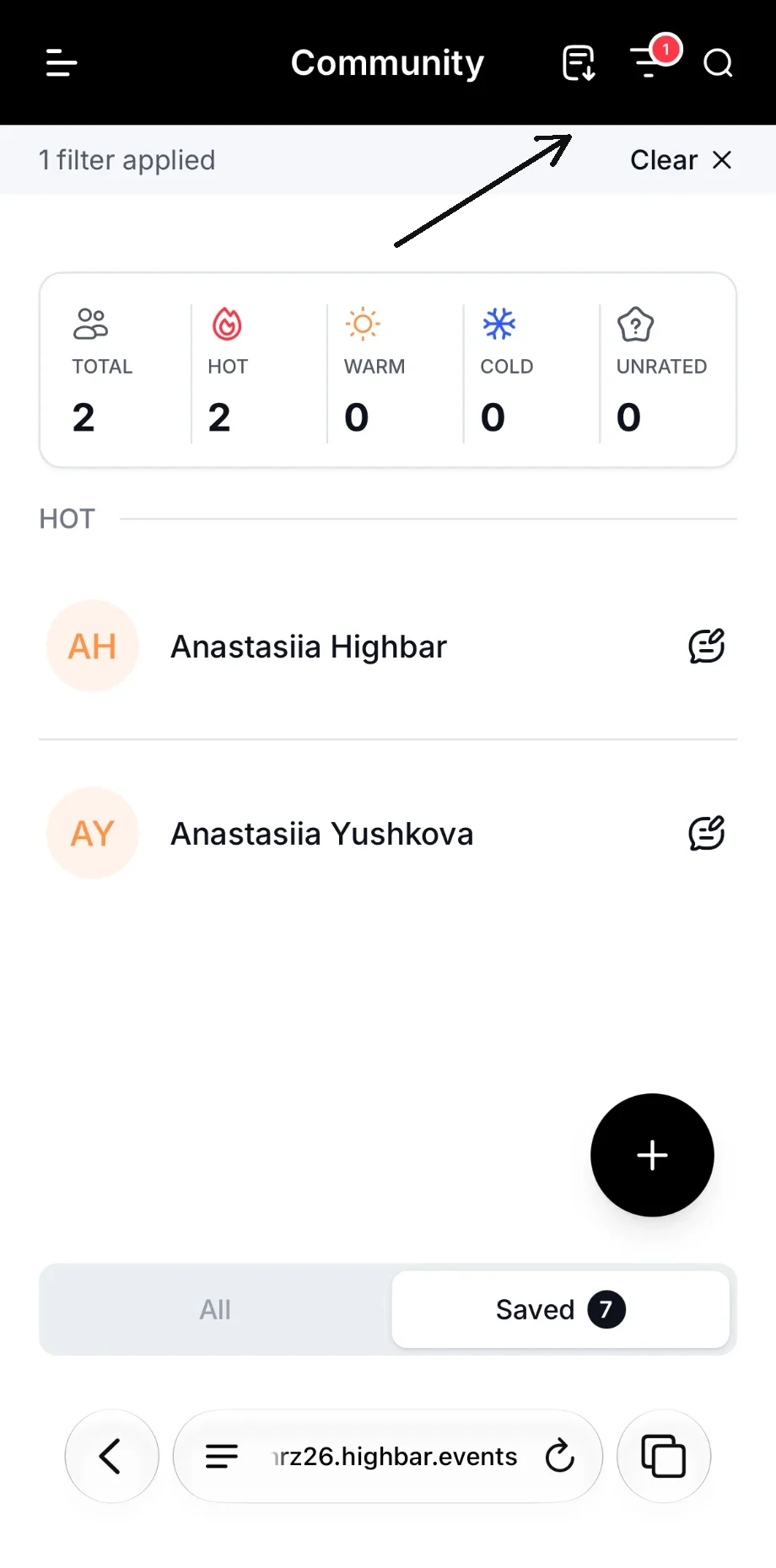 Under **Send to**, enter one or more email addresses, then tap **Send**.
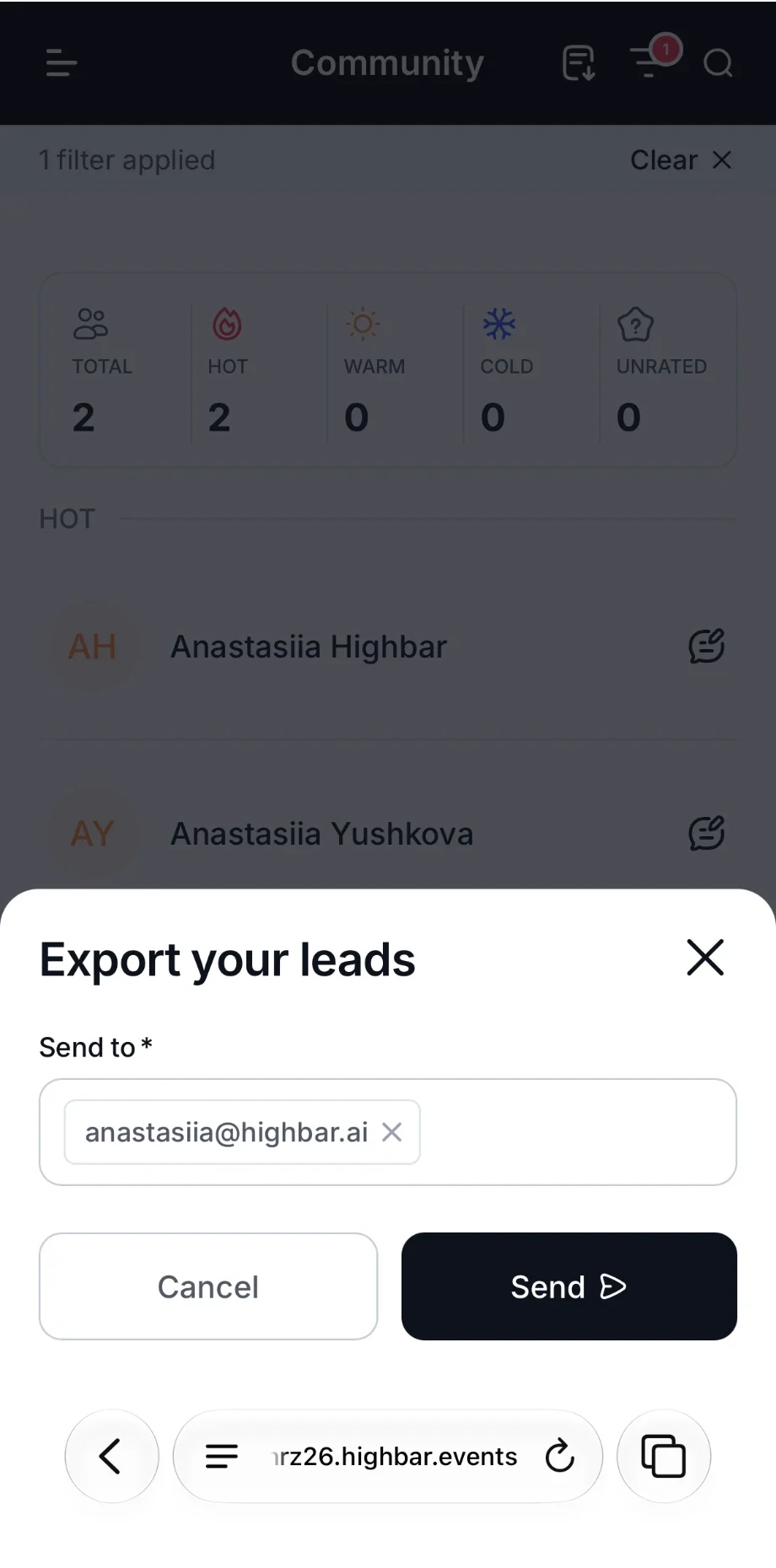 Each address receives a CSV file of your leads. You need a connection to export.
The organizer can also see and export every lead your company collects.