Logging in
Log in to the event app with your email address and a 6-digit code, set up your profile, and log out.
The event app doesn't use passwords. You enter your email address, the app emails you a 6-digit code, and you type the code in. Use the email address you registered for the event with.
Log in with your email
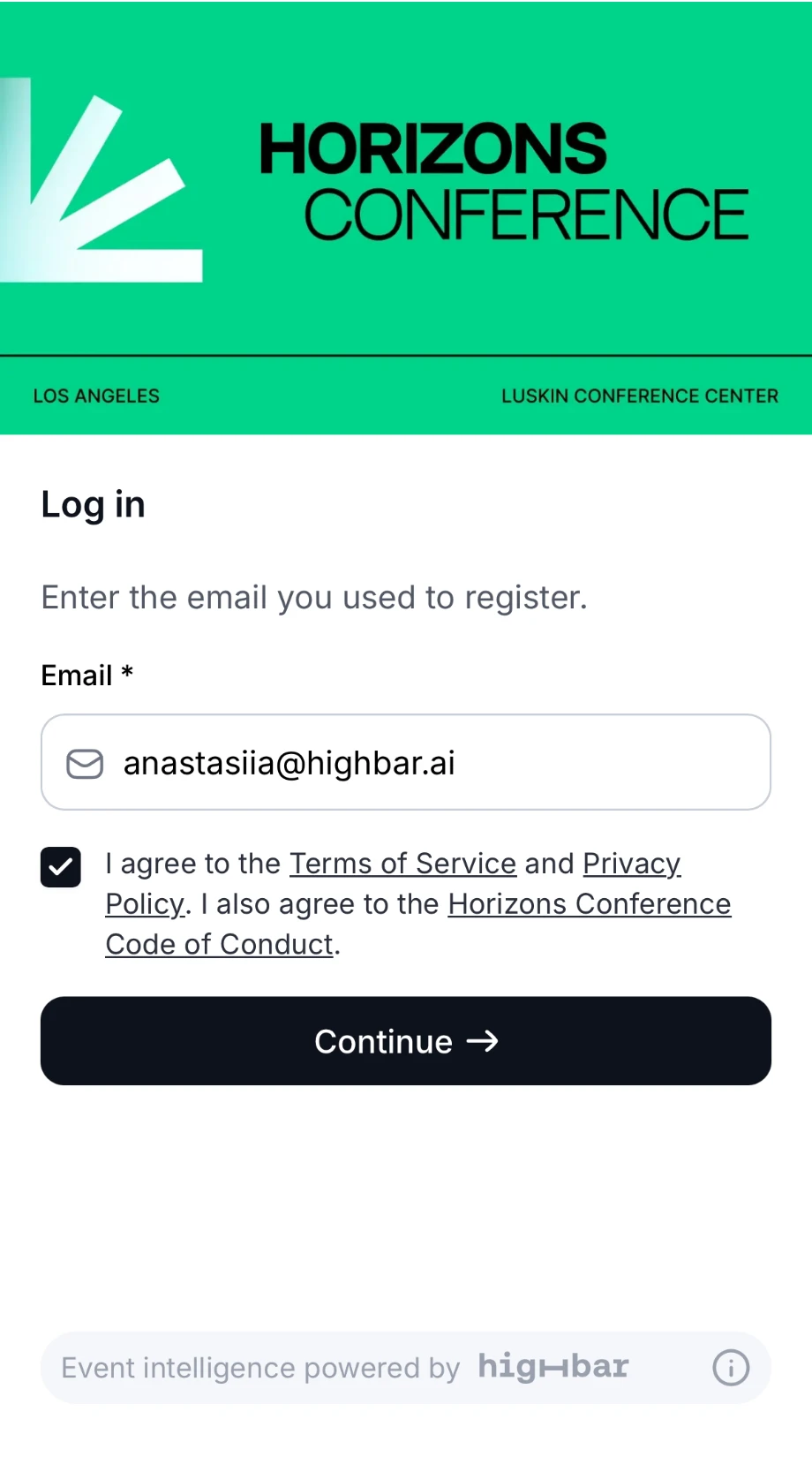
Open the event app from the link or QR code the organizer shared. On the Log in screen, enter your email address and tap Continue.
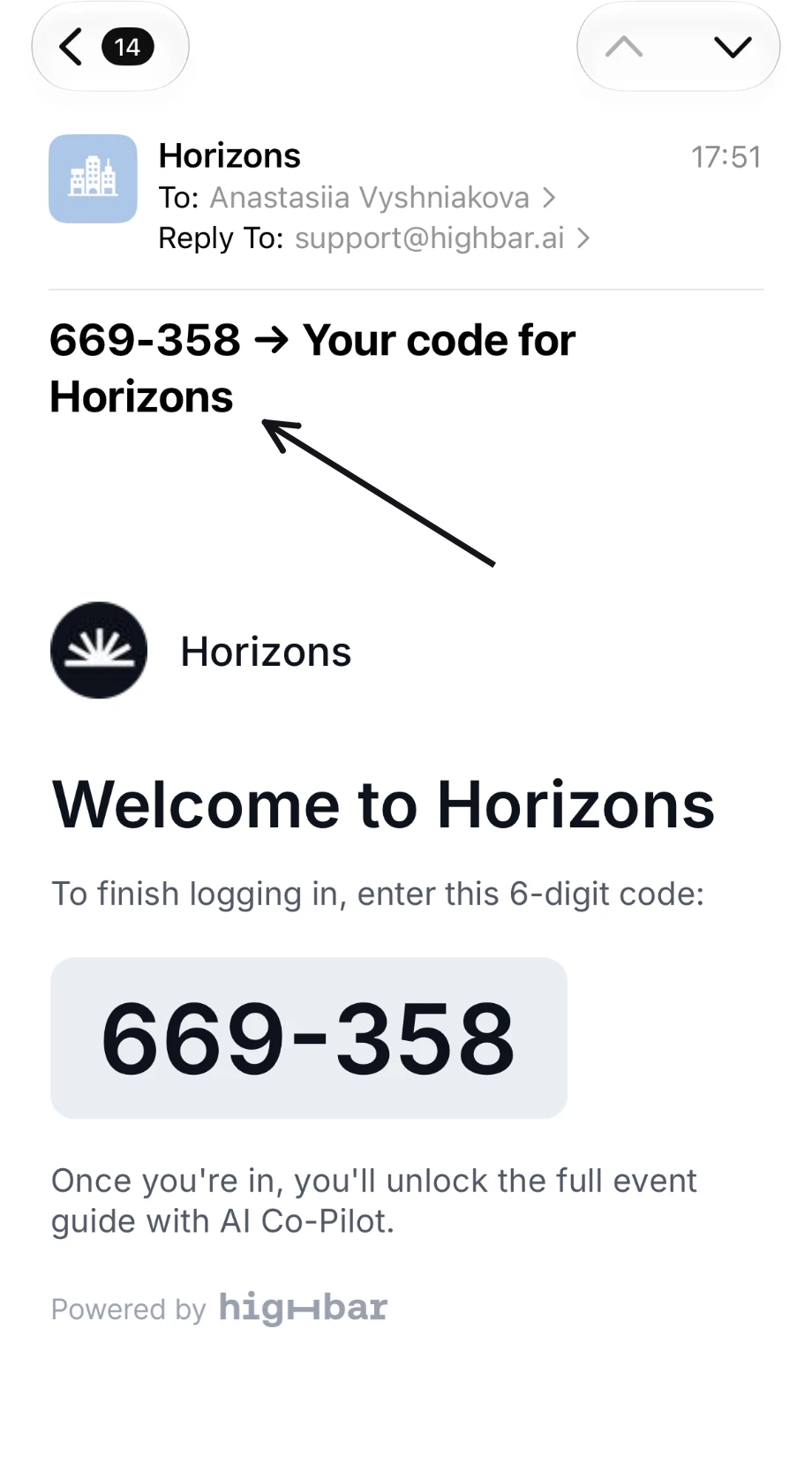
Find the email with your code. The sender is shown as the event's name, and the code is at the start of the subject line, so you can usually read it from your inbox without opening the email.
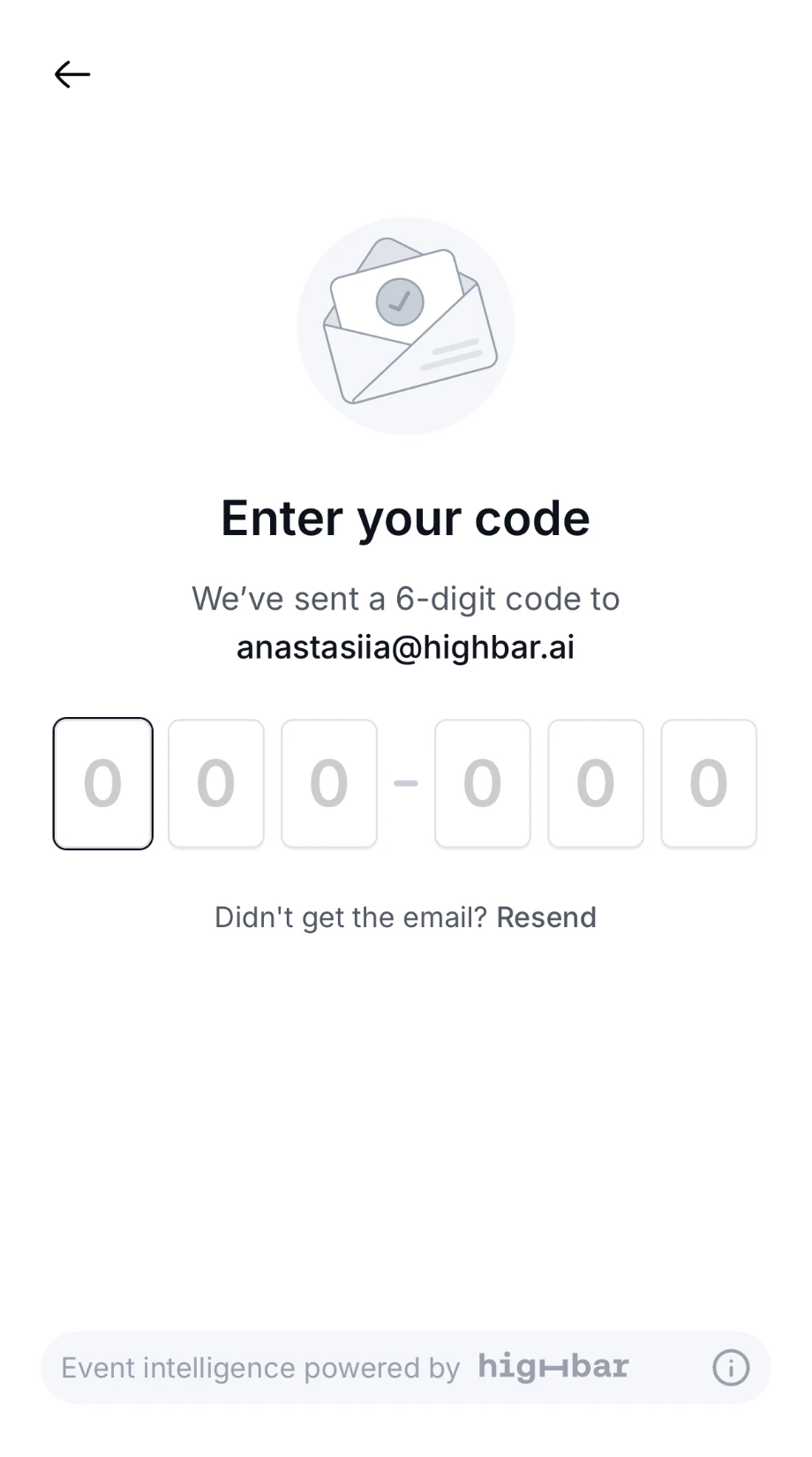
On the Enter your code screen, type or paste the 6 digits. The app logs you in as soon as all six are in.
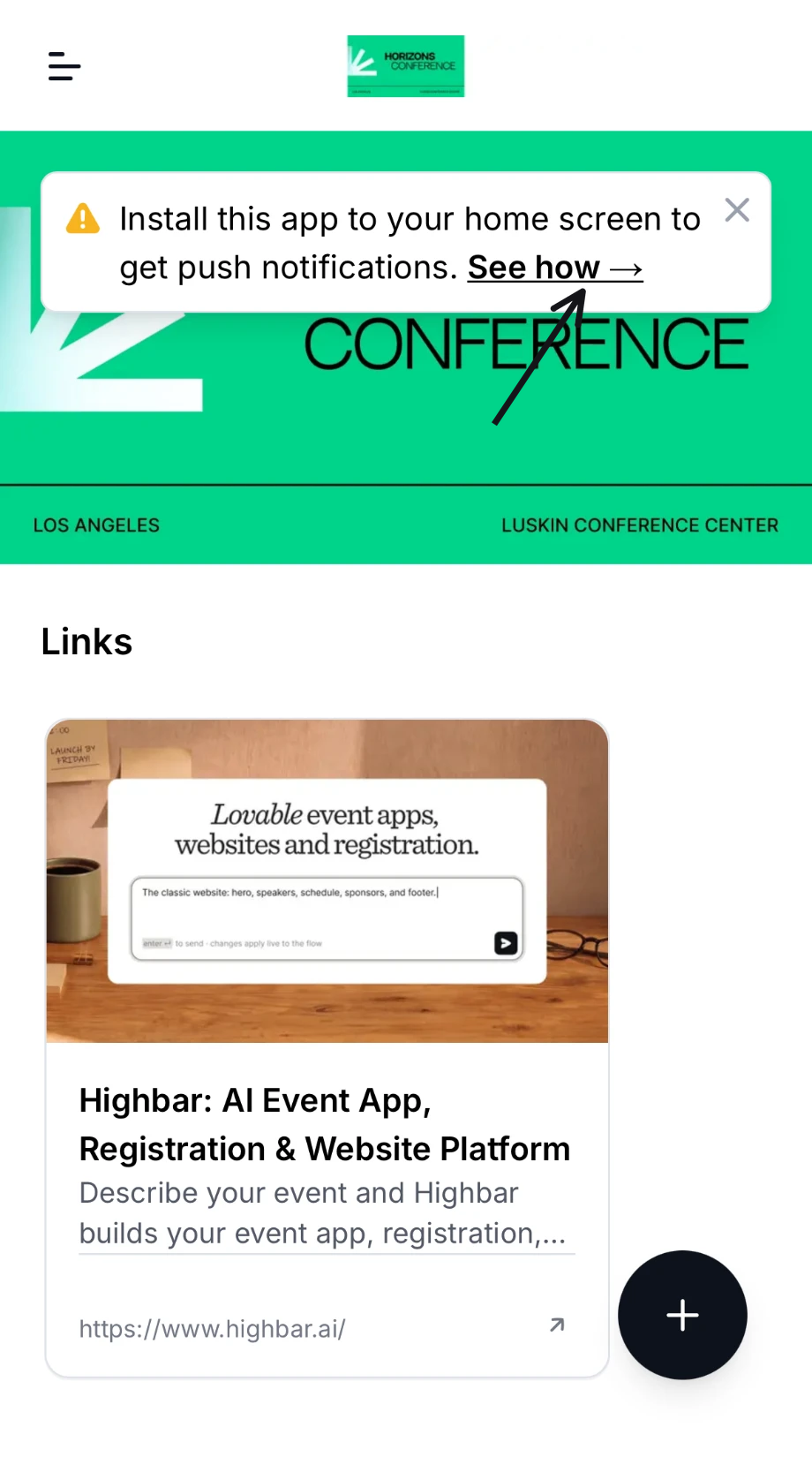
The app opens on its start page. On a phone, a banner may suggest installing the app to get push notifications: tap See how for the steps, or see Installing the app.
If you opened a link to a particular page while logged out (from an email or a notification, for example), the app takes you to that page once you're in.
About the code
- It lasts 20 minutes. After that, ask for a new one.
- Didn't arrive? Check your spam or junk folder first, then tap Resend next to "Didn't get the email?". The button counts down 60 seconds before you can use it again.
- More than one email? Any code sent in the last 20 minutes works, so you don't need to wait for the newest one.
- Wrong email address? Tap the back arrow (on a computer, Back to log in) and enter it again.
"Invalid code or verification failed." means the code was mistyped or has expired. Check the digits, or ask for a new code.
Too many tries
To protect your account, the app limits how many codes it sends and how many wrong codes it accepts. If you ask for several codes in a short time, you'll see "Unable to sign in at this time. Please try again later." After several wrong codes, even the right one is refused. In both cases, wait up to 20 minutes and try again. More help is in Troubleshooting.
If you're not on the attendee list
Many events let only people on the organizer's attendee list log in. If your address isn't on it, you'll see "The email you entered is not on the attendee list. Please try again or contact the event organizer."
Check the spelling, then try any other address you might have registered with, such as a work or personal one. If neither works, contact the organizer. When they've set up a contact address, "contact the event organizer" in the message is a link that emails them.
If you've never logged in and your code email never arrives, the organizer can also give you a code to enter instead.
Agree to the terms
Some events ask you to agree to terms before you log in:
- A line under Continue. By tapping Continue, you accept the terms named there. There's nothing to tick.
- A checkbox. Tick the box that starts "I agree to the Terms of Service and Privacy Policy." before tapping Continue. If you don't, you'll see "Please accept the terms to continue."
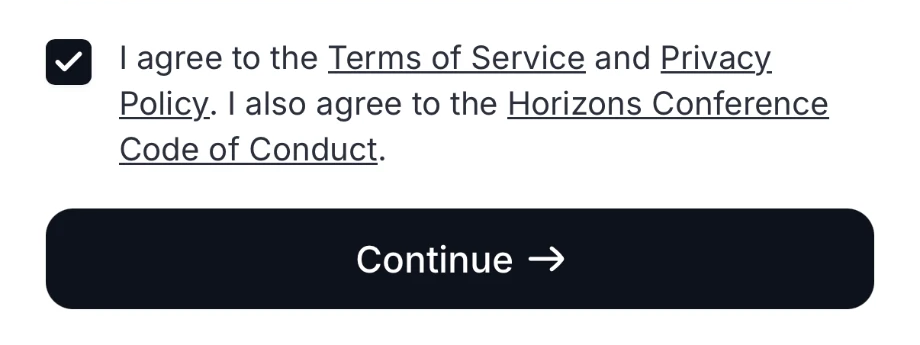
The organizer may add their own terms, such as a code of conduct. Tap the underlined words to read them.
If the organizer starts asking for a checkbox after you've already logged in, the app shows Before you continue the next time you open it. Tick the box and tap Continue to keep using the app. You're only asked once.
Complete your profile
The first time you log in, the app asks you to Complete your profile. Your details may already be filled in from your registration.
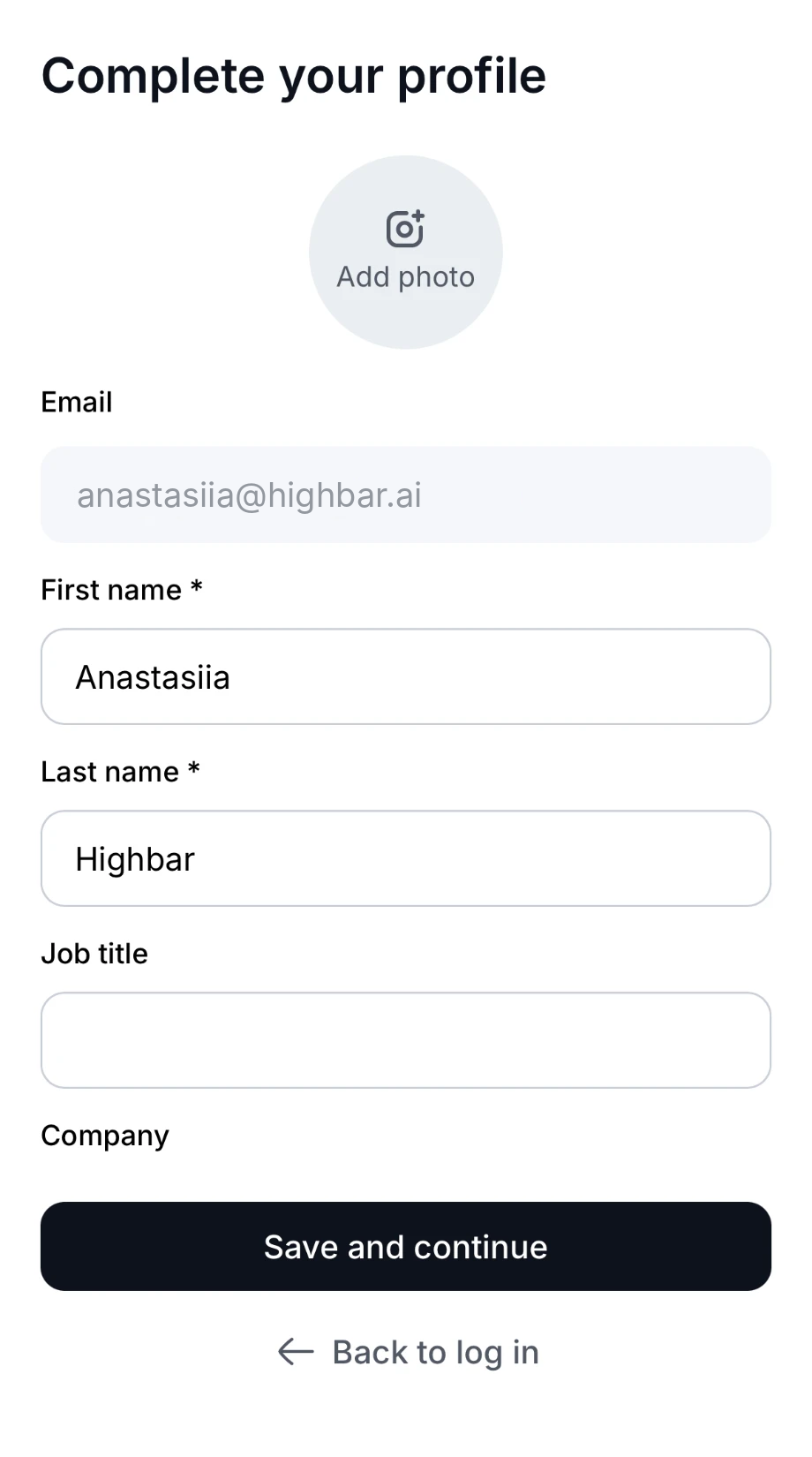
- First name and Last name are required.
- Job title, Company, Headline and Bio are optional, and so is a photo (tap Add photo).
- Your email address is shown but can't be changed here.
- If the organizer allows it, a Privacy section lets you choose whether to show your profile in the community (Profile visibility) and whether other attendees can message you (Direct messages).
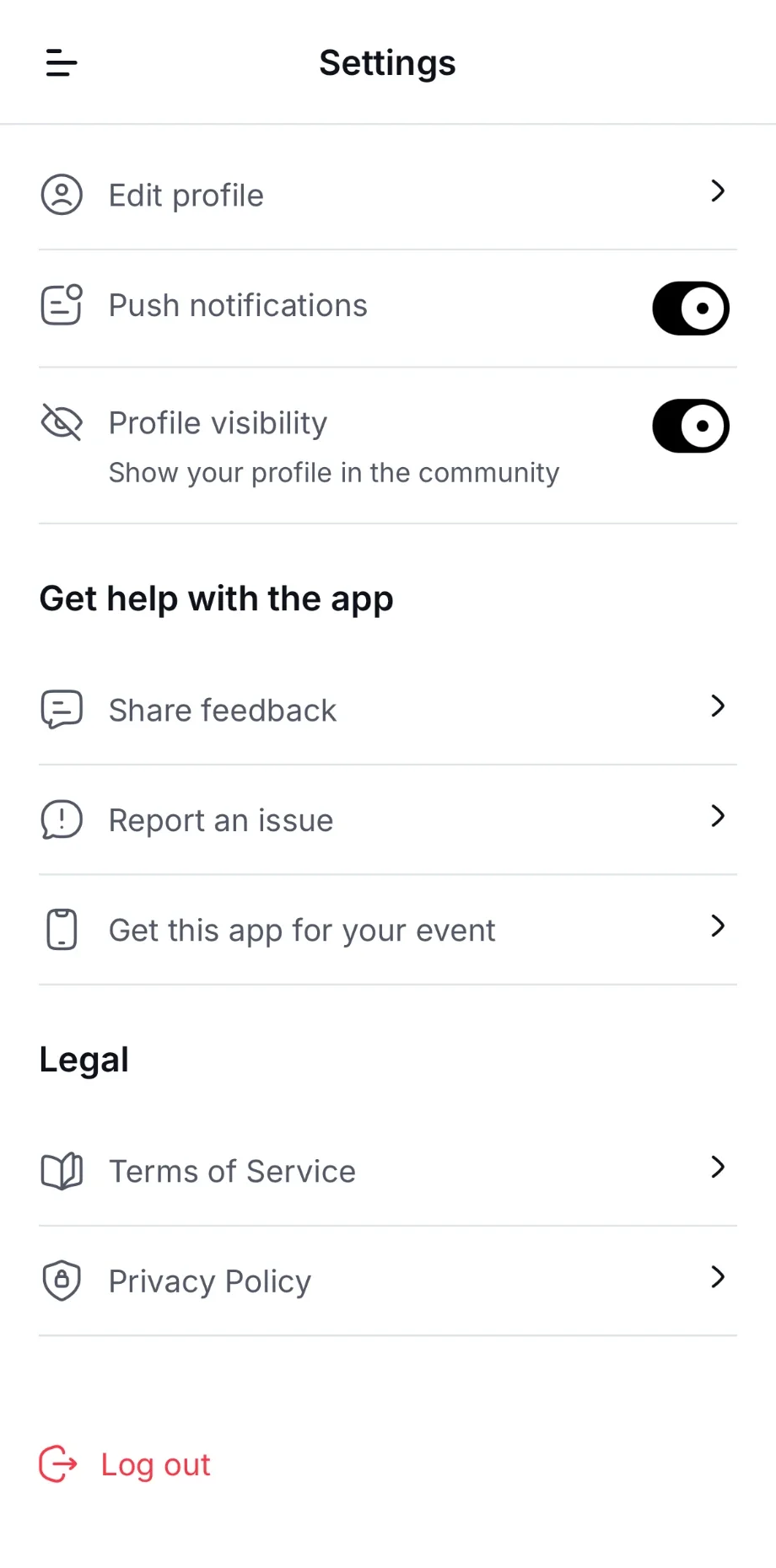
Tap Save and continue to finish. You can change all of this later: open the menu, tap your name at the bottom to open Settings, then tap Edit profile.
Use the app on another device
Log in on each device with the same email address. Your profile and everything you've saved appear on every device. Notifications are turned on separately on each one: see Notifications. Each event's app has its own login, so logging in to one event doesn't log you in to another.
Log out
Open the menu and tap your name at the bottom to open Settings.
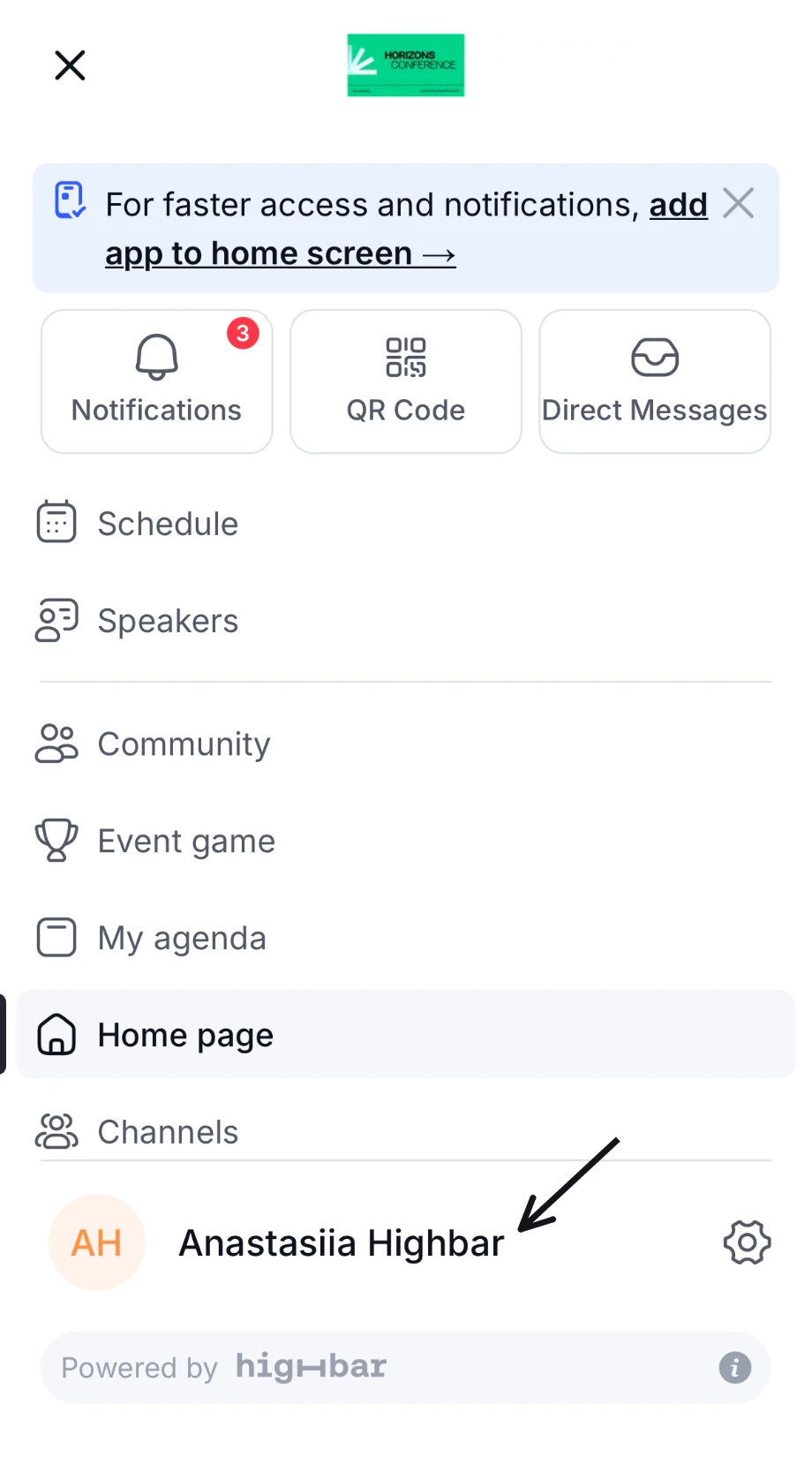
Tap Log out at the bottom of the page.
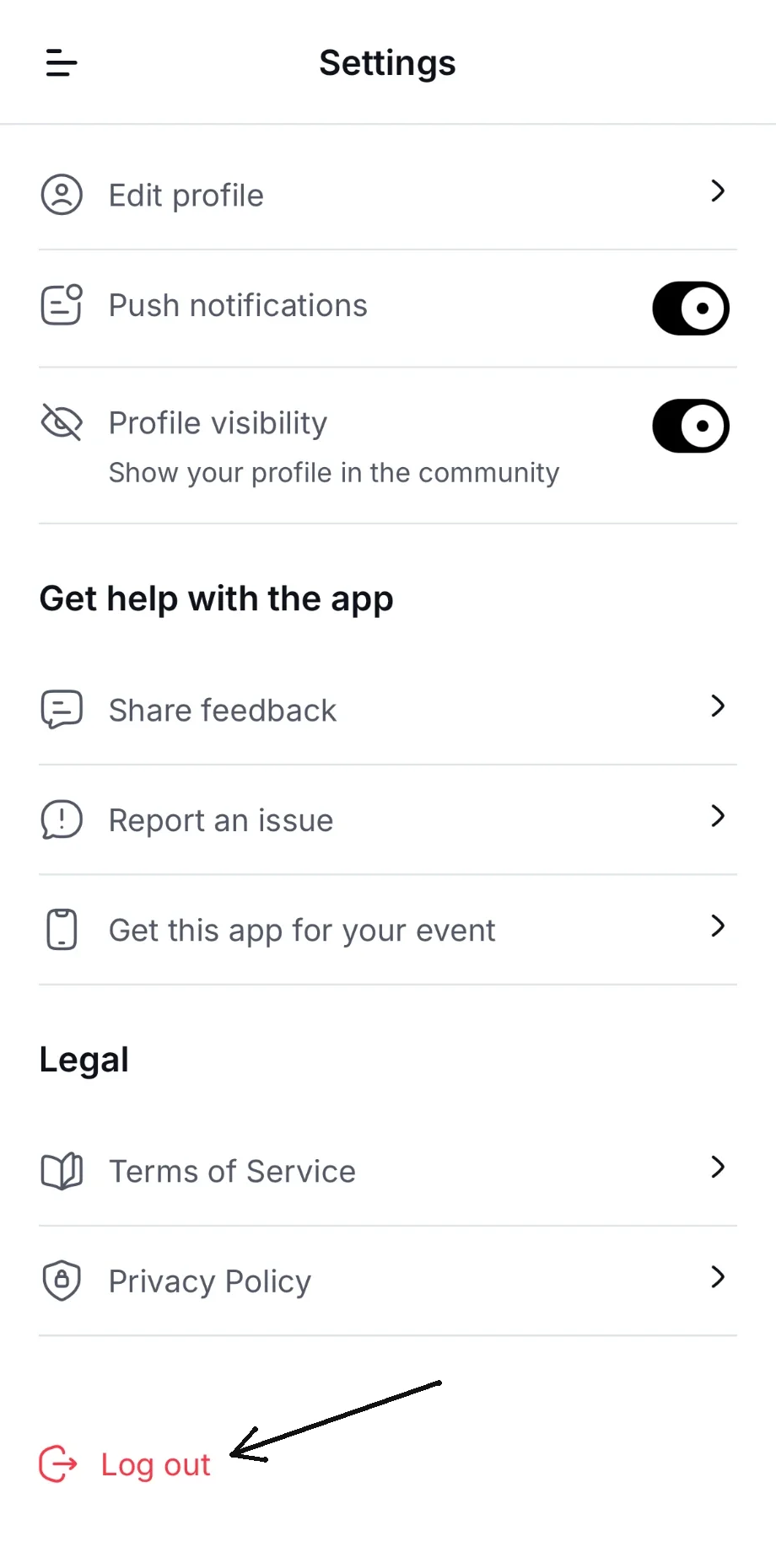
Tap Log Out to confirm.
This device stops receiving your notifications, and the event information saved on it for offline use is removed. Your other devices stay logged in, and your profile and saved items are still there when you log back in.
Get the most out of the event
A checklist for attendees, before, during and after the event, to plan your days, meet the right people and never miss an update in the event app.
Installing the app
Add the event app to your phone's home screen so it opens like any other app and can send you notifications.