Schedule and My agenda
Browse the event's sessions, save the ones you want, register for sessions with limited places, rate sessions, and plan your day in My agenda.
The Schedule lists every session at the event. Save the ones you want to attend and they appear in My agenda, your personal plan for each day, together with your meetings.
The organizer may have renamed these menu items, or called sessions something else, such as talks. Some events have more than one schedule.
Browse the schedule
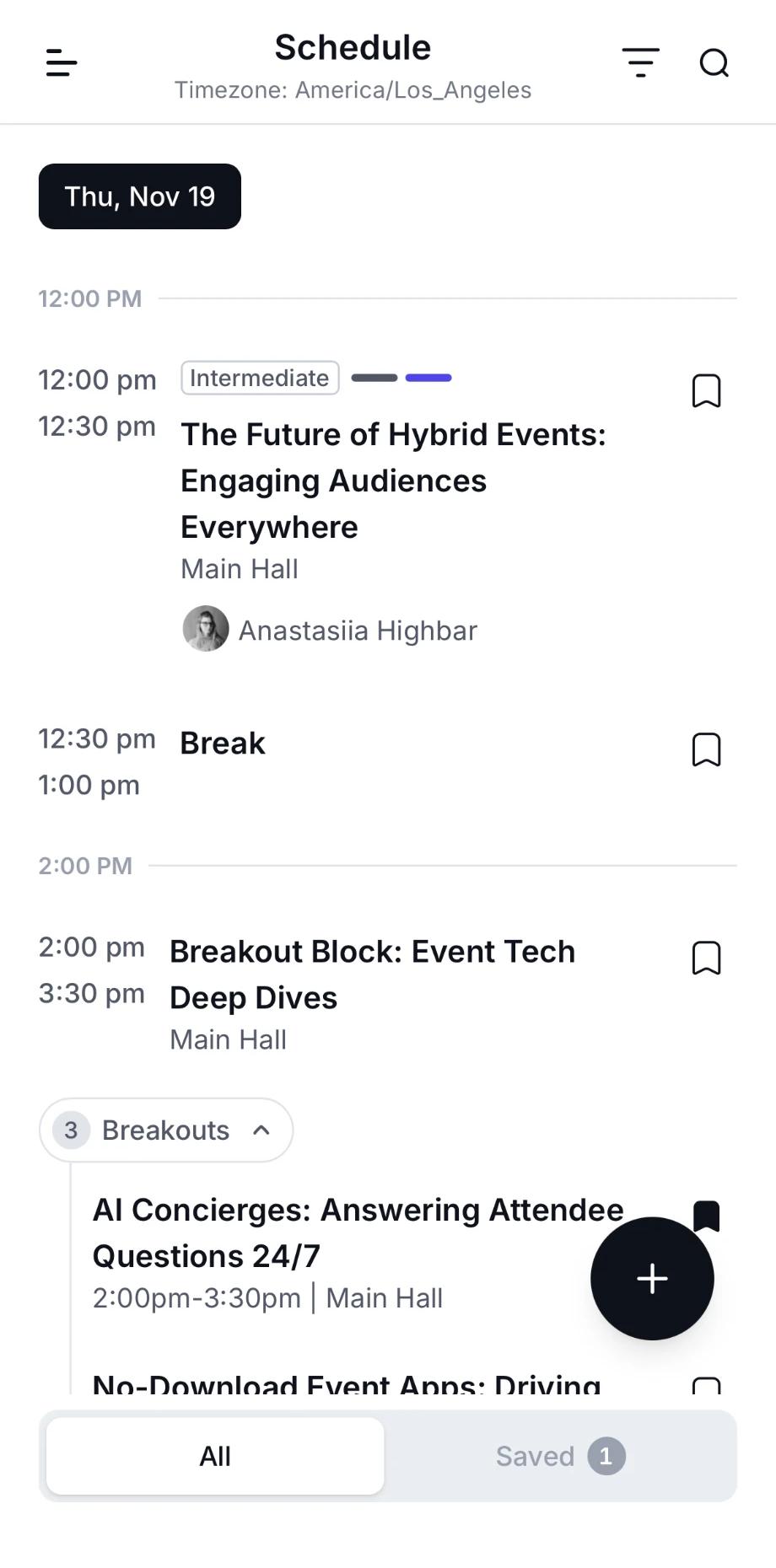
Open Schedule from the menu. It opens on today if the event is on, otherwise on the first day.
-
Change day. Tap a day at the top, such as "Wed, Nov 18". When you're looking at another day, the calendar icon at the top takes you back to today.
-
Search. Tap the magnifier and type a title, topic or speaker. Results from every day appear in one list. "No results, please try again." means nothing matched.
-
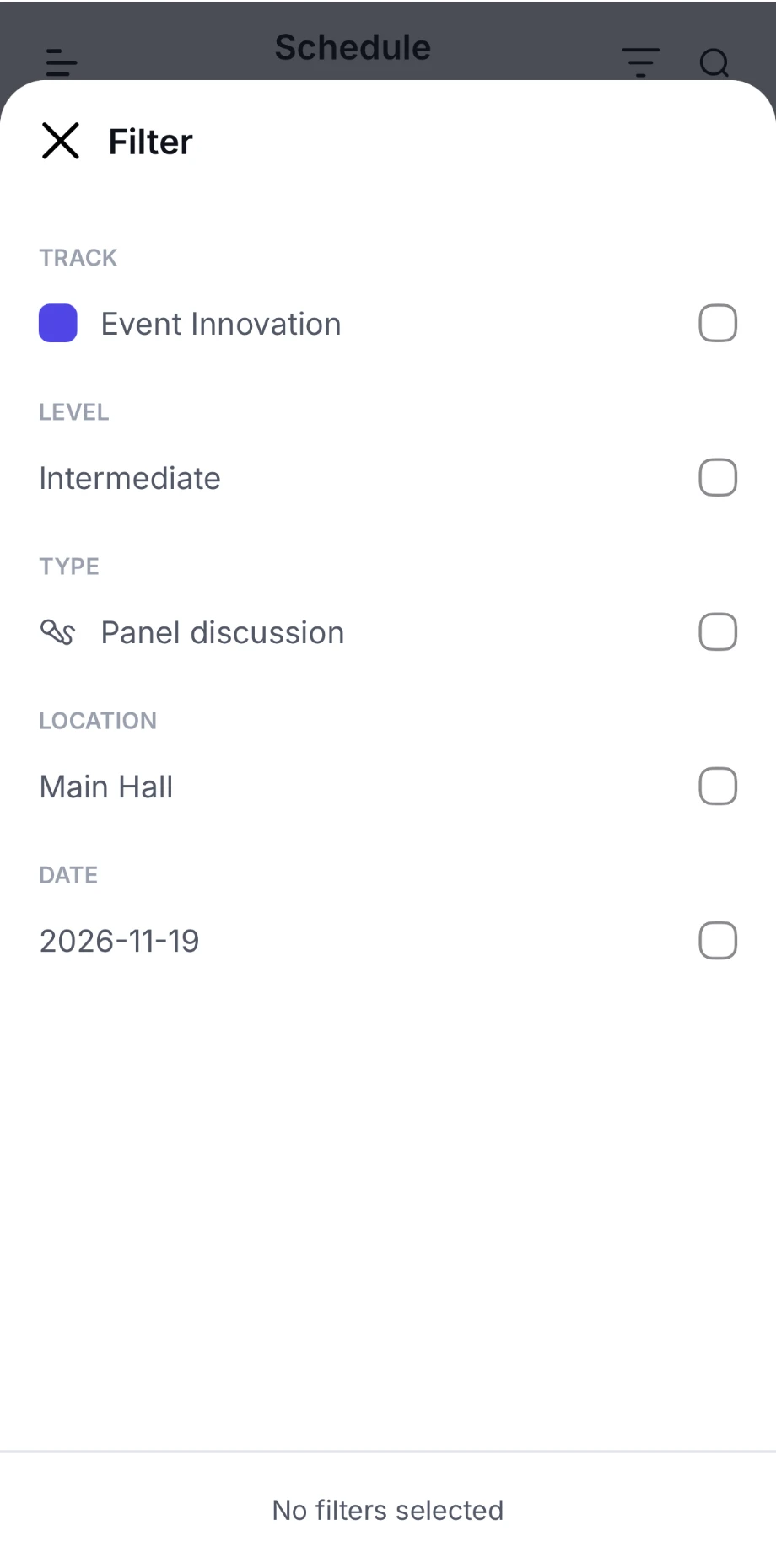
Filter. Tap the filter icon to filter by Track, Level, Type, Attribute (such as closed captioning), Location or Date. Filters apply as you tick them. Tap Show N results to see the list, or Clear all to start again. The strip under the header shows how many filters are on, with Clear.
Each session shows its start and end time, location, tags, and speakers. A red Live label means it's on now. Times are in the event's time zone, shown at the top when it differs from your phone's.
Some sessions are made up of shorter ones. Tap the label with the number of subsessions under a session to show or hide them. The organizer may call them something else, such as Breakouts. Each subsession has its own page and can be saved on its own.
Save sessions
Tap the bookmark icon on a session, in the list or at the top of its page. The icon fills in, and the session is added to My agenda. Tap it again to remove it.
Saving a session doesn't reserve a place. If a session has limited places, register for it as well (see below).
The Saved tab (at the bottom of the screen on a phone) shows how many sessions you've saved, and opens My agenda.
Session pages
Tap a session to open its page. Depending on what the organizer has added, it shows:
- The date, time, location, and tags such as track and level
- About: the description
- Location: tap it to see the room on the event's map
- Speakers and Sponsors: tap one to open their profile
- Resources and Attachments, such as slides or documents
- Links the organizer has added, such as polls or Q&A, and a livestream if the session is streamed
After some sessions, a Recap tab appears next to About, with a summary and key takeaways. It's marked NEW until you open it.
Register for a session
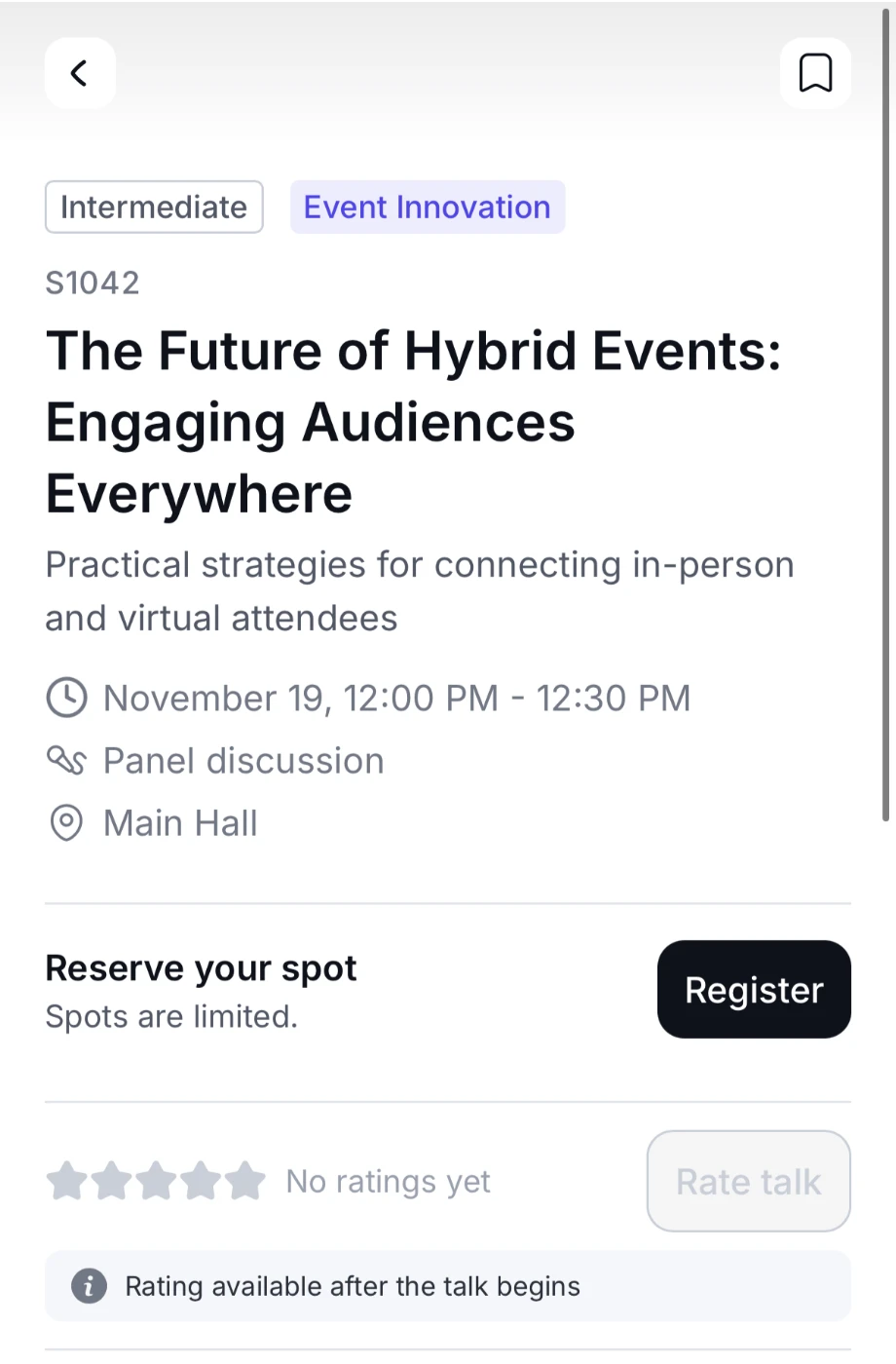
Some sessions have limited places. Their page shows a registration box under the session's details:
| You see | What it means | Tap |
|---|---|---|
| Reserve your spot | Places are left. | Register |
| Join the waitlist | The session is full, but has a waitlist. | Join waitlist |
| No spots left | The session is full, with no waitlist. | Nothing: Full |
| You're registered | You have a place. | Cancel to give it up |
| You're #N in line | You're on the waitlist, at that position. | Leave waitlist |
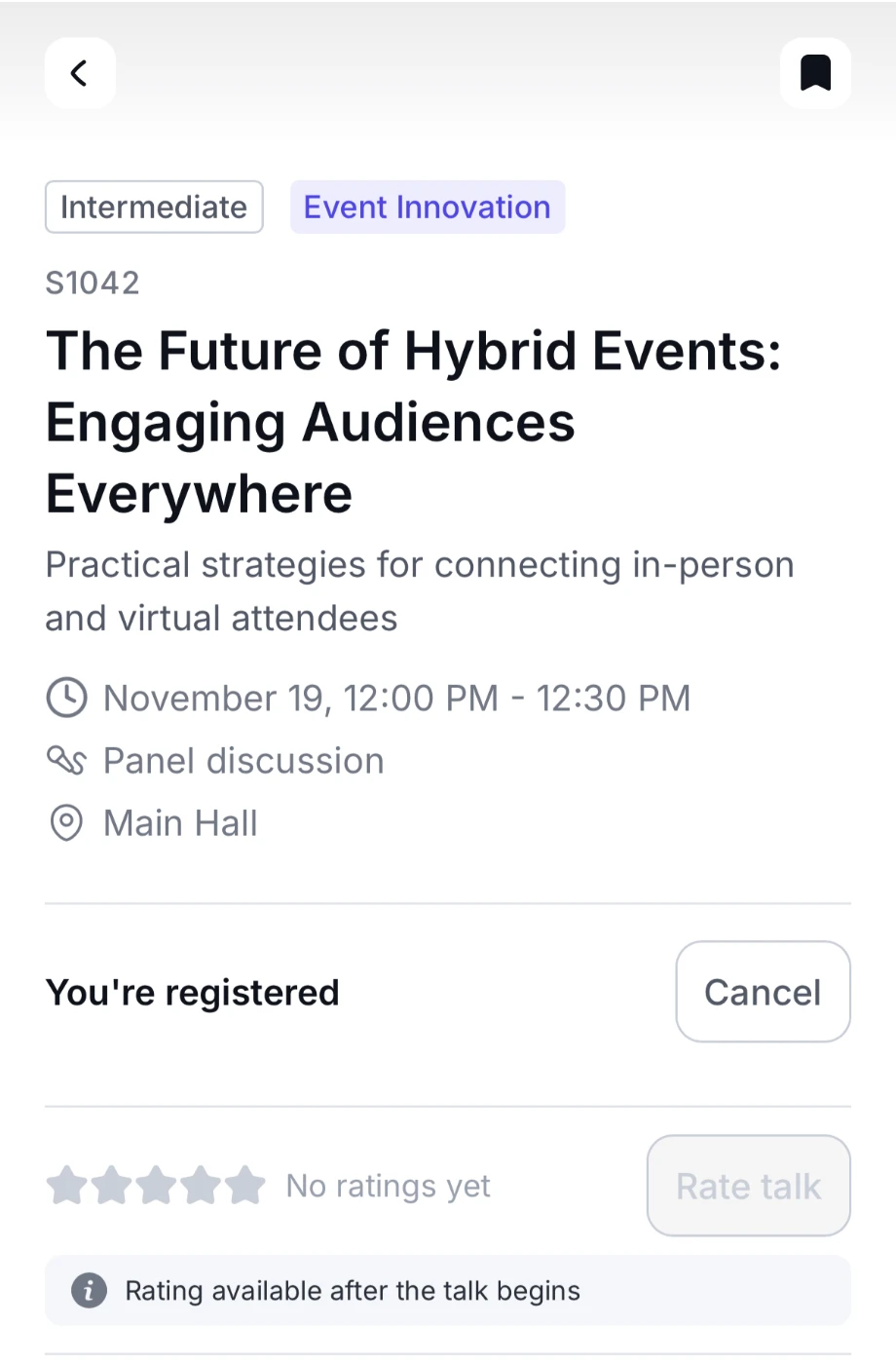
Registering or joining the waitlist also saves the session to My agenda. When a place opens up, you're either moved in automatically or the organizer approves it, as the waitlist box explains, and you get a notification.
To give up your place, tap Cancel, then Cancel registration. Your place goes to someone else. Removing the bookmark alone doesn't cancel your registration: the app asks whether to Remove bookmark only, or Remove and cancel registration.
You need an internet connection to register, cancel or change your place.
Rate a session
If the organizer collects ratings, you can rate a session from its page once it has started. Until then, the button is greyed out and the page says rating is available after the session begins. The button and message use the event's word for sessions, such as Rate talk.
Tap Rate session.
Under How was this session?, choose 1 to 5 stars.
If asked How was the speaker?, rate each speaker. You need to rate all of them to submit.
Add an optional comment under Any other feedback? (up to 200 characters), then tap Submit.
To change your rating later, tap Edit. Your rating goes to the organizer.
My agenda
Open My agenda from the menu. It shows everything you've planned, one day at a time:
- Sessions you've saved, registered for or joined the waitlist for
- Your meetings, with their status, such as Pending or Accepted
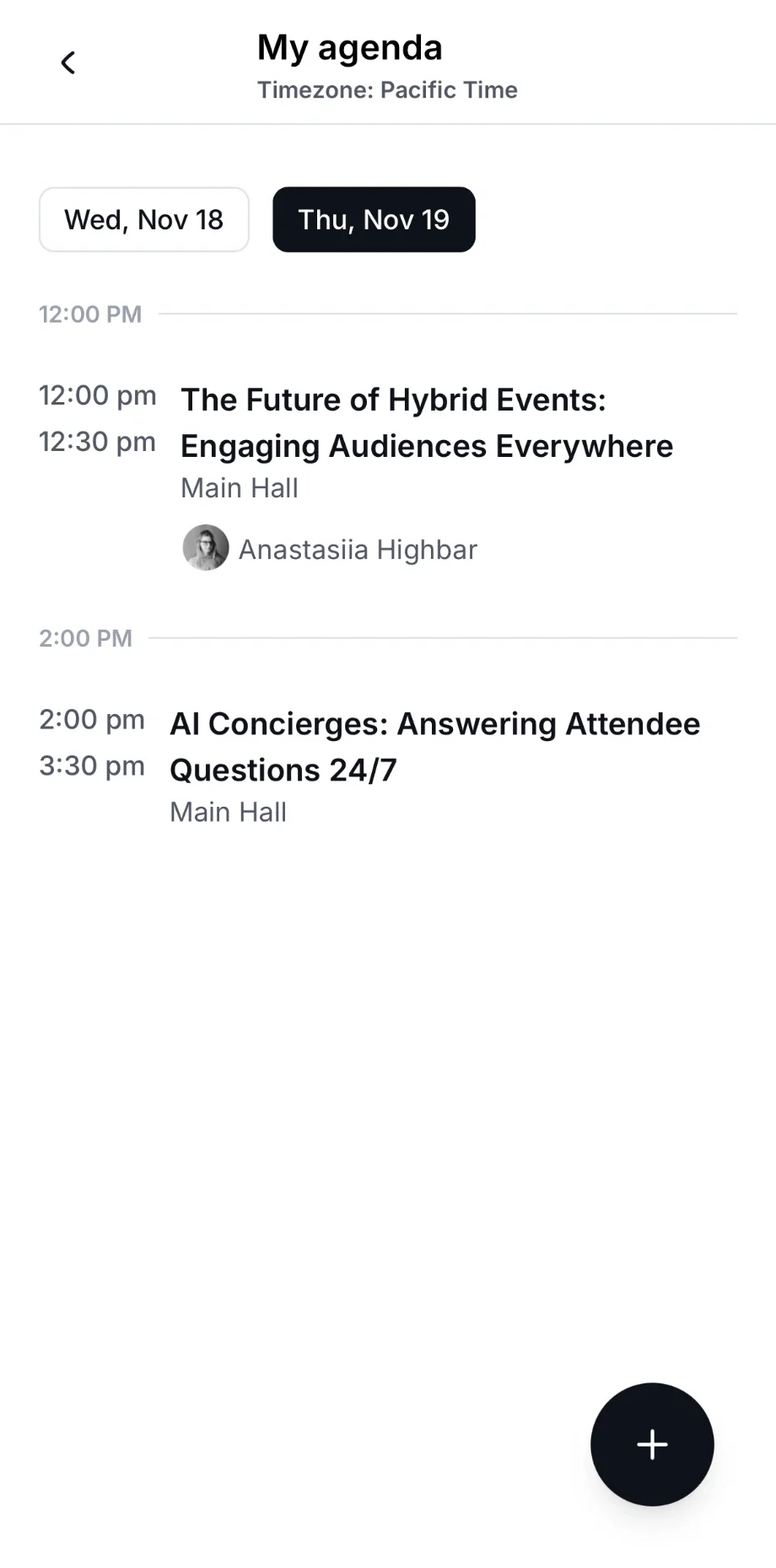
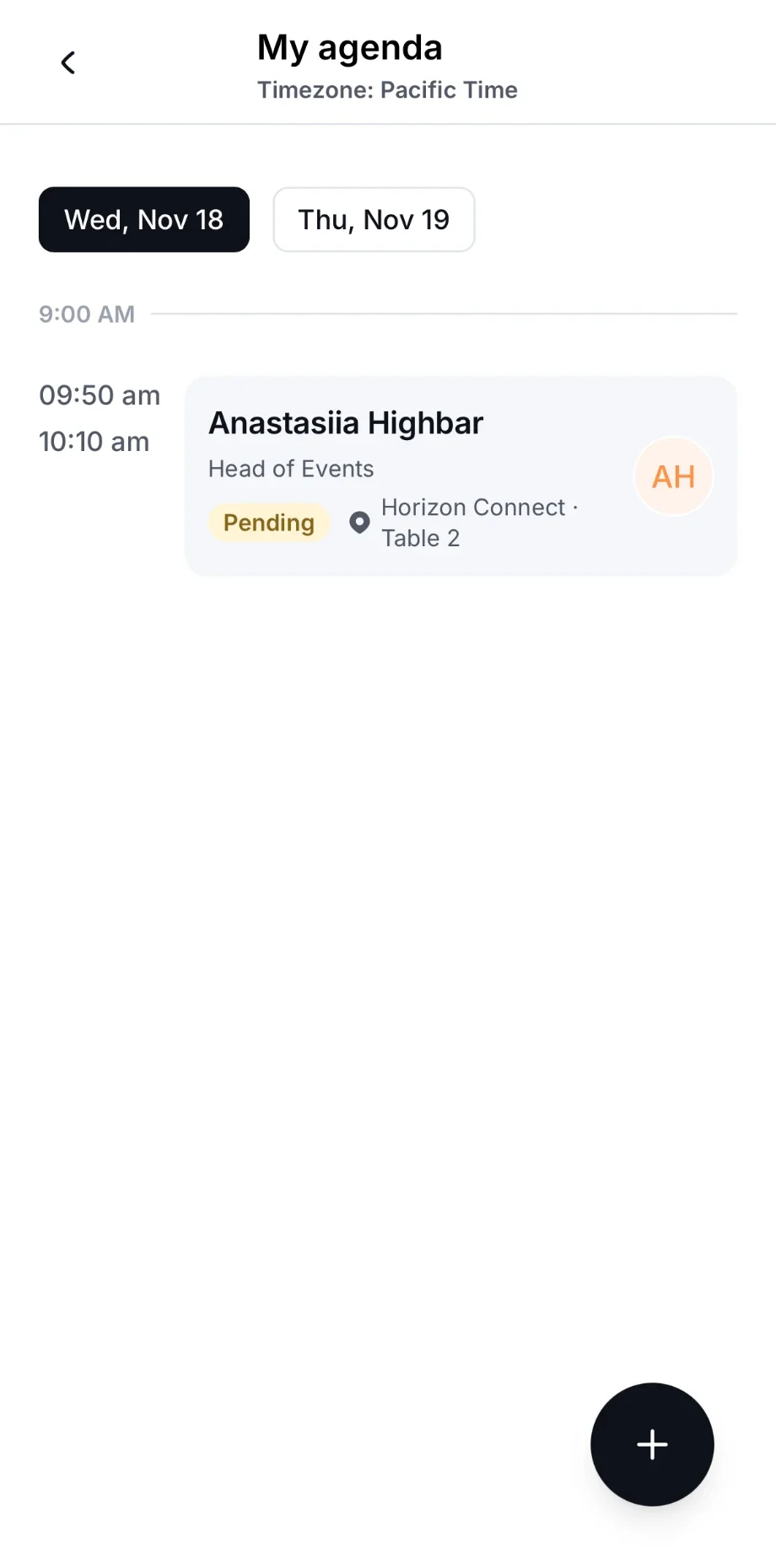
Sessions that are on now are marked Live, and ones that are over are marked Ended. If someone has asked to meet you, the top of the page says "You have 1 meeting request" with Review.
If it says "Nothing on your agenda yet", tap the bookmark icon on any session to add it.
The event app can't add sessions to your phone's calendar. Use My agenda to plan your day.
Notifications
Turn on push notifications for event updates, turn them back on if you blocked them, and find past updates on the Notifications screen.
Speakers and sponsors
Browse the event's speakers and sponsors in the event app, see their sessions, products and representatives, and save the ones you want to remember.