Edit your session
Use the private link from the event organizer to update your session's title, description and files in the event app.
The organizer may send you a private link to each session you present. It lets you update the title, subtitle, description and files that attendees see for that session in the event app. You don't need an account or a password.
Update your session
Open the email "Your session at" the event, and click the button. It may say Set up my speaker profile, but it opens your session. You can also copy the link under the button into your browser.
The top of the page shows the session's date, time and room.
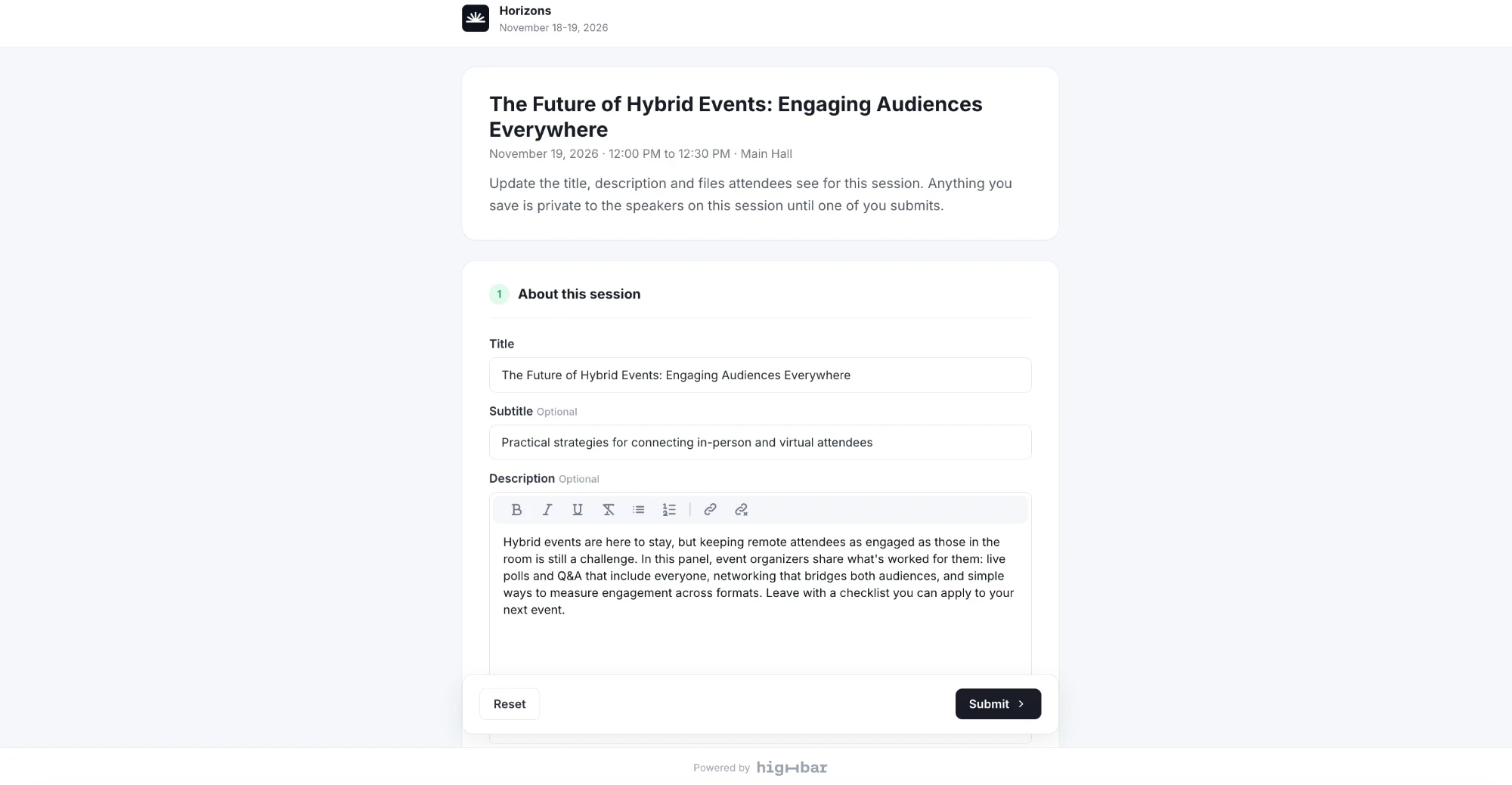
Under About this session, update the Title, the Subtitle (a one-line tagline under the title) and the Description. Under Files, add slides, handouts or other documents attendees can download.
Your changes save as you go, and stay private until you submit.
Click Submit.
Depending on the organizer's settings, your changes go live in the event app straight away or after the organizer approves them. The thank-you page tells you which.
The date, time, room and other details stay with the organizer. If one of them is wrong, contact the organizer. If a field you expected isn't on the page, the organizer has chosen to manage it.
Sessions with more than one speaker
Everyone presenting the session shares one draft. What any of you saves stays private until one of you clicks Submit, and anything saved after that updates the same submission.
Change something later
Open the same link again, or click Edit my submission on the thank-you page. Links work until the date shown there, usually two weeks after the event. To throw away your edits, click Reset, then confirm Reset to the published session?.
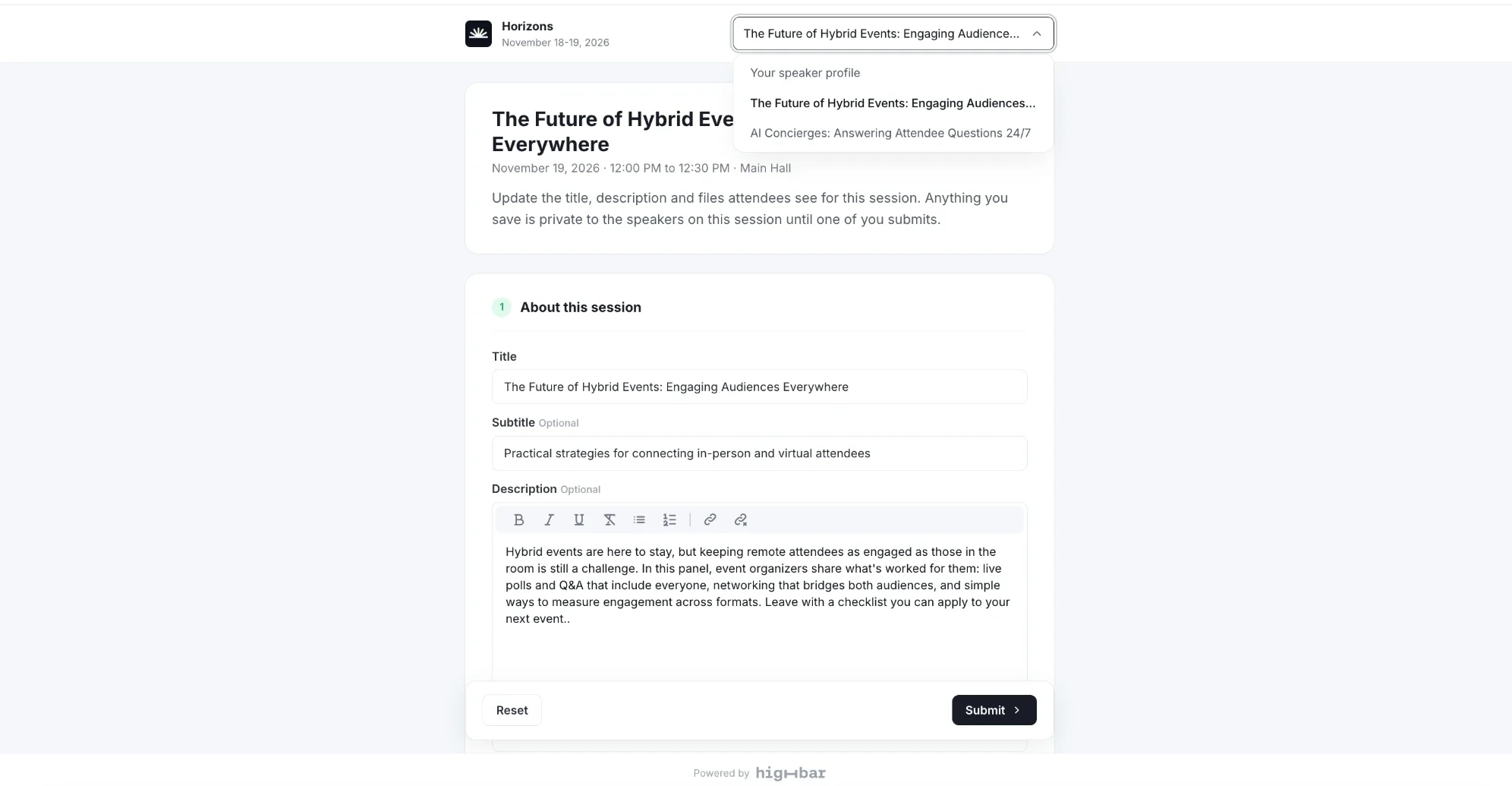
If you also have a link to your speaker profile or to other sessions, use the menu at the top right of the page to move between them.
 See Update your speaker profile.
If the page says "This session isn't available", the organizer may have removed the session or taken you off it. See If your link doesn't work.