Update your sponsor profile
Use the private link from the event organizer to update your company's logo, description, links and products in the event app.
If your company sponsors or exhibits at an event, the organizer may send you a private link to your company's profile. It lets you update what attendees see on your company's page in the event app. You don't need an account or a password: the link is your way in.
Update your company's profile
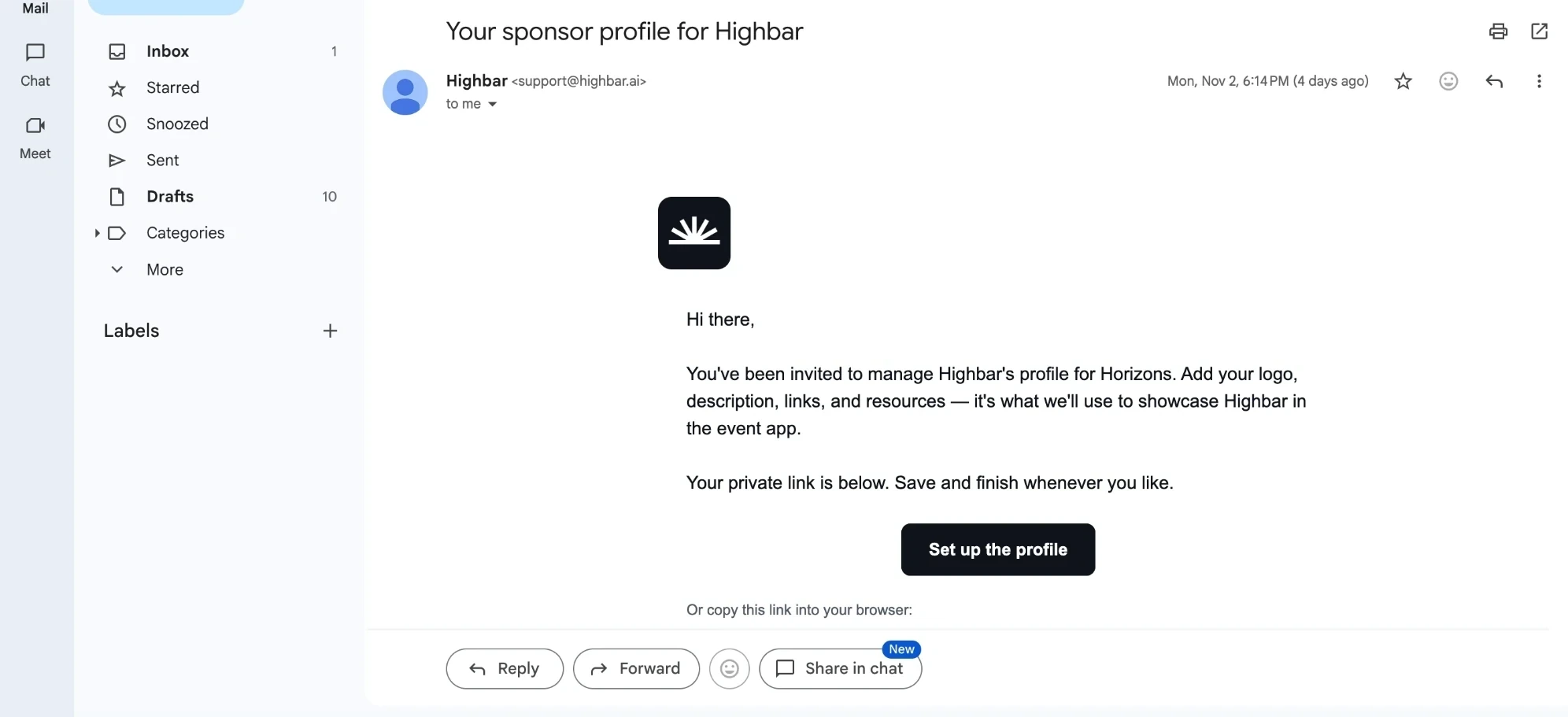
Open the email "Your sponsor profile for" your company, and click Set up the profile. You can also copy the link under the button into your browser.
The page shows your company's current profile.
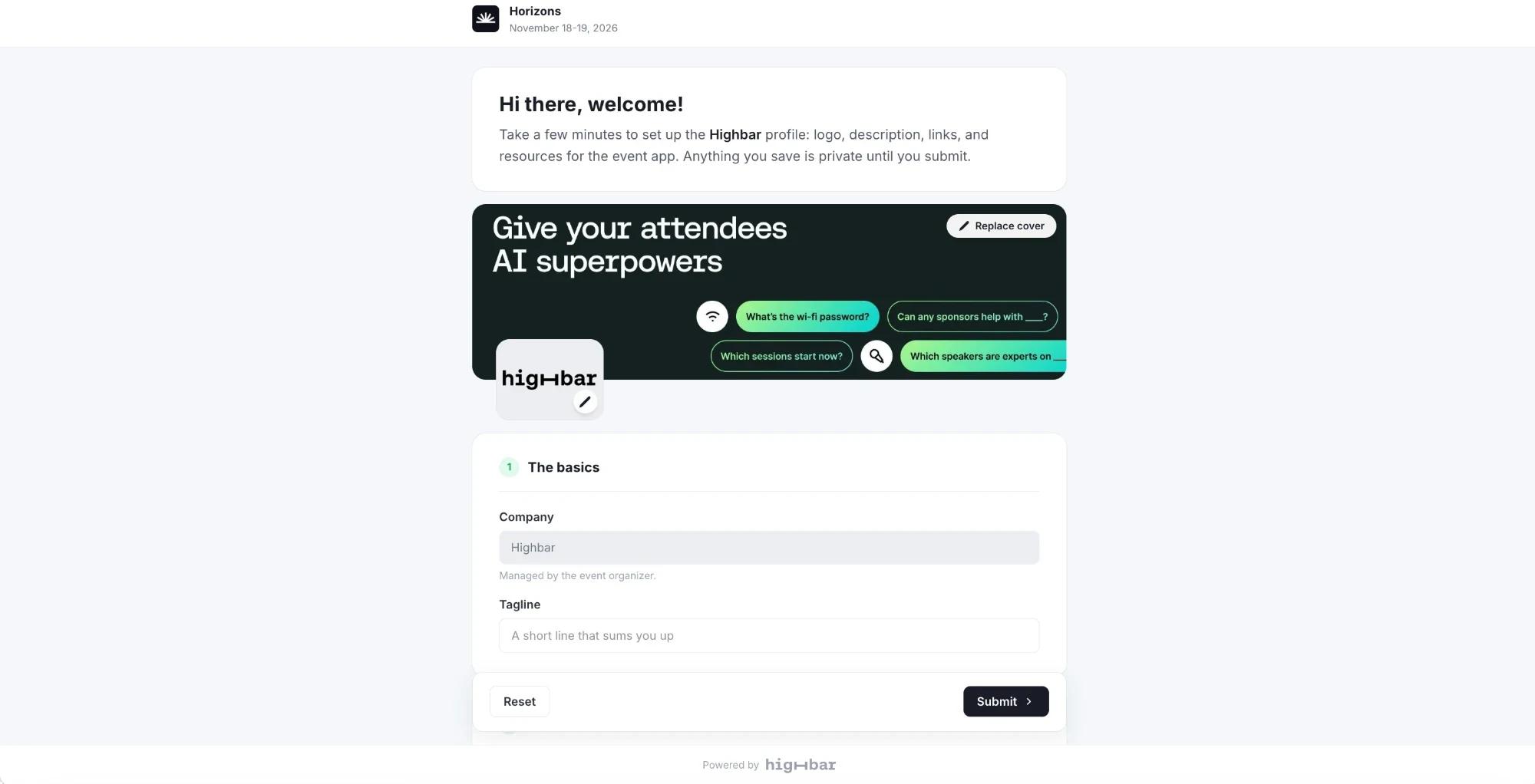
Change anything you like:
- Logo and cover: JPG or PNG, up to 8 MB.
- The basics: a Tagline, a short line that sums you up.
- About your company: a Description, phone and HQ location.
- Where can people find you?: website and social links.
- Call to action: a button on your page, such as "Book a demo", with a Button label and Button URL.
- Files & attachments: one-pagers or brochures attendees can download (PDF, Word, PowerPoint, Excel or text, up to 10 MB).
- Products & resources: products, downloads or links you'd like attendees to see, each with an optional price tag and button.
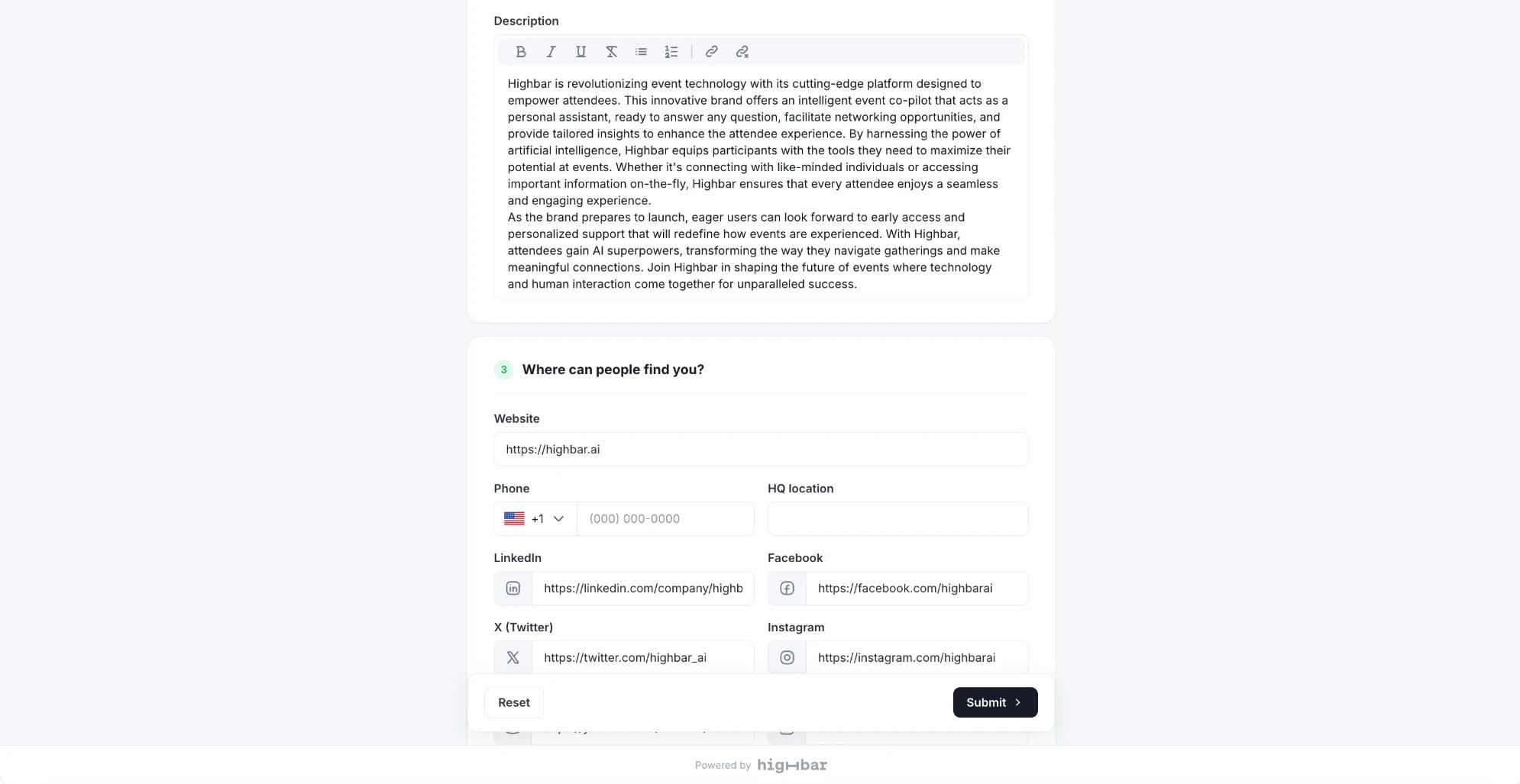
Your changes save as you go, and stay private until you submit.
Click Submit.
Depending on the organizer's settings, your changes go live in the event app straight away or after the organizer approves them. The thank-you page tells you which.
Fields marked Managed by the event organizer., such as your company name, sponsor category, booth number and the list of representatives, can only be changed by the organizer. Contact them if something there is wrong.
Change something later
Open the same link again. It works until the date shown on the thank-you page, usually two weeks after the event. To throw away your edits, click Reset, then confirm Reset to original?.
Your booth staff can collect leads at the event in the event app. See Scan leads at your booth.
Link not working? See If your link doesn't work.