Update your speaker profile
Use the private link from the event organizer to update your photo, bio, contact details and files in the event app.
If you're speaking at an event, the organizer may send you a private link to your speaker profile. It opens a page with the event's branding where you can update what attendees see about you in the event app. You don't need an account or a password: the link is your way in, so don't share it.
Update your profile
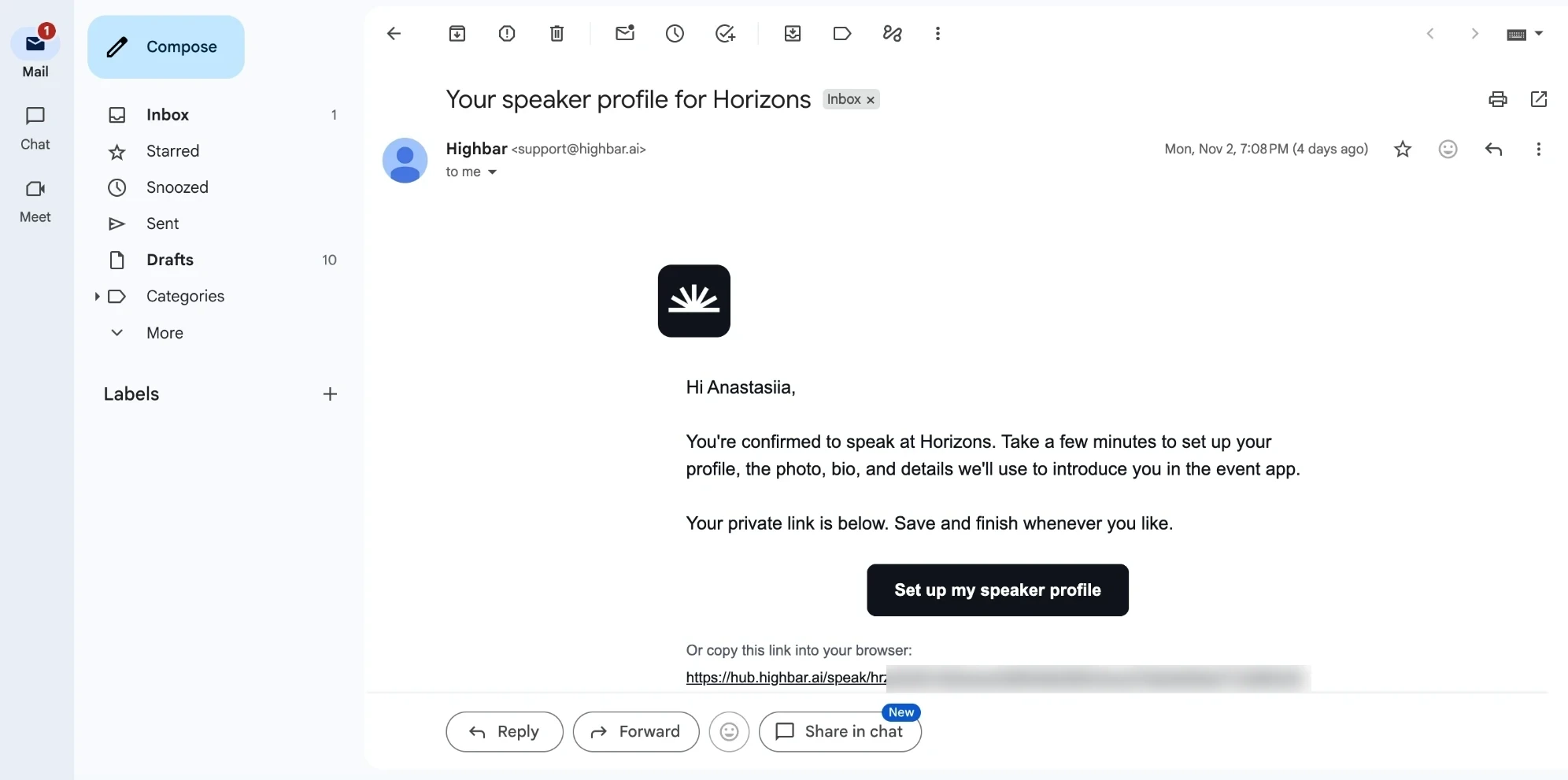
Open the email "Your speaker profile for" the event, and click Set up my speaker profile. You can also copy the link under the button into your browser.
The page shows your current profile.
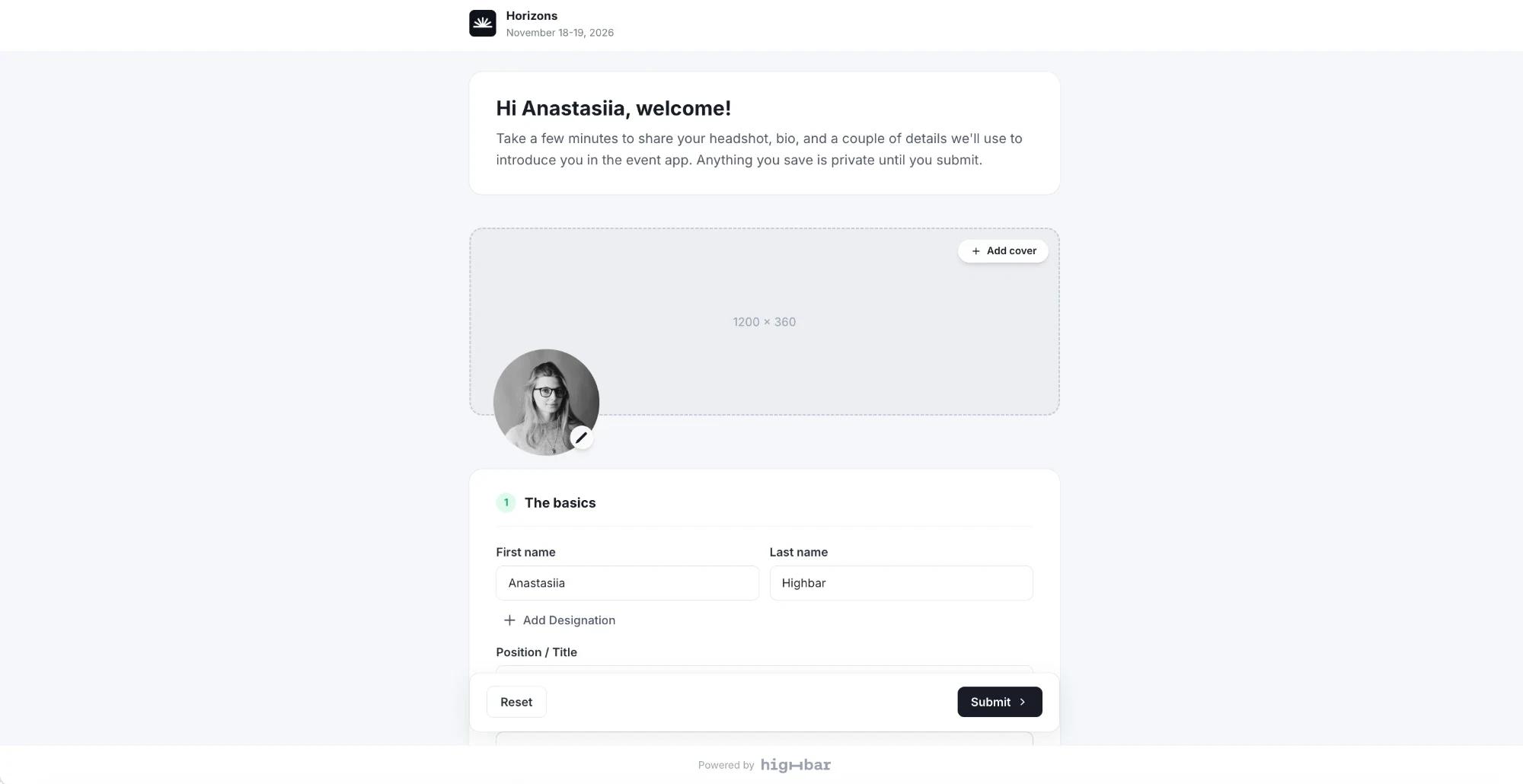
Change anything you like:
- Headshot and cover photo: JPG or PNG, up to 8 MB.
- The basics: your name, an honorific such as Dr. (Add Honorific), letters after your name such as PhD (Add Post-nominal), your Position / Title and Company.
- Your bio.
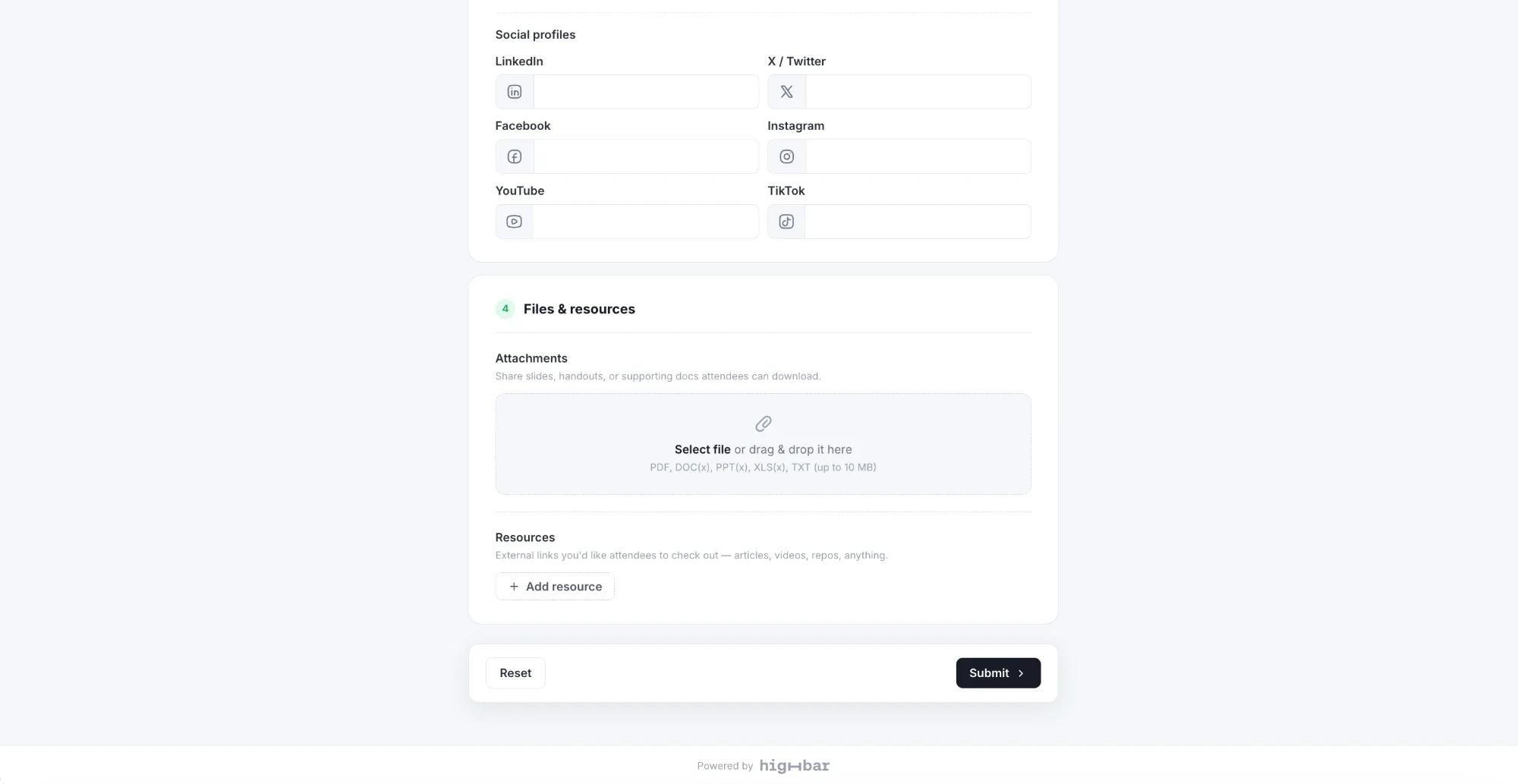
- Contact details and Social profiles: website, phone, hometown, LinkedIn, X / Twitter, Facebook, Instagram, YouTube and TikTok.
- Files & resources: slides or handouts attendees can download, and links or products to show on your page.
Your changes save as you go ("Auto-saved just now"), but stay private until you submit.
Click Submit.
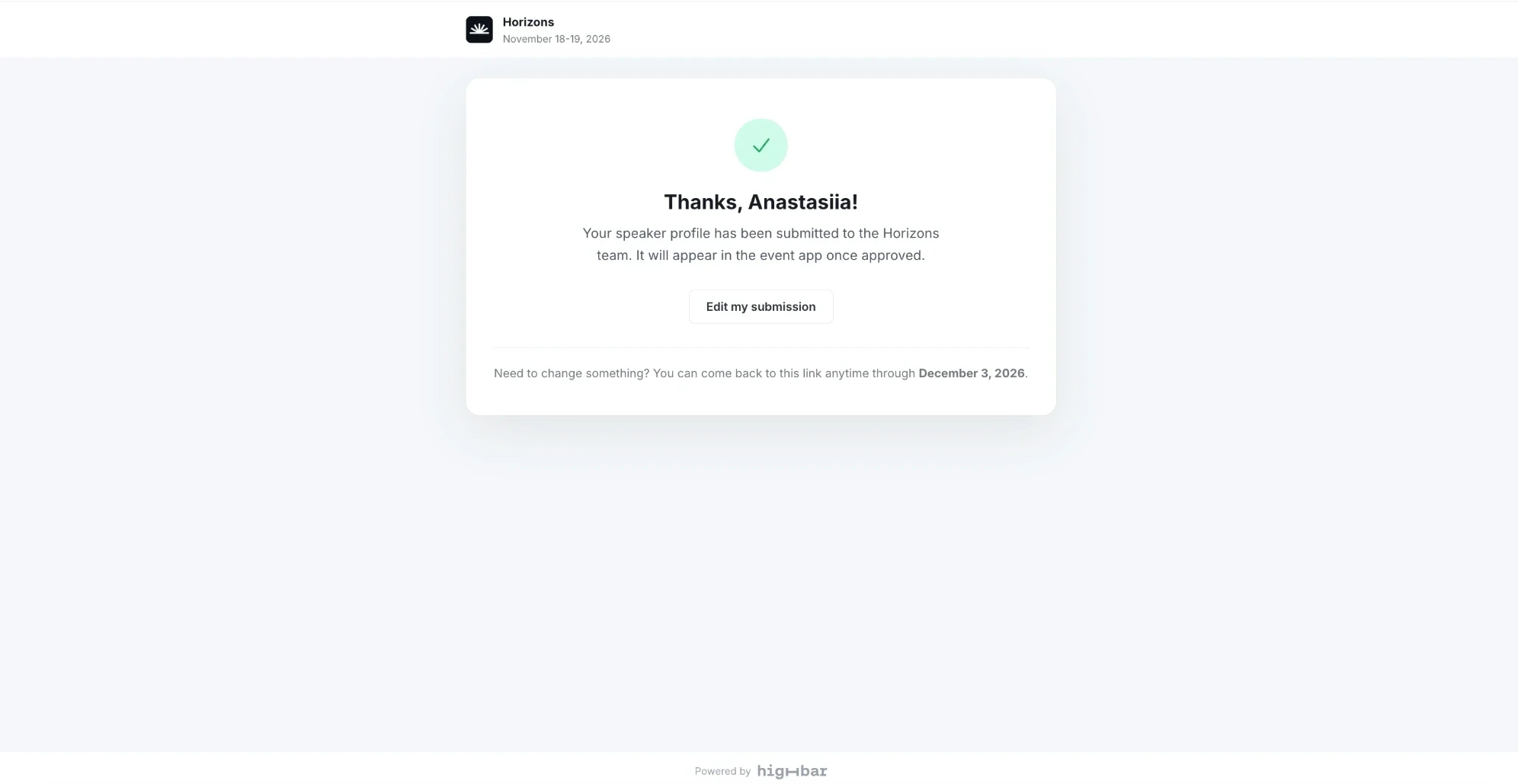
A thank-you page confirms it. Depending on how the organizer has set things up, your changes either go live in the event app straight away, or wait for the organizer to approve them first. The page tells you which.
If some fields aren't on the page, the organizer manages them for you. Ask them if something there needs to change.
Change something later
Open the same link again, or click Edit my submission on the thank-you page. The thank-you page shows the date your link works until, usually two weeks after the event.
If your changes are still waiting for approval, anything you save updates that submission.
To throw away your edits and go back to the last version, click Reset, then confirm Reset to original?.
If you present sessions
The organizer may also send you a link for each of your sessions. Once you have more than one link, a menu at the top right of the page lists your profile and each of your sessions. Pick one to move between them.
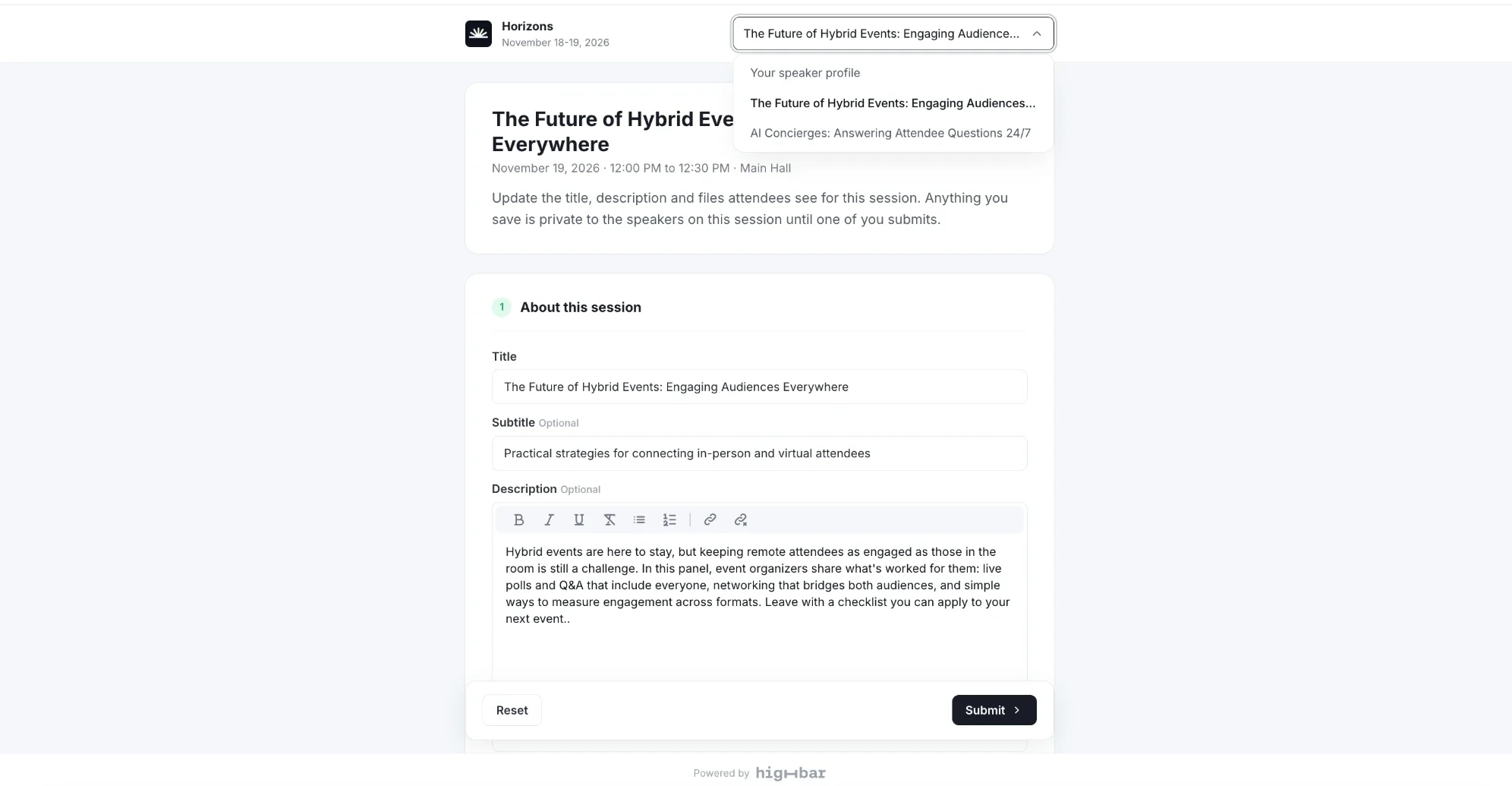 See Edit your session.
Link not working? See If your link doesn't work.