Push notifications
Send announcements to attendees' phones, now or at a scheduled time, to everyone or to chosen groups.
Push notifications put a short message on attendees' lock screens and in the app's Notifications screen. Use them for things people need to act on: a room change, a keynote about to start, lunch being served, a prize draw.
You'll find Push notifications in the event sidebar after launch, in the Event app group. The Overview page also has a Push Notifications quick link.
You can also notify attendees when you post an announcement: turn on Send push notification on a post in the activity stream.
Send a notification
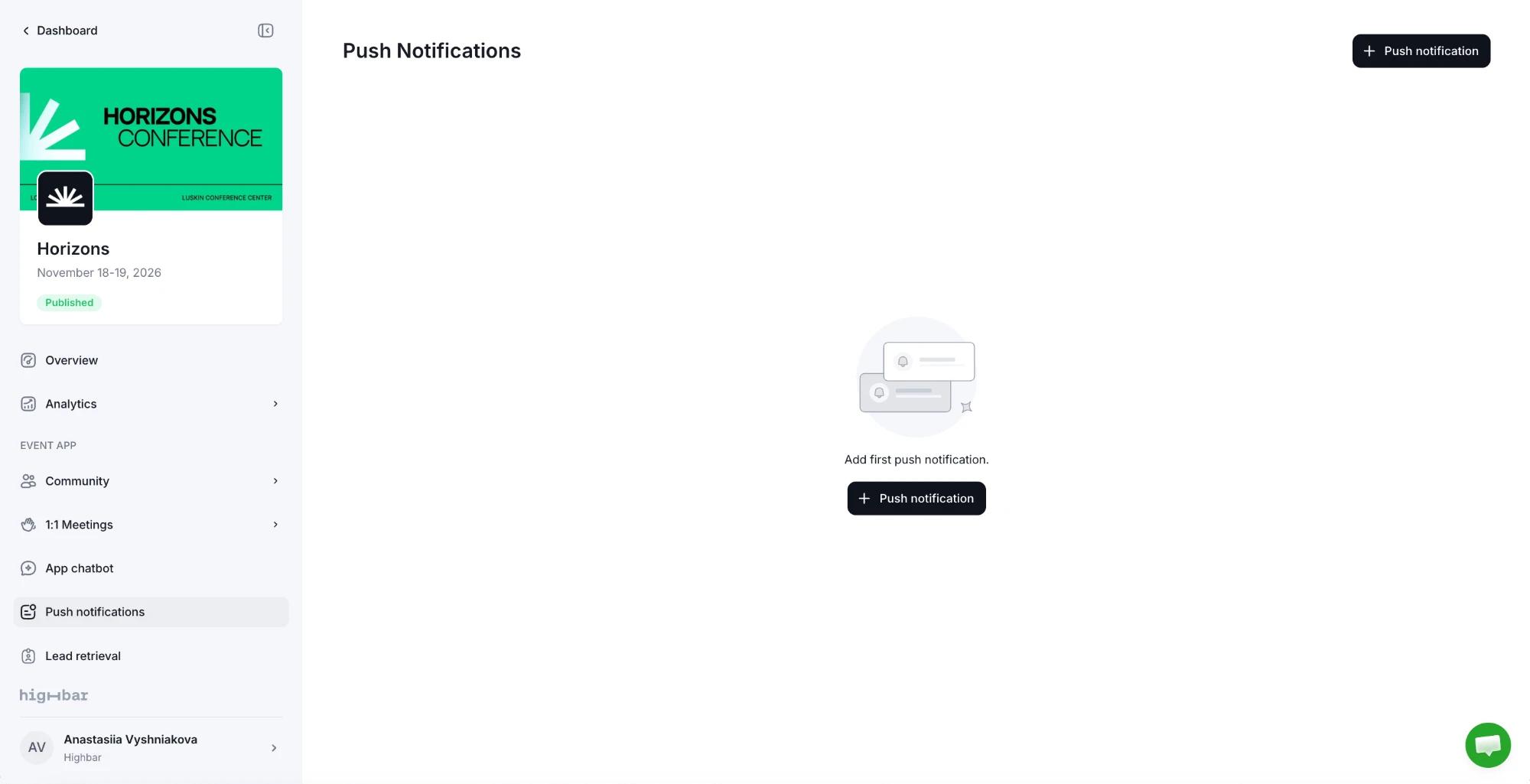
On the Push Notifications page, click Push notification.
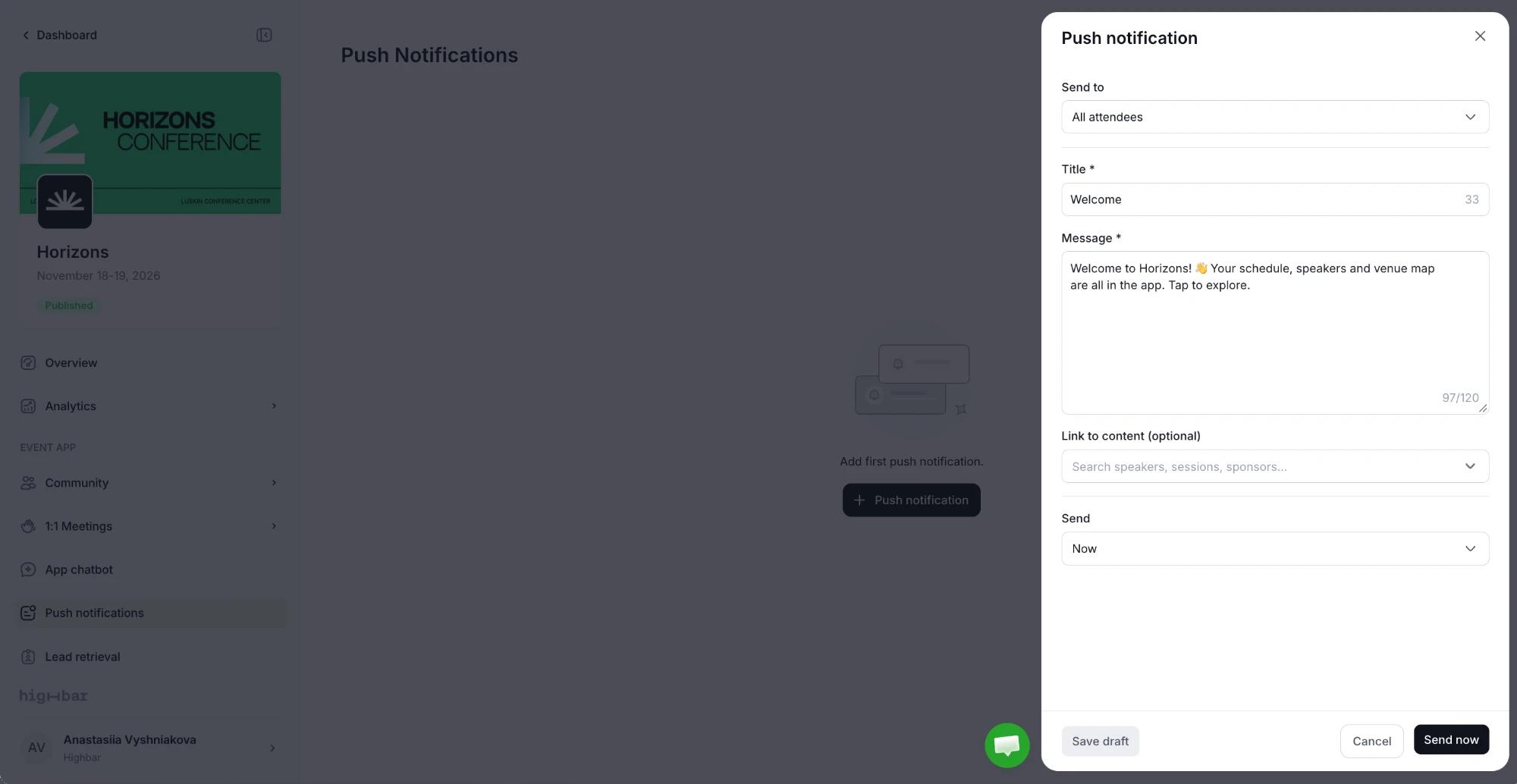
Under Send to, choose All attendees, or Specific recipients to pick tags or individual attendees.
Write a Title (up to 40 characters) and a Message (up to 120 characters). Keep it to one point: most phones cut off longer text.
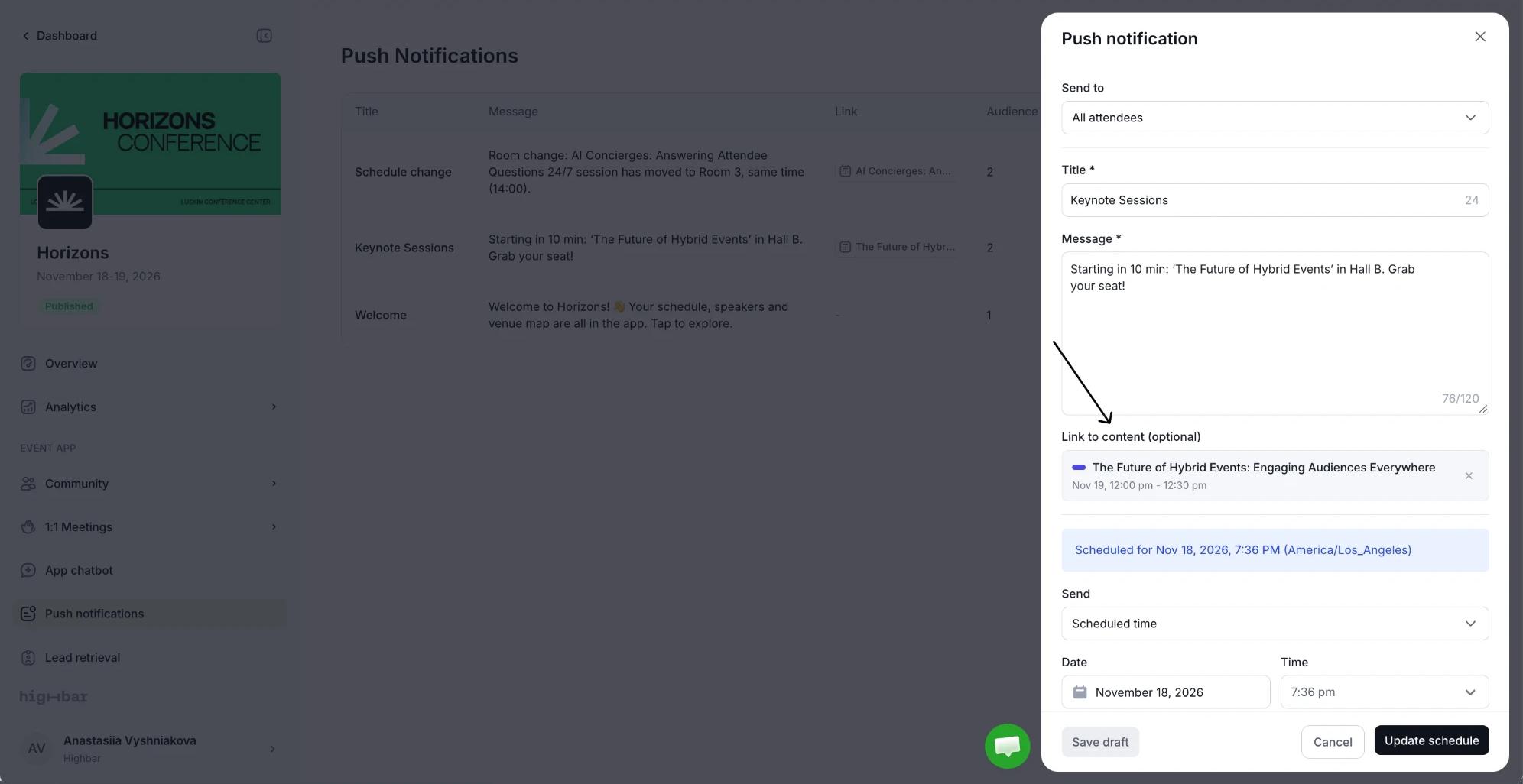
Optionally, use Link to content to open a specific session, speaker or sponsor when the attendee taps the notification.
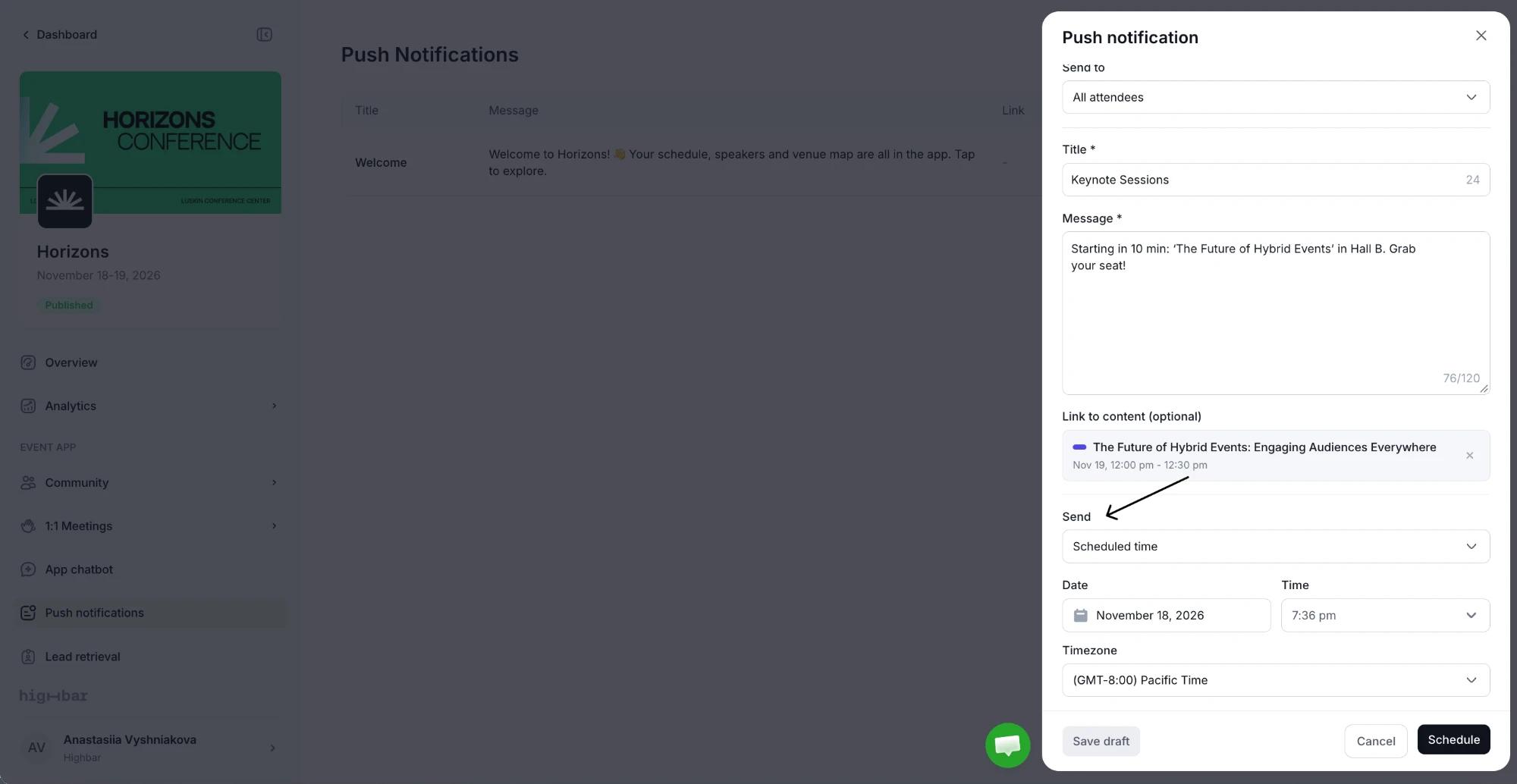
Under Send, choose Now, or Scheduled time and set a Date, Time and Timezone. Then click Send now or Schedule. To finish later, click Save draft.
Track what you've sent
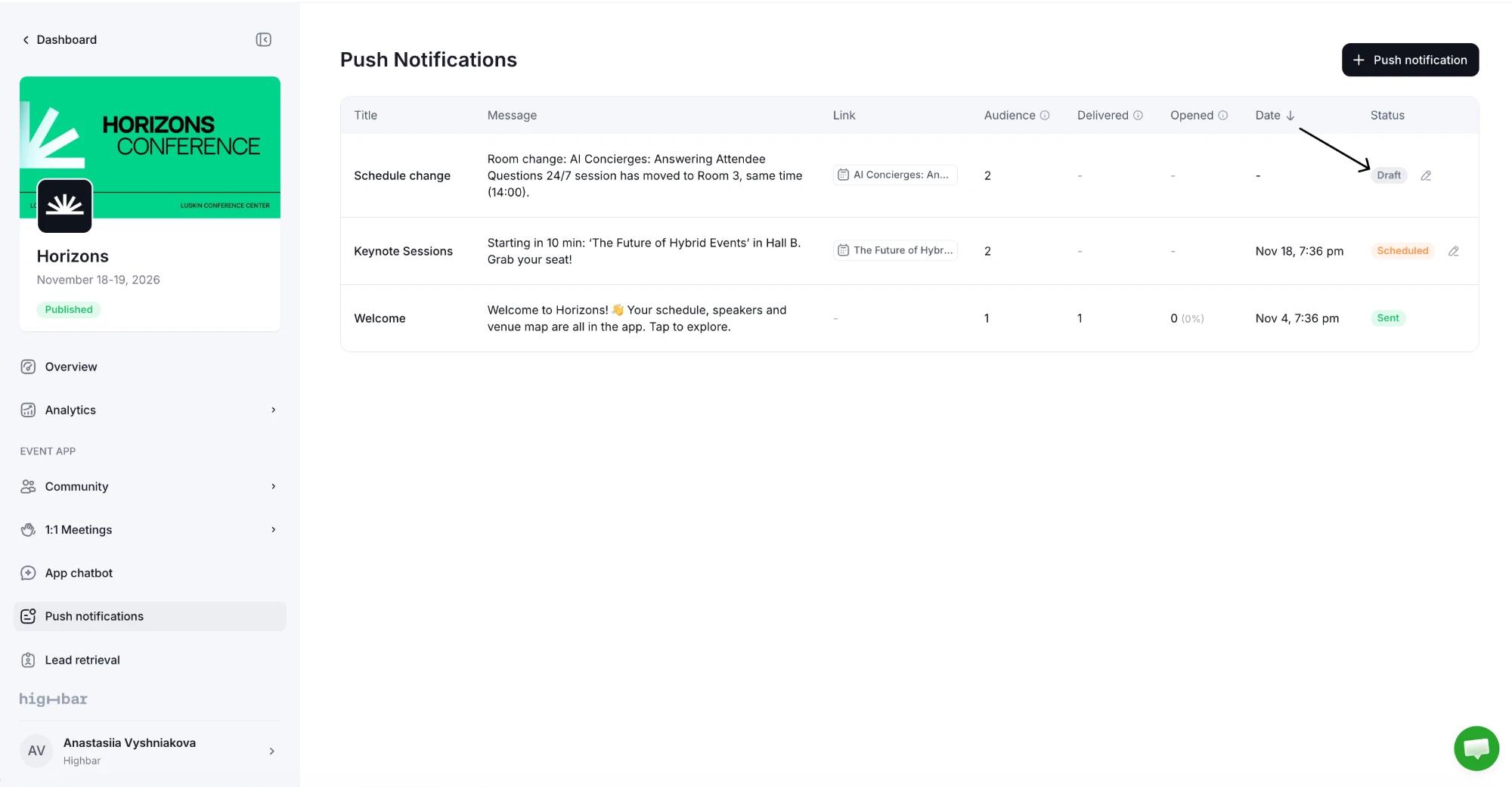
The Push Notifications page lists every notification with its status (Draft, Scheduled, Sending, Sent or Failed) and its Audience. Two columns show how it landed:
- Delivered: devices reached. One person can have several devices, so this can be higher than the number of people.
- Opened: attendees who opened it in the app.
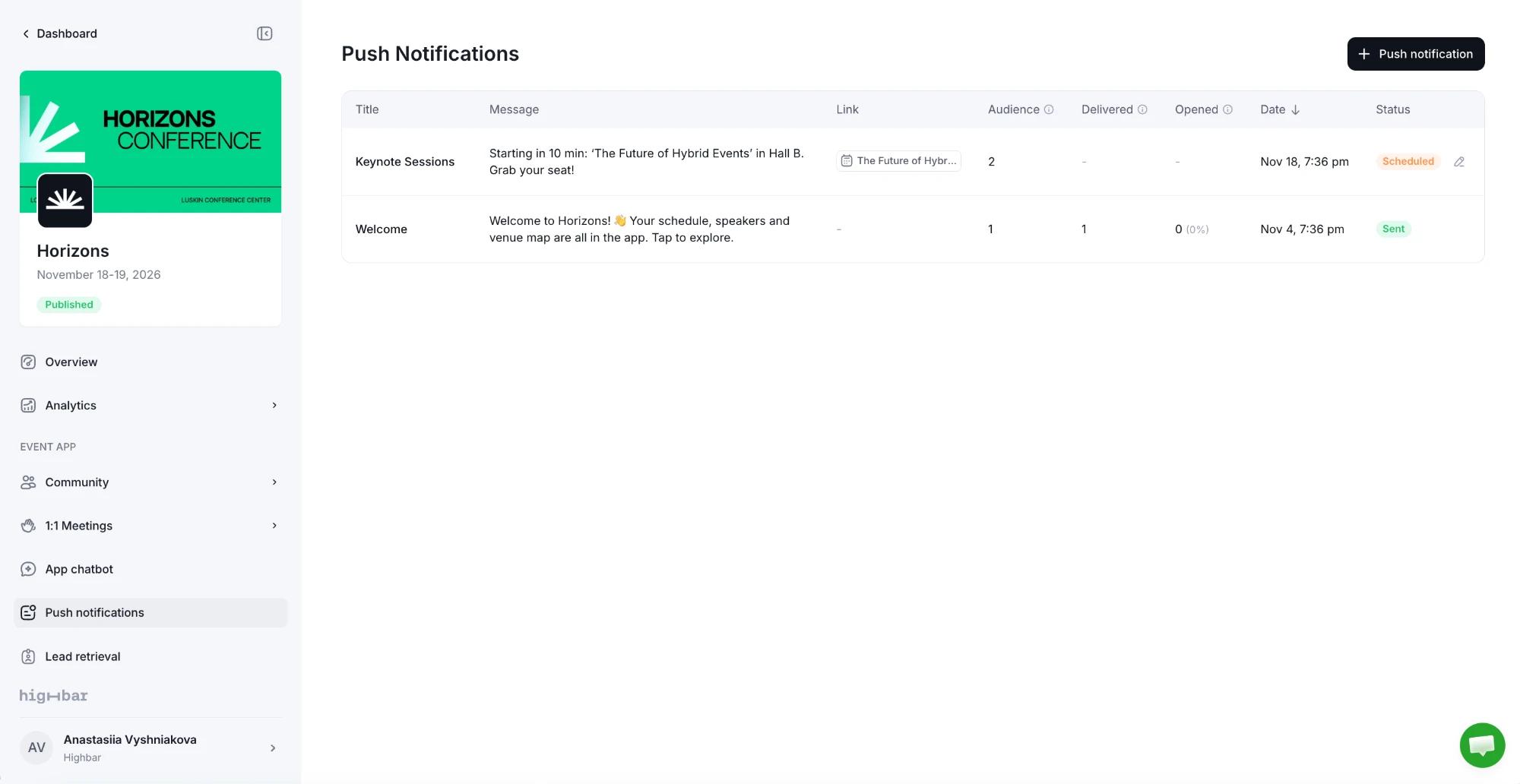
A notification you saved with Save draft is marked Draft, with no date until you send or schedule it. Click the pencil next to a draft or scheduled notification to edit it, change its schedule or delete it. A scheduled one shows when it's due, and you save changes with Update schedule. If a notification shows Failed, open it to see how many devices it reached, then click Send again. Sending it again notifies the whole audience, including people who already got it.
Who receives notifications
A push reaches attendees who have allowed notifications from the app. Some never will, and on iPhones the app has to be installed to the home screen first. Everyone, including those without push turned on, still sees your notifications in the app's Notifications screen the next time they open it.
To reach as many phones as possible:
- Ask attendees to install the app and allow notifications early. The attendee guide to notifications walks them through it, including how to turn notifications back on if they blocked them.
- Mention notifications when you share the app link: "Turn on notifications so you don't miss room changes."
Send them well
- Fewer is better. Two or three a day is plenty. Attendees who get too many turn them off for good, and then your urgent message doesn't arrive.
- Time them. Schedule notifications for just before sessions start or at breaks, not in the middle of a keynote.
- Make them actionable. Link to the session, sponsor or speaker the message is about.
- Target when you can. Use Specific recipients with tags (speakers, VIPs, booth staff) for messages that only matter to some people.