App chatbot activity
See what attendees ask the AI Concierge, which answers helped, and turn unanswered questions into FAQs.
The App chatbot page shows every question attendees ask the AI Concierge in your event app, with how they rated the answers. Use it to spot gaps in your content and fill them while the event is on.
You'll find App chatbot in the event sidebar after launch, in the Event app group. The page is titled Chatbot Activity. To change how the AI Concierge behaves, go to AI under App settings instead (see AI Concierge).
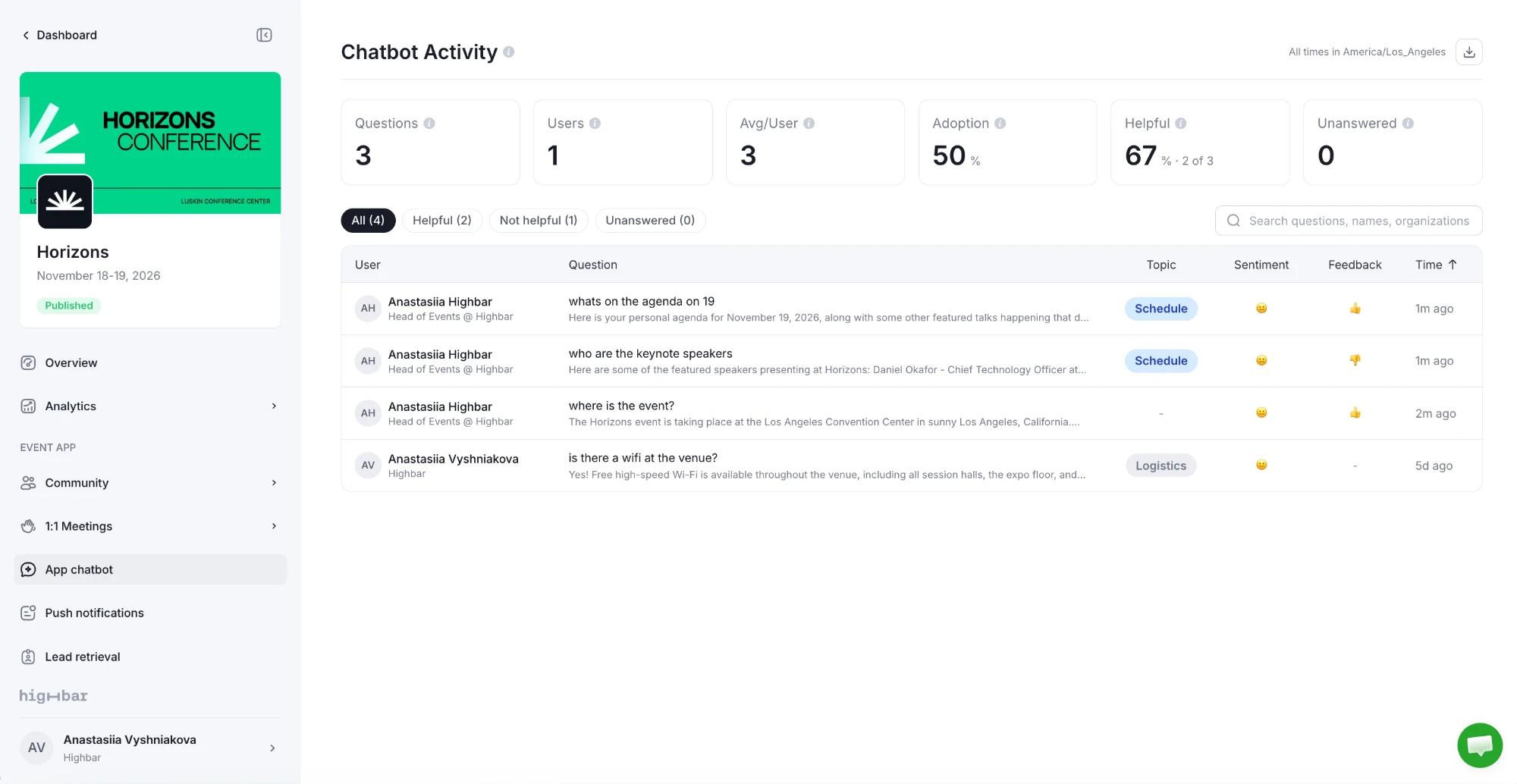
The numbers at the top
| Card | What it shows |
|---|---|
| Questions | Questions asked, including taps on suggested questions. |
| Users | Attendees who asked at least one question. |
| Avg/User | Questions per attendee who used the chatbot. |
| Adoption | The share of attendees using your app who asked the AI Concierge something. |
| Helpful | Of the answers attendees rated, the share they marked helpful. |
| Unanswered | Questions the AI Concierge couldn't answer from your event content. |
All times are in your event's time zone. The page checks for new questions every 30 seconds while it's open, and shows New activity when some arrive.
Find questions
Use the filters All, Helpful, Not helpful and Unanswered, or search by question, attendee name or organization. Each question shows who asked it, a short preview of the answer, its Topic (such as Logistics, Schedule or Sponsors), the attendee's Sentiment and their Feedback. Click a question to read the full answer.
The page shows the most recent questions. For the full history, use the download button at the top right to export a CSV with every question, answer, topic, sentiment and rating.
Answer what the AI Concierge couldn't
Click Unanswered and open a question. The Chatbot Answer drawer shows the question, the answer the attendee got, and its labels.
Under Add an answer to the FAQ, check the Question and write the Answer. Optionally add a Snippet attendees can copy, such as a wifi password.
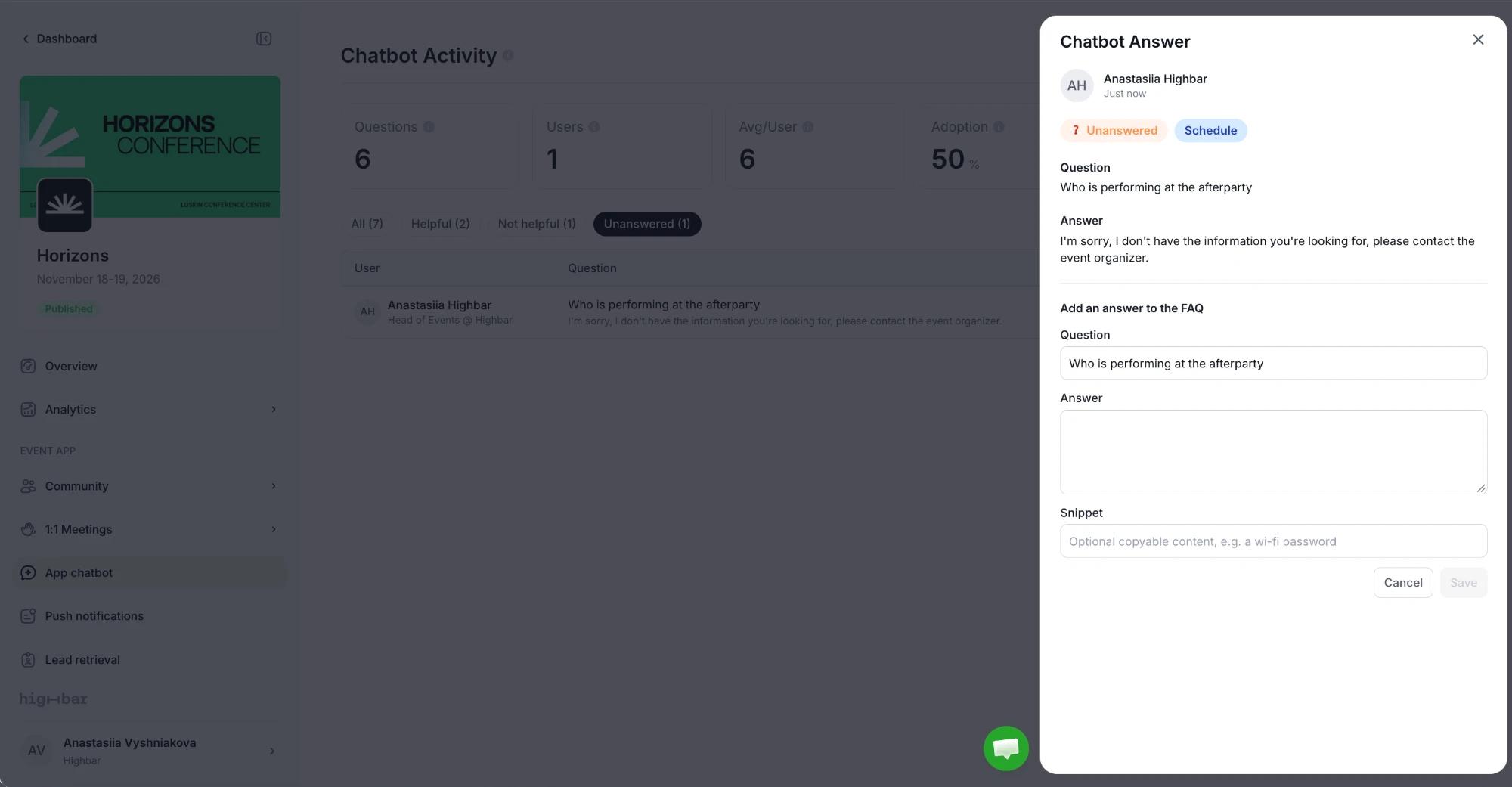
Click Save. The answer goes into your FAQs, and the AI Concierge uses it from then on.
The question keeps its Unanswered label in the list, so you can still see what was missing. Open it again to Edit the FAQ answer.
Questions from your website chatbot don't appear here. This page covers the event app only.