AI Concierge
Set up the AI assistant attendees chat with in your event app, and learn what it knows, what it can't do and how to fill the gaps.
The AI Concierge is a chat assistant inside your event app. Attendees ask it questions in their own words ("What's on after lunch?", "Who's speaking about AI?") and it answers from your event's content, with links and cards they can tap.
It's on for every new event, with a ready-made name and messages. Set it up on the AI Concierge tab of the AI step, which also holds AI Curation (personalized recommendations), FAQ and Website chatbot (a beta chat assistant for your event website).
What attendees get
- Ways in. Ask, in the round quick-action button at the bottom of the app's screens; the Ask anything... box on the start page; and any topic or shortcut buttons you add to the start page.
- Answers with links. Sessions, speakers and sponsors in an answer link to their pages, often with cards below and suggested follow-up questions.
- Answer tools. Buttons under each answer let attendees copy it, regenerate it, or mark it helpful or not helpful. On supported devices they can speak their question instead of typing it.
- The AI Toolkit. A panel of one-tap questions you create from your FAQs. See FAQs and AI Toolkit shortcuts.
Settings
Changes save as you type. The App preview opens the chat so you can see the result.
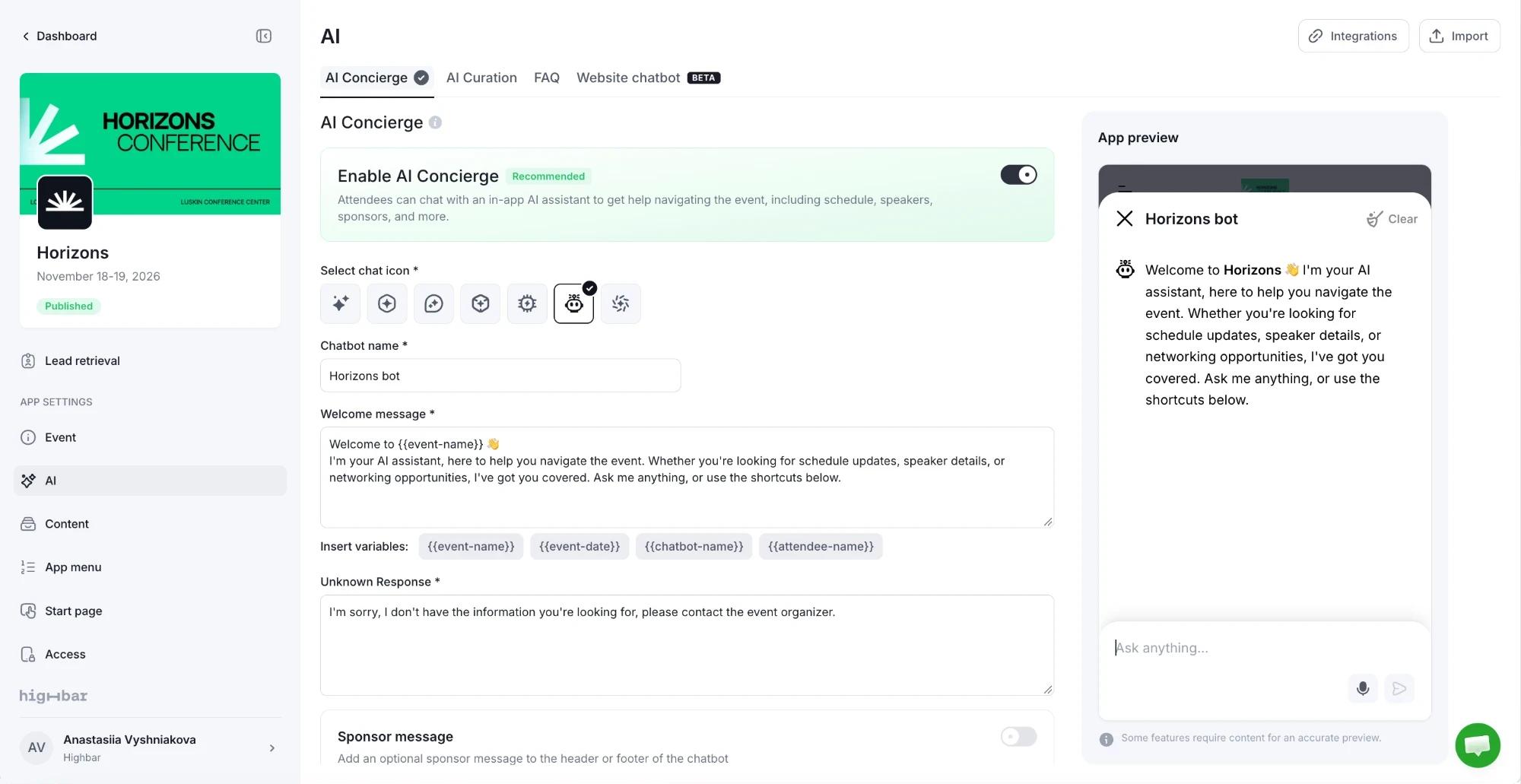
| Setting | What it does |
|---|---|
| Enable AI Concierge | On by default. Turn it off to remove the Ask button, the Ask anything... box, topic buttons and chat shortcuts from the app. |
| Select chat icon | The icon shown beside the AI Concierge's messages. |
| Chatbot name | The name at the top of the chat. New events use "Assistant": give it a name that fits your event. |
| Welcome message | The first message attendees see in a new chat. Click a variable under Insert variables to add it where your cursor is: {{event-name}}, {{event-date}}, {{chatbot-name}}, or {{attendee-name}} (the attendee's first name). |
| Unknown Response | What it says when a question is outside your event. The default asks attendees to contact the organizer. |
Add a sponsor credit
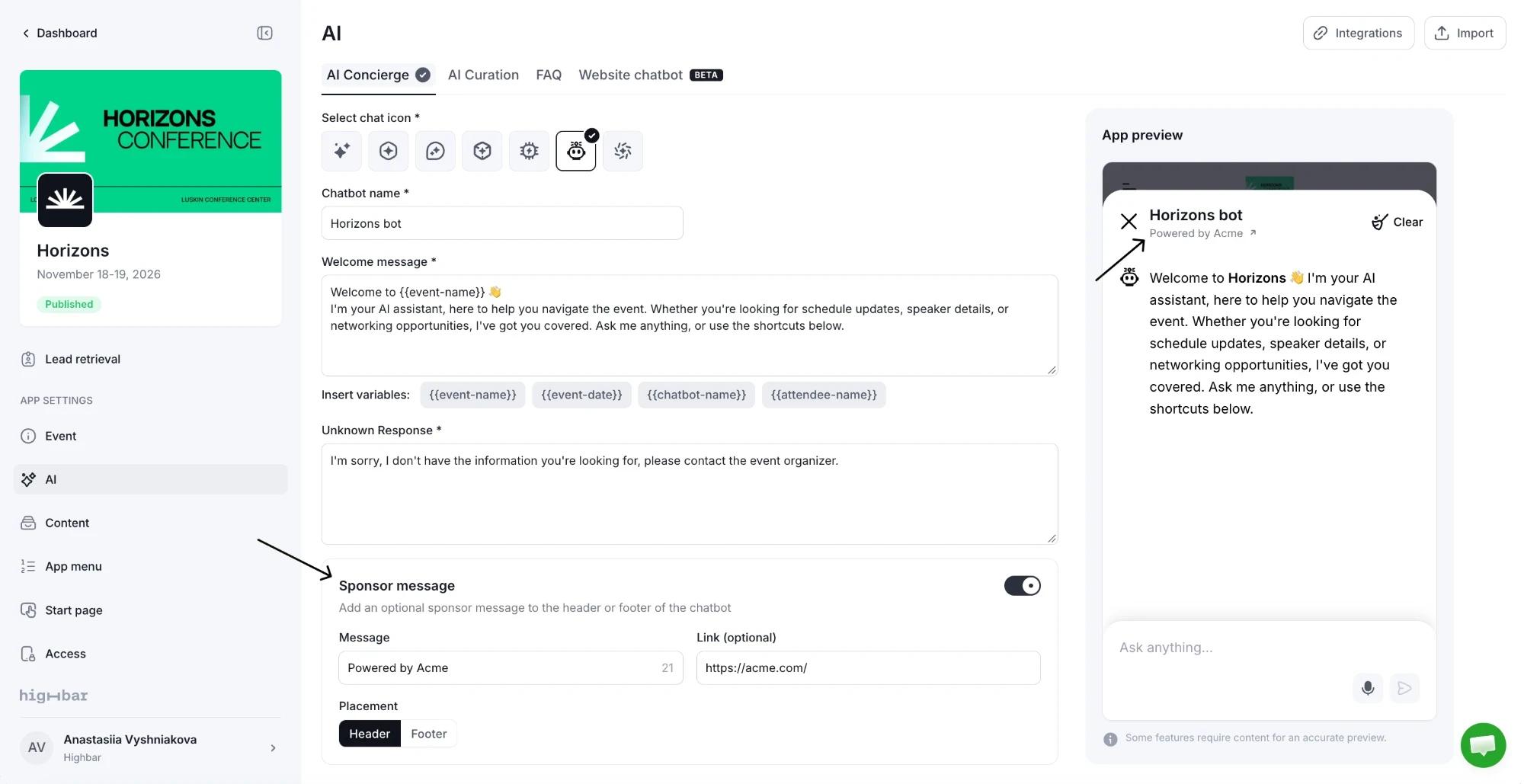
Turn on Enable sponsor message to show a short credit, such as "Powered by Acme", in the chat.
- Message: up to 36 characters. Nothing shows until you add one.
- Link (optional): makes the credit open the sponsor's website.
- Placement: Header shows it under the chat's name; Footer shows it under the box where attendees type.
What it knows
- Your event's name, dates and venue, and your organizer details from Event details.
- The sessions, speakers, sponsors and exhibitors in your visible content sections. Hidden sections are left out.
- Your FAQs, including copyable details like a wifi password, which it shows with a copy button.
- The titles and subtitles of everything in your resource library, and the text of Rich text resources (long ones are shortened). It can't read what's inside files or linked pages.
- Each attendee's own saved sessions and bookmarks, so it can answer "what's my next session?"
- Where your event uses them: the attendee's session registrations and waitlist places, their 1:1 meetings and meeting requests, and people to meet (when AI Curation is on and the attendee can browse the community).
What it can't do
- Register attendees for sessions, cancel registrations or join waitlists. It links the session page instead.
- Request, accept, decline or reschedule meetings.
- See the contacts attendees exchanged or the leads they scanned.
- Answer from outside your event. Off-topic questions get your Unknown Response. For event questions it can't answer, it points attendees to your support email, so make sure you've added one.
Occasionally it declines a harmless question because of its wording. Attendees can rephrase and ask again.
The quickest way to improve its answers is to add FAQs for what isn't in your content: wifi, parking, dress code, badge pickup, meal times. After launch, App chatbot in the sidebar shows what attendees ask, which answers they found helpful and which questions went unanswered.
Launch requirements
The AI step is complete when the AI Concierge has a chat icon, name, welcome message and unknown response, or when it's switched off. New events meet this from the start. FAQs are optional. See Launch your app.
Log in page: terms and consent
Add your own terms to the app's log in page, choose whether attendees must tick a box to agree, and see who accepted each version.
AI Curation
Give every attendee personal recommendations of people to meet, sessions, speakers and sponsors, and choose what the AI bases them on.