Log in page: terms and consent
Add your own terms to the app's log in page, choose whether attendees must tick a box to agree, and see who accepted each version.
Everyone who logs in to your event app agrees to Highbar's Terms of Service and Privacy Policy. The Log in page tab of Event settings lets you add your own terms alongside them and choose how attendees agree.
This tab is optional. It isn't a setup step and never blocks launch: it gets a check mark once you've opened it. The App preview shows the log in page as you edit. The switches take effect at once; changes to your terms reach attendees only when you save them.
Choose how attendees agree
| Setting | What attendees see |
|---|---|
| Require a checkbox off (default) | A line under Continue: "By continuing you accept our Terms of Service and Privacy Policy", followed by your own terms line if you have one. Logging in counts as agreeing. |
| Require a checkbox on | An unticked box above Continue: "I agree to the Terms of Service and Privacy Policy.", followed by your own terms line. Anyone who doesn't tick it sees "Please accept the terms to continue." |
If you turn on Require a checkbox after attendees have logged in, anyone who hasn't ticked the box yet sees Before you continue the next time they open the app. They tick the box and tap Continue to keep using it.
Add your own terms
Turn on Custom terms.
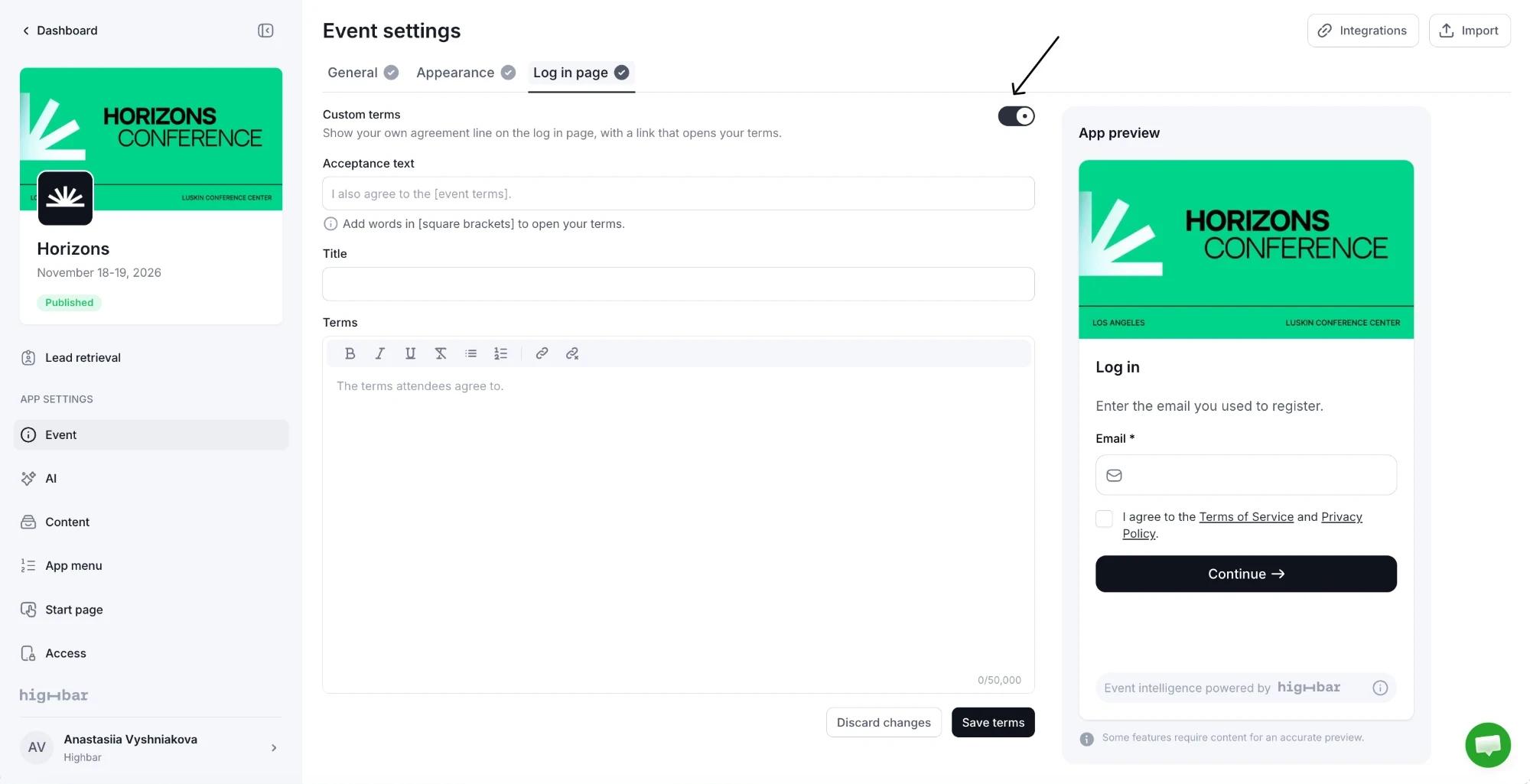
Write the Acceptance text: the line attendees agree to. Put the words that open your terms in square brackets, for example I also agree to the [event terms]. Use exactly one pair of brackets, and up to 300 characters.
Optionally add a Title for your terms. Without one, the words in brackets are used as the title.
Paste or write your Terms. You can format them with headings, lists and links.
Click Save terms. Attendees now see version 1.
On the log in page, your line follows Highbar's. Attendees tap the words in brackets to read your terms in a panel, then close it to carry on.
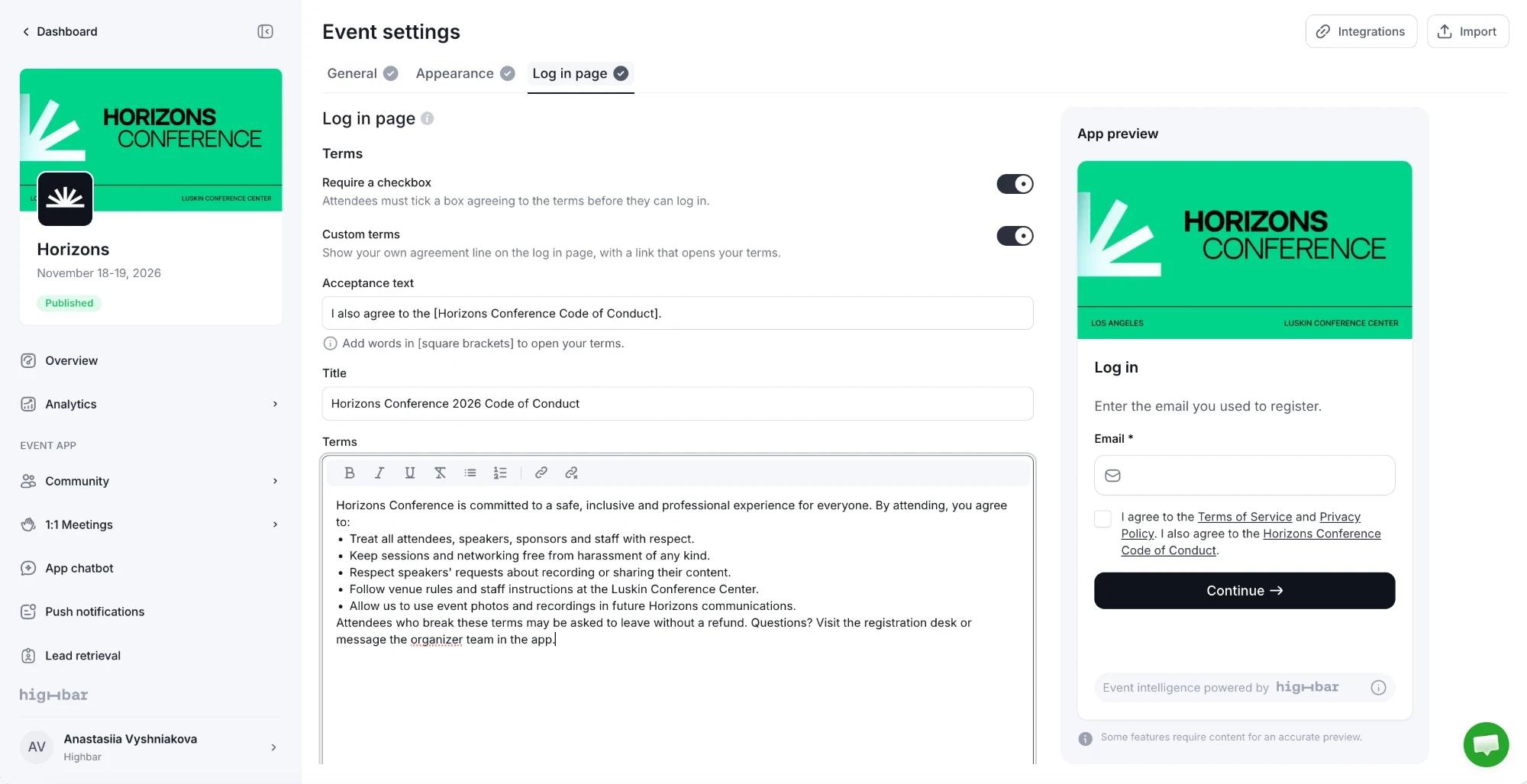
With Require a checkbox on, a line starting "By continuing" reads oddly next to a box. The page suggests rewording it, for example "I also agree to the [event terms]."
Change your terms
Every save that changes the wording creates a new numbered version, so after the first save the button reads Save new version. Discard changes puts back the last saved wording.
Saving a new version doesn't ask attendees who already agreed to agree again. People who log in after you save agree to the new version. Check who accepted which version in History.
Turning off Custom terms removes your line from the log in page. Your saved versions stay in History, since they record what attendees agreed to.
If a colleague saves the terms while you're editing, you'll see a notice. Click Load the latest version before saving again: your unsaved edits are replaced.
See who accepted
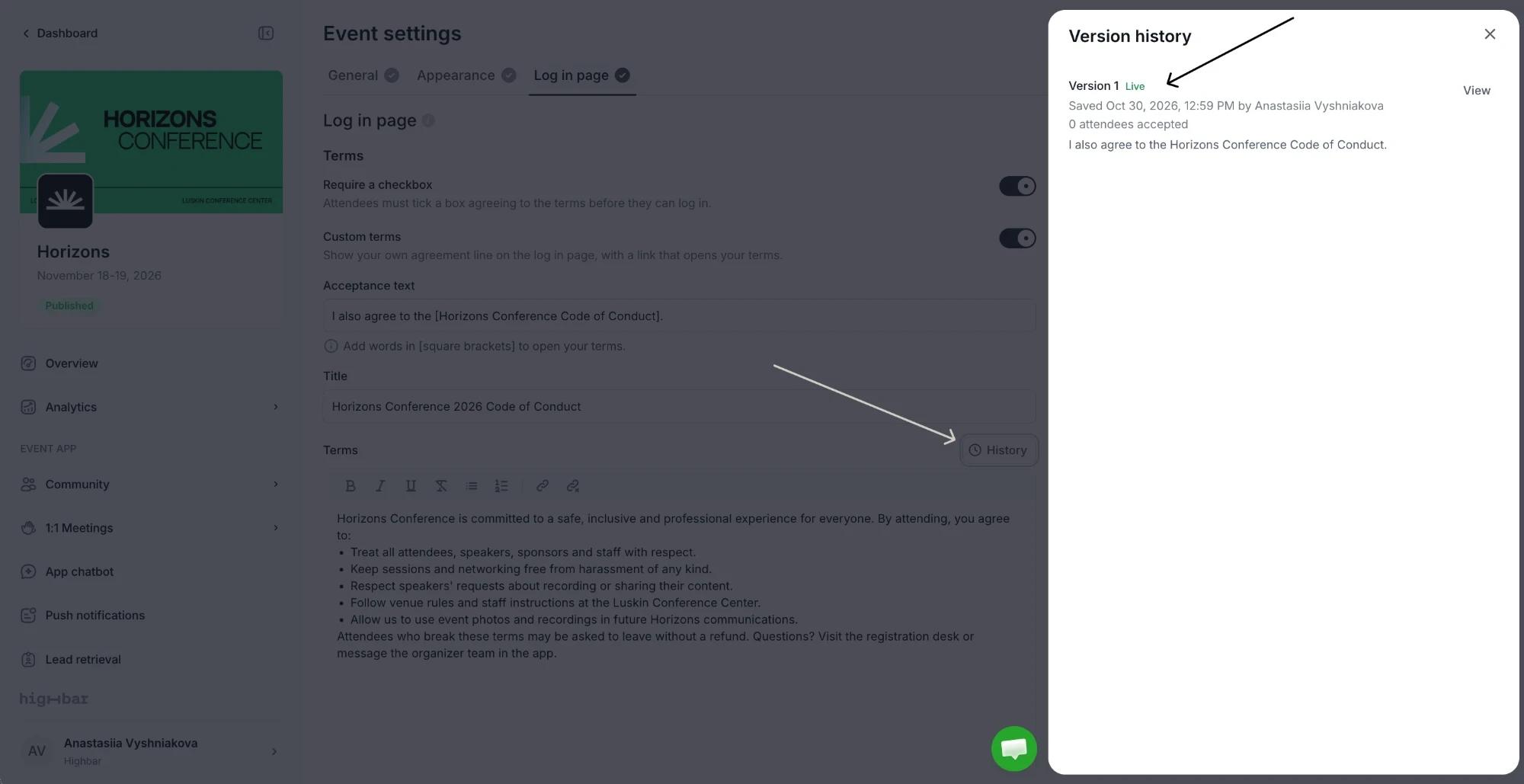
Click History to open Version history. Each version shows when it was saved and by whom, how many attendees accepted it, and Live on the version attendees see now.
-
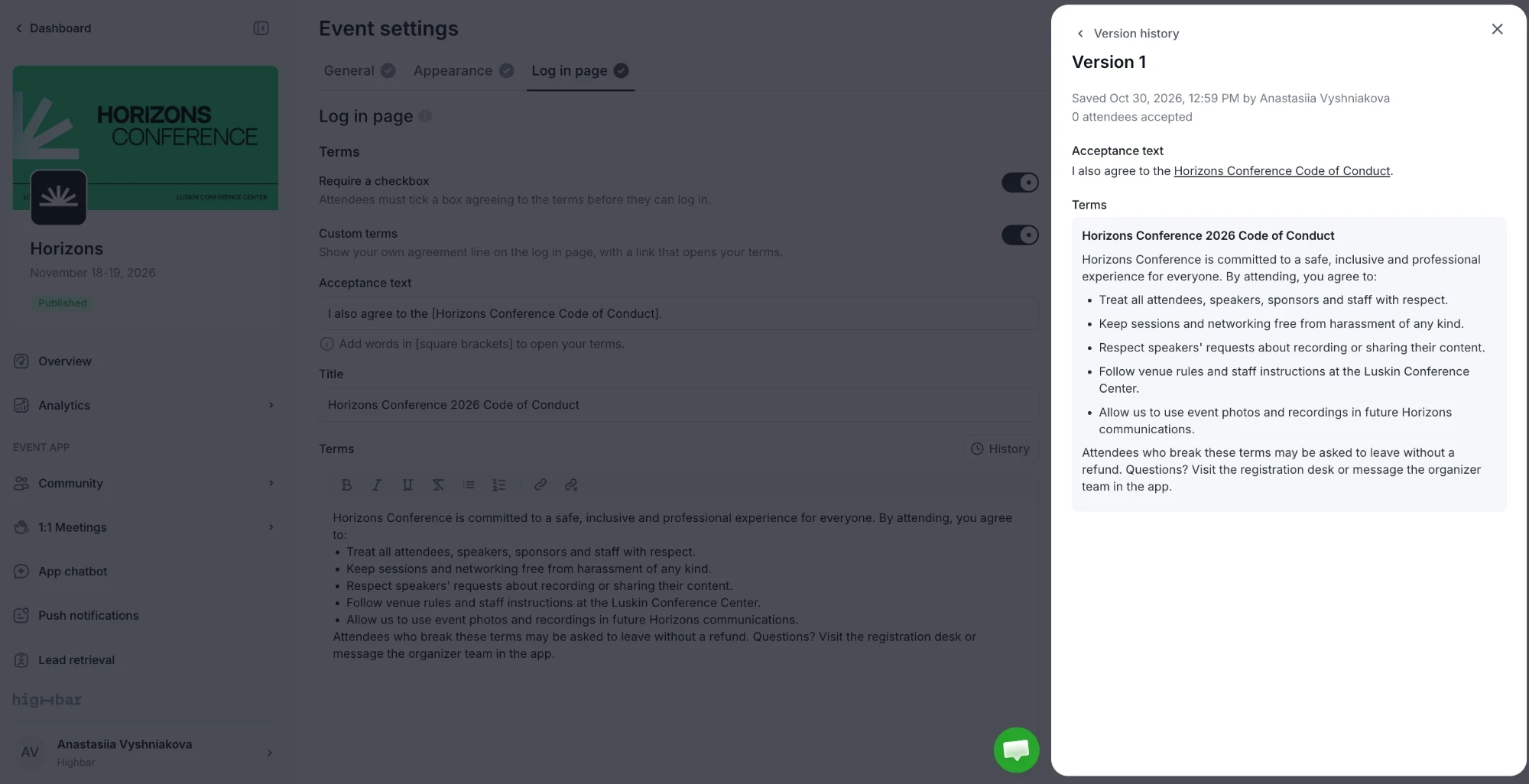
Click View to read a version's exact acceptance text and terms.
-
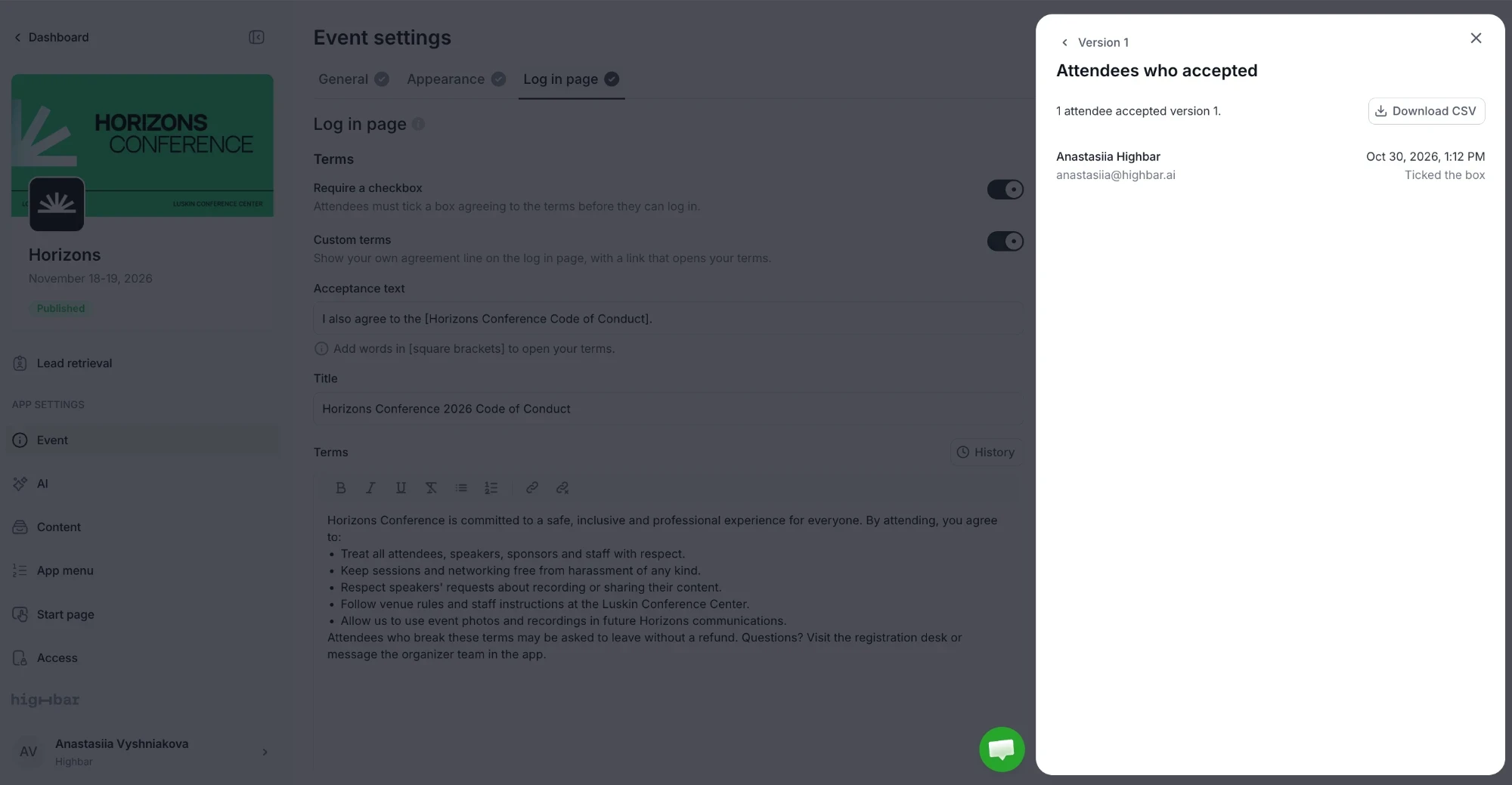
Click the number of attendees to open Attendees who accepted: each person's name, email, when they accepted and how ("Ticked the box" or "By continuing").
-
Click Download CSV to export that list, with first name, last name, email, the time accepted in UTC, how they agreed and the version.
Acceptance also shows in the Terms column of your attendee list on the Access page, and in the attendee export.