Integrations
Connect Lu.ma, Swoogo, Stova, Sessionize or Xtag to bring attendees, sessions and speakers into your event app and keep them in sync.
If your registrations or agenda already live in another event platform, connect it with Integrations instead of retyping everything. Highbar imports the data once you connect, then keeps it up to date in the background.
Integrations only read from the other platform. Highbar never changes anything there.
Where to find it
In the event sidebar, open Content (1) or Access (2), then click Integrations (3) at the top of the page. Both buttons open the same panel, so it doesn't matter which one you use.
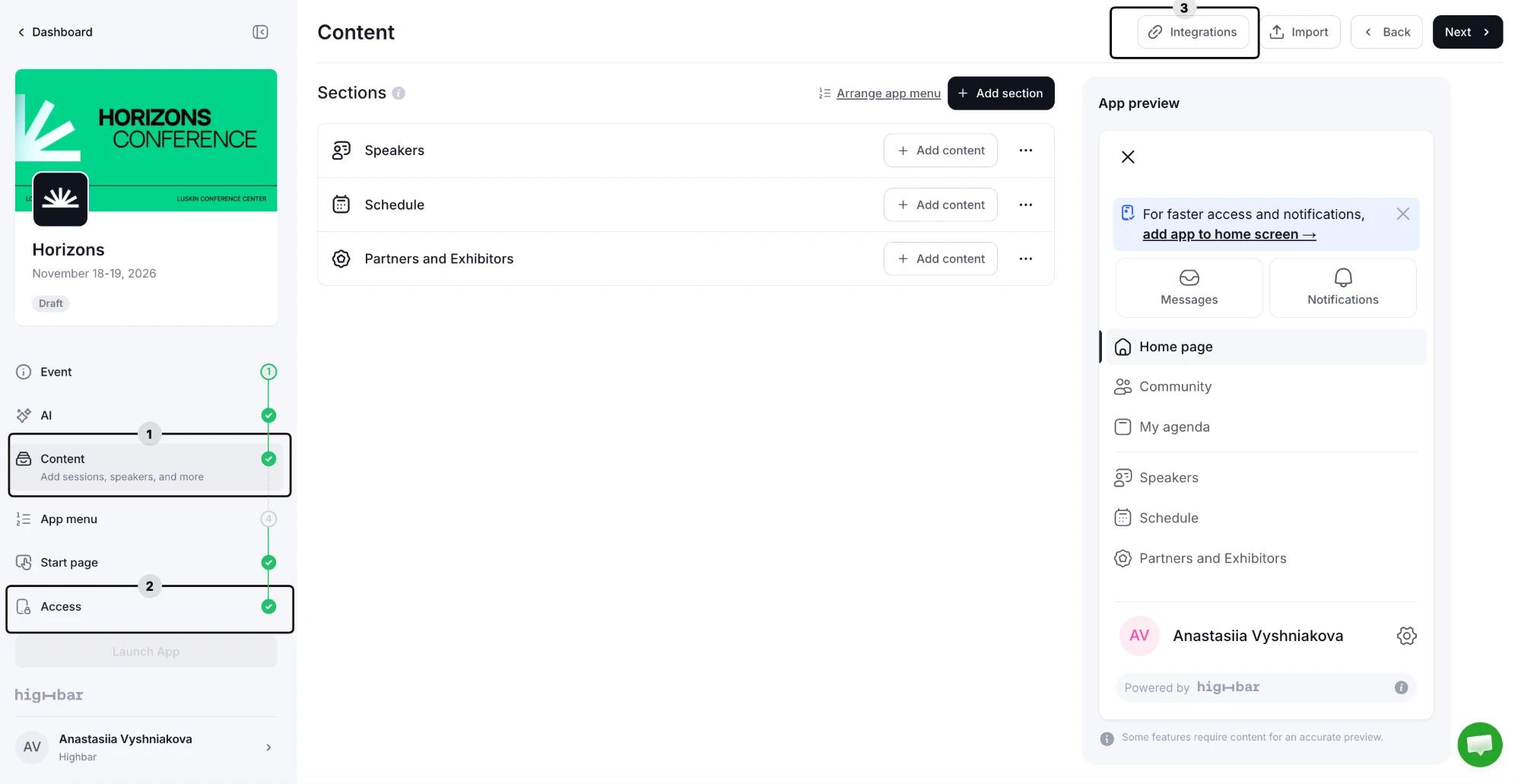
Choose a platform
| Platform | What it brings in | How it stays in sync |
|---|---|---|
| Lu.ma | Attendees | As soon as someone registers |
| Swoogo | Attendees, plus sessions, speakers, sponsors, tracks and locations | As soon as something changes in Swoogo |
| Stova | Attendees, plus sessions, speakers, tracks and locations | Attendees every 15 minutes, content every hour |
| Sessionize | Sessions, speakers, rooms and tracks | Every 10 minutes |
| Xtag | Attendees and their check-ins | Every few minutes |
Attendees go on your event's attendee list (see Access: who can log in). Sessions go into a schedule section, speakers into a speakers section and sponsors into a sponsors section. You choose which sections when you connect.
Eventbrite, Cvent and Bizzabo appear in the list as Coming soon. Streampoint and Cadmium Eventscribe are available on request. Using a platform that isn't listed? Highbar can build the integration you need. Contact support@highbar.ai with the platform's name and what you'd like to sync.
Each event connects to one integration at a time. To switch platforms, disconnect the current one first.
Connect a platform
Click Integrations, then pick a platform under Connect an Integration.
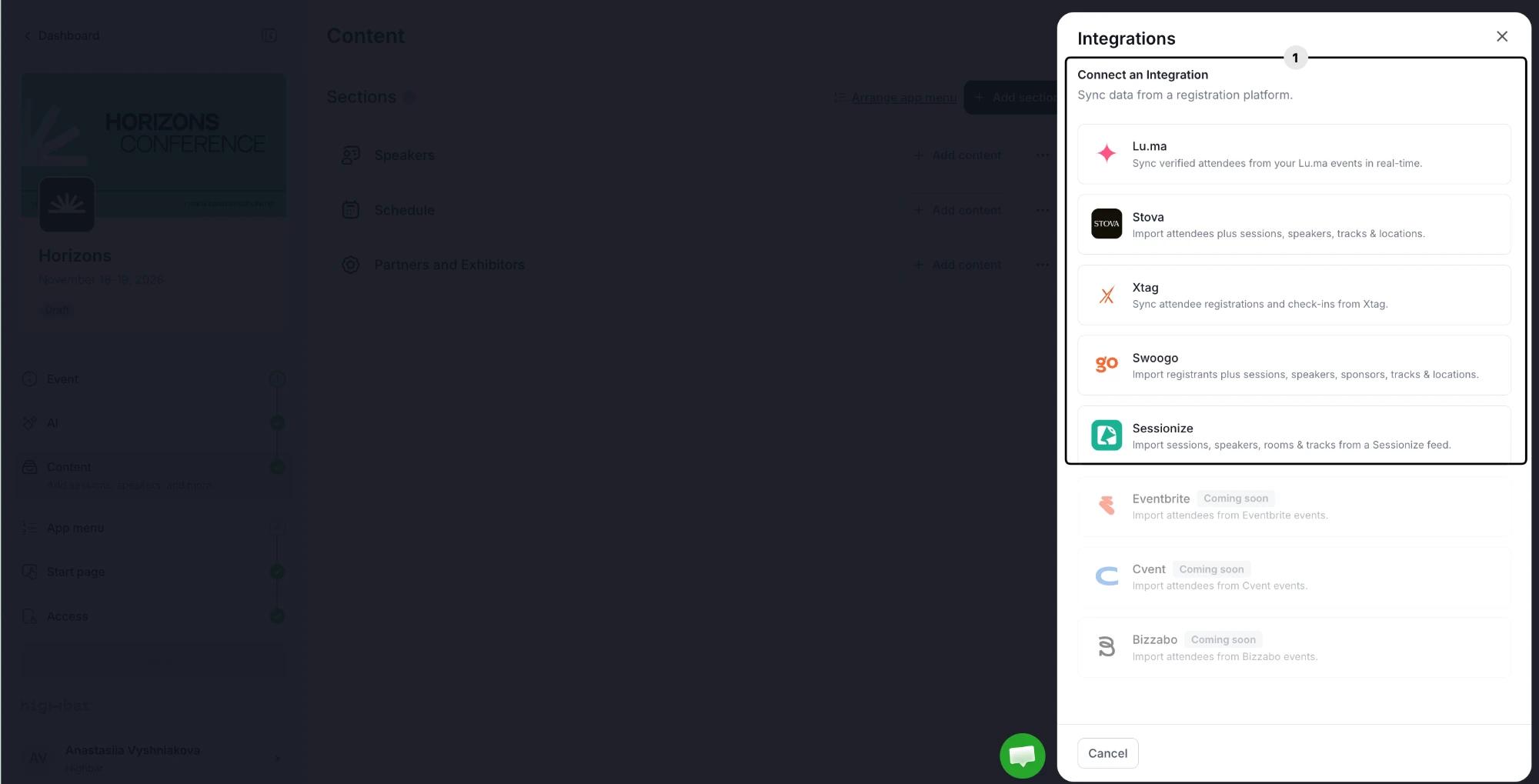
Enter the credentials the platform asks for (see below), then click Continue. Highbar checks them before moving on.
Choose the event to connect and what to import, then click Connect Event (Lu.ma and Xtag) or Import & Connect (the others).
Wait for the import to finish. It can take a few minutes for a large event, so keep the panel open until it's done.
If you close the panel before the last step, nothing is connected and you can start again anytime.
What each platform needs
Credentials. Your Lu.ma API Key, found in your Lu.ma account settings under API Keys. API access needs a Lu.ma Plus subscription.
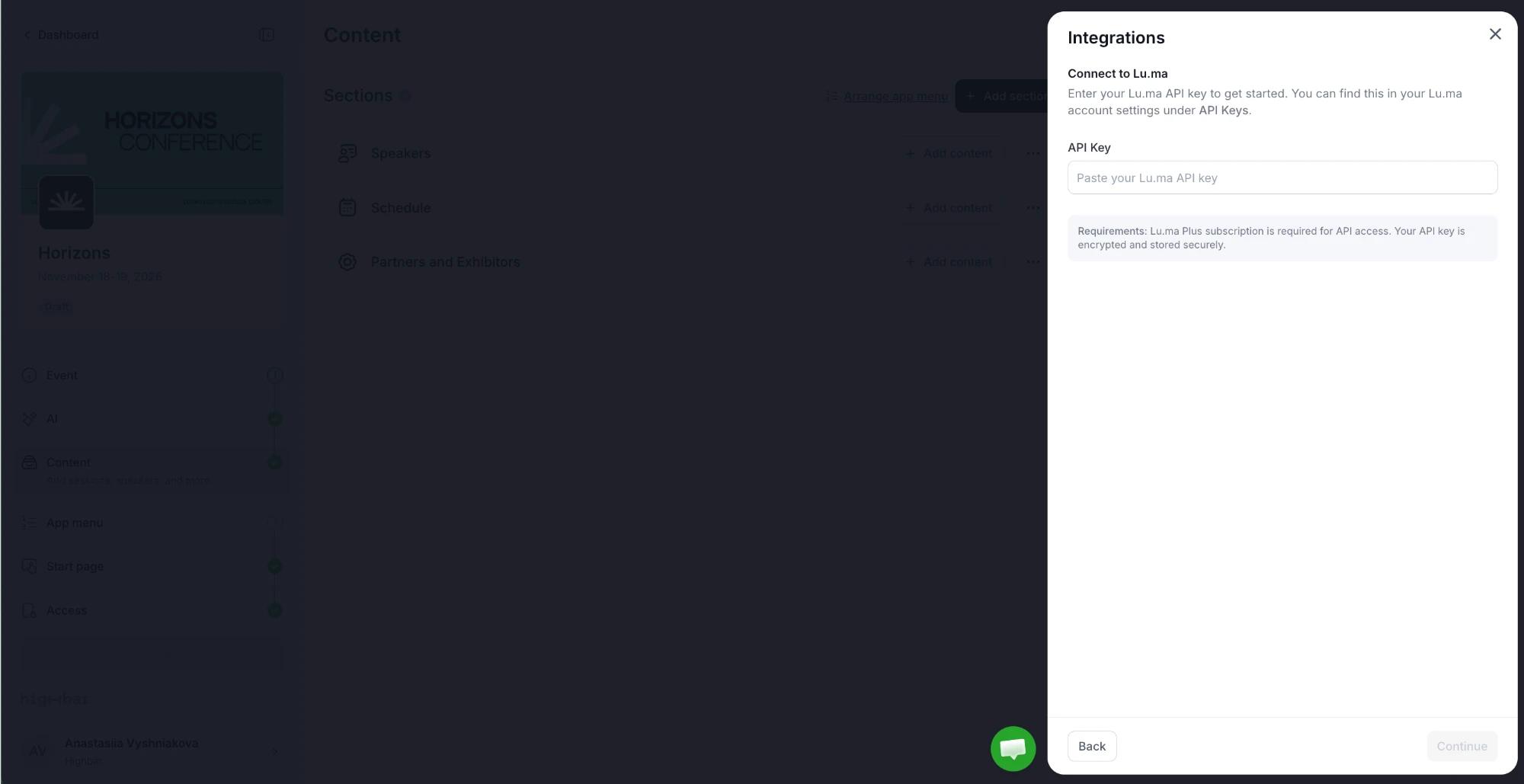
Setup. Choose the Lu.ma Event. You'll see how many guests are approved, pending and declined, with a preview of the first few.
What's imported. Approved guests with an email address: name, email, company, job title, phone and social profiles. Pending and declined guests are left out.
Credentials. Your Swoogo API Key and API Secret, found in Swoogo under My Profile › API Credentials.
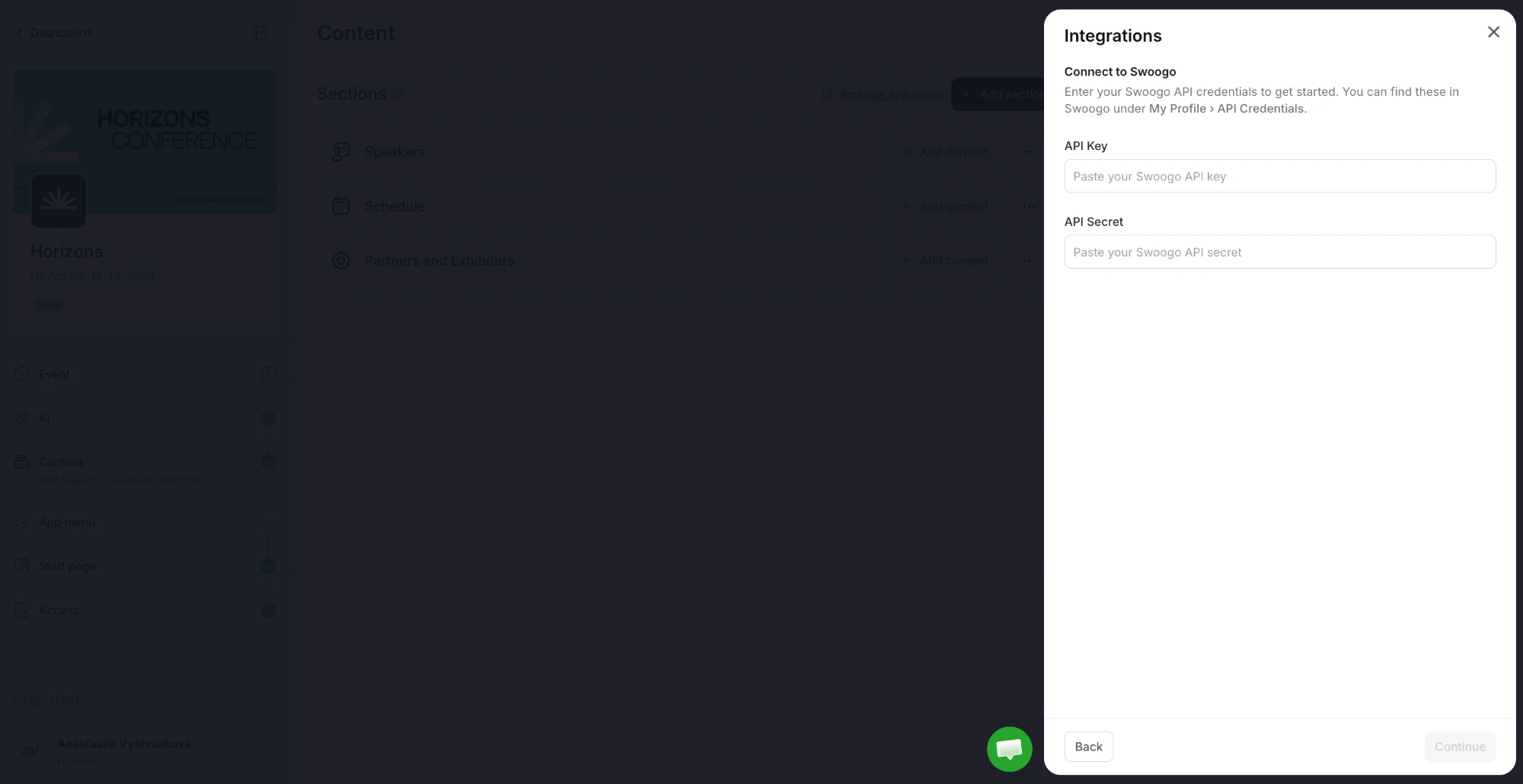
Setup.
- Choose the Swoogo event.
- Under Attendees, tick the registration statuses to import. Confirmed and Attended are ticked by default.
- To keep some pass types out of the app, click Filter by pass type and untick them. Registrants with no pass type always get access, and pass types added in Swoogo later are included until you untick them.
- For Sessions, Speakers and Sponsors, choose Create new section, Add to: an existing section, or Don't import. Tracks and locations come with sessions.
- Leave Auto-sync attendees and Auto-refresh content on to keep everything up to date. Auto-refresh content can only be set here, not after you connect.
What's imported. Registrants with an email address (name, email, company, job title, phone), plus the content you chose, with speaker photos and sponsor logos.
If you cancel the import, the attendees it added are removed again. People already on your list stay.
Credentials. Your Stova Region (North America, EMEA or APAC), Account ID and API Key, from your Stova account settings.
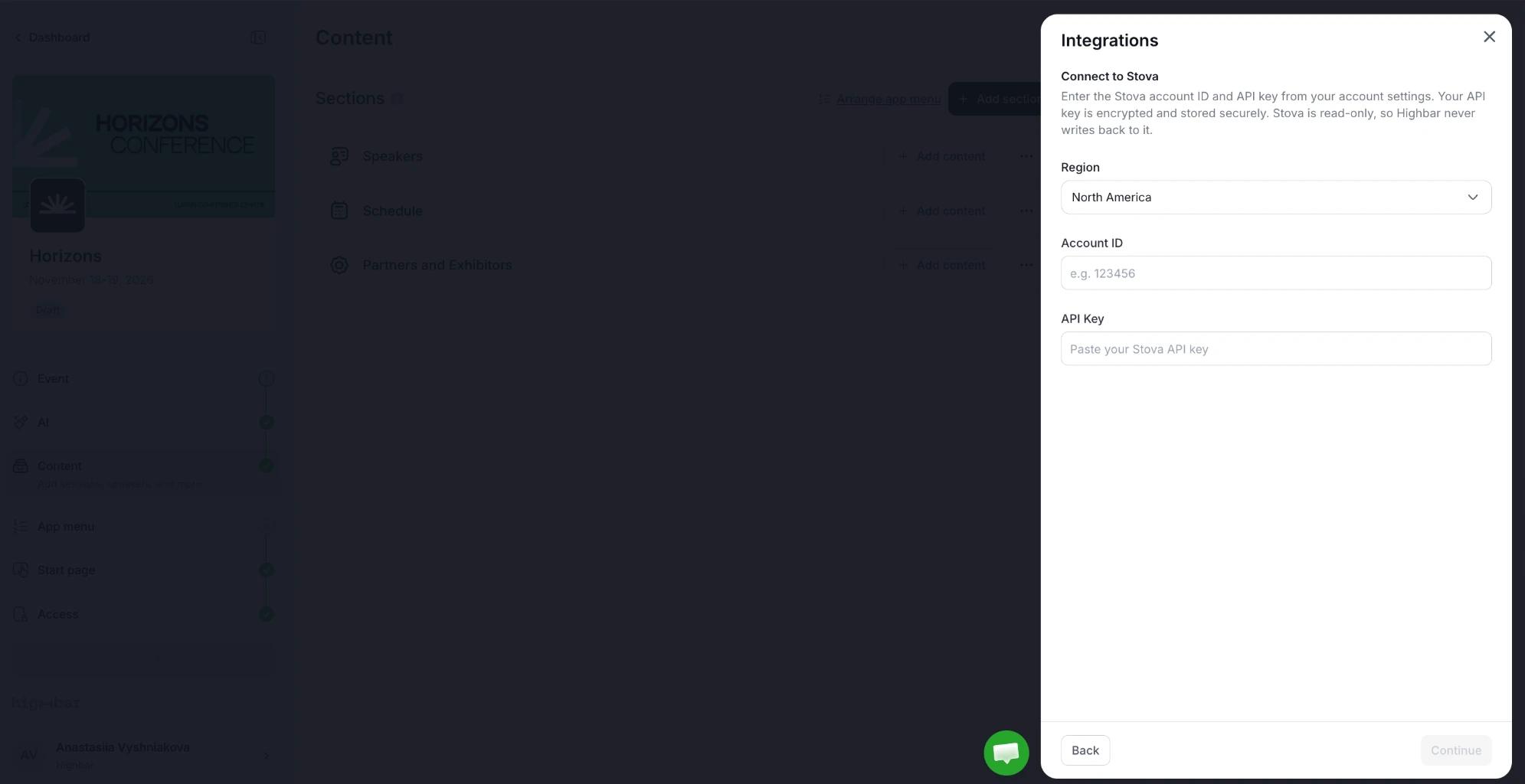
Setup.
- Choose the Stova event.
- Leave Attendees on to import registrants to the attendee list.
- For Sessions and Speakers, choose Create new section, Add to: an existing section, or Don't import. Tracks and locations come with them.
- Leave Auto-sync attendees and Auto-refresh content on to keep everything up to date.
What's imported. Registrants, sessions, speakers, tracks and locations. Stova's Public Agenda checkbox decides which sessions are visible in the app.
Credentials. In Sessionize, open your event's API / Embed page and create a JSON endpoint. In Highbar, give the connection a Connection name (for example, your event name) and paste the Endpoint ID or feed URL.
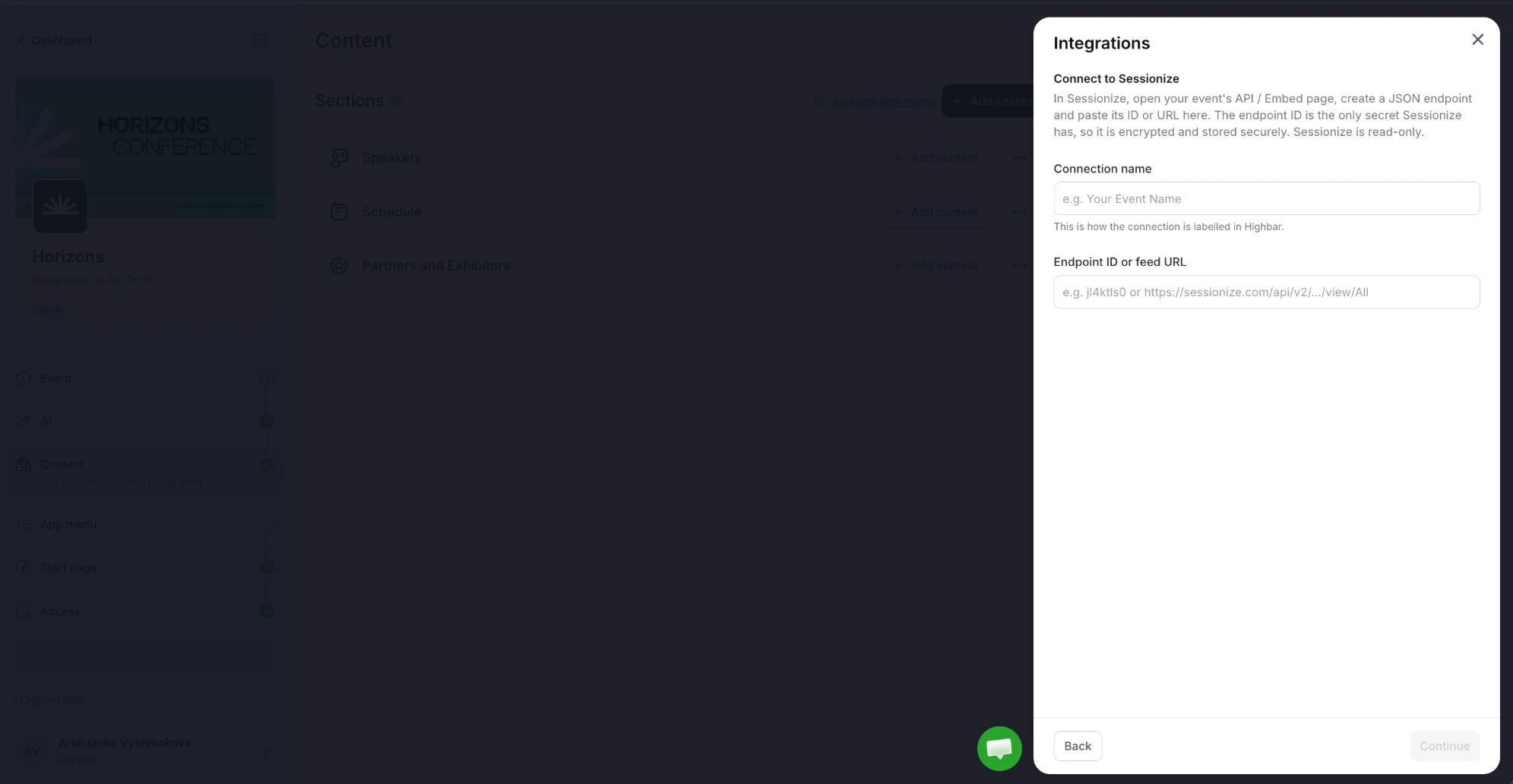
Setup.
- Check the summary of sessions, speakers, rooms and days found in the feed.
- For Sessions and Speakers, choose Create new section, Add to: an existing section, or Don't import.
- Under Categories, choose what each Sessionize category becomes: Tracks, Session types, Level or Language (subtitle). Choose Not imported to leave it out.
- Leave Auto-sync content on to keep the schedule up to date.
What's imported. Sessions, speakers, rooms (as locations) and the categories you mapped. Sessions without a time yet are held back and imported once you schedule them in Sessionize. Times are read in your event's timezone, so check it's set correctly in Event details first.
Sessionize has no attendees, so you can't connect it for your attendee list.
Credentials. The Xtag API Username and Password for this event, and the Event timezone so check-in times are stored correctly.
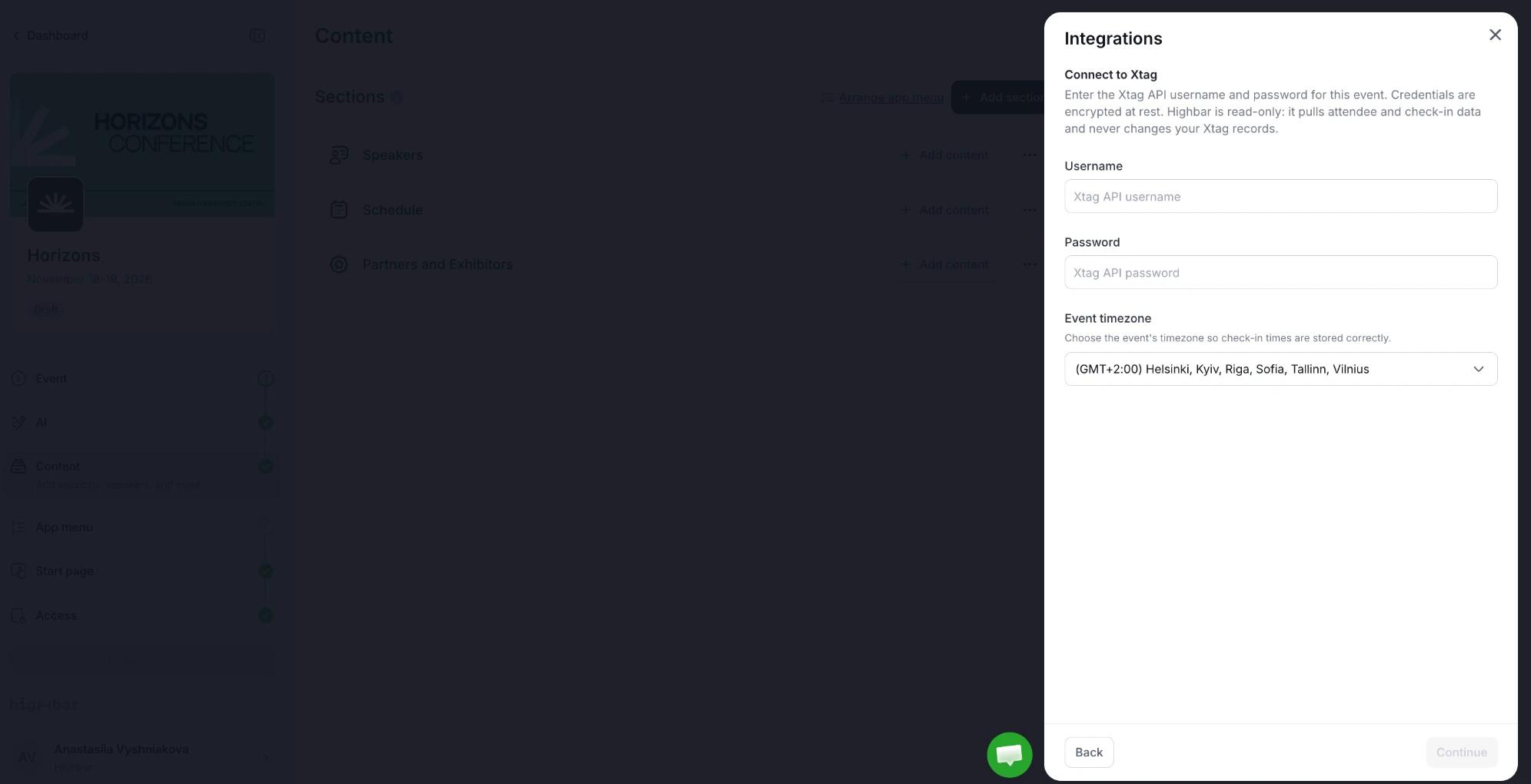
Setup. Match each Highbar field (Email, First name, Last name, Company, Job title) to a field on your Xtag form. Highbar suggests a match for each one. Email is required, because it's how attendees are matched. Click Preview mapping to check a sample before you connect.
If your badges are printed with Xtag's QR code rather than Highbar's, set Badge QR code so the in-app scanner recognizes them.
What's imported. Attendees with an email address, and their check-ins.
Manage a connection
Once connected, Integrations shows your Active Integration: its status, how many items were synced, whether Auto-sync is on and when it Last synced. Click Manage to:
- Click Sync now to sync straight away instead of waiting. For example, use it if new registrations stopped appearing because Swoogo had some downtime, or you hit a rate limit on the Swoogo API.
- Turn Auto-sync off to pause syncing, and back on to resume.
- Change platform-specific settings:
- Swoogo: click Change next to the registration statuses or pass types. Before saving, you see how many attendees will be added or removed.
- Stova: under Registration statuses, click Review to choose which statuses to Keep or Remove from the attendee list, then Save and re-import. Use Re-import attendees or Re-import content to pull everything again.
- Xtag: click Edit next to Field mapping to change your mapping. If the Xtag form changes in a way that breaks it, the integration shows Needs attention until you review the mapping.
- Sessionize: if a sync would remove a large part of your schedule (for example, because Schedule announced was switched off in Sessionize), it stops and shows Needs attention. Click Apply anyway only if the change in Sessionize was intended.
Why the attendee count doesn't match
If Highbar shows a different number from your registration platform, the cause is almost always registration statuses or pass types. Your platform's total may include incomplete, cancelled or test registrations, or pass types you haven't chosen to import. Check your status and pass type settings in Manage, then compare like with like.
Editing synced data in Highbar
What happens to your edits depends on the platform:
| Platform | If you edit a synced session or speaker in Highbar |
|---|---|
| Swoogo | Your edit is kept, and that field stops updating from Swoogo. |
| Sessionize | Your edit is kept, and that field stops updating from Sessionize. Turn off Keep Highbar edits to make Sessionize the source of truth again. |
| Stova | Your edit is overwritten at the next sync. Make changes in Stova instead. |
Speakers you attach by hand and content you create yourself are never touched. With Swoogo and Sessionize, a session deleted there is hidden in your app, not deleted.
Removing synced attendees
If you remove an attendee from the attendee list but they're still registered in the other platform:
- Lu.ma leaves them removed.
- Xtag leaves them removed by default (Keep Highbar removals). Choose Xtag is the source of truth under Removed attendees to restore anyone still registered.
- Swoogo brings them back at the next sync if they still have a status and pass type you import. To keep someone out, change their registration in Swoogo, or change which statuses or pass types you import.
Disconnect
In Manage, click Disconnect integration, then Disconnect. Syncing stops, and the attendees and content already synced stay in your event. You can then connect another platform.
Other ways to bring data in
You can mix an integration with the other options:
- Content from a spreadsheet. Use Import on the Content page to upload sessions, speakers, sponsors and FAQs from CSV or Excel files. See Importing content.
- Attendees from a spreadsheet. Use Upload on the Access page, or add people one at a time with Add attendee. See Access: who can log in.
For example, connect Lu.ma for your attendees and import your agenda from a spreadsheet.