Importing content
Bring sessions, speakers, sponsors and FAQs into your event app from CSV or Excel files, check them before they go in, and undo an import if you need to.
The content importer adds sessions, speakers, sponsors and FAQs from your own spreadsheets, and updates what's already there. You check every row before anything is written, and you can undo the latest import.
Click Import at the top of any Content page to open it. The importer walks you through five steps: Upload, Map, Review, Deduplicate and Finish.
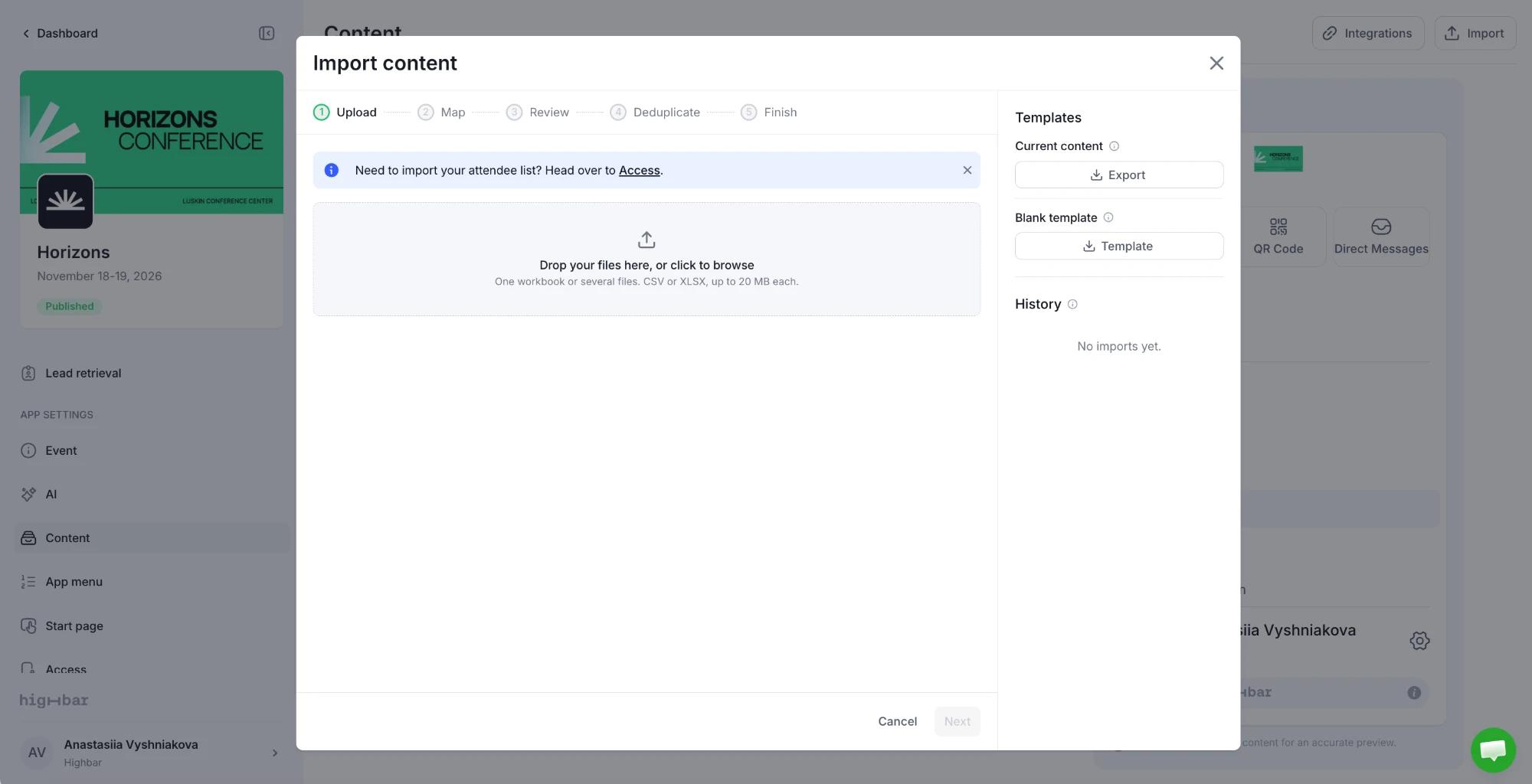
The importer is for content only. To import your attendee list, use Upload on the Access page. If a sheet looks like a registration list, the importer flags it.
Before you start
The panel next to the Upload step has two Templates:
- Current content (once your event has content): click Export to download your event's sessions, speakers, sponsors and FAQs in the import format. The file includes each item's ID, so rows you edit come back as updates, not duplicates.
- Blank template: click Template to download an empty workbook with one sheet per content kind. Leave any sheet or column you don't need blank.
You don't have to use a template. The importer reads your column headers and suggests a field for each one.
Import your files
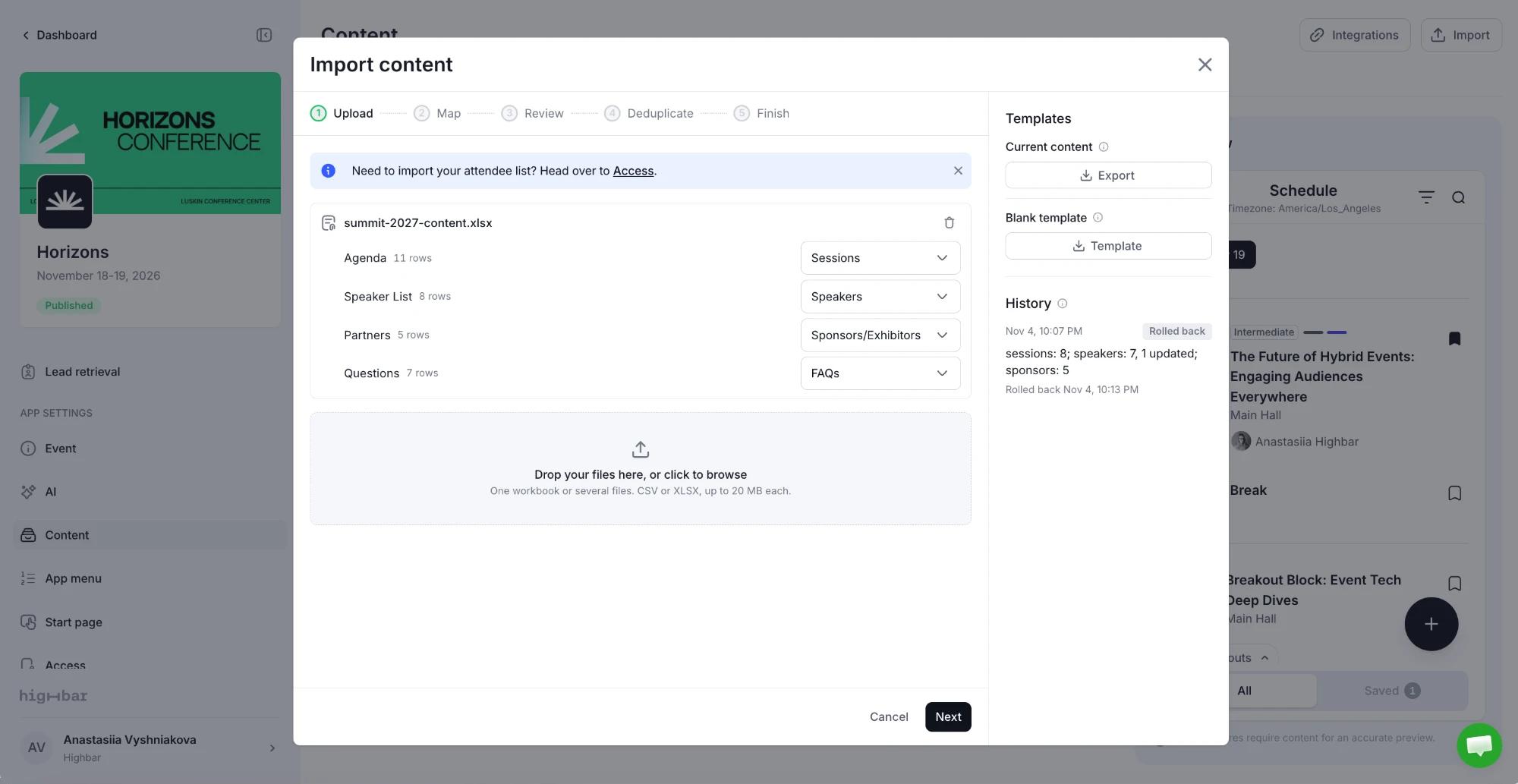
Upload. Drop your files in, or click to browse. You can add one workbook with several sheets, or several files: CSV or XLSX, up to 20 MB each, and up to 10 files per import. Each sheet shows its row count and a type: Sessions, Speakers, Sponsors/Exhibitors or FAQs. Change a wrong guess, or choose Do not import to leave a sheet out.
Map. Each sheet has its own tab, and Treat this sheet as sets what kind of content it holds. Each of your columns is listed with a sample value and the field it goes into. The orange number on a tab, and the note at the bottom, show how many columns are still unassigned.
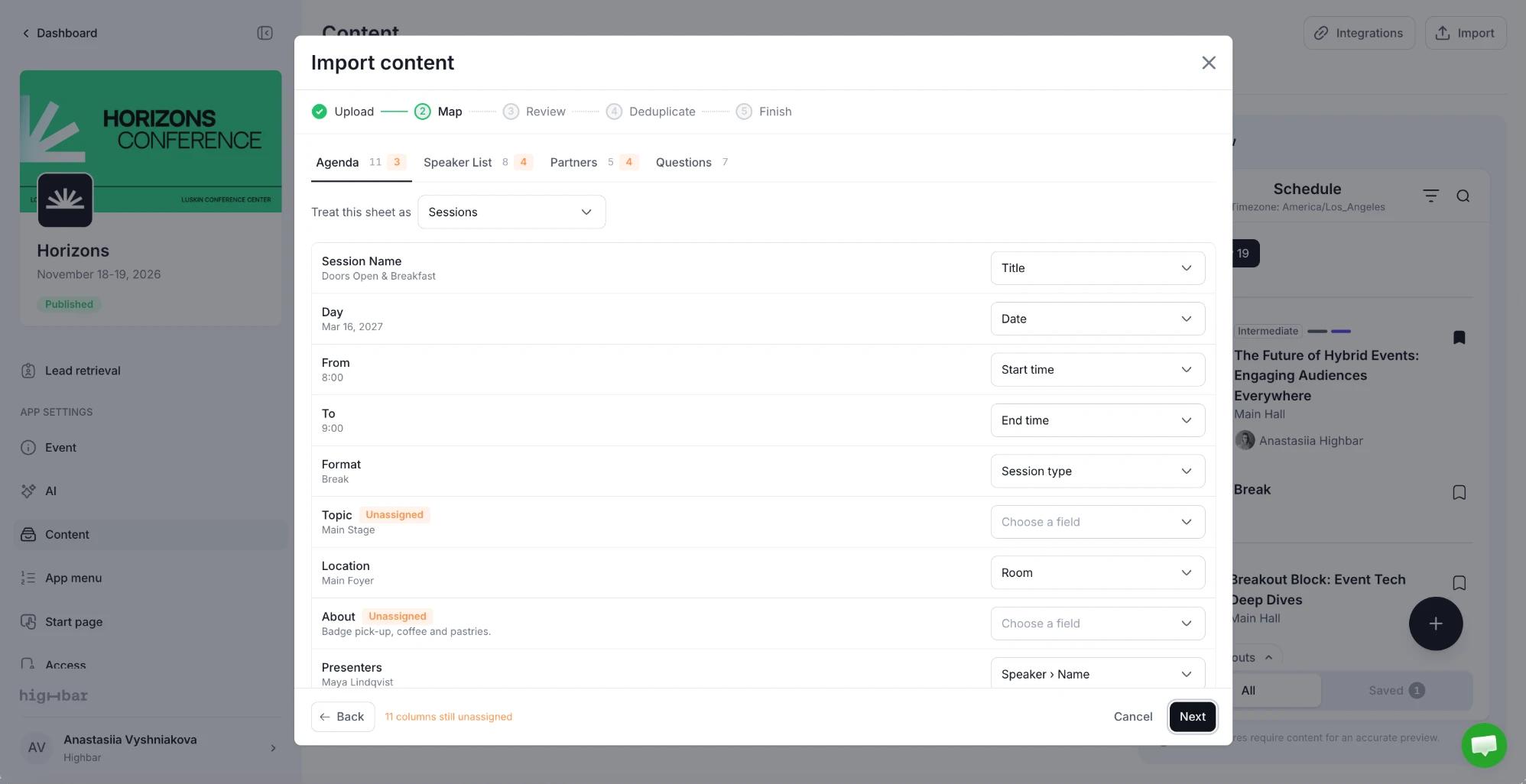
For each Unassigned column you want, pick a field under Choose a field, such as Track for a Topic column, or choose Do not import. Columns left unassigned aren't imported. Columns that name speakers or sponsors map to Speaker › Name or Sponsor › Company name, which links them to the session. If your event has more than one section of a type, choose which section the rows go into.
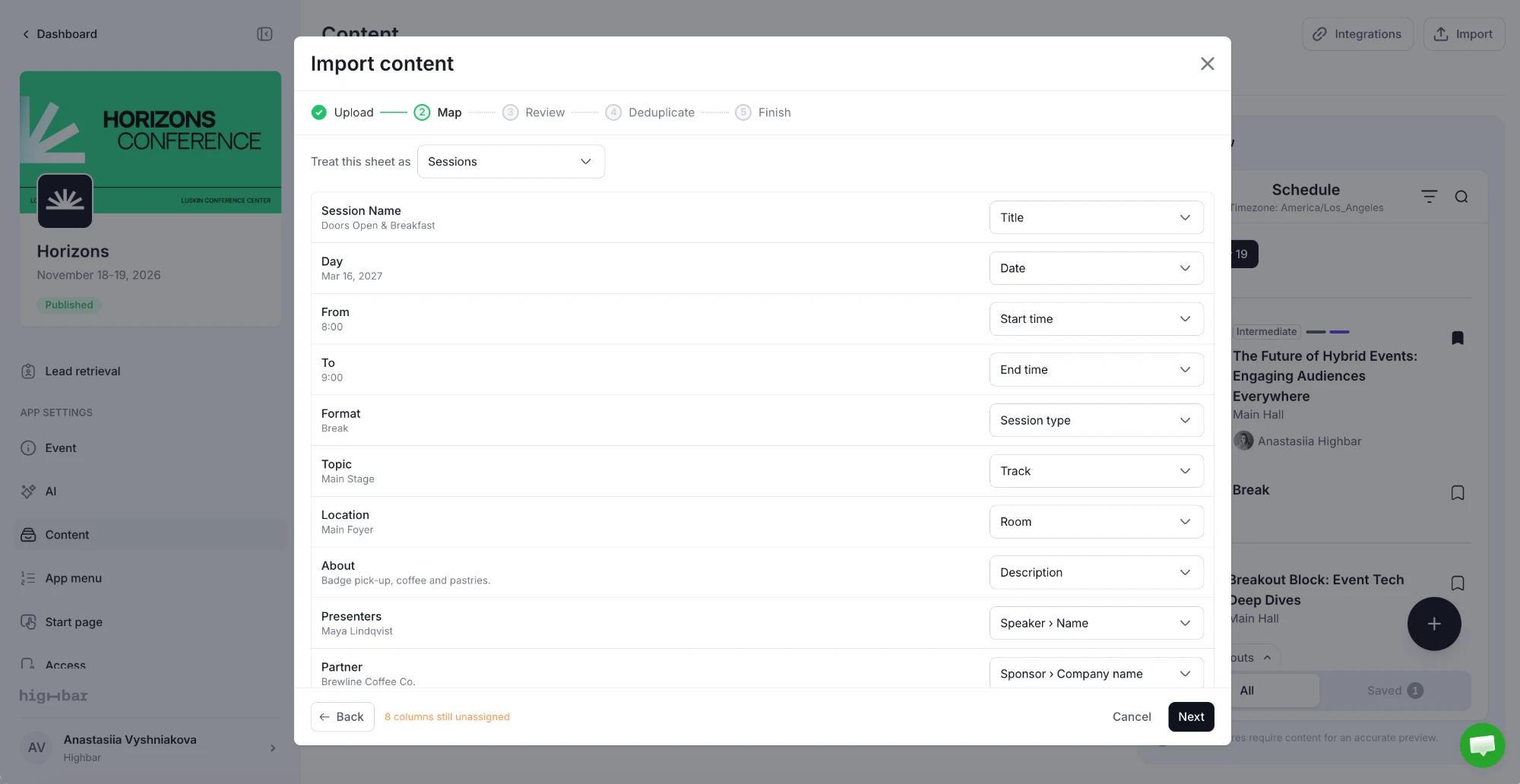
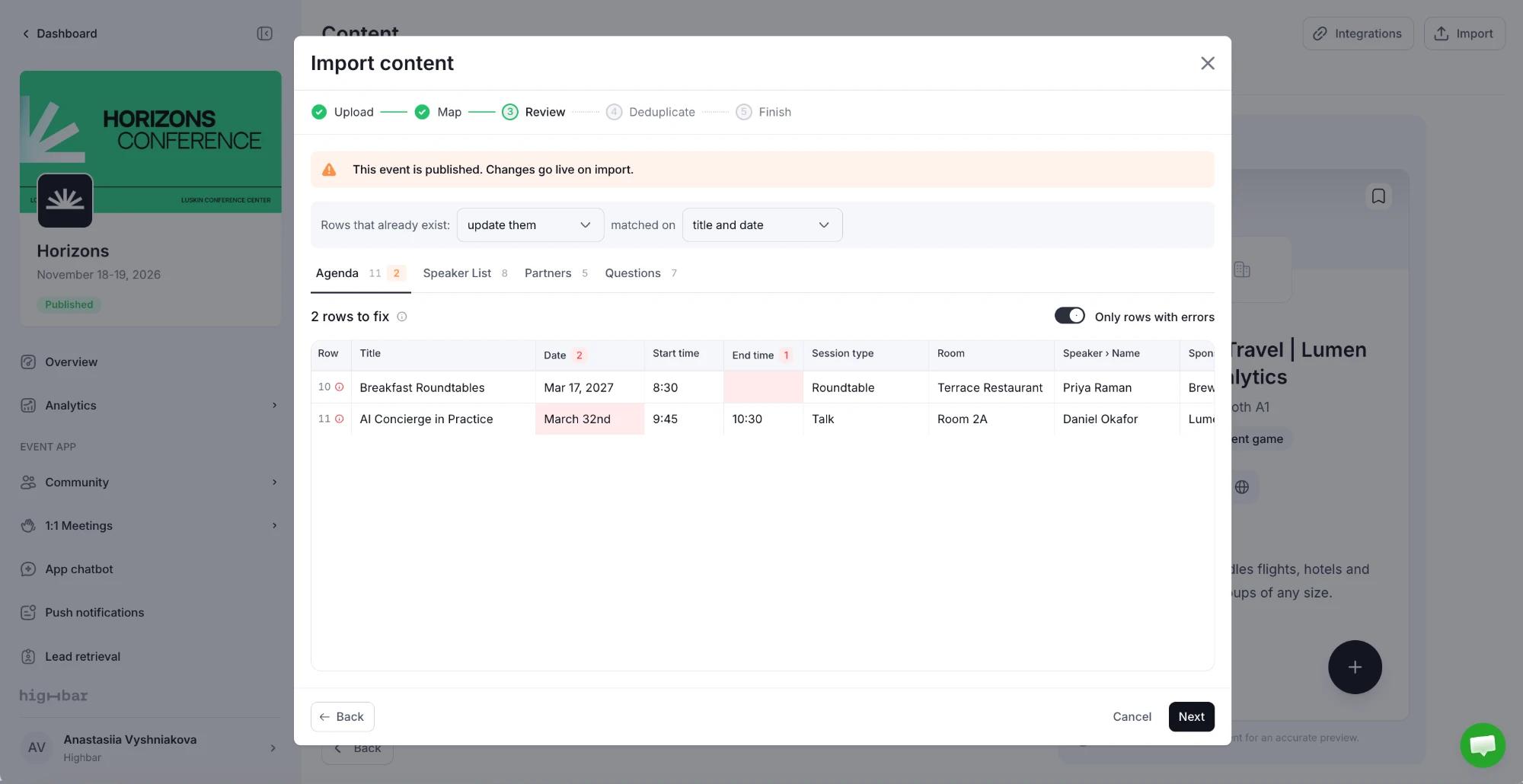
Review. On a published event, a banner reminds you that changes go live when you import. Every row appears in a grid. Rows that need attention are flagged: fix a cell by typing in it, or turn on Only rows with errors to see just those. Rows you leave marked to skip are left out, and every other row imports.
The tab and the column headers show how many problems each has, and the cells to fix are highlighted in red, such as a missing end time or a date that doesn't exist.
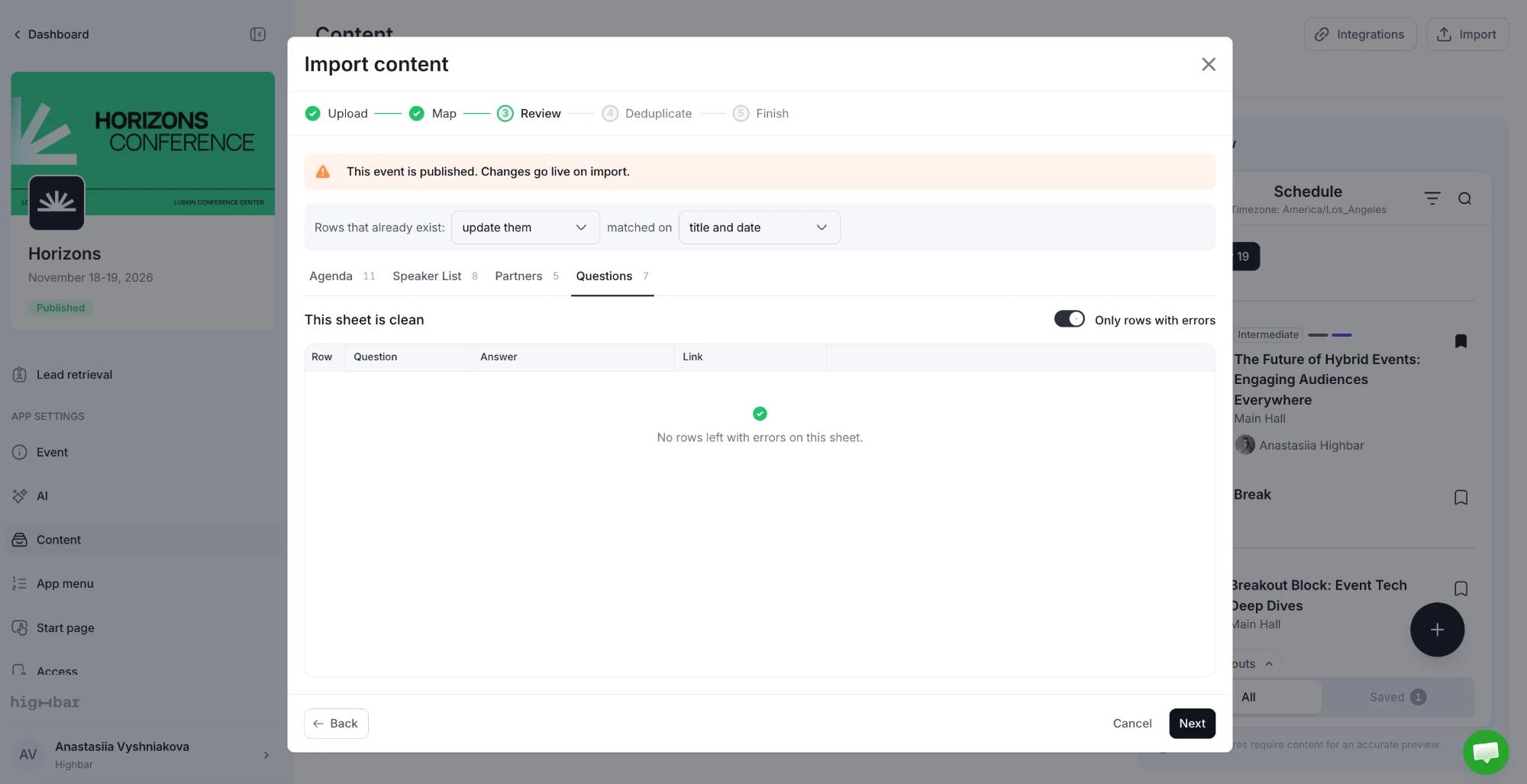
Once every row is fixed, the sheet says it's clean.
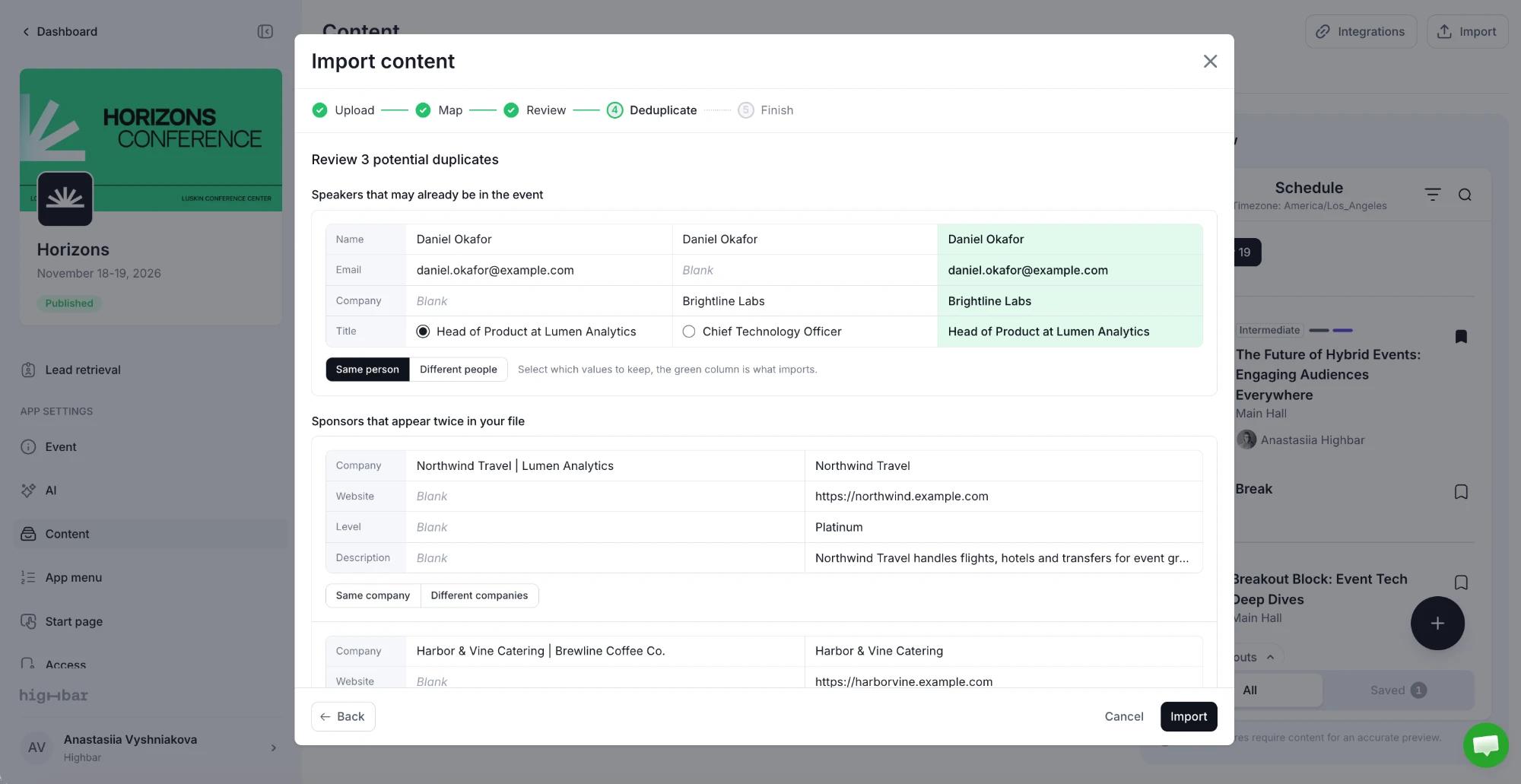
Deduplicate. Check possible duplicate speakers and sponsors (see below), then click Import.
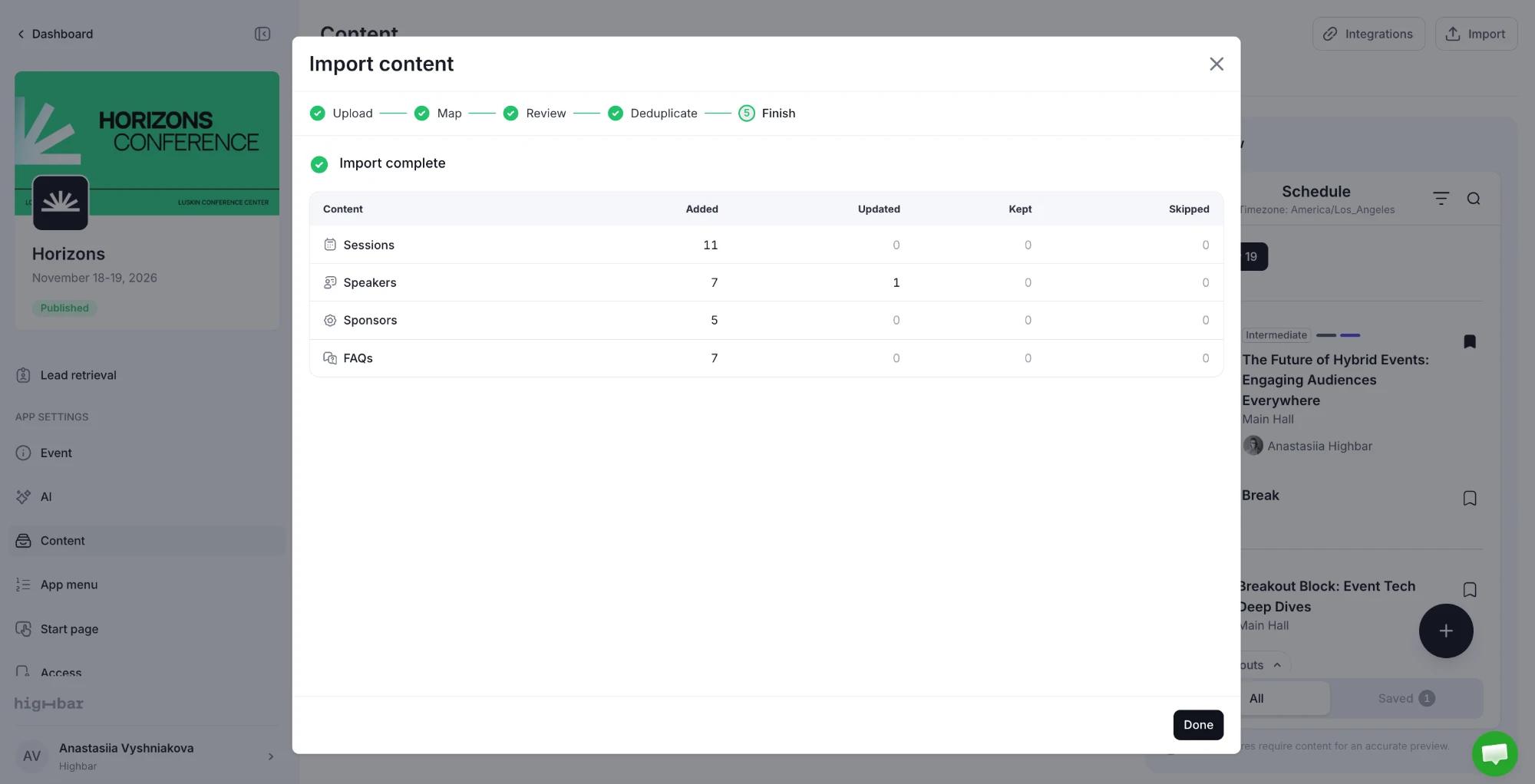
Finish. Keep the window open while the import runs. A table then shows, for each content kind, how many items were Added, Updated, Kept (matched something already in your event and left as it was, for example because you chose leave them alone) and Skipped (couldn't be imported, such as a row missing a required value). Click Done.
What each kind needs
| Kind | Required columns |
|---|---|
| Sessions | Title, date, start time and end time. |
| Speakers | A name: one full-name column, or first and last name. |
| Sponsors | Company name. |
| FAQs | Question and answer. |
A row missing a required value is skipped, not the whole sheet. Imported FAQs appear with your other FAQs.
Handy shortcuts
- One sheet can fill several kinds. A sessions sheet with speaker or sponsor columns links each session to those speakers and sponsors, and creates any that don't exist yet. Speakers and sponsors created this way are placeholders, so fill in their profiles afterwards.
- Combined cells get split. A cell like "Jane Doe jane@example.com" or "CTO at Acme" is split into its two fields.
- Fix many cells at once. In Review, click a flagged column header for bulk fixes, such as setting every empty date to one day.
- Photos and logos come along. Map a column of photo or logo web addresses, and the importer fetches the images after writing your content.
- Missing sections are created. If your event has no section for a kind you import, the importer adds one.
- Subsessions come along too. On a sessions sheet, map your parent session columns (such as the block's title or ID) to Parent session. Rows that share a parent become subsessions of one parent session, and rows with blank times take the parent's. Map a CE credits column to show CE credits on each session.
Update content you already have
If your event already has content, Review asks how rows that match existing items are treated:
- Rows that already exist: update them with the file's values, or leave them alone.
- matched on: how a session row finds its match. Choose title and date (the default, which survives a time change), title and start time, title only, or the Highbar ID column from an exported file.
The safest way to update is to export Current content, edit that file and import it again.
Importing never deletes anything. If sessions or speakers from an earlier import don't match any row in your file, Review lists them in a note (click Show them) and leaves them as they are. A long list usually means the file lost its Highbar ID column, so its rows will be added as new instead of updating.
Items you've edited since importing
If you change an imported session, speaker or sponsor by hand, later imports leave it alone, so your edits aren't overwritten. Those rows count as Kept at the end of the import.
In the schedule, an imported session you've edited shows Edited. To let the next import update it again, click Unlock on its row.
Check for duplicates
Speakers and sponsors that match exactly, by ID, email, unique name or company, are linked automatically. The Deduplicate step shows only the uncertain ones, in two groups: those that may already be in the event, and those that appear twice in your file.
For each pair, compare the fields side by side and choose Same person or Different people (for sponsors, Same company or Different companies). If they're the same and the values differ, pick which values to keep. The green column is what gets imported.
Import history and rolling back
The History list next to the Upload step shows your imports from the last 30 days, with a summary of each and its status, such as Complete, Stopped or Rolled back.
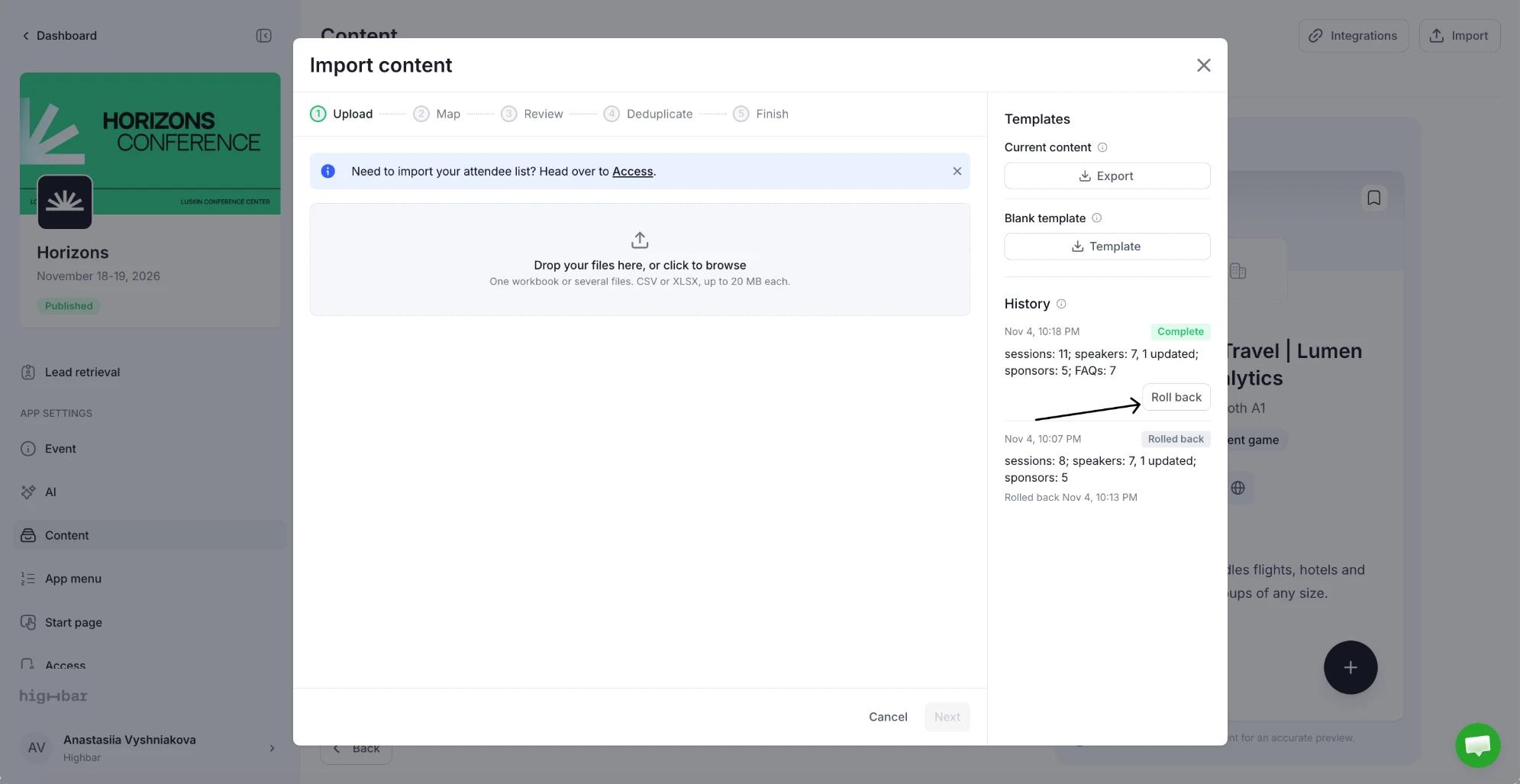
To undo the most recent completed import, click Roll back, then Undo import (or Keep to change your mind). Everything that import wrote is reversed, including sections it created, and the event is back as it was. Only the latest import can be rolled back. To undo an older one, roll back the imports after it first.
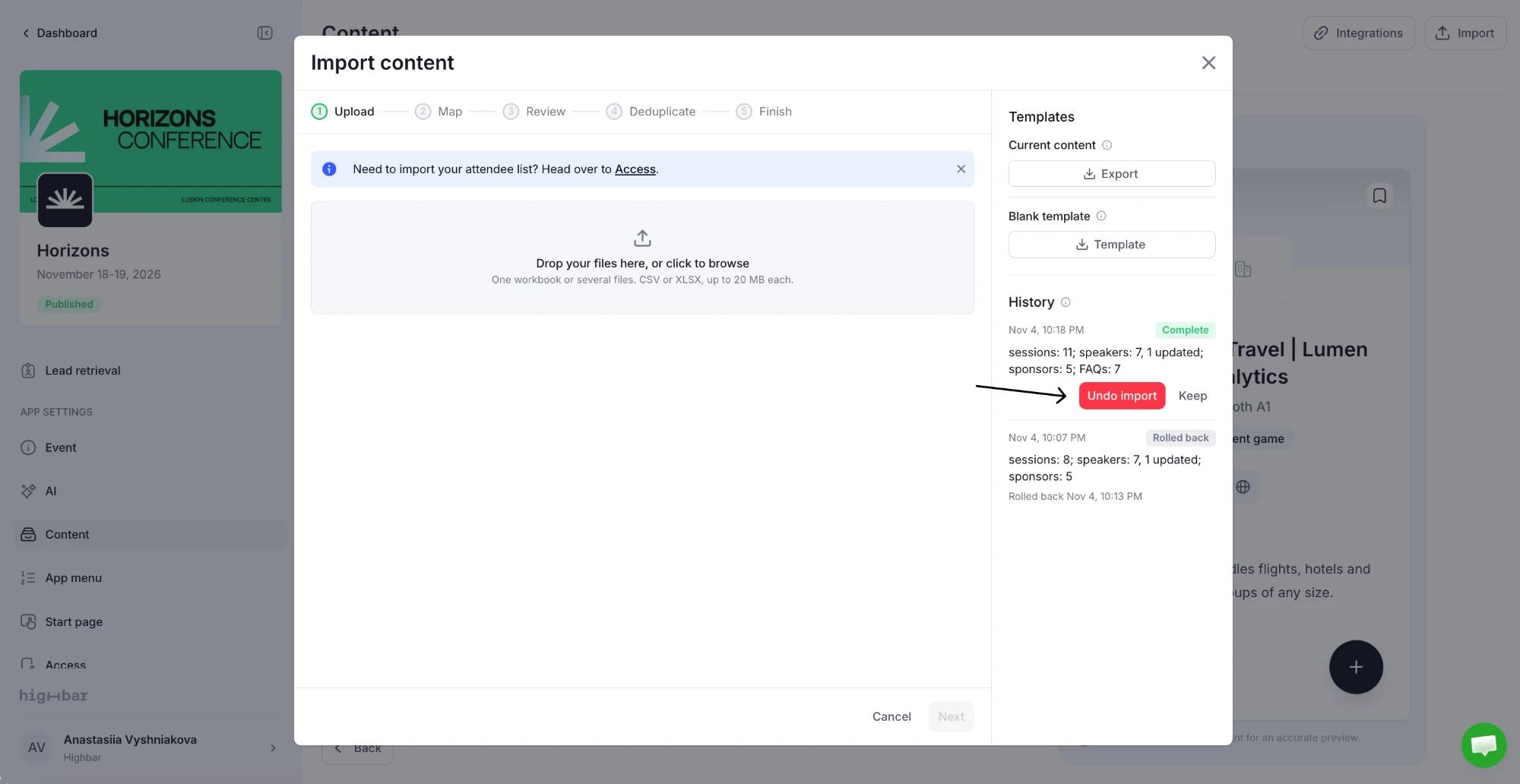
A roll back never overwrites your later work. If you've edited a session, speaker or sponsor from that import since, the roll back is refused and tells you how many records changed. FAQs you've edited since are kept as they are, and the rest of the import is undone.