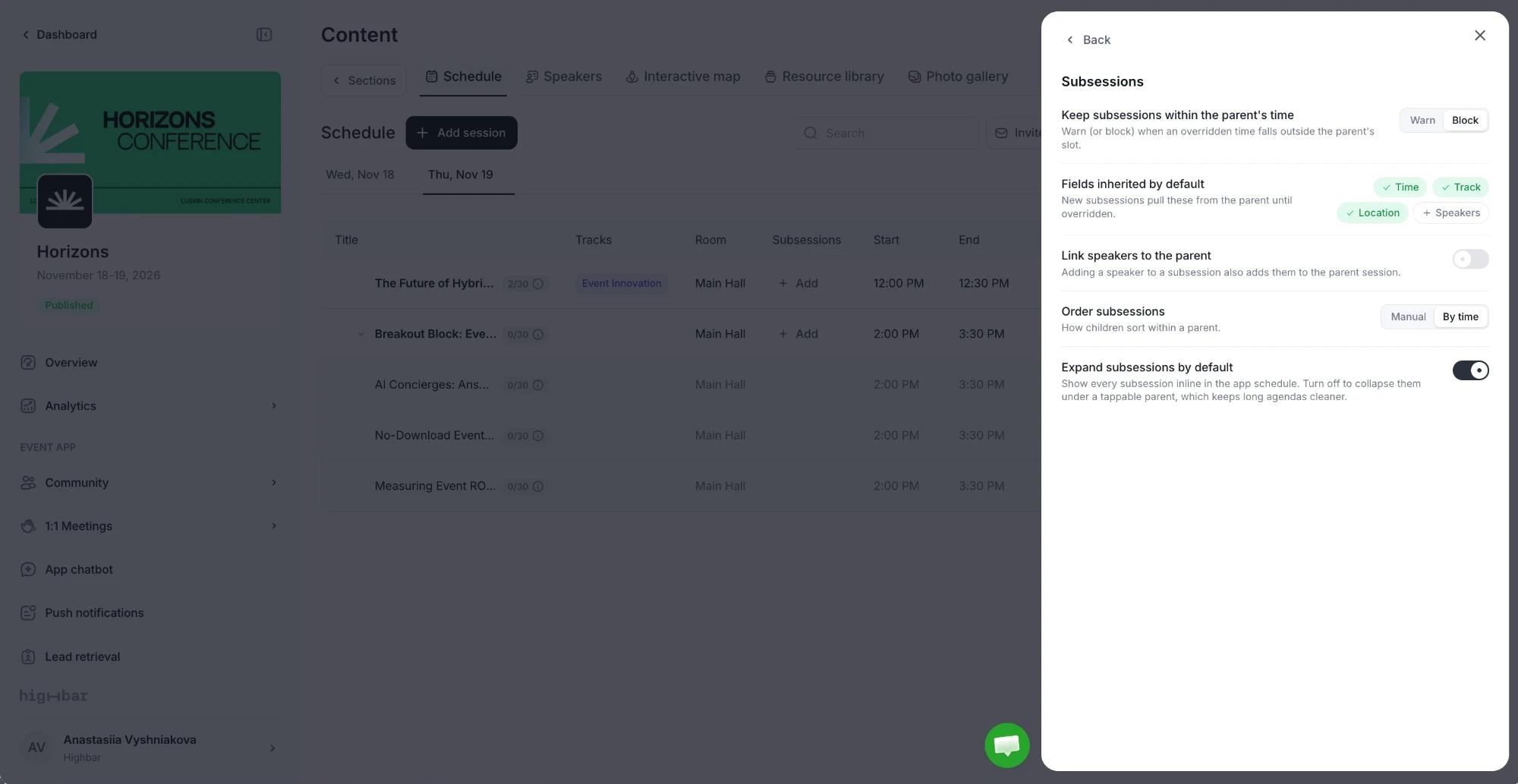
Subsessions
Group sessions inside a parent session, such as talks in a breakout block, and choose how they show in the app.
Subsessions let one session hold others, such as a breakout block with three talks, or a poster session with each poster inside it. Attendees see the parent in the schedule with its subsessions listed under it.
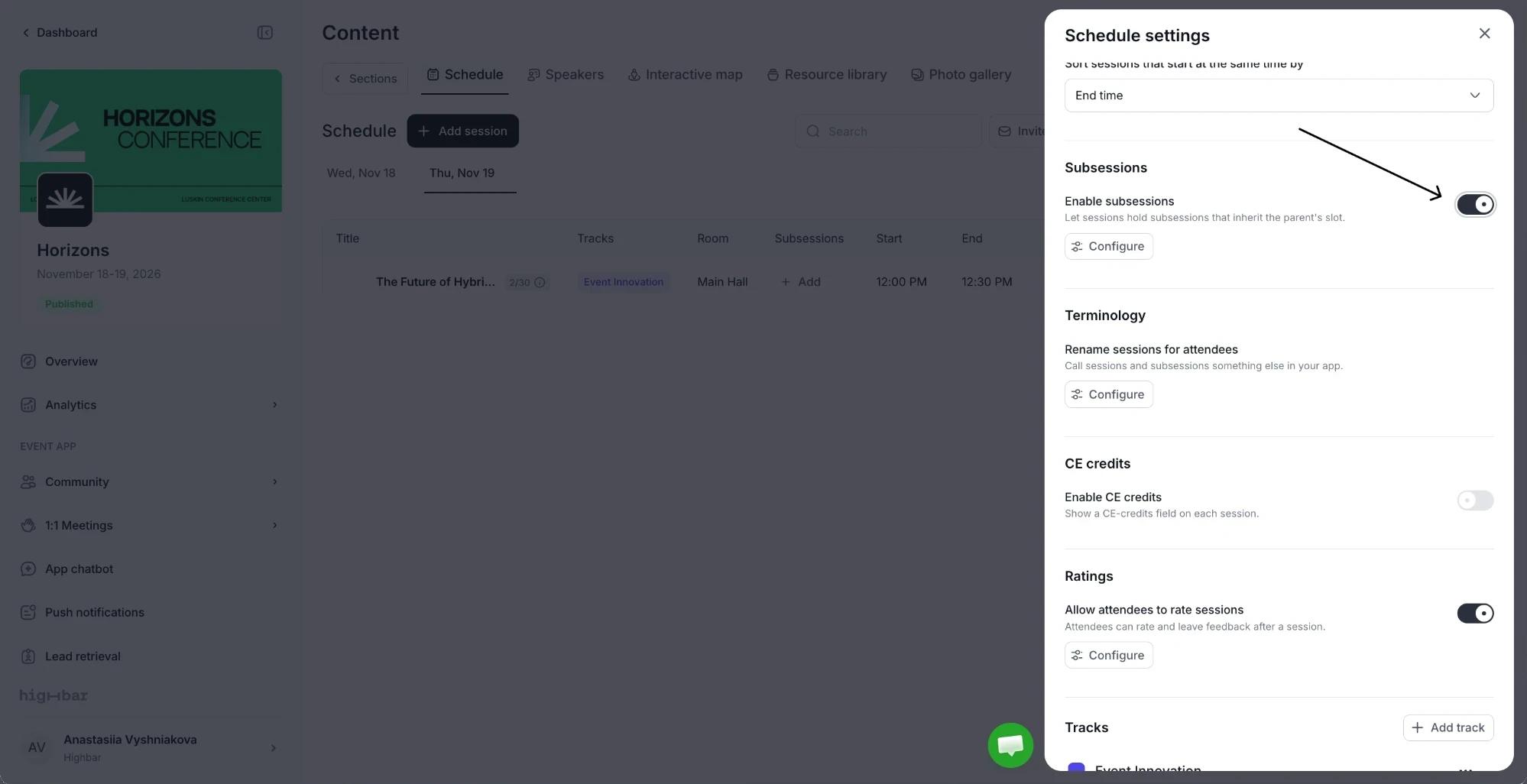
To turn them on, open Schedule settings and turn on Enable subsessions. A Subsessions column appears in the schedule.
Add a subsession
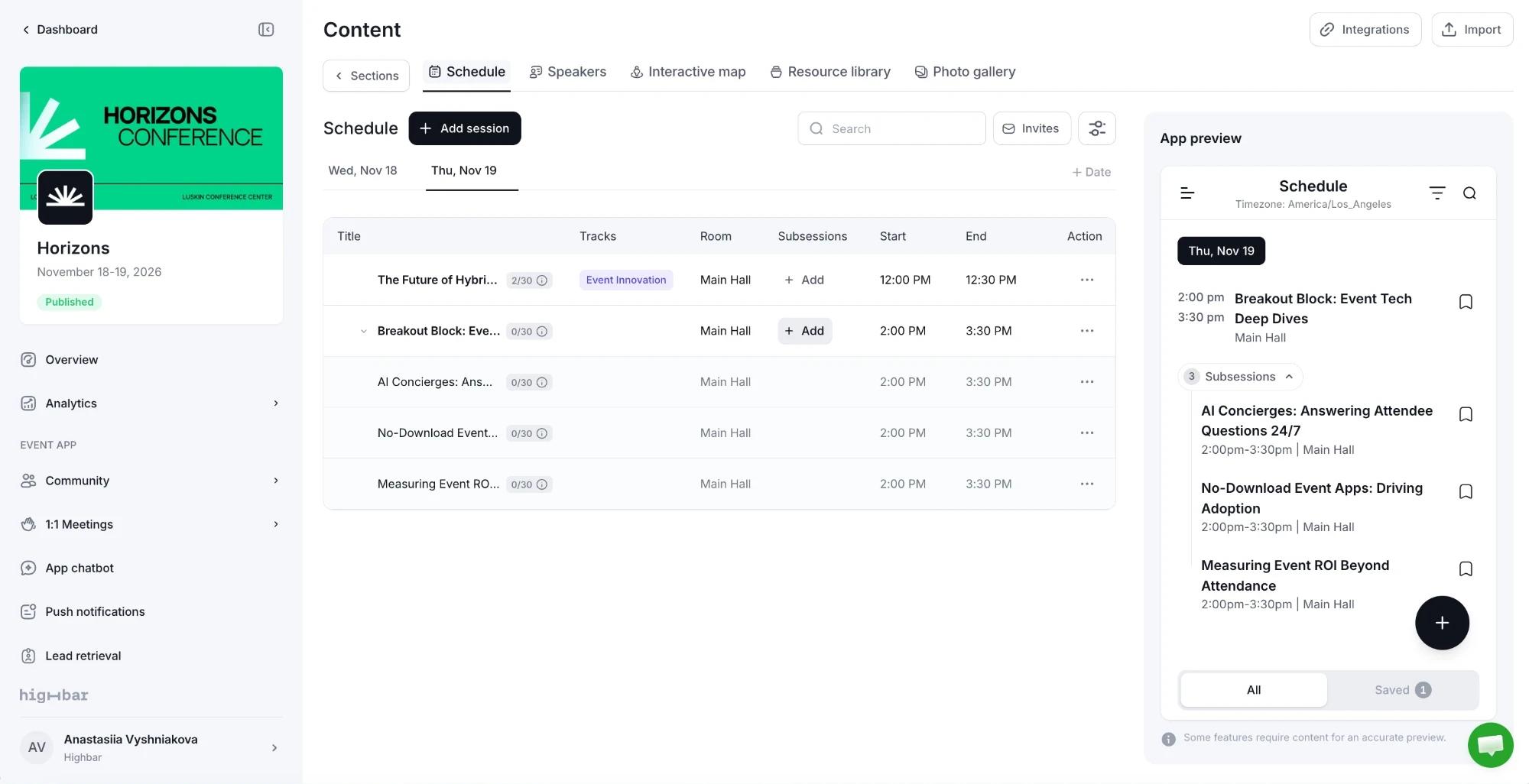
On the parent session's row, click Add in the Subsessions column.
Fill in the subsession like any other session, then click Save. By default it takes the parent's date, time, track and room, so you only need a Title.
Subsessions appear under their parent in the schedule. Click the arrow next to the parent's title to show or hide them. The App preview shows how attendees see them.
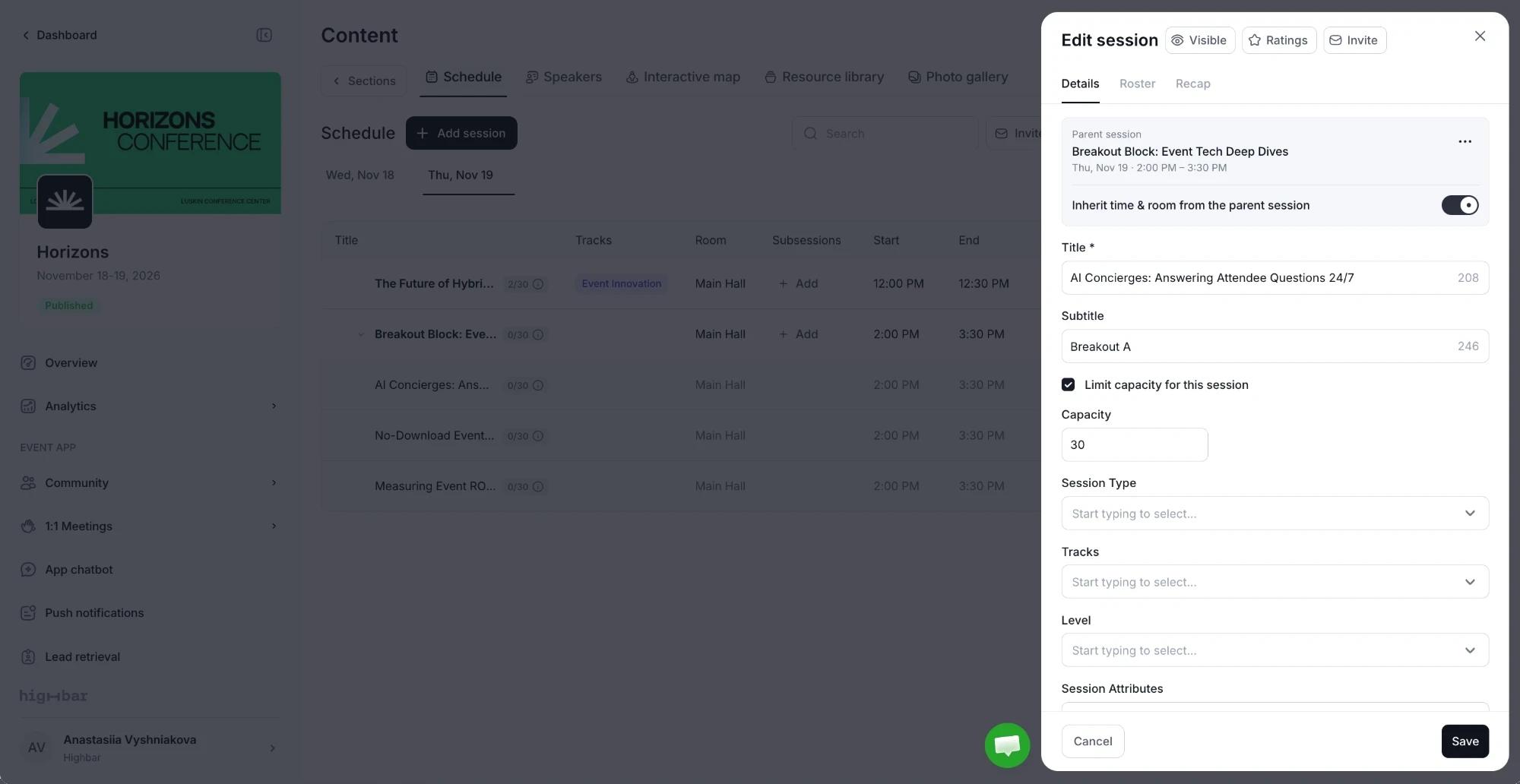
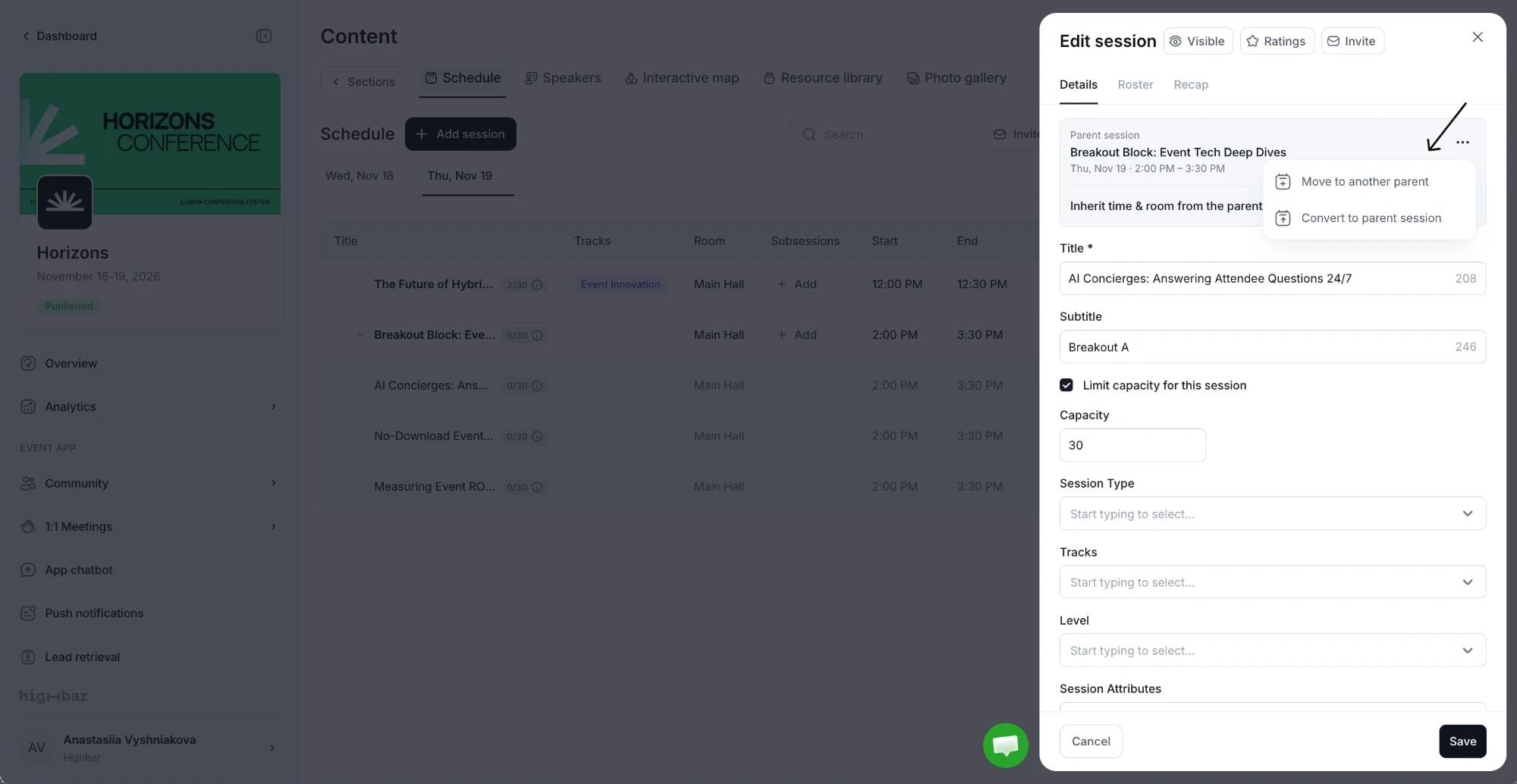
When you open a subsession, the Parent session card at the top of its drawer shows the parent's title and time. Inherit time & room from the parent session is on by default. Turn it off to give the subsession its own time and room, such as a talk that starts halfway through the block.
Move a subsession
Open the subsession and click ⋯ on the Parent session card:
- Move to another parent: choose a different parent session. This is also in the ⋯ menu on the subsession's row.
- Convert to parent session: take it out of its parent, so it becomes a session of its own.
To put an existing session inside another, click ⋯ on its row and choose Move under a parent. A session that already has subsessions can't go inside another one: subsessions are one level deep.
Deleting a parent session also deletes its subsessions.
Subsession settings
Click Configure under Enable subsessions to set how subsessions behave:
| Setting | What it does |
|---|---|
| Keep subsessions within the parent's time | When a subsession has its own time outside the parent's slot, Warn you, or Block saving it (the default). |
| Fields inherited by default | What new subsessions take from the parent until you change them: Time, Track, Location and Speakers. Click a field to switch it on or off. |
| Link speakers to the parent | Adding a speaker to a subsession also adds them to the parent session. |
| Order subsessions | Sort subsessions By time, or Manual to drag them into your own order. |
| Expand subsessions by default | Show every subsession in the app schedule. Turn it off to fold them under the parent, which attendees tap to open. This keeps long agendas tidy. |