Capacity and waitlists
Limit how many attendees can register for a session, run a waitlist, and manage who has a spot.
Capacity limits let attendees reserve a spot in sessions with limited room, such as workshops.
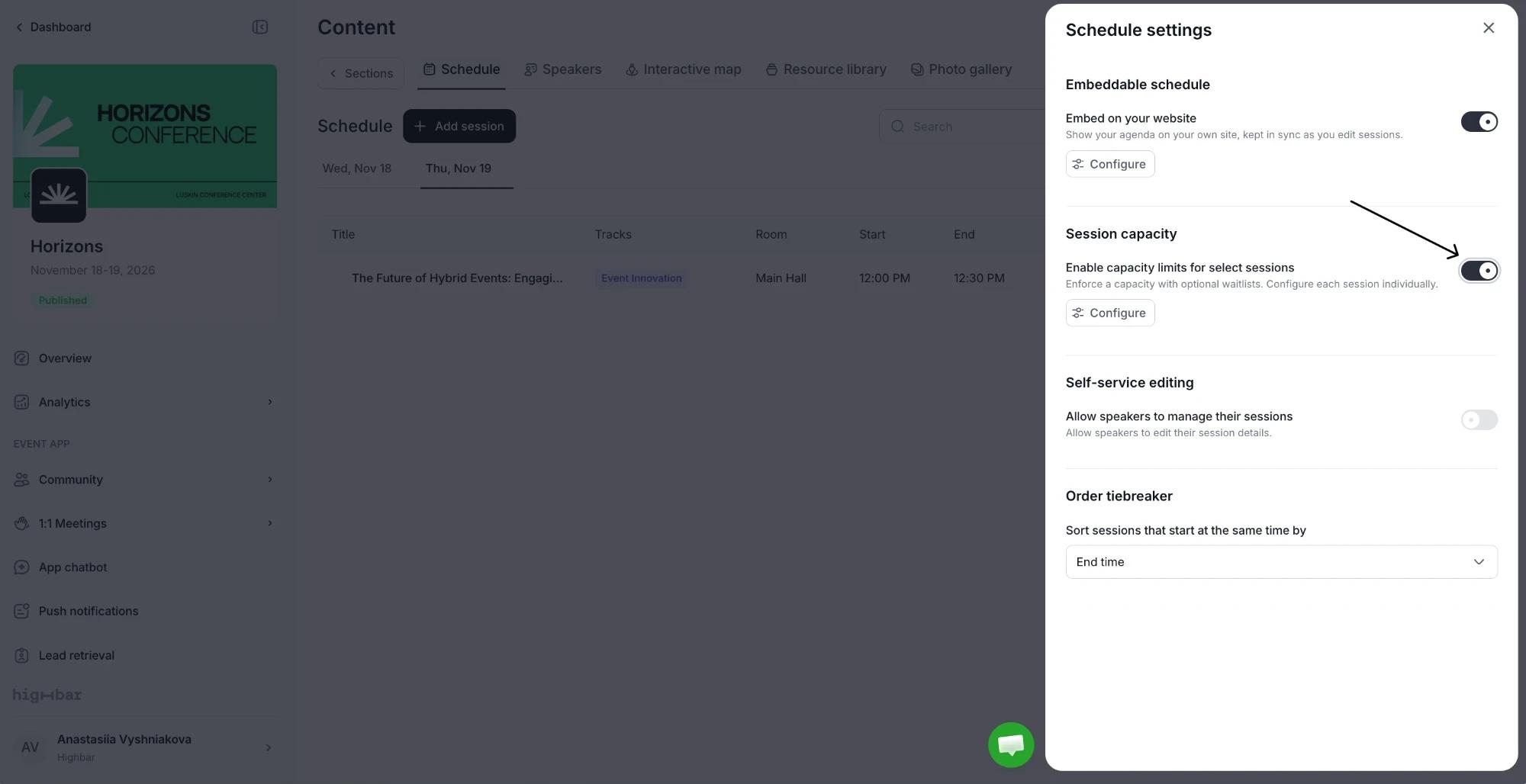
Open Schedule settings and turn on Enable capacity limits for select sessions.
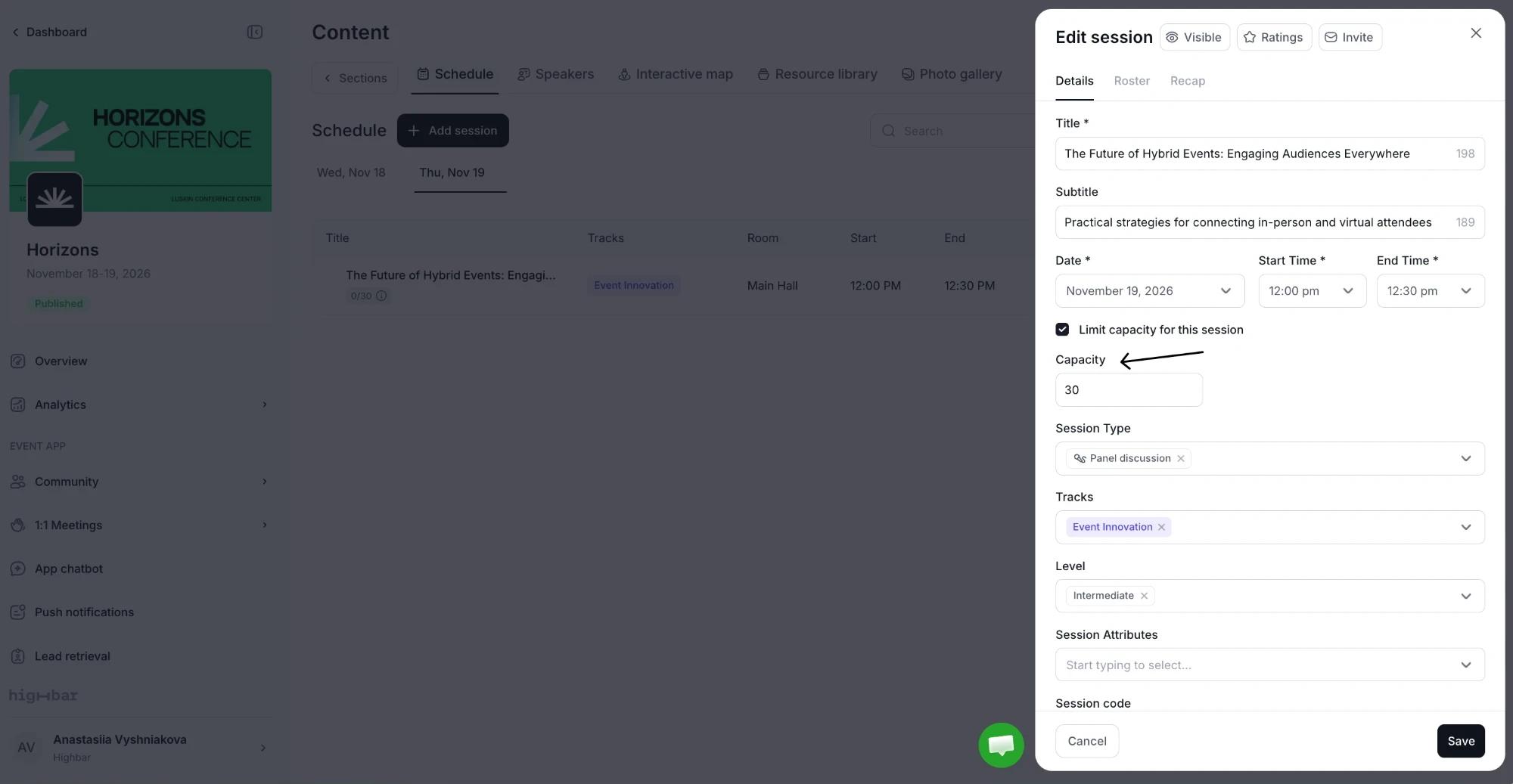
Open a session, tick Limit capacity for this session on the Details tab and enter the Capacity. Click Save.
The session's row in the schedule list then shows how many spots are taken, such as 0/30.
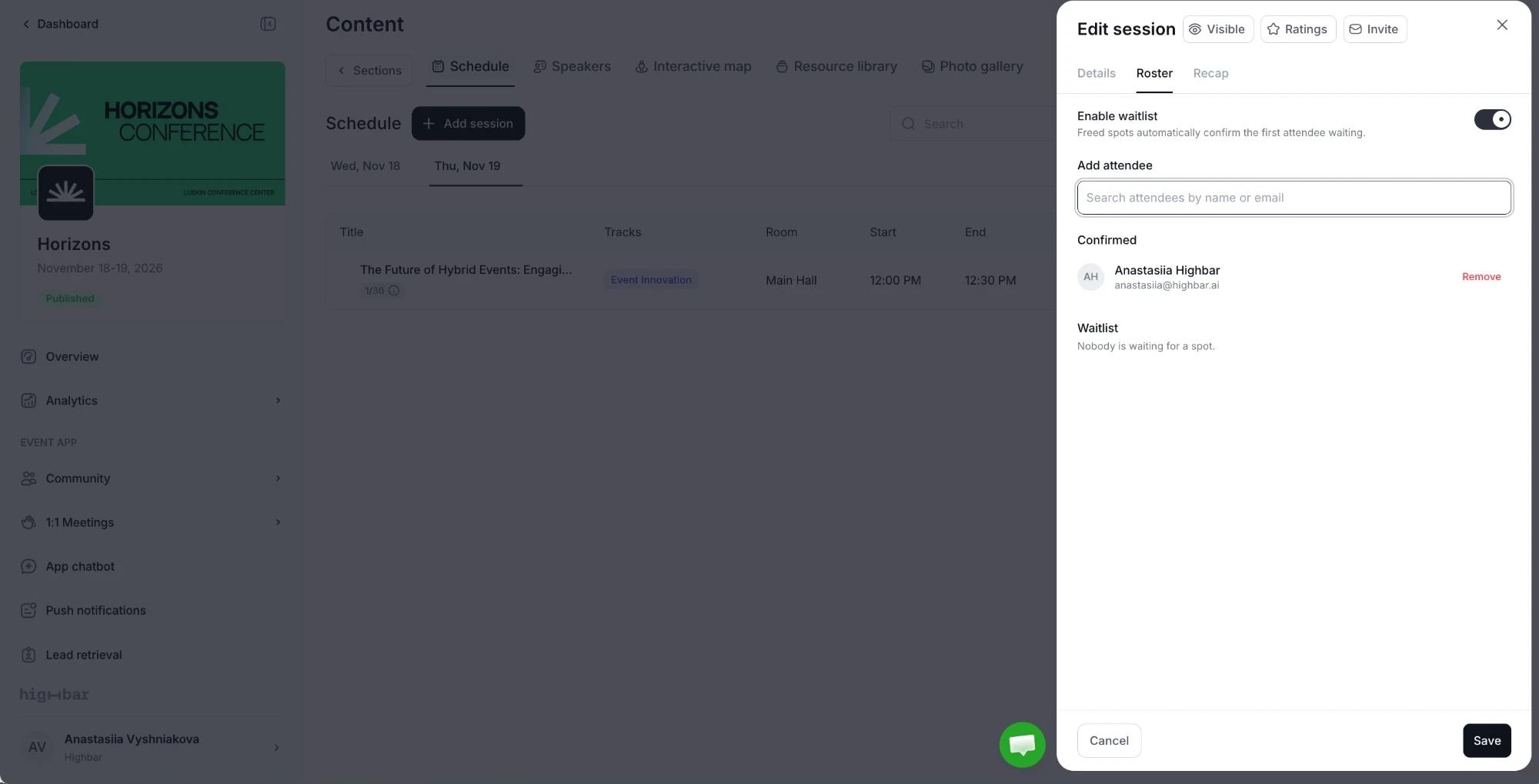
To add a waitlist, open the session's Roster tab and turn on Enable waitlist. When a spot frees up, the first person waiting is confirmed automatically. Click Save.
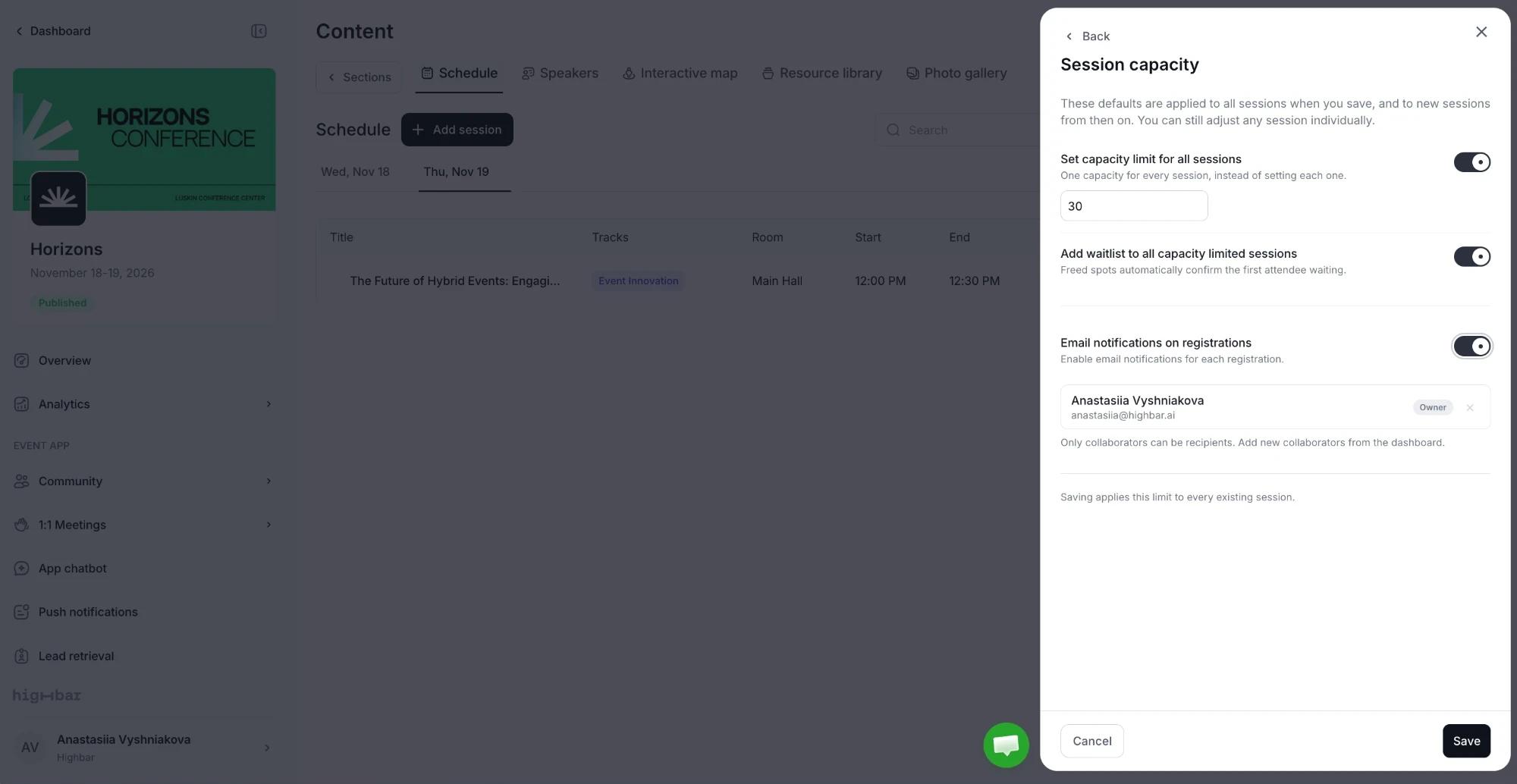
To set the same limit everywhere, click Configure under Session capacity. Set capacity limit for all sessions applies one capacity to every existing session when you save, and to new sessions from then on. Add waitlist to all capacity limited sessions does the same for waitlists. You can still change any session on its own afterwards. Turn on Email notifications on registrations to get an email for each registration, and choose who receives it.
Manage the roster
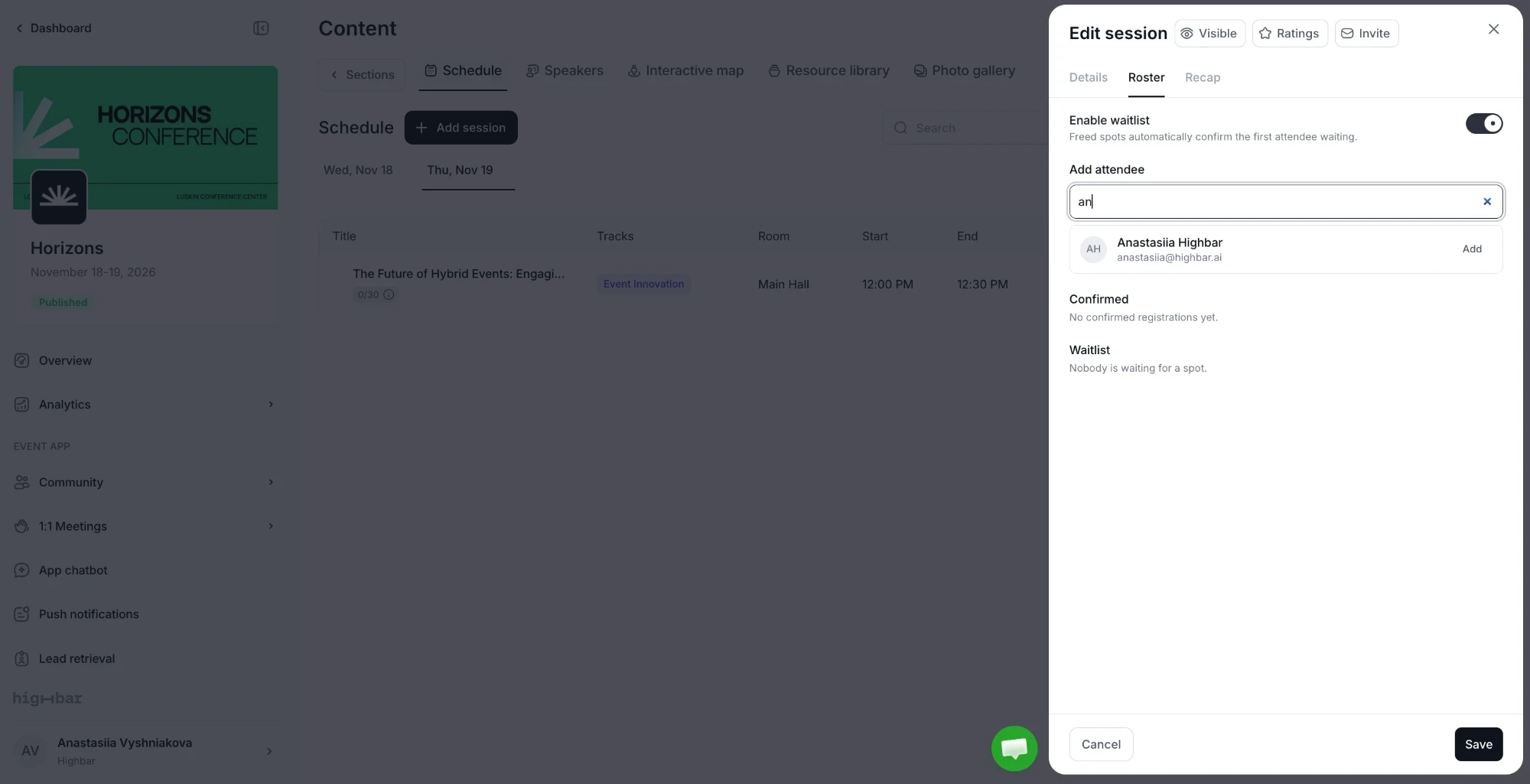
The Roster tab lists who is Confirmed and who is on the Waitlist.
-
Add someone. Search under Add attendee and click Add. If the session is full, you're asked to confirm with Add anyway.
-
Remove someone. With a waitlist, the first person waiting takes their spot. Without one, the spot opens up.
If a session ends up over capacity, nobody is removed automatically. Registration stays closed until enough spots free up.
What attendees see
Capacity-limited sessions show a registration block on the session page. Attendees never see the capacity or how many spots are left.
| Situation | Attendees see |
|---|---|
| Spots available | "Reserve your spot" and a Register button. |
| Full, with a waitlist | "Join the waitlist" and a Join waitlist button. |
| Full, no waitlist | "No spots left" and a disabled Full button. |
| Registered | "You're registered" and a Cancel button. |
| On the waitlist | Their place in line, such as "You're #3 in line", and a Leave waitlist button. |
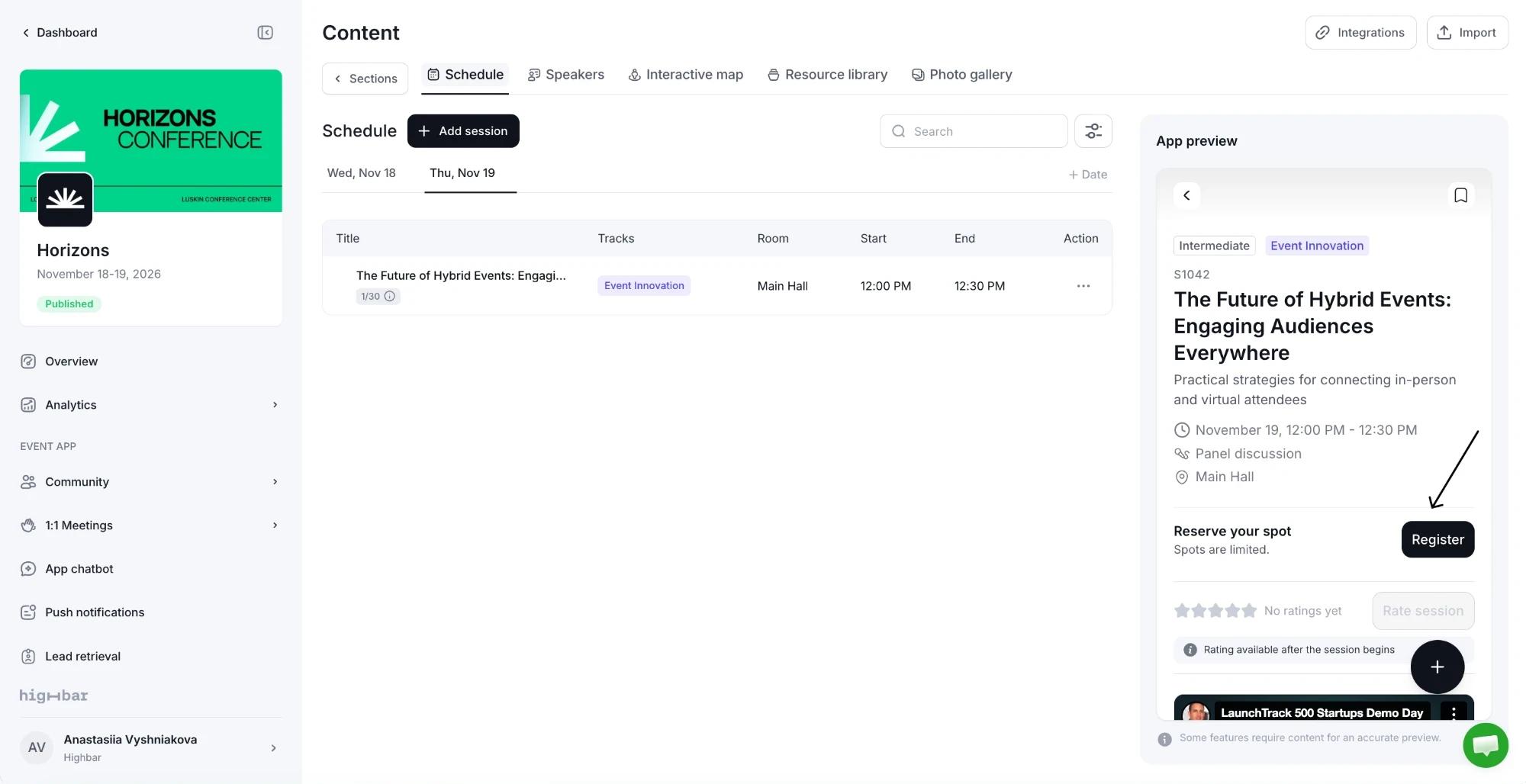
Attendees also get a notification when a waitlist spot opens up for them. See Schedule and My agenda for the attendee side.