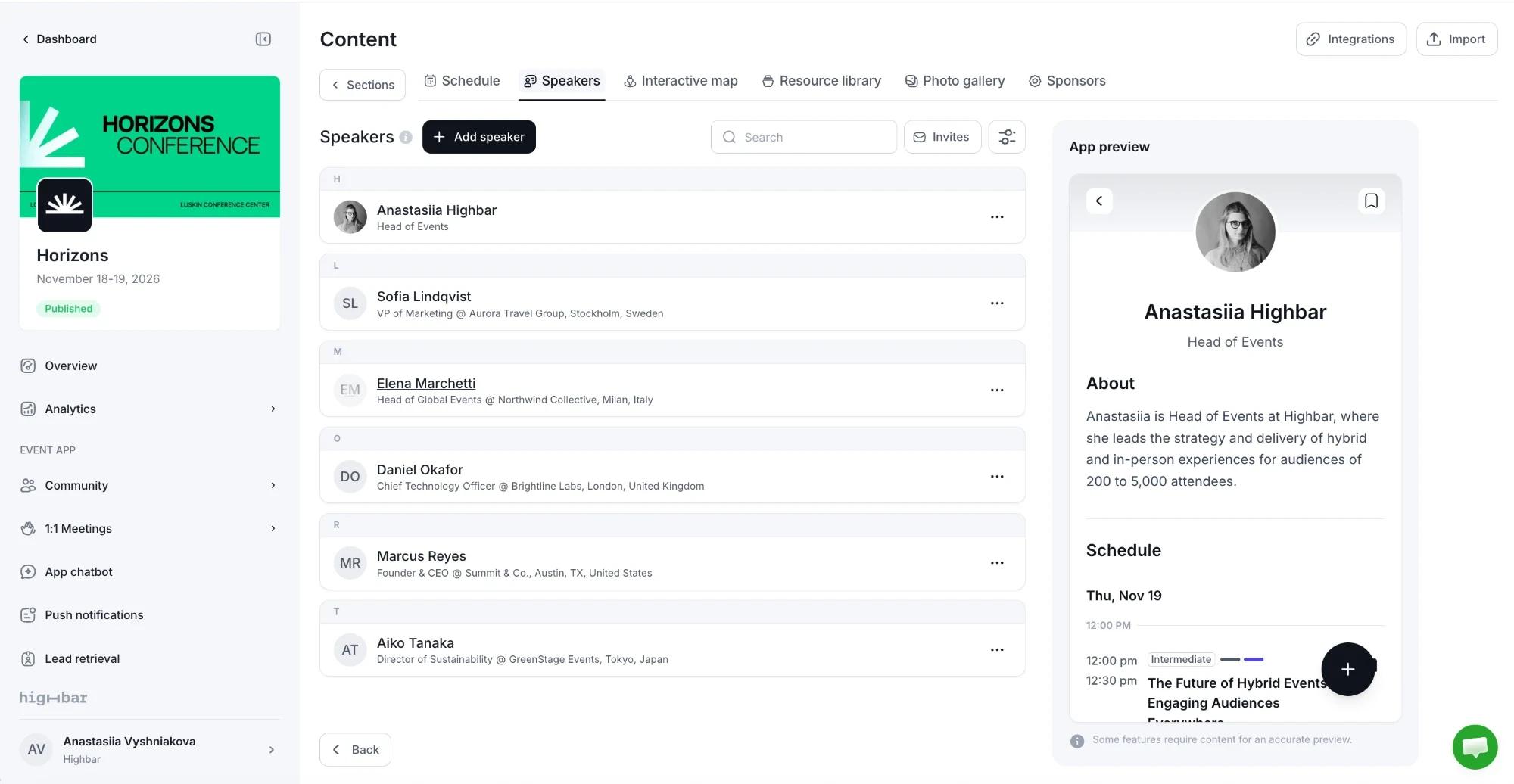
Speakers
Build speaker profiles for your event app and send speakers private links so they can update their own profiles.
A Speakers section lists the people presenting at your event. Each speaker has a profile page in the app with their photo, bio, links, files and the sessions they appear in.
To get there, open Content and click Add content on the Speakers section's row (or click the section's name). Once you're inside a section, each section has its own tab at the top, and Sections takes you back to the list.
Add a speaker
Click Add speaker.
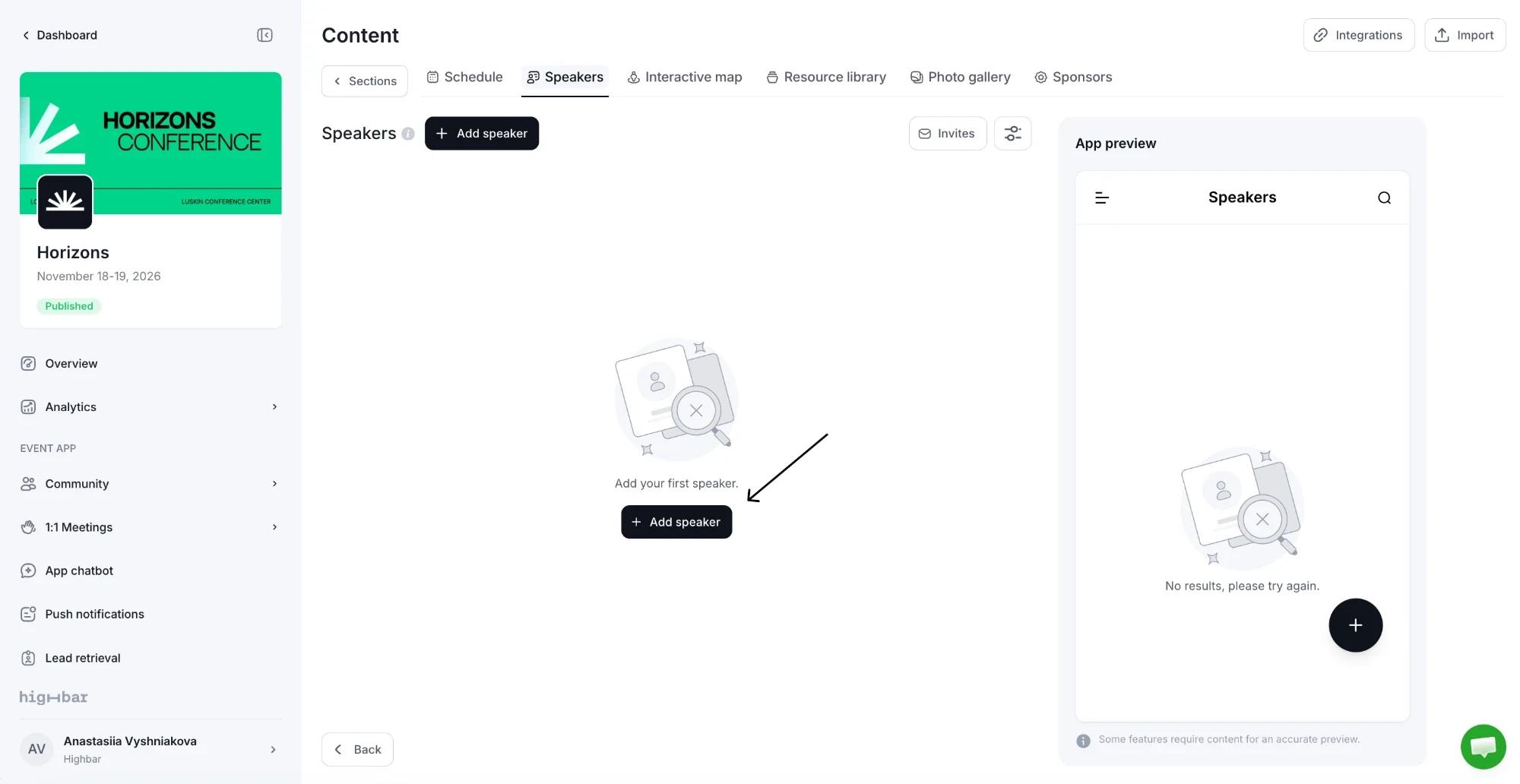
Enter the First name and Last name. These are the only required fields.
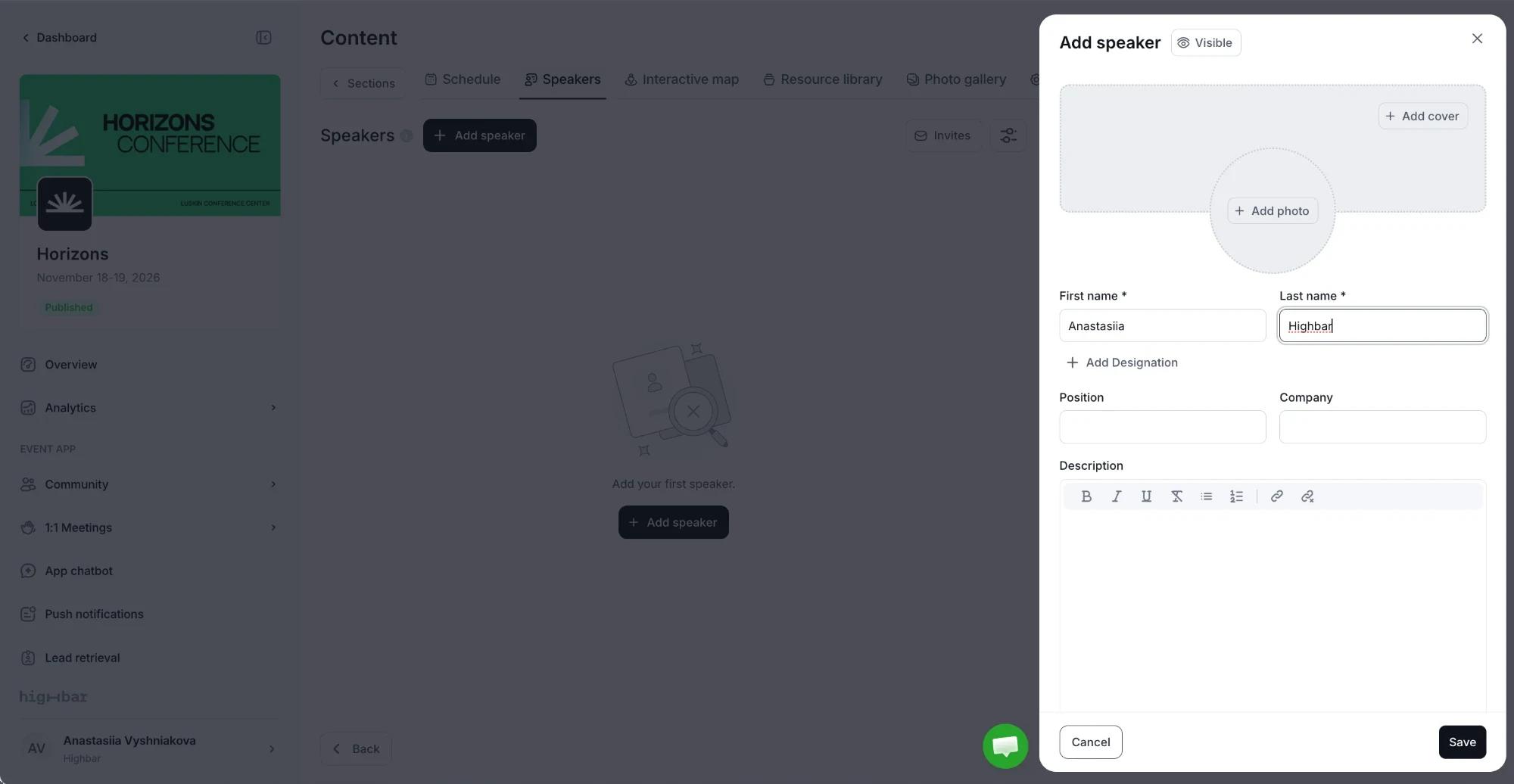
Use Add photo and Add cover for a profile photo and a cover image, add any other details below, then click Save.
To add many speakers at once, use Import at the top of the page. See Importing content.
Profile fields
| Field | What it's for |
|---|---|
| Add Designation | Adds an Honorific (such as Dr.) before the name, or a Post-nominal (such as PhD) after it. |
| Position and Company | The speaker's job title and organization. |
| Description | The speaker's bio, with formatting. |
| Sessions | The sessions they speak at. Once linked, the label reads "Appears in 2 sessions" (or however many). You can also add speakers from the session itself. |
| Location on Event Map | Links the speaker to a pin on an interactive map. |
| Hometown, Email, Phone, Website | Contact details shown on their profile. |
| Social links | LinkedIn, Facebook, X, Instagram, YouTube and TikTok. |
| Attachments | Up to 5 files: PDF, DOC(x), PPT(x), XLS(x) or TXT, up to 10 MB each. |
| Resources | Up to 5 products or links, each with a title, description, media and a button. |
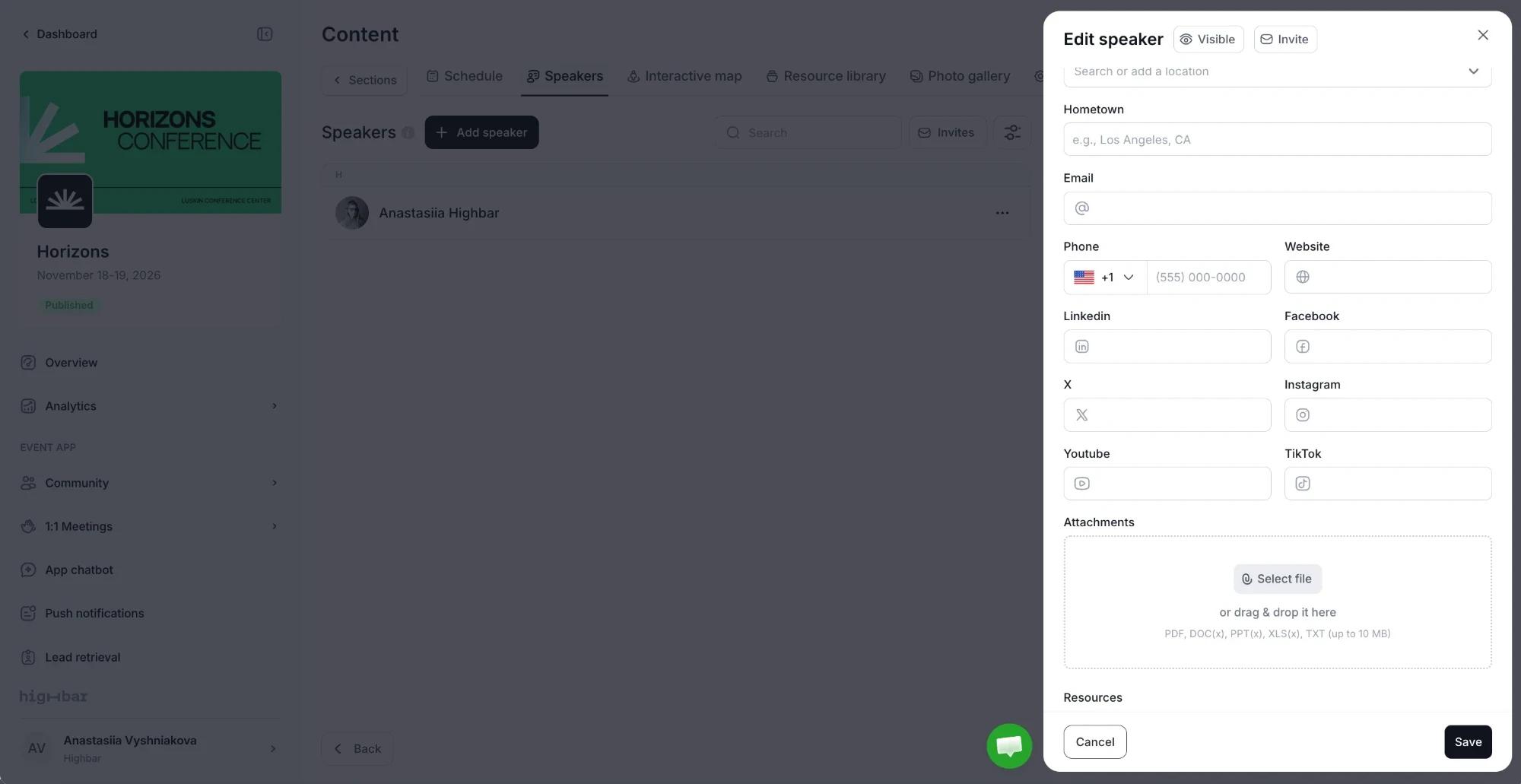
The button next to the drawer's title sets the speaker's visibility, and can keep them away from the AI Concierge. See Sections and visibility.
Speaker settings
Click the gear (Speaker settings) in the section's toolbar.
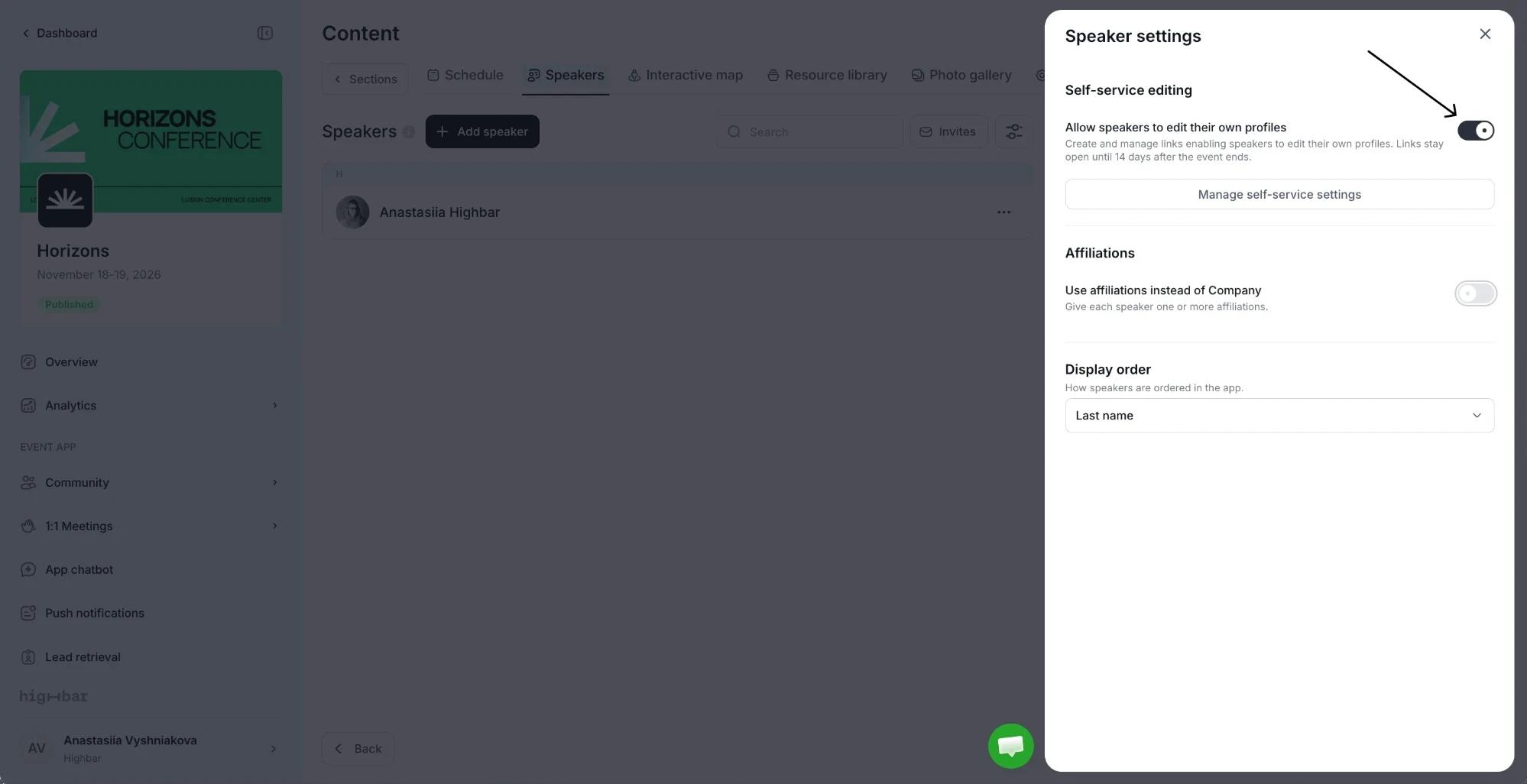
| Setting | What it does |
|---|---|
| Allow speakers to edit their own profiles | Lets you send speakers private links to edit their profiles. On by default. Click Manage self-service settings for the options below. |
| Use affiliations instead of Company | Replaces Company with one or more affiliations, each with an Affiliated institution, City, State and Country. If you turn it off later, every affiliation stays saved, but speakers show only their first one. |
| Display order | Orders speakers in the app by Last name, First name or Manually. With Manually, drag speakers in the list. |
Affiliations
Turn on Use affiliations instead of Company when speakers belong to institutions rather than companies.
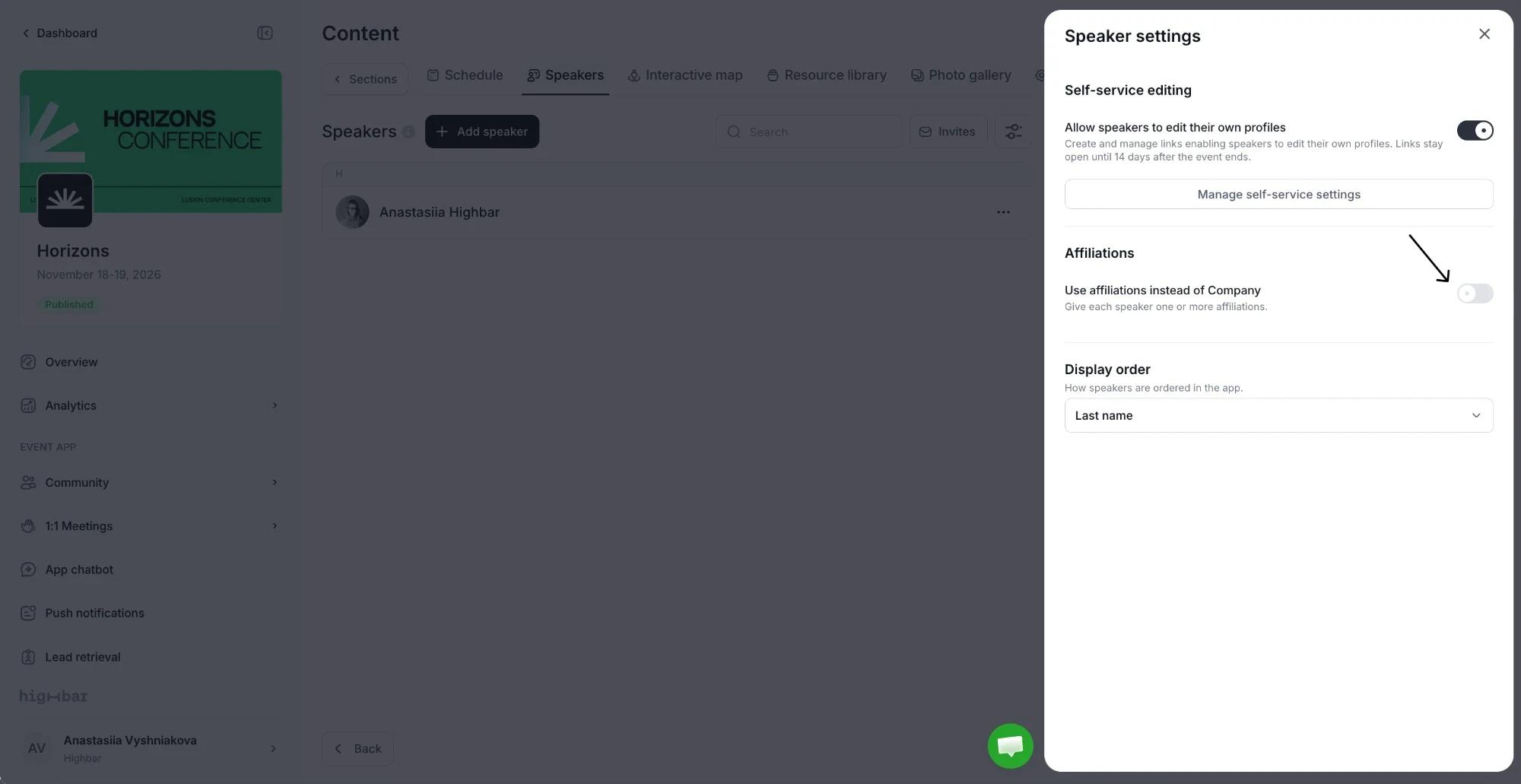
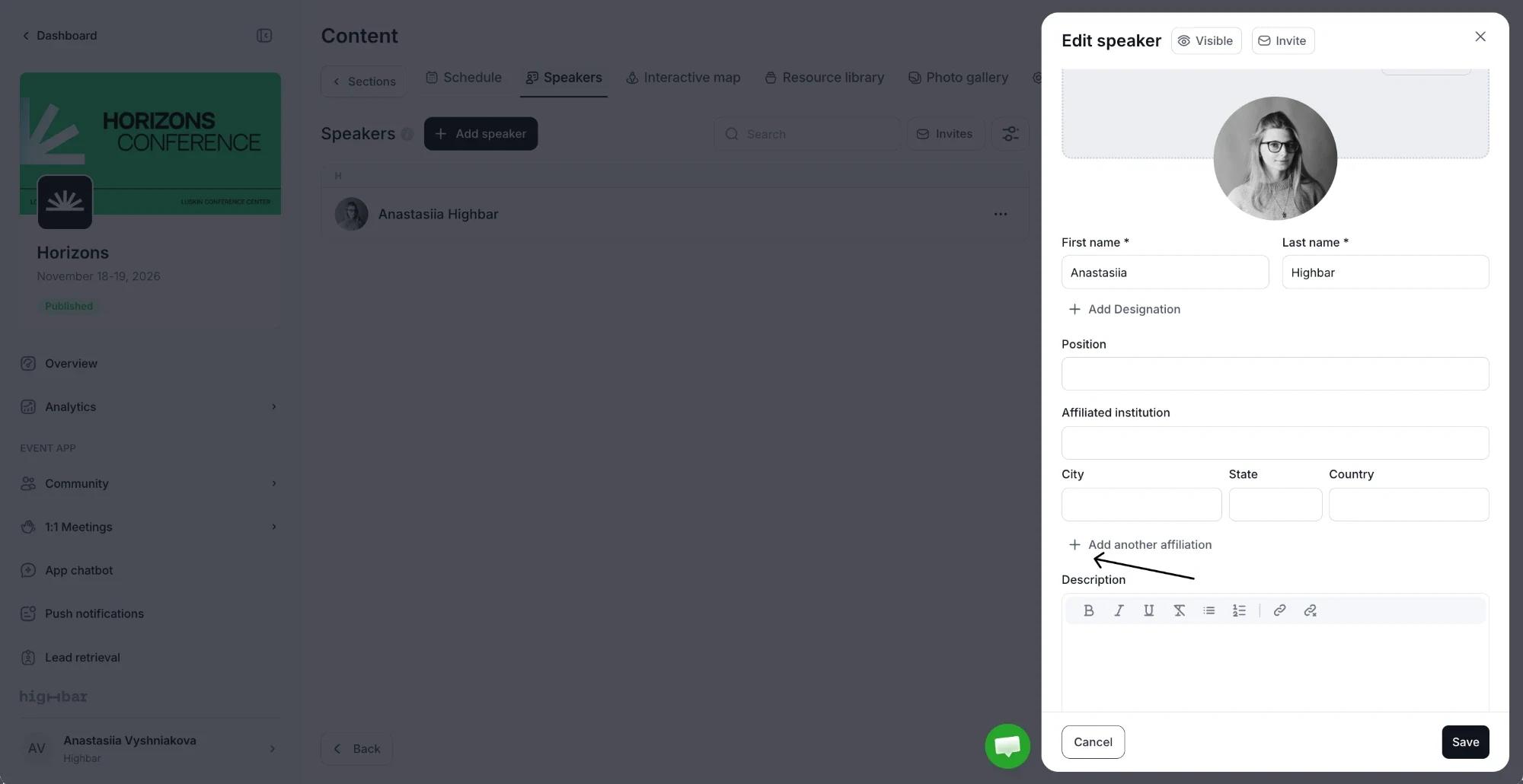
The speaker drawer then shows Affiliated institution, City, State and Country in place of Company. Click Add another affiliation for a speaker with more than one.
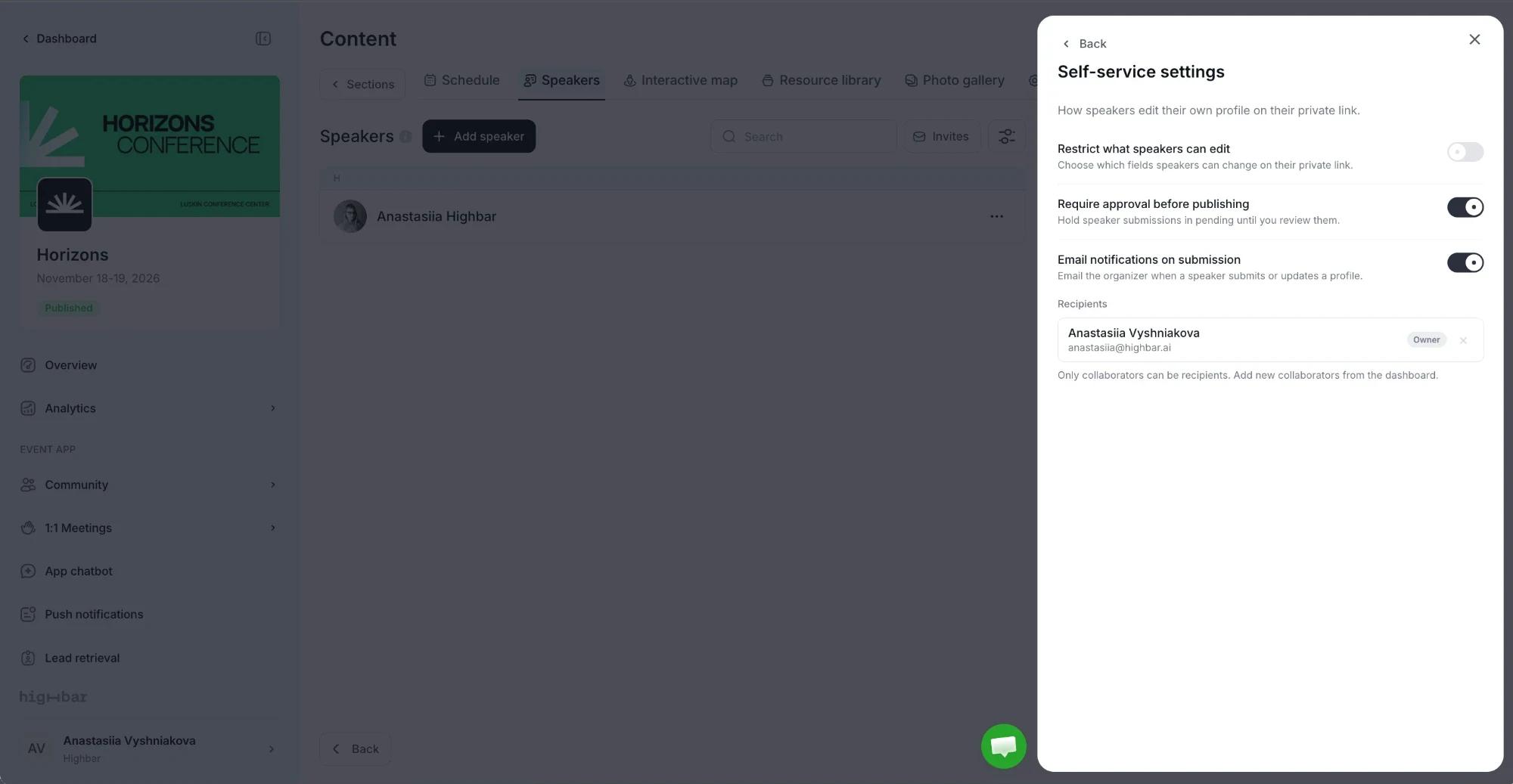
Under Manage self-service settings:
- Restrict what speakers can edit: click Manage editable fields and untick anything speakers shouldn't change, such as their name, company or photo. Locked fields stay read-only on their link.
- Require approval before publishing: holds each submission until you review it. On by default. With it off, changes go live as soon as the speaker submits.
- Email notifications on submission: emails the people you choose under Recipients whenever a speaker submits. Only collaborators on the event can be recipients.
Send speakers their private links
Each speaker gets their own private link. Nobody needs an account or a password.
One speaker
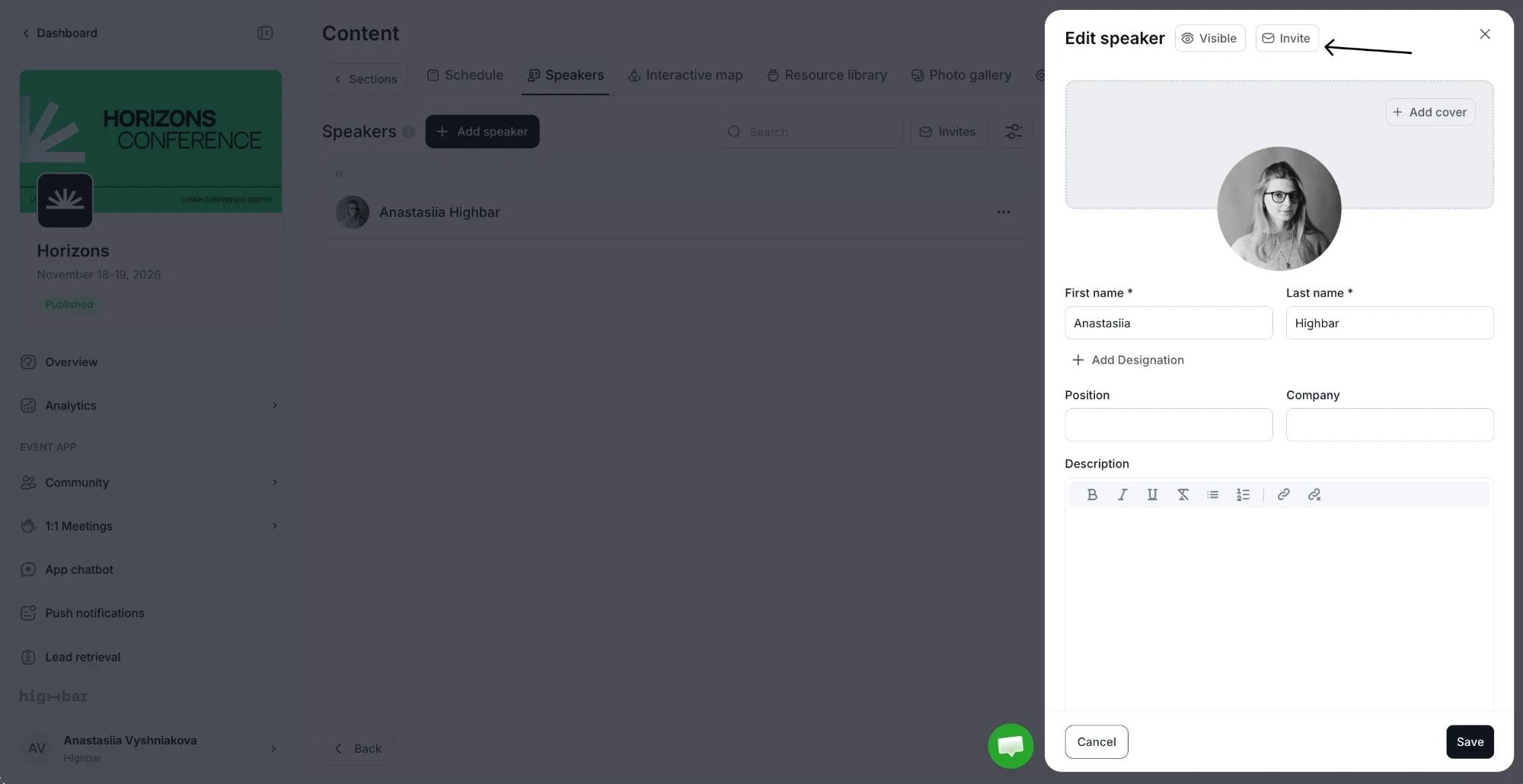
Open the speaker and click Invite next to the drawer's title.
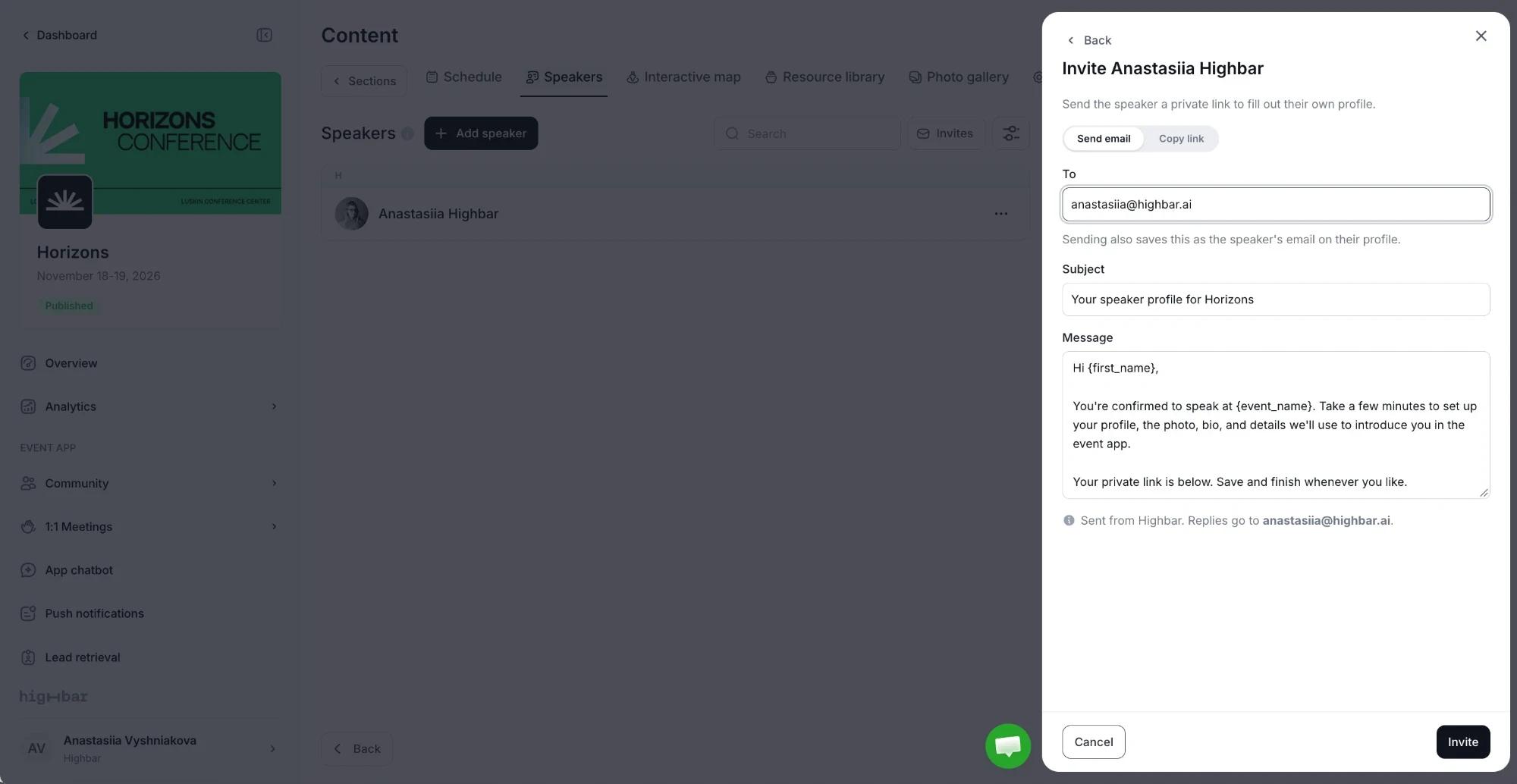
On Send email, check the address in To, and edit the Subject and Message if you like. Sending to a different address also saves it as the speaker's email.
Click Invite. The email comes from Highbar, and replies go to you.
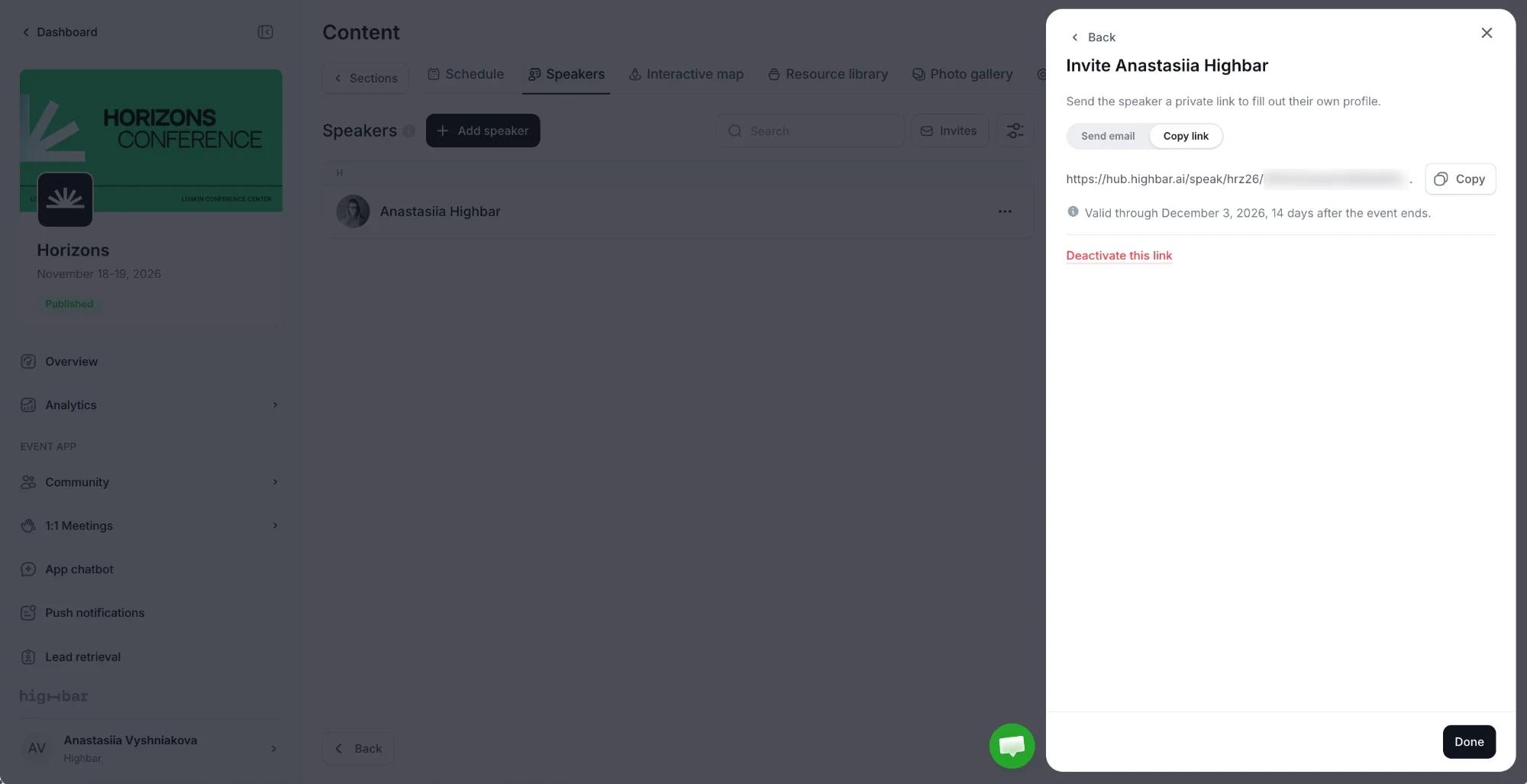
To share the link yourself, use the Copy link tab instead and click Copy. It shows the date the link stays valid until. From there you can also Deactivate this link if it went to the wrong person, and Reactivate link later.
Many speakers
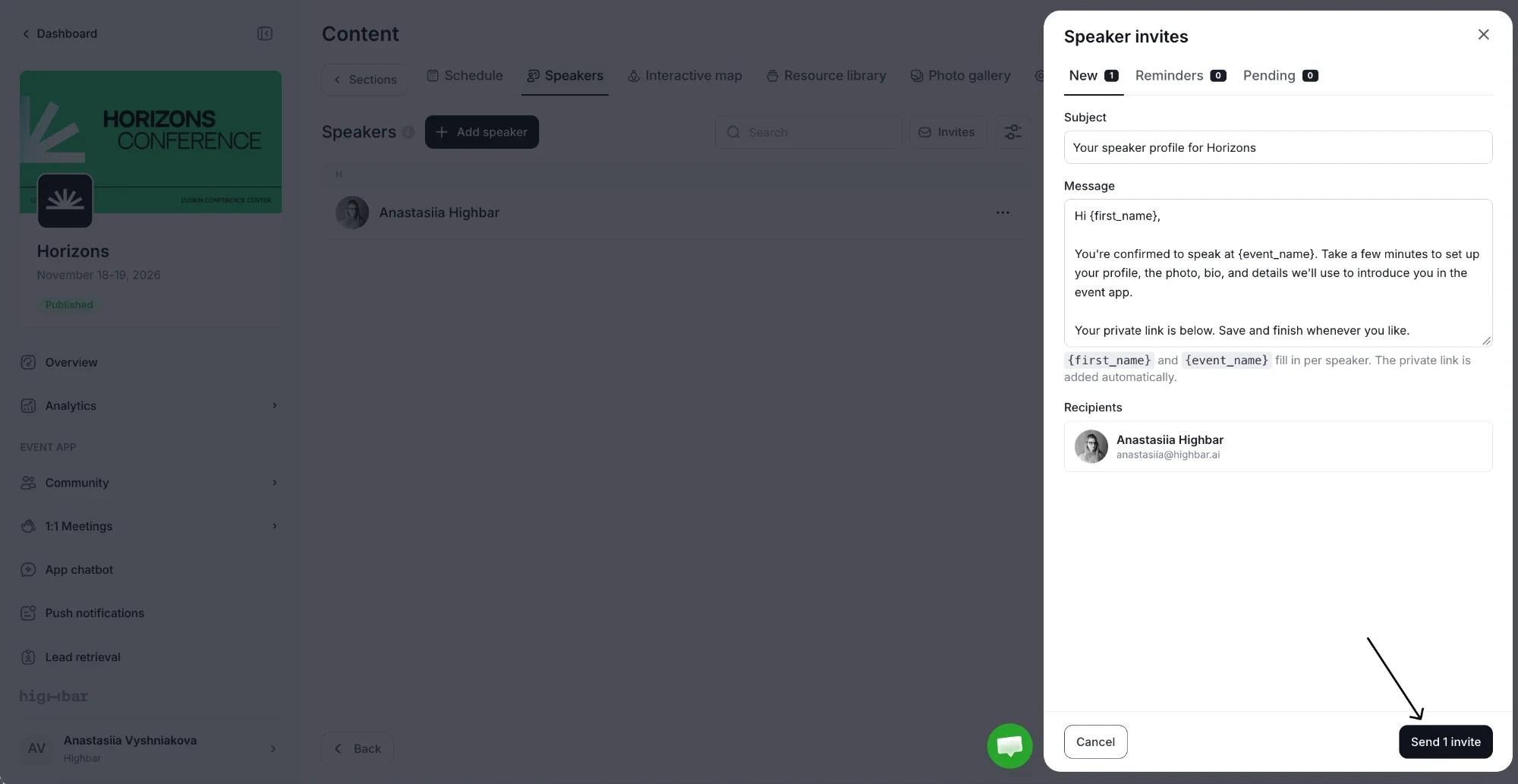
Click Invites in the section's toolbar. It's there while speakers can edit their profiles, and a number on it shows how many submissions are waiting for review. The Speaker invites panel has three tabs:
- New: speakers who haven't been invited yet. Add a missing email address right in the list.
- Reminders: speakers you invited who haven't submitted yet.
- Pending: submissions waiting for your review.
On New, edit the Subject and Message if you like: {first_name} and {event_name} fill in for each speaker, and the private link is added automatically. Speakers without an email address are listed below, under a heading such as 1 speaker has no email on file. Enter an address and click Add to include them.
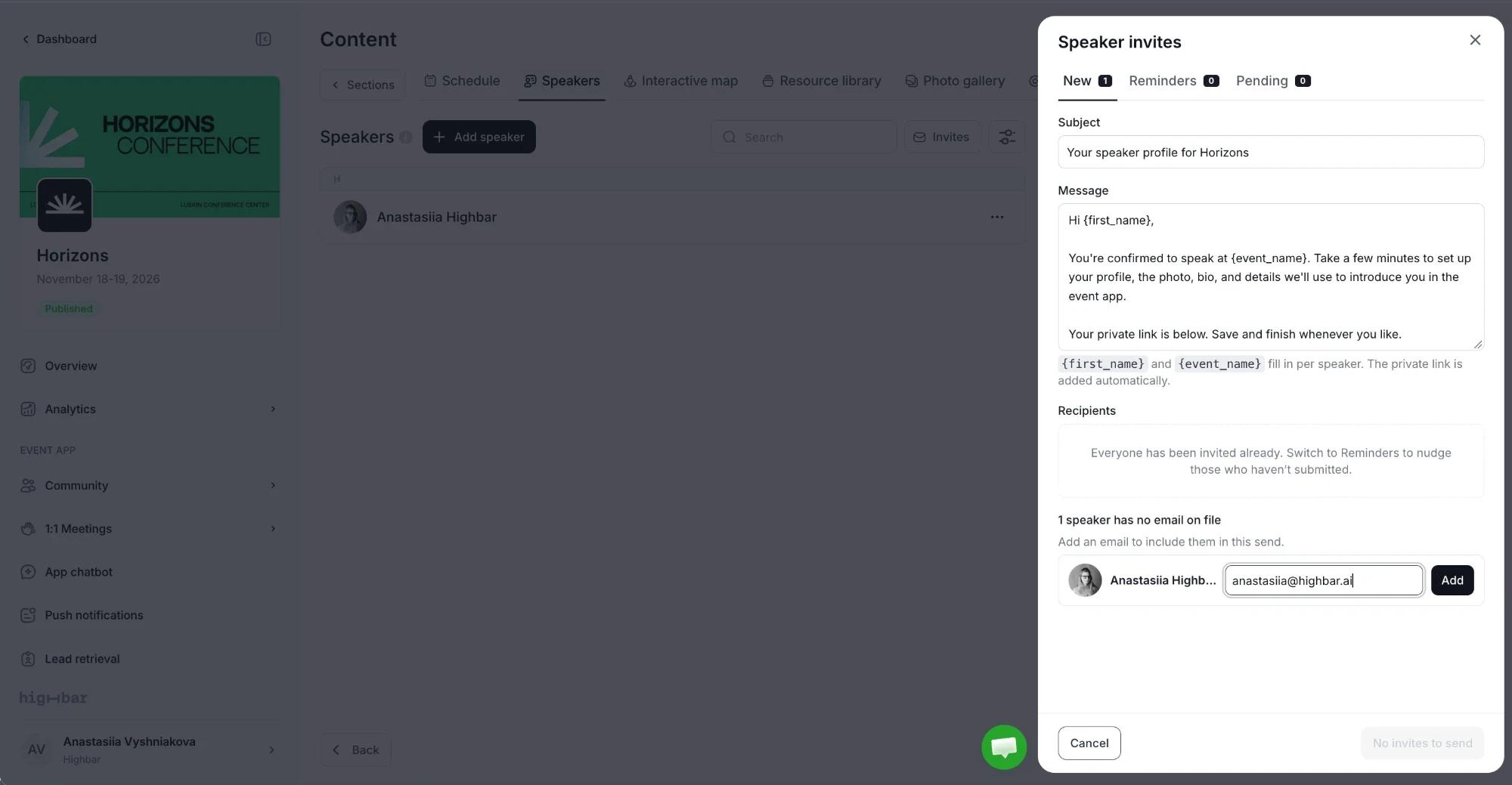
Everyone with an address is listed under Recipients. Click the send button (for example Send 1 invite) to email them all.
How long links work
Links stay open until 14 days after your event's end date. After that, the invite panels say when links closed. To reopen them, move the event's end date later in Event details.
If you turn off Allow speakers to edit their own profiles, links you've shared stay valid but tell speakers that editing is paused, and inviting pauses until you turn it back on.
What speakers can do
Send speakers Update your speaker profile with their link: it walks them through the page.
The link opens a page branded with your event. Speakers can update their headshot and cover photo, name and designations, position and company, bio, contact details, social links, files and resources, apart from any fields you've locked.
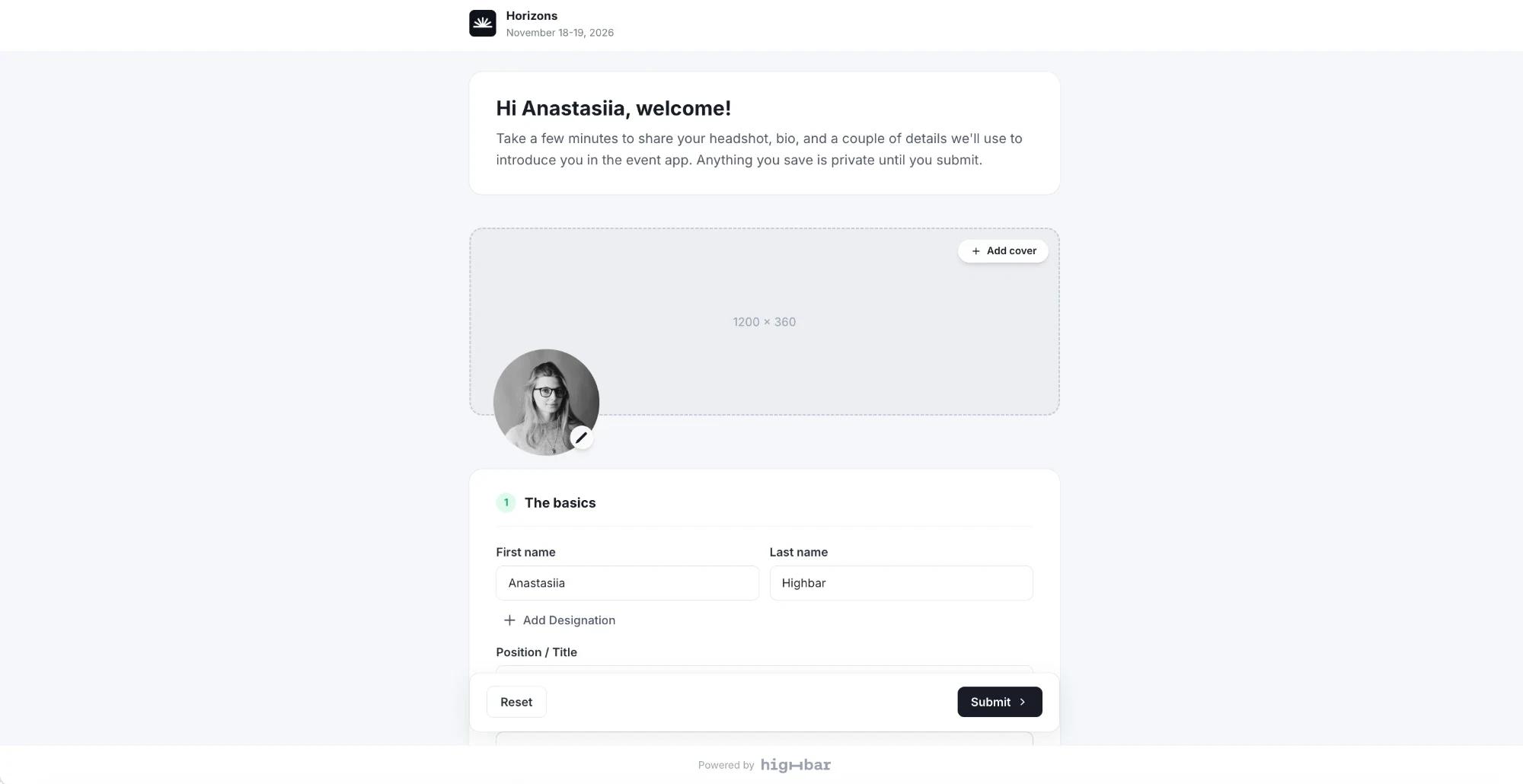
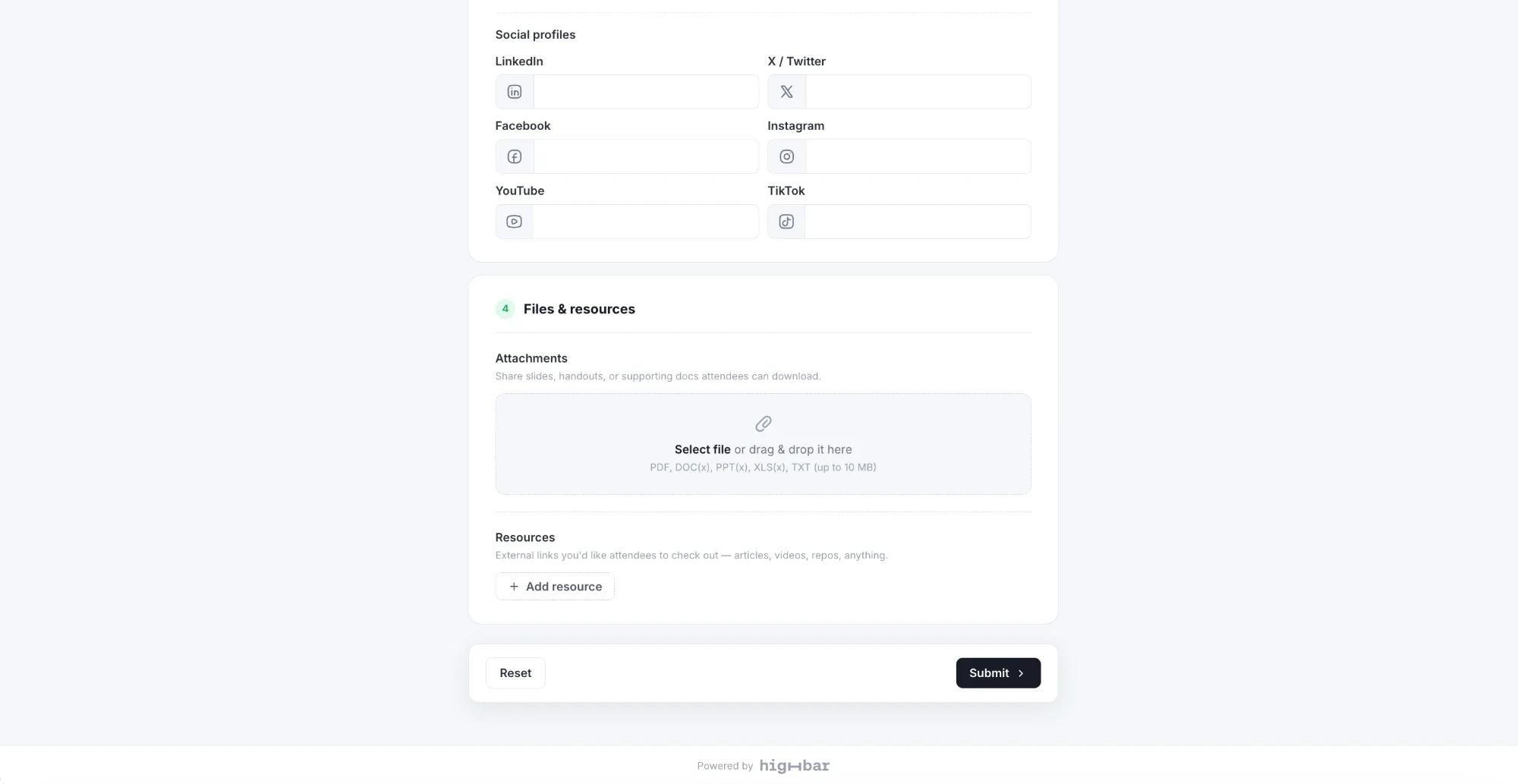
Their changes save as they go and stay private until they click Submit. Reset discards their edits. A speaker who presents several sessions, and has session links too, can switch between all their links from the top of the page. See Let speakers edit their sessions.
Review submissions
When a speaker submits and approval is on, their row in the list shows Review, and the number on Invites goes up.
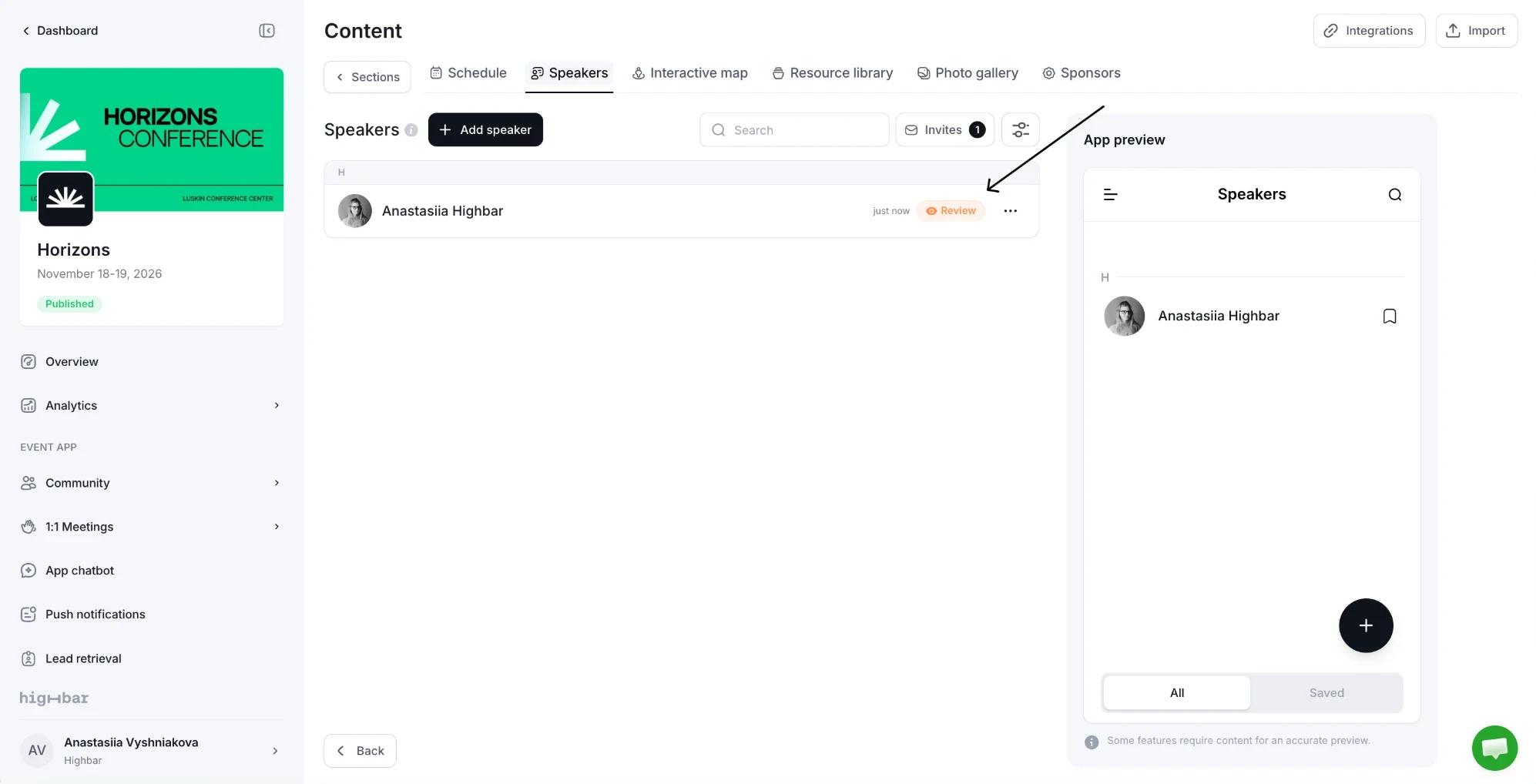
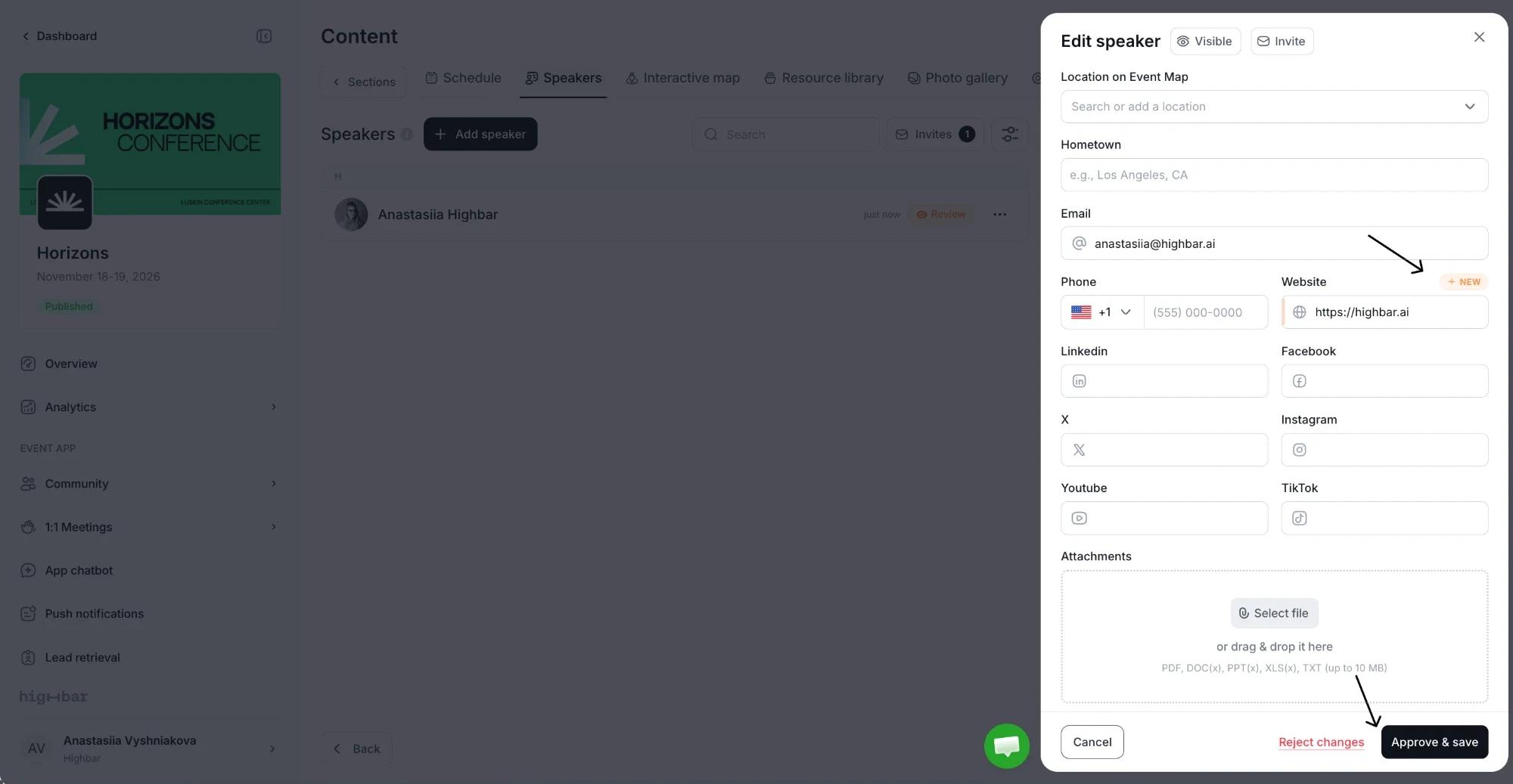
Open the speaker to see their submission. Each field they filled in is marked New if it was empty before, or Changed if it replaced an earlier value. Adjust anything you need, then click Approve & save to publish, or Reject changes to discard the submission.
What attendees see
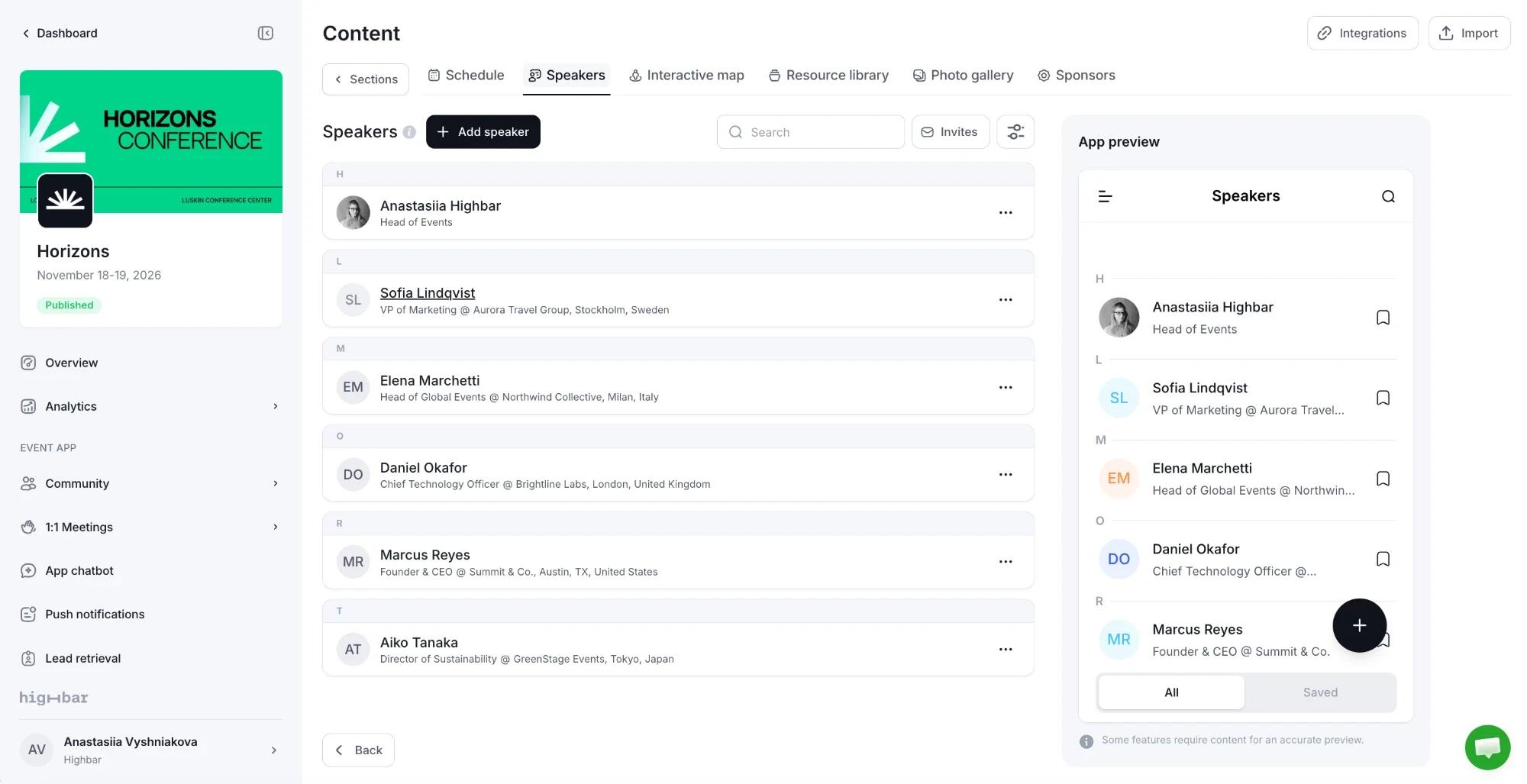
In the app, speakers are listed in the Display order you chose (by last name unless you change it), each with their photo, position and company. Attendees can save speakers to find them again under Saved.
A speaker's page shows their cover and photo, name, position, company or affiliations, hometown, social links and bio. Below that come their map location, files, products and services, and the sessions they speak at, under Schedule.