Let speakers edit their sessions
Send speakers a private link to update their session's title, description and files, and review what they submit.
Speakers can update their own sessions through a private link, separate from their profile link. It's off by default.
In Schedule settings, turn on Allow speakers to manage their sessions.
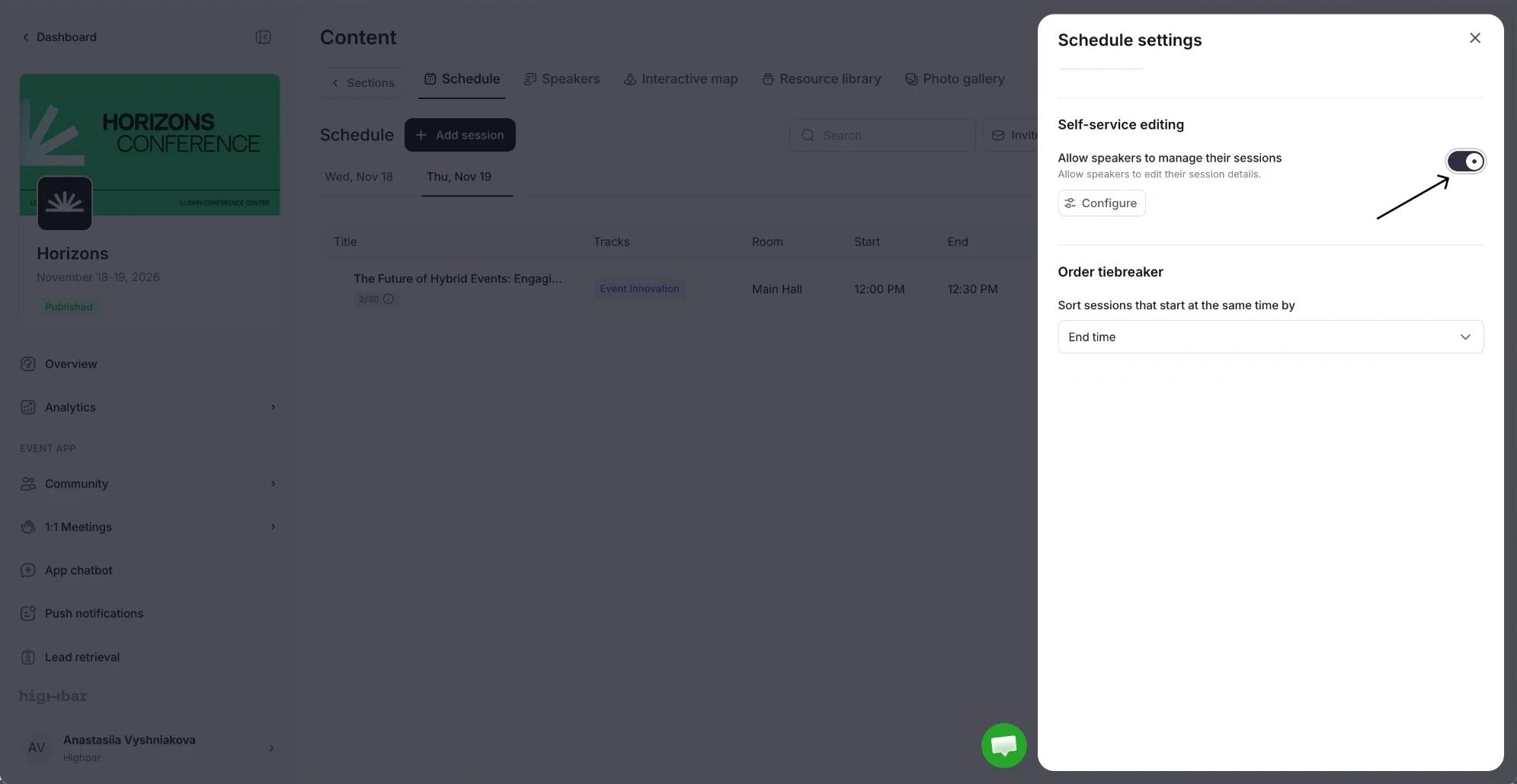
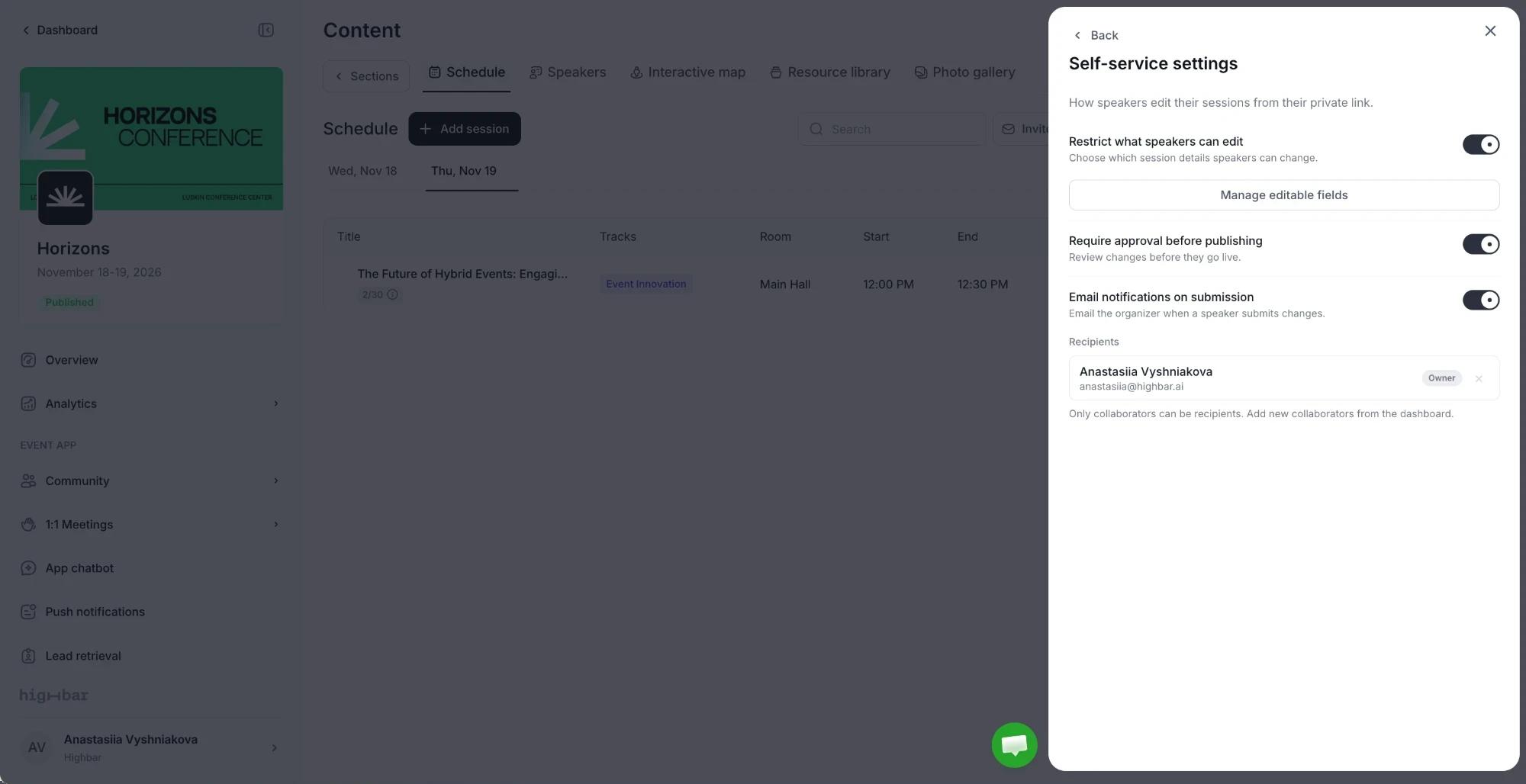
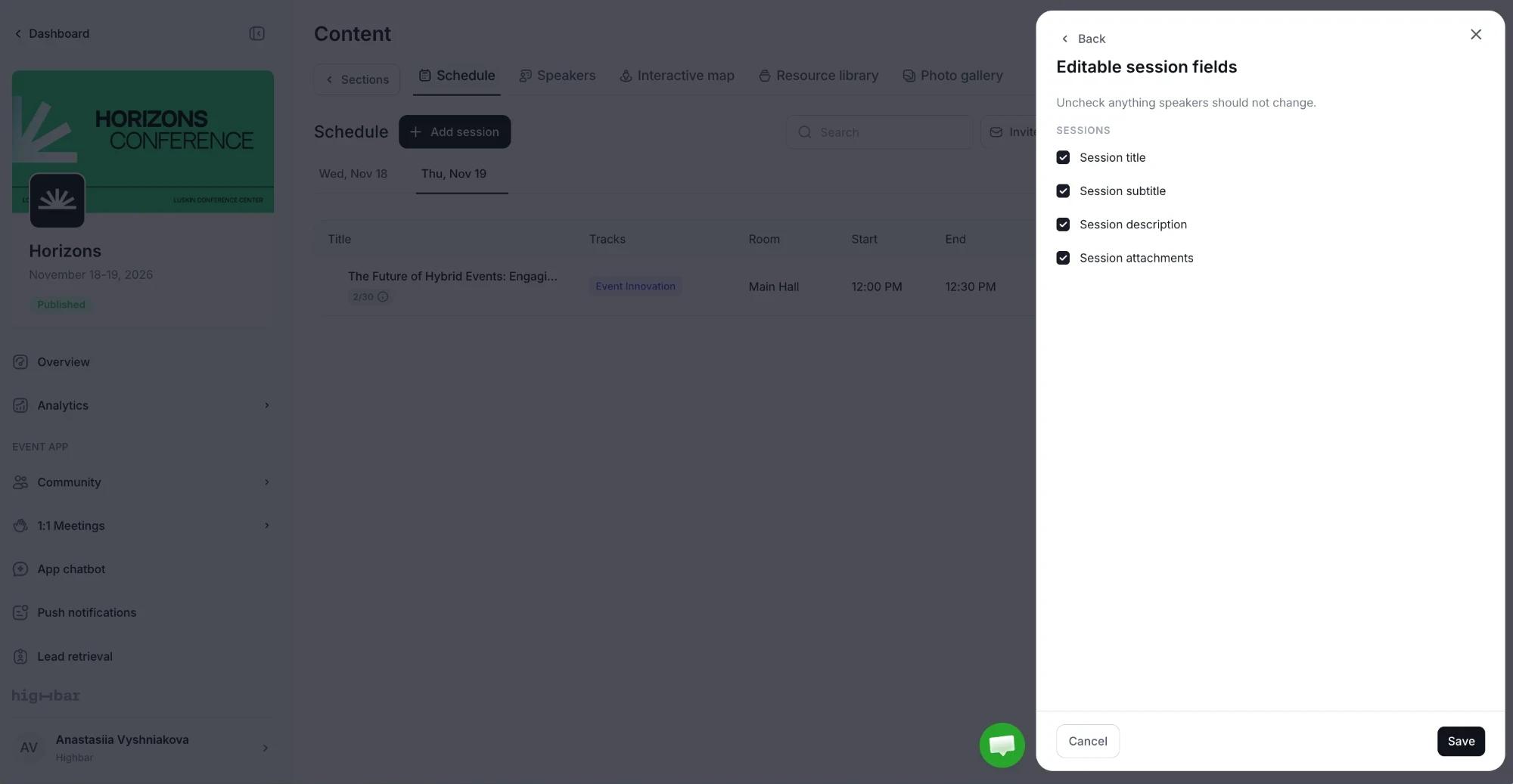
Click Configure to choose the rules. Restrict what speakers can edit lets you lock the session title, subtitle, description or attachments: click Manage editable fields and untick anything speakers shouldn't change. Require approval before publishing (on by default) holds changes until you approve them. Email notifications on submission tells you when a speaker submits.
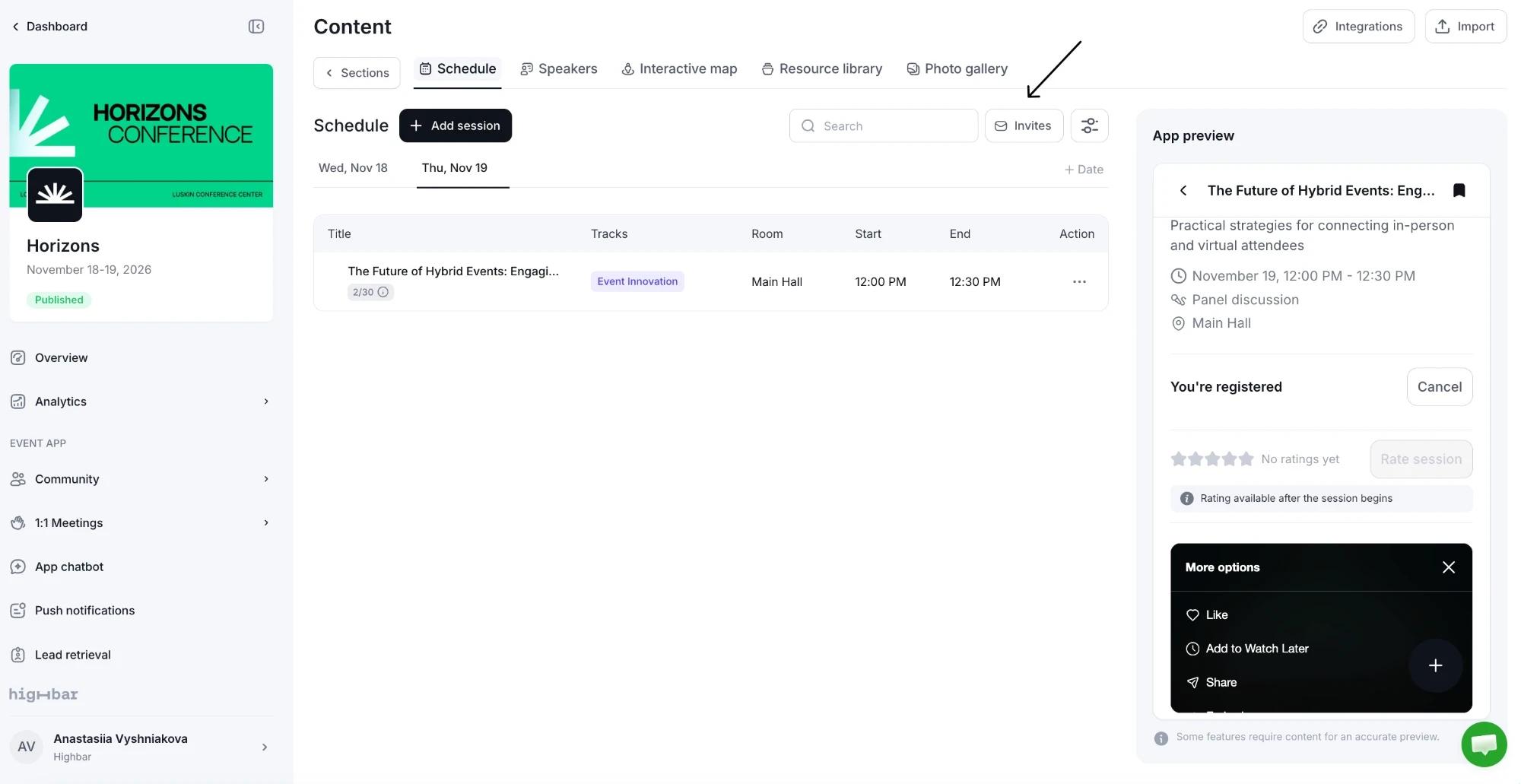
Send the links. Click Invites in the schedule's toolbar to email every session's speakers at once, with New, Reminders and Pending tabs. To invite one session's speakers, open the session and click Invite, then use Send email or copy each speaker's link from Links.
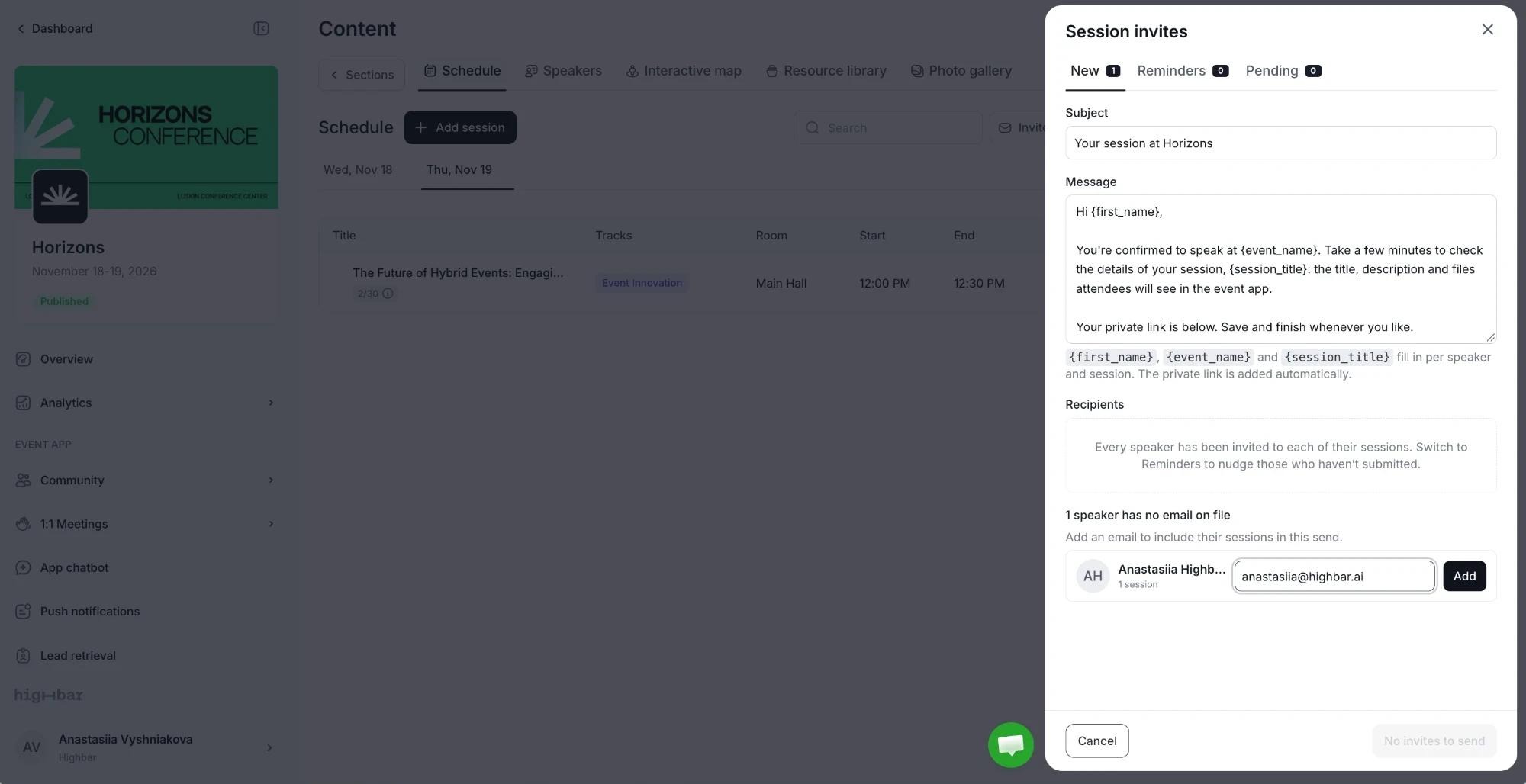
Once every speaker has an email, the New tab lists them under their session. Click Send to email them all.
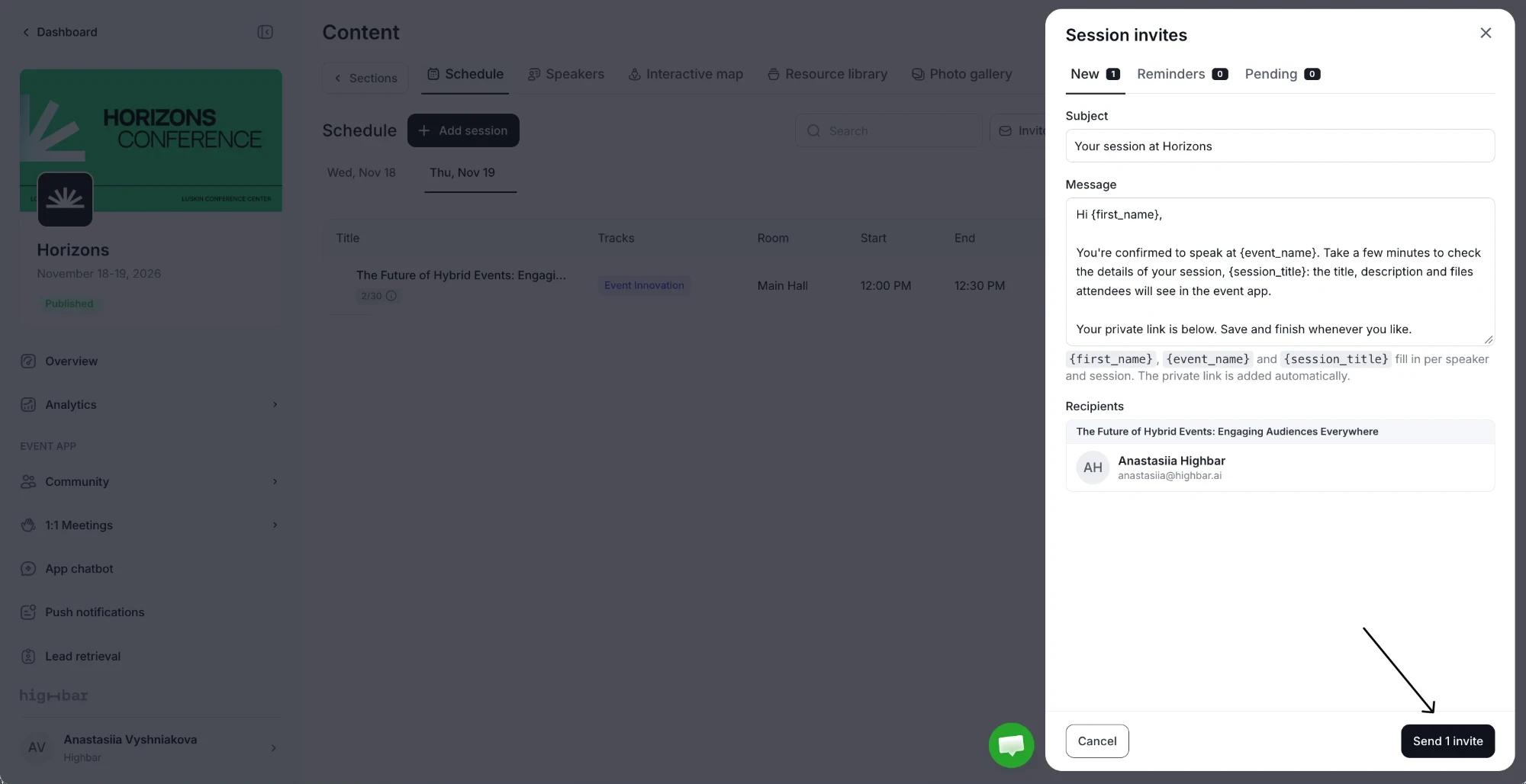
The Reminders tab sends a follow-up to speakers who were invited but haven't submitted yet, with its own subject and message.
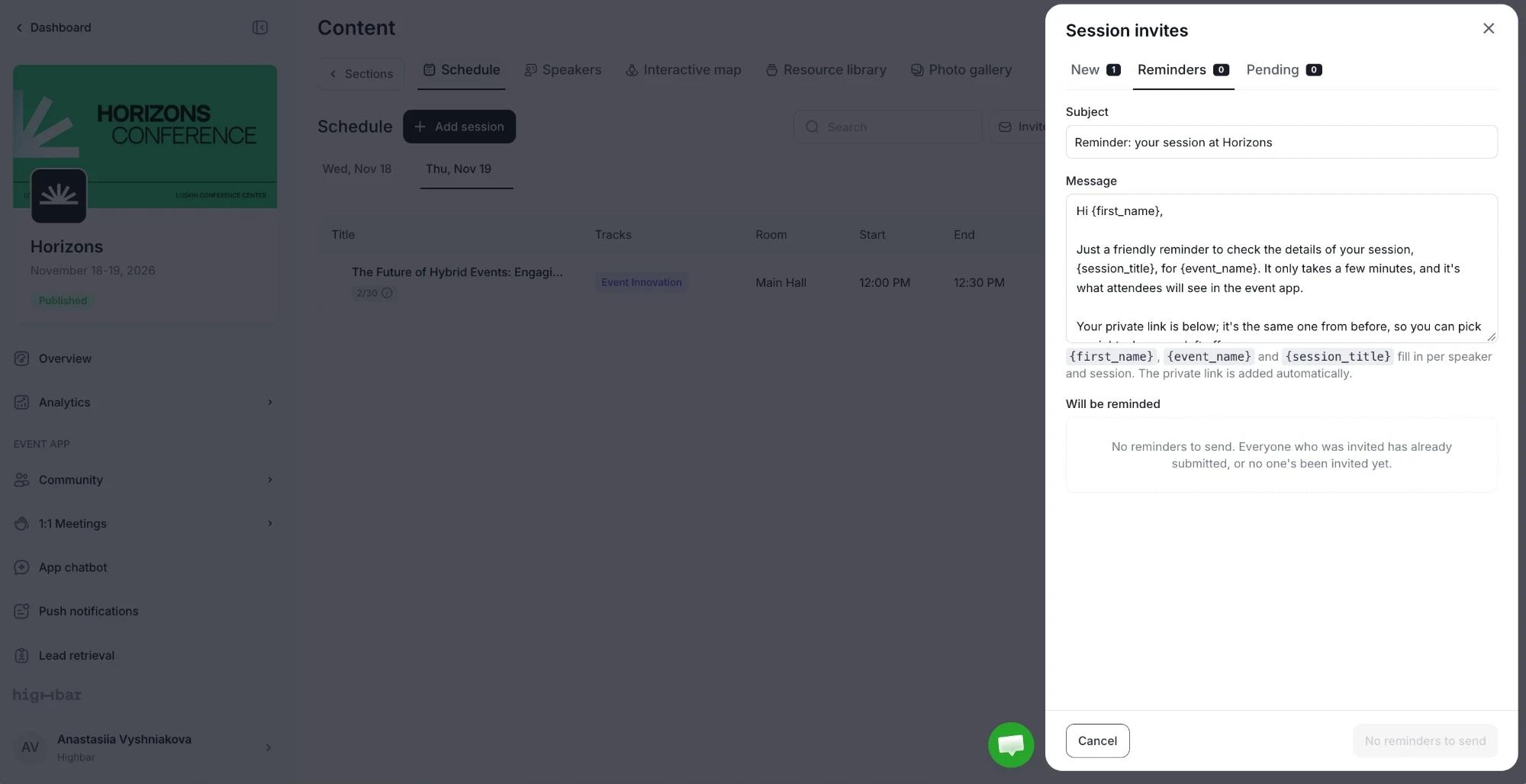
Speakers can change the title, subtitle, description and files. Everything else, including times, rooms and capacity, stays with you. Co-speakers share one draft, and nothing they save is visible until one of them submits.
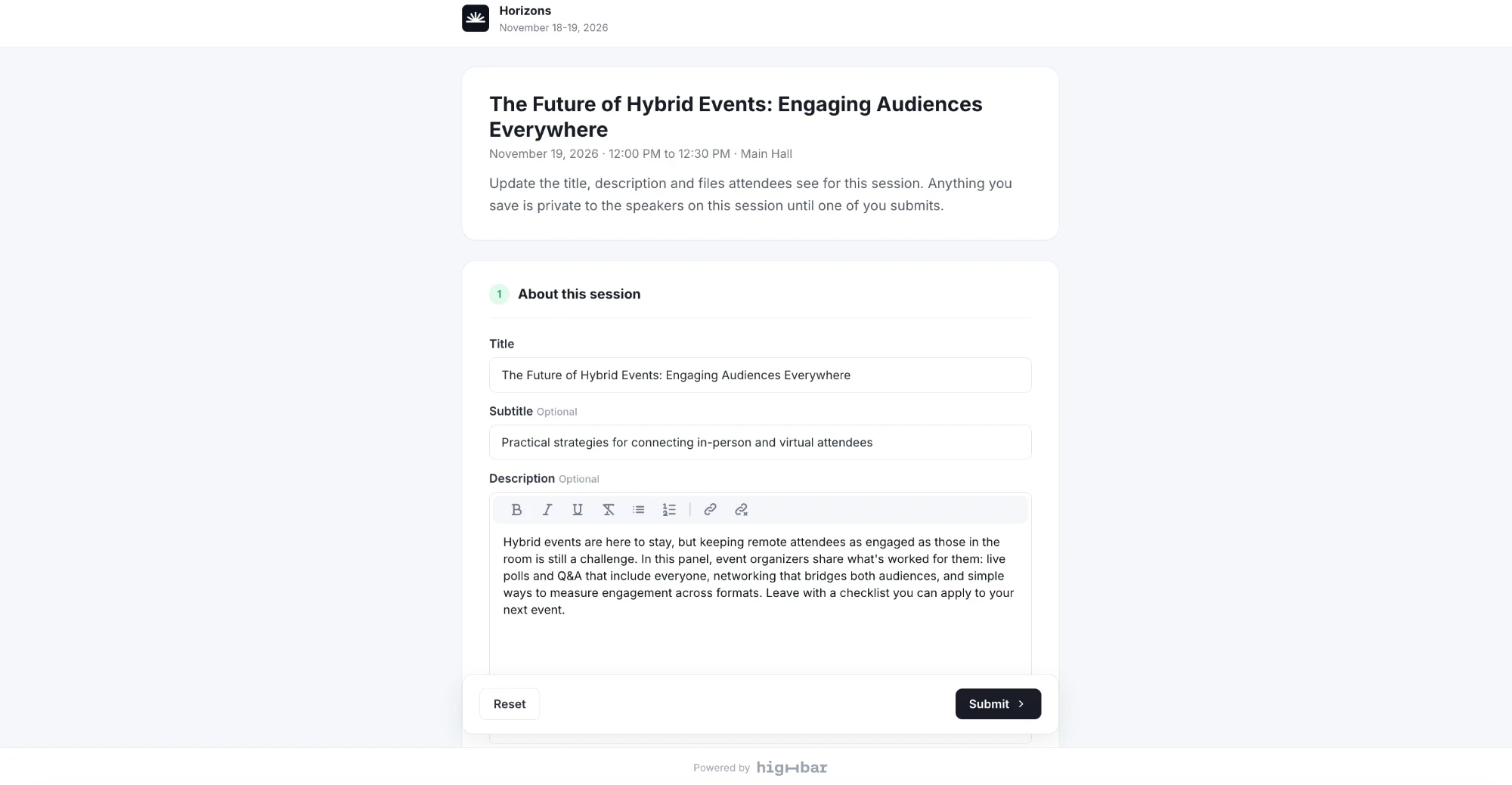
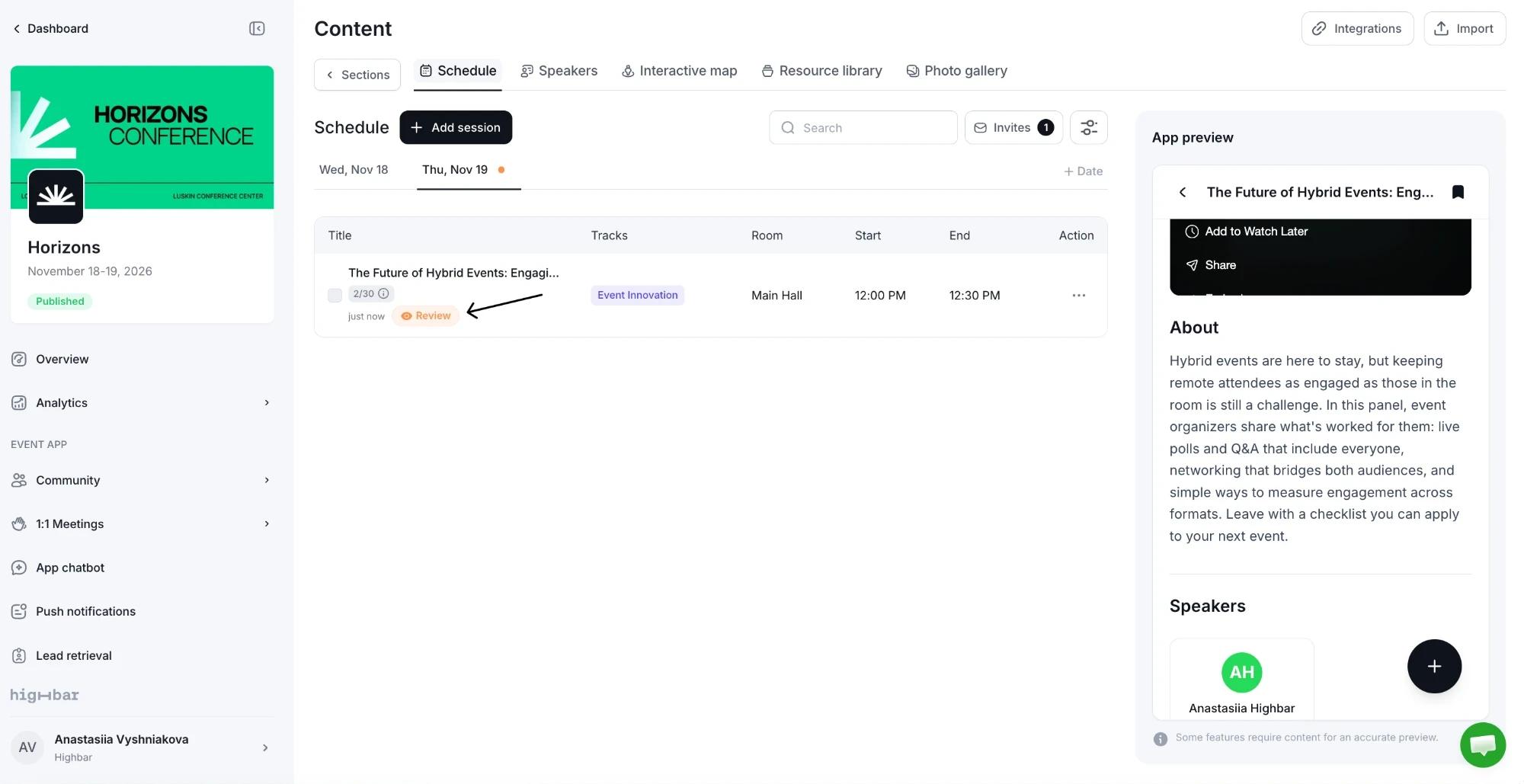
When a submission is waiting, the session's row shows Review, and its day tab gets a dot.
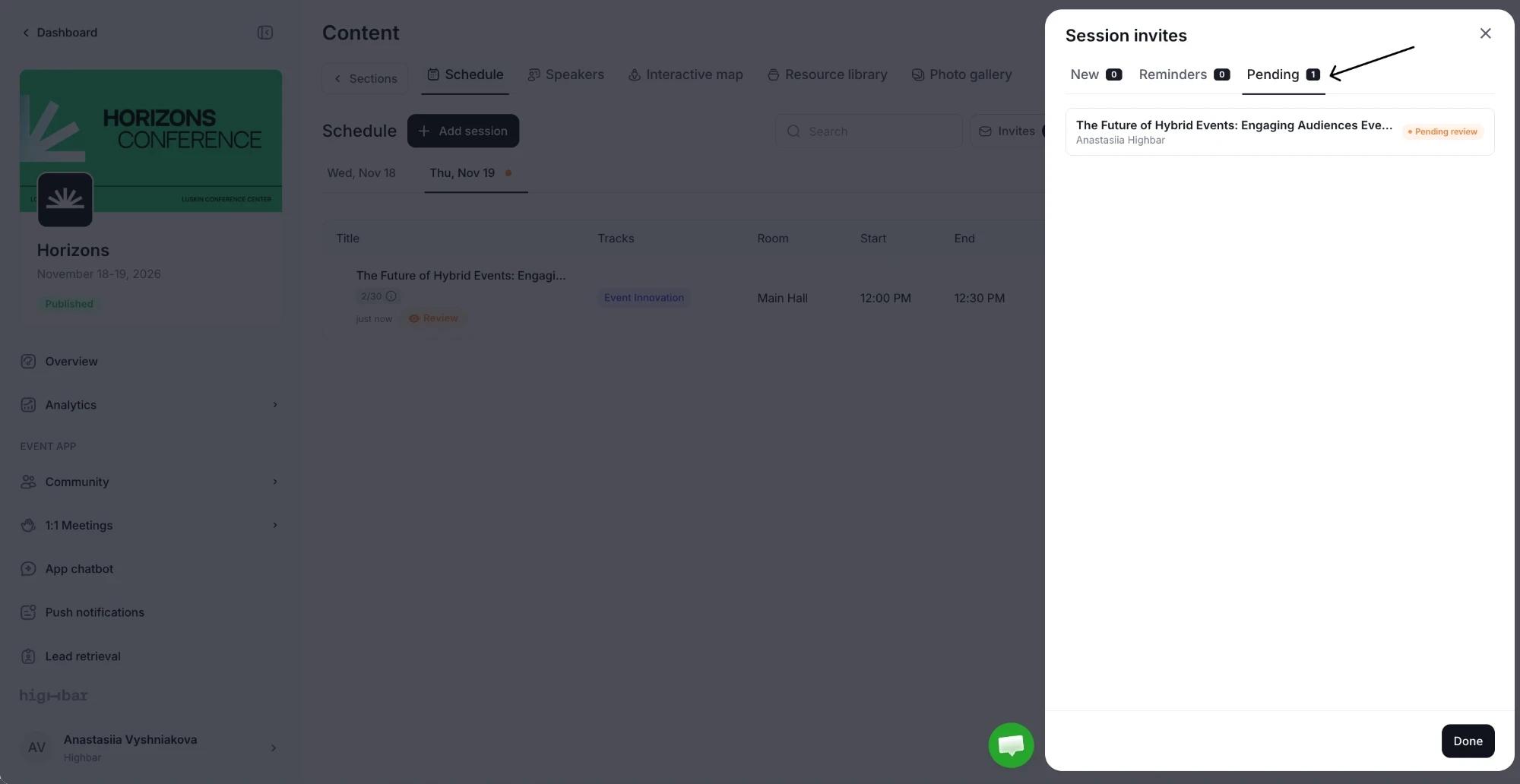
The Pending tab of Invites also lists every submission waiting for review.
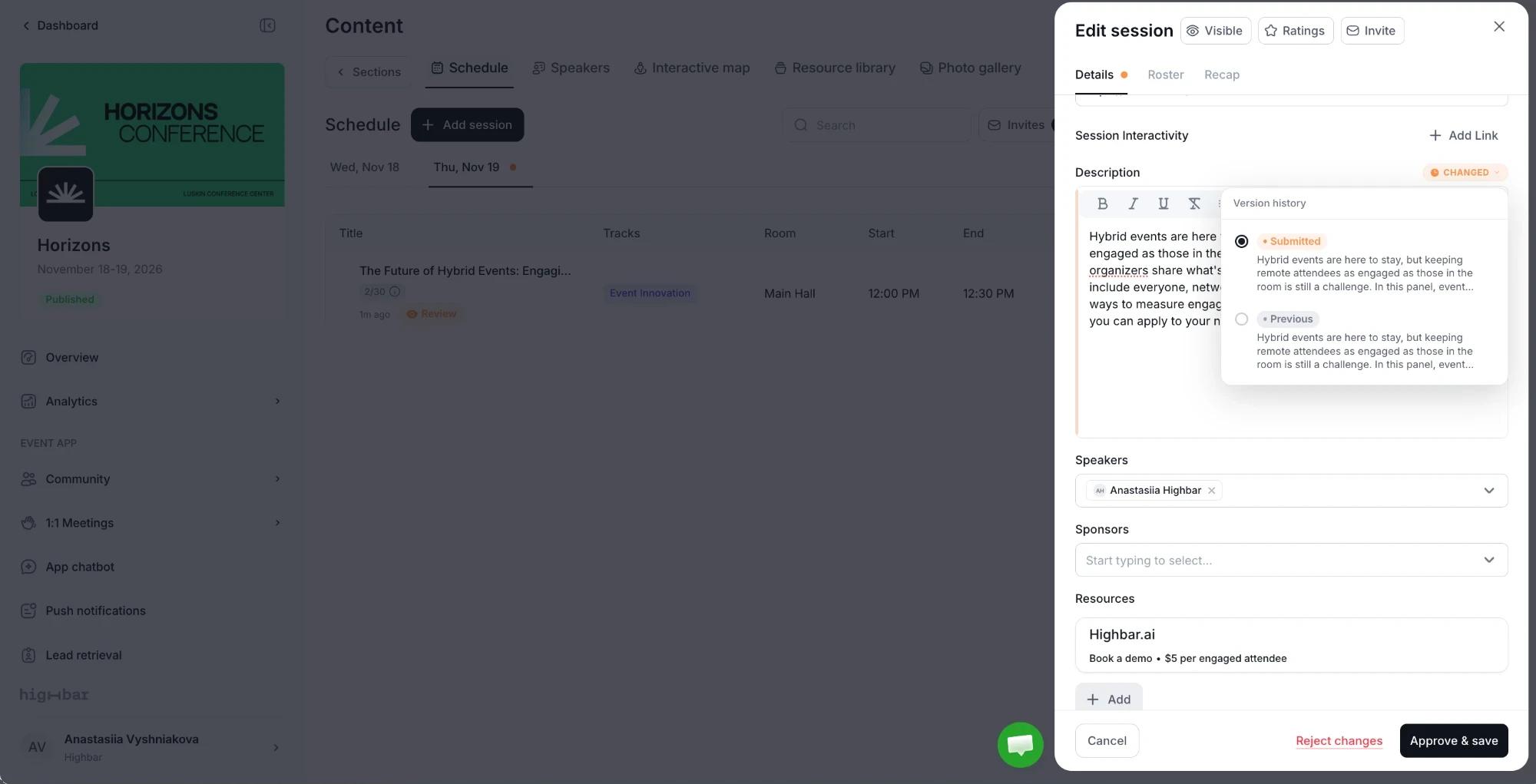
Open the session to see the changes. Each changed field is marked Changed: click it to compare the Submitted and Previous versions. Then click Approve & save or Reject changes.
Session links stay open until 14 days after your event ends, like speaker profile links. See Speakers.
To show speakers how their link works, send them Edit your session.