Recaps and ratings
Turn a session recording or transcript into a recap attendees read in the app, and collect session and speaker ratings.
After a session, you can publish an AI-written recap from its recording or transcript, and collect ratings from the attendees who were there.
Publish a session recap
After a session ends, you can turn a recording or transcript into a recap that attendees read in the app.
Open the session and go to the Recap tab. Until the session ends, the tab just shows when you can upload.
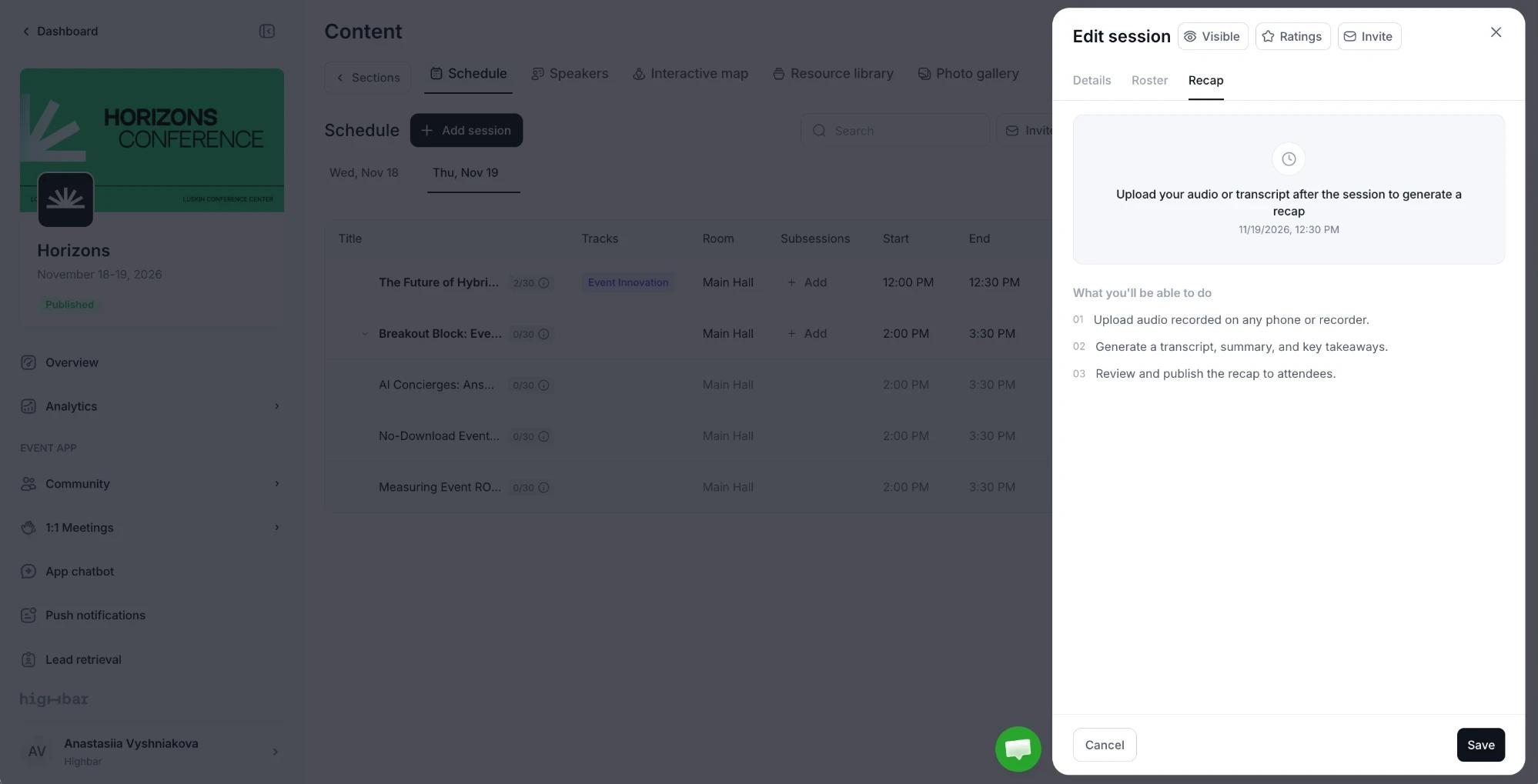
Drop an audio file (M4A, MP3, WAV, AAC, OGG or FLAC, up to 100 MB), or click or paste a transcript instead and then Process transcript. A phone's voice recorder is all you need. You can close the drawer during the upload, but keep the browser tab open until it finishes.
Highbar transcribes the audio and writes a draft: Summary, Key takeaways, Topics, Chapter map, Quotable moments, Stats cited, Mentioned in this session and the Full transcript. Edit or hide any part.
Click Publish. To start again with a different recording, click Start over instead.
Once published, the recap shows its view count. You can keep editing it, or click Unpublish to take it down.
Attendees get a Recap tab next to About on the session page, marked NEW until they open it. From the recap, they can tap Ask about this session to ask the AI Concierge questions about it.
Collect session ratings
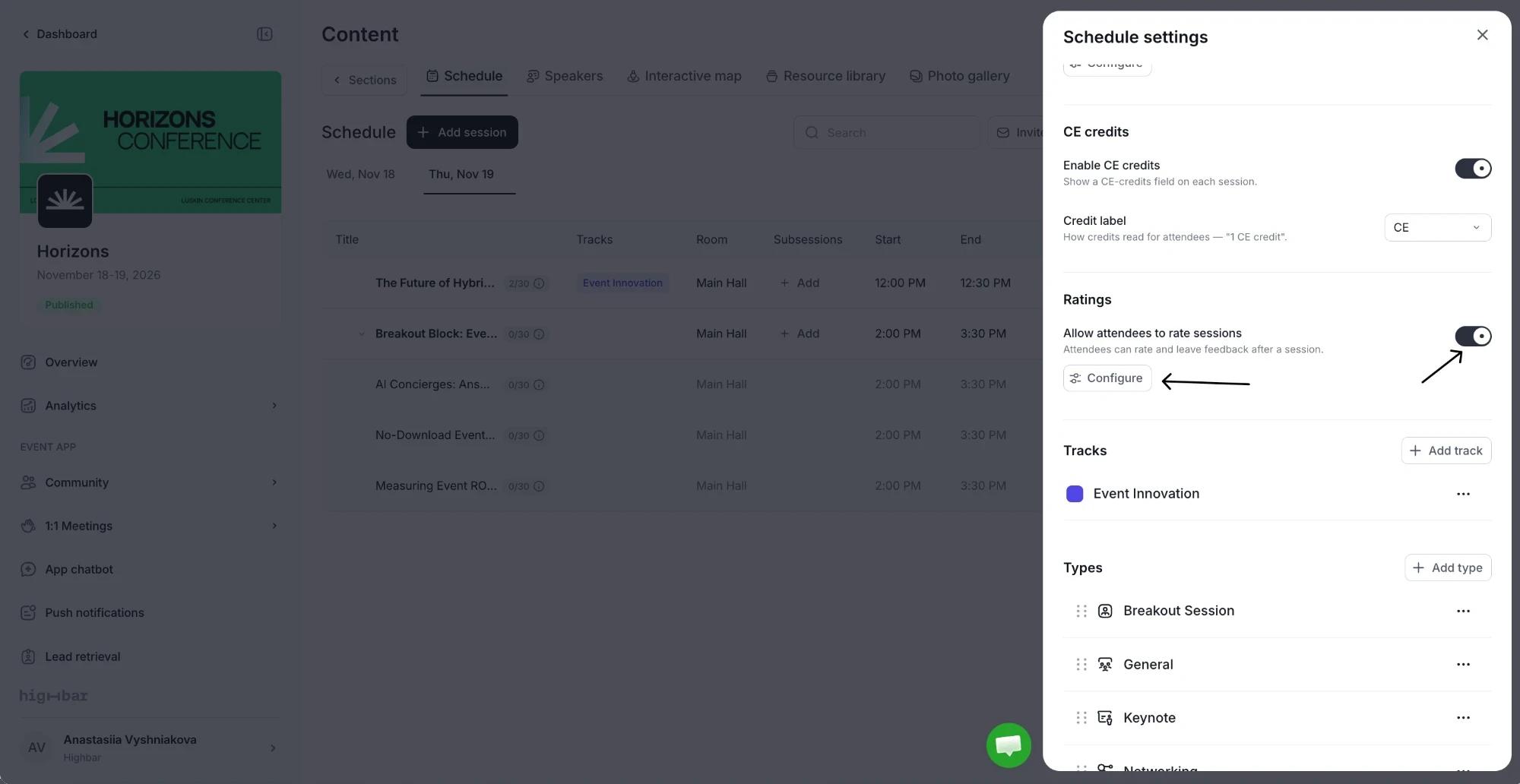
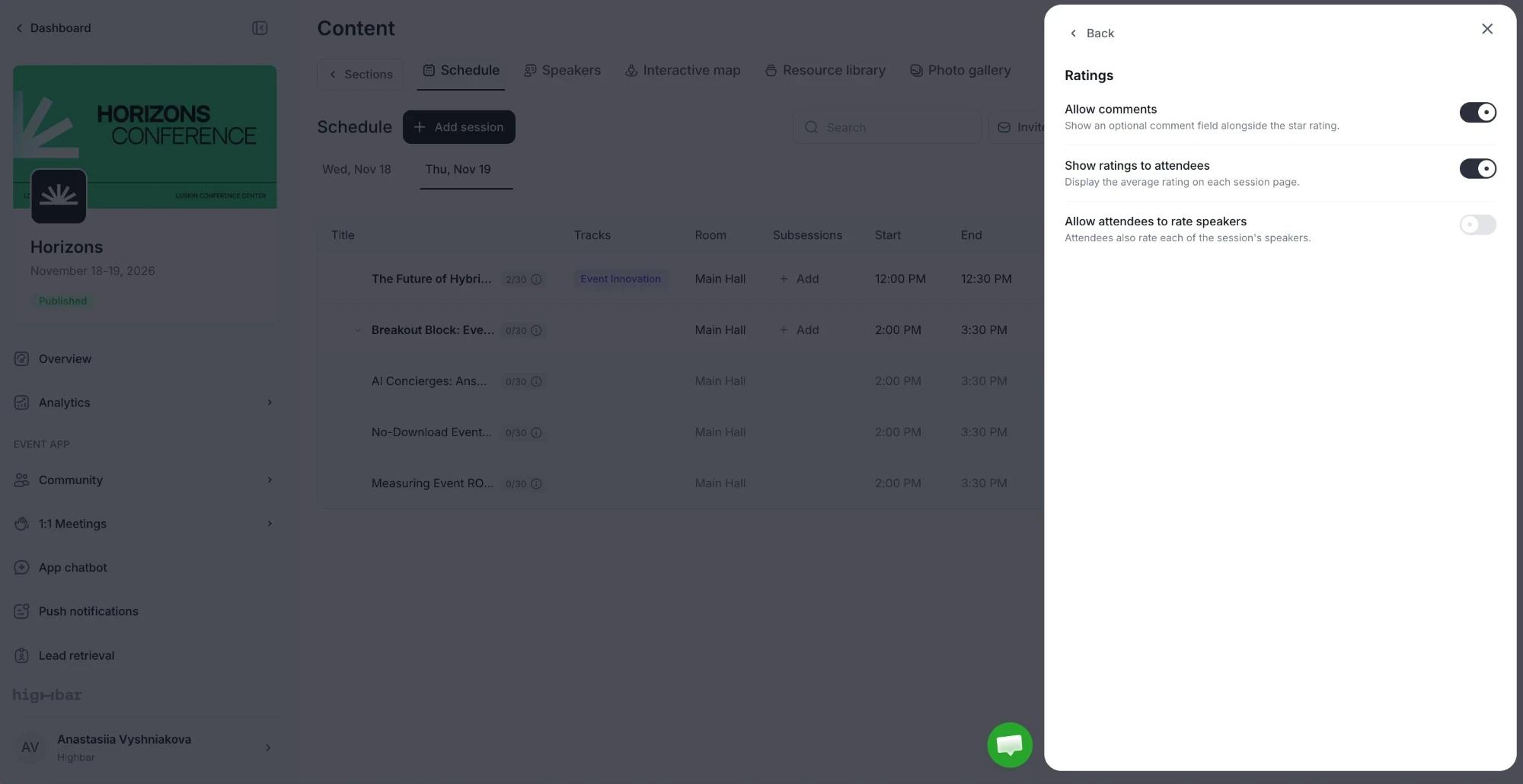
In Schedule settings, turn on Allow attendees to rate sessions, then click Configure to choose:
- Allow comments: an optional comment field next to the star rating.
- Show ratings to attendees: the average rating on each session page.
- Allow attendees to rate speakers: attendees also rate each of the session's speakers.
Attendees can rate a session from 1 to 5 stars once it has started, and can edit their rating later.
Turn off ratings for one session
Breaks, meals and other non-content sessions don't need ratings. To hide the rating option on one of them:
Open the session and click Ratings next to the drawer's title.
Turn on Turn off ratings for this session, then click Save in the panel.
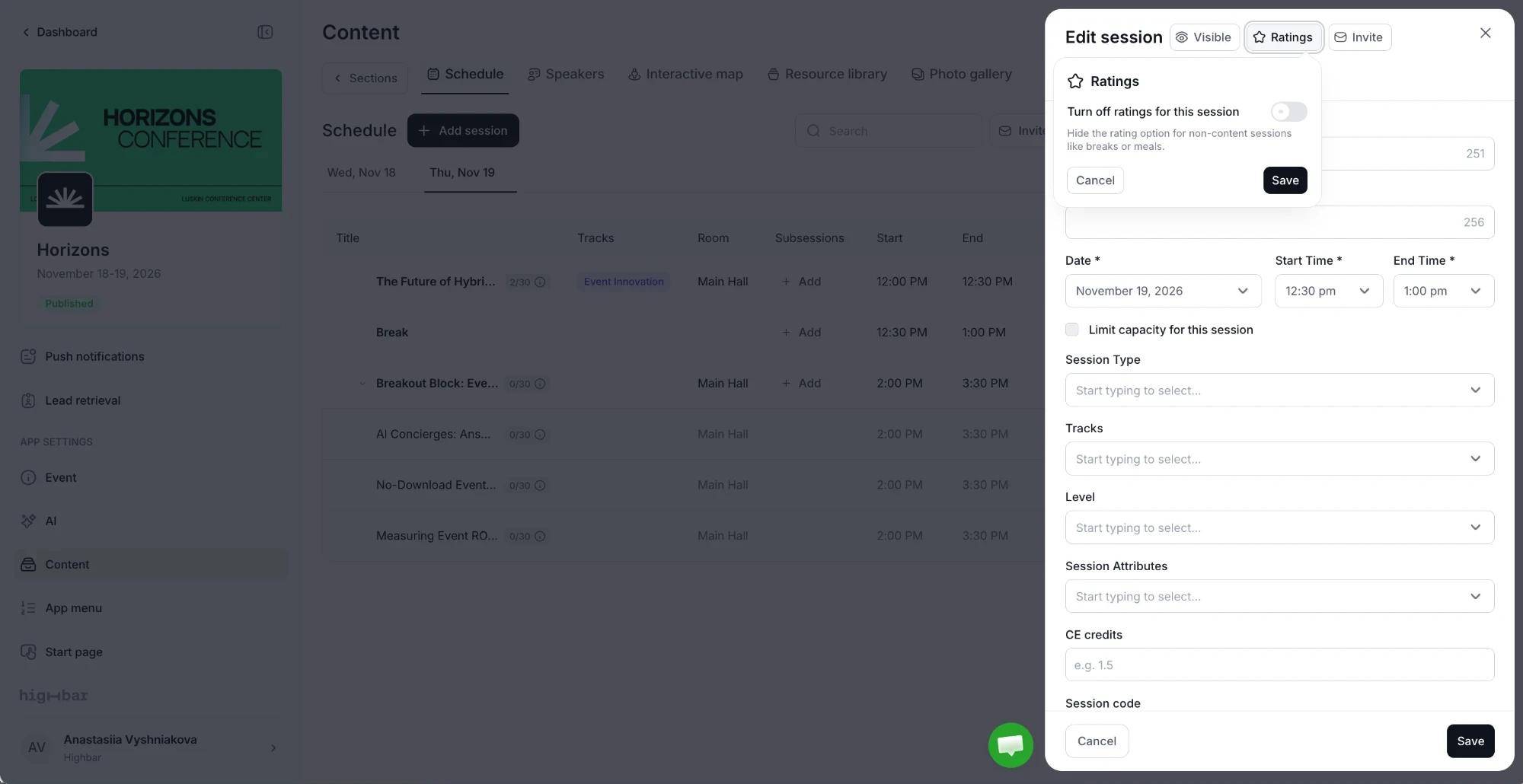
Attendees then see no rating option on that session. If speaker ratings are on, the same panel also has Turn off speaker ratings for this session, which keeps the session rating but drops the speaker ratings.