Embed the schedule
Show your event schedule on your own website with a code snippet that stays in sync with the event app.
You can show your schedule on your own website, such as your event's homepage. Visitors don't need to log in, and it updates whenever you edit a session in the event app.
Set up the embed
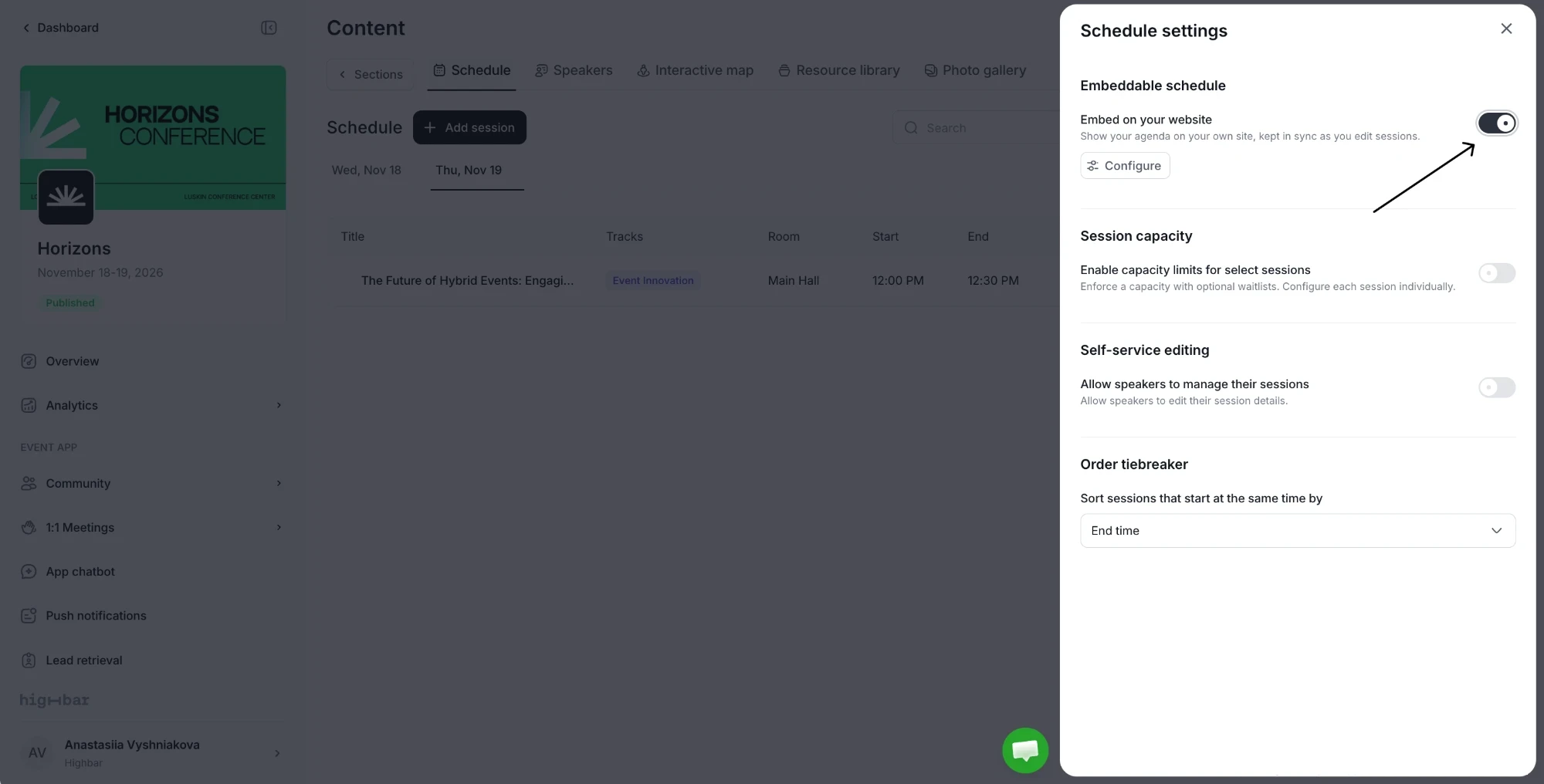
In Schedule settings, turn on Embed on your website, then click Configure. The embedded schedule stays in sync as you edit sessions.
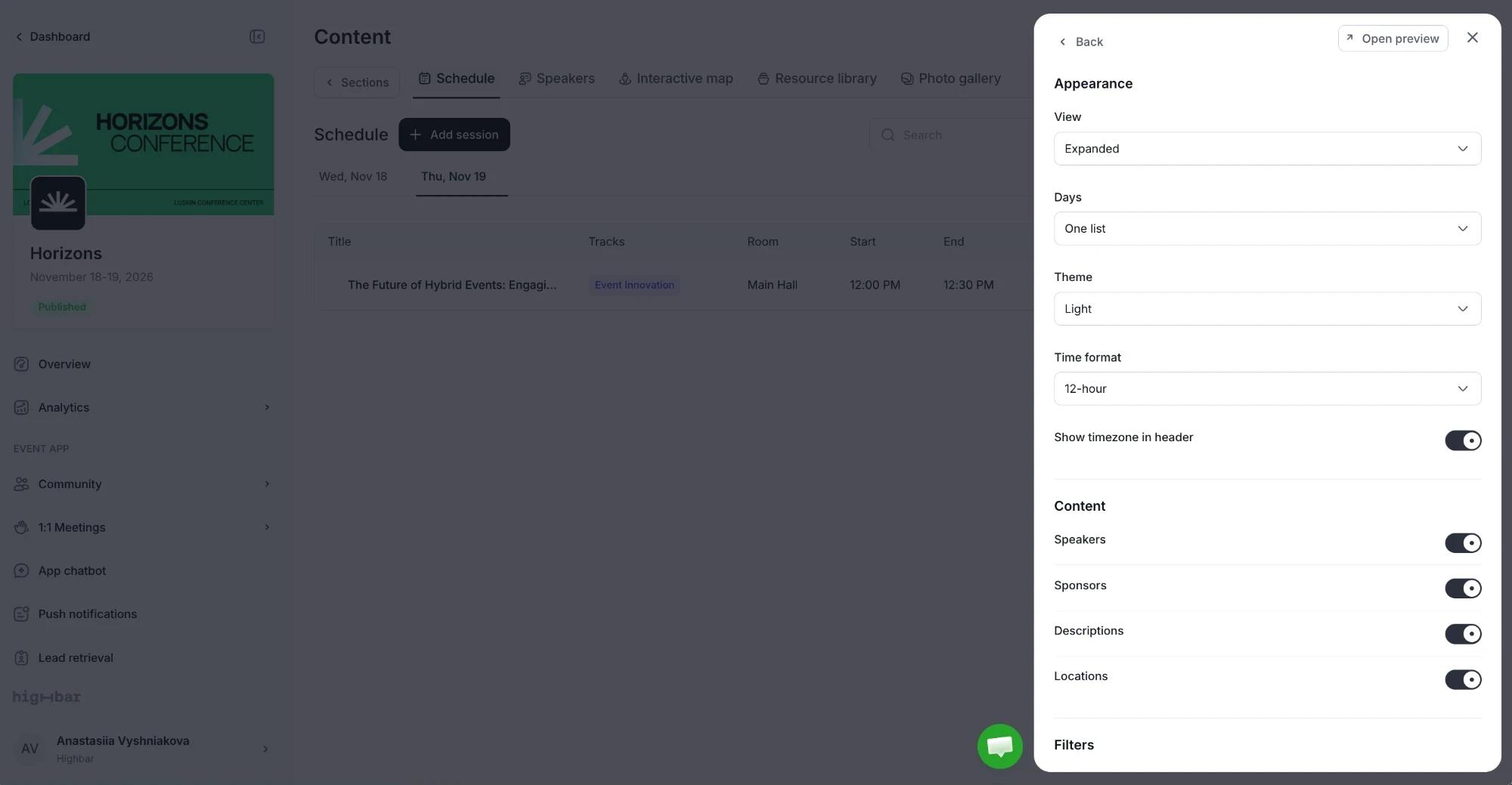
- Appearance: the View (Expanded or Compact), Days (One list or Day tabs), Theme, Time format, and Show timezone in header.
- Content: show or hide Speakers, Sponsors, Descriptions and Locations.
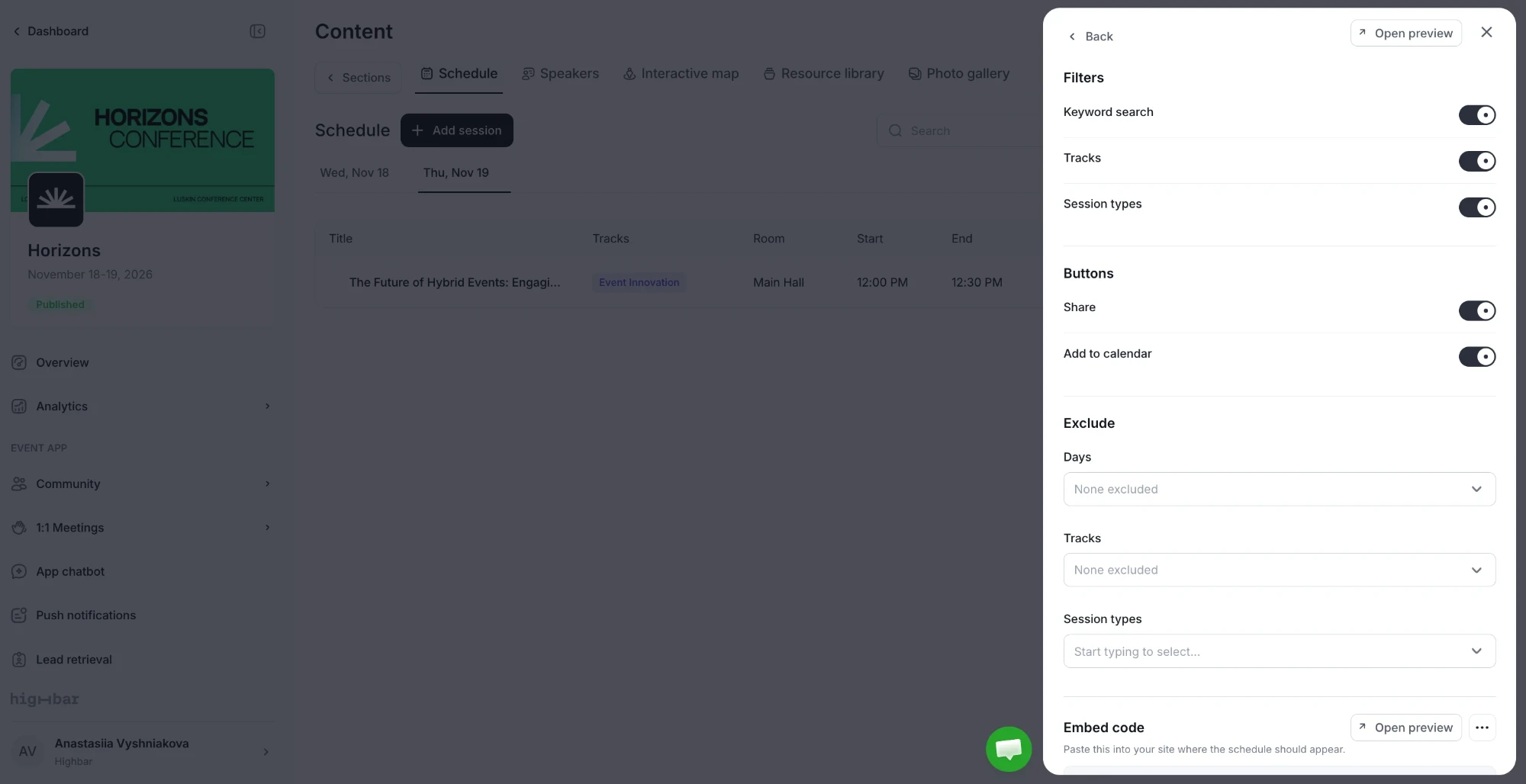
- Filters: offer Keyword search, Tracks and Session types.
- Buttons: offer Share and Add to calendar.
- Exclude: leave out certain days, tracks or session types.
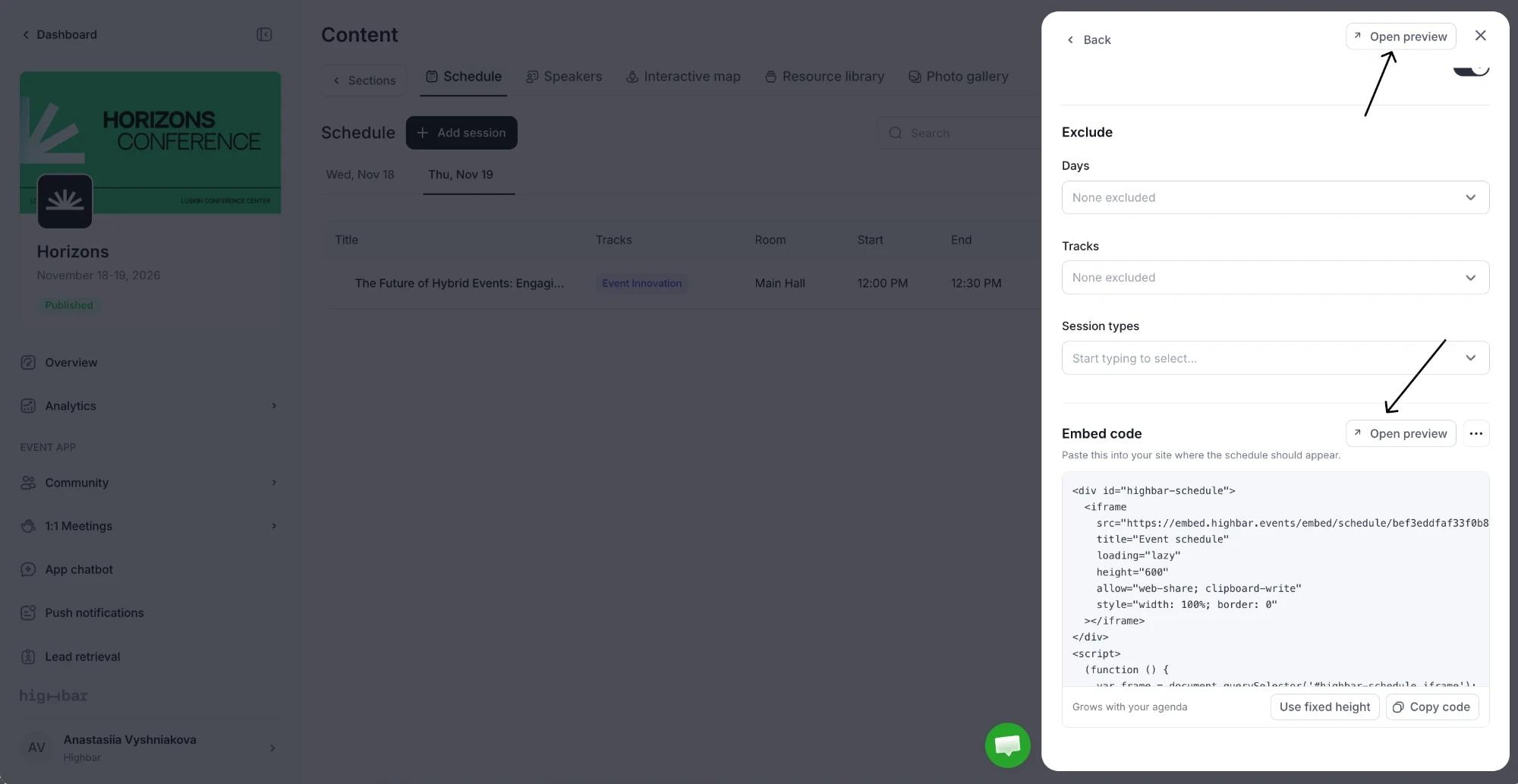
Under Embed code, click Copy code and paste it into your site. The code resizes the frame to fit your agenda. If your site blocks third-party scripts, click Use fixed height for a frame that stays 600px tall and scrolls. Use Open preview to see it as visitors will.
What visitors see
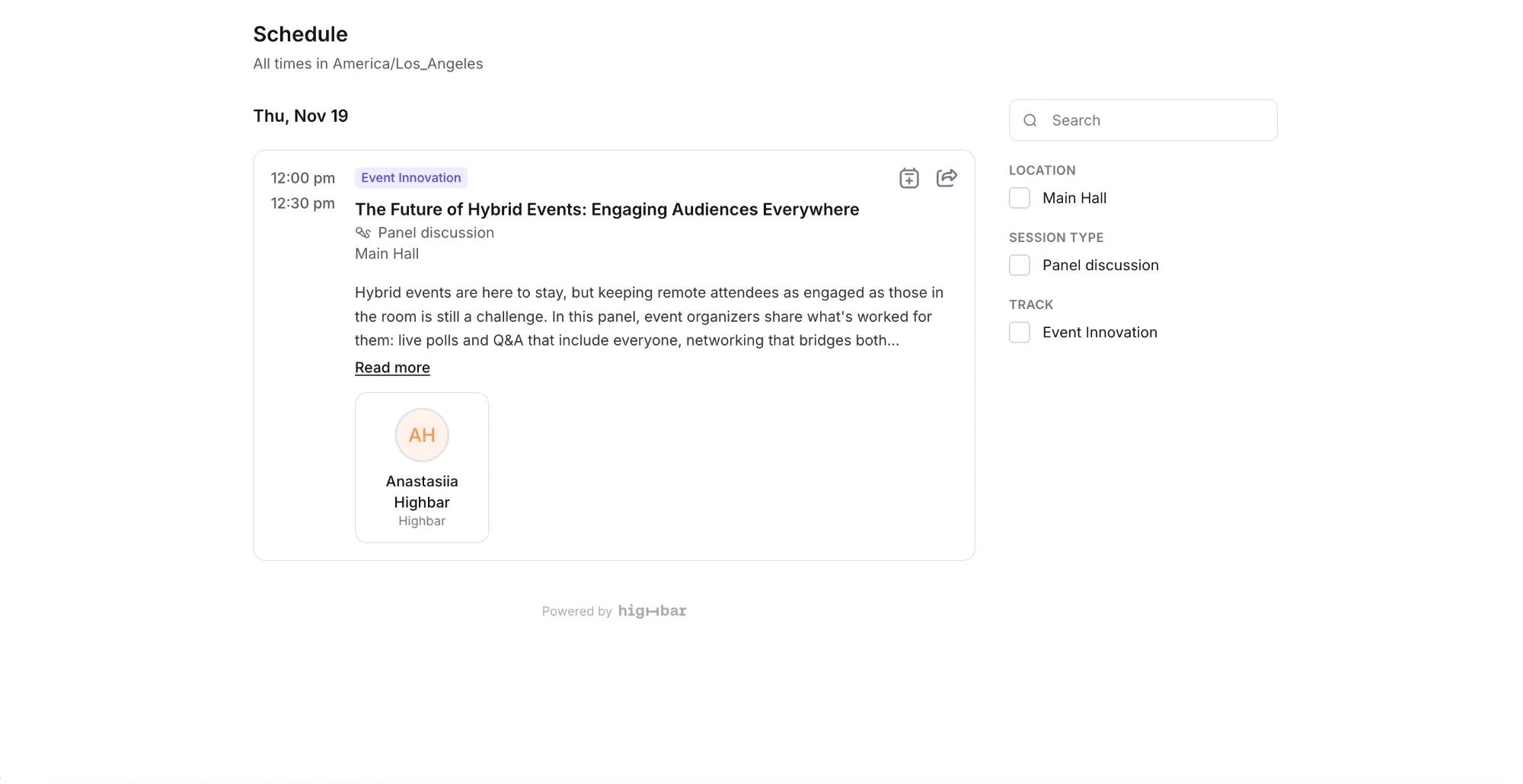
On your site, the schedule lists your sessions by day, with times in your event's time zone. Visitors can:
- Search and filter by the options you turned on, such as location, session type and track.
- Click Read more to open a long description.
- Click a speaker or sponsor to see their details and their other sessions.
- Use the buttons in a session's corner to add it to their calendar or share a link to it.
- Click Show 2 subsessions (with the number) on a session that has them.
Only visible sessions appear, and changes you make in the CMS show up on your site without new code.
Regenerate key in the embed code's menu retires the current code at once. Every copy already on a website stops loading until you replace it with the new code.