FAQs and AI Toolkit shortcuts
Give the AI Concierge answers it can't find in your content, and turn common questions into one-tap shortcuts for attendees.
The AI Concierge already knows your sessions, speakers and sponsors. FAQs cover everything else attendees ask: wifi, parking, dress code, badge pickup, where lunch is. When an attendee asks a question you've answered, the AI Concierge uses your answer.
Any FAQ can also become a shortcut: a one-tap question in the attendee's AI Toolkit.
Manage both on the FAQ tab of the AI step. FAQs are optional and never block launch. The App preview opens the chat, so you can ask your new questions and check the answers.
Add an FAQ
Click Add FAQ.
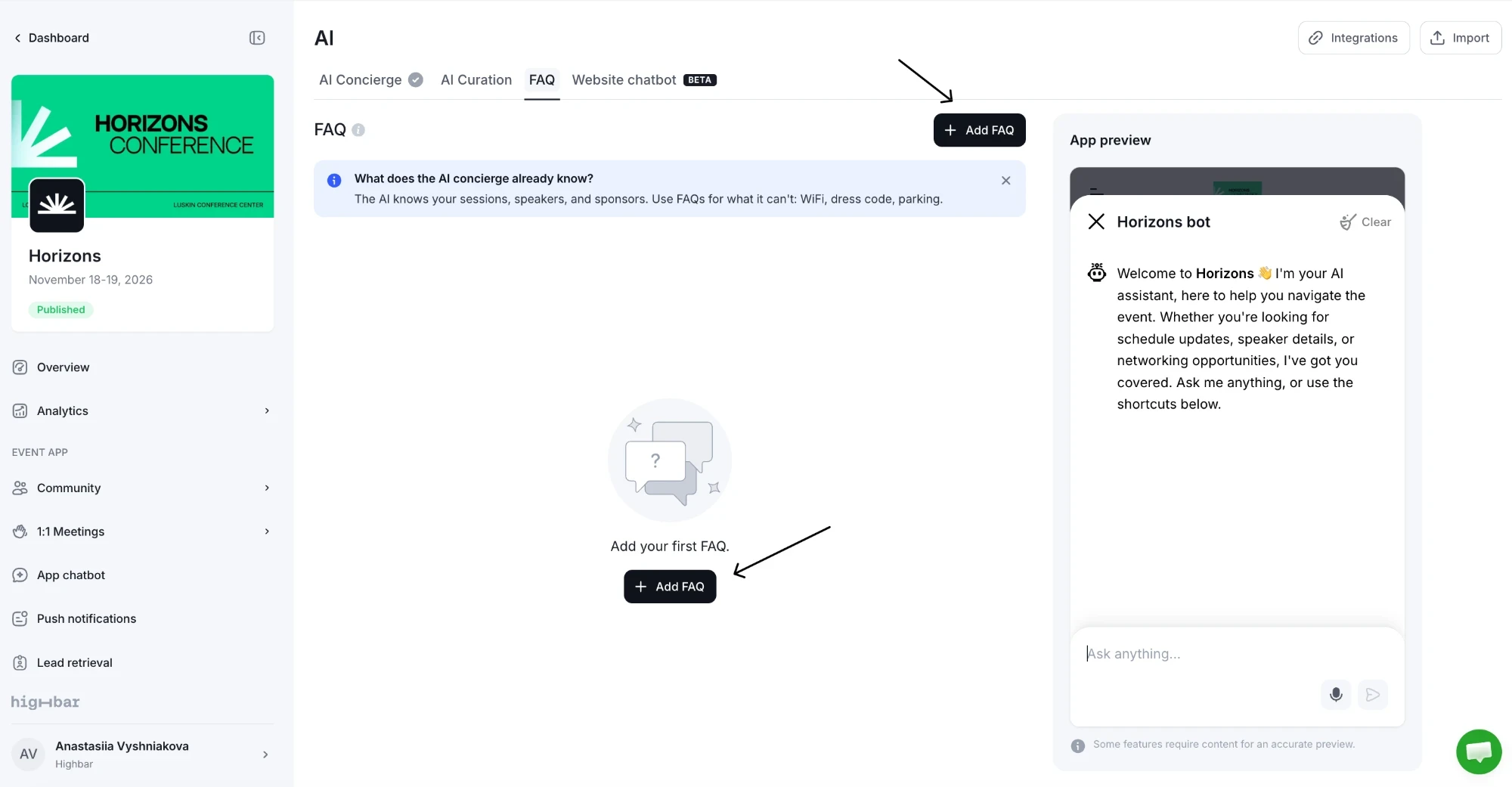
Enter the Question the way an attendee would ask it, for example "Is there wifi at the venue?"
Write the Answer. You can use formatting, lists and links.
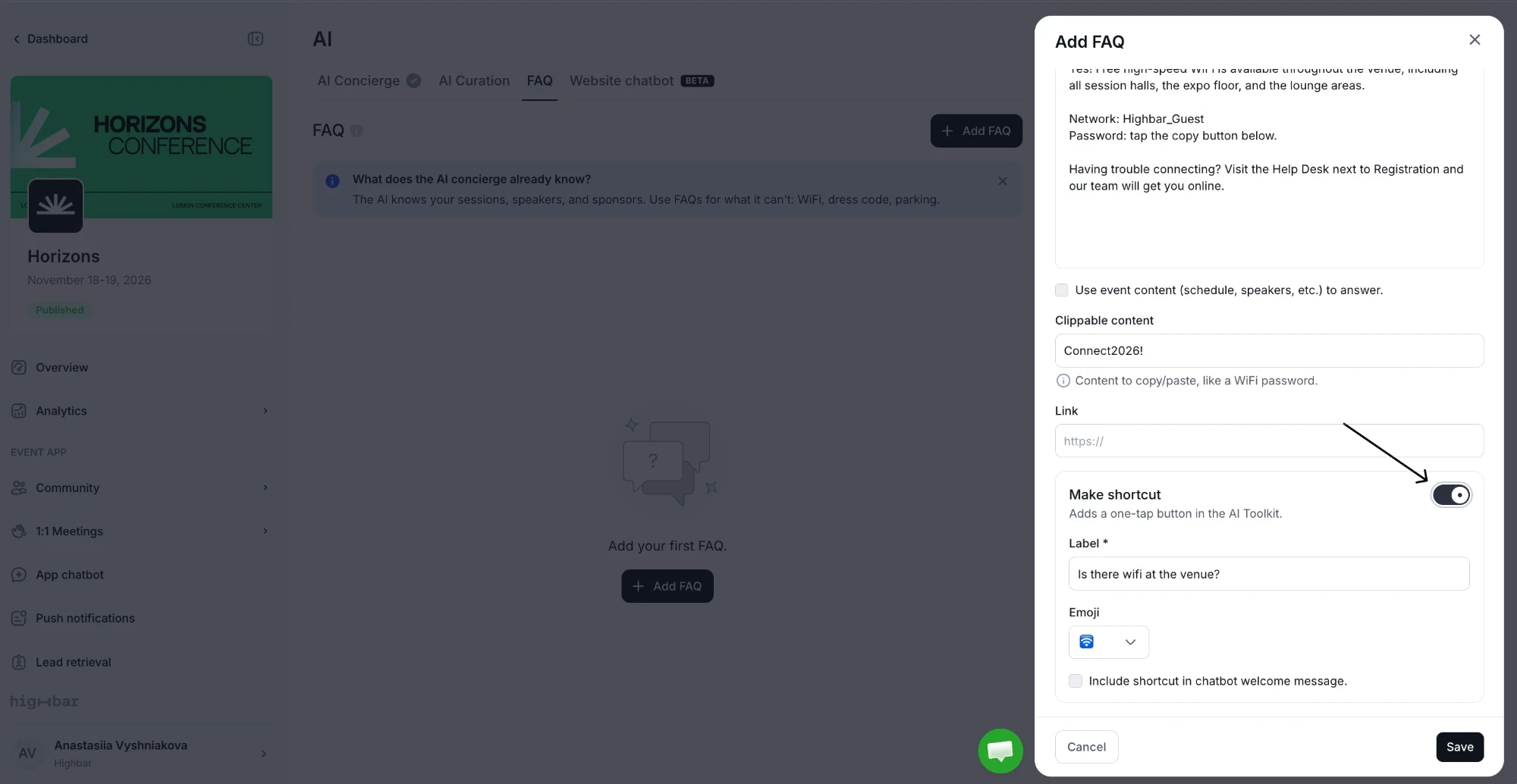
Optionally, fill in Clippable content: something attendees will want to copy, such as the wifi password. The AI Concierge shows it in a box with a copy button.
Optionally, add a Link to a page with more detail.
Click Save.
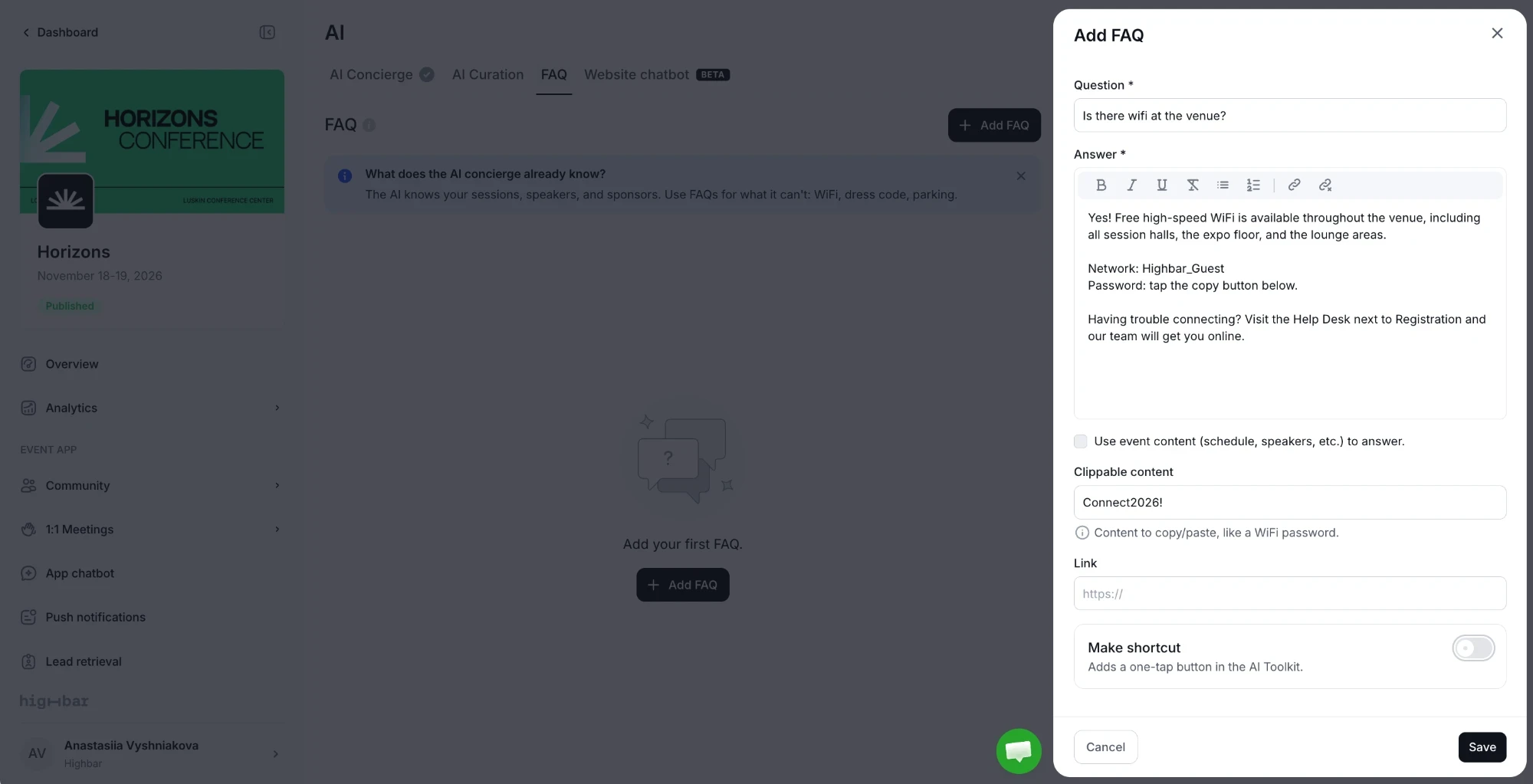
Then ask your question in the App preview to check the answer. Clippable content appears in a box with a copy button.
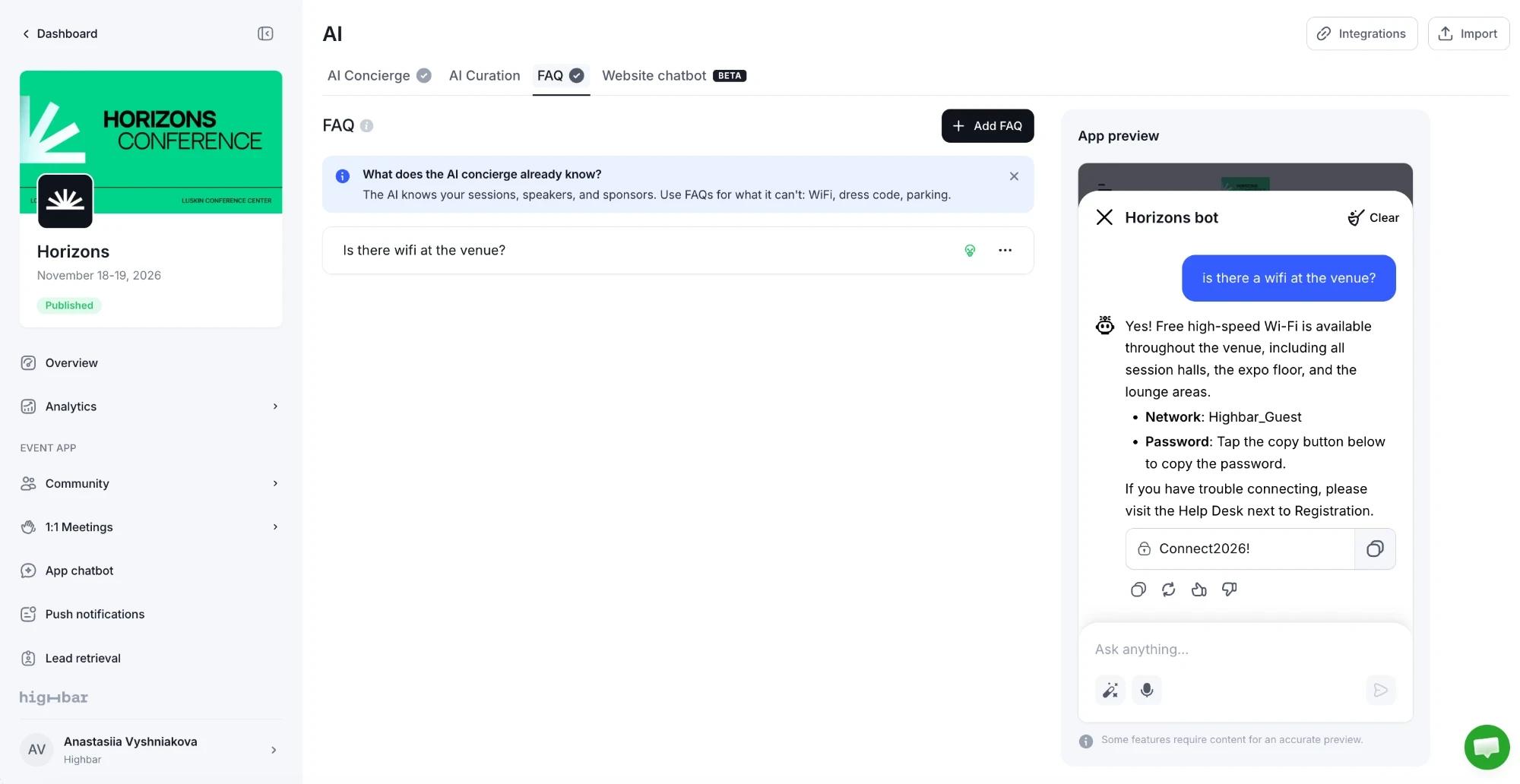
Answers that change
Some questions have answers that change with your content, such as "What's on this afternoon?" For these, tick Use event content (schedule, speakers, etc.) to answer. The Answer, Clippable content and Link fields disappear, and the AI Concierge works out the answer from your current content each time.
Because there's no stored answer, this option only makes sense together with Make shortcut: it gives attendees a ready-made question to tap.
Import FAQs from a spreadsheet
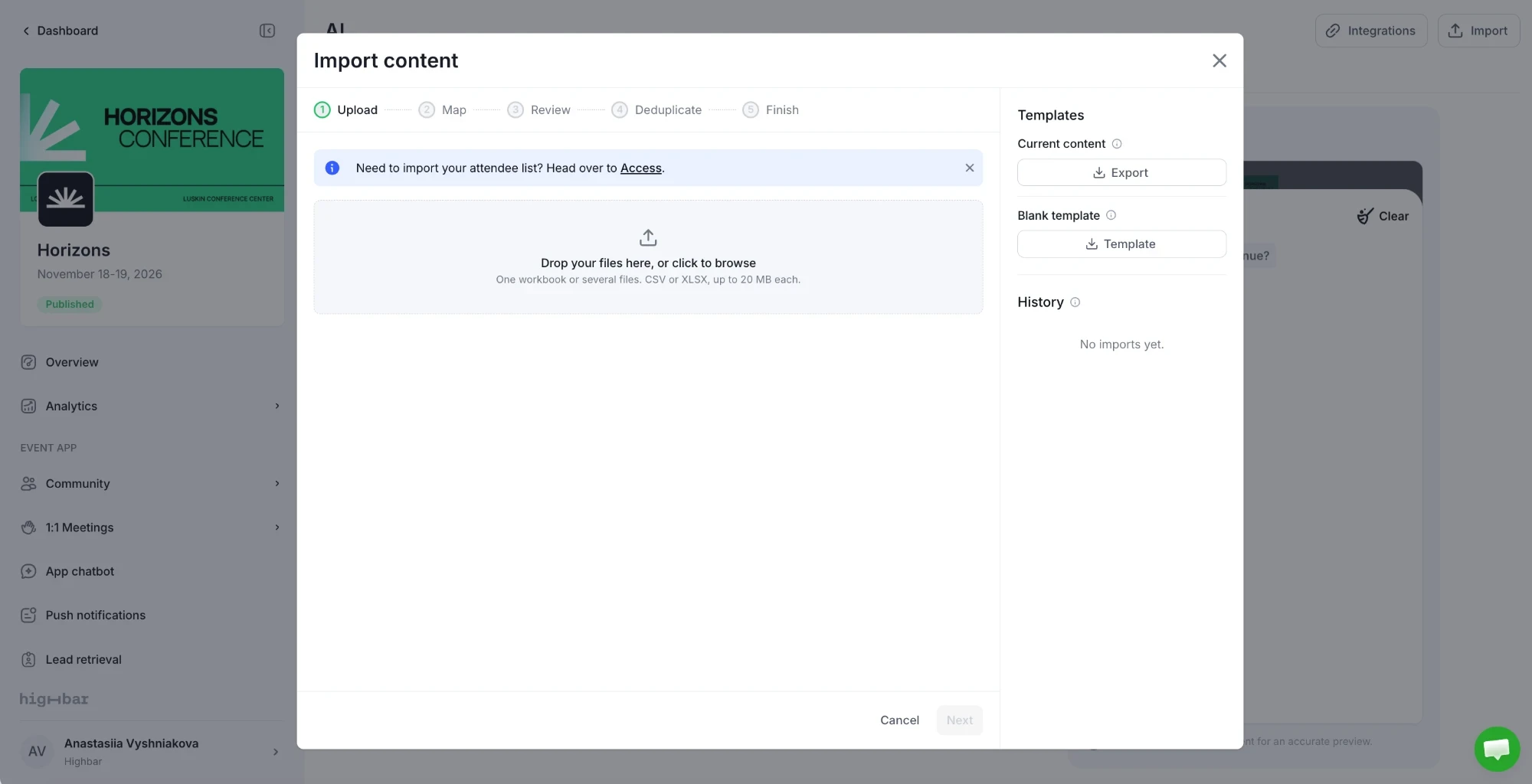
To add many FAQs at once, click Import at the top of the page.
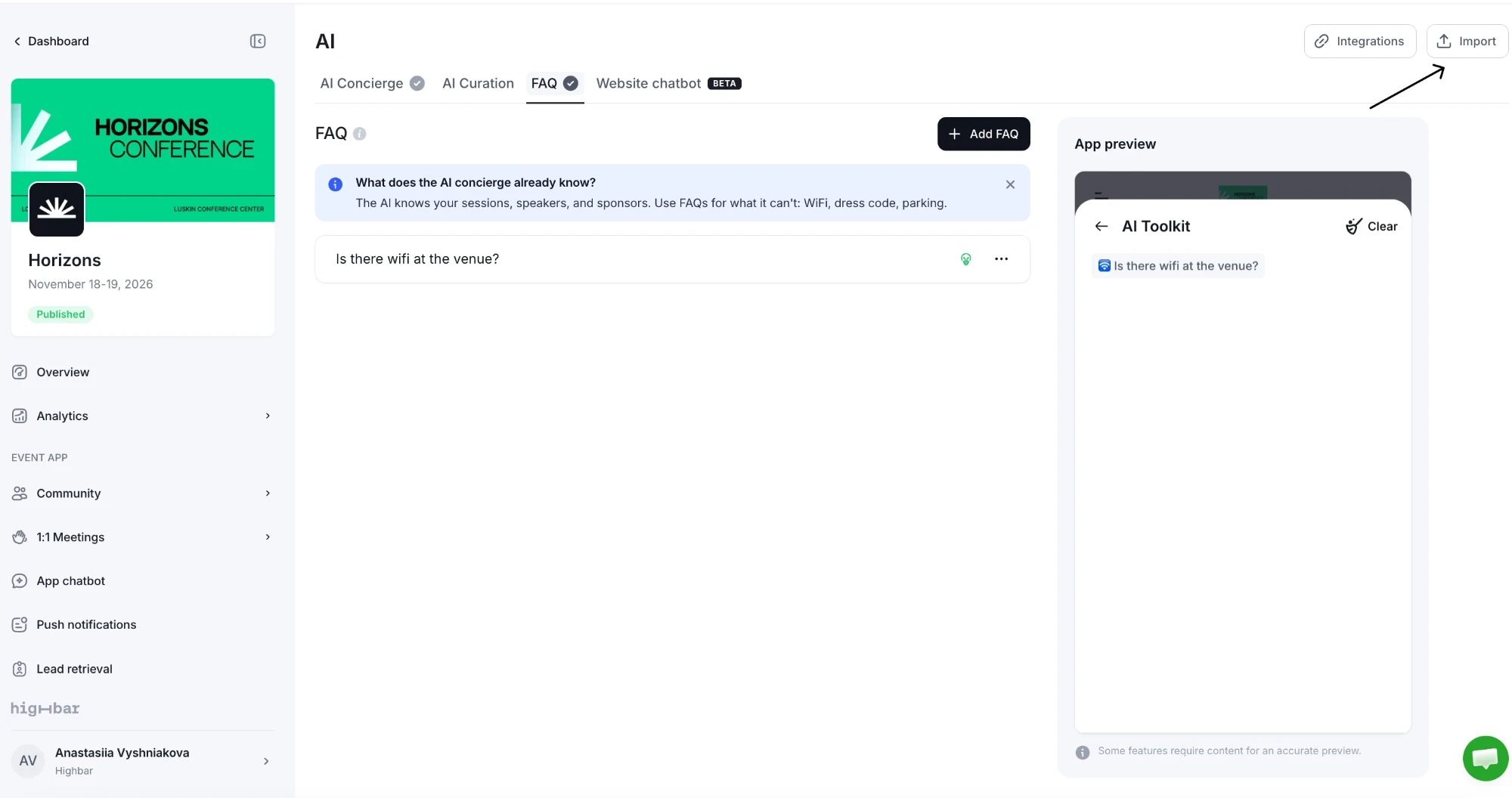
Upload a CSV or Excel file with a question and an answer for each FAQ, then check the rows before they're added. Imported FAQs appear in your list with the others. See Importing content.
Make a shortcut
Shortcuts save attendees typing. Tapping one sends its question to the AI Concierge, which answers straight away.
In the FAQ, turn on Make shortcut and fill in:
- Label: the button text. It copies the question until you change it, so shorten it if the question is long ("Wifi password" rather than "What is the wifi password?").
- Emoji: shown before the label.
- Include shortcut in chatbot welcome message. Tick this to also show the question as a button under your welcome message whenever an attendee starts a new chat. Use it for your two or three most common questions.
For a quick change, open an FAQ's menu in the list and choose Make shortcut or Remove shortcut. A shortcut made this way isn't added to the welcome message: edit the FAQ to add it.
What attendees see
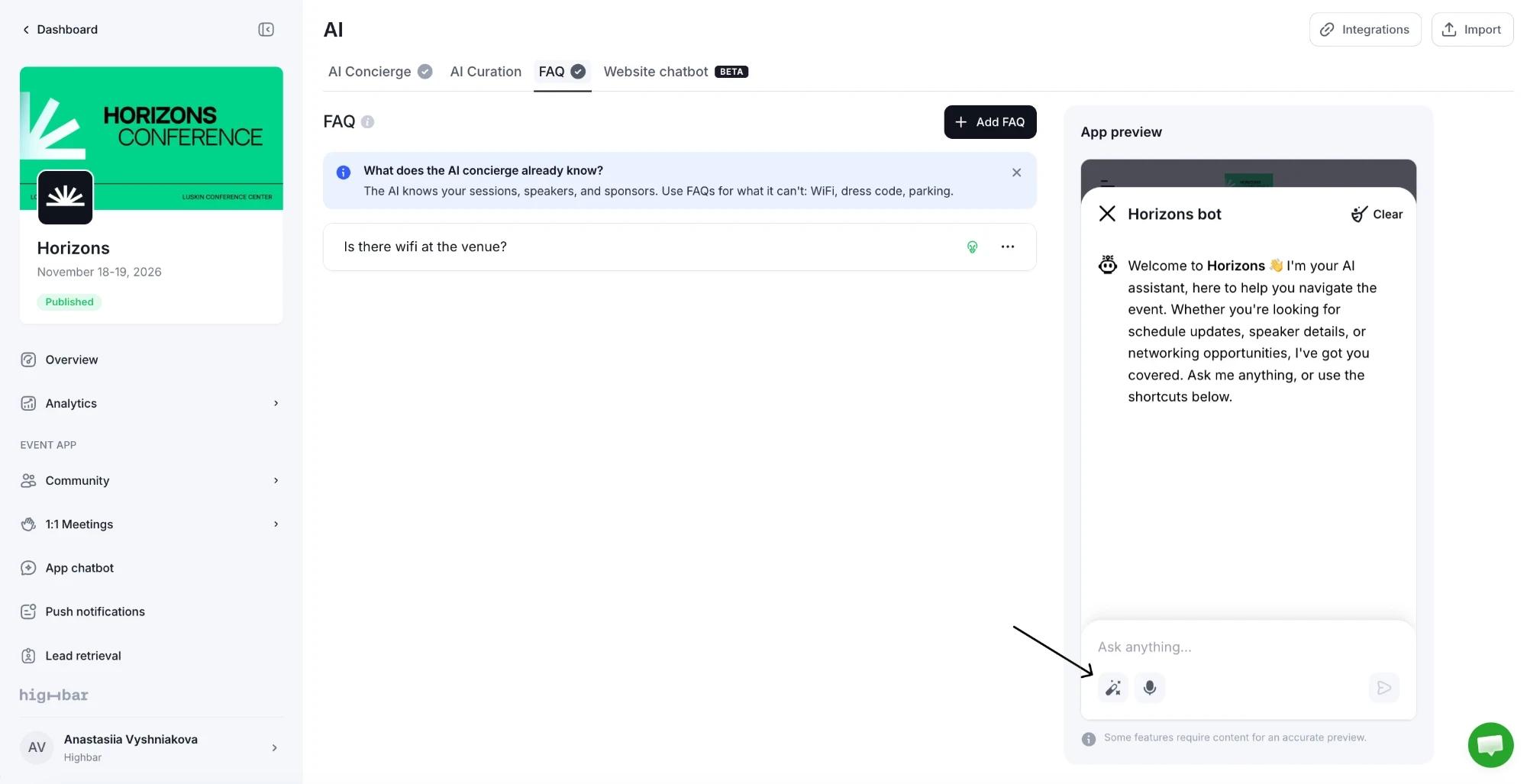
Next to the Ask anything... box and the chat's message box is a magic wand button that opens the AI Toolkit.
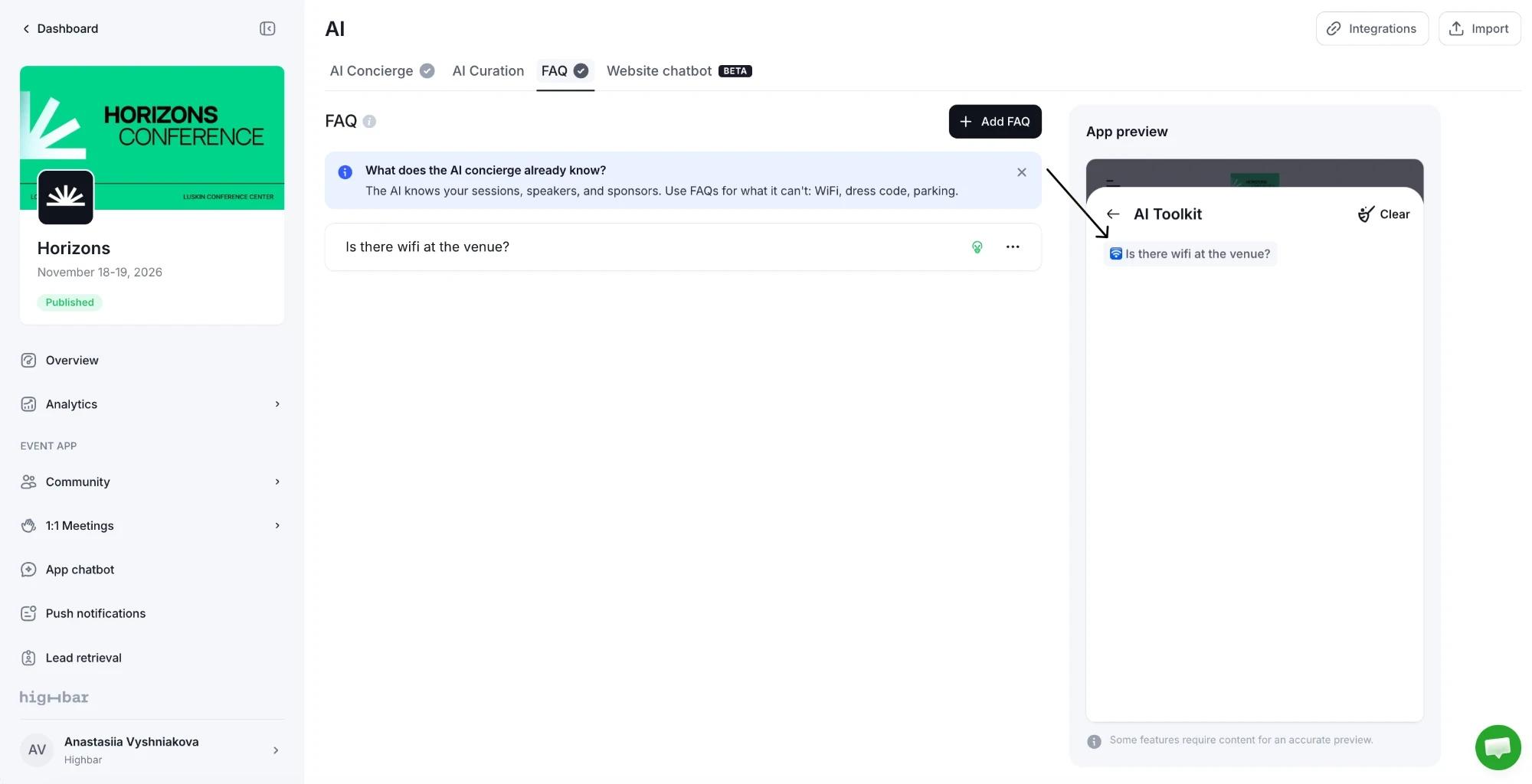
Your shortcuts are listed there, in the same order as your FAQ list. Tapping one asks the AI Concierge that question.
If you have no shortcuts, the wand button doesn't appear at all.
Order, edit and delete
- Reorder by dragging FAQs in the list. This also sets the order of shortcuts in the AI Toolkit and under the welcome message.
- Edit from the FAQ's menu.
- Delete from the FAQ's menu, or select several FAQs and delete them together. Deleting an FAQ that's a shortcut also removes it from the AI Toolkit.
AI Toolkit shortcuts are different from the Shortcuts section on your Start page. Toolkit shortcuts ask the AI Concierge a question; start page shortcuts are buttons that open a part of your app, such as the schedule or a venue map.
What makes a good FAQ
- Answer what your content doesn't. Logistics, policies and practical details work best. There's no need to repeat your agenda or speaker bios.
- One question per FAQ. Split "Where do I park and is there a shuttle?" into two.
- Keep answers current. If the wifi password or the shuttle times change, update the FAQ. Attendees get the new answer shortly after you save.