AI Curation
Give every attendee personal recommendations of people to meet, sessions, speakers and sponsors, and choose what the AI bases them on.
AI Curation gives each attendee their own recommendations: people to meet, sessions to attend, speakers to follow and sponsors to visit. It works from registration basics like name, company and title, so there's nothing to set up. You can fine-tune what it recommends and what it knows about attendees.
It's on for every new event. Find it on the AI Curation tab of the AI step. Changes save automatically.
What attendees get
- Curated for you on the start page: tiles for people, sessions, speakers and sponsors picked for them, a prompt to update their profile, and What's your goal?, where they tell the AI what they want from the event.
- Their full list of matches, by category, where they can skip a suggestion or refresh their matches.
- Highlights in the app's lists: matched people, speakers and sponsors, and sessions with a short reason they were picked.
- A notification when new matches arrive.
- People suggestions from the AI Concierge, when they ask who to meet.
Matches refresh in the background while your event is published, and when an attendee changes their profile or goals. Attendees can also refresh them themselves.
Turn it on or off
Enable AI Curation switches all of the above on or off. When it's off, the settings below are kept but don't apply, and the Curated for you section disappears from the start page.
Recommendation types
Choose what the AI recommends. All four are on by default:
| Type | What attendees get |
|---|---|
| People | Other attendees to connect with, based on their profiles and goals. |
| Sessions | Sessions across your agenda that fit their interests. |
| Speakers | Speakers worth following. |
| Sponsors | Sponsors relevant to their role and interests. |
Turning a type off removes it everywhere in the app. People recommendations only show to attendees who can browse the community, and attendees who've turned off direct messages are never suggested.
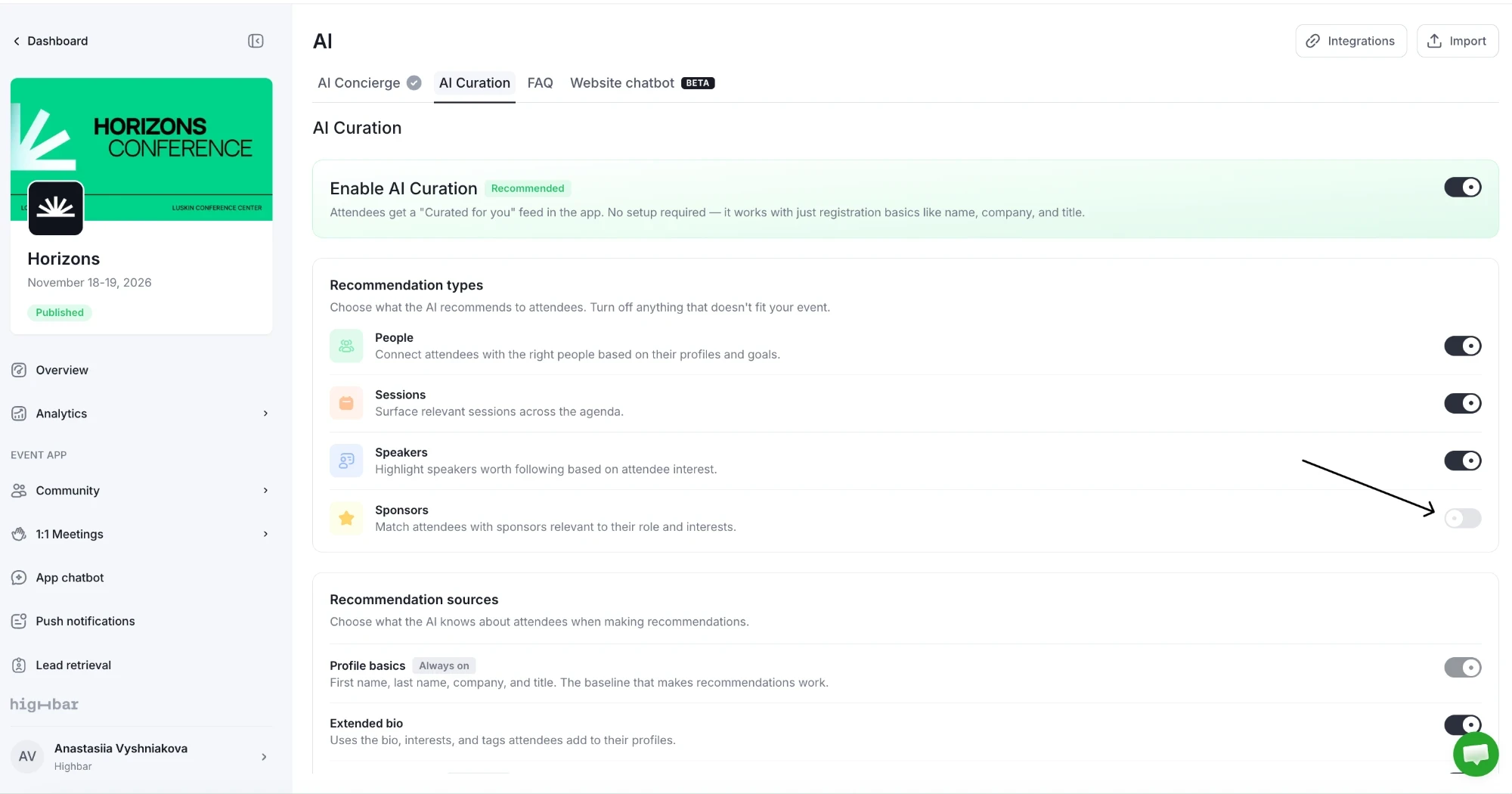
Recommendation sources
Choose what the AI knows about attendees:
- Profile basics (always on): first name, last name, company and title.
- Extended bio: the bio, interests and tags on attendees' profiles. On by default.
- Attendee-Set Goals: attendees tell the AI what they want from the event, and their matches adapt. On by default. Turn it off to hide What's your goal? from attendees.
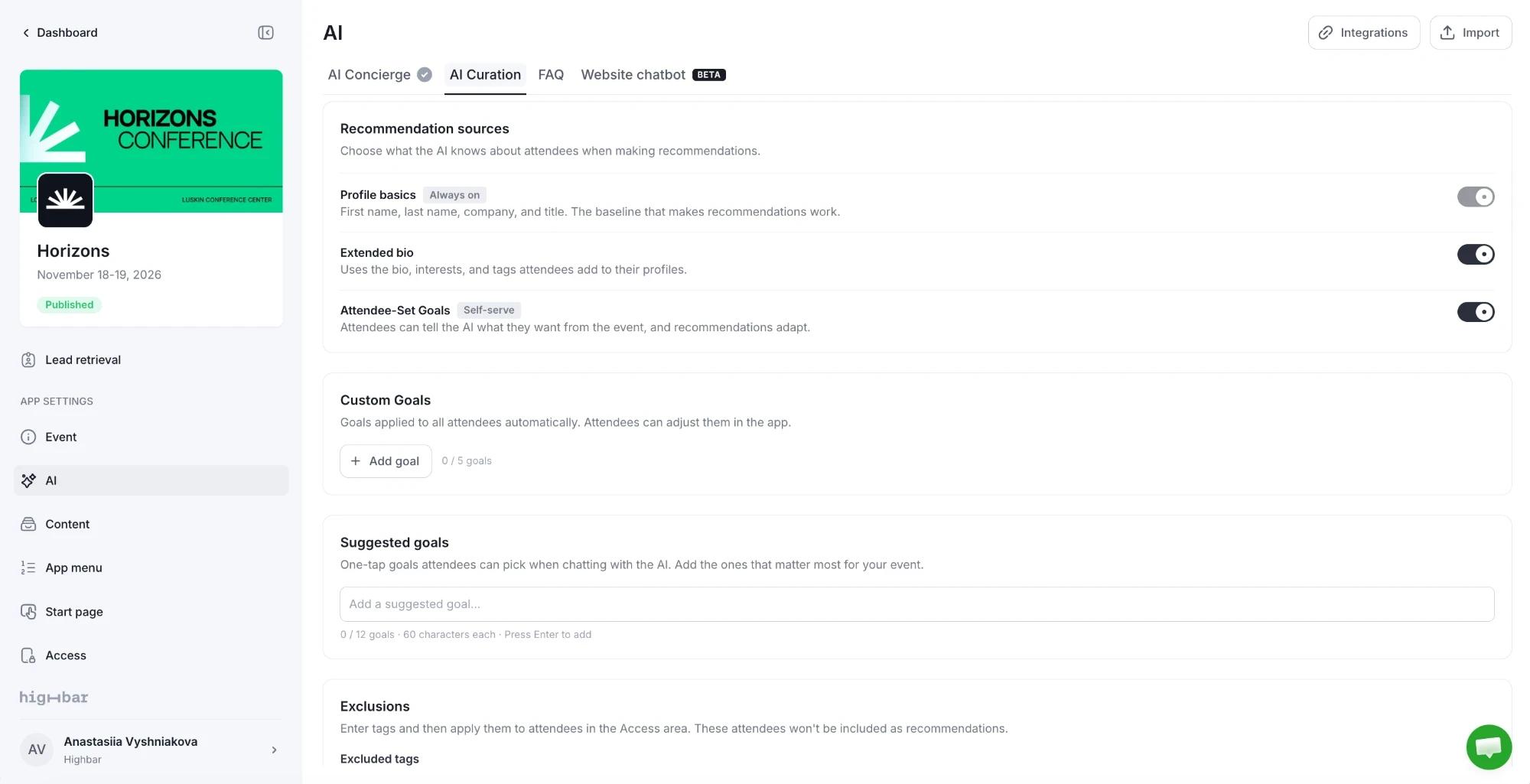
Goals for everyone
Custom Goals apply to every attendee automatically. Use them for what most people come for, such as "Explore partnerships".
Click Add goal.
Enter a Name attendees will see, short and in the first person, up to 60 characters.
Enter a Description of what the attendee is trying to achieve, up to 300 characters. Then click Add goal.
You can add up to 5. Use the switch on a goal to pause it, or the trash icon to delete it. Attendees see your goals marked as set by the organizer: they can turn them off for themselves, but not edit or delete them.
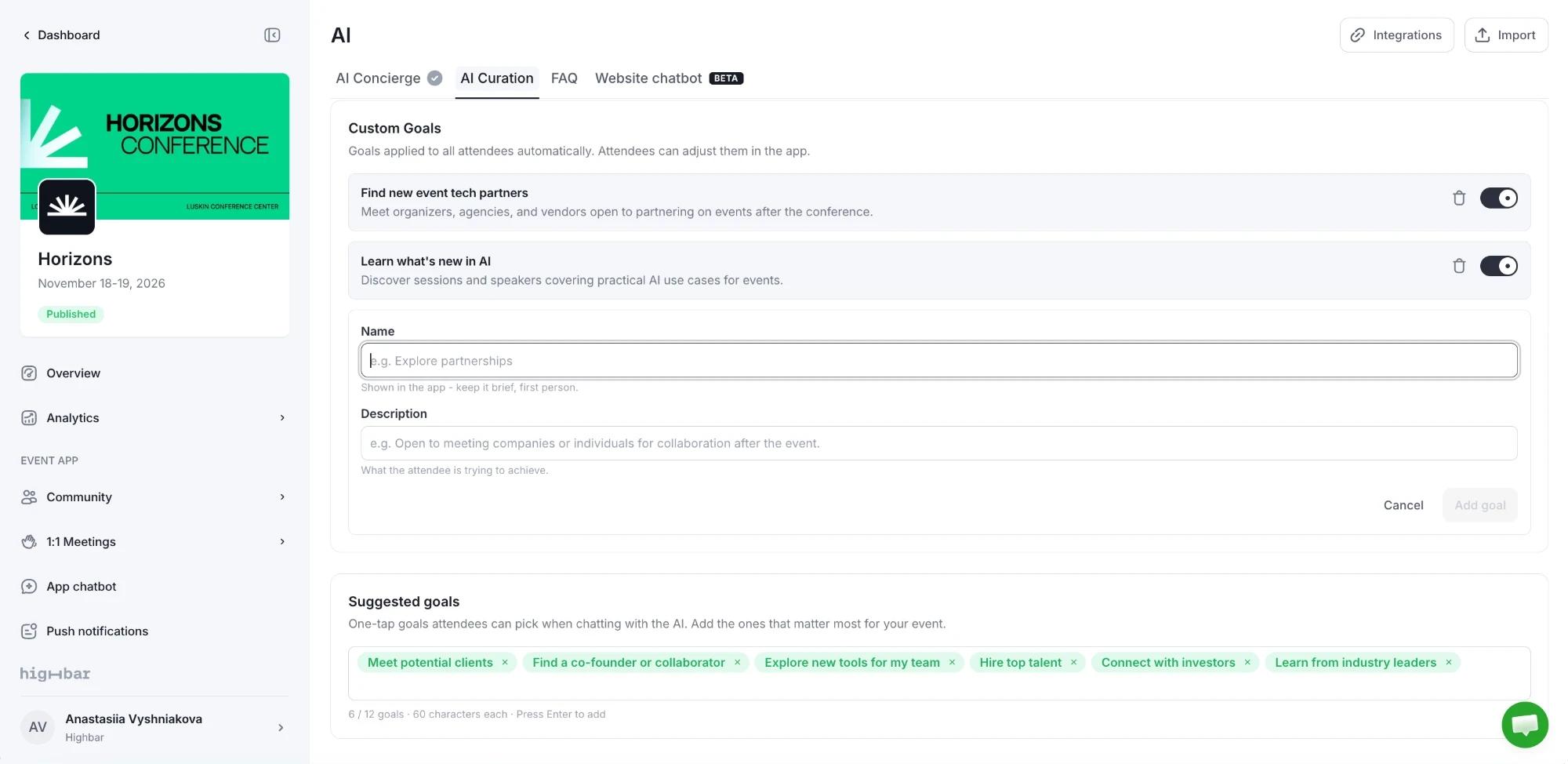
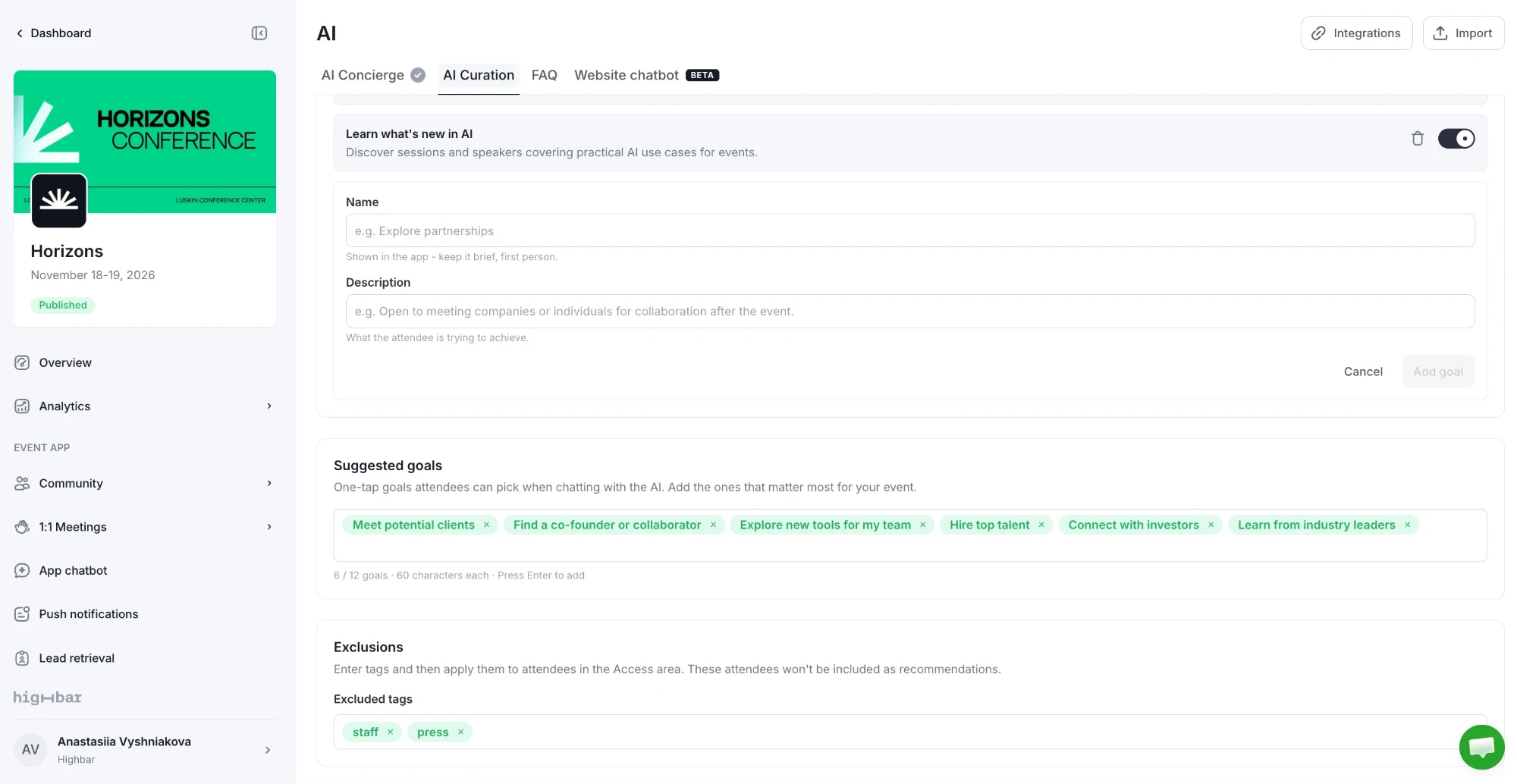
Suggested goals are one-tap options attendees can pick under What's your goal?. Type a goal and press Enter to add it: up to 12, of up to 60 characters each.
Leave people out
Under Exclusions, add Excluded tags: type a tag and press Enter, or click one of your existing tags. Then give that tag to attendees on the Access page. Attendees with an excluded tag aren't recommended to anyone, and don't see Curated for you themselves. Use it for staff, crew or test accounts.
You can add up to 20 tags.
Related settings
- The Curated for you section of the start page sets its label, which tiles show and the profile and goal prompts. It's on the start page of every new event.
- Sessions, speakers and sponsors with Hide this session from the chatbot (or speaker, or sponsor) turned on aren't recommended. See Sections and visibility.