Lead retrieval
Let sponsor and exhibitor booth staff scan attendee badges in the event app, then see and export the leads they collect.
Lead retrieval lets booth staff scan attendees' badges with their phone in the event app. Each scan saves the attendee as a lead, which staff can rate and add notes to. You see every company's leads in one place and can export them for your sponsors.
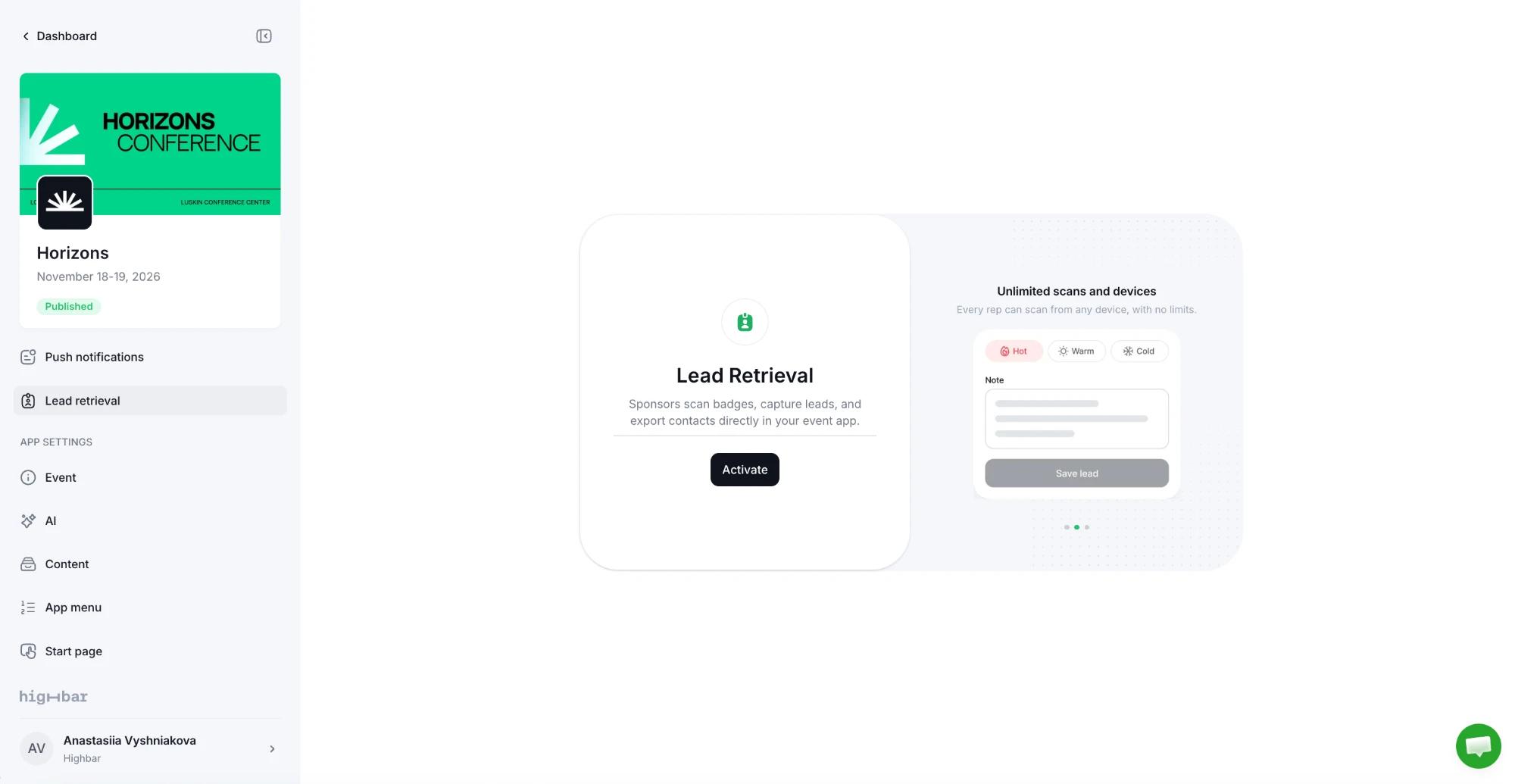
You'll find Lead retrieval in the event sidebar after launch, in the Event app group. Each company in your Sponsors sections appears there automatically.
Turn it on
The first time you open the page, click Activate.
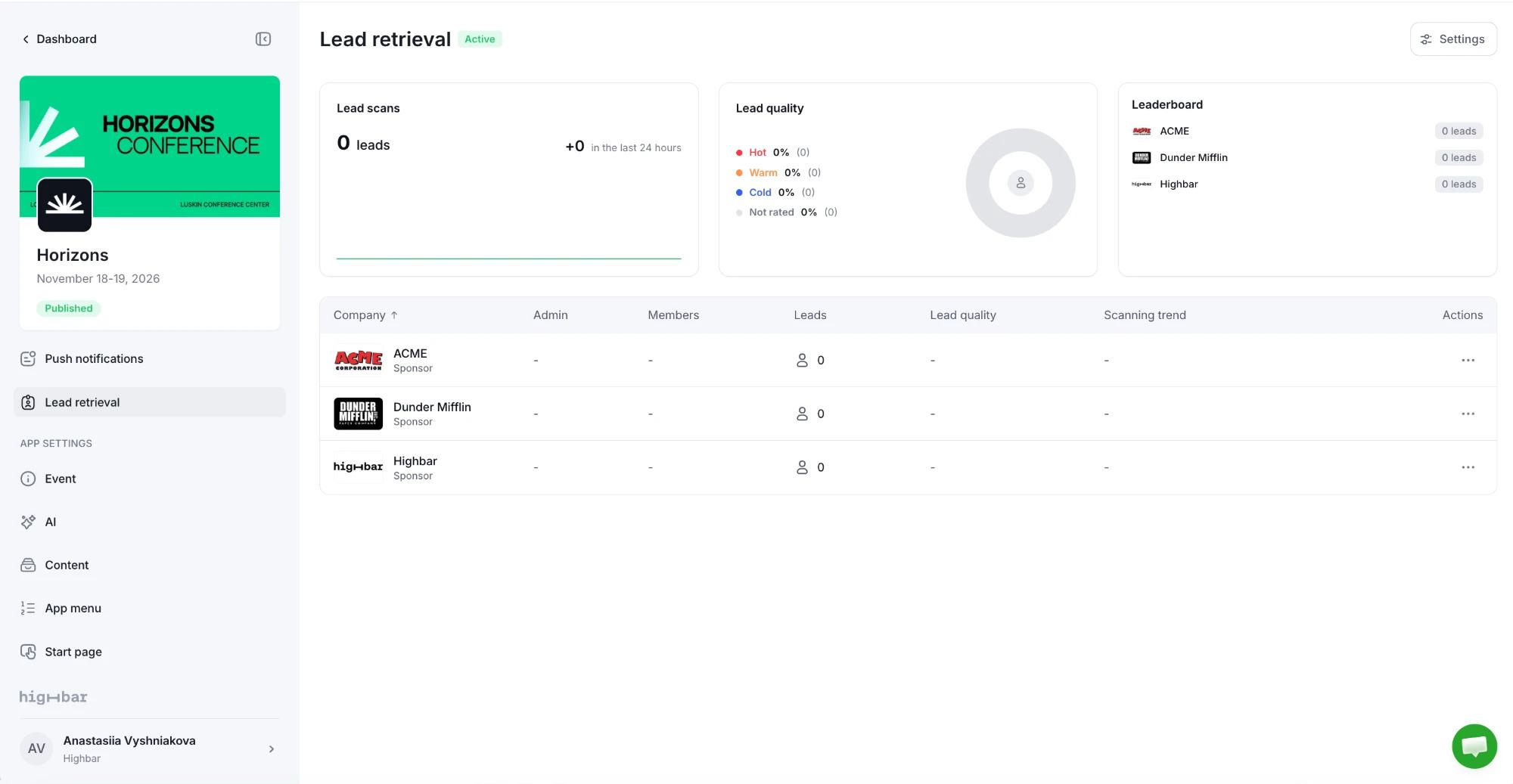
The page then shows Active next to the title, with your sponsor companies listed below.
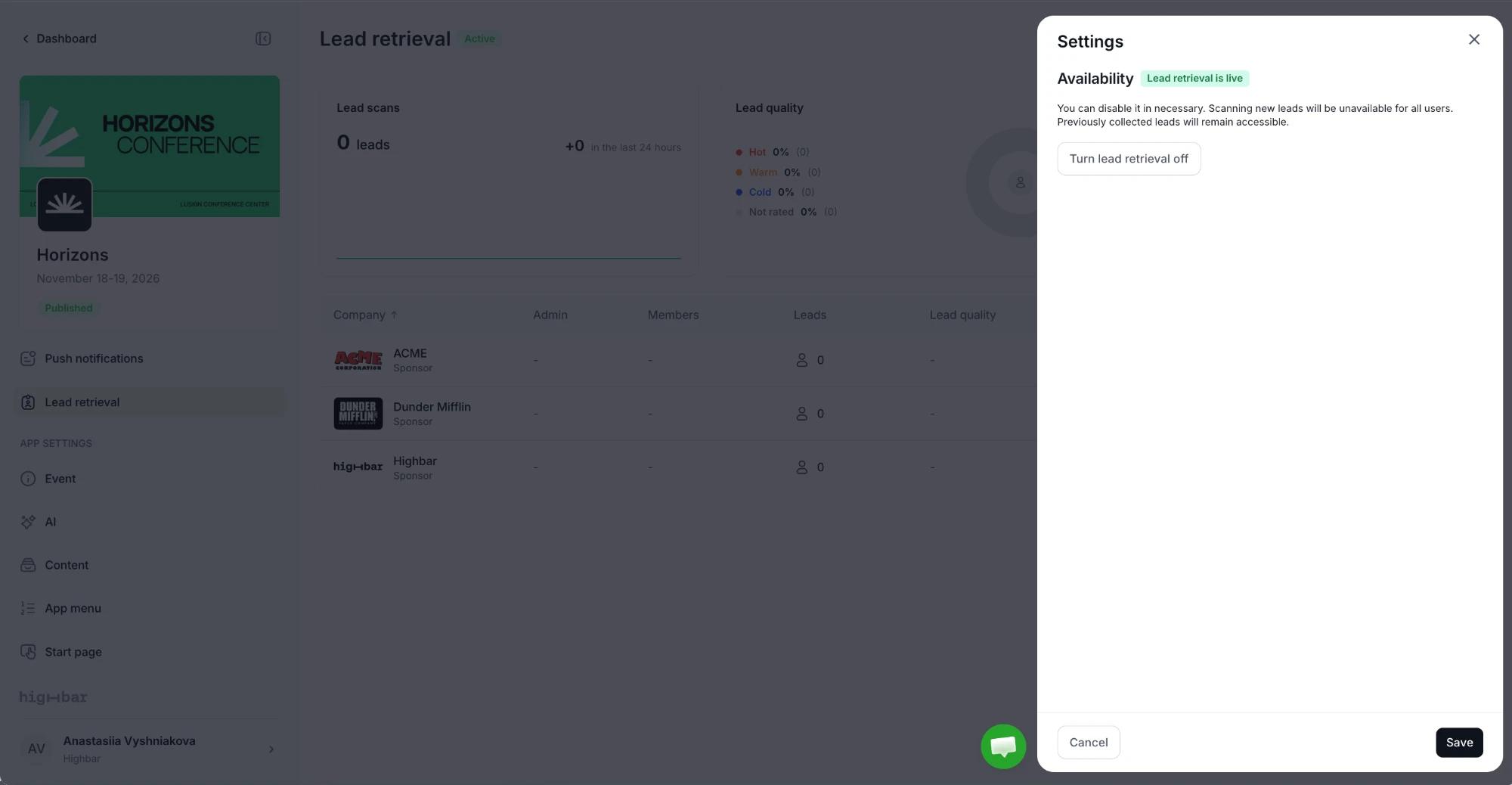
To turn it off, click Settings, then Turn lead retrieval off, and Save. The badge changes to Inactive. Turning it off stops all new scans. Leads already collected stay available to you and to the staff who scanned them.
Add booth staff to a company
On the Lead retrieval page, click the company in the list.
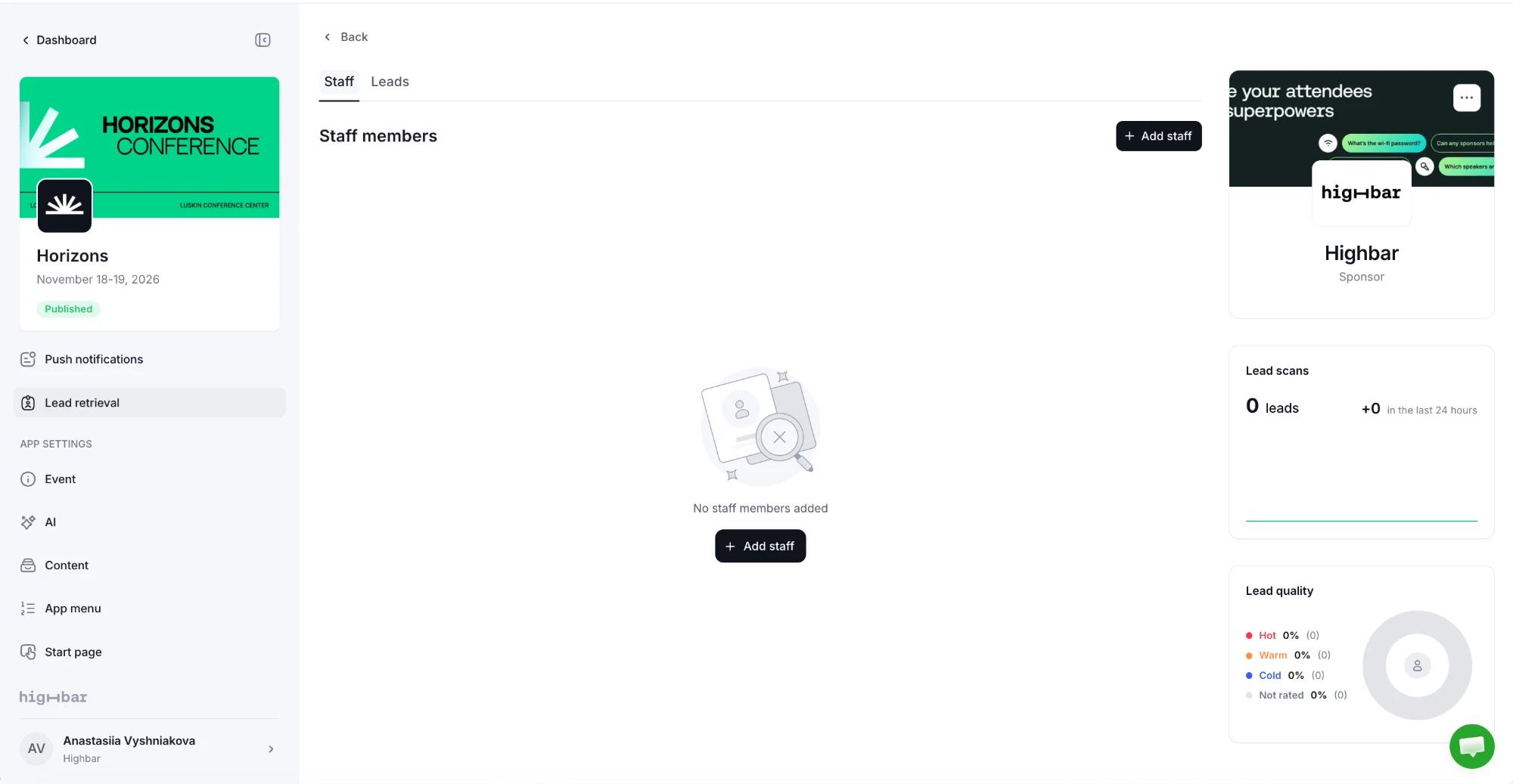
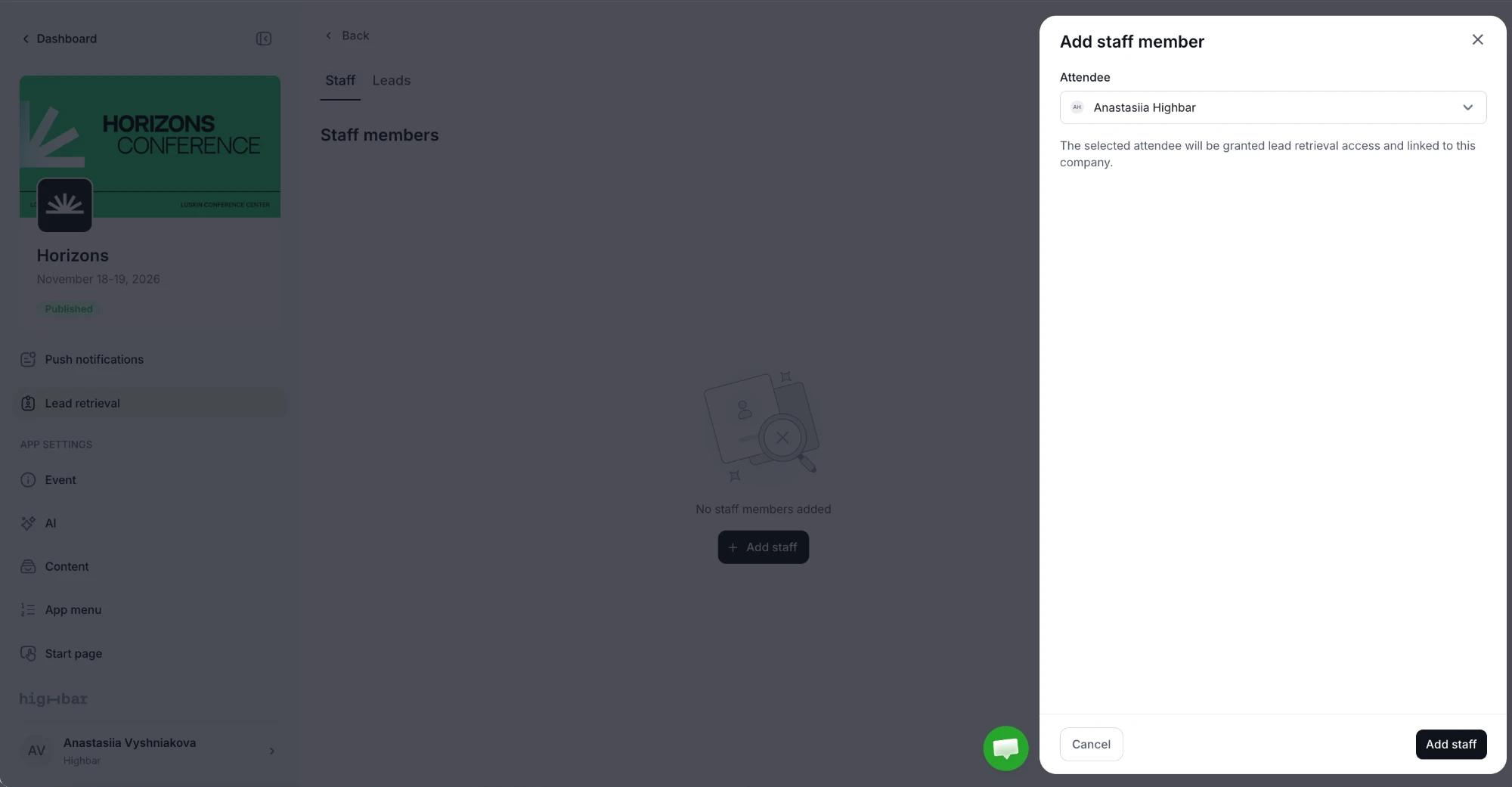
On the Staff tab, click Add staff.
Under Attendee, search for the person by name or email and pick them. If they aren't on your attendee list yet, choose Add new attendee.
Click Add staff. The person gets scanning access and is linked to the company, and anyone who didn't have access before gets an email, "You're ready to scan leads at" your event, with a link to the app and three steps: create their account (and add the app to their home screen), scan leads, and export them.
Each staff member belongs to one company. Moving someone to another company moves their earlier leads with them.
Give scanning access with a tag
You can also give scanning access from the Access page, which is quicker for many people at once:
- Add the Lead retrieval: staff member tag to people, one at a time or in bulk.
- Or turn on Scan leads as booth staff for one of your own tags (such as "Booth staff") under Access settings > Manage tags. Everyone with that tag can scan.
People given access this way aren't linked to a company. A banner on the Lead retrieval page says how many staff are not assigned to a company. Click View to see them under Independent Users, or Add to company to link them. Until they're linked, their leads don't count towards any company.
What booth staff do
Booth staff sign in to the event app as usual. Send them Scan leads at your booth for step-by-step instructions. Once they have access:
- They tap the floating button and choose Scan, then point the camera at an attendee's badge or in-app QR code. Badges printed by another system work too, if you've set up badge codes.
- They tap Save lead, then rate the lead Cold, Warm or Hot and add notes if they like.
- If a badge won't scan, Add lead manually lets them type the person's details.
If gamification is on with Lead scans, each scan also earns the attendee points. Attendees don't need lead retrieval to scan the game's QR codes themselves.
Scanning works without a connection, and saves once the phone is back online. Staff find their leads under Community > Saved > Leads, grouped by rating, and can email themselves a CSV of their own leads from there.
See and export leads
The Lead retrieval page shows:
- Lead scans: the total number of leads, and how many came in during the 24 hours before the latest scan.
- Lead quality: the share of leads rated Hot, Warm, Cold or Not rated.
- Leaderboard: the five companies with the most leads.
- A list of every company with its Members, Leads, typical Lead quality and Scanning trend.
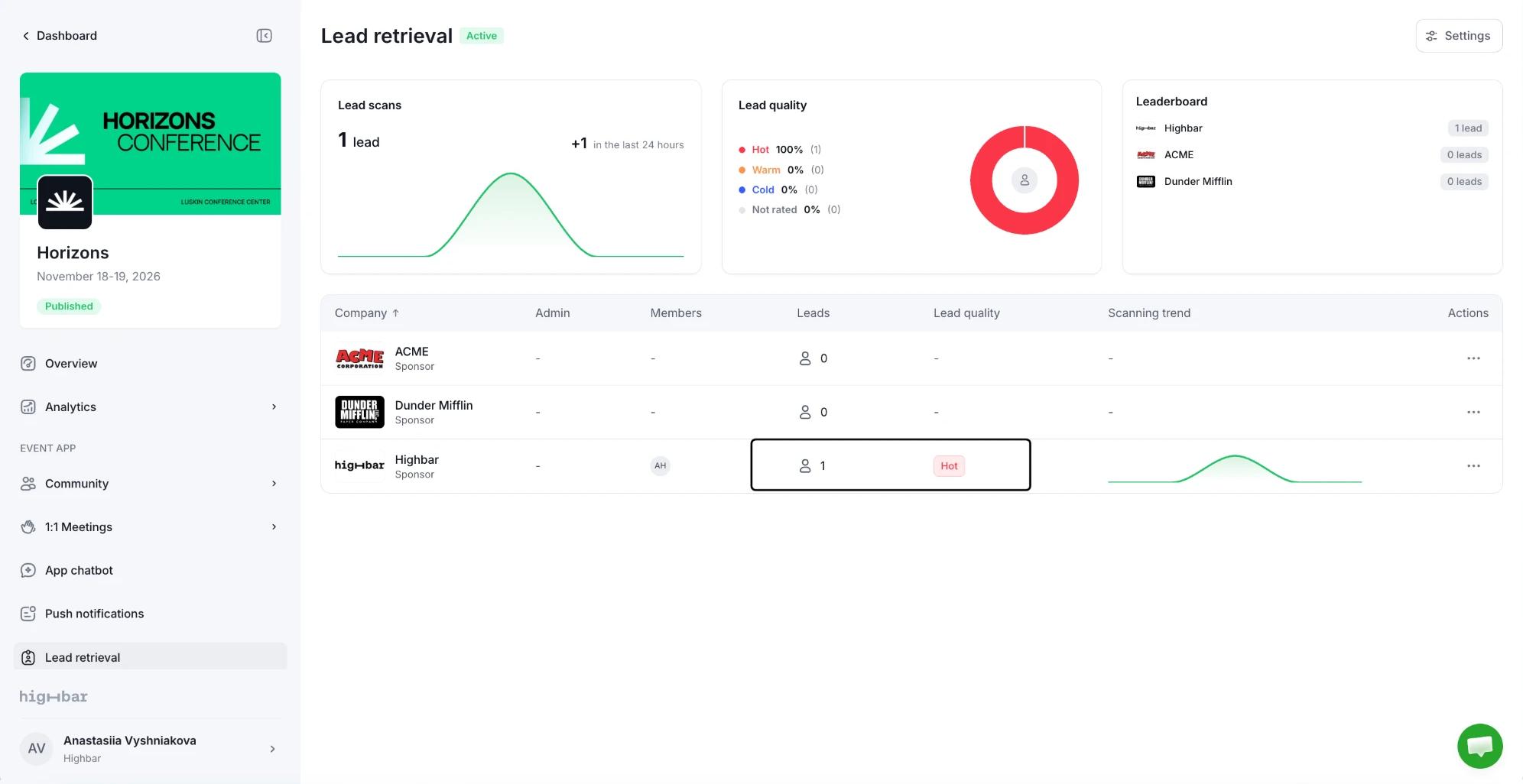
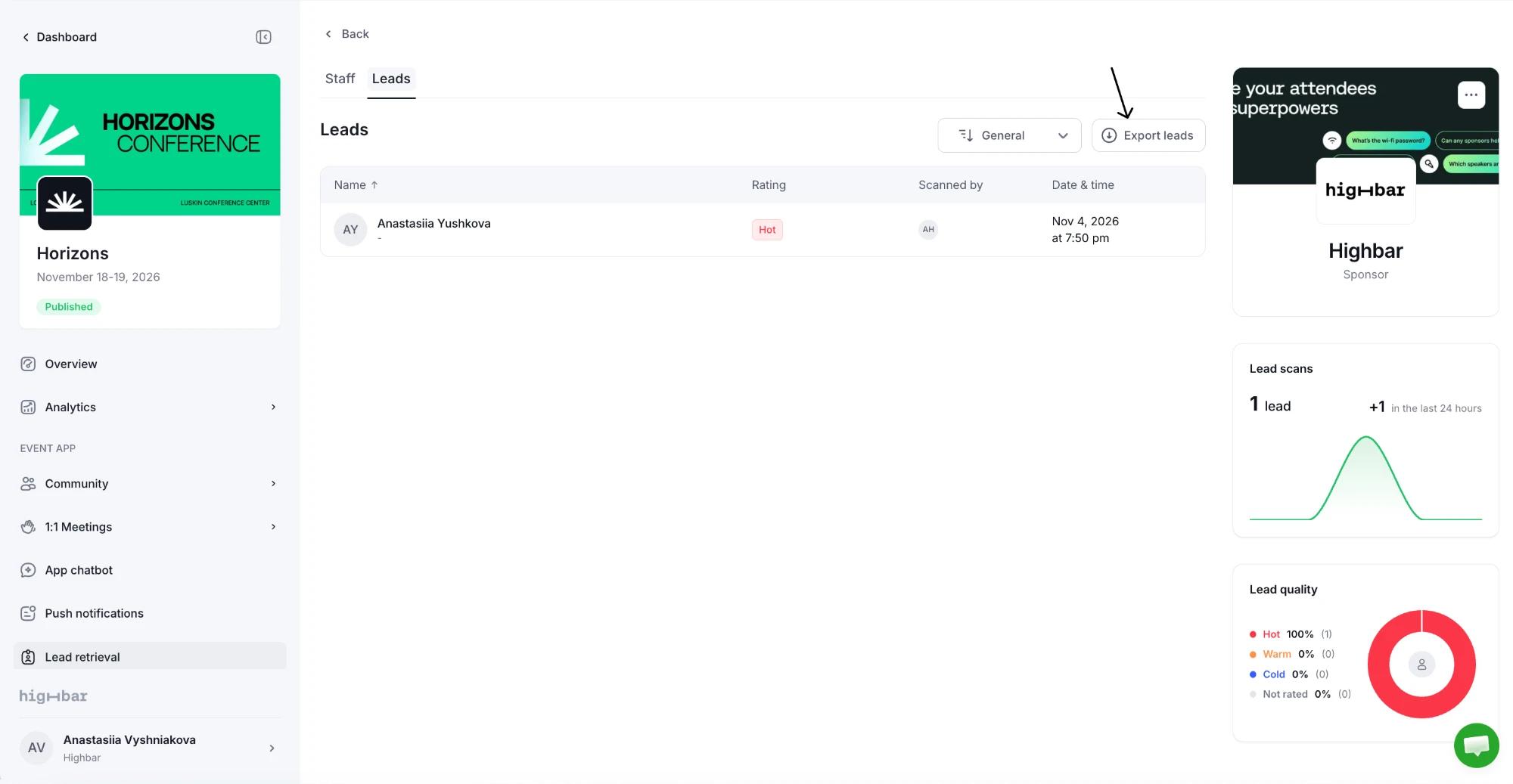
Click a company to see its Staff and Leads. On Leads, switch between General (one row per person scanned, with every rating they got) and By member (leads grouped by who scanned them).
To export, click Export leads on a company's Leads tab, or choose Download leads from a company's or staff member's menu. The CSV has each lead's name, email, phone, company, position, the staff member's note and rating. Notes appear only in the export, not on the page.
To see how attendees engaged with each sponsor beyond scans, such as profile views and button clicks, and to send sponsors a report, see Sponsor performance.
In the company list and on the Staff tab, each scan counts as a lead, so scanning the same person twice counts twice. The Leads tab shows each person once.