Sponsor performance
See how attendees interacted with each sponsor in the event app, and download a report for each sponsor.
Sponsor performance shows how attendees interacted with each sponsor's profile in the app and with their booth QR code. Use it to show sponsors what they got, and to spot sponsors who need more visibility.
You'll find Sponsor performance in the event sidebar after launch, under Analytics. The page is headed Sponsor Engagement. All numbers cover the whole event so far. Times are in your event's time zone.
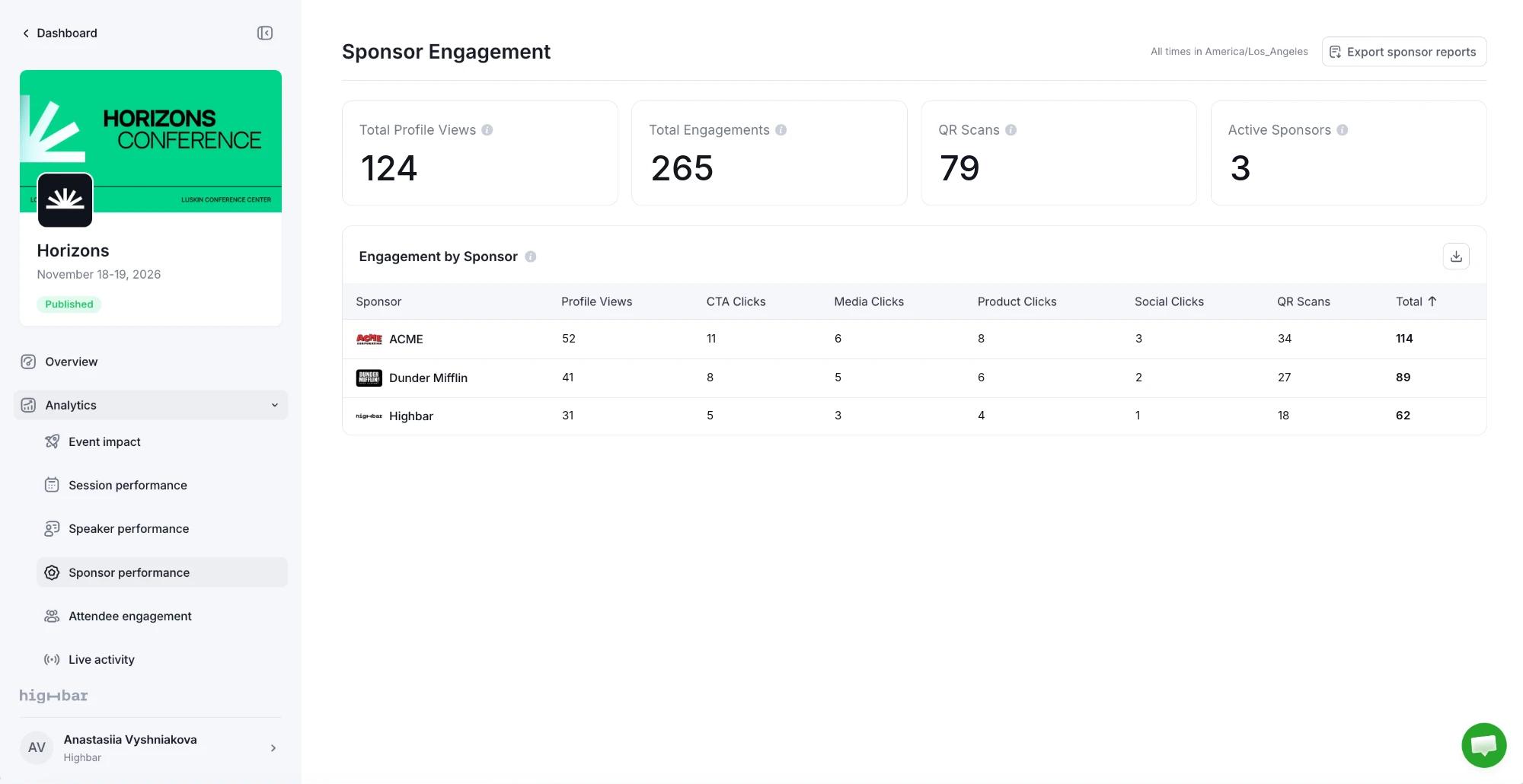
The numbers at the top
| Card | What it shows |
|---|---|
| Total Profile Views | Times attendees opened a sponsor's profile. |
| Total Engagements | Every interaction with sponsors, including profile views, clicks and QR scans. The Sponsor Performance card on Event impact counts profile views separately, as Impressions, so its engagement numbers are lower. |
| QR Scans | Scans of sponsors' booth QR codes in your game. |
| Active Sponsors | Sponsors with at least one interaction, even a single profile view. |
The sponsors table
Engagement by Sponsor breaks down each sponsor's interactions:
| Column | What it counts |
|---|---|
| Profile Views | Opens of the sponsor's profile. |
| CTA Clicks | Clicks on the sponsor's call to action button, including on their sponsored posts. |
| Media Clicks | Opens of their images or videos. |
| Product Clicks | Clicks on their products and services. |
| Social Clicks | Clicks on their social links. |
| QR Scans | Scans of their booth QR code in your game. |
| Total | All of the above. |
These are counts of actions, not people: one attendee clicking three times counts three times. Badges scanned by booth staff aren't counted here; see Lead retrieval for leads.
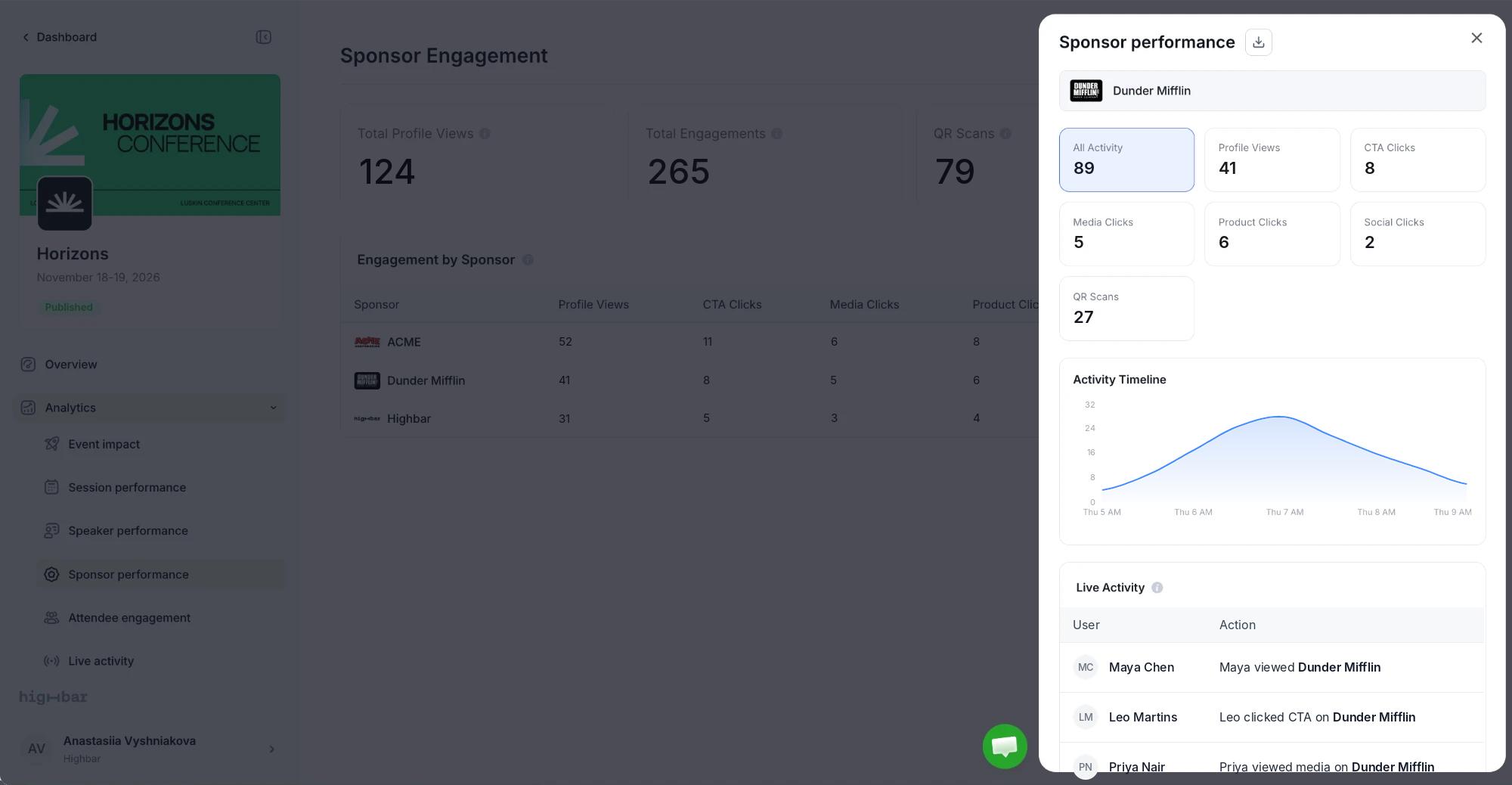
Click a sponsor to open Sponsor performance for them: their totals by type of action, an Activity Timeline of actions per hour, and Live Activity, the latest actions attendees took, newest first.
Send sponsors their report
There's no sponsor login for analytics, so you download each sponsor's report and send it to them.
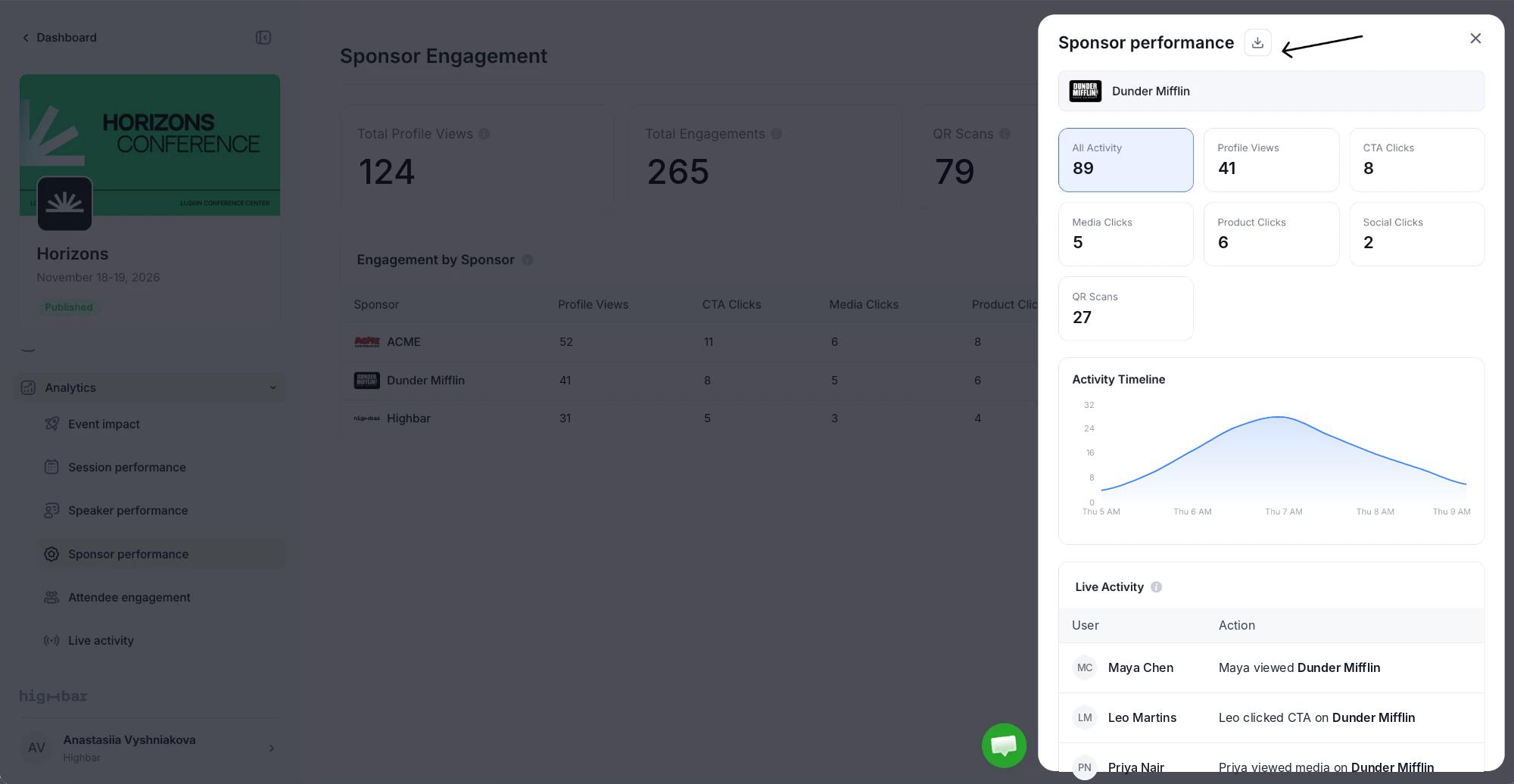
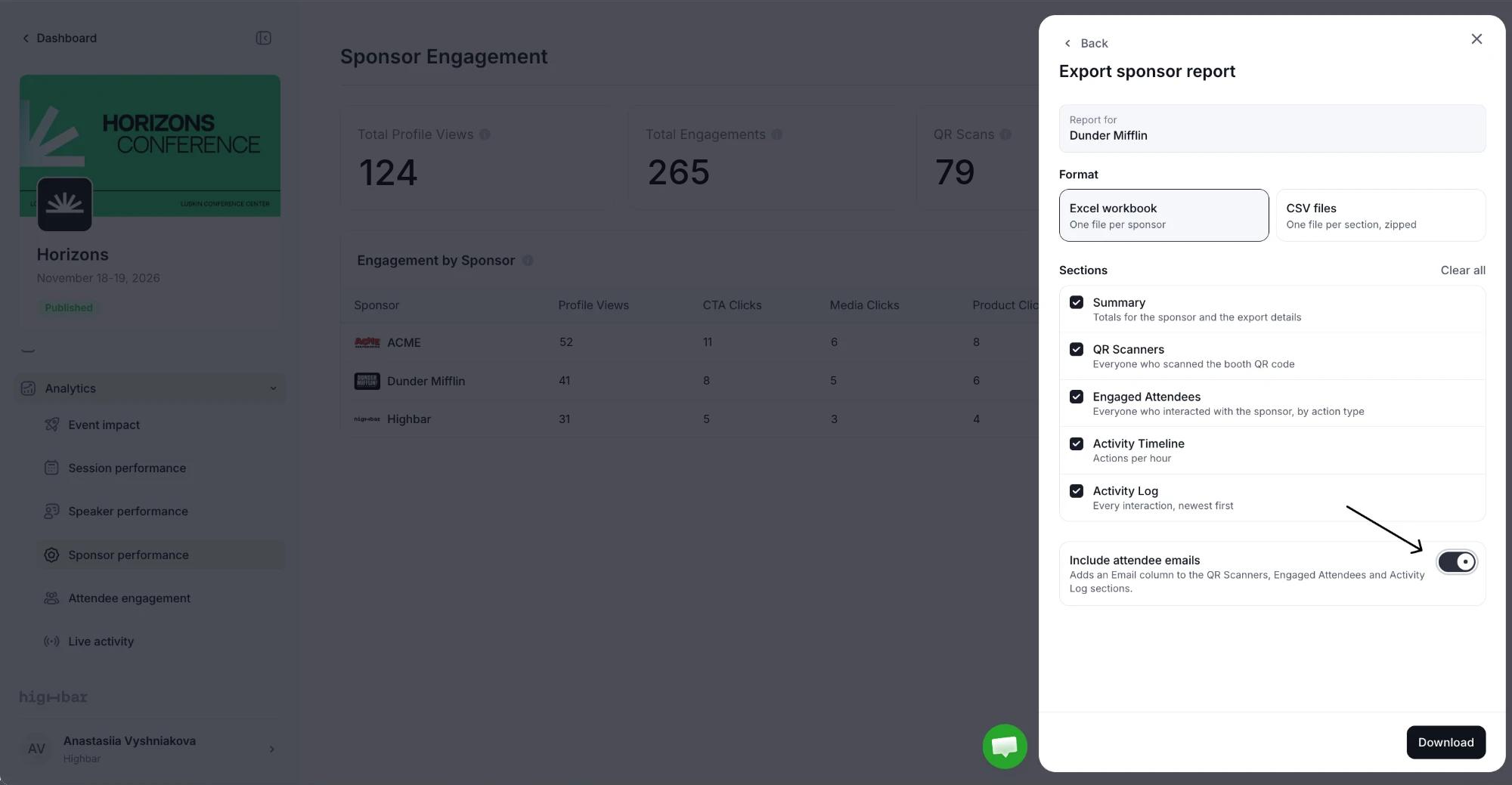
Click Export sponsor reports at the top for every sponsor. For one sponsor, click them in the table, then click the download button (Export sponsor report) next to Sponsor performance.
Choose a Format: Excel workbook (one file per sponsor) or CSV files (one file per section, zipped).
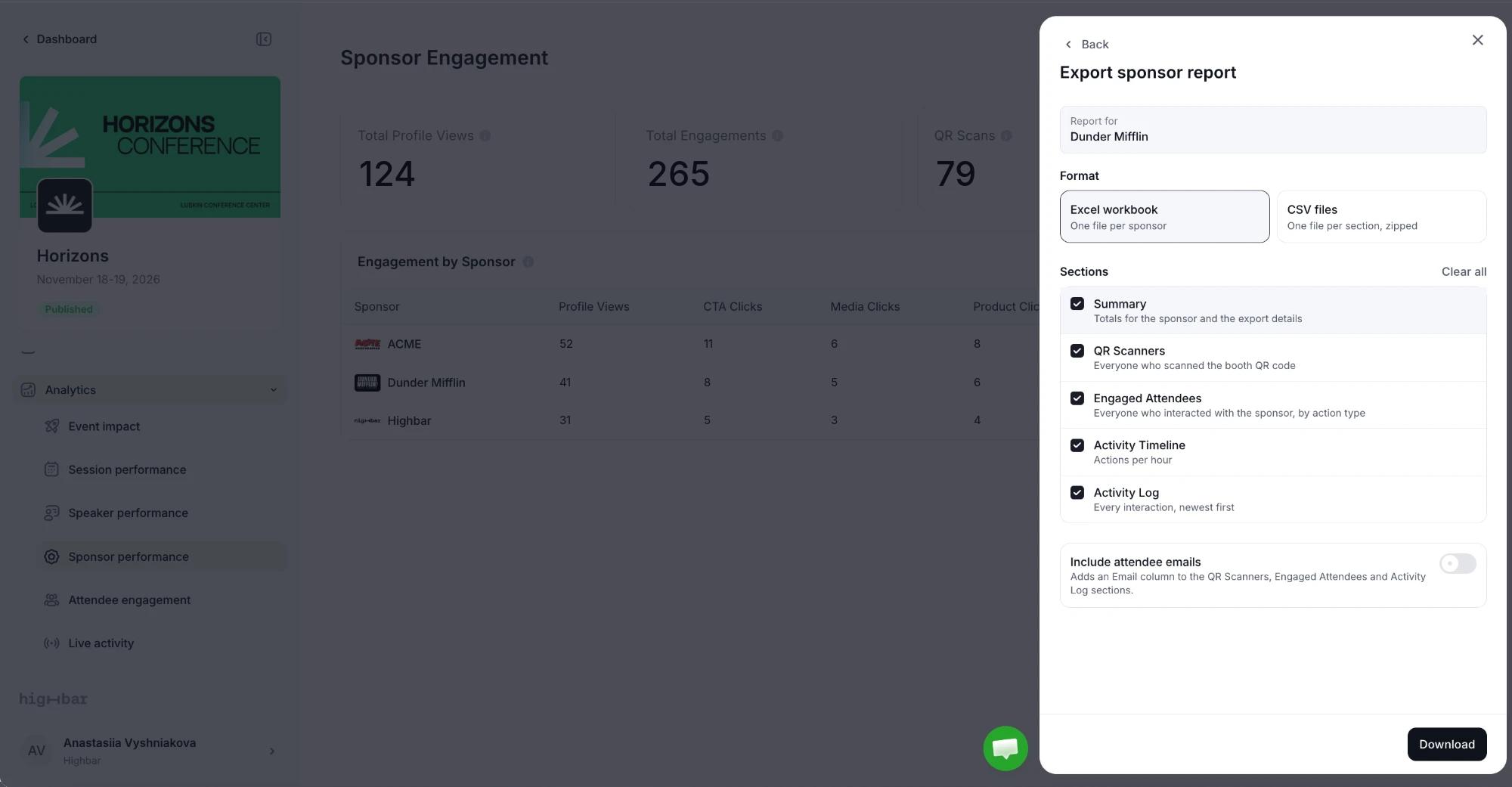
Under Sections, choose what to include. All are ticked to start with. Clear all unticks them, and Select all ticks them again.
- Summary: the sponsor's totals and the export details.
- QR Scanners: everyone who scanned their booth code.
- Engaged Attendees: everyone who interacted with the sponsor, by type of action.
- Activity Timeline: actions per hour.
- Activity Log: every interaction, newest first.
Turn on Include attendee emails only if you're allowed to share attendees' emails with sponsors. It adds an email column to QR Scanners, Engaged Attendees and Activity Log. Then click Download.
Exporting every sponsor gives you a zip with a file per sponsor and a list of the files, with each sponsor's admin emails, to help you send them out.
To download just the table, use the download button above it.