Gamification
Run a points game in your event app, with QR scavenger hunts, points for posting, bonus games and a leaderboard.
Gamification turns your event into a game. Attendees earn points for scanning QR codes at booths, sessions and speakers, for exchanging contacts, and for being active in the feed, and climb a leaderboard. You decide what scores, how much, and what the winners get.
Open Community > Gamification. Turn it on from the Community overview first. That sets up a game called "Scavenger Hunt", which you then configure here. Turning gamification off later hides the game and leaderboard from attendees and removes its configuration: activities, point values and bonus games.
Name the game
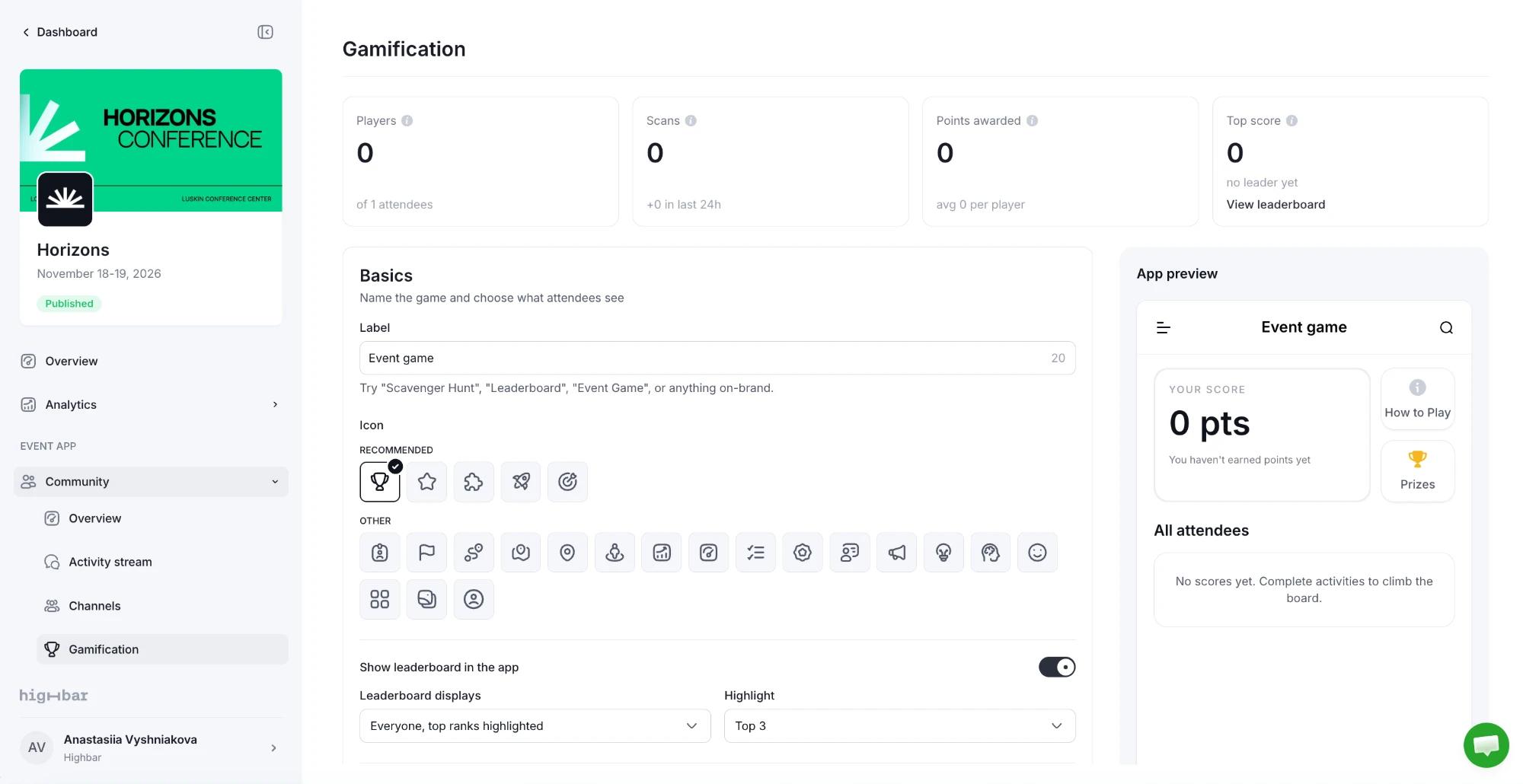
Under Basics:
- Label: the game's name in the app menu, up to 30 characters, such as "Scavenger Hunt" or "Event Game". A new game starts as "Scavenger Hunt". The game's menu entry appears in the App menu once gamification is on, and renaming it there changes it here too.
- Icon: its icon in the menu.
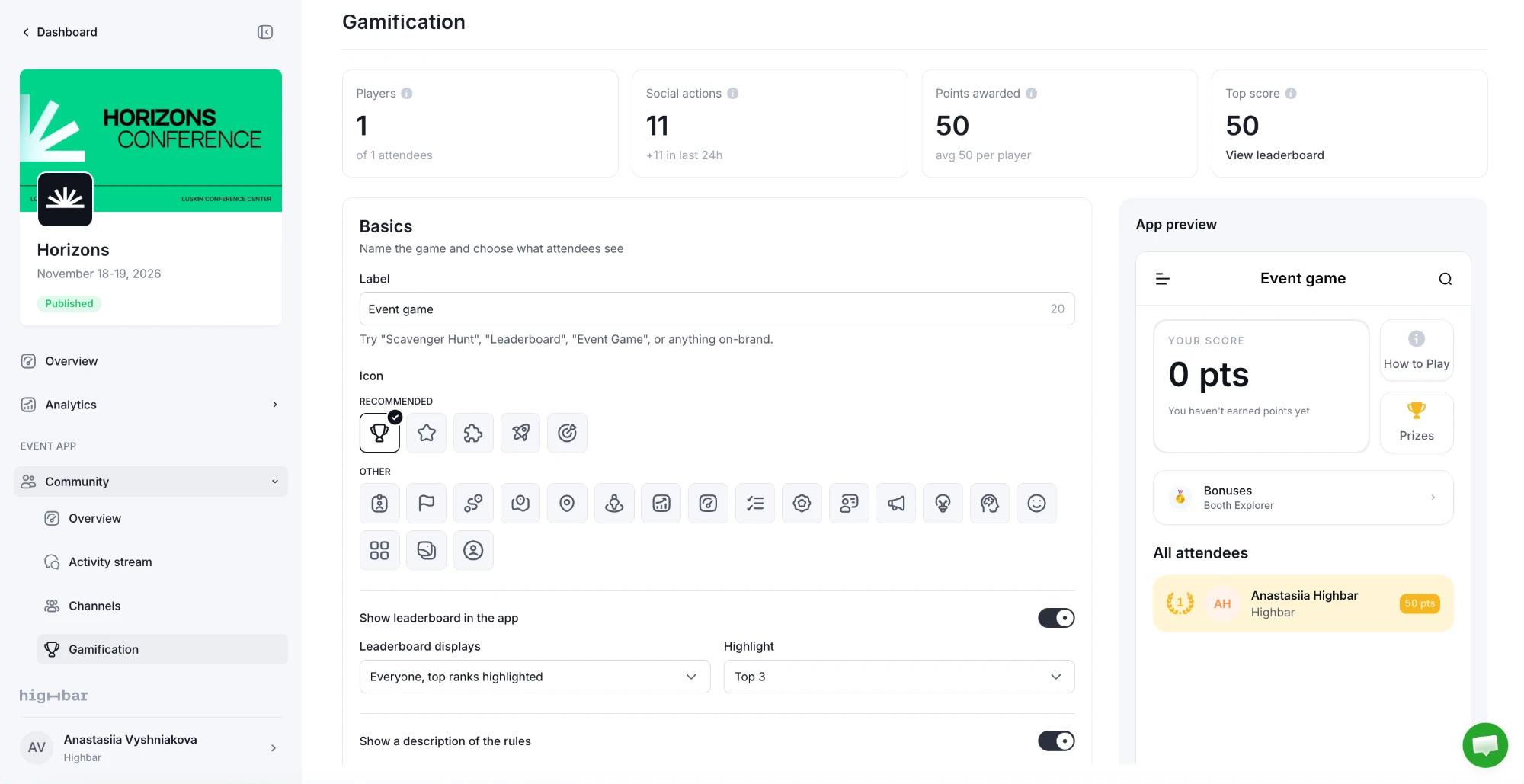
- Show leaderboard in the app: with it off, attendees still see their own score, rules, prizes and bonuses, but not the ranking.
- Leaderboard displays: Everyone, top ranks highlighted, Everyone, ranked equally or Top scorers only. Then choose how many under Highlight (or Top scorers): Top 3, Top 5, Top 10 or Custom.
Rules and prizes
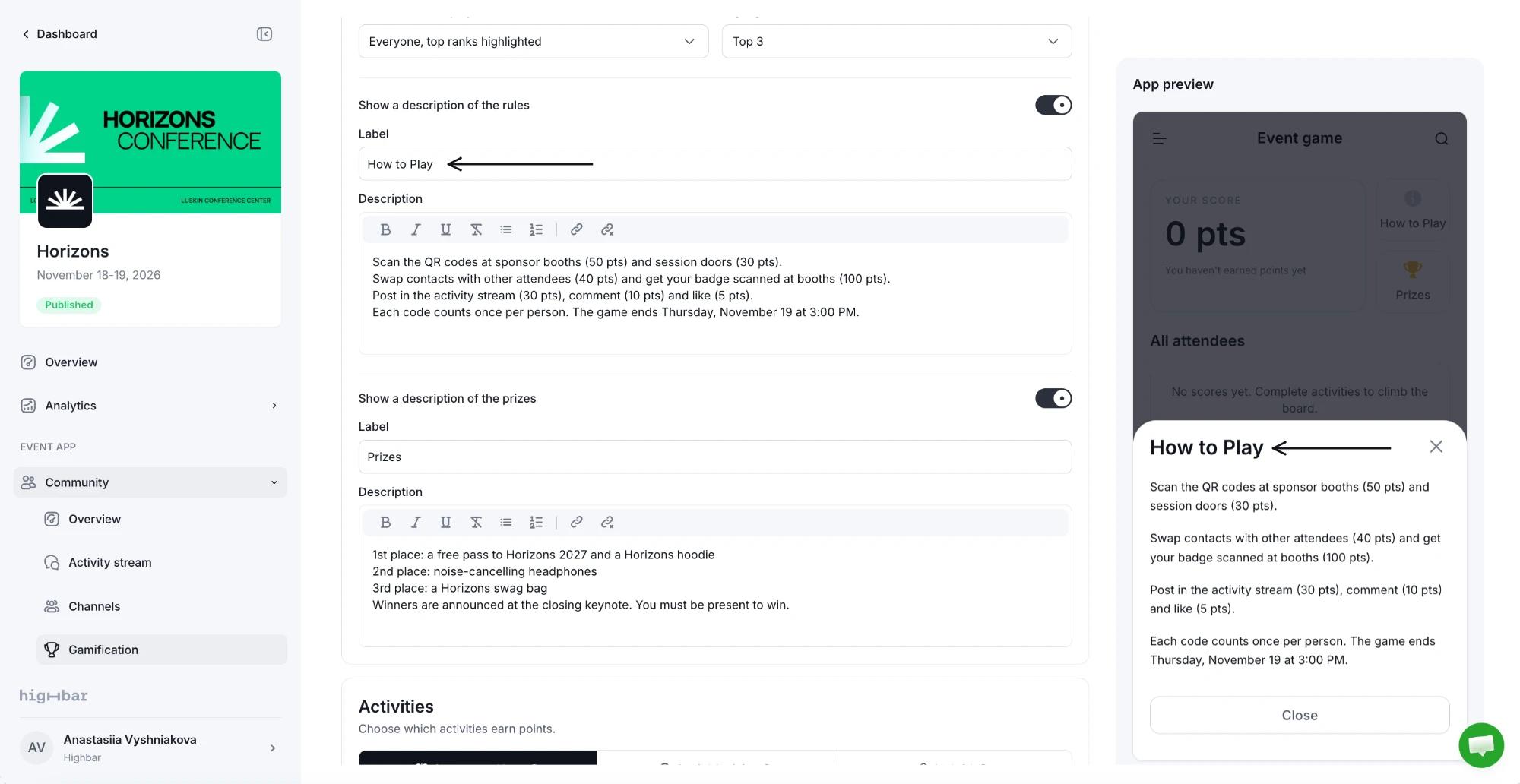
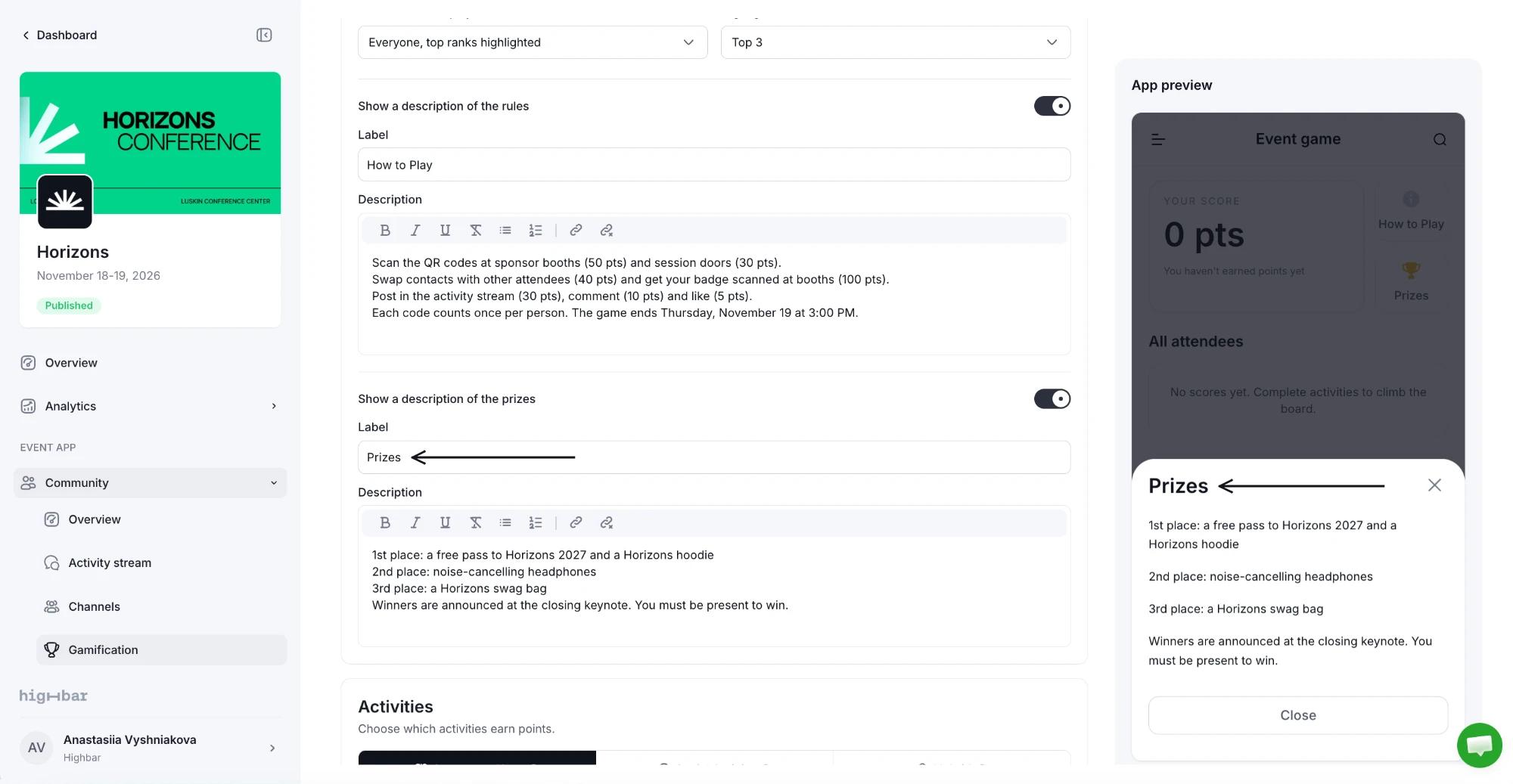
Further down Basics, turn on Show a description of the rules and Show a description of the prizes, and give each a Label and a Description. Each label becomes a button next to the attendee's score, such as "How to Play" or "Prizes", and opens your text.
Choose what earns points
Under Activities, pick the game type:
- Scavenger Hunt: attendees scan QR codes.
- Social Activity: attendees post, like and comment.
- Hybrid: both.
Each type shows only its own activities, as below. Turn each one on and set its points. For Scan sponsors, Scan sessions and Scan speakers, you set the points under Manage sponsors, Manage sessions or Manage speakers.
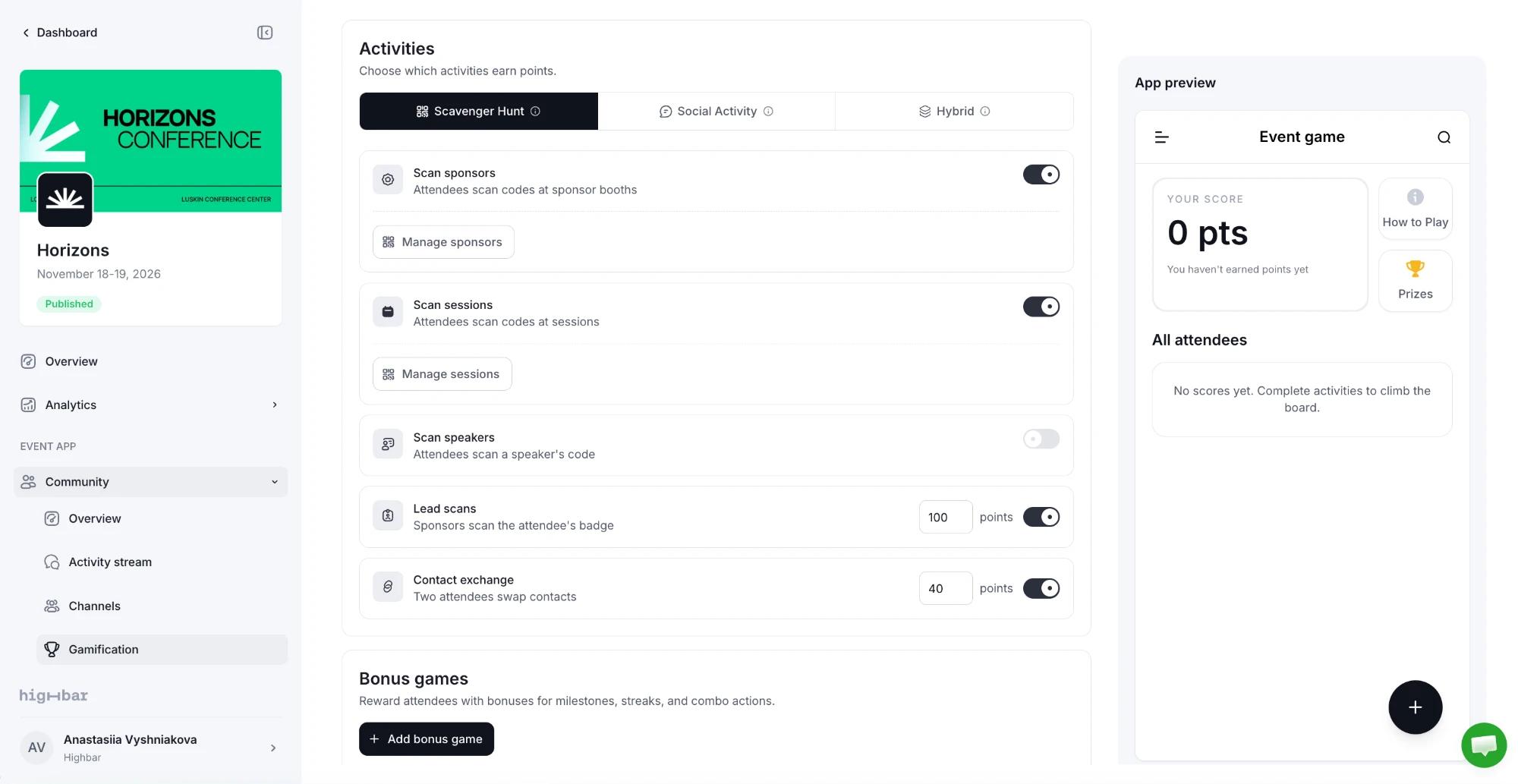
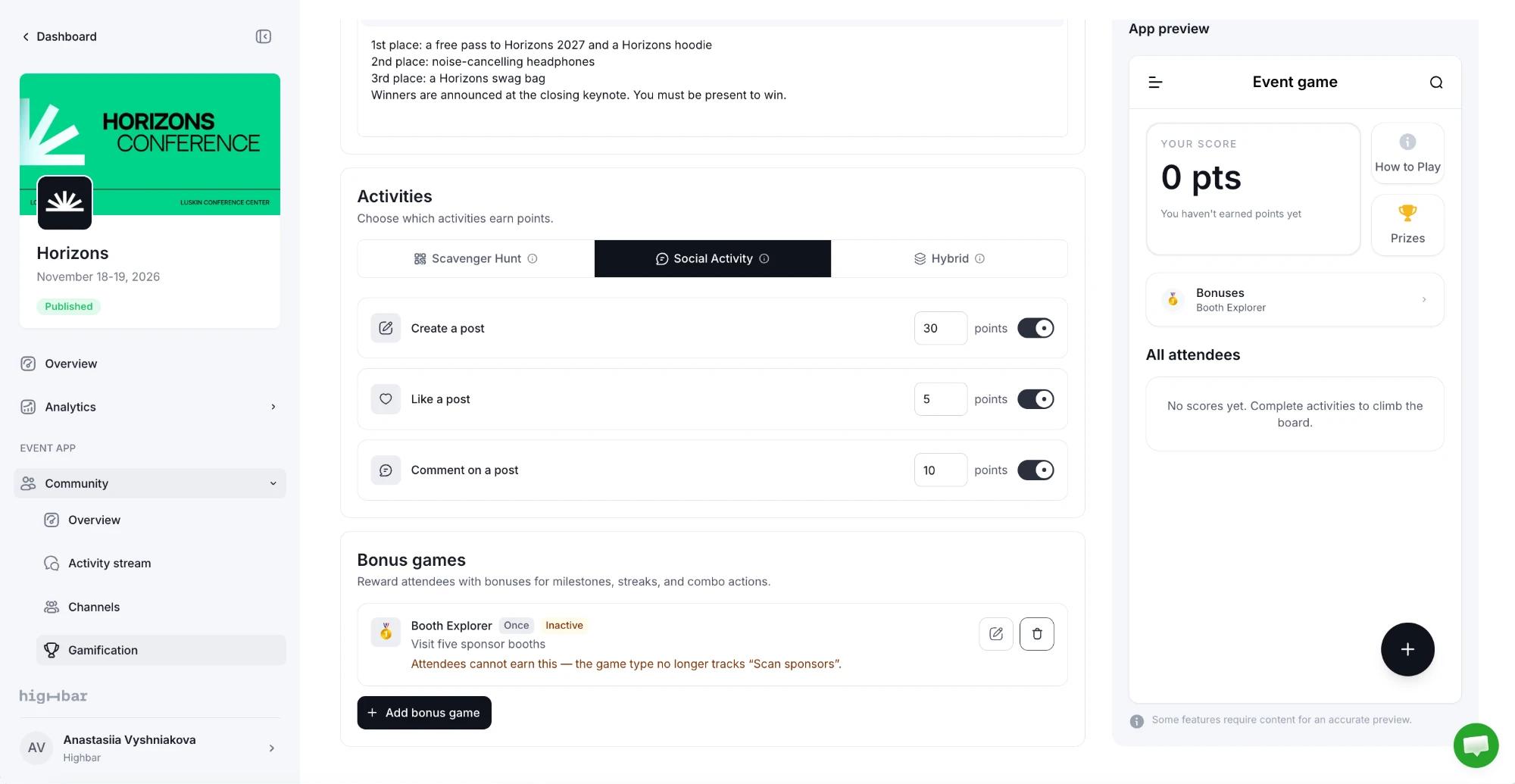
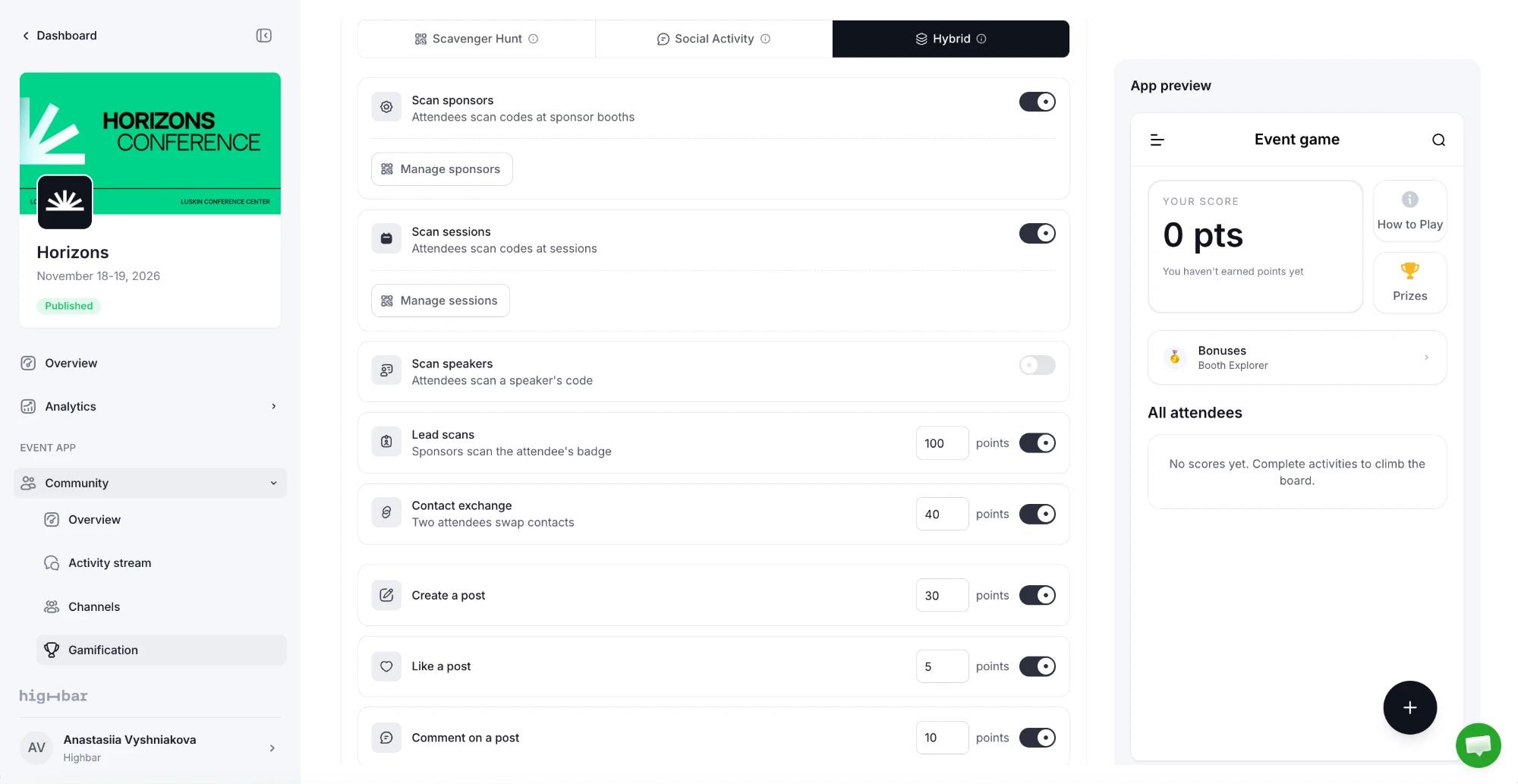
Every activity, and how it's set for a new game:
| Activity | When attendees earn points | Default |
|---|---|---|
| Scan sponsors | They scan a sponsor's QR code. | On, 50 points |
| Scan sessions | They scan a session's QR code. | On, 30 points |
| Scan speakers | They scan a speaker's QR code. | Off, 30 points |
| Lead scans | A sponsor scans their badge with lead retrieval. | On, 100 points |
| Contact exchange | An attendee scans another attendee's QR code and saves the contact. The person who scans earns the points. | On, 40 points |
| Create a post | They post in the activity stream. | On, 30 points |
| Like a post | They like a post. | On, 5 points |
| Comment on a post | They comment on a post. | On, 10 points |
Lead scans and Contact exchange only score while lead retrieval and contact exchange are turned on.
Who scans what
Scanning works in two directions, and only one of them needs lead retrieval:
- Attendees scan your codes. With Scan sponsors, Scan sessions or Scan speakers on, every attendee in the game can scan the codes you print, using the app's scanner. They don't need lead retrieval.
- Booth staff scan attendees. With Lead scans on, an attendee earns points when booth staff scan their badge. Only people with lead retrieval access can do this.
To have only sponsors scanning, turn off Scan sponsors, Scan sessions and Scan speakers, keep Lead scans on, and don't print any game codes. Keep the game type on Scavenger Hunt or Hybrid: Social Activity doesn't include Lead scans.
Choose who takes part and how many points they're worth
Sponsor, session and speaker scans each have their own settings. Here's how to set them up for sponsors; sessions and speakers work the same way.
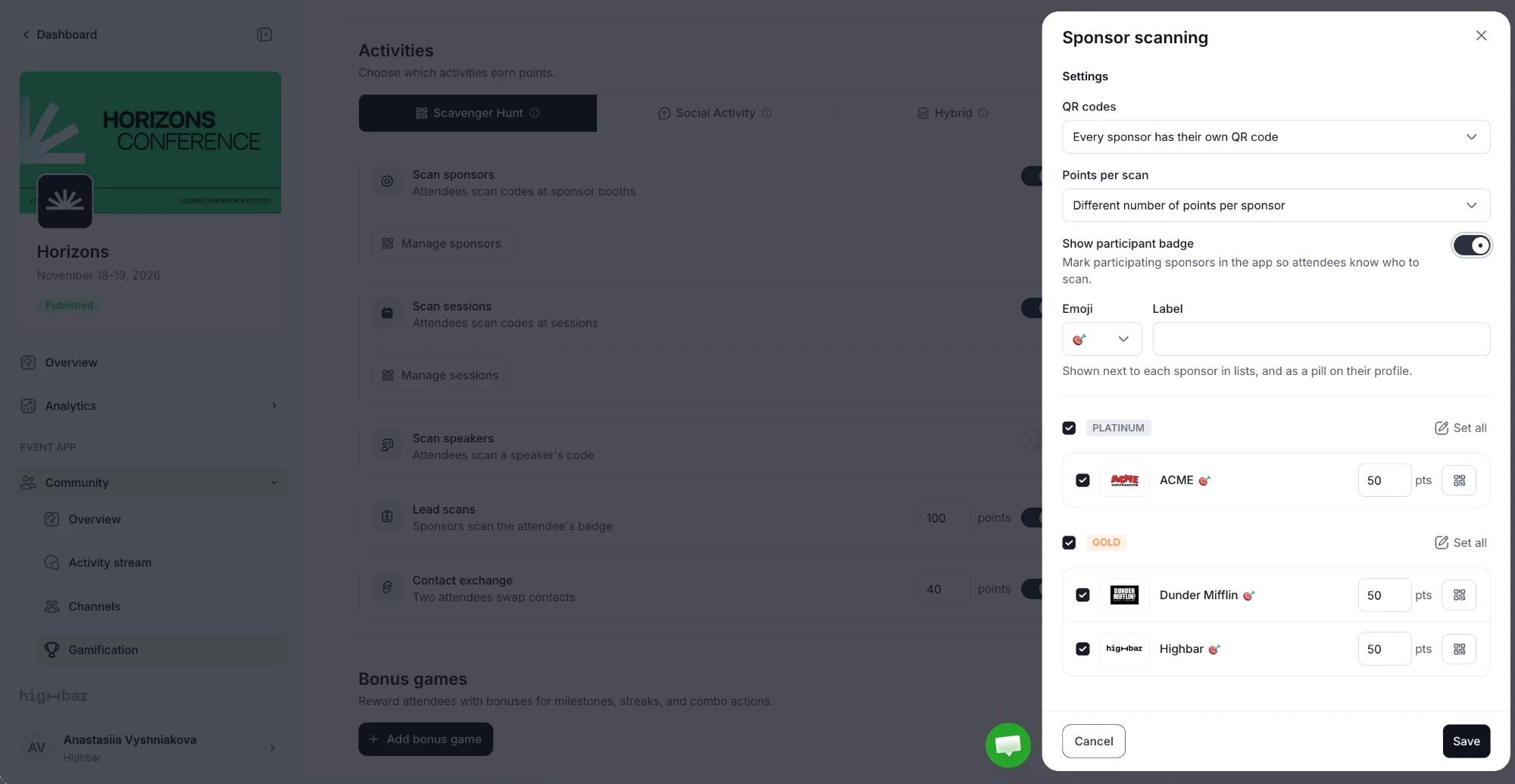
Under Activities, make sure Scan sponsors is switched on, then click Manage sponsors. The Sponsor scanning drawer opens.
Under QR codes, choose how many codes to print:
-
Every sponsor has their own QR code (the default): print one code per booth. Attendees earn points at every booth they scan, and you can see which sponsors they visited. Below the settings, every sponsor is listed with their points and a button to download their code.
-
One QR code for all sponsors: print one code and use it at every booth. Quicker to print, but attendees earn points for the first booth only, and you can't tell which booth they scanned. Every sponsor is worth the same points, all sponsors take part, and the list is replaced by Show shared code, which opens the one code to download.
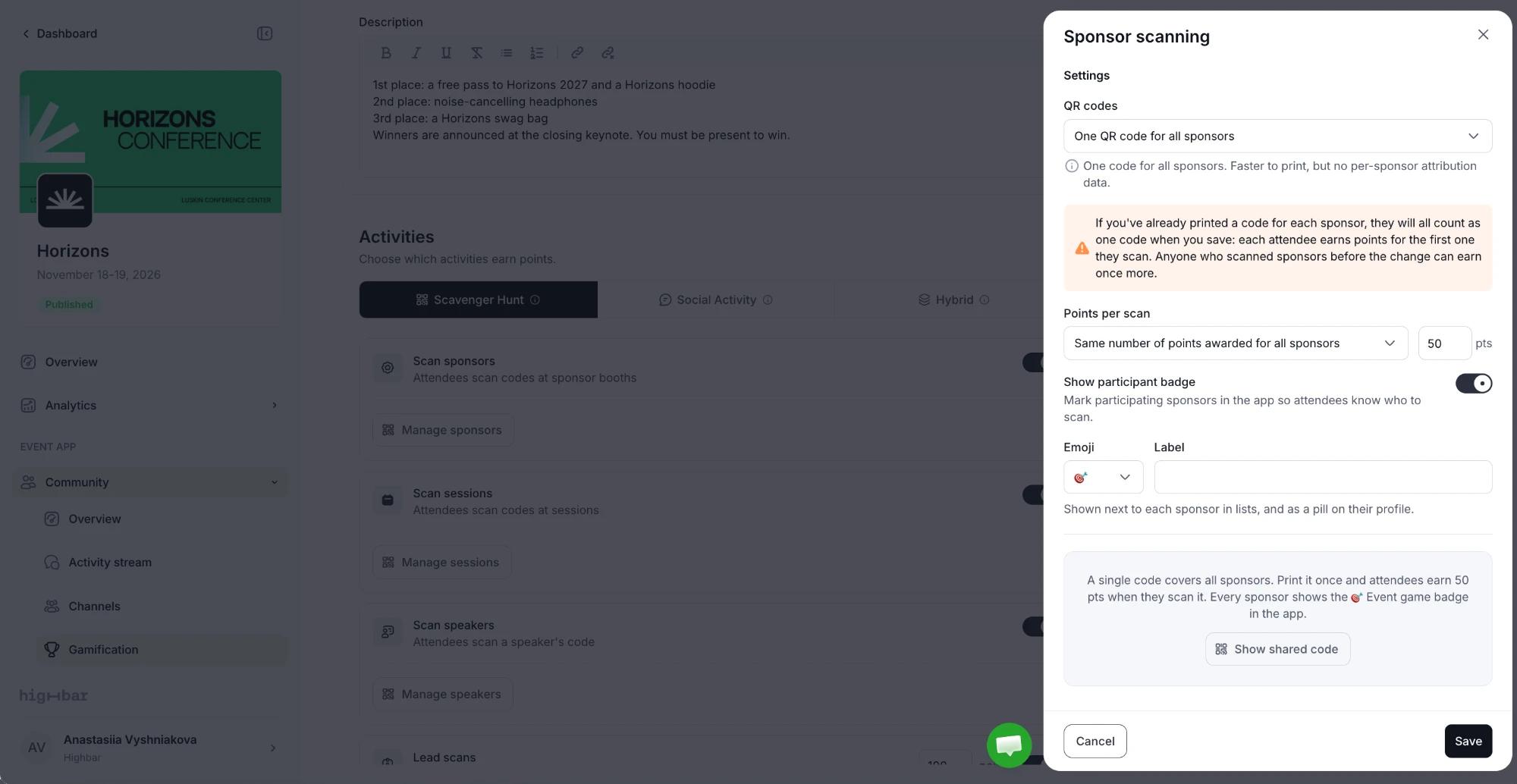
Under Points per scan, choose Same number of points awarded for all sponsors and type the points, or Different number of points per sponsor to set them sponsor by sponsor. To give a whole category the same points, click Set all next to it.
To help attendees find the booths that are in the game, turn on Show participant badge and pick an Emoji and an optional Label. It appears next to each sponsor in the app's lists, and on their profile.
Choose who takes part. Everyone is ticked to start with: untick a sponsor to leave them out, or untick a category to leave out all of its sponsors. The QR button at the end of a row downloads that sponsor's code. (With one code for all sponsors, there's no list: skip this step.)
Click Save.
For sessions and speakers, click Manage sessions or Manage speakers. They aren't grouped into categories: they're in one list, with Select all and Clear at the top.
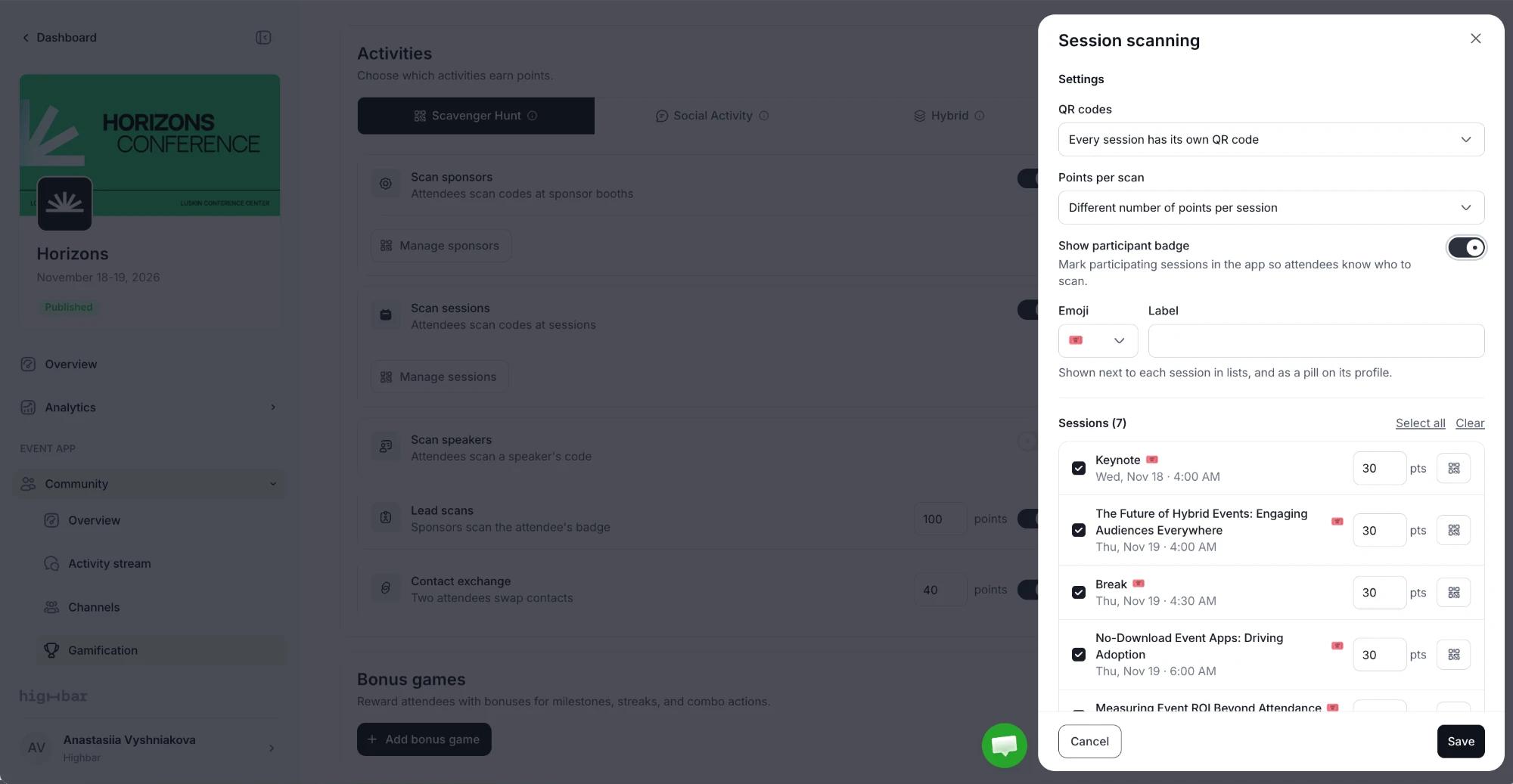
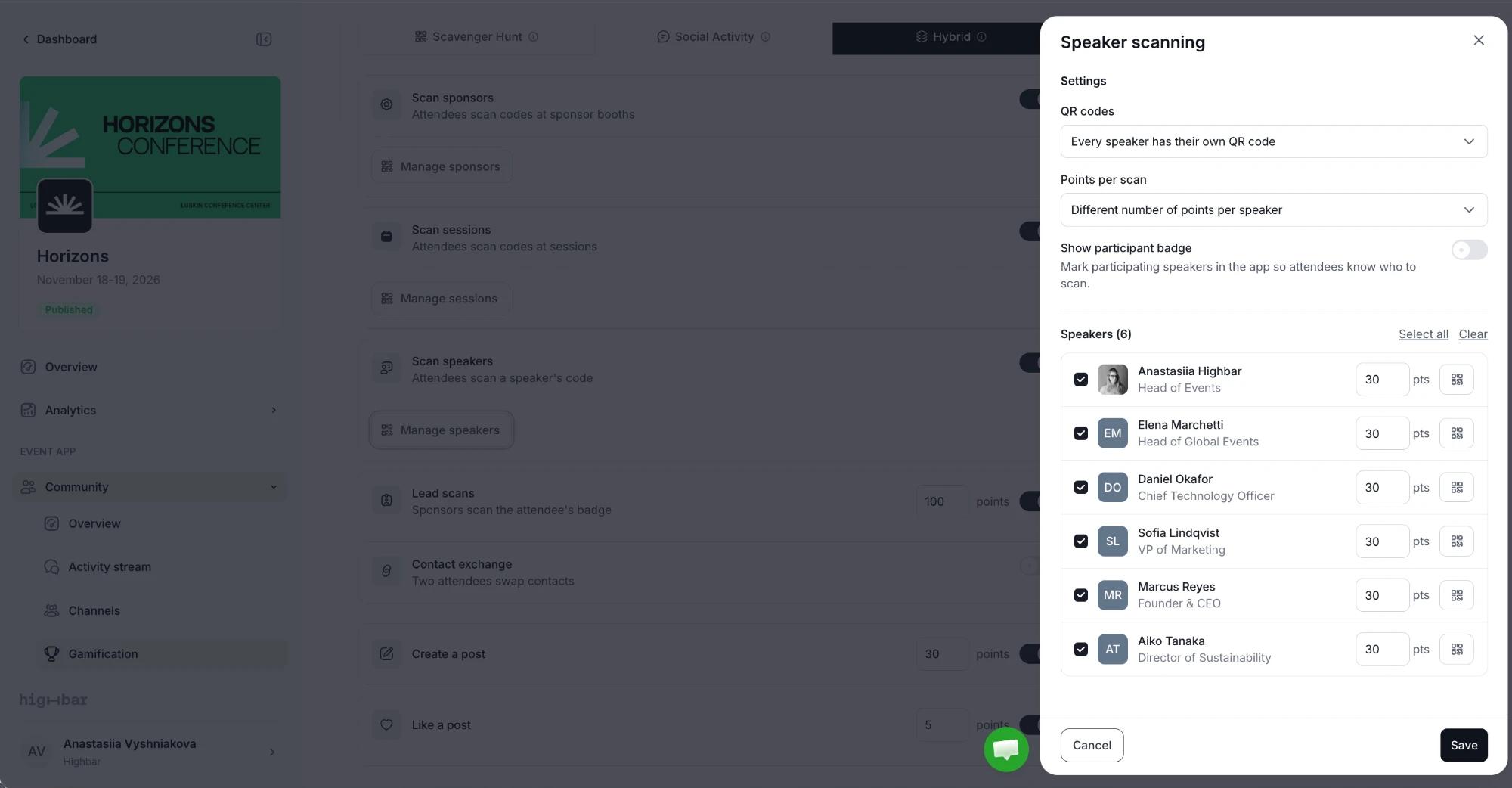
Decide on QR codes before you print. If you switch from one code for all to a code each, the shared code you printed stops working. If you switch the other way, the codes you printed all count as one. Points attendees already earned are kept.
Add bonus games
Bonus games reward milestones, such as scanning five sponsors.
Under Bonus games, click Add bonus game.
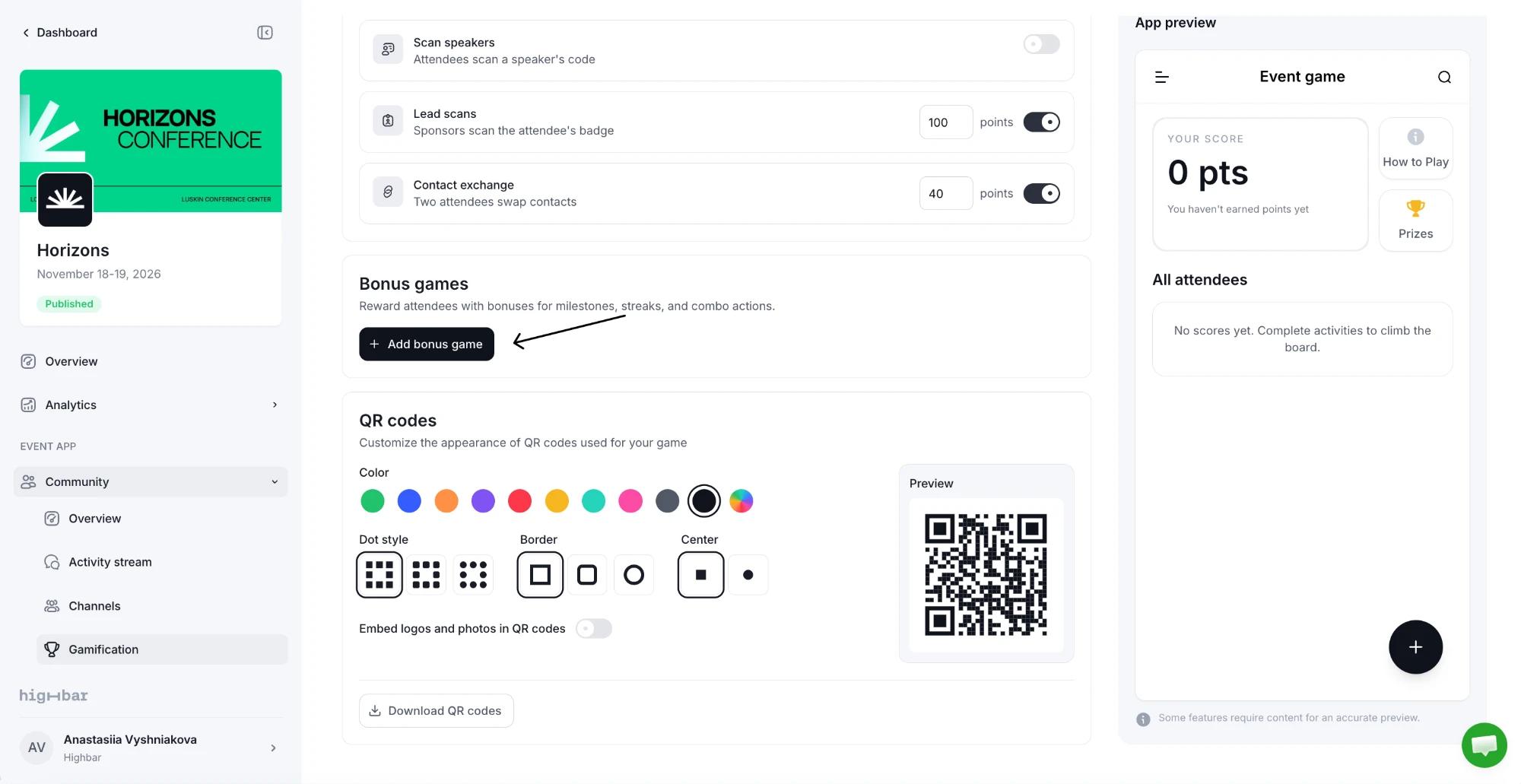
Choose Award once or Award repeatedly (each time the requirements are met again).
Enter the Bonus name, Bonus points (up to 10,000), an optional Description and an Emoji. The Preview shows how the bonus will look.
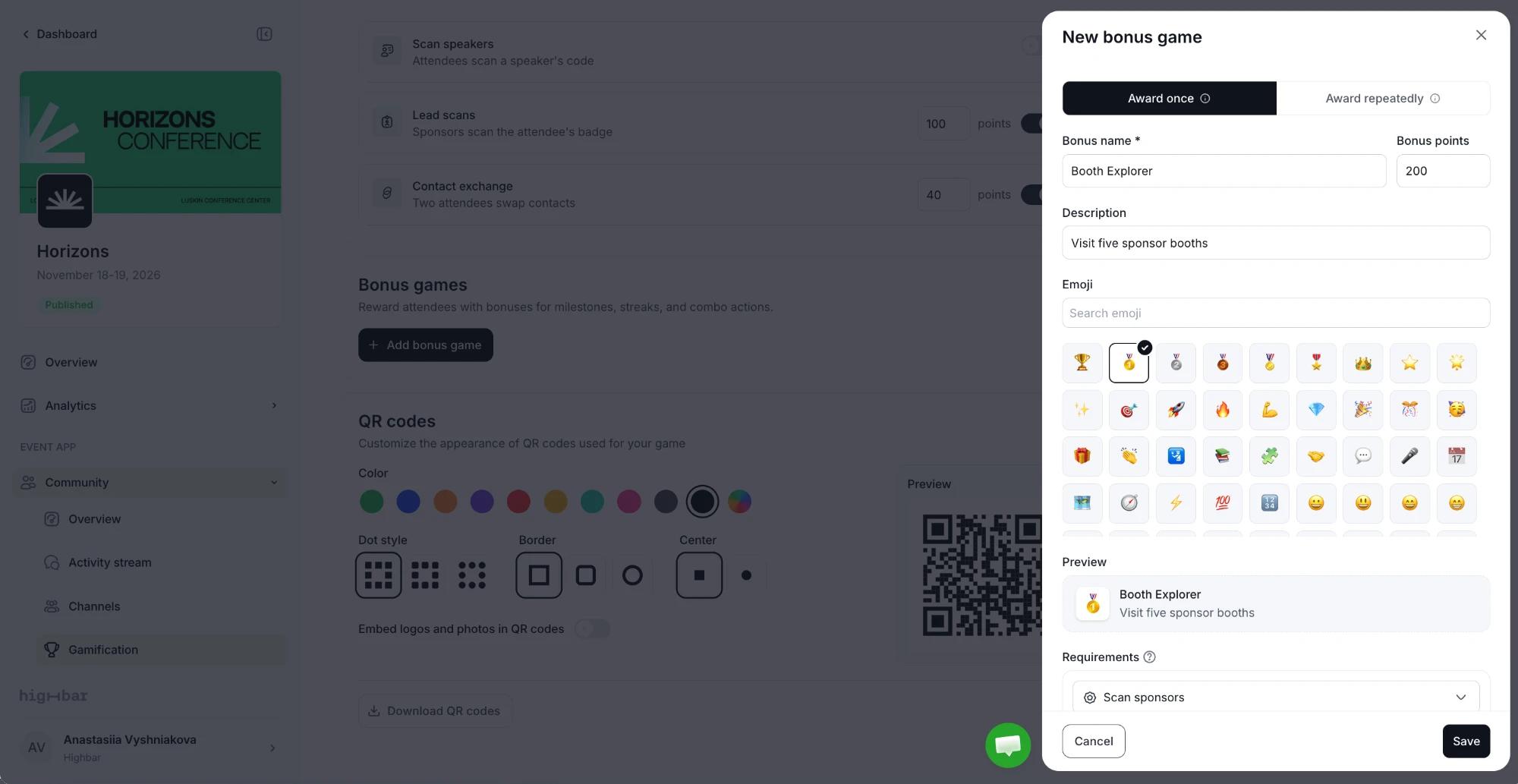
Under Requirements, pick an activity from the menu (it lists only the activities your game type tracks) and type how many times attendees must do it. Click Add requirement for another, up to 8: attendees must meet all of them. Then click Save.
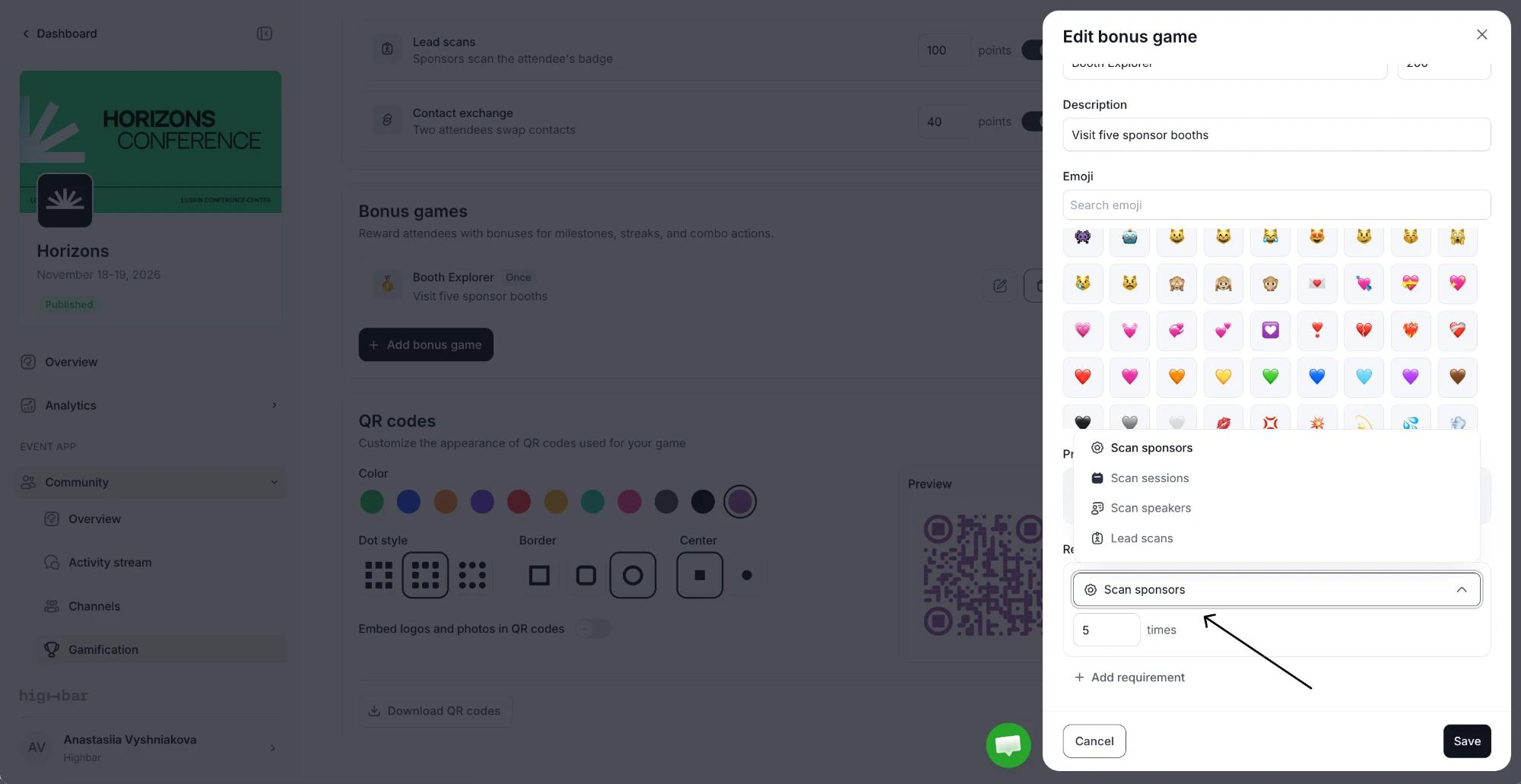
The bonus is listed under Bonus games, marked Once or Repeatable, with buttons to edit or delete it. In the app, a Bonuses card under the attendee's score lists the bonuses.
If you switch to a game type that no longer tracks one of a bonus's requirements (such as Social Activity for a bonus that needs Scan sponsors), the bonus is marked Inactive and attendees can't earn it. Switch the game type back, or edit the bonus's requirements.
Print the QR codes
Under QR codes, style the codes with a Color, Dot style, Border and Center, and check them in the Preview. Turn on Embed logos and photos in QR codes to put each sponsor's logo or speaker's photo in the middle of their code. Then click Download QR codes. Download All codes, just sponsors, sessions or speakers, or Pick individual codes. Each code comes as a PNG and an SVG.
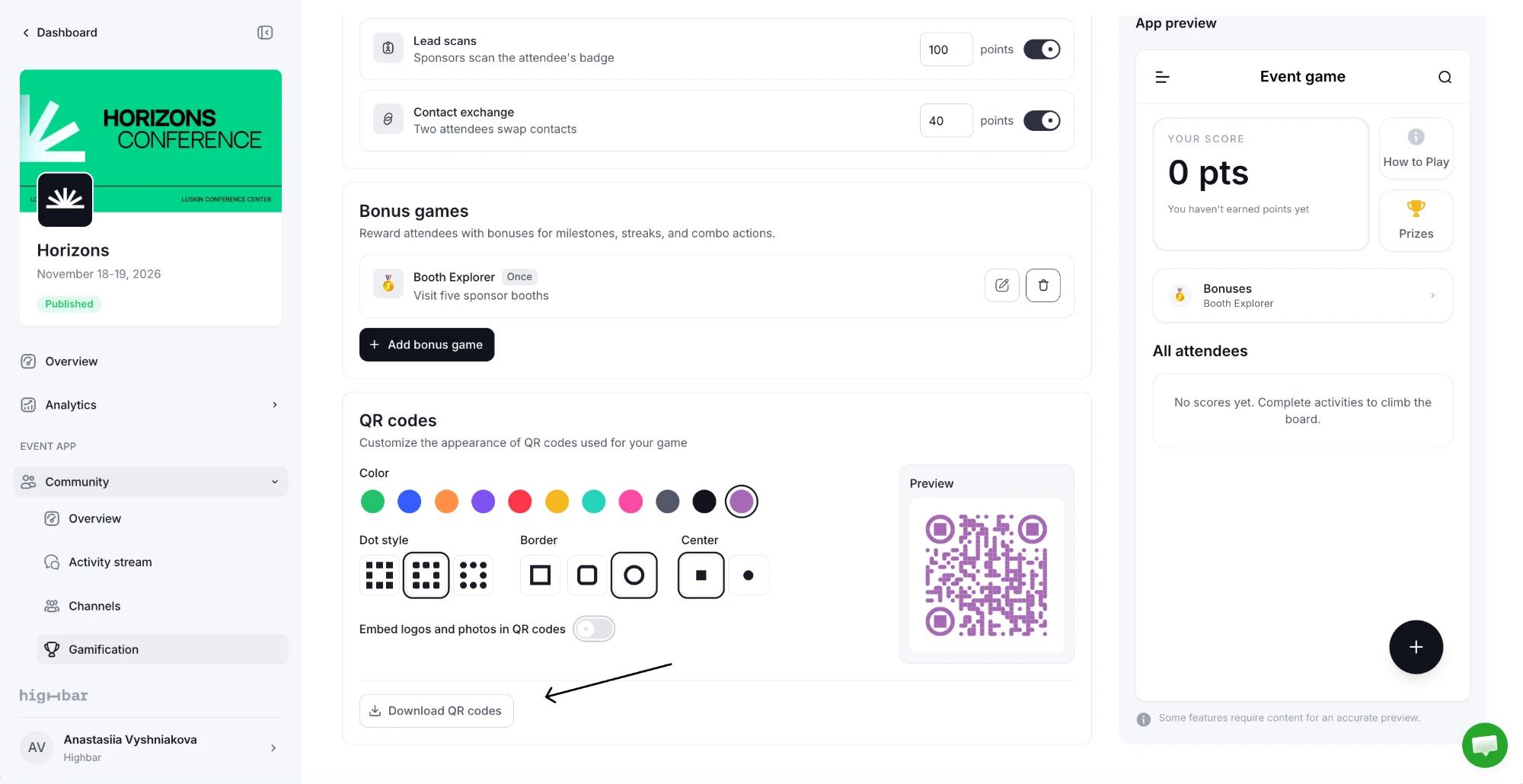
Put sponsor codes on booths, session codes at room doors or on the first slide, and speaker codes on badges or name cards.
Follow the game
The top of the page shows Players (attendees with at least one point), Points awarded and the Top score, plus Scans for a scavenger hunt, Social actions for social activity, or both for a hybrid game. Click View leaderboard for the full standings, and click a person to see each action they scored for.
To keep some people out of the game (such as staff), turn on Restrict gamification for their tag on the Access page.
To see how many booth QR codes each sponsor's visitors scanned, see QR Scans on Sponsor performance.
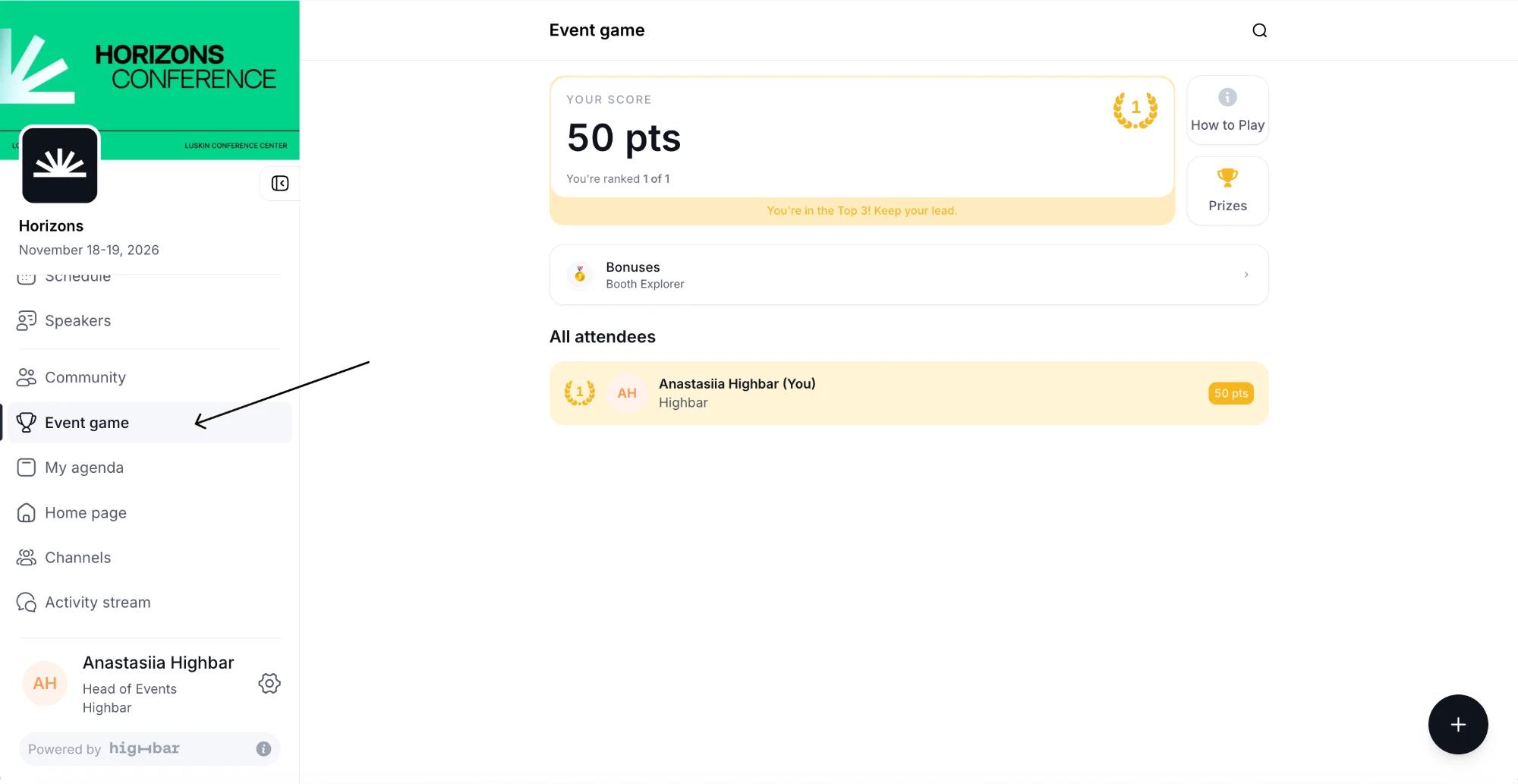
What attendees see
The game appears in the app menu under your Label. Attendees see their score and rank, your rules and prizes, the bonuses they've earned, and the leaderboard if it's shown. They scan codes with the app's scanner.