Channels
Create topic channels for tracks, regions or interest groups, public to everyone or private to chosen attendees.
Channels are topic spaces inside the activity stream, such as #ai-track, #europe or #first-timers. Each has its own feed of posts. Public channels are open to every attendee; private ones only to the people and tags you add.
Open Community > Channels. Turn channels on from the Community overview first: they're off for new events. In the app, they appear in the menu as Channels.
Create a channel
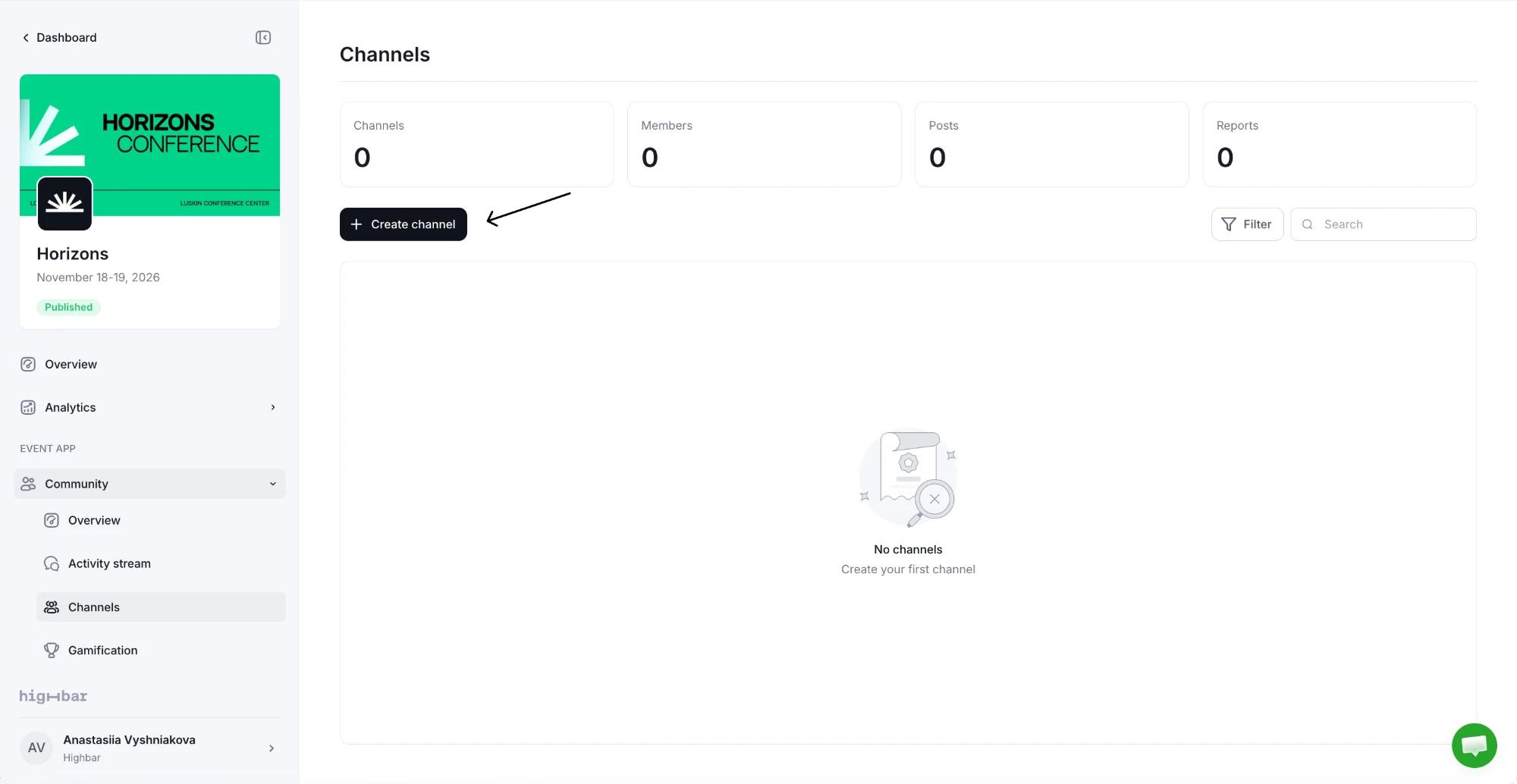
Click Create channel.
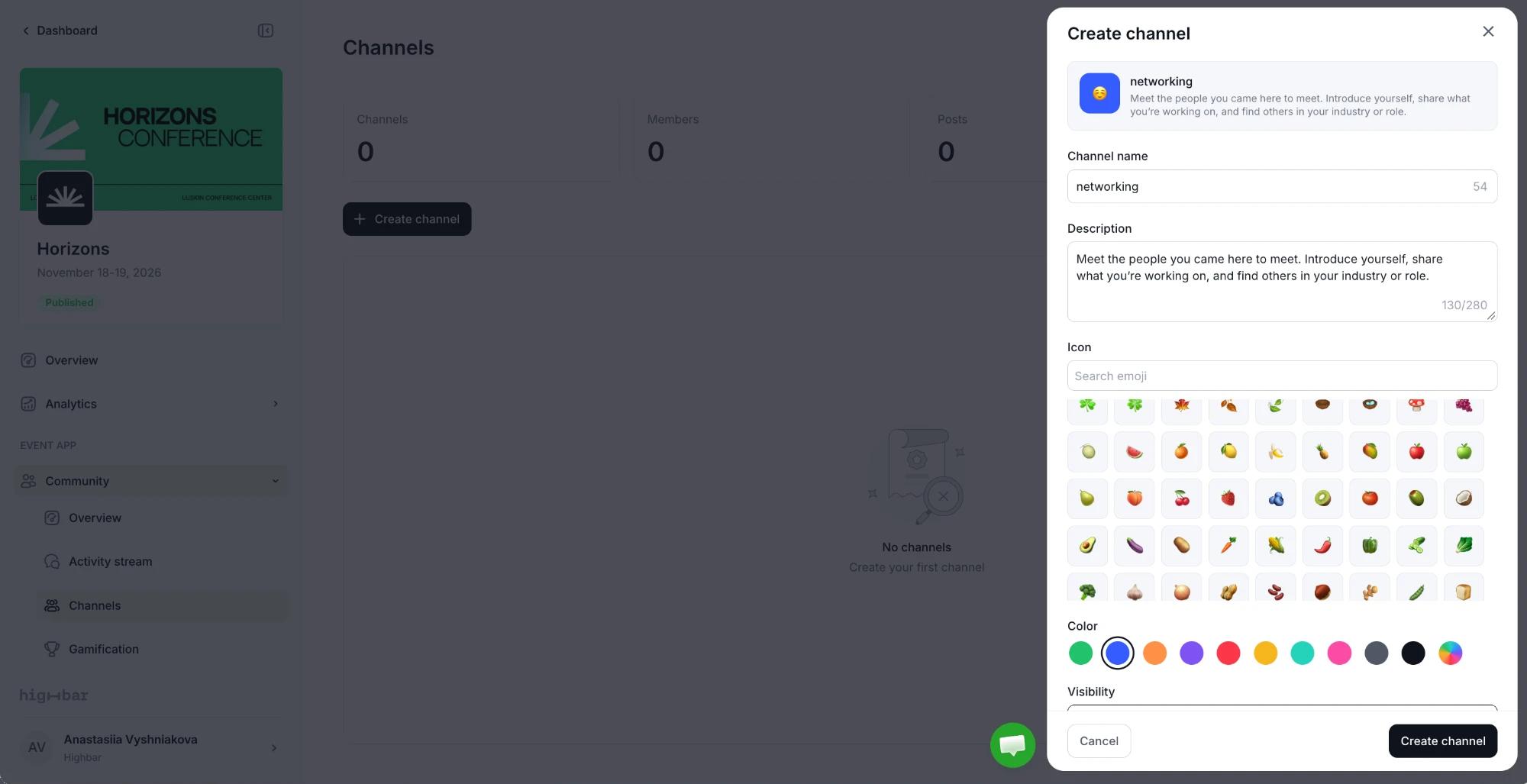
Enter a Channel name, such as ai-track. Names use lowercase letters, numbers and hyphens, up to 64 characters. Spaces turn into hyphens as you type.
Write a Description (up to 280 characters) so attendees know what it's for. Optionally pick an Icon (an emoji) and a Color.
Choose the Visibility. Public: all attendees can read and post. Private: invite-only, and hidden from attendees who aren't members. For a private channel, add Members By name or By tag. Everyone with a tag you add gets access.
Turn on Pin to top to keep it above the other channels. You can pin up to 3.
Click Create channel. The preview at the top shows how it will look.
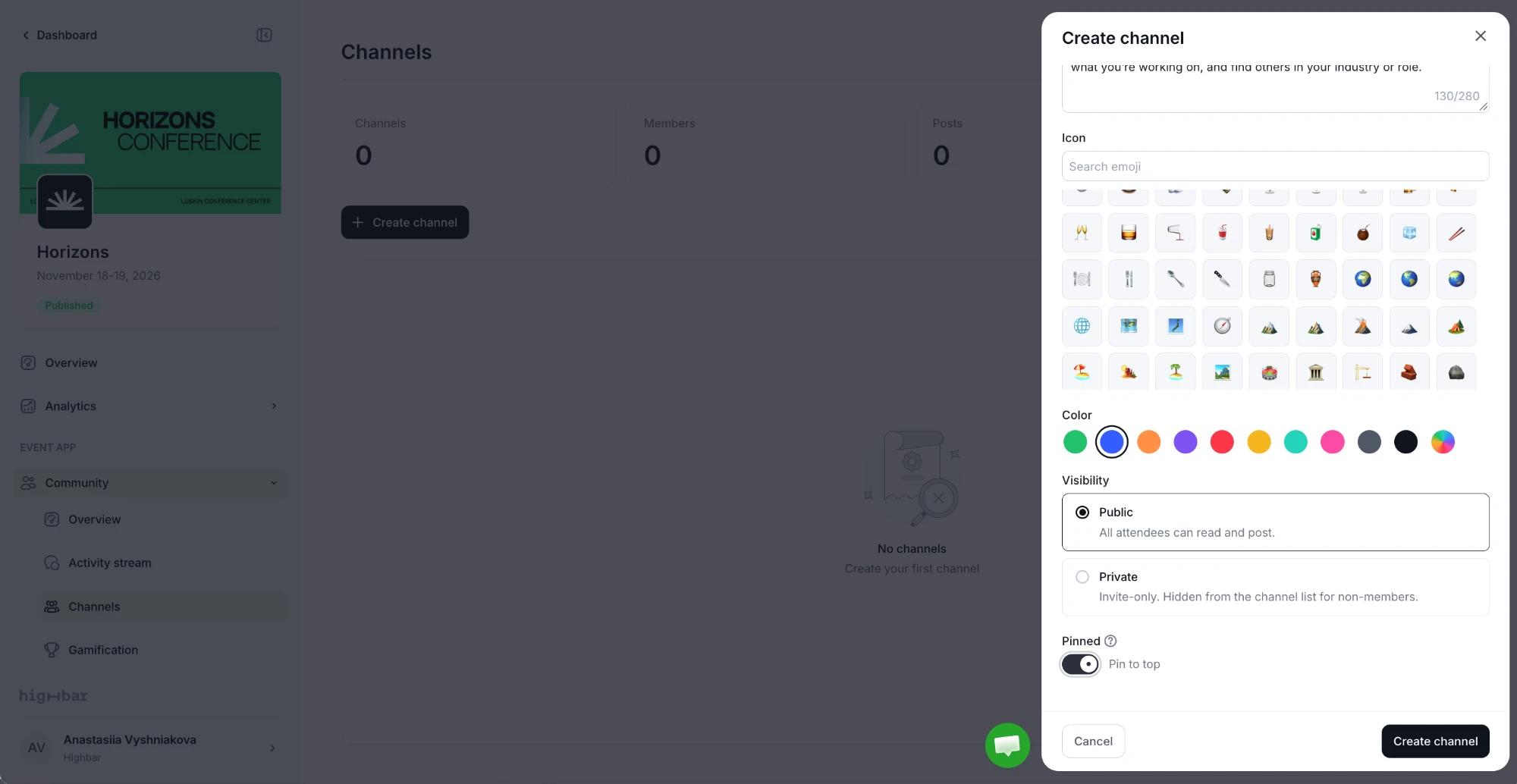
The icon, color and visibility can't be changed after you create the channel.
Manage channels
The list shows each channel's Type, Members, Posts, Reactions and Last activity. Search by name or description, or use Filter to show Public, Private or Archived channels.
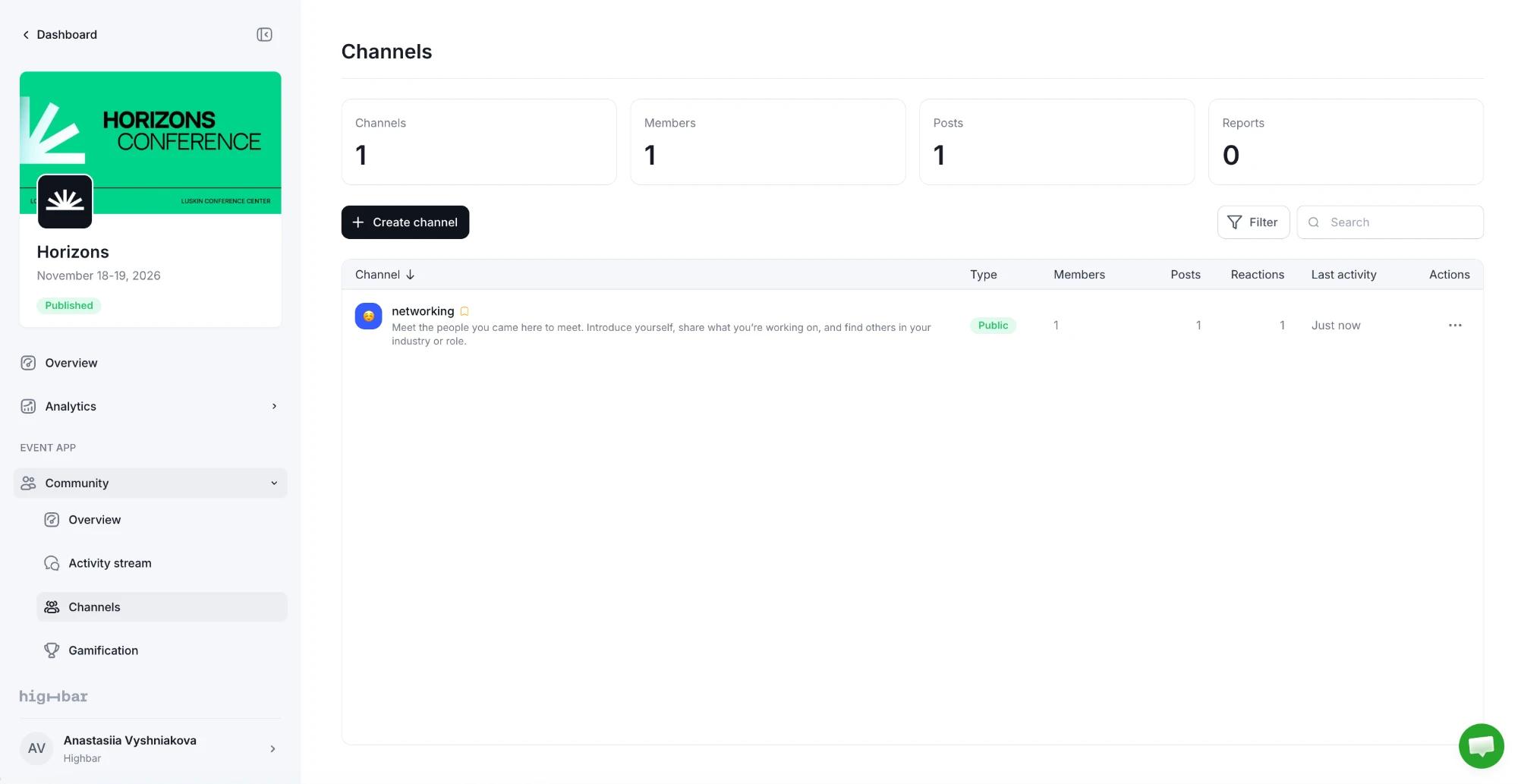
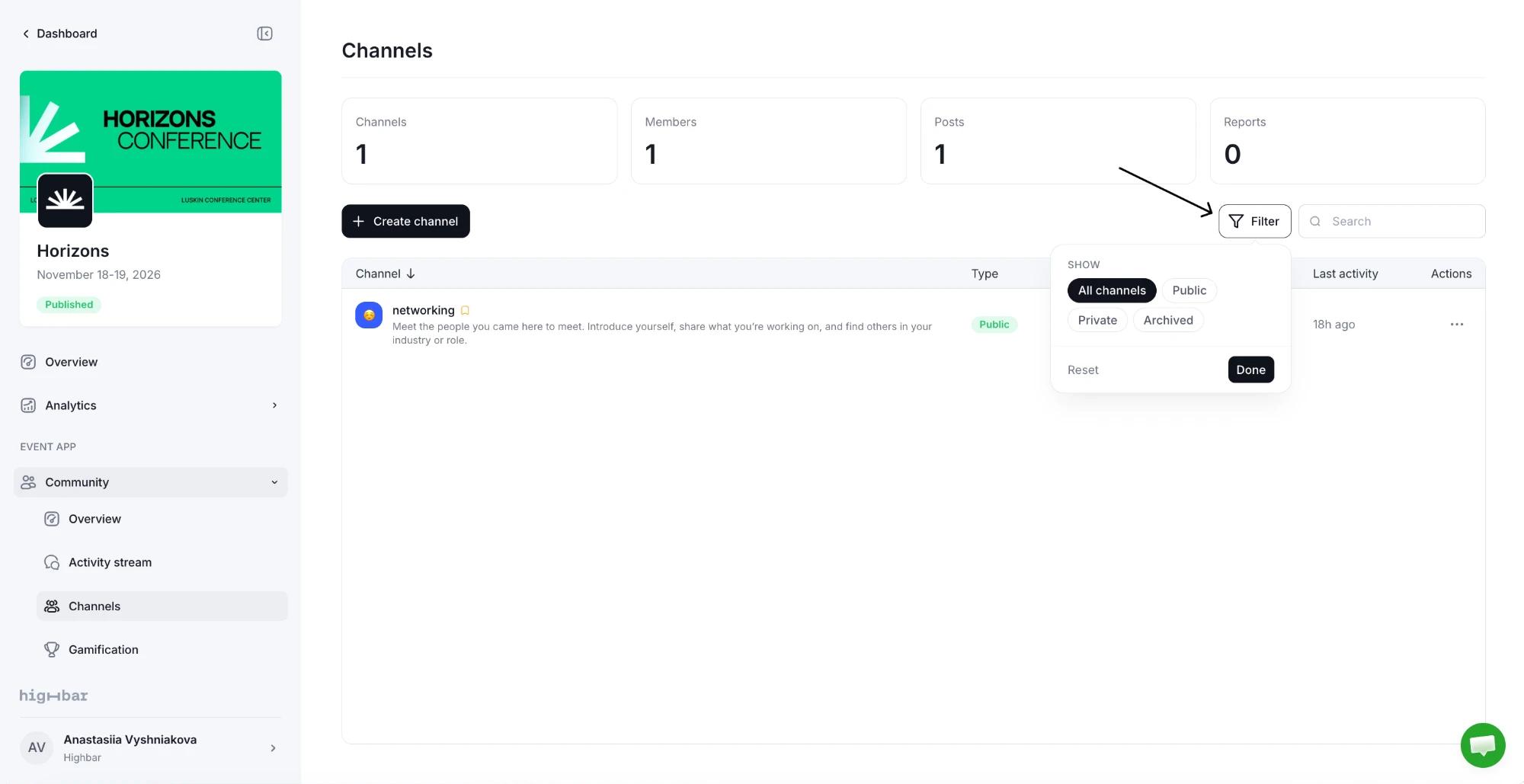
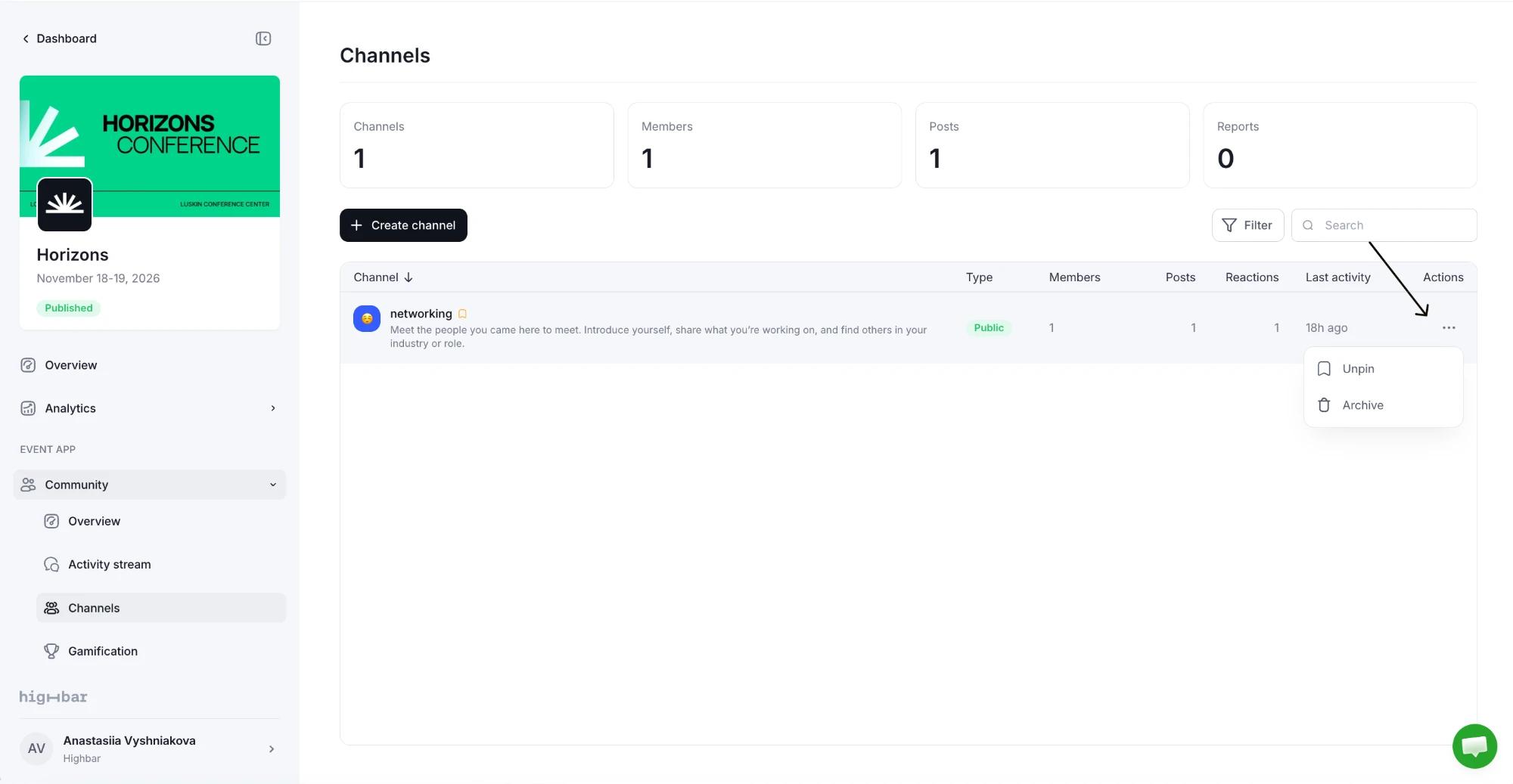
From a channel's menu, choose Pin to top (or Unpin) and Archive. Archiving hides the channel from attendees without deleting it. Find it under the Archived filter and choose Restore to bring it back.
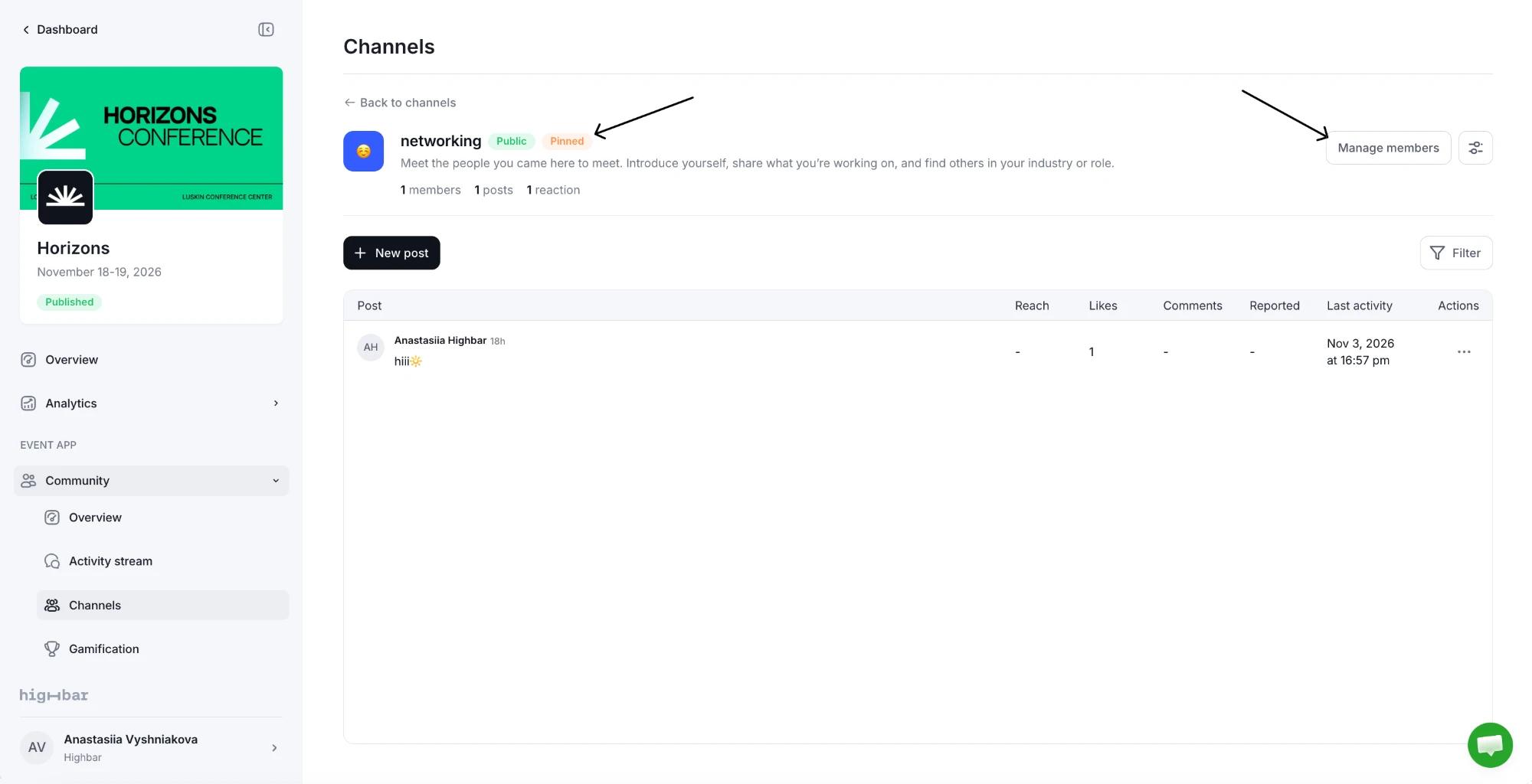
Click a channel to open it. Its page shows the channel's badges, such as Public and Pinned, how many members, posts and reactions it has, and the posts themselves.
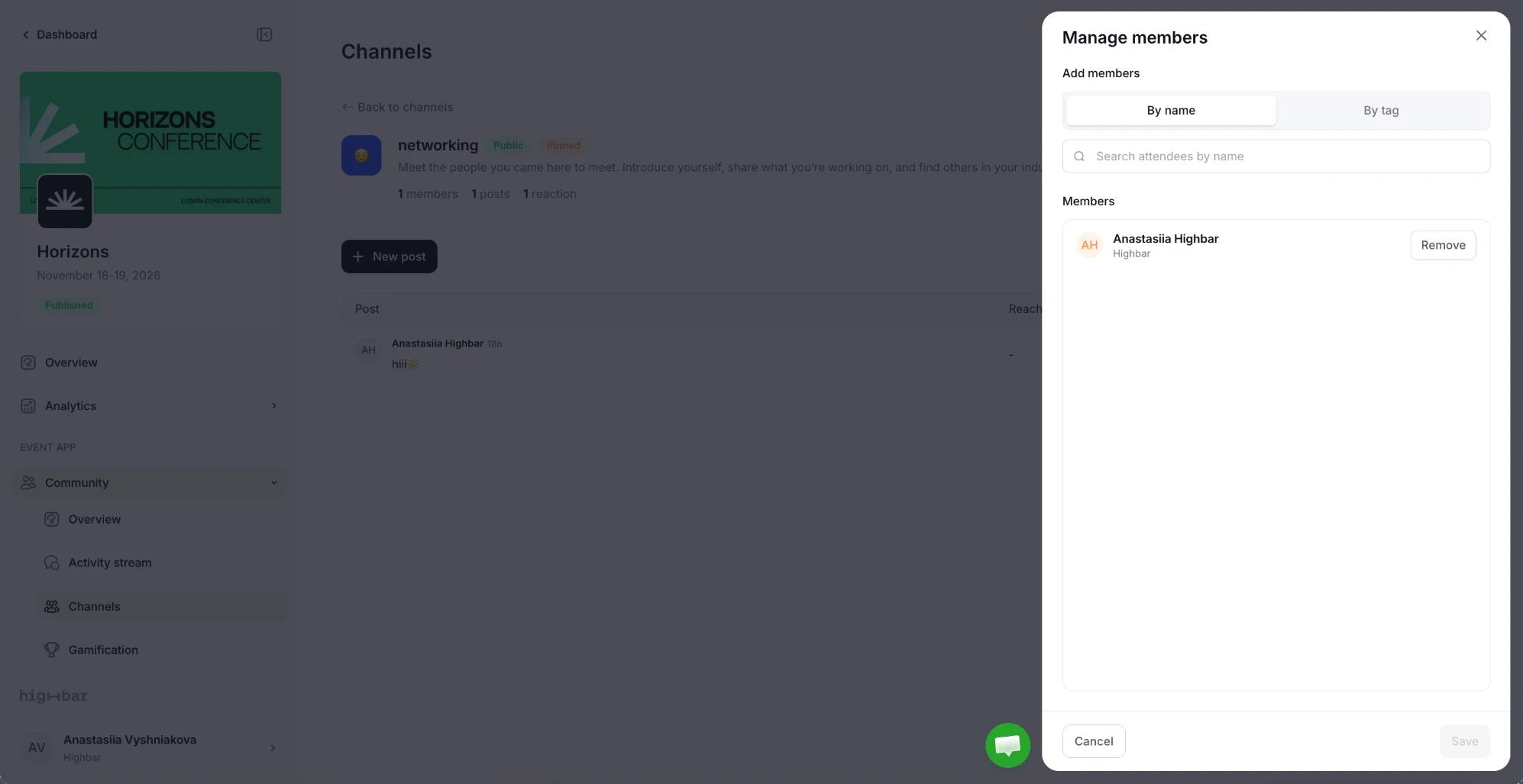
Manage members adds people By name or By tag, and lists the current members with a Remove button. Click Save when you're done. On a private channel, only members can see it; on a public one, attendees also join by opening it.
The gear opens Channel settings. Click Edit to change the name, description or pin, choose What attendees can post in this channel (Messages, Photos, Stories, Polls), or Archive it. Stories don't appear in the attendee app yet (see Activity stream).
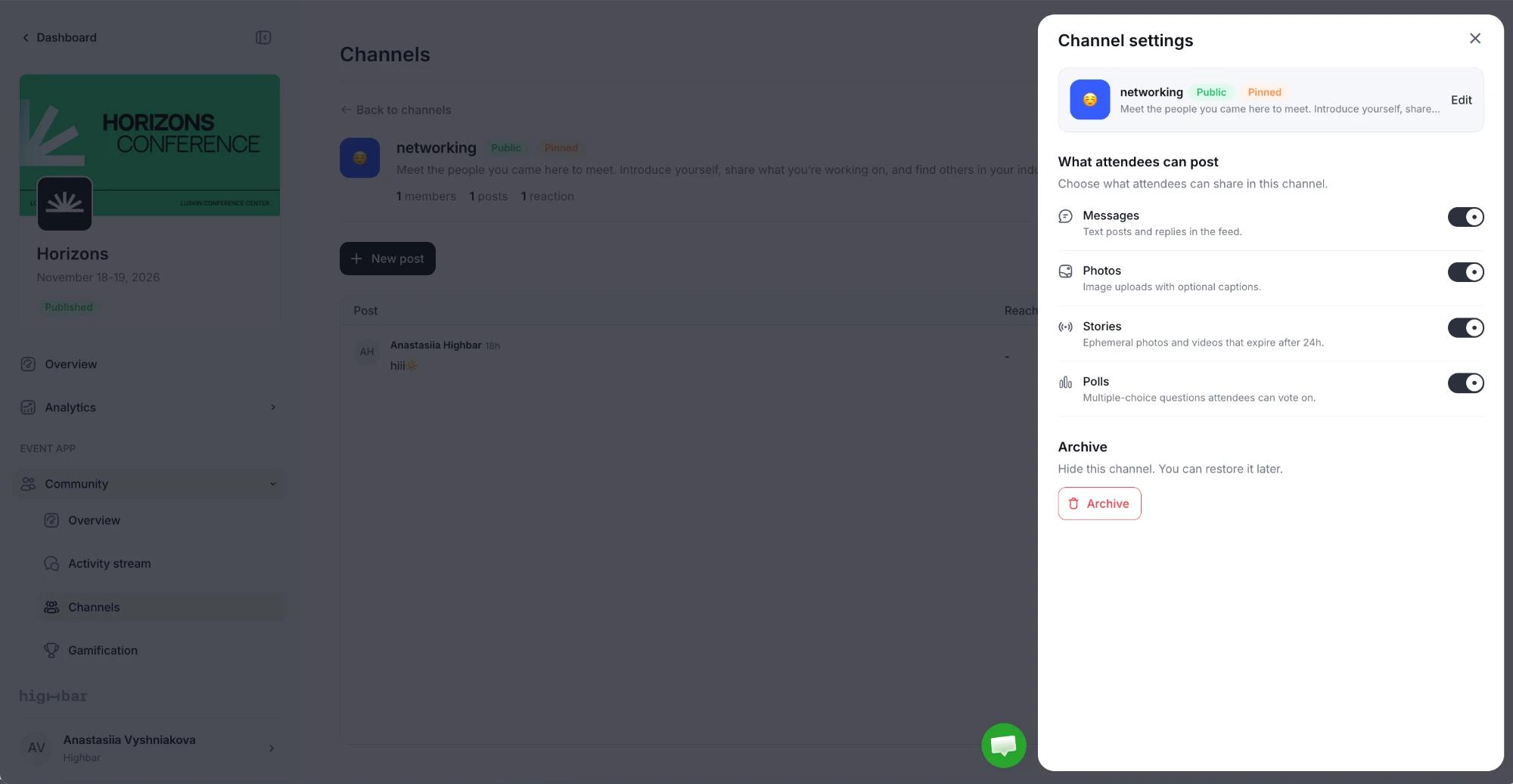
The posts table works like the activity stream: post as the organizer with New post, and hide, clear reports on or remove posts. See Activity stream.
What attendees see
Attendees see every public channel and the private channels they belong to, with pinned channels first. Private ones carry a Private badge. Opening a public channel joins it.