Messaging
Control the attendee list and one-to-one chat, who can start conversations, and which tags are restricted.
Messaging sets who can see the attendee list in your app and who can message whom. Each attendee's list appears in the app as Community, and chats as Messages.
Open Community > Messaging. Changes on this page save only when you click Save changes. Discard undoes them.
Turn it on or off
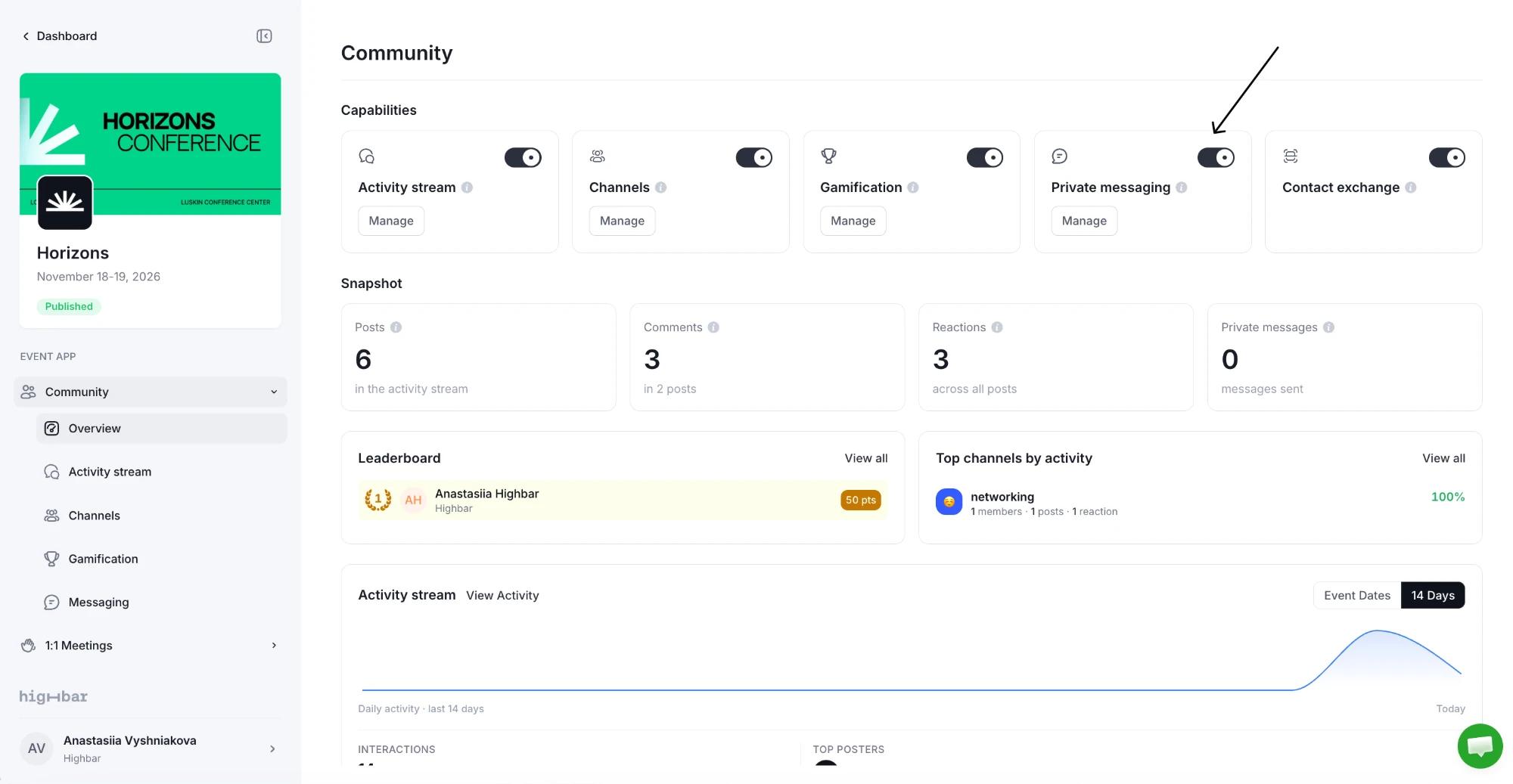
Community & messaging turns the attendee list and one-to-one chat on or off together. It's on for new events. With it off, attendees have no attendee list and can't chat. Existing conversations are kept for when you turn it back on. The Private messaging switch on the Community overview does the same.
Let attendees opt out
Under Attendee privacy controls:
-
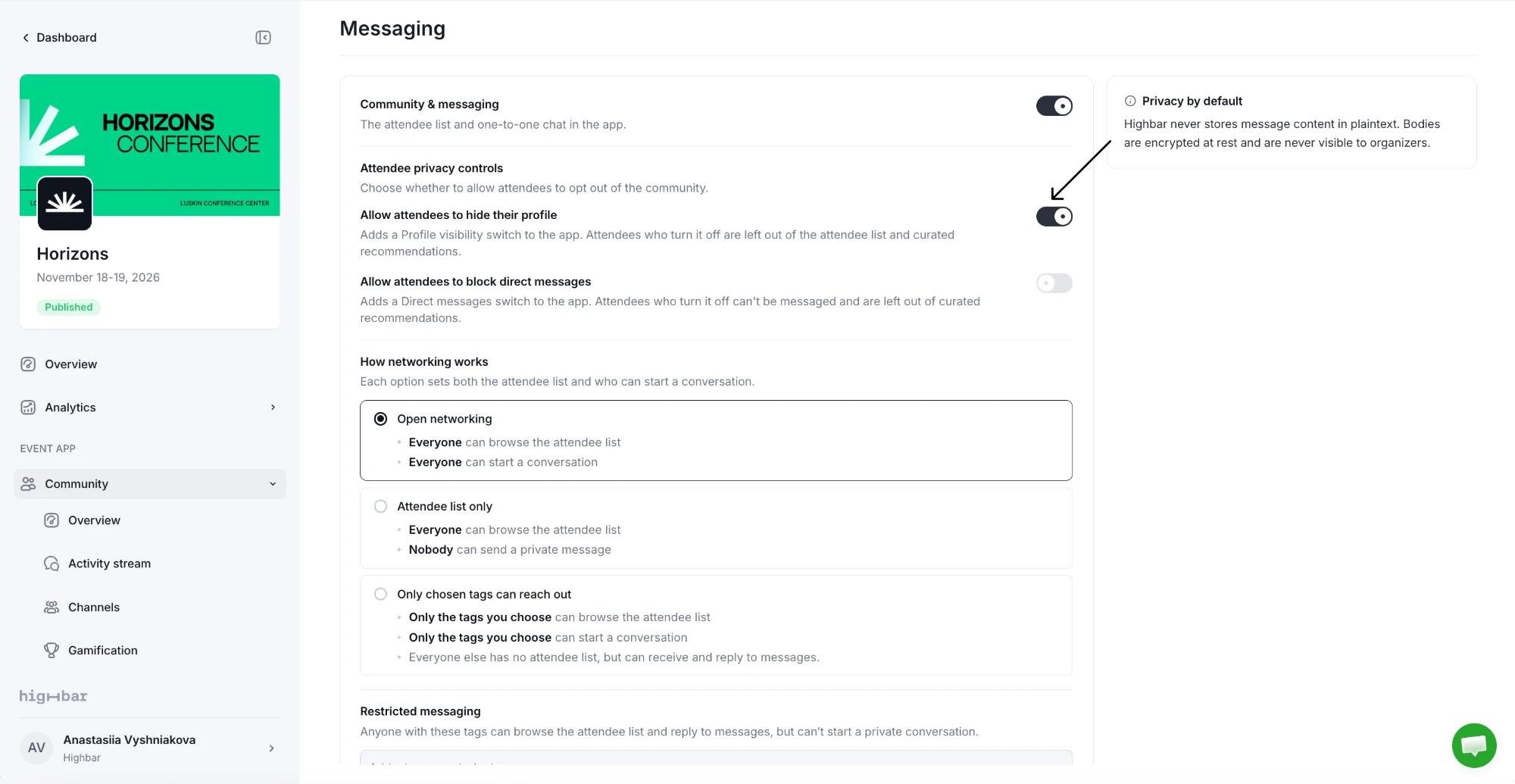
Allow attendees to hide their profile adds a Profile visibility switch to the app. Attendees who turn it off are left out of the attendee list and of AI recommendations.
-
Allow attendees to block direct messages adds a Direct messages switch. Attendees who turn it off can't be messaged and are left out of AI recommendations.
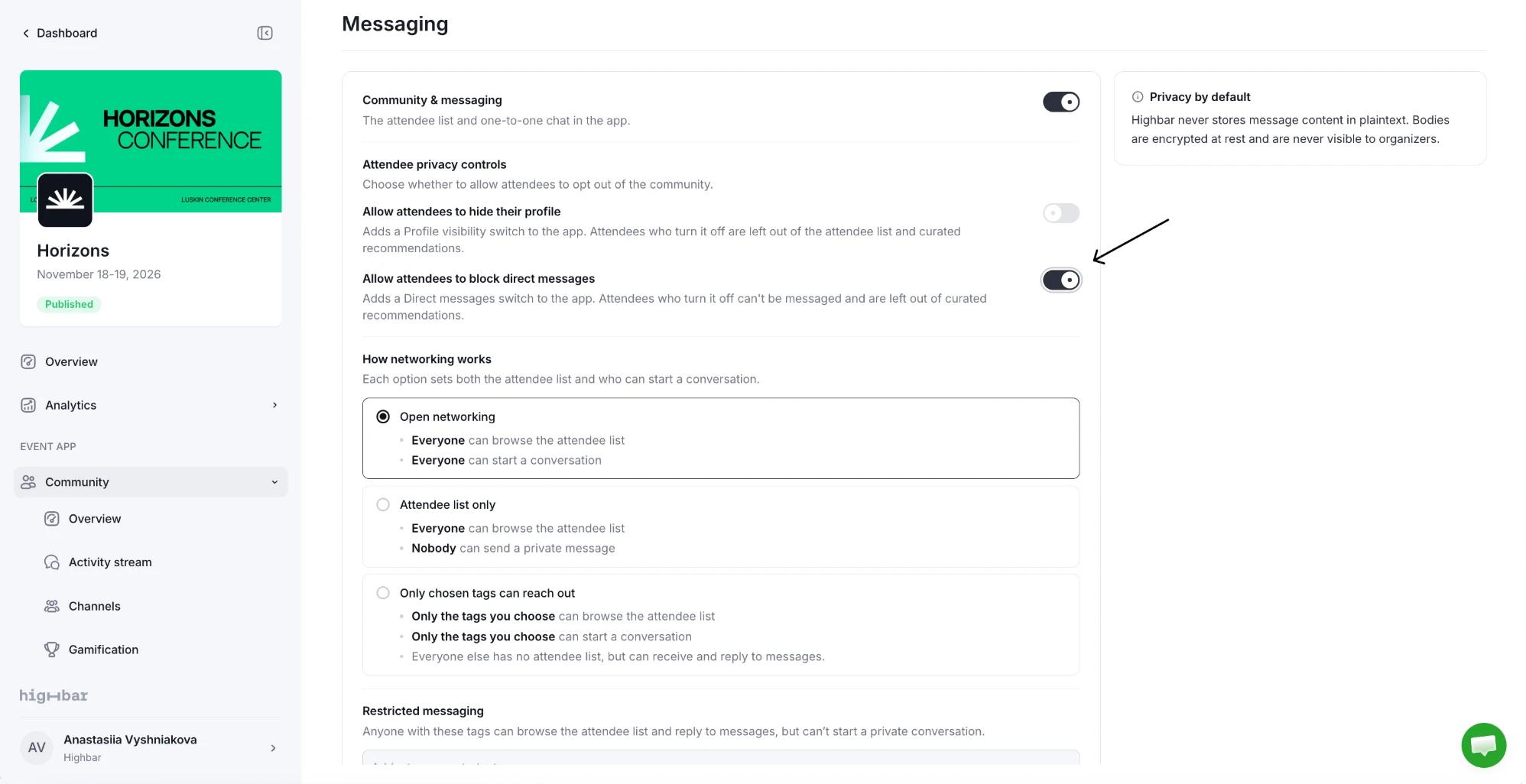
Both are off for new events.
Choose how networking works
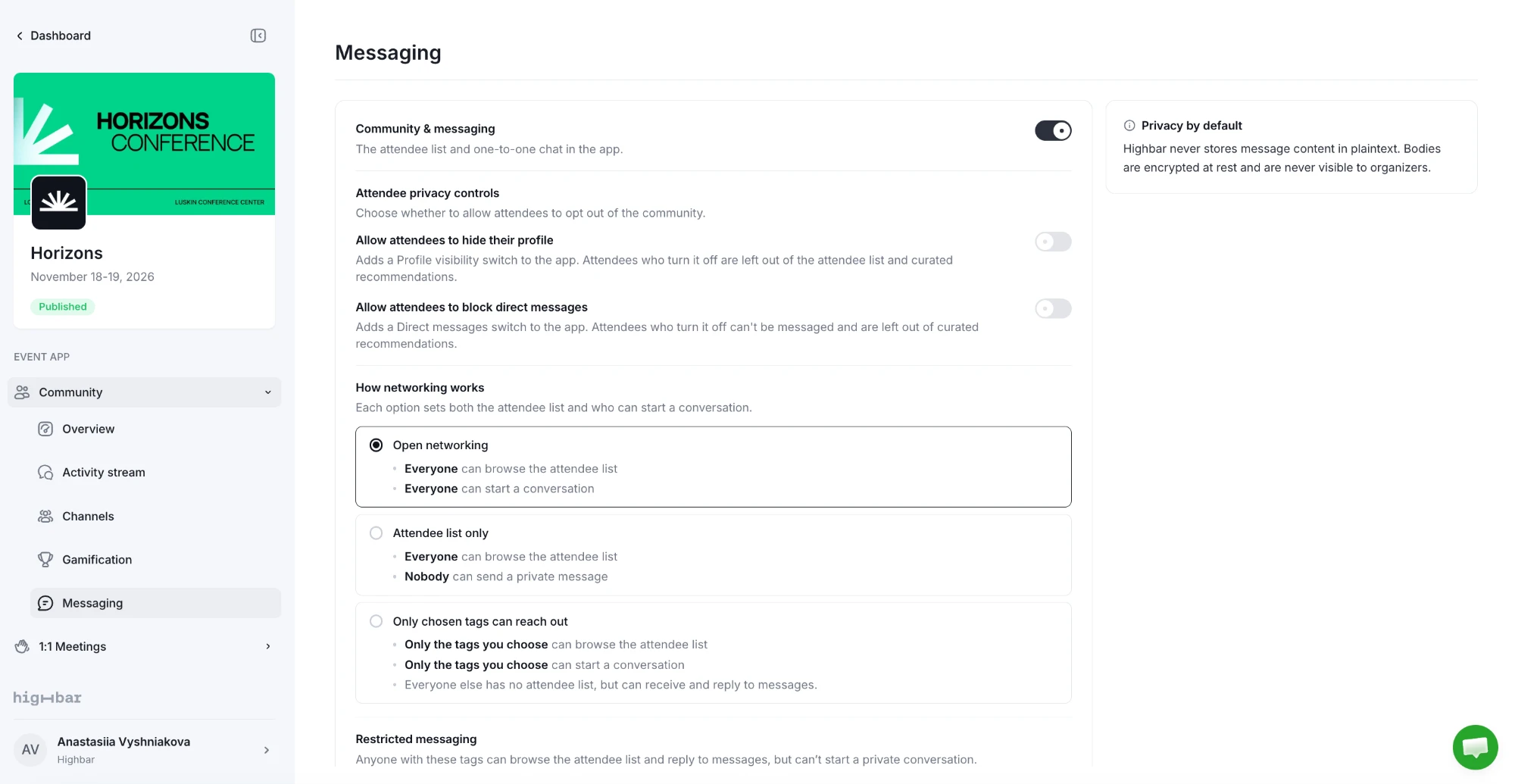
Under How networking works, pick one:
- Open networking (the default): everyone can browse the attendee list and start a conversation.
- Attendee list only: everyone can browse the list, but nobody can send a private message.
- Only chosen tags can reach out: only people with the Tags with access you add can browse the list and start conversations. Everyone else has no attendee list but can receive and reply to messages. Useful when only sponsors should reach out.
Let only sponsors reach out
On the Access page, give your sponsors' staff a tag, such as "sponsor".
Under How networking works, choose Only chosen tags can reach out.
Under Tags with access, add that tag.
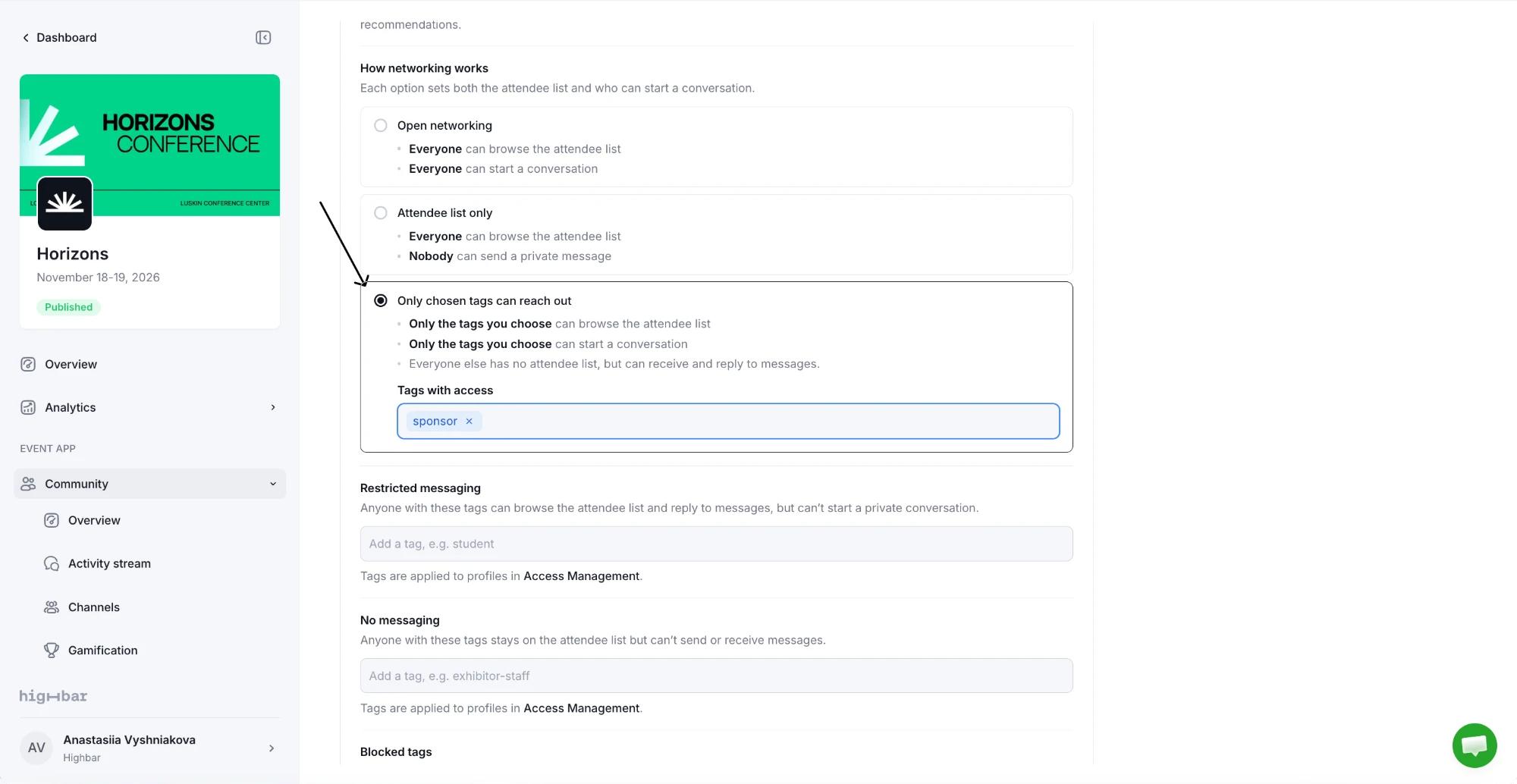
Click Save changes.
Restrict tags
Three lists limit people by their tags. Add up to 25 tags to each; tags are applied to people on the Access page.
| List | People with these tags |
|---|---|
| Restricted messaging | Can reply to messages but can't start a conversation. |
| No messaging | Stay on the attendee list but can't send or receive messages. |
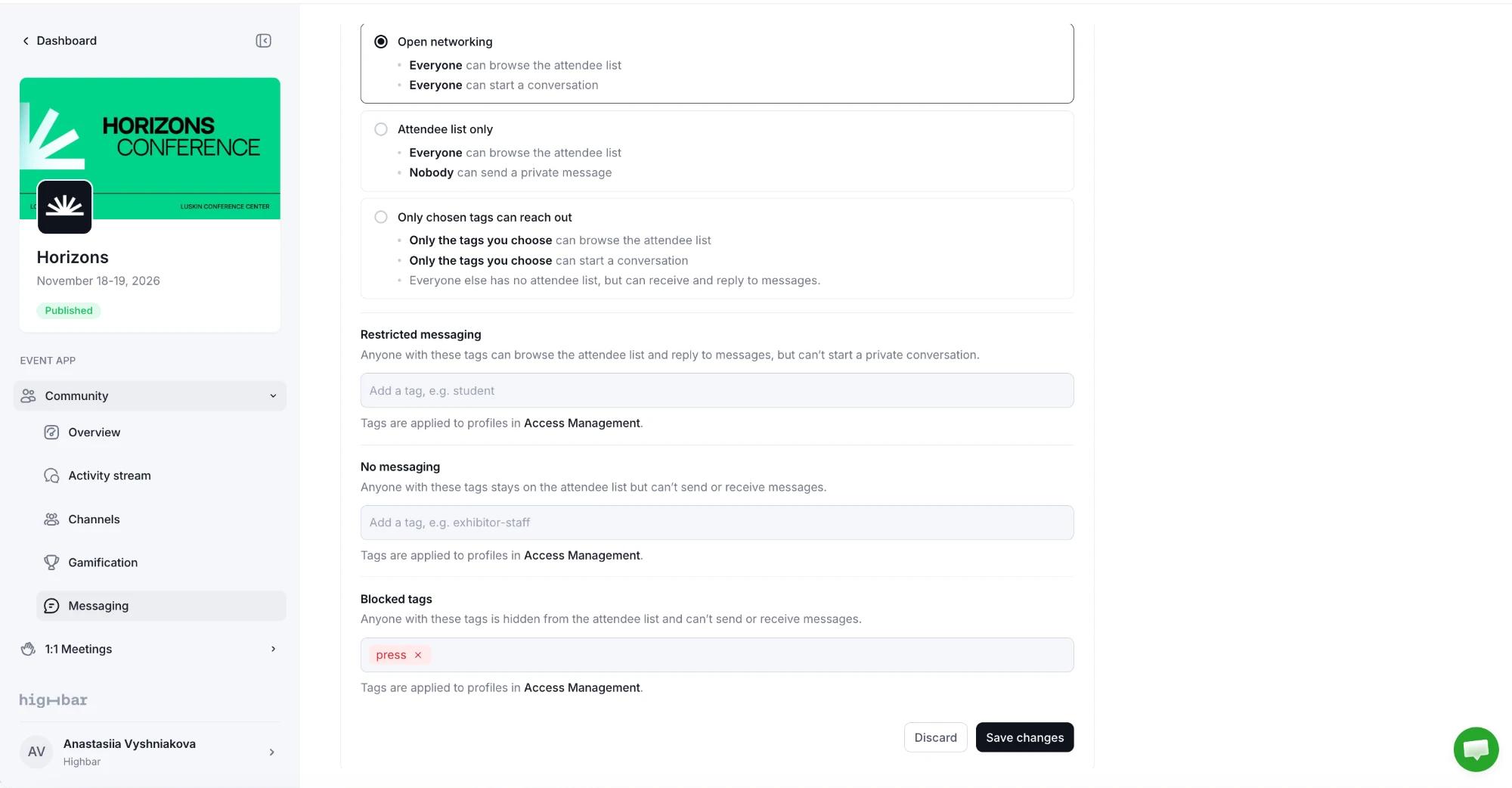
| Blocked tags | Are hidden from the attendee list and can't send or receive messages. |
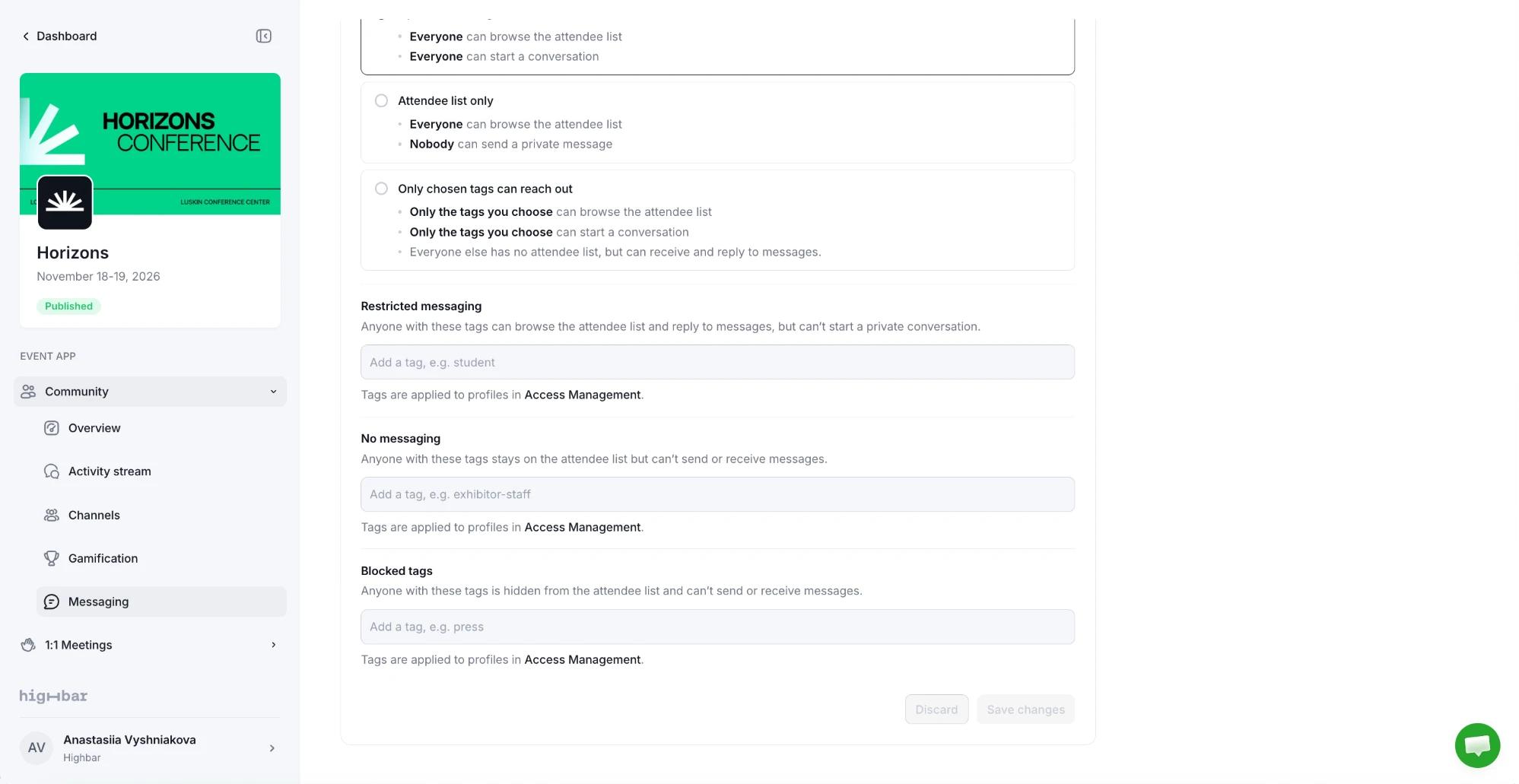
To add a tag, type it in the list's box and press Enter, or pick one of your tags from the suggestions. Then click Save changes.
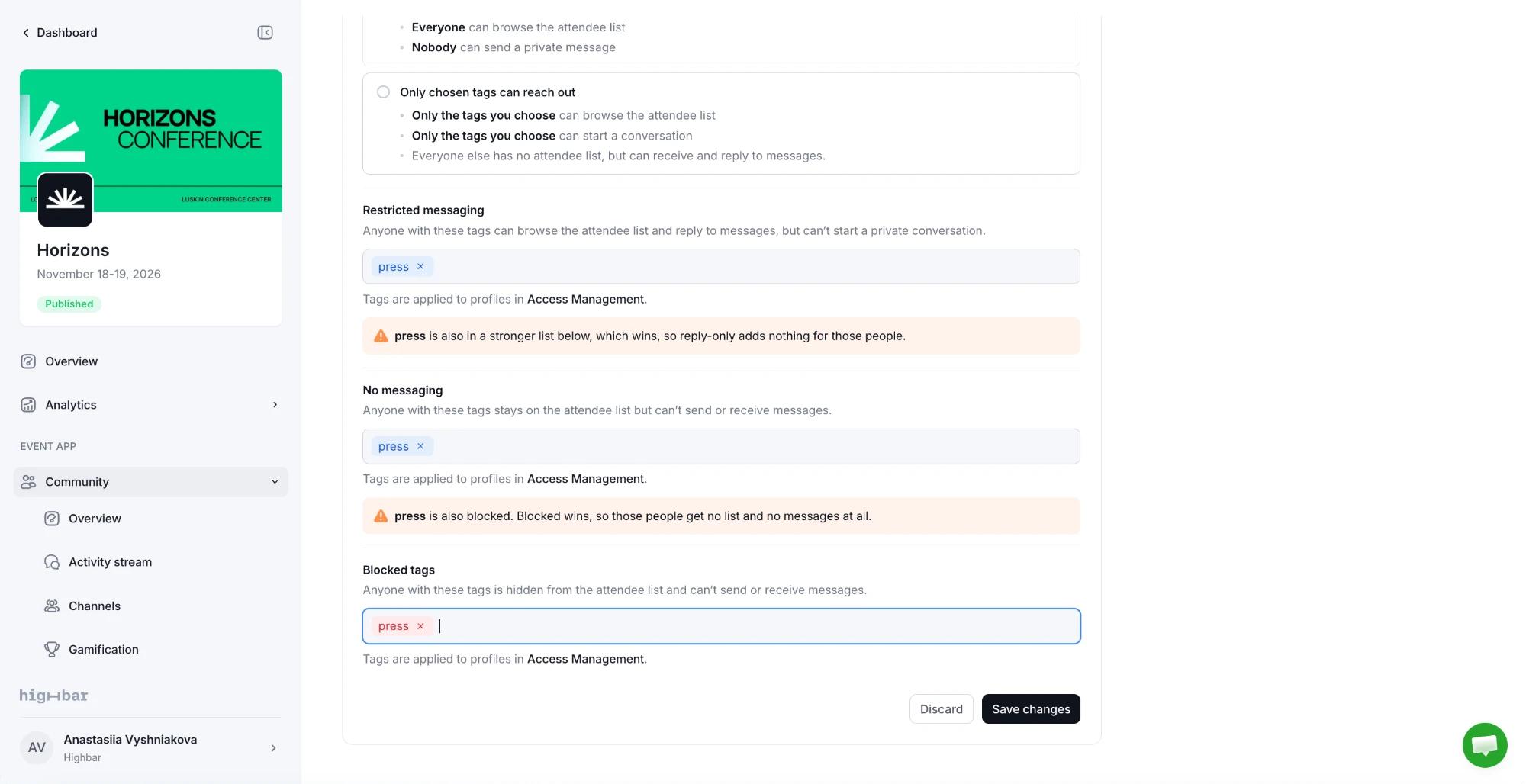
If a tag is in more than one list, the strictest one wins (Blocked tags, then No messaging, then Restricted messaging), and the page warns you under each weaker list.
You can also set these per tag on the Access page.
What attendees see
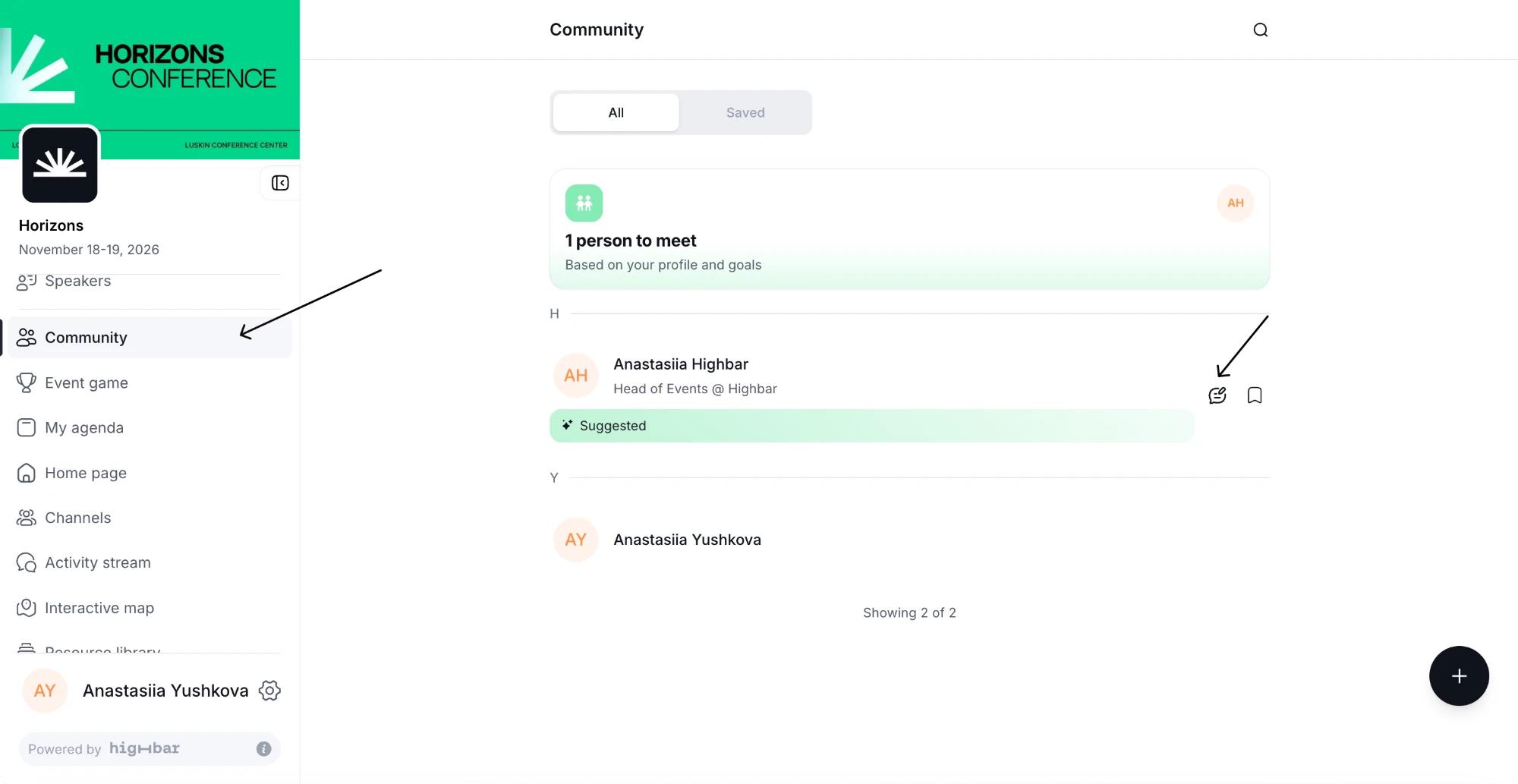
Attendees find each other under Community in the app menu. People the AI suggests they meet are marked Suggested. To start a chat, they tap the message button next to someone.
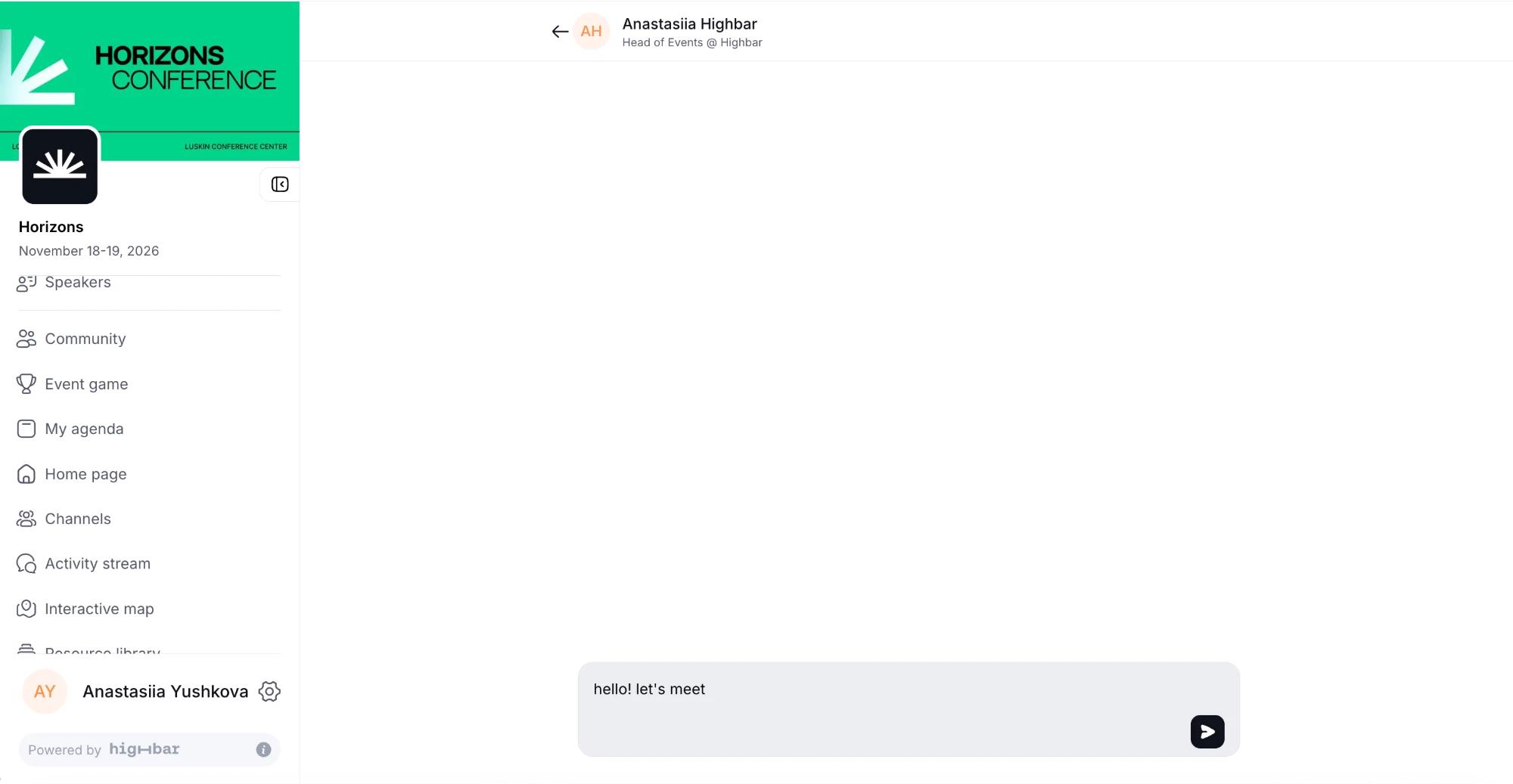
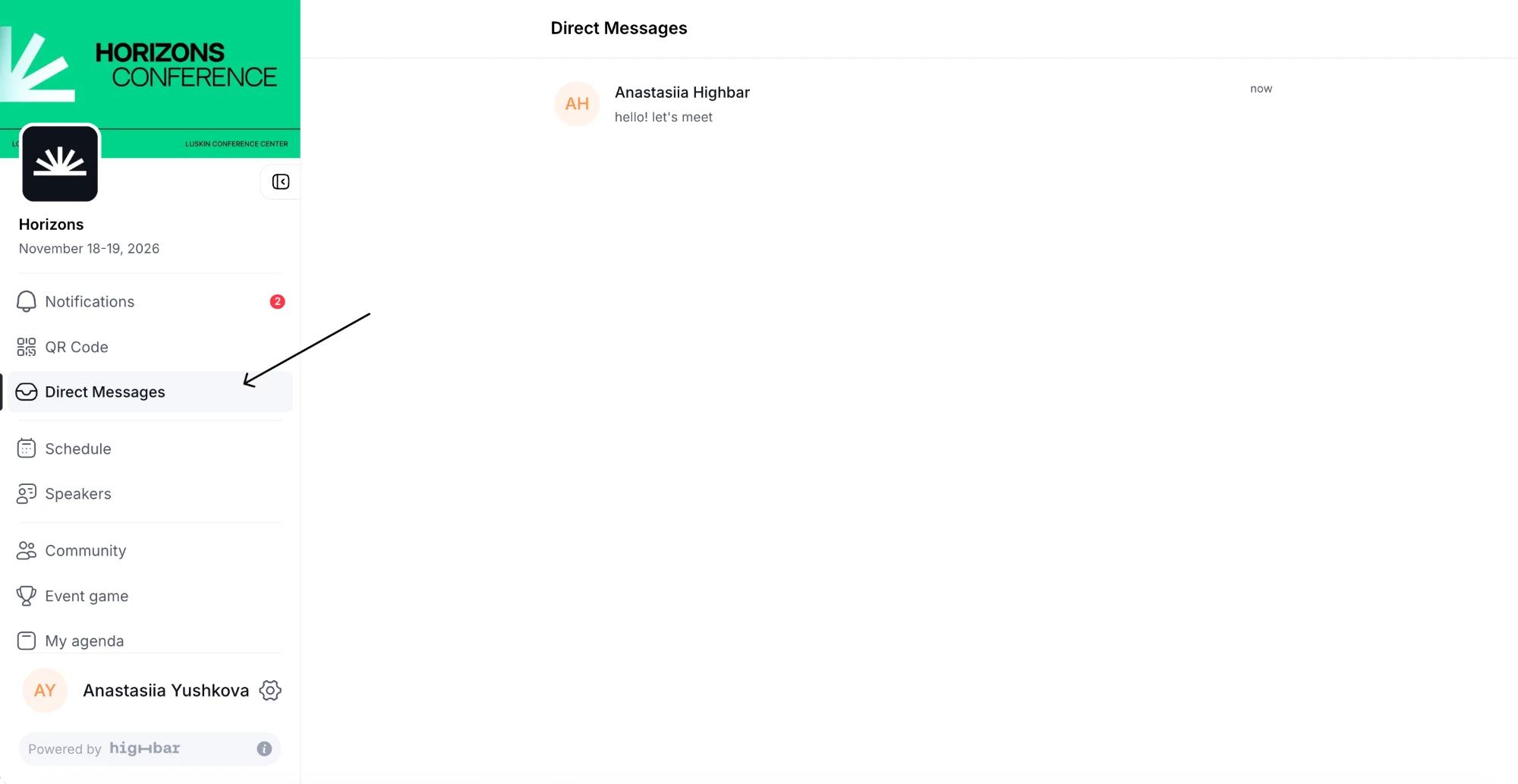
The chat opens with that person's name at the top. They type their message and tap send. Their conversations are under Messages in the menu (you can rename it on the App menu page).
Privacy
Messages are encrypted. Organizers never see what attendees write to each other.