Activity stream
Choose what attendees can post to the event feed, publish official posts, and moderate what attendees share.
The activity stream is the event feed in your app. Attendees post messages, photos and polls, and comment and like each other's posts. You can post as the event organizer, schedule posts, and hide or remove anything that shouldn't be there.
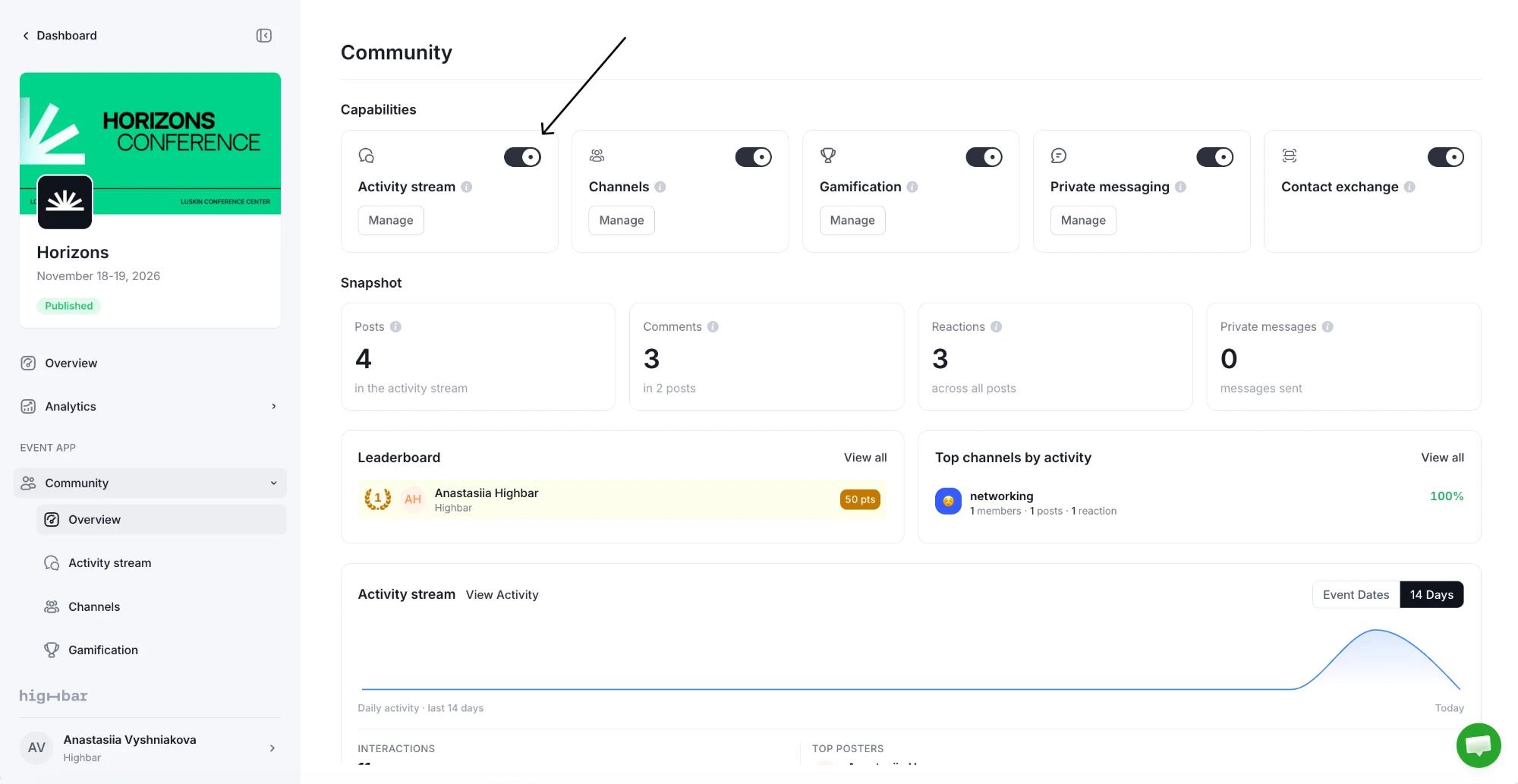
Open Community > Activity stream. Turn the feed on or off from the Community overview. In the app, it appears in the menu as Activity stream while it's on.
Choose what attendees can post
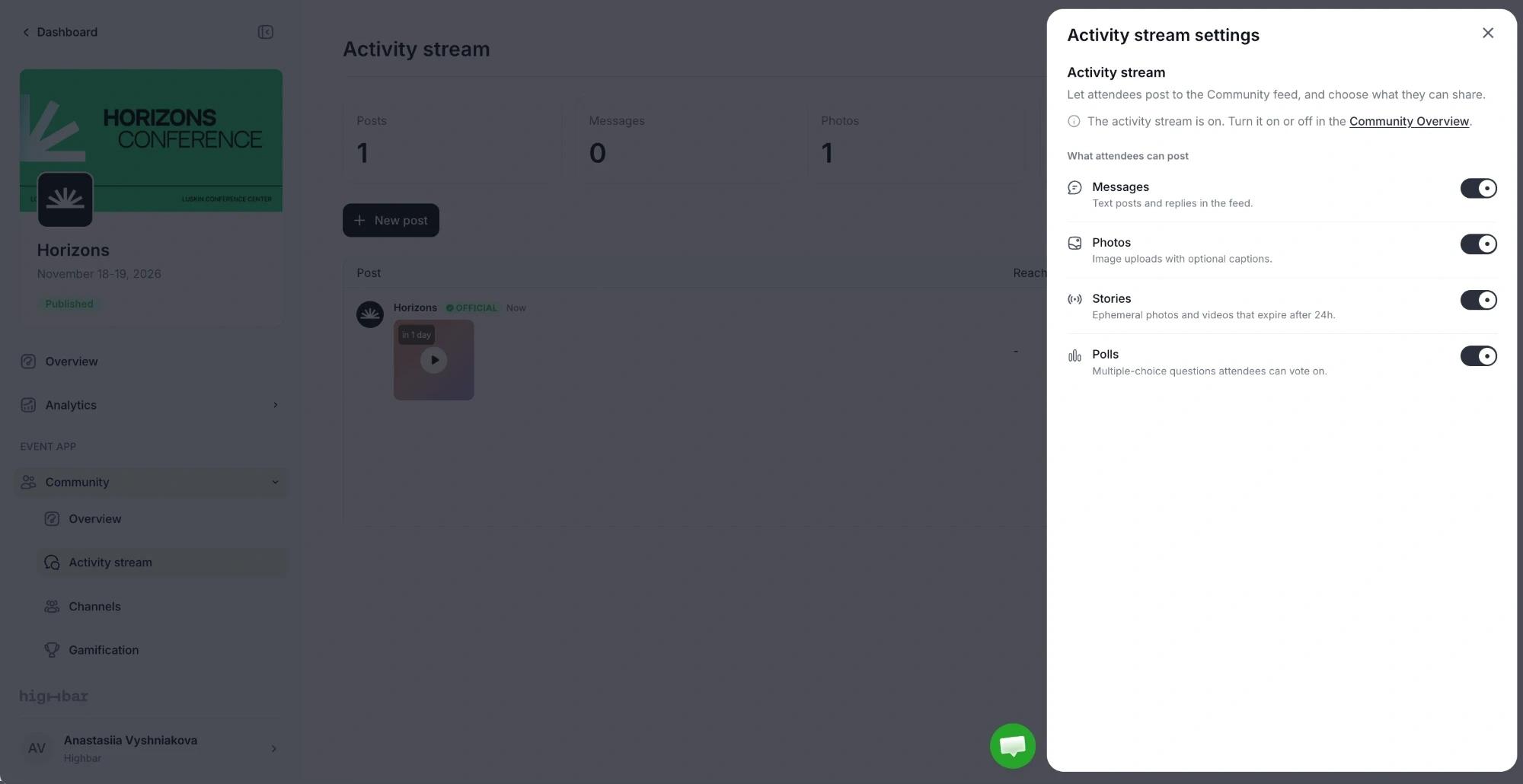
Click the gear (Activity stream settings). Under What attendees can post, turn each type on or off:
- Messages: text posts. This also controls comments: with it off, attendees can't comment.
- Photos: images with an optional caption.
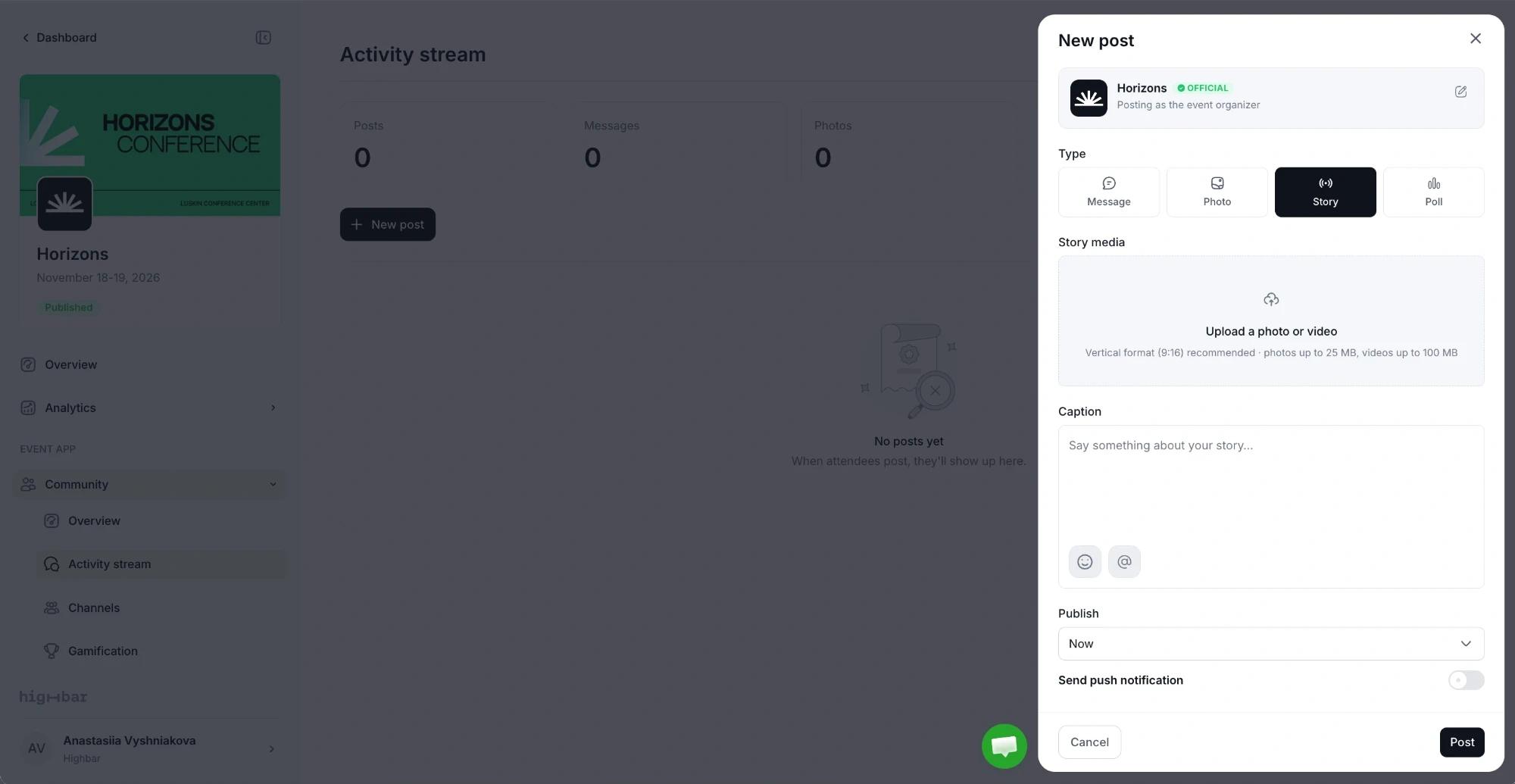
- Stories: photos and videos that disappear after 24 hours.
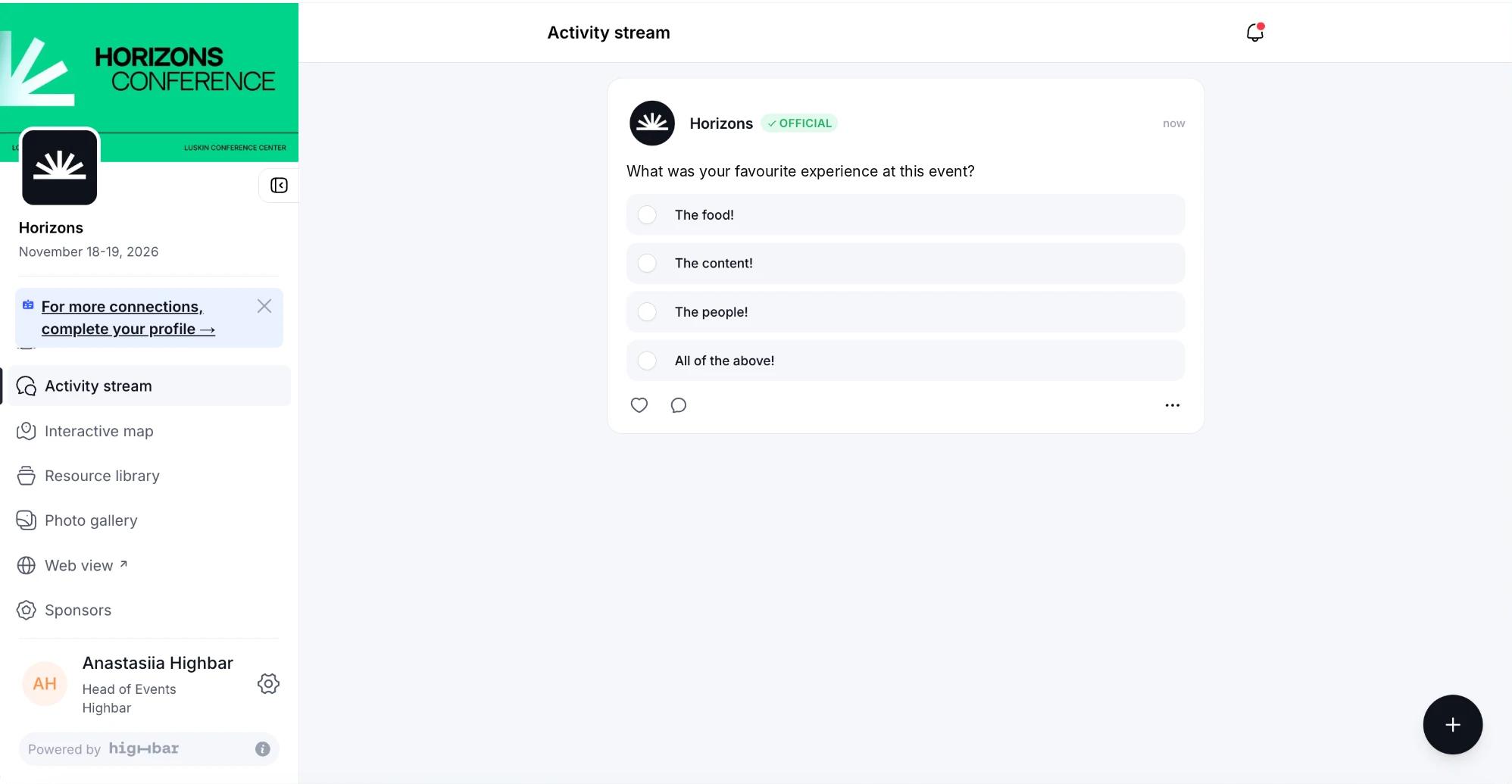
- Polls: multiple-choice questions attendees vote on.
All are on for new events, and changes save straight away. These settings apply to attendees only: you can always post any type.
Stories don't appear in the attendee app yet. You can turn them on and post them here, but attendees won't see stories, or be able to add their own, until they're switched on in the app. This page will say when that changes.
Post as the organizer
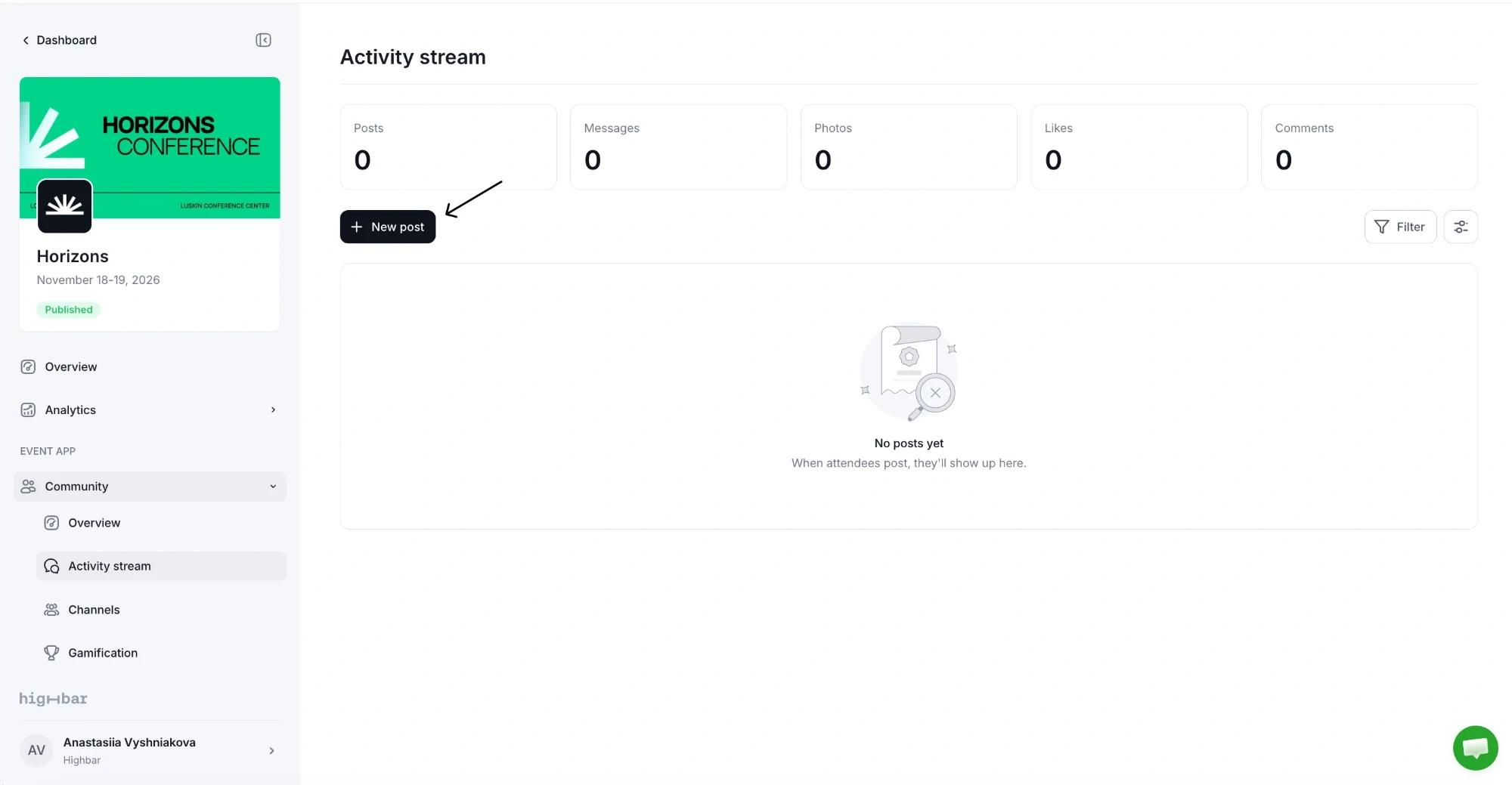
Click New post.
Choose a Type: Message, Photo, Story or Poll.
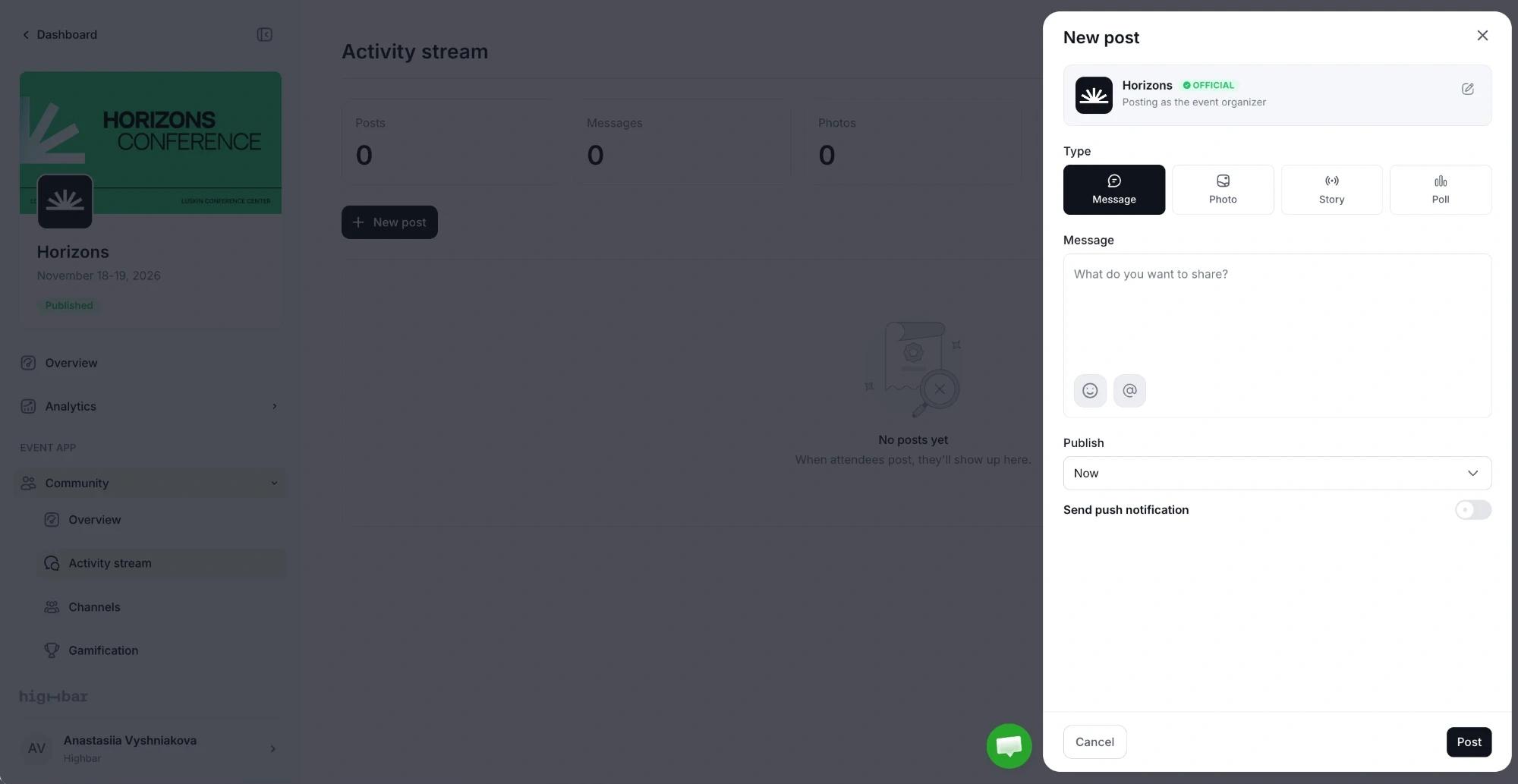
Write your text (up to 2,000 characters). Type @ to mention an attendee, speaker, sponsor or session, and # for a hashtag. For a photo, add a JPG, PNG or WebP image up to 25 MB. For a story, upload a photo (up to 25 MB) or video (up to 100 MB), ideally in vertical 9:16 format; it disappears after 24 hours. For a poll, write the question and 2 to 6 Answers, and turn on Allow vote change if attendees can change their vote.
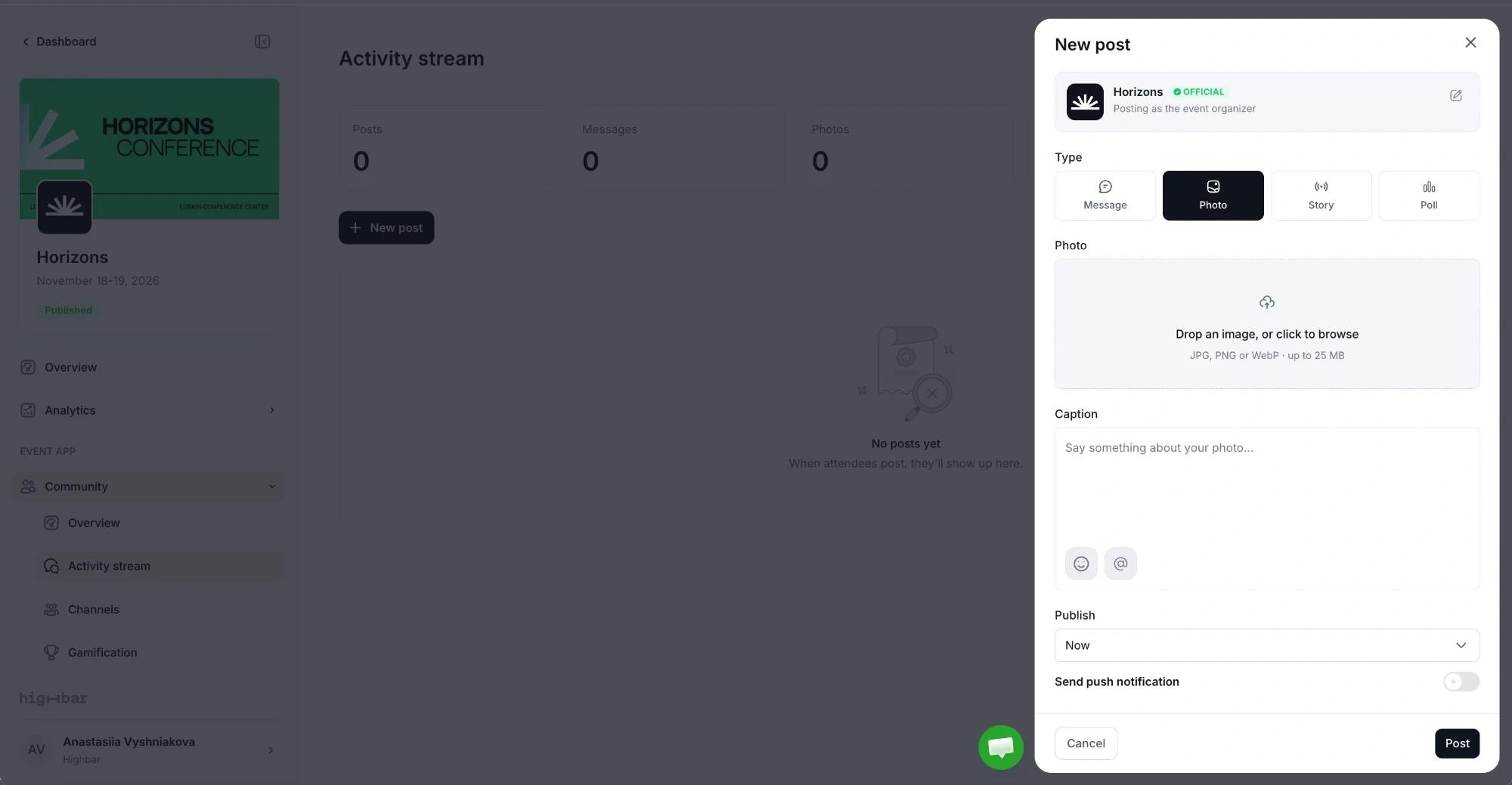
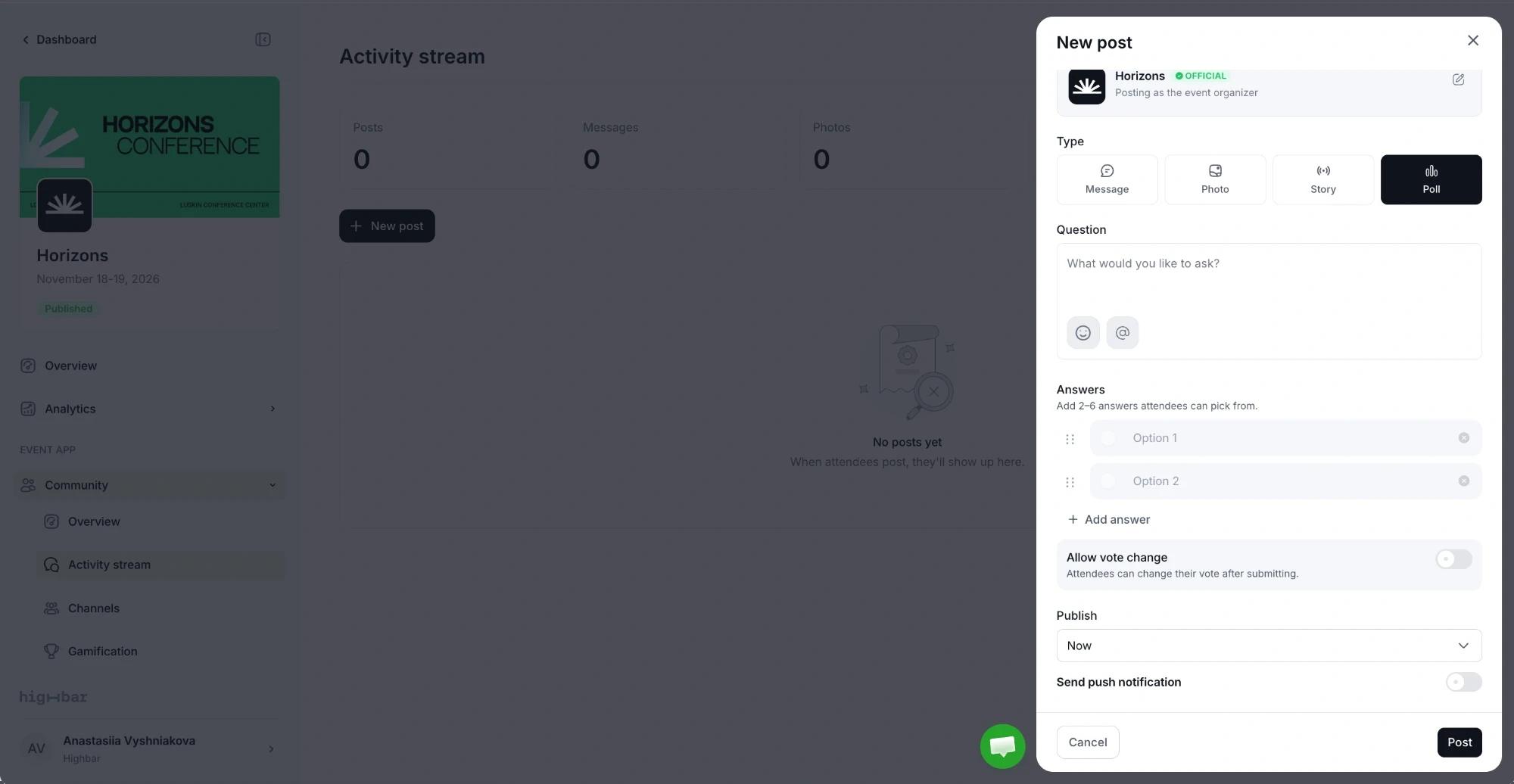
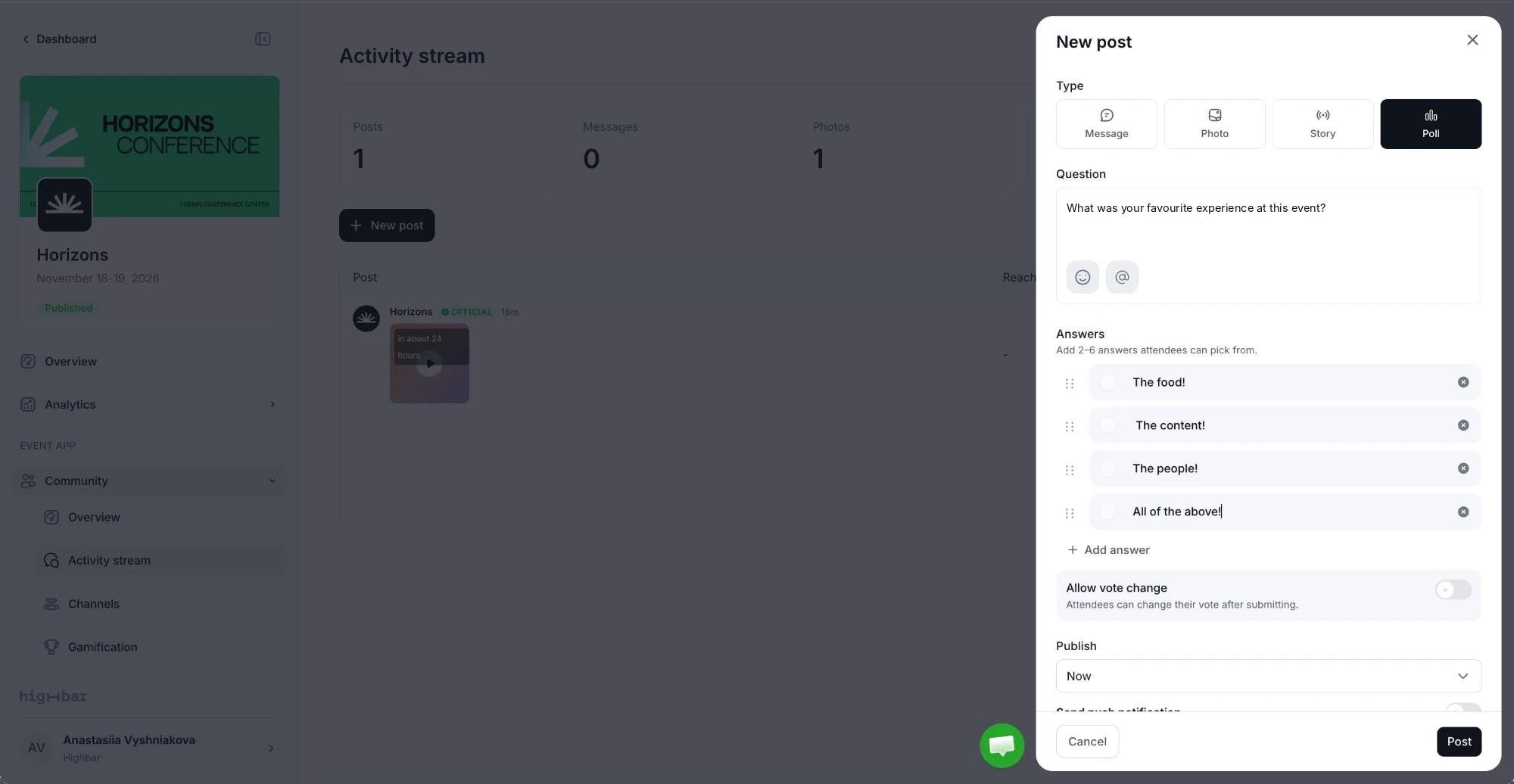
Under Publish, choose Now, or Scheduled time and set the Date, Time and Timezone.
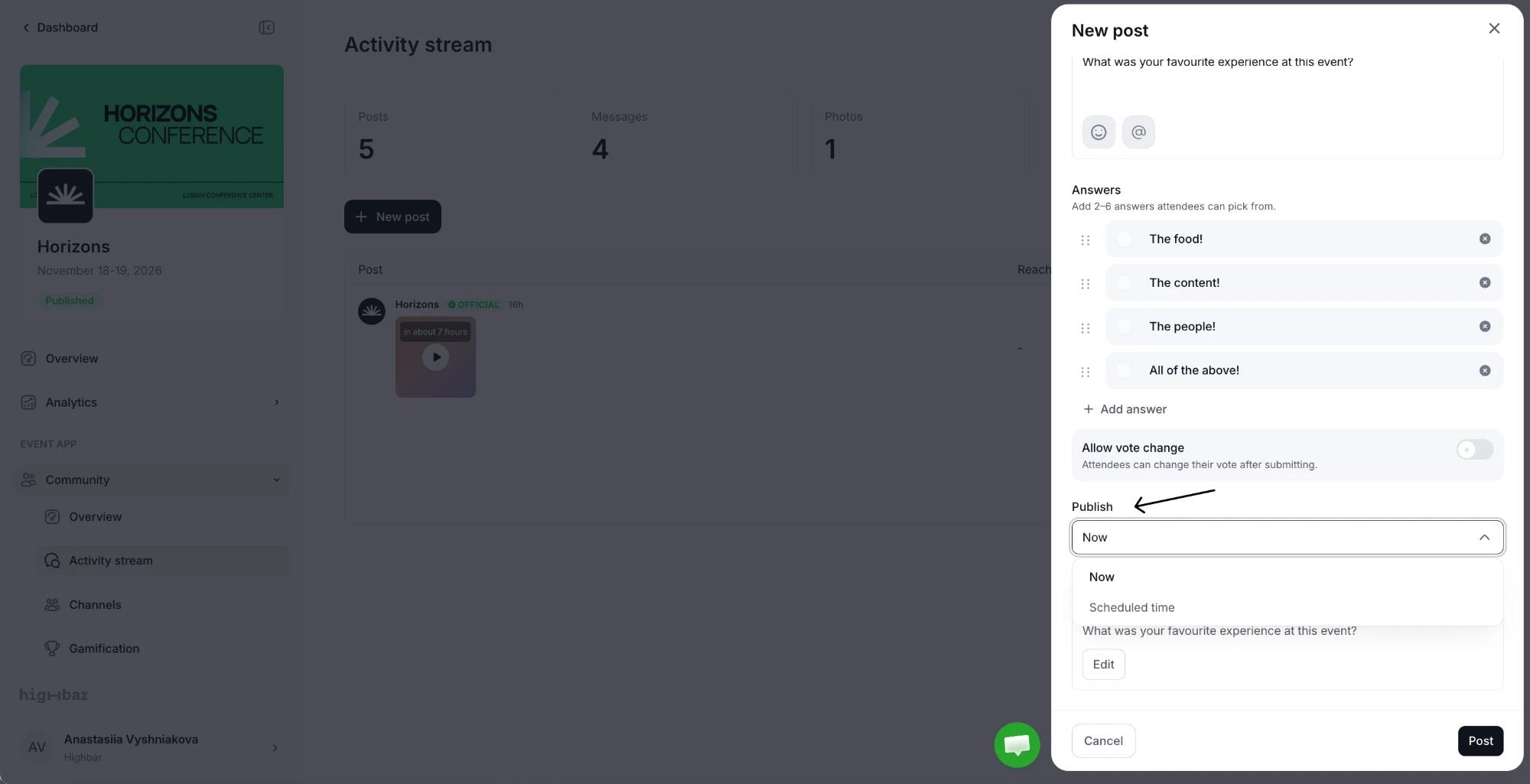
To alert attendees, turn on Send push notification. The notification uses your event name and the post's text, which you can Edit.
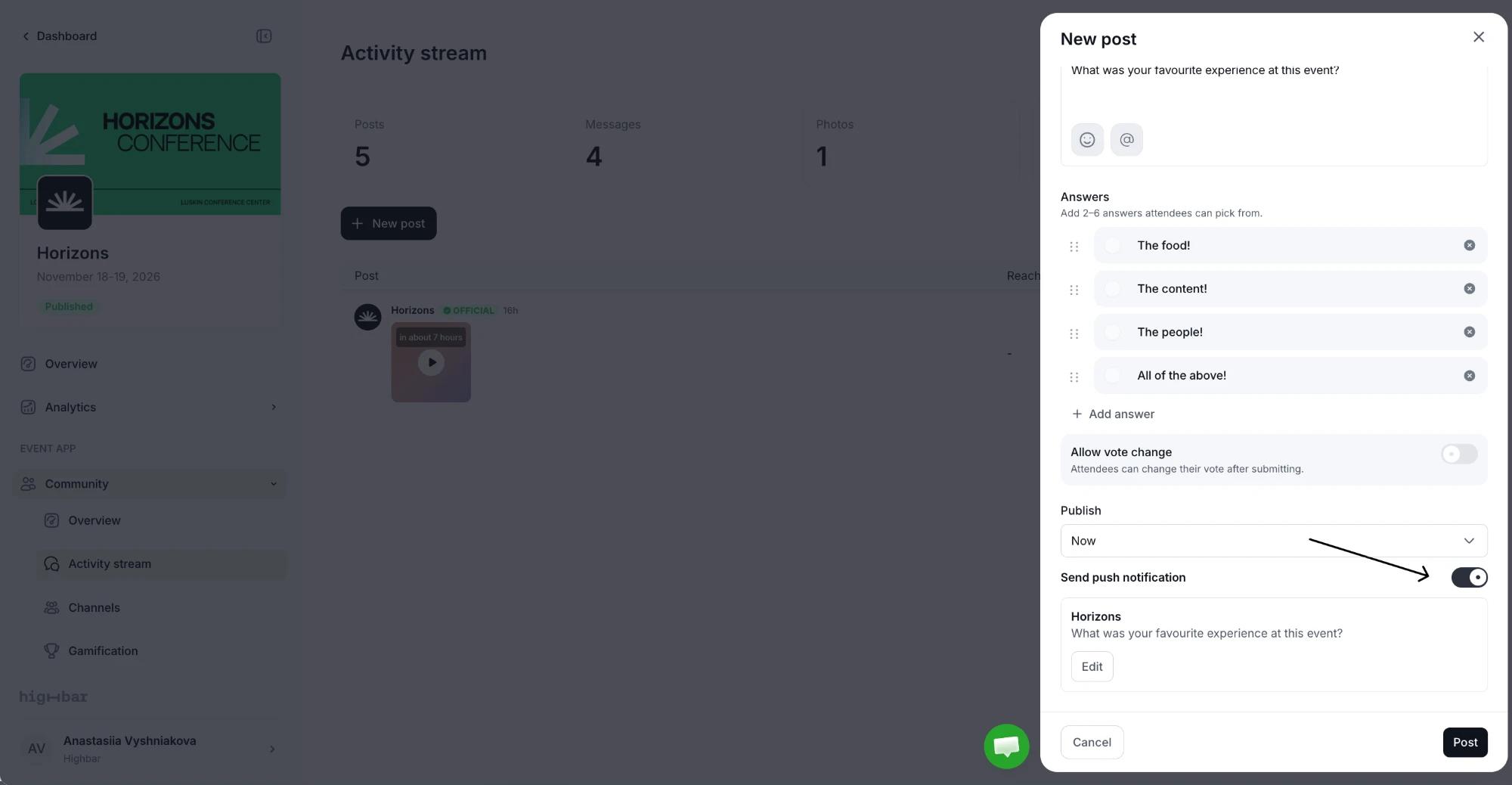
Click Post or Schedule post. With a push notification, you confirm how many attendees it will reach first.
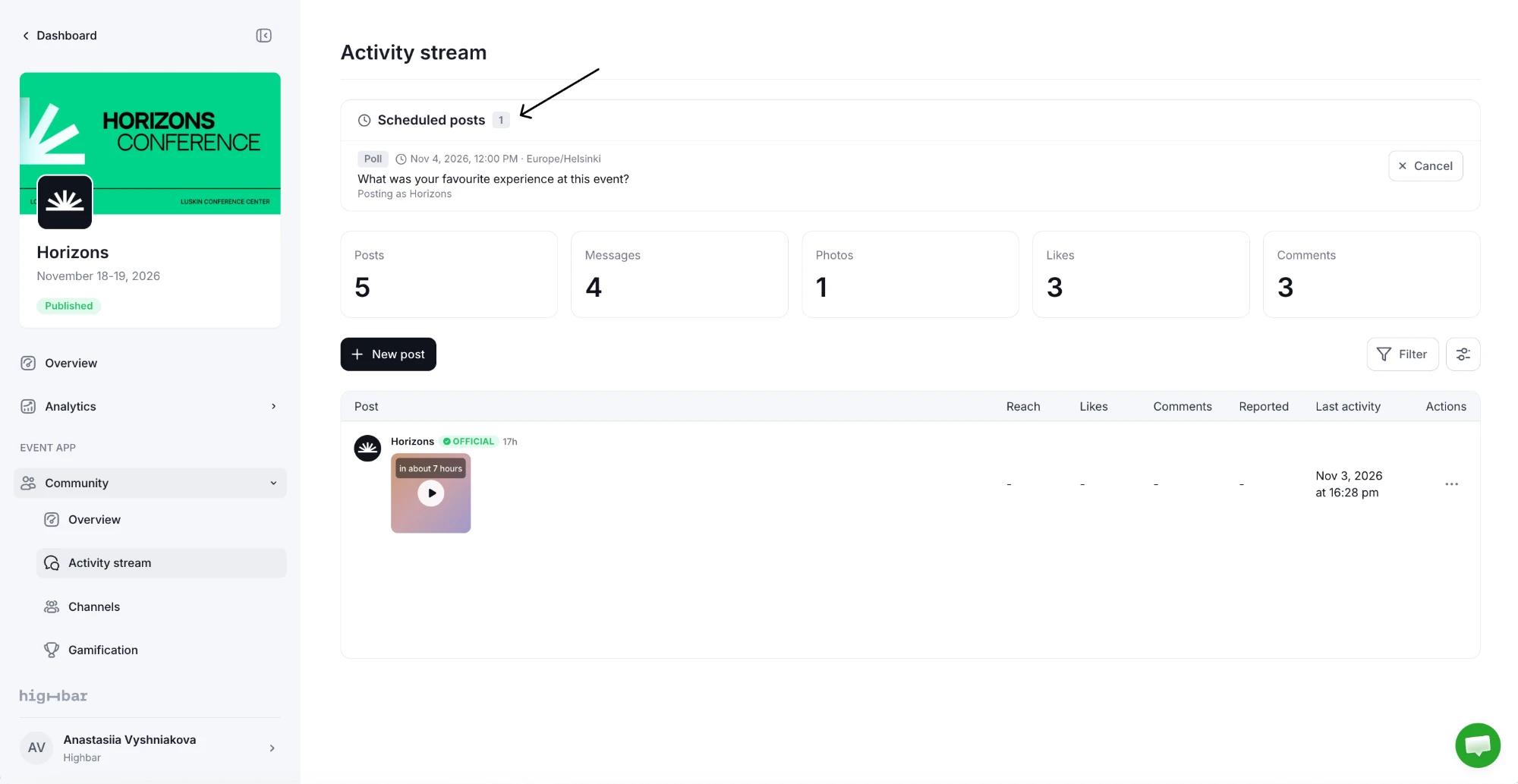
Your posts carry an OFFICIAL badge and the name shown under Posting as the event organizer. To change that name for every organizer post, click the pencil next to it.
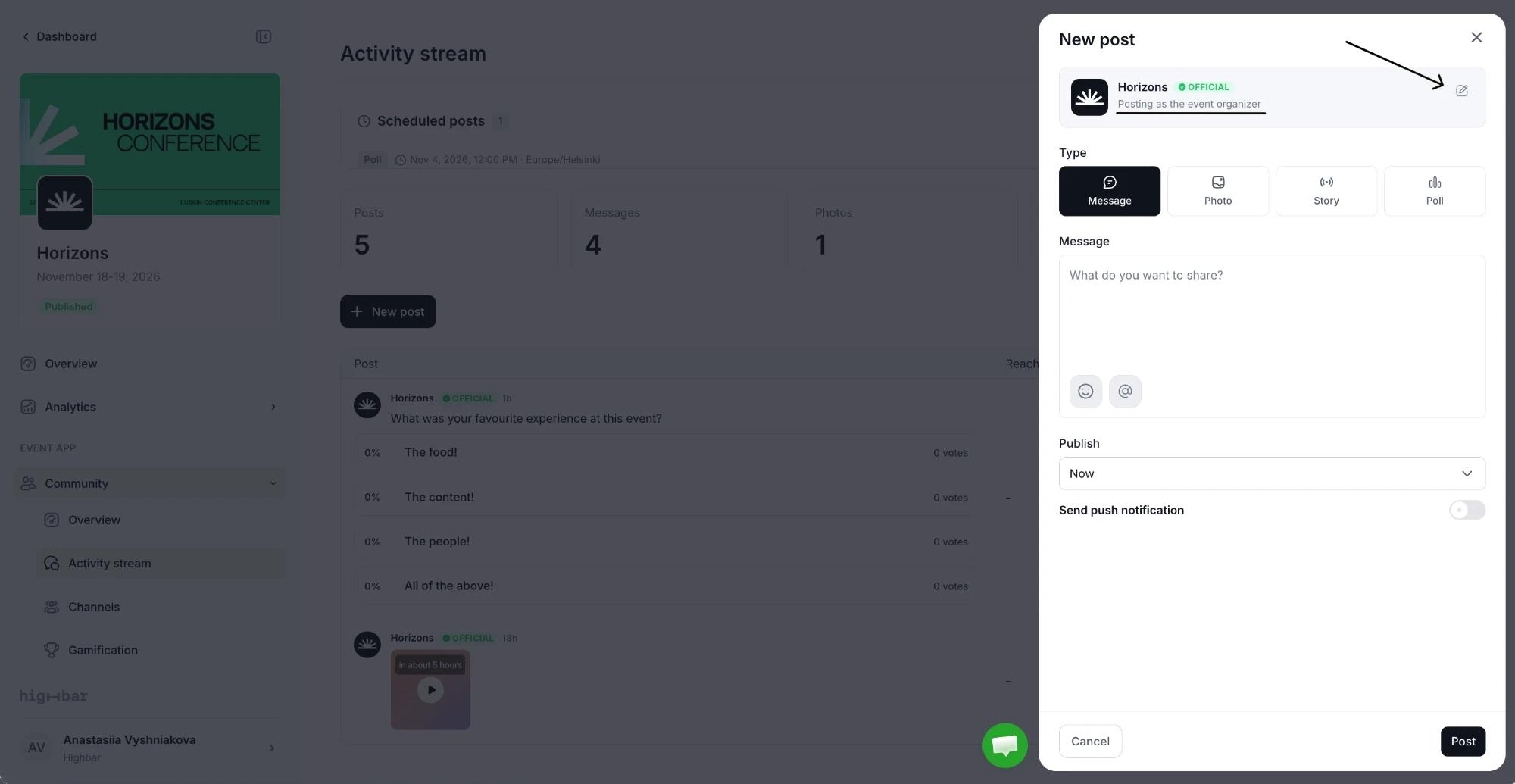
Scheduled posts are listed under Scheduled posts at the top of the page until they publish. Click Cancel to remove one.
Moderate posts
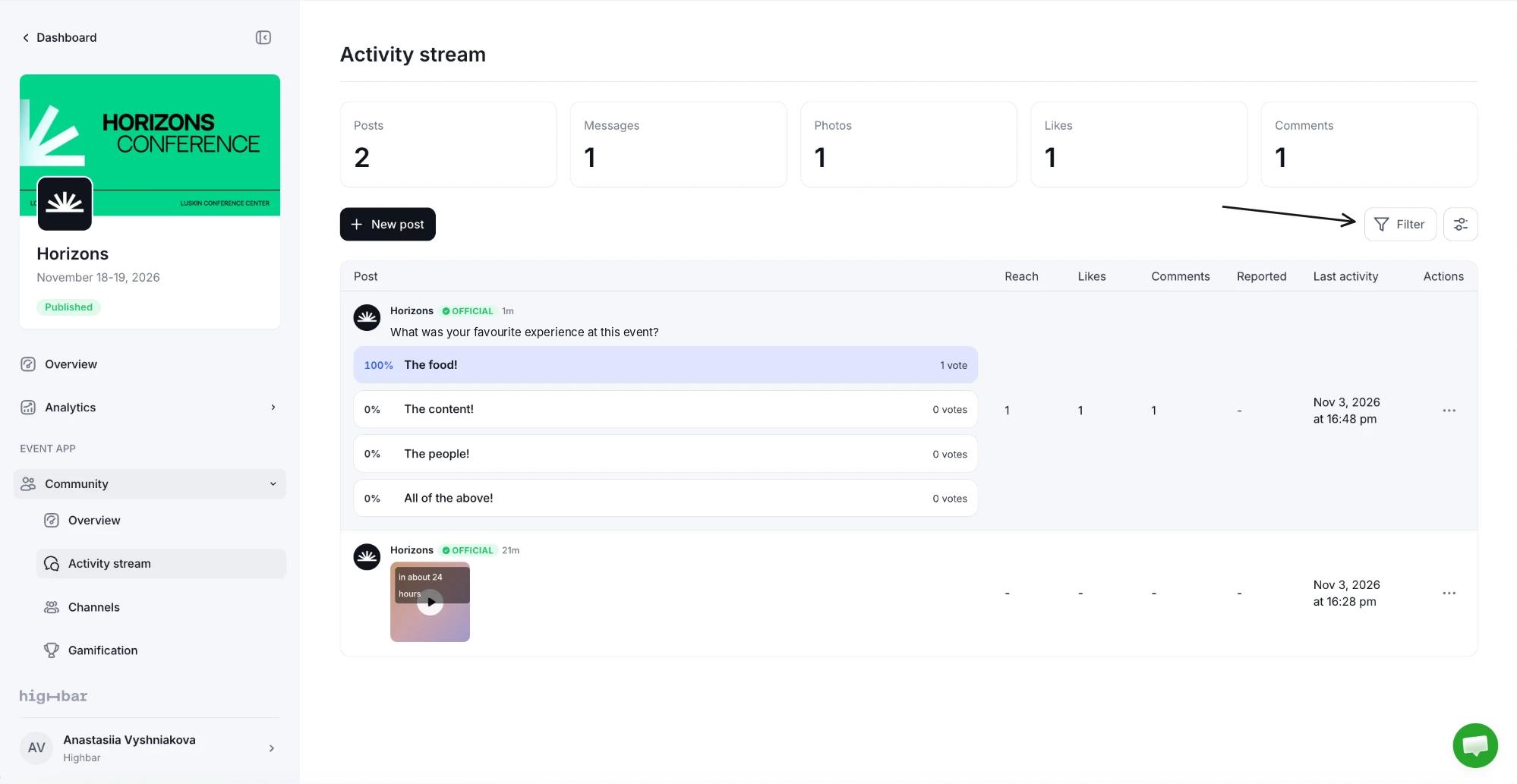
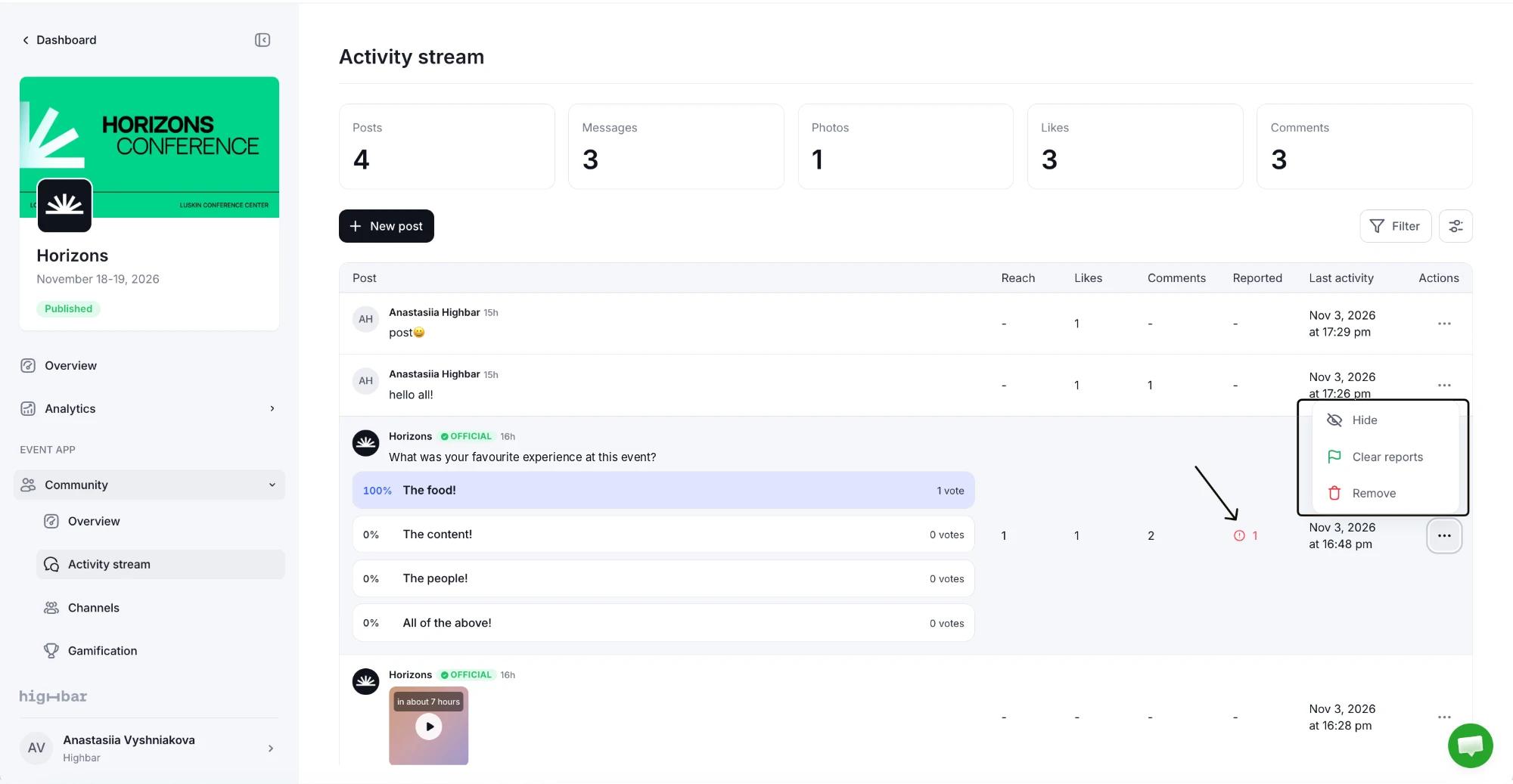
The table lists every post with its Reach (views), Likes, Comments and Reported count. Use Filter to show posts by Status (Active, Reported or Hidden) or by Type.
For a poll, the table also shows each answer's share of the votes.
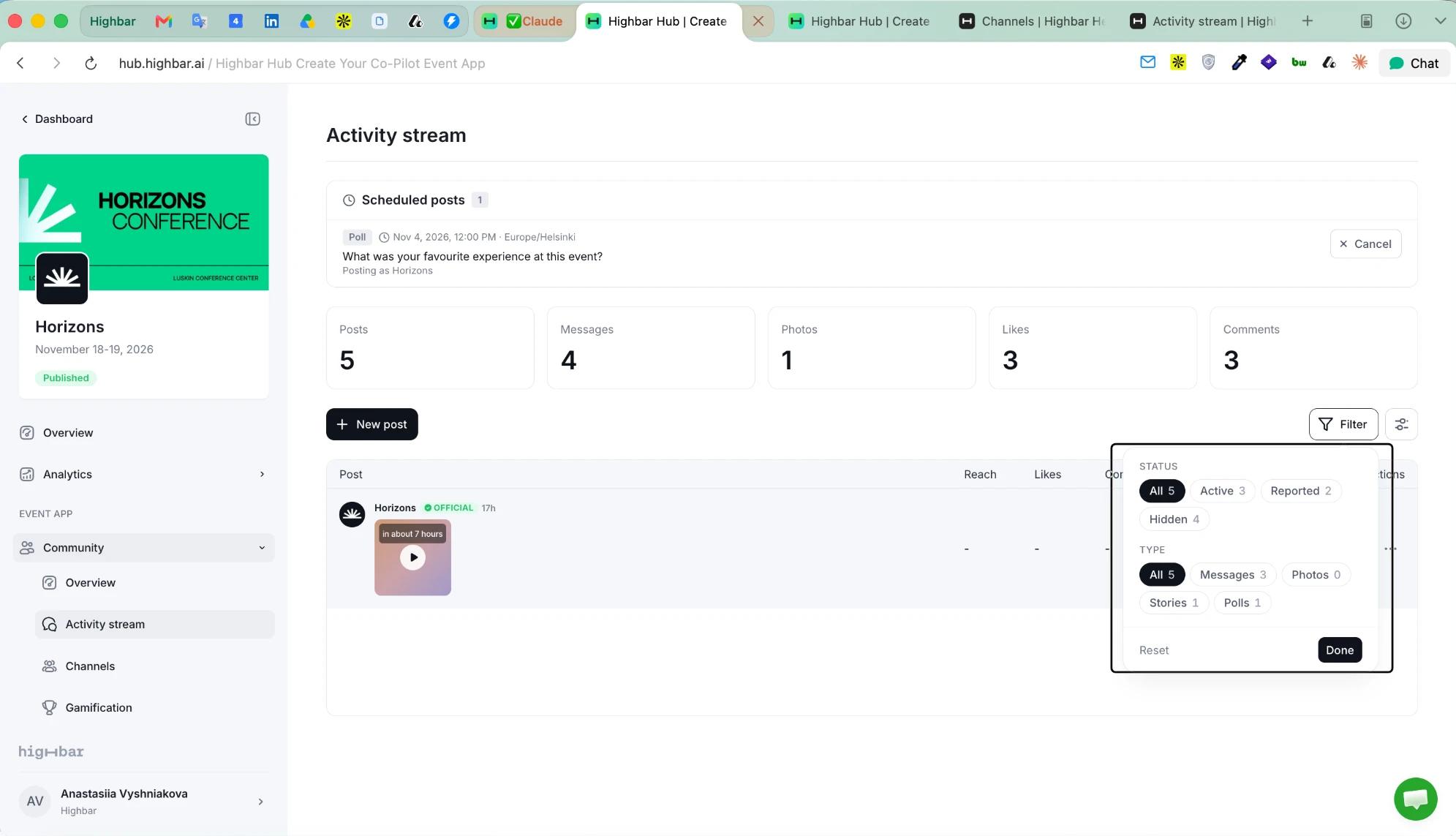
Under Filter, pick a Status and a Type (All, Messages, Photos, Stories or Polls), then click Done. Reset clears both. For status, Active shows posts from the last 24 hours that have a like or comment, Reported shows posts attendees reported, and Hidden shows posts you've hidden.
From a post's menu:
- Hide takes it out of the feed but keeps it, so you can Show it again. Hidden posts only appear under the Hidden filter.
- Clear reports keeps the post and clears attendees' reports.
- Remove deletes it. You can Undo for a few seconds afterwards.
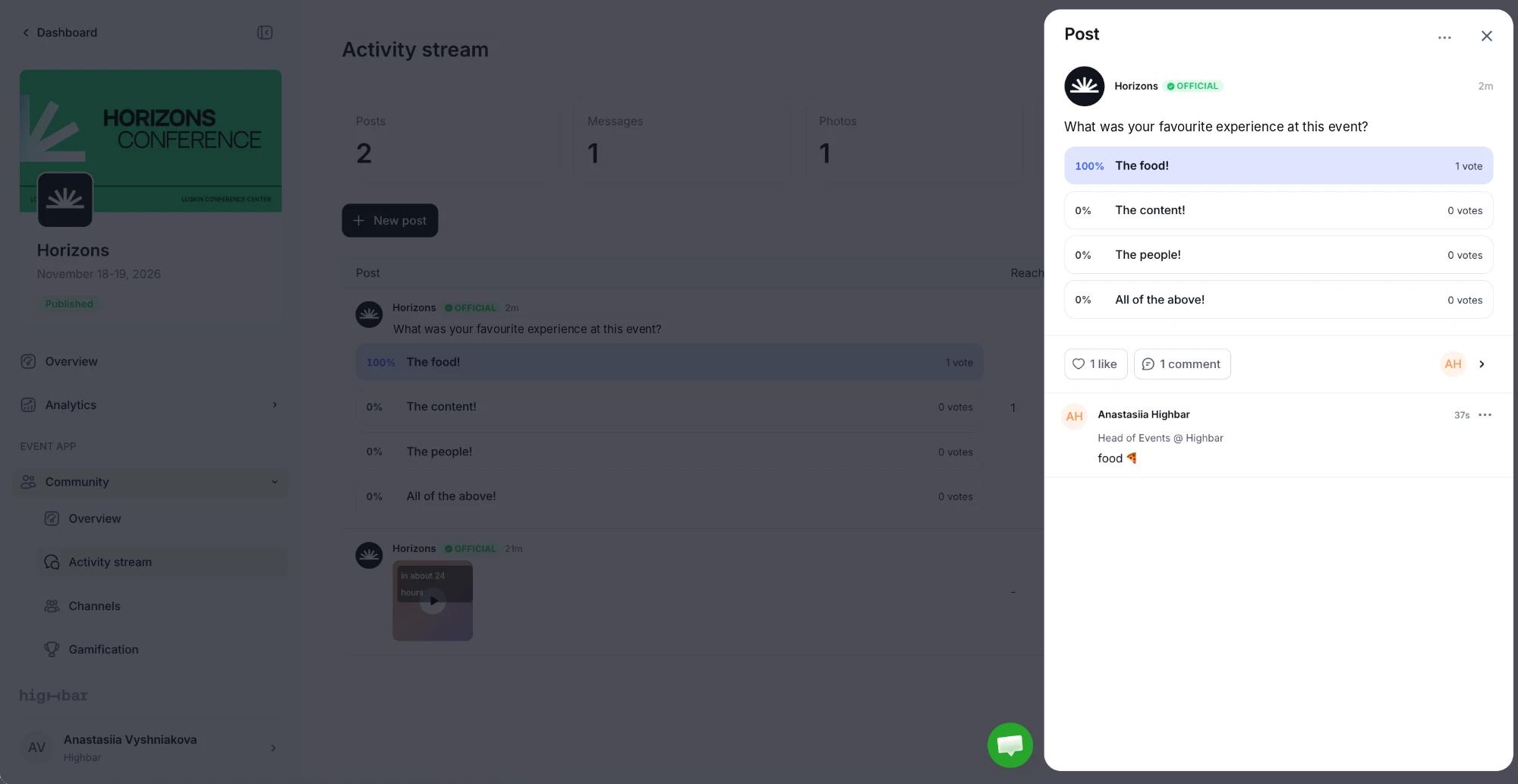
Click a post to read it in full, see who liked it, and like or comment as the event organizer.
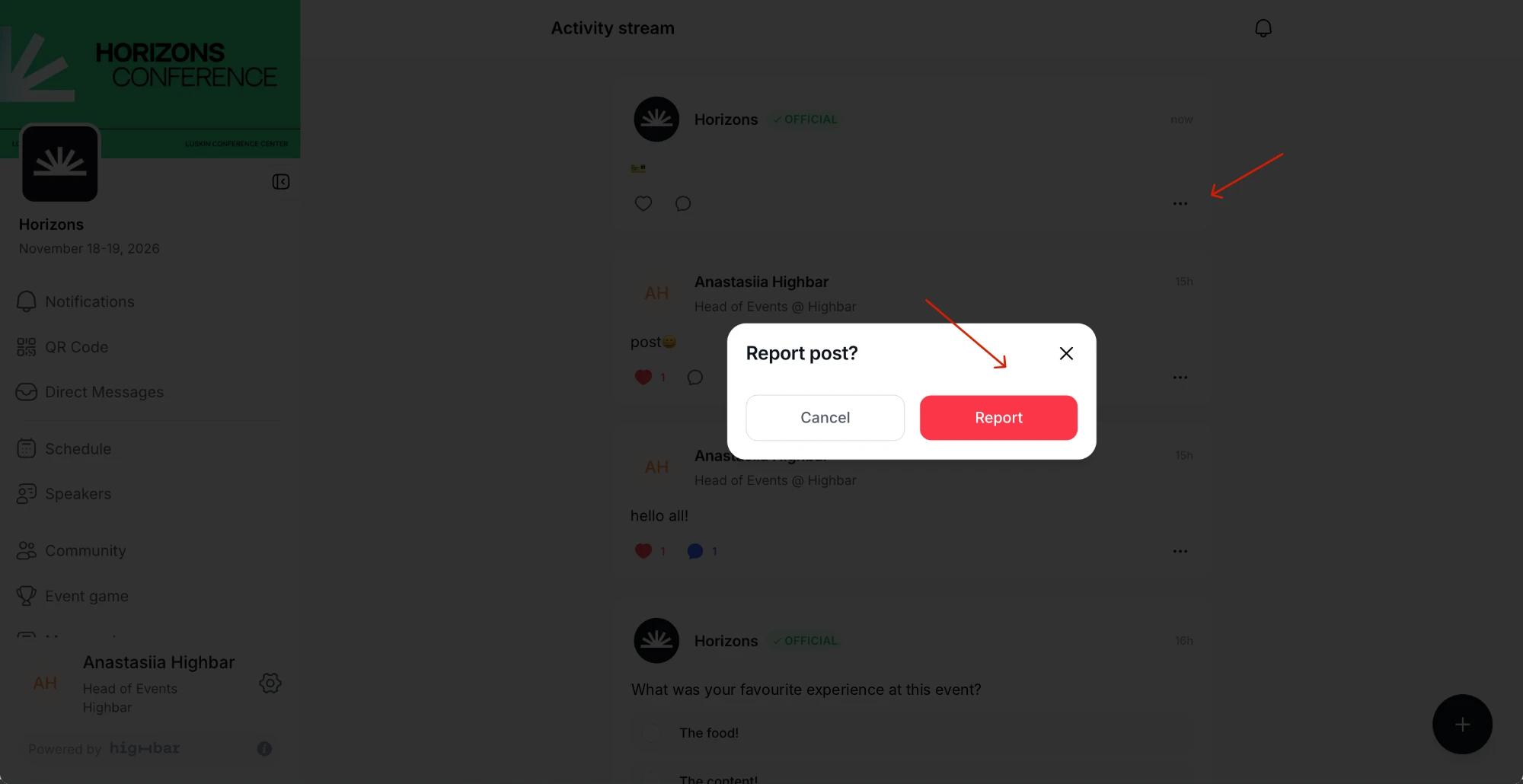
Attendees report a post in the app by tapping its ... menu, then Report, and confirming under Report post?. The menu then shows Reported for that post. Reported posts also appear under Needs attention on the Community overview.