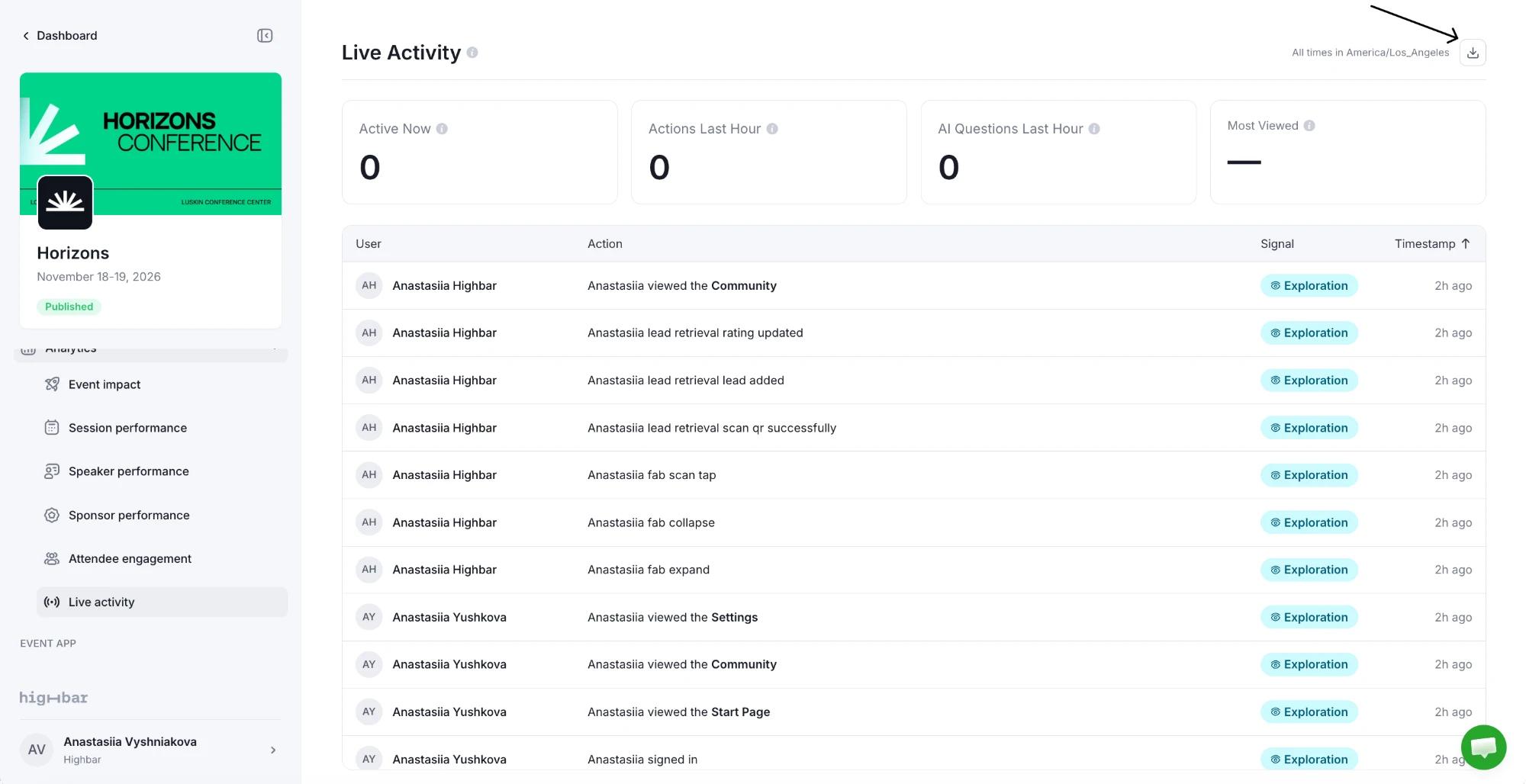
Live activity
See what attendees are doing in the event app right now, with a feed of recent actions you can download.
Live activity shows what attendees have been doing in the event app in the last hour, and a feed of their latest actions. Use it during the event to see what's drawing people in.
You'll find Live activity in the event sidebar after launch, under Analytics. The page shows activity as of when you opened it: reload it to see new actions. Times are in your event's time zone.
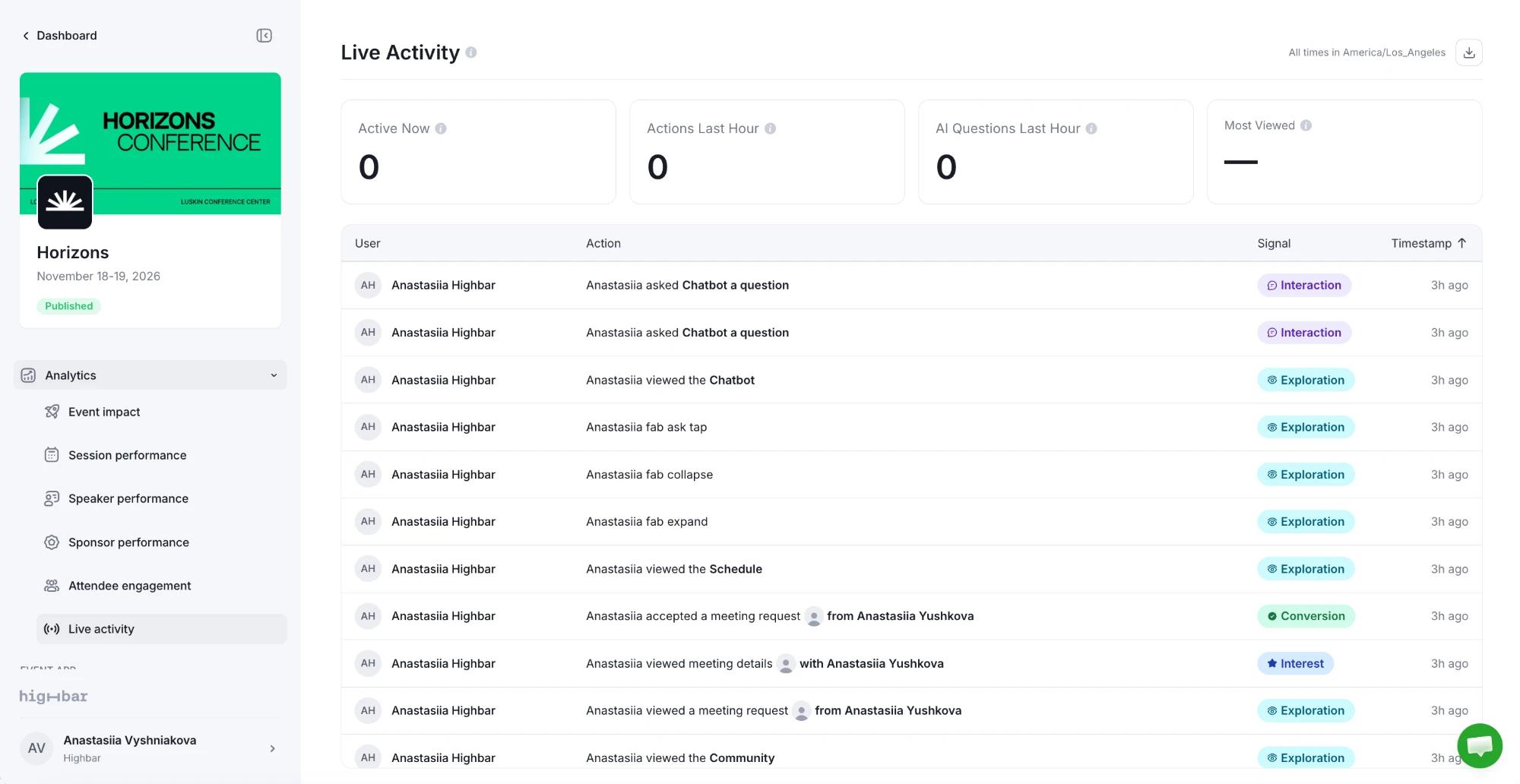
The numbers at the top
| Card | What it shows |
|---|---|
| Active Now | Attendees who did something in the app in the last 30 minutes. |
| Actions Last Hour | Everything attendees did in the last 60 minutes. |
| AI Questions Last Hour | Questions asked of the AI Concierge, including taps on suggested questions. |
| Most Viewed | The most visited part of the app in the last 60 minutes. For a session, speaker or sponsor, it names the one that was viewed most. |
The feed
The feed lists the latest 200 actions, newest first: who did it, what they did (such as viewing a session, bookmarking a speaker, scanning a sponsor's booth code or rating a session) and when.
The Signal column shows how much each action says about the attendee's intent, from weakest to strongest:
| Signal | What it means | Examples |
|---|---|---|
| Exploration | Finding their way around the app, without showing interest in anything in particular. | Signing in, opening a page such as the Schedule or Community, searching, filtering the schedule, seeing a sponsored post. |
| Interest | Paying attention to a specific session, speaker, sponsor or person. | Opening a session, a speaker's or sponsor's profile or another attendee's profile, bookmarking something, opening a meeting's details. |
| Interaction | Actively taking part in the app. | Asking the AI Concierge a question, sending a chat message, completing their profile, rating a session, using AI matches, scanning a session or speaker QR code. |
| Conversion | An outcome that matters to a sponsor or to networking. | Clicking a sponsor's call to action, product, media or social links, downloading an attachment, requesting a demo, scanning a sponsor's booth QR code, sending, accepting or countering a meeting request. |
Use it to spot which attendees are just browsing and which are acting, for example to show a sponsor who scanned their booth or clicked their links.
Download
Click the download button at the top right to export the full feed as a CSV, up to 25,000 actions, newest first.