Swoogo
Connect a Swoogo event to bring its registrants, sessions, speakers, sponsors, tracks and locations into your event app and keep them in sync.
If your event's registration runs on Swoogo, connect it instead of exporting spreadsheets. Highbar imports everything once, then keeps it up to date as things change in Swoogo. It only reads from Swoogo: Highbar never changes anything there.
What it brings in
| From Swoogo | In Highbar |
|---|---|
| Registrants, in the statuses and pass types you choose | Your attendee list |
| Sessions, with their tracks and locations | A schedule section |
| Speakers, with their photos | A speakers section, linked to their sessions |
| Sponsors, with their logos and levels | A sponsors section, grouped by level |
Swoogo tells Highbar about changes as they happen, so new registrations and content edits usually appear within a minute or two.
Before you start
You need a Swoogo API Key and API Secret. Find them in Swoogo under My Profile › API Credentials. The API user needs access to the event you want to connect.
Connect your Swoogo event
Open Integrations from the Content or Access page (see Integrations), then pick Swoogo.
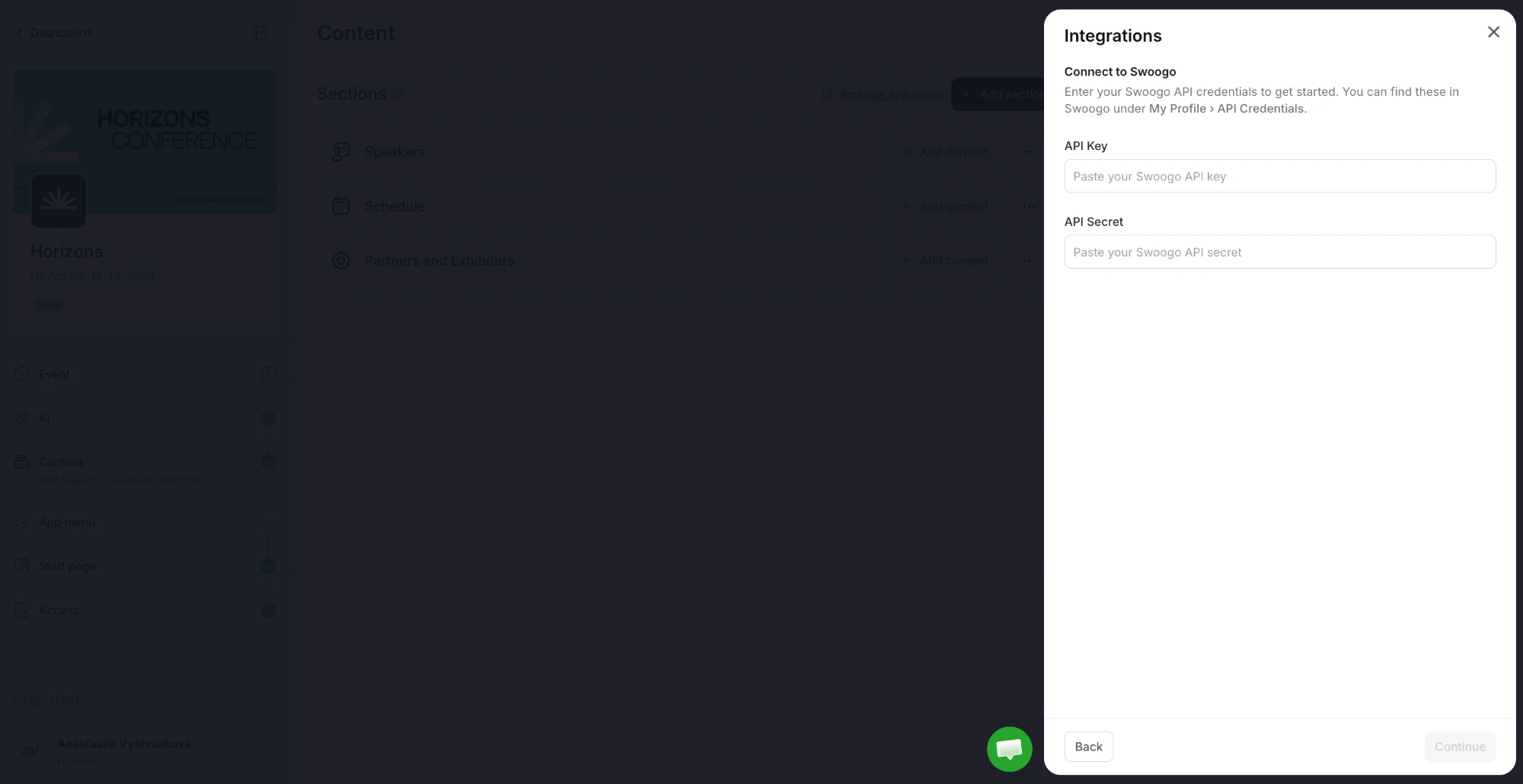
Paste the API Key and API Secret, then click Continue. Highbar checks them before moving on.
Choose the Swoogo event. Highbar counts its registrants and content.
Choose who gets access and where content goes (below).
Click Import & Connect and keep the panel open while Highbar imports. It shows each part's progress as it comes in.
If you cancel during the import, the attendees it added are removed again. People already on your list stay, and so do the sessions, speakers and sponsors imported so far.
Who gets access
Leave Attendees on to import registrants to the attendee list.
Registration status. Tick the statuses that get access. The table shows how many registrants each one has, and To import shows the total. Confirmed and Attended are ticked by default. Incomplete and In progress show Not importable, because Swoogo leaves unfinished registrations out of its registrant list.
Pass types. To keep some pass types out of the app, click Filter by pass type. Under Restrict specific pass types, untick the types to leave out. With access shows how many registrants that leaves.
- Registrants with no pass type always get access.
- Pass types added in Swoogo later get access until you untick them.
Where content goes
For Sessions, Speakers and Sponsors, choose Create new section, Add to: an existing section, or Don't import. Each row shows how many Highbar found in Swoogo. Tracks and locations come with sessions.
If your event already has a section of that type, Create new section adds to it instead of creating another.
Keeping it in sync
- Auto-sync attendees keeps registrants up to date as they change in Swoogo.
- Auto-refresh content keeps sessions, speakers and sponsors up to date, including ones added later.
Both are on by default. Leave them on: Auto-refresh content and where content goes can only be set here, not after you connect. To change them later, disconnect and connect again.
What's imported
Attendees
Email, first name, last name, company, job title, phone and X profile. When a registration leaves a field empty, Highbar uses the Swoogo contact's. Profile photos aren't imported.
Registrants without a valid email address are skipped. Two registrations with the same email become one attendee.
When someone's registration moves to a status or pass type you don't import (for example, they cancel), they're removed from the attendee list. People who have already joined the app, people you added yourself, and anyone with another registration you import stay.
If a sync would remove more than 50 people and more than a quarter of a batch at once, it removes nobody and shows a warning. Check your registration statuses before you click Sync now.
Once an attendee has joined the app and completed their profile, Swoogo no longer changes it.
Sessions
Title, description, date, start and end times, capacity, webinar link (as the session's stream), location, track and speakers.
- Sessions with a live status in Swoogo are shown. Submitted, approved, rejected and converted sessions are imported hidden.
- A session with no end time gets one hour. A session with no date is placed at your event's start.
- Times follow your event's timezone. A session set to its own timezone in Swoogo is converted.
Speakers
First and last name, email, company, job title, bio, website, LinkedIn and X profiles, and photo.
Sponsors
Name, description, website, link and level. Each Swoogo level becomes a sponsor tier, and a new sponsors section is ordered by level.
Speaker photos and sponsor logos come in with the first import. Later changes to them in Swoogo aren't picked up, so update them in Highbar.
Manage the connection
Once connected, Integrations shows your Active Integration. Click Manage to see the Swoogo event, how many attendees are synced, and when it Last synced. From there:
- Click Sync now to sync straight away instead of waiting.
- Turn Auto-sync off to pause syncing, and back on to resume. Turning it on syncs straight away to catch up.
- Click Change next to the registration statuses or the pass types.
Changing who gets access
When you change statuses or pass types, Highbar shows how many attendees will be added or removed before you save. If anyone will be removed, it asks you to confirm with Remove or Save, or go back with Keep editing.
Unticking removes people straight away. Attendees who have joined the app and people added outside Swoogo always stay.
Editing synced content
A field you edit in Highbar is kept, and that field stops updating from Swoogo. Change it back to Swoogo's value and it follows Swoogo again. Tracks and speakers you attach to a session yourself are kept too.
Attendee profiles work differently: Swoogo keeps updating them until the attendee joins the app and completes their profile.
A session, speaker or sponsor deleted in Swoogo is hidden in your app, not deleted. This needs Auto-sync and Auto-refresh content on.
Removed attendees
If you remove someone from the attendee list but they still have a status and pass type you import, they come back the next time their registration changes in Swoogo. To keep someone out, change their registration in Swoogo, or change which statuses or pass types you import.
Disconnect
In the Swoogo panel, click Disconnect integration, then Disconnect. Syncing stops, and the attendees and content already synced stay in your event.
If you connect again later, you choose statuses and pass types again from the start.
Troubleshooting
Why does the attendee count differ from Swoogo?
Highbar only counts registrants in the statuses and pass types you import, with a valid email address. Two registrations with the same email are one attendee. Check Change next to the statuses and pass types in the Swoogo panel, then compare like with like.
Why are new registrations not showing up?
Check that Auto-sync is on in the Swoogo panel. If Swoogo was down or limited Highbar's requests, the panel shows a note and Highbar retries by itself. Click Sync now to catch up straight away.
Why are some sessions hidden?
Only sessions with a live status in Swoogo are shown in the app. Sessions that are still submitted or approved come in hidden. Set them to live in Swoogo, or show them in Highbar.
Why didn't a new speaker photo or sponsor logo come through?
Photos and logos are copied with the first import only. Upload the new one in Highbar.
What does Synced with warnings mean?
The sync finished but skipped something: records with an invalid email address, content Highbar couldn't read, or removals held back because too many happened at once. The note says which. Fix the records in Swoogo, or check your registration statuses, then click Sync now.
What does the Error badge mean?
A sync failed and syncing has stopped. The panel shows why. Fix the cause, then click Sync now to resume. If your API credentials changed, disconnect and connect again with the new ones.