Sessionize
Connect a Sessionize event to bring its sessions, speakers, rooms and categories into your event app and keep the schedule in sync.
If you run your call for papers and agenda in Sessionize, connect it instead of copying sessions by hand. Highbar imports your schedule once, then checks Sessionize for changes every 10 minutes. It only reads from Sessionize: Highbar never changes anything there.
Sessionize has no attendees or sponsors, so add those another way (see Other ways to bring data in).
What it brings in
| From Sessionize | In Highbar |
|---|---|
| Scheduled sessions | A schedule section |
| Speakers, with their photos | A speakers section, linked to their sessions |
| Rooms | Event locations |
| Categories | Tracks, session types, levels or languages, as you choose |
Changes in Sessionize reach your app within about 15 minutes: Highbar checks every 10 minutes, and Sessionize refreshes its feed every 5.
Before you start
Set your event's timezone. Highbar reads Sessionize times as local times in your event's timezone. Check it in Event details before you connect, or every session lands at the wrong hour.
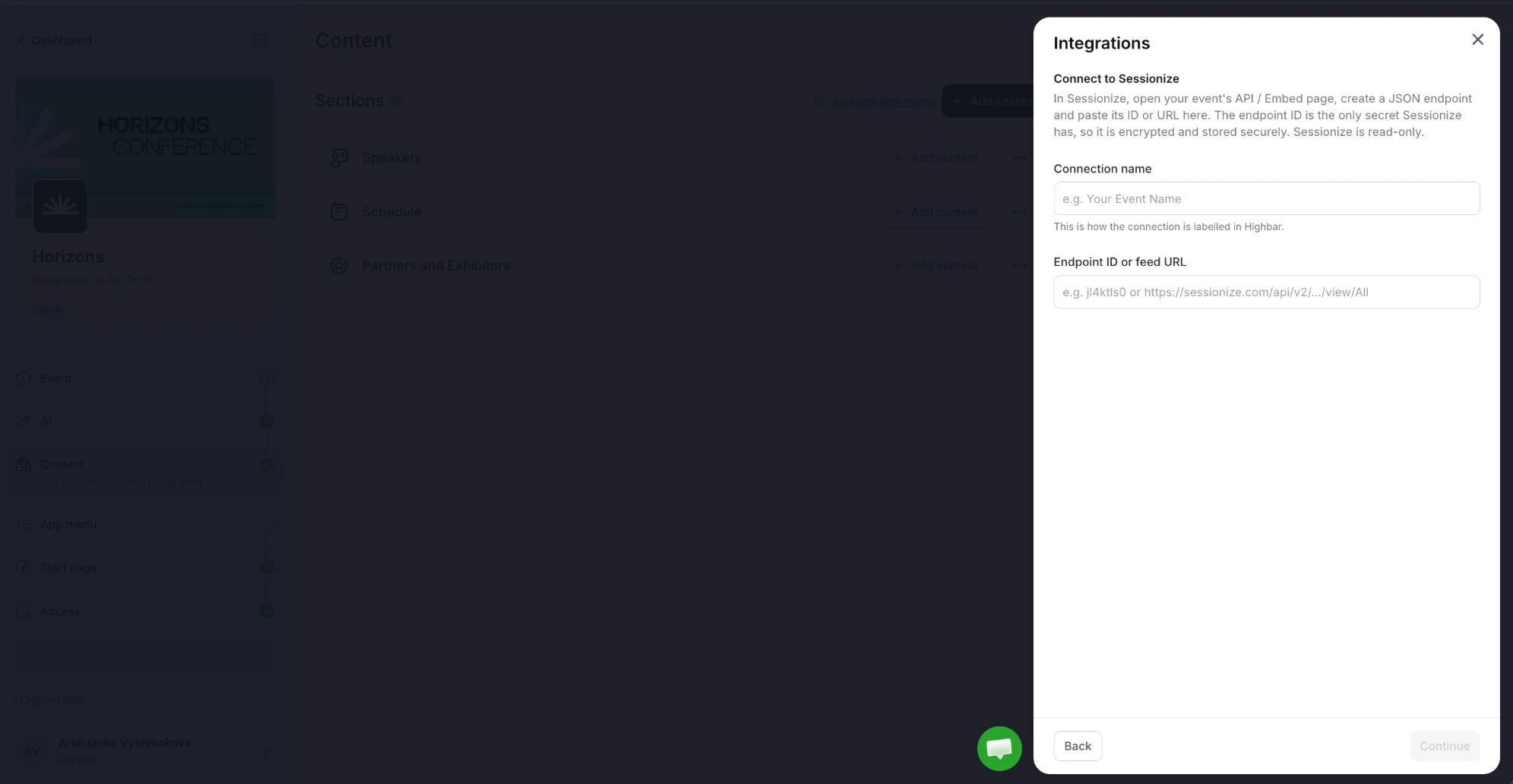
Create a JSON endpoint in Sessionize. In Sessionize, open your event's API / Embed page and create an endpoint with the JSON format. Copy its ID (for example jl4ktls0) or its full URL.
If your event uses tracks, formats or levels, turn those categories on in the endpoint's settings in Sessionize, so they're in the feed.
Connect your Sessionize event
Open Integrations from the Content or Access page (see Integrations), then pick Sessionize.
Enter a Connection name, such as your event name, and paste the Endpoint ID or feed URL. Click Continue. Highbar reads the feed before moving on.
Under Choose what to import, check the summary of sessions, speakers, rooms and days found in the feed. Then choose where content goes and what each category becomes (below).
Click Import & Connect and keep the panel open while Highbar imports. It shows the progress of speaker photos, rooms, speakers and sessions.
If you cancel during the import, the connection isn't saved. Content imported so far stays in your event.
Where content goes
For Sessions and Speakers, choose Create new section, Add to: an existing section, or Don't import. If your event already has a schedule or speakers section, Highbar suggests it.
Categories
Sessionize categories are free-form, so you choose what each one becomes in Highbar:
| Option | What it does |
|---|---|
| Tracks | Each value becomes a track. A session can have several. |
| Session types | The value becomes the session's type. Only the first value is used. |
| Level | Each value becomes a level. A session can have several. |
| Language (subtitle) | The values are shown in the session's subtitle. |
| Not imported (tags) or Not imported | The category is left out. |
Highbar suggests an option from each category's name: a category called "Track" or "Topic" becomes Tracks, "Format" becomes Session types, and so on. Speaker categories are never imported.
You can't change these choices after you connect. To change them, disconnect and connect again.
Keeping it in sync
Auto-sync content checks Sessionize every 10 minutes. It's on by default.
What's imported
Sessions
Title, description, start and end times, room (as a location), speakers in their order, and the categories you mapped. Sessionize's live stream link becomes the session's stream, or a Livestream link if it can't be embedded, and its recording link becomes a Recording link.
Service sessions, such as breaks, get the session type Break. Plenum sessions are marked Plenary.
Sessions without a time yet are held back, and so are speakers who only present those sessions. Setup tells you how many, and they're imported once you schedule them in Sessionize. A session that loses its time after it's imported keeps the time it had.
Speakers
First and last name, bio, photo, and social links (X, LinkedIn, Facebook, Instagram, YouTube and TikTok). The speaker's tagline goes into their Position, and a company or blog link fills Website. Speakers with no sessions aren't imported.
Not imported
Attendees, sponsors, event dates, speaker categories, featured ("top") speakers, and answers to custom questions.
Manage the connection
Once connected, Integrations shows the connection name, the endpoint (partly hidden), how many sessions, speakers, tracks, session types, levels and locations are synced, how many sessions are Waiting for a time, and when it Last synced. From there:
- Click Sync now to sync straight away instead of waiting.
- Turn Auto-sync content off to pause syncing, and back on to resume.
- Turn Keep Highbar edits off to make Sessionize the source of truth (see below).
Editing synced content
With Keep Highbar edits on (the default), a field you edit in Highbar stops following Sessionize, and everything else keeps updating.
Turn it off to make Sessionize the source of truth. Highbar re-imports straight away and rewrites every synced field, and does so at every sync after that.
Speakers you attach by hand, tracks you add yourself and content you create in Highbar are never touched. If you created a session or speaker before connecting, Highbar links it instead of adding a duplicate: a session with the same title and start time, or a speaker with the same first and last name, in the section you import into. It only fills fields you left empty.
A session or speaker removed in Sessionize is hidden in your app, not deleted, and comes back if it reappears. Something you delete in Highbar comes back at the next sync while it's still in Sessionize, so hide it instead.
When a sync stops: Needs attention
Highbar stops a sync, and changes nothing, if it would empty or mostly empty your schedule:
- the feed has no sessions,
- more than 30% of your imported sessions are gone (once 10 or more are imported), or
- more than half of them have lost their time, which usually means Schedule announced was switched off in Sessionize.
The panel shows Needs attention and explains what happened. Fix it in Sessionize and the next sync runs as normal. If the change was intended, click Apply anyway.
Needs attention also appears after any failed sync, and when the section a sync writes to has been deleted. In that case, choose where the sessions or speakers should go and click Save and sync.
Disconnect
In the Sessionize panel, click Disconnect integration, then Disconnect. Syncing stops, and the content already synced stays in your event. If you connect the same event again later, Highbar picks up the sessions and speakers it imported before.
Troubleshooting
Why does Highbar say it didn't find my Sessionize endpoint?
Check the endpoint ID on the API / Embed page in Sessionize, and that the endpoint still exists. Use the JSON endpoint: other formats, such as the embed code, don't work.
Why are my session times wrong?
Highbar reads Sessionize times as local to your event's timezone. Set the right timezone in Event details, then click Sync now.
Why are some sessions missing?
Sessions without a time in Sessionize are held back until you schedule them. The panel shows how many under Waiting for a time. Also check that you didn't choose Don't import for sessions.
Why are there no tracks or session types?
The feed only carries the categories turned on for the endpoint in Sessionize. Turn them on there, then disconnect and connect again to map them.
How long do changes in Sessionize take to show up?
About 15 minutes. Highbar checks every 10 minutes, and Sessionize refreshes its feed every 5. Click Sync now to check straight away.