Cvent
Connect a Cvent event to bring its registrants, session sign-ups, sessions, speakers, sponsors and exhibitors into your event app and keep them in sync.
If your event's registration runs on Cvent, connect it instead of exporting spreadsheets. Highbar imports everything once, then keeps it up to date in the background. It only reads from Cvent: Highbar never changes anything there.
What it brings in
| From Cvent | In Highbar | How often |
|---|---|---|
| Registrants | Your attendee list | Every 15 minutes |
| Session sign-ups | Each session's roster, read-only | With every attendee sync |
| Sessions, with their tracks and rooms | A schedule section | Every hour |
| Speakers, with their photos | A speakers section | Every hour |
| Sponsors and exhibitors | Two sponsors sections | Every hour |
| Booth staff | Lead retrieval access | Once a day |
With Cvent webhooks set up, changes arrive within a minute instead.
Before you start: create a Cvent API application
Highbar connects through an API application in your Cvent account. Your Cvent admin creates it once, and you need its client ID and client secret.
In Cvent, open Admin › Integrations › REST API and create a workspace for Highbar, with the scopes in the table below.
Sign in to the Cvent Developer Portal, create a Machine to Machine application in that workspace, and give it the same scopes.
Copy the application's client ID and client secret, and note which region your Cvent account is in: North America or Europe.
Turn on the application's Termination Protection if Cvent offers it. Deleting the application stops the integration.
Scopes
Two scopes are required. Each of the others adds one part of the sync. Without it, that part waits and everything else still syncs.
| Scope | What it adds |
|---|---|
event/events:read | Required: your Cvent events |
event/attendees:read | Required: your registrants |
event/registration-types:read | Registration types, to choose which types get access and to tag attendees |
event/session-enrollment:read | Session sign-ups |
event/sessions:read | Sessions, with their tracks and rooms |
event/speakers:read | Speakers and their photos |
exhibitor/exhibitors:read | Sponsors and exhibitors |
exhibitor/sponsorship-levels:read | Sponsorship levels |
exhibitor/exhibitor-categories:read | Exhibitor categories, as badges |
exhibitor/booth-staff:read | Booth staff, for lead retrieval |
Speakers are linked to their sessions when the application has both event/sessions:read and event/speakers:read.
Connect your Cvent event
Open Integrations from the Content or Access page (see Integrations), then pick Cvent.
Choose your Region, enter the Client ID and Client secret, then click Continue.
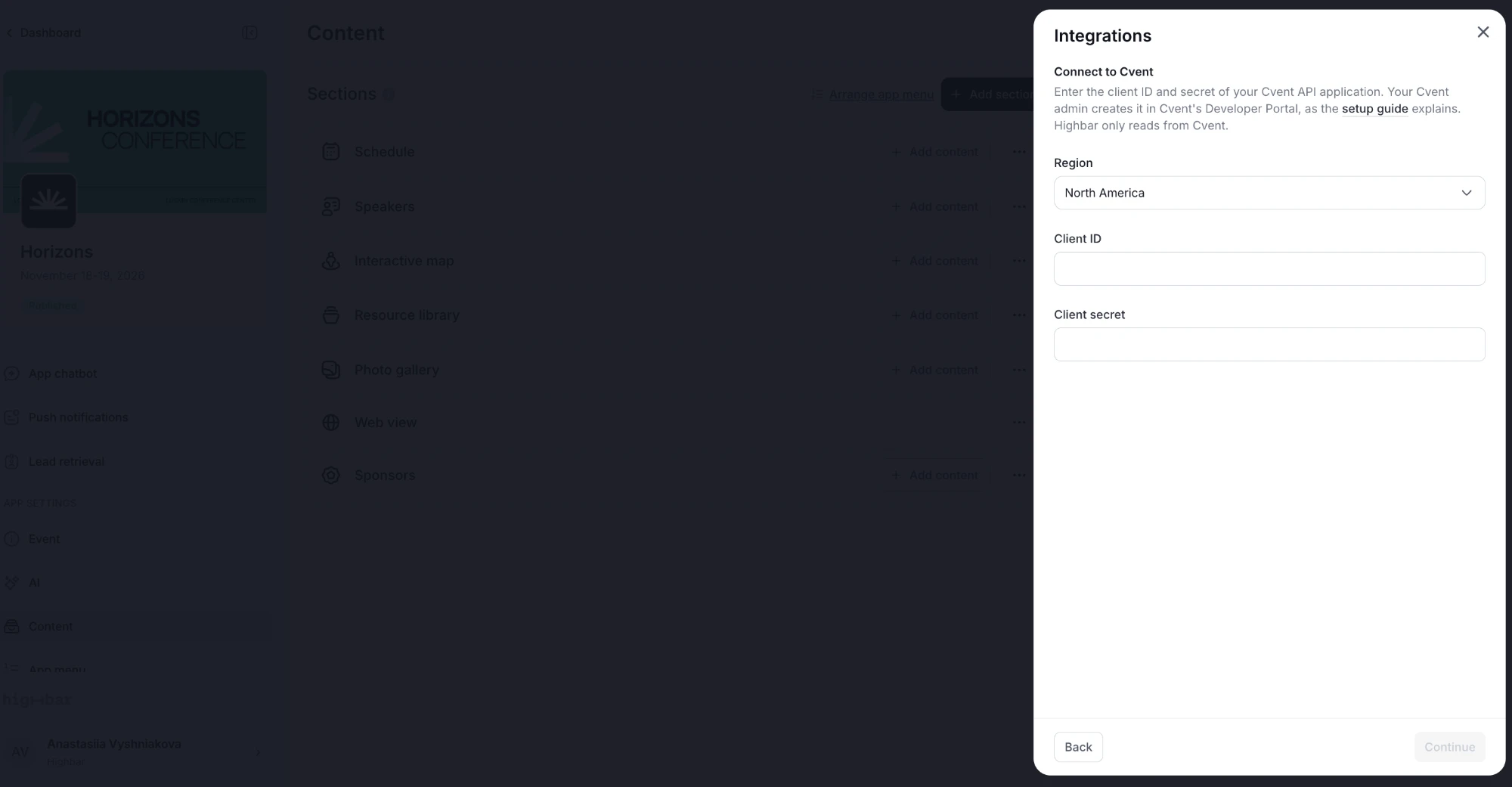
Choose the Cvent event. Upcoming events come first, soonest at the top, then past events.
Choose who gets access and where content goes (below).
Click Import & Connect and keep the panel open while Highbar imports. It shows each part's progress as it comes in.
If the application is missing a scope this event would use, a warning above Cvent event names what it can't access and the scope to add. You can still connect. Add the scope in the Cvent Developer Portal, then click Sync now to bring that part in.
If you cancel during the import, the connection isn't saved. Attendees and content imported so far stay in your event.
Who gets access
- Registration statuses: registrants in the checked statuses get access. Accepted, a completed registration, is checked by default.
- Registration types: uncheck a type to leave its registrants off the attendee list. Until the application has
event/registration-types:read, everyone in the checked statuses gets access. - Tag attendees with their registration type: adds a tag like
vip-pass, so you can target content and access by type. On by default. - Include guests: adds the guests a registrant brought, when they have their own email address. Off by default.
Registrants without an email address, test registrations and deleted contacts are always left out.
Where content goes
For Sessions, Speakers, Sponsors and Exhibitors, choose Create new section, Add to: an existing section, or Don't import. Sponsors and exhibitors can't share a section, because a company on both lists would show twice. A new section is created only once Cvent has something to put in it.
Keeping it in sync
Auto-sync attendees checks Cvent for registration changes every 15 minutes, and Auto-refresh content checks for changed content every hour. Both are on by default.
Edits you make in Highbar are kept: a field you change stops following Cvent. You can change this later with Keep Highbar edits (see Editing synced content).
What's imported
Attendees
Name, email, company, job title, LinkedIn and X profiles, and registration type. A registrant marked private in Cvent gets a hidden profile. Once someone joins the event app, Highbar stops updating their profile from Cvent.
When a registrant stops matching Who gets access (for example, they cancel in Cvent), the next sync removes them from the attendee list, unless they've already joined the app or you added them another way. If a sync would remove a lot of people at once, it holds back and the panel tells you how many no longer match. Click Re-import next to Re-import attendees to remove them.
People you remove from the attendee list yourself stay removed.
Sessions
Title, description, start and end times, capacity, room (as a location) and track (from the session's category in Cvent). Sessions that aren't shown on the agenda in Cvent, and cancelled sessions, are imported hidden.
Session times follow Cvent's timezone. If your event is set to a different timezone, the panel shows Timezone mismatch with a button to switch your event to Cvent's timezone, such as Switch to Mountain Time.
Speakers
Name, prefix, designation, email, company, job title, biography, LinkedIn, Facebook and X profiles, and photo, linked to the sessions they speak at. Cvent's internal notes on speakers are never imported.
Sponsors and exhibitors
Cvent keeps one list of companies. Companies marked as event sponsors go to your sponsors section, ordered by their sponsorship level. The rest go to your exhibitors section, along with sponsors that also exhibit.
Each company brings its name, description, booth, website, phone, headquarters, social links, logo and banner. Exhibitor categories become badges. Companies hidden in Cvent are imported hidden, and deleted, pending or rejected ones are left out.
Booth staff
Booth staff in Cvent who are on your attendee list can scan leads for their company when lead retrieval is on. They don't get an access email. Someone listed on two booths is connected to one company only.
Session sign-ups
Sessions that aren't included in every Cvent registration take sign-ups in Cvent. Highbar imports those sign-ups, and Cvent stays in charge of them:
- The session drawer shows Registration from Cvent with the session's capacity, read-only. Change sign-ups and capacity in Cvent.
- The Roster tab lists who's registered.
- In the event app, attendees see You're registered or Not registered on the session, and are told to sign up or make changes where they registered for the event. There's no button to register in the app.
Sign-ups come in only when you import sessions.
Not imported
Attendee photos, bios, phone numbers, registration answers and custom fields, session documents, and exhibitor files.
Manage the connection
Once connected, Integrations shows the Cvent event, how many of each item are synced and when it Last synced. From there:
- Click Sync now to sync straight away instead of waiting.
- Turn Auto-sync attendees or Auto-refresh content off to pause syncing, and back on to resume.
- Next to Who gets access, click Edit to change statuses, types, tags or guests, then Save and re-import.
- Click Re-import next to Re-import attendees to read every registrant again, not just recent changes.
- Click Re-import next to Re-import content to read all content again and hide what Cvent no longer lists.
- API plan shows your Cvent API plan and how many calls are left today. Cvent limits the calls your account can make each day. If the limit runs out, syncing pauses and a note says when it resumes.
- Click Update credentials if your Cvent admin replaces the application. The new credentials must have access to the same Cvent event.
Editing synced content
With Keep Highbar edits on (the default), a field you edit in Highbar stops following Cvent, and what you delete stays deleted.
Turn it off to make Cvent the source of truth: every refresh rewrites what Cvent manages and brings back what you deleted.
Sessions, speakers and companies you add yourself are left alone, unless they match one in Cvent (the same session title and start time, or the same speaker email or name). Then Highbar links them instead of adding a duplicate.
Something deleted in Cvent is hidden in your app, not deleted. That happens at the daily full refresh, or straight away when you click Re-import next to Re-import content.
Get changes within a minute
Cvent webhooks tell Highbar about changes as they happen, so new registrations, sign-ups and session changes appear within a minute. They're optional: without them, Highbar checks on its schedule.
In the Cvent panel, find the Cvent webhooks card and click Set up. The card shows an endpoint URL, a token and these steps for your Cvent admin:
In Cvent, open Admin › Integrations › Push API Integrations and create a Webhooks integration. It needs the Account Integrations admin right.
Use the endpoint URL from the card, and choose Token authentication with the token from the card.
Under Integration Points, add the ones the card lists.
In the Cvent event, open Integrations › Webhooks and add this configuration.
For session changes, turn on Sync this session with webhooks on each session.
Once Cvent sends its first change, the card shows when the last delivery arrived. Registration changes need Auto-sync attendees on, and session and speaker changes need Auto-refresh content on. Scheduled syncs keep running, so a missed delivery is picked up later.
If the token gets out, click Show setup, then Replace token, and paste the new token into Cvent. The old one stops working at once.
Disconnect
In the Cvent panel, click Disconnect integration, then Disconnect. Syncing stops, and the attendees and content already synced stay in your event.
Sessions whose sign-ups Cvent managed go back to Highbar's own registration, with their sign-ups as they stand. A session with a capacity keeps it, and a session with no limit has registration turned off. See Capacity and waitlists.
If your Cvent admin set up webhooks, ask them to remove the configuration from the Cvent event.
Troubleshooting
Why isn't my Cvent event in the list?
The list shows the events in the Cvent account the application belongs to, up to the 200 most recent. Check that Region matches your Cvent account. Deleted events aren't listed.
Why does the attendee count differ from Cvent?
Highbar only counts registrants who match Who gets access. Cvent's total may include other statuses, registration types you left out, guests, test registrations, deleted contacts or registrants without an email address. Check Who gets access in the Cvent panel, then compare like with like.
Why didn't sessions, speakers or sponsors come in?
Check that the application has the scope for them (see Scopes) and that you didn't choose Don't import for them. If the event has none in Cvent, the count stays at zero until it does.
Can attendees sign up for sessions in the app?
Not for sessions whose sign-ups Cvent manages. The app shows whether they're registered and tells them to sign up where they registered for the event. Their sign-up appears in the app after the next sync.
What does Timezone mismatch mean?
Your event is set to a different timezone from the Cvent event. Sessions come in at Cvent's local times, so the two should match. Click the Switch to button in the note to use Cvent's timezone, or change it yourself in Event details.
What happens when we reach Cvent's daily API limit?
Syncing pauses until Cvent resets the limit, and the panel says when it resumes. Your Cvent plan sets the limit. API plan in the panel shows how many calls are left today.
Integrations
Connect Lu.ma, Swoogo, Stova, Cvent, Sessionize or Xtag to bring attendees, sessions and speakers into your event app and keep them in sync.
Swoogo
Connect a Swoogo event to bring its registrants, sessions, speakers, sponsors, tracks and locations into your event app and keep them in sync.