Xtag
Connect an Xtag event to bring its registrations into your attendee list, track check-ins, and let the in-app scanner read Xtag badges.
If your registration and badge printing run on Xtag, connect it so registrants can log in to your event app without a spreadsheet in between. Highbar imports your registrations once, then checks Xtag for new ones every few minutes. It only reads from Xtag: Highbar never changes anything there.
What it brings in
| From Xtag | In Highbar |
|---|---|
| Registrations | Your attendee list, matched by email |
| Name, company and job title | Each attendee's profile, from the form fields you map |
| Check-ins | Counts in the Xtag panel |
| Badge QR codes | Codes the in-app scanner recognises |
Xtag doesn't hold sessions, speakers or sponsors. Add those another way (see Other ways to bring data in).
Before you start
You need the Xtag API Username and Password for your event. Ask your Xtag contact if you don't have them. You also need to know your event's timezone, because Xtag check-in times don't include one.
Connect your Xtag event
Open Integrations from the Content or Access page (see Integrations), then pick Xtag.
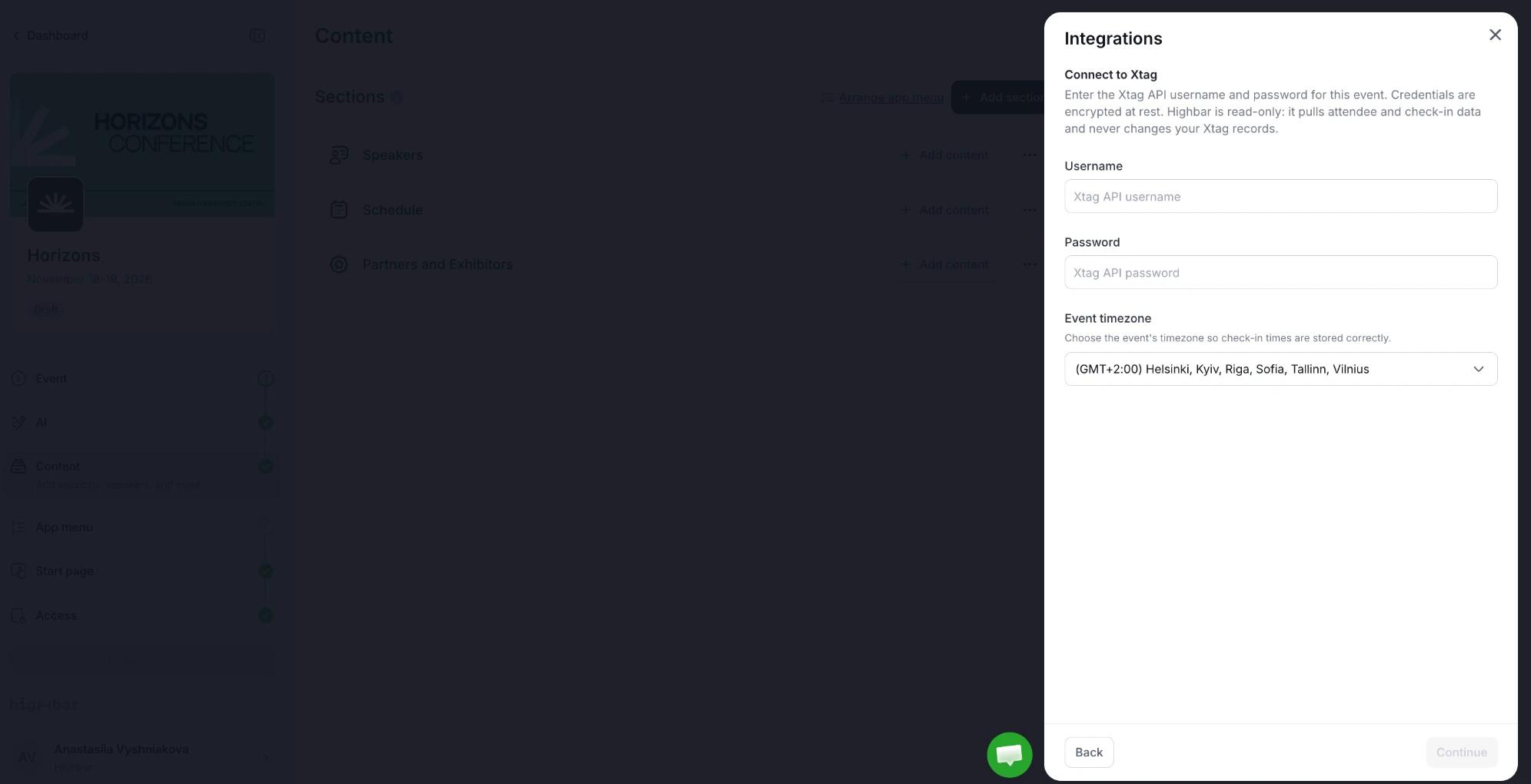
Enter the Username and Password, choose the Event timezone, then click Continue. Highbar checks the credentials before moving on.
Under Map your fields, match each Highbar field to a field on your Xtag form (below).
Click Connect Event and keep the panel open while Highbar imports. It shows how many entries it has read and how many attendees are synced.
You can't change the username, password or timezone after you connect. To change them, disconnect and connect again.
If you cancel during the import, the connection isn't saved. Attendees imported so far stay on your attendee list.
Map your fields
Match Email, First name, Last name, Company and Job title to fields on your Xtag form. Highbar suggests a match for each one from the field names, so check them rather than starting from scratch.
Email is required, because it's how attendees are matched. The others can stay Not mapped.
Click Preview mapping to check a sample before you connect. It shows the name, email and company of up to 10 recent registrants, and how many in the sample have no email address and will be skipped.
Badge QR code
If your badges are printed with Xtag's QR code, the in-app scanner can read them for contact exchange and lead retrieval. Badge QR code is set to Xtag badge QR code by default. You can also choose Xtag registration ID (the entry's own id) or a field on your form if that's what your badges carry.
If you print Highbar's QR codes on your badges instead, choose Not mapped.
Codes come in with every sync. You can also change this setting later in Access settings, under 3rd party QR codes (see Access).
What's imported
Attendees
Email, first name, last name, company and job title, from the fields you mapped. Nothing else on the Xtag form is imported. In the attendee list, the Edit attendee drawer shows an Xtag tag on people who came from Xtag.
Registrants without an email address, or with one that isn't valid, are skipped. The Xtag panel lists any that were.
When a registration changes in Xtag, the next sync updates the attendee's name, company and job title. An empty field in Xtag never blanks one in Highbar. Once an attendee has completed their profile in the event app, Xtag no longer changes it.
Check-ins
Highbar stores check-in times in your event's timezone. The Xtag panel shows how many new check-ins the last sync found. Check-ins don't appear on attendee profiles or in analytics.
Manage the connection
Once connected, Integrations shows the timezone, how many attendees and check-ins the last sync found, and when it Last synced. From there:
- Click Sync now to sync straight away instead of waiting.
- Turn Auto-sync off to pause syncing. Turning it back on syncs straight away to catch up.
- Next to Field mapping, click Edit to change your mapping or Badge QR code, then Save & sync.
Removed attendees
Under Removed attendees, choose what happens when you remove someone from the attendee list who's still registered in Xtag:
- Keep Highbar removals (the default): they stay removed. New registrations, edits and check-ins still come in. To bring someone back, use Add attendee on the Access page.
- Xtag is the source of truth: anyone still registered in Xtag is restored. Switching to this restores them straight away.
When the form changes: Needs attention
If someone removes, renames or changes the type of a mapped field on your Xtag form, the mapping no longer fits. Highbar stops syncing and shows Needs attention with a note naming the fields affected. Adding new fields to the form doesn't do this.
Click Review field mapping, check each field, then click Save & sync. Syncing resumes straight away.
Disconnect
In the Xtag panel, click Disconnect integration, then Disconnect. Syncing stops, and the attendees already synced stay on your attendee list.
Troubleshooting
Why can't Highbar connect to Xtag?
Check the username and password with your Xtag contact. They're the API credentials for this event, which may differ from your Xtag login.
Why are some Xtag registrants missing from the attendee list?
Registrants without a valid email address are skipped, and the Xtag panel lists them. Someone you removed from the attendee list also stays removed while Removed attendees is set to Keep Highbar removals.
Why did syncing stop with Needs attention?
A field you mapped was removed, renamed or changed on your Xtag form. Click Review field mapping, fix the mapping, then click Save & sync.
Why doesn't the scanner recognise our Xtag badges?
Check that Badge QR code in the Xtag panel's Field mapping matches what's printed on the badges, usually Xtag badge QR code. Codes come in with each sync, so click Sync now after changing it.